Enable Bank Feeds (Sage Business Cloud Accounting)
Bank Feeds is available for eligible Sage Business Cloud Accounting users. This guide covers eligibility requirements, how to install the product, and the steps for retrieving bank transactions.
Eligibility Requirements
To use Sage Business Cloud Accounting Bank Feeds, your organization have:
- An active subscription to Sage Business Cloud Accounting.
- Access to the Bank Reconciliation module within Sage Businesss Cloud Accounting.
Installation Overview
Registration is required in order to map your Sage Business Cloud Accounting bank accounts to your accounts that exist at your bank.
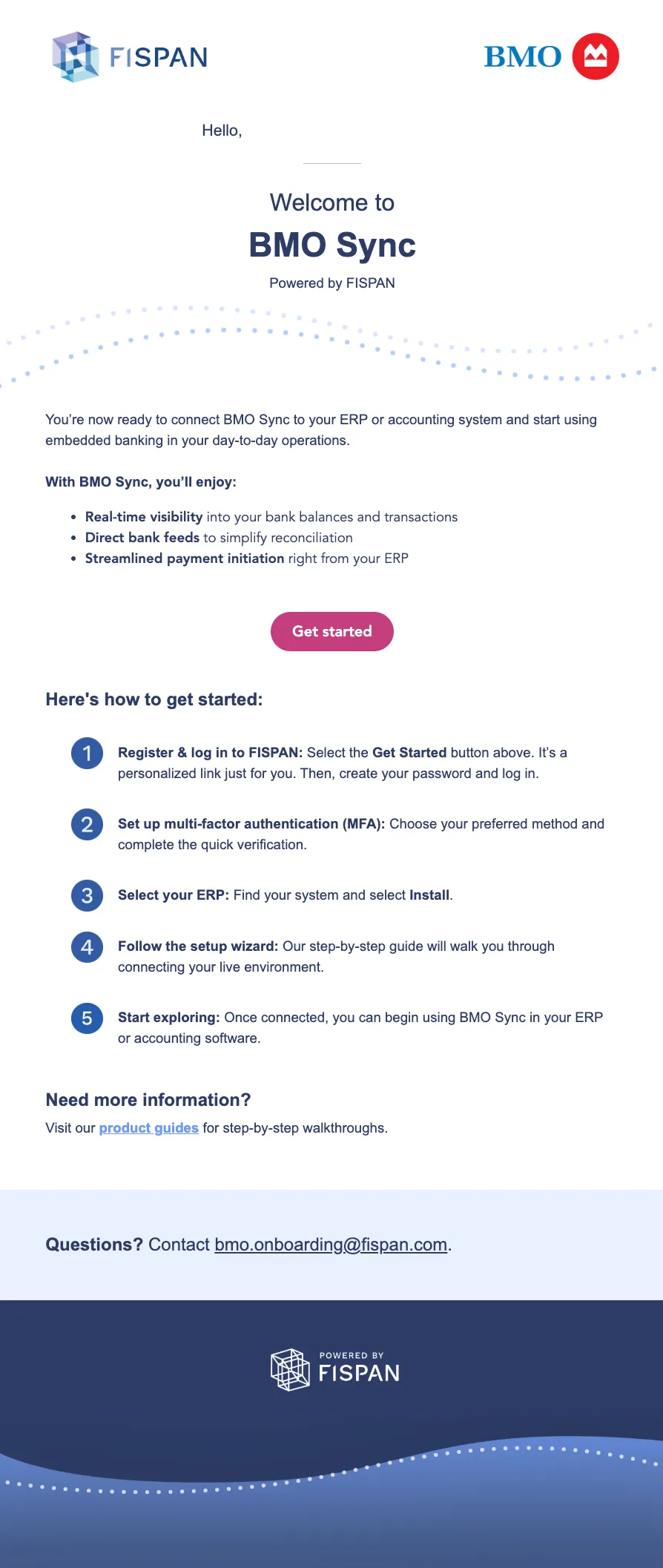
Keep an eye on your inbox for an invitation email from FISPAN, sent on behalf of BMO. This email contains links to install the BMO Sync plugin and access FISPAN Sync, along with easy-to-follow instructions for using both tools.
The invitation email will arrive with the following subject line:
Welcome to BMO Sync - Powered by FISPAN [Production] - [your-name]
Register & Login
Create an Account
In your invitation email, select the Get Started button. You will be brought to the FISPAN Portal. Create your login credentials and select Create Account.
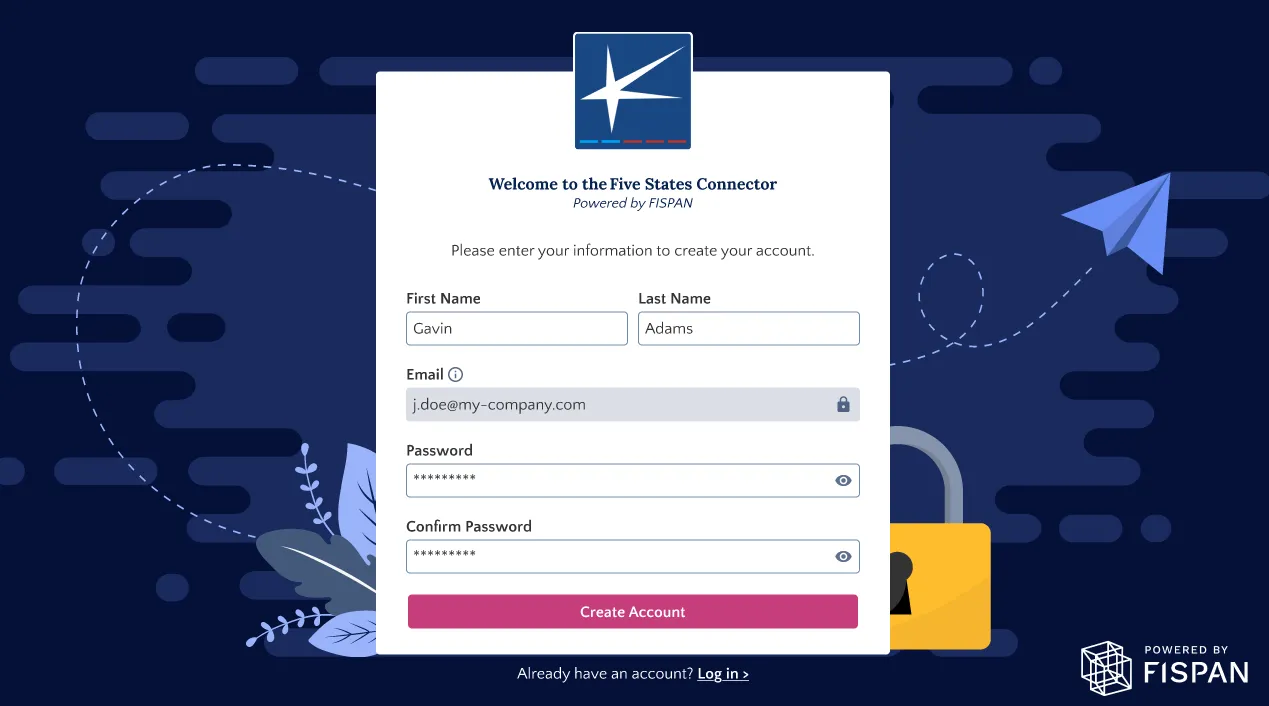
NOTE: The password you create here will be used every time you want to access the FISPAN Portal. If you need to update it later on, you have the option to use the Forgot Password option.
Login to Your Account
Once registered, you will be redirected to the login page. Your username and password are unique per environment, and you will have separate logins between Sandbox and Production.
NOTE: The Sandbox environment is used as a testing or UAT environment. For Sandbox users, please refer to the Sandbox Checklist for test scenarios.
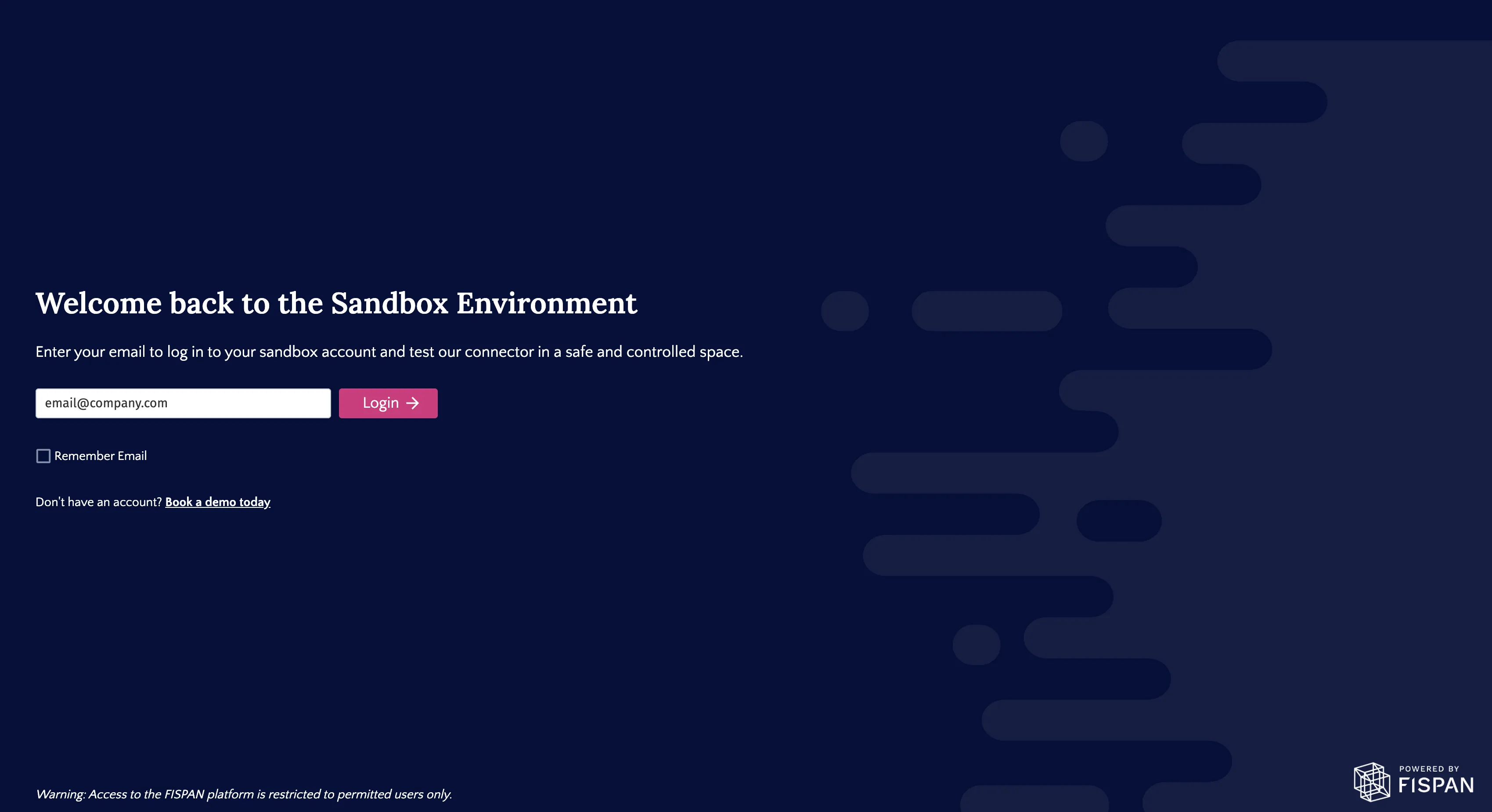
From the welcome page, you'll be taken to the login page. Enter your username and password to proceed.
Setting Up SMS MFA
NOTE: Multi-factor Authentication (MFA) is only required if you are a user in the Production environment. If accessing the Sandbox environment, you may skip this step.
The first time you log in to the Production environment, you will be prompted to establish your Multi-factor Authentication (MFA) setup. You have the option to select various methods of MFA.
Enroll Phone Number
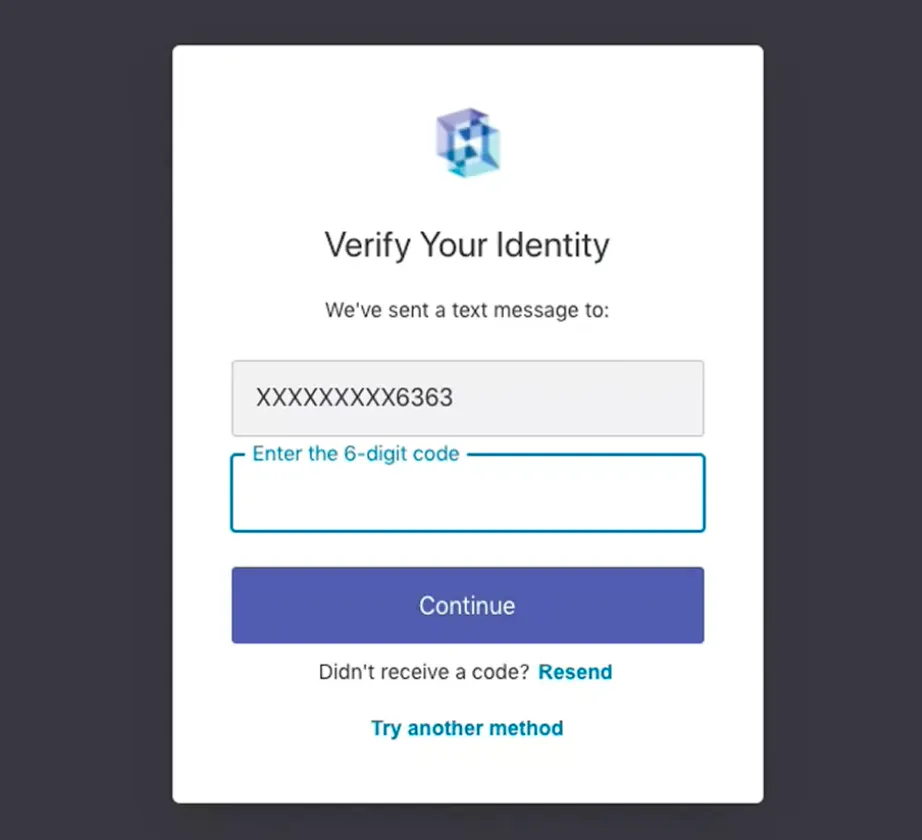
Select your country code then enter your phone number, you will receive a text message with a 6-digit code via SMS to the phone number you provided for enrollment.
If you are unable to receive a text message to this number, or you prefer a different multi-factor authentication method, click Try Another Method.
Enter Code
Enter the 6-digit code you received in the applicable field.
Select Continue.
Save Recovery Code
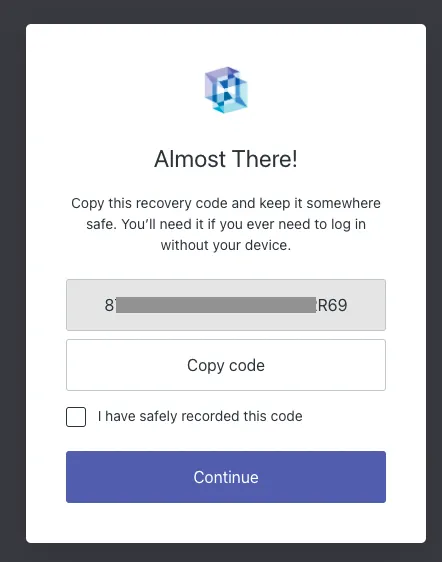
After setting up SMS and inputting the first one-time code, you will be presented with a recovery code that should be stored in a safe location. This code is for resetting the MFA, to switch the MFA type (i.e., Authenticator), or to use a different phone number.
Connect to Sage Business Cloud Accounting Bank Feeds
To connect your bank accounts in Sage Business Cloud Accounting to the Bank Feeds feature, follow these steps.
Go to Banking Page
Log in to Sage Business Cloud Accounting. Navigate to Banking.
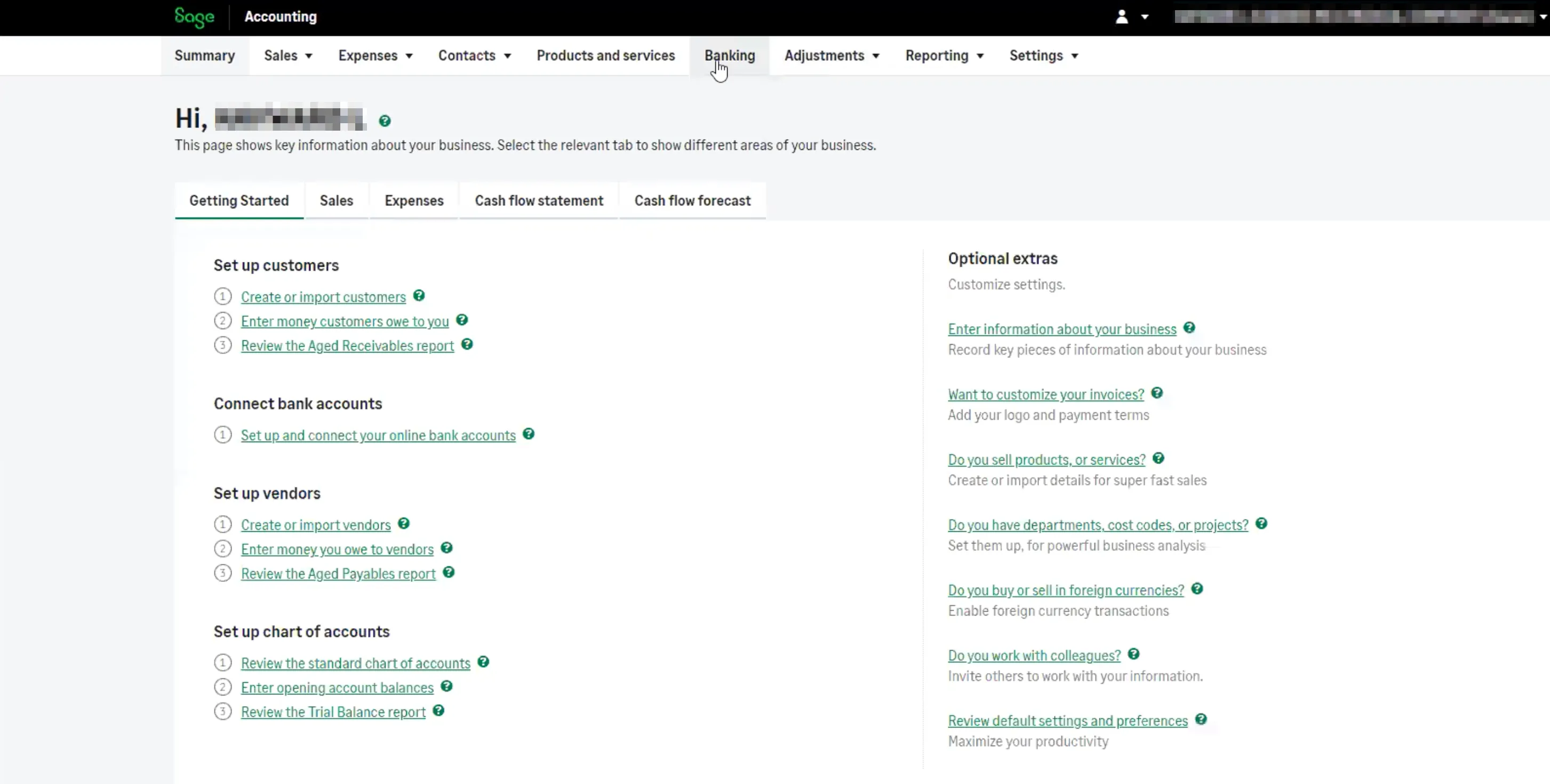
On the Banking page, you will now need to click Actions on the tile of the account you would like to connect.
Then, hit Connect to Bank.
Connect Your Bank
A new pop-up window should appear, prompting you to Connect your bank.
In the search bar search BMO and select "BMO Online Banking for Business (Powered by FISPAN)".

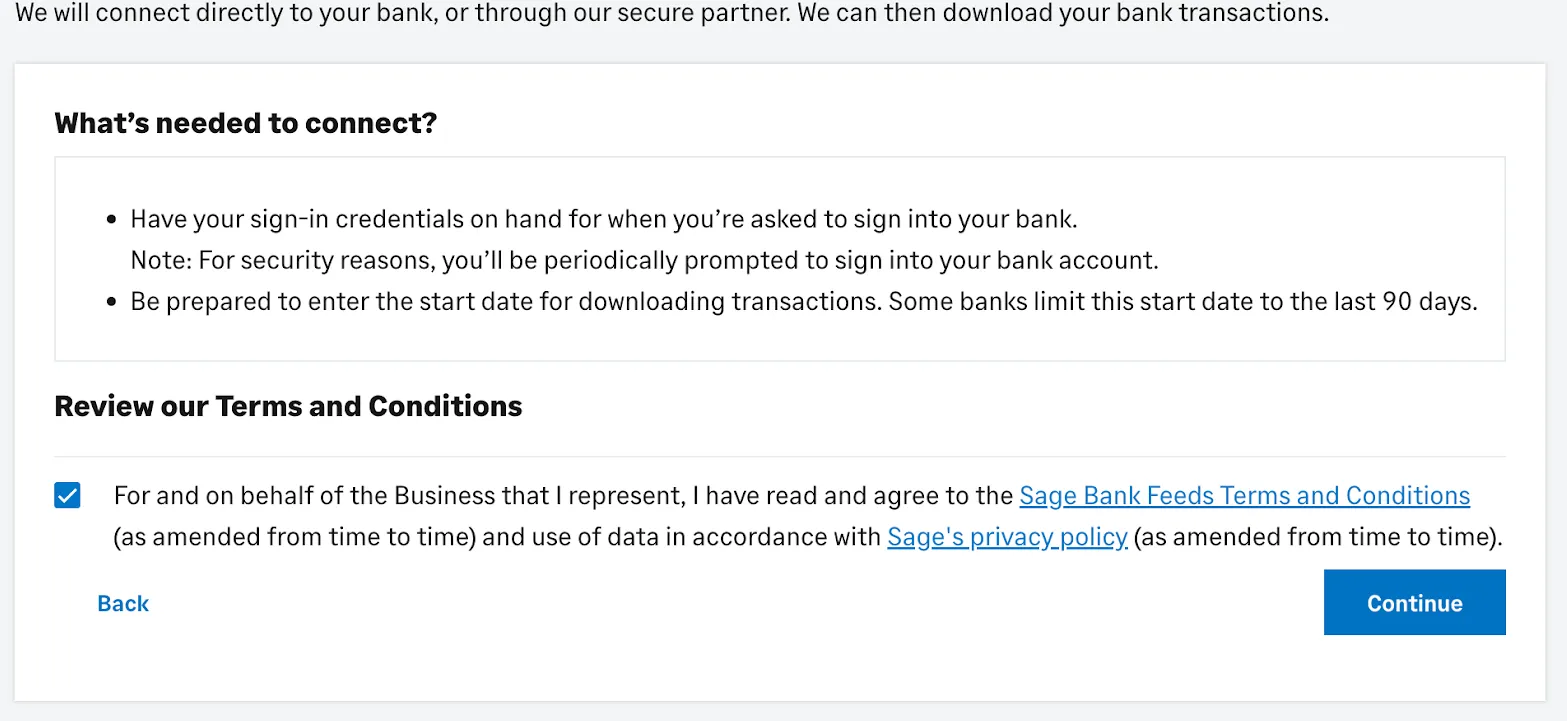
Review the terms and conditions and select Continue.
Log in to the FISPAN Portal
Now, you will be redirected to a landing page for the FISPAN Portal.
Select Login Now to proceed with signing into the service that powers the Bank Feed connection.
Authenticate Bank Connection
Once you log in to the FISPAN Portal, you will be taken to the installation wizard. Follow the steps below in the installation wizard to connect to the BMO OLBB portal and grant access to your bank accounts.
Initiate Connection
Click Reconnect to Your Bank.
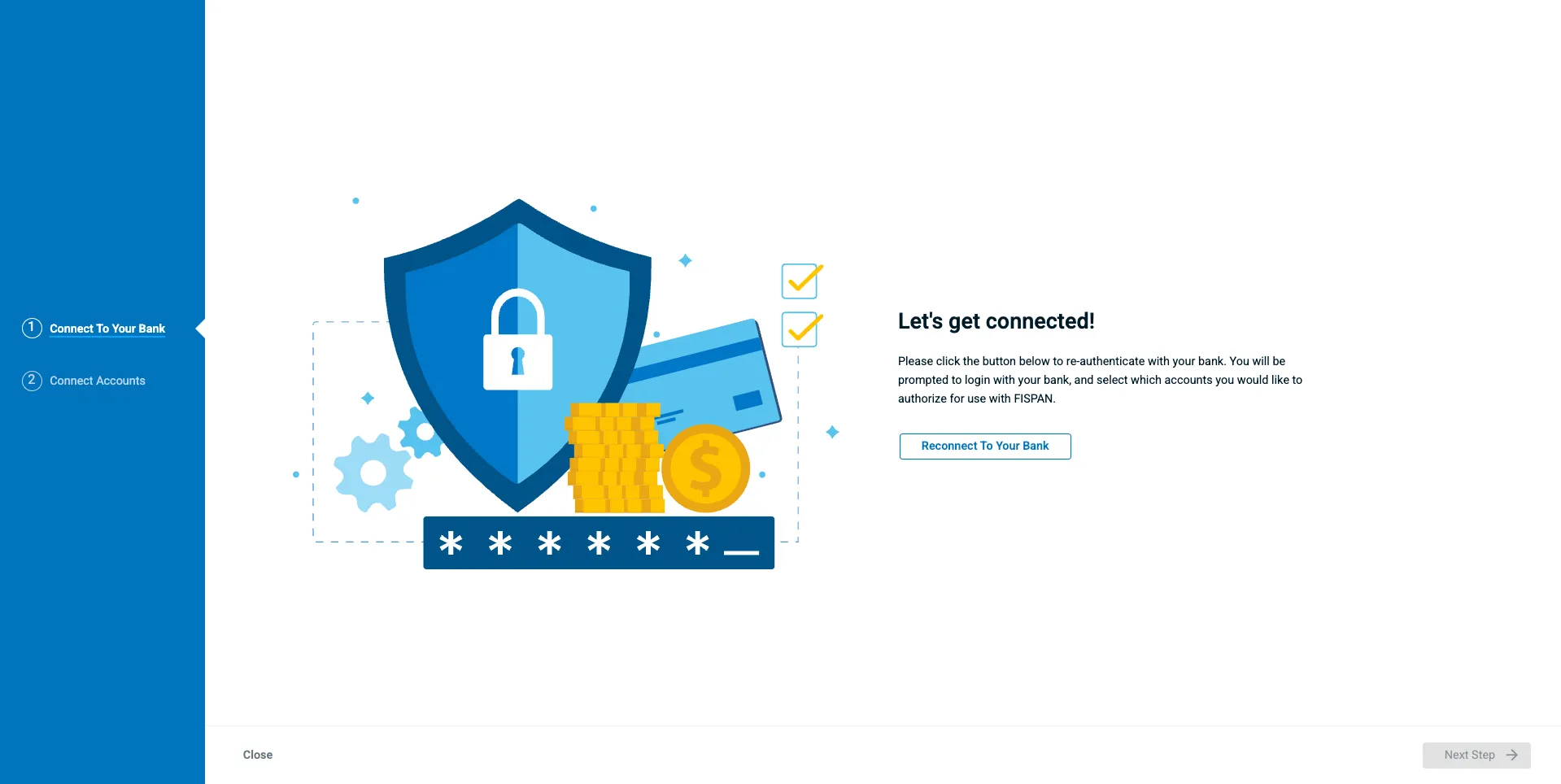
A new window for you to log in to BMO.
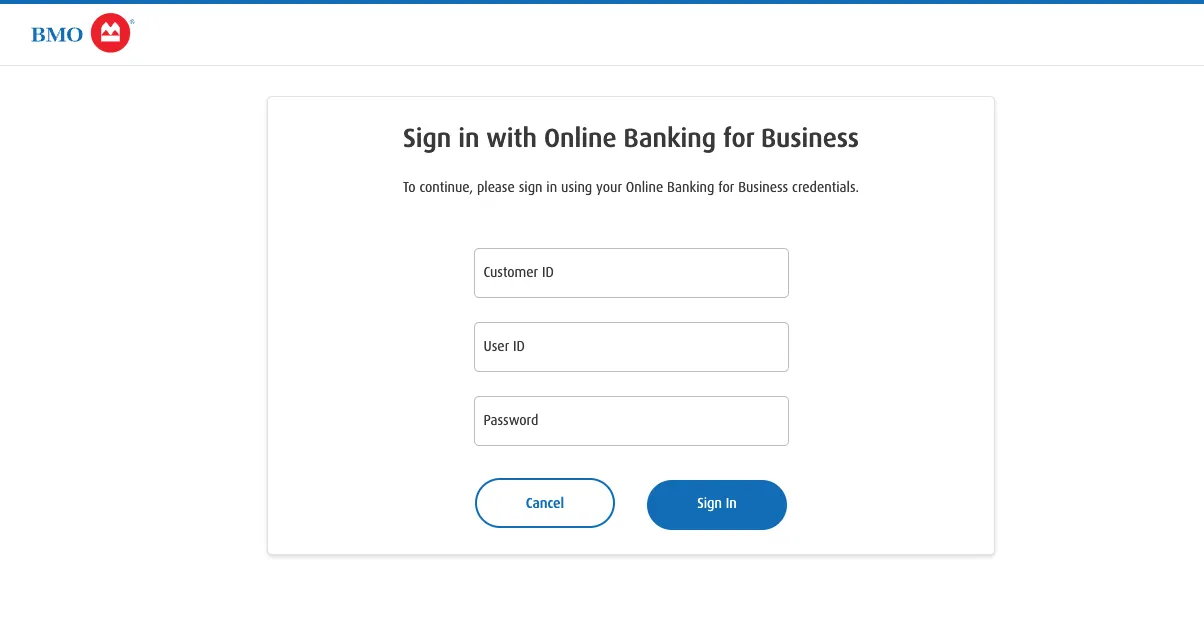
Log in to BMO OLBB Portal
Log in to the BMO OLBB Portal with the credentials provided by BMO.
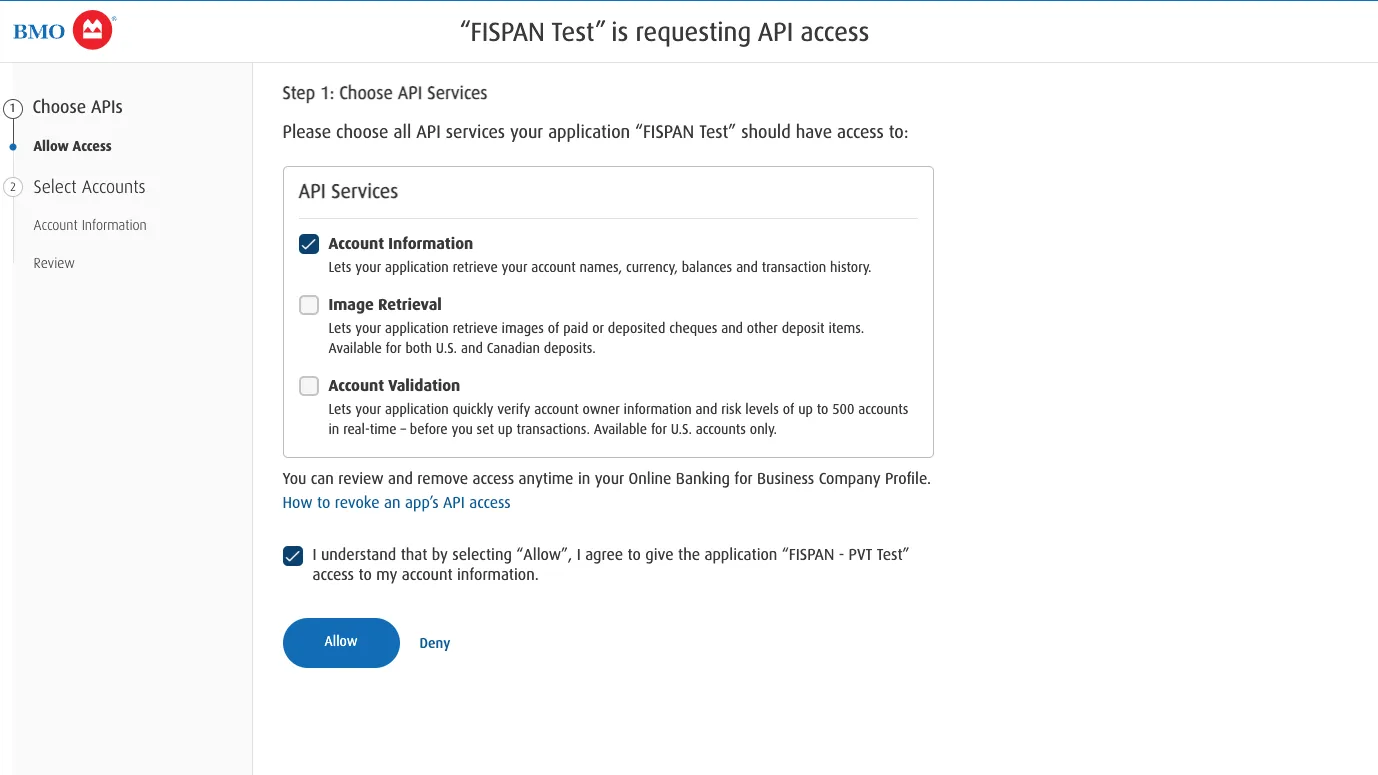
Select Accounts
Once logged into the BMO Portal, select the Account Information checkbox.
You will then be presented with BMO accounts. Check the box(es) next to the account numbers provided on the enrolment form. Then, press Allow.
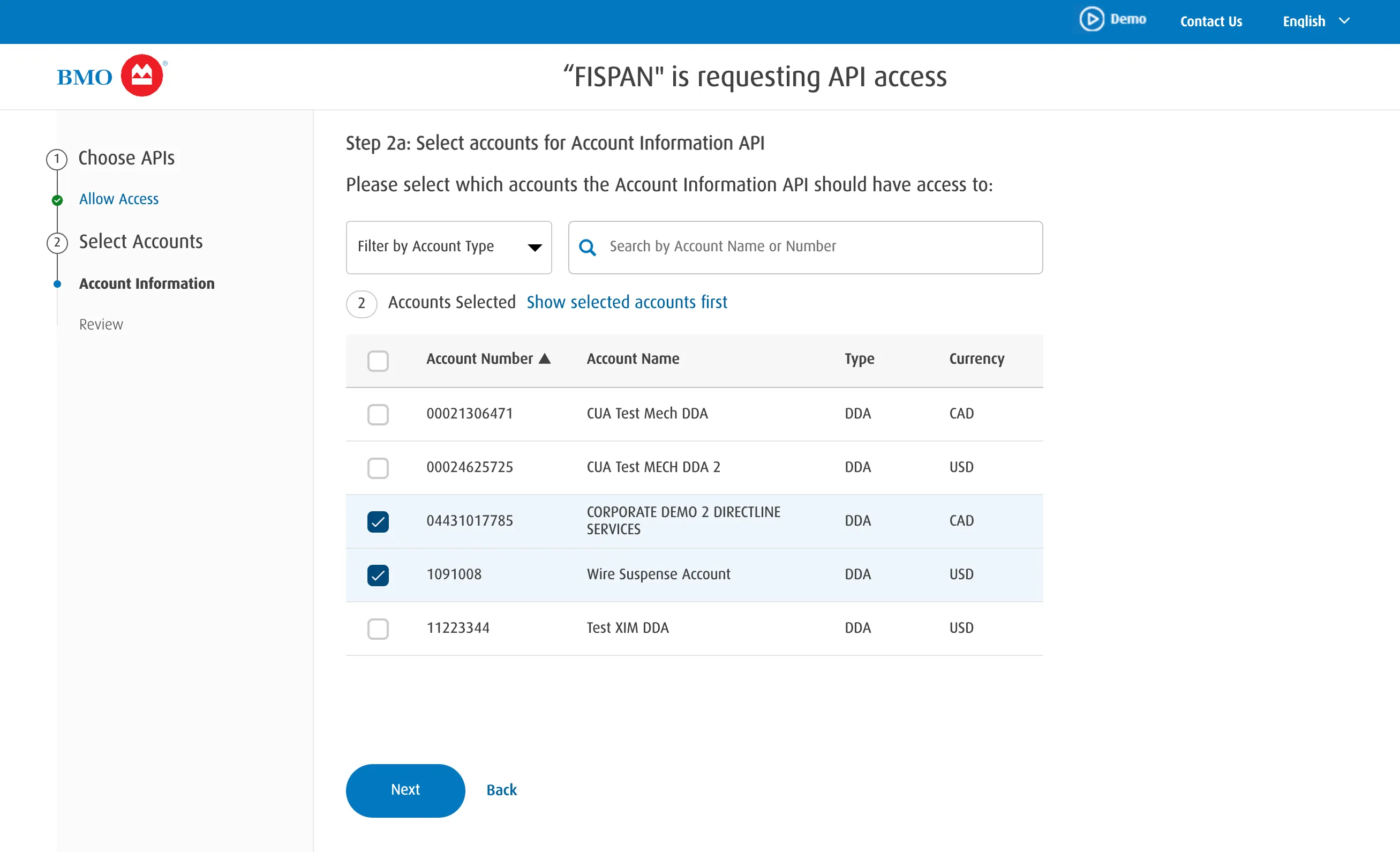
Click Next.
Confirm Accounts
Review your account selection for each API.
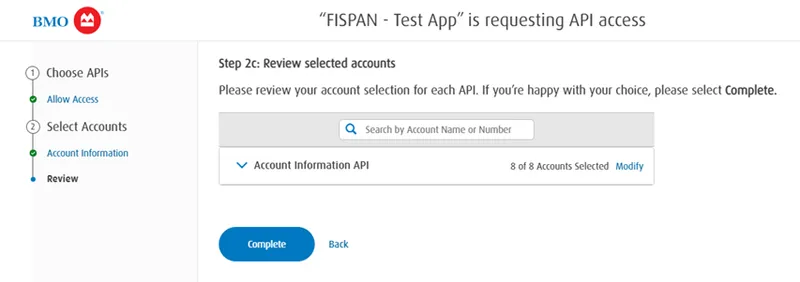
Click Complete.
The success confirmation window will be displayed.
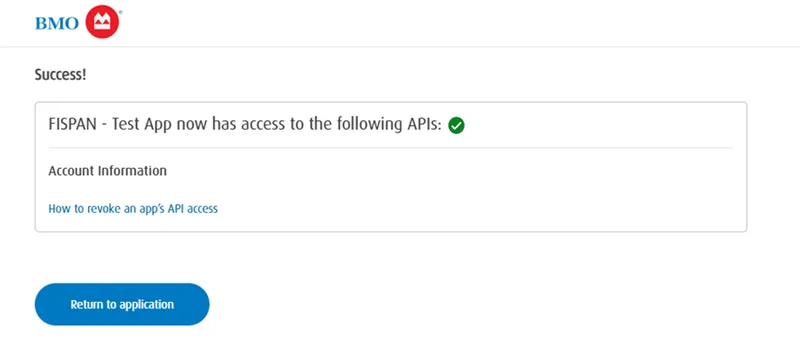
Click Return to application to be directed to the installation wizard.
Syncing Bank Feeds
Connect Account
On the installation wizard, you will be selecting the bank account you chose earlier in Sage Business Cloud Accounting.
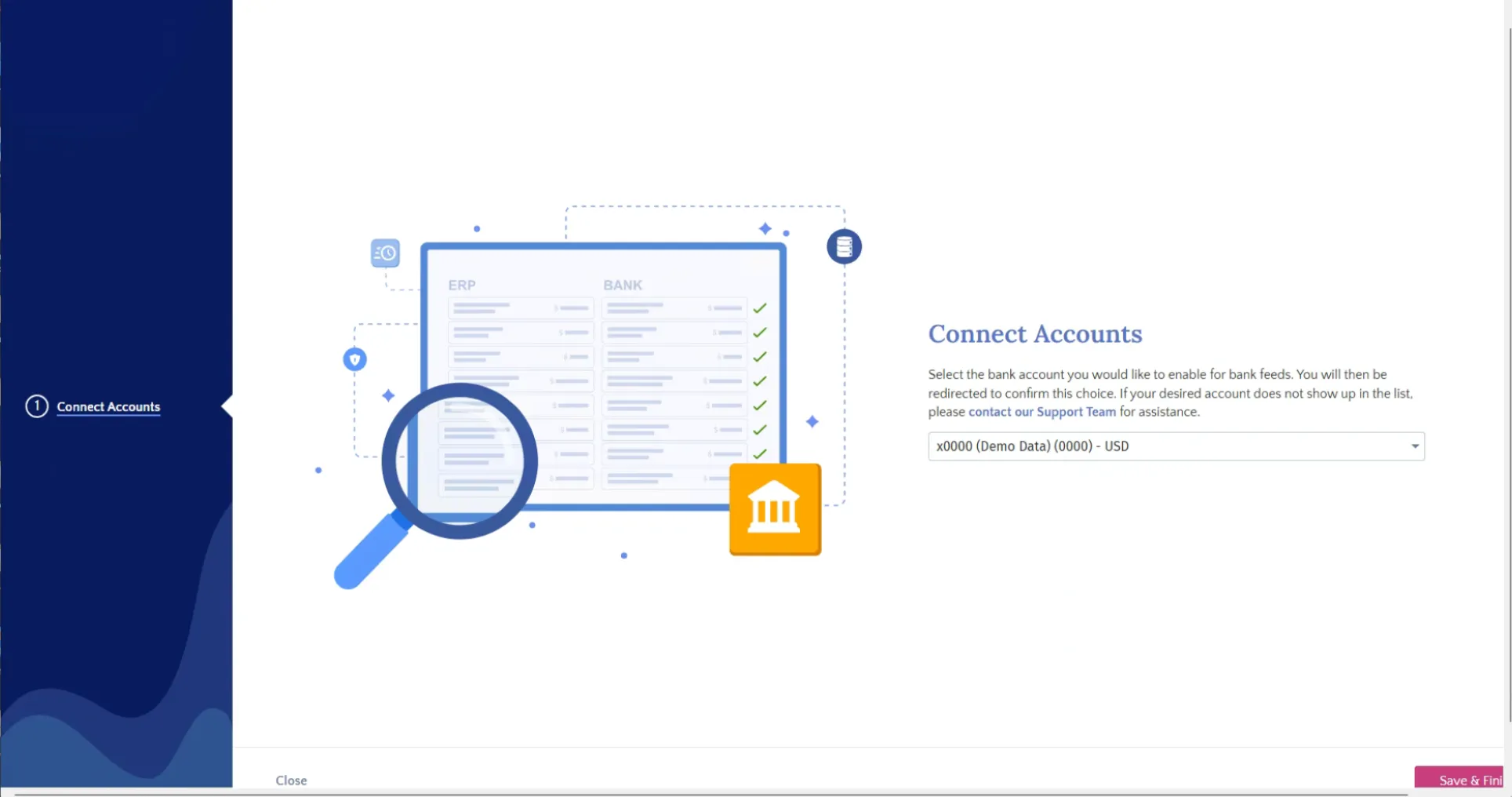
After you have selected the account, select Save and Finish. You will automatically be redirected back to Sage.
NOTE: You must complete the account matching flow within 60 minutes, or the installation wizard will time out.
Confirm Account
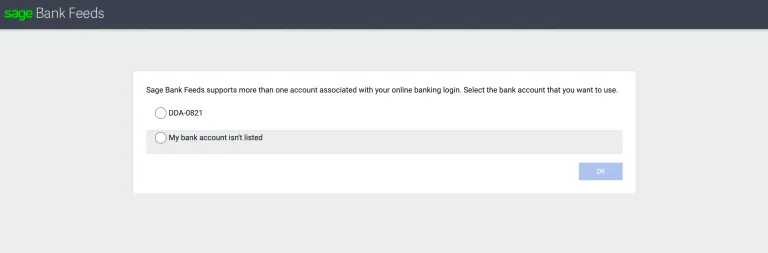
After being redirected back to Sage, select the same account. Select OK.
Select Import Date
You will be prompted to select a date to begin importing bank transactions from.
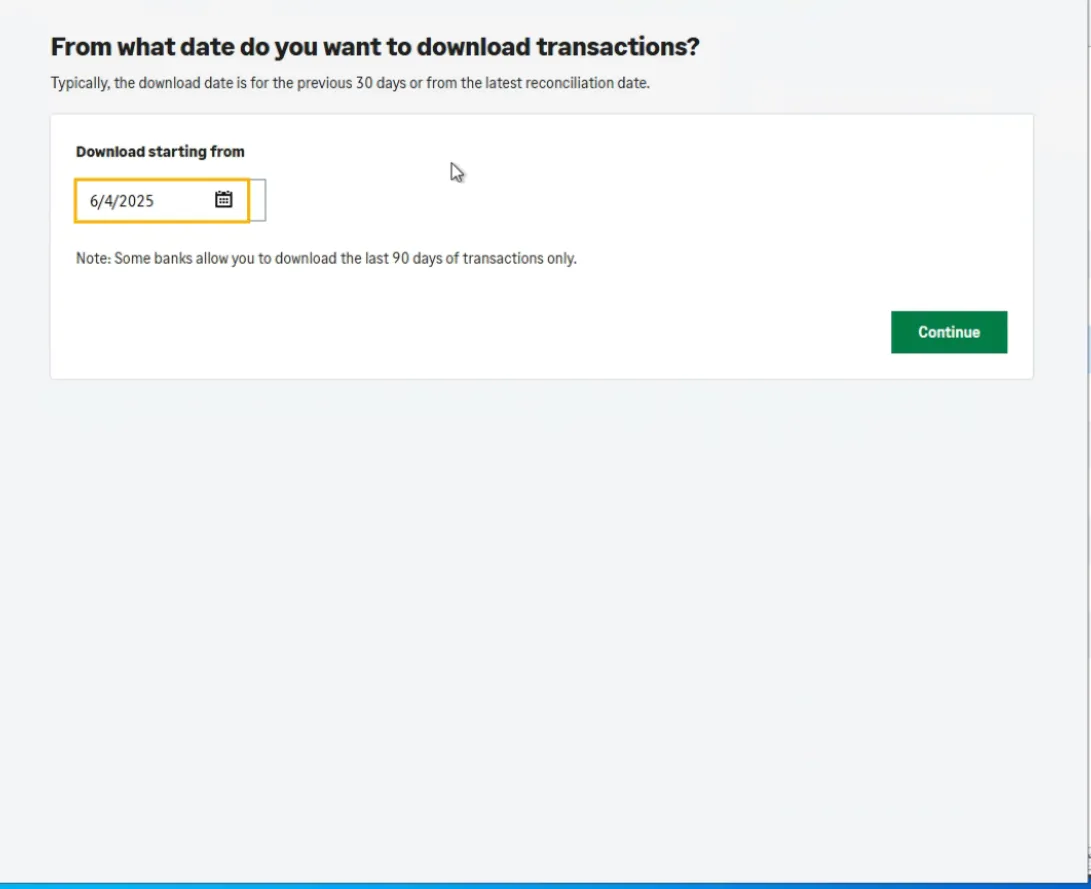
Once selected, click Continue
Complete the Setup
With the bank account now connected, click on Finish to close the pop-up window.
View Bank Feeds Data
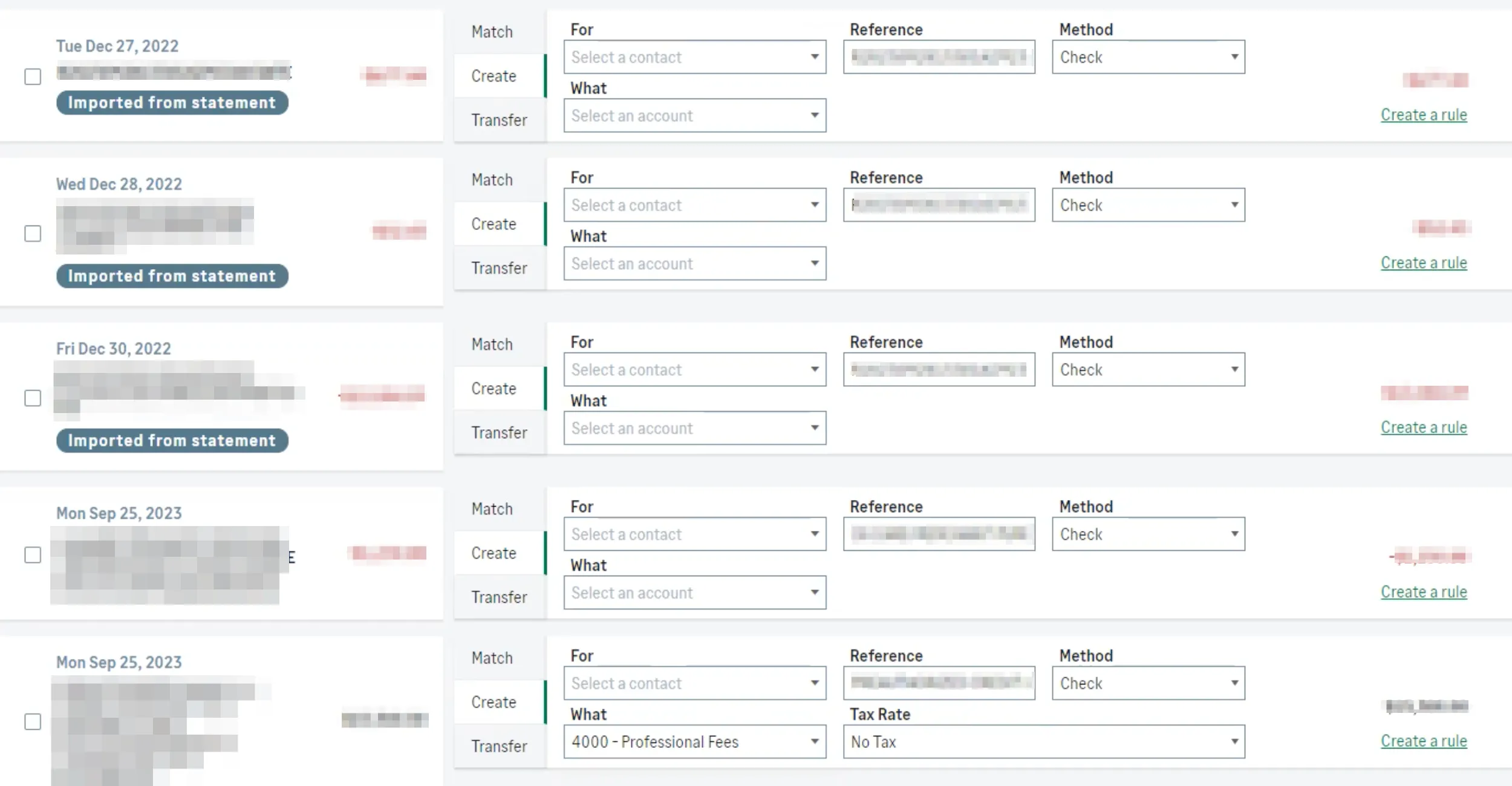
To view data that has been pushed to the reconciliation module, follow the below steps listed in Reconcilliation Module section.
Reconciliation Module
Once you have successfully finished the onboarding process, the system begins syncing your financial data. You may receive a system notification confirming this step.

It may take a few minutes before the transactions populate in the reconciliation module.
Once the syncing process is complete and the bank transactions have loaded, the module will update to display your transaction list.