Writing Check Numbers to General Ledger (Business Central)
Configure the plugin to include the Check Number when posting check payments. Once the payment is transmitted to the bank, the plugin will update the General Ledger with the Check Number.
Please note, this feature is not available for users when MEM is enabled.
Enable Write Check Ledger Entries
Follow these steps to enable this feature.
Go to Settings
From the MUFG Connect menu, select Settings.

Add Invoice Number
Under the Check Payments section, toggle both Write Check Ledger Entries and Overwrite Doc. No on Check Payments to enable them.
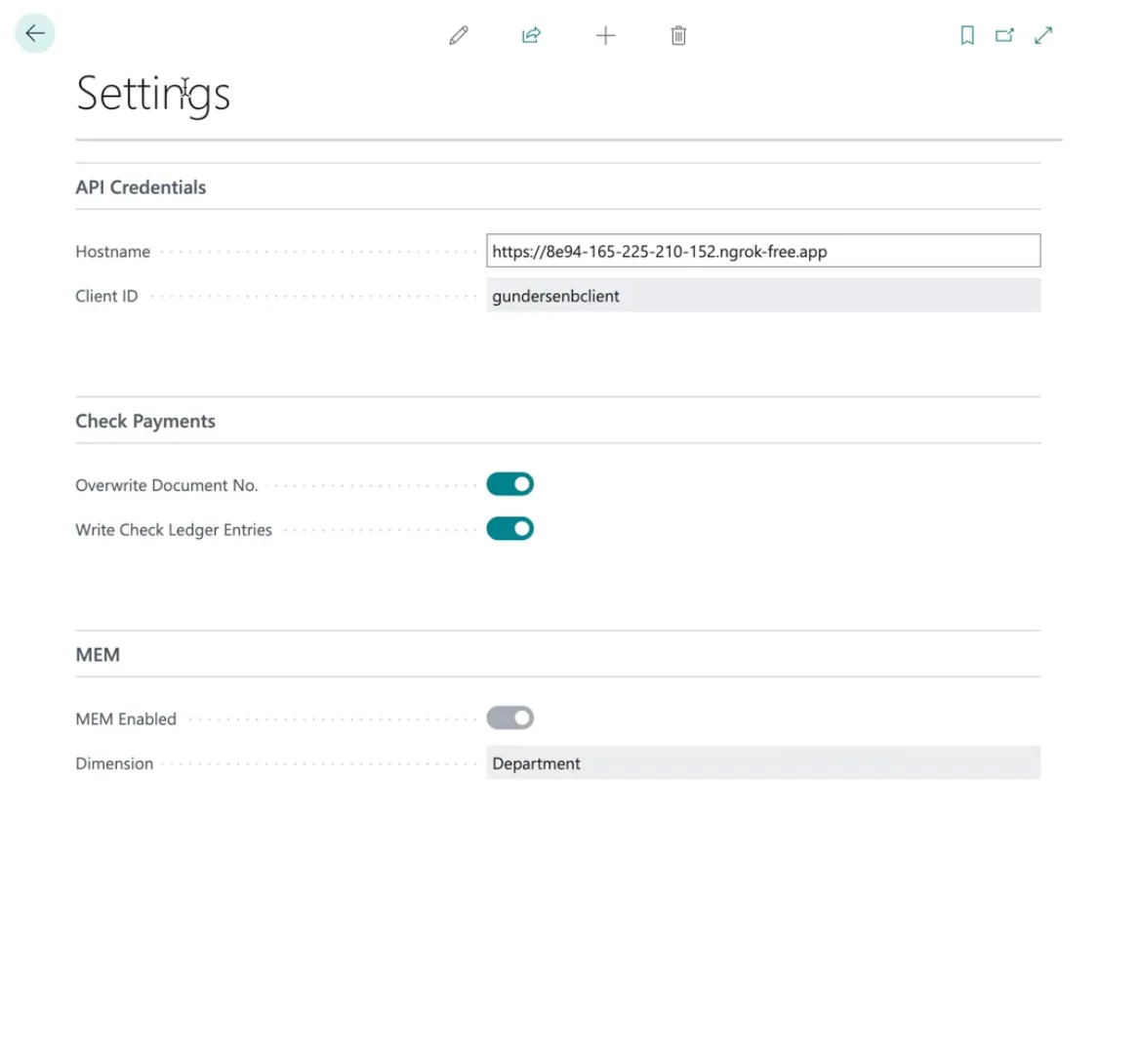
Once enabled, the Check Number will be added to the General Ledger when the payment has passed the validation step.
View Check Numbers
After creating a check payment, you can view the posted Check Numbers in two main places:
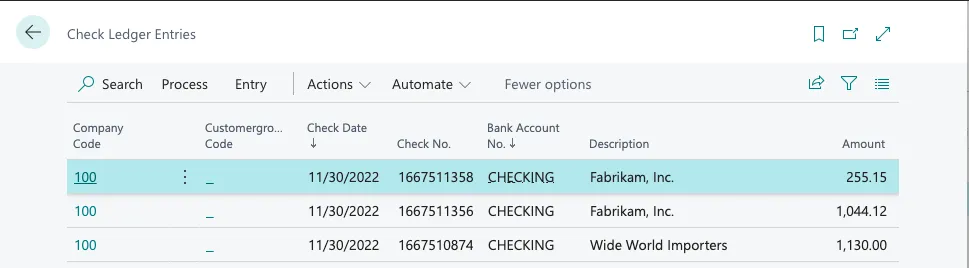
Check Ledger Entries
Search for Check Ledger Entries. This page shows the posted check numbers, along with the vendor, date, bank account, and amount, after the payment has passed validation.
General Ledger Entries
You can also view the check numbers in the General Ledger Entries.
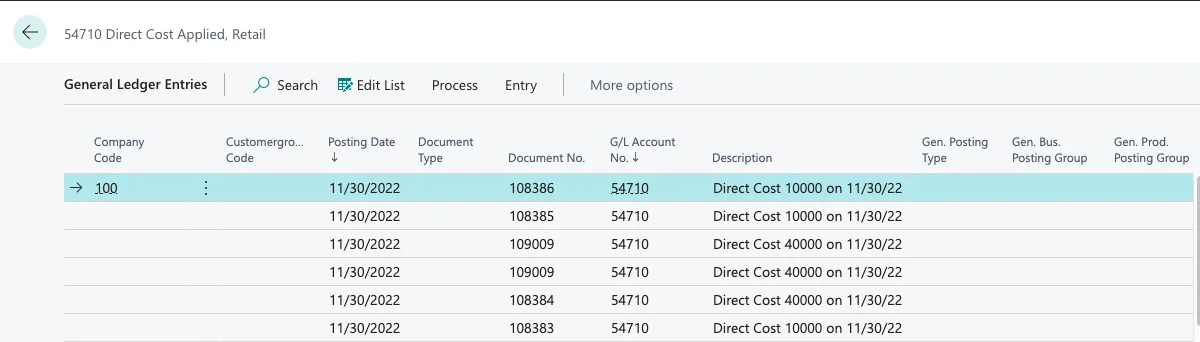
To view the Check Number, search General Ledger Entries. If the correct options are enabled, the Check Number will be added to the General Ledger when the payment has passed the validation step.
NOTE: Check Numbers and Check Ledger Entries will only populate once the payment has been marked as Completed.
If you are experiencing an issue with this feature after the payment has been marked as Completed, please contact our support team.