Applying Credit Memos (Business Central)
A purchase credit memo is a document issued by the seller of goods or services to the buyer, reducing the amount the buyer owes to the seller under the terms of an earlier invoice.
There are three methods in Business Central to apply credits: the Applies to Doc. method, copying document lines, or manually creating the lines. Follow the steps in this guide to learn how to apply credits with these methods.
Applies to Doc. Method
This method involves posting the credit memo first and then applying it to the open invoice from the Vendor Ledger Entries.
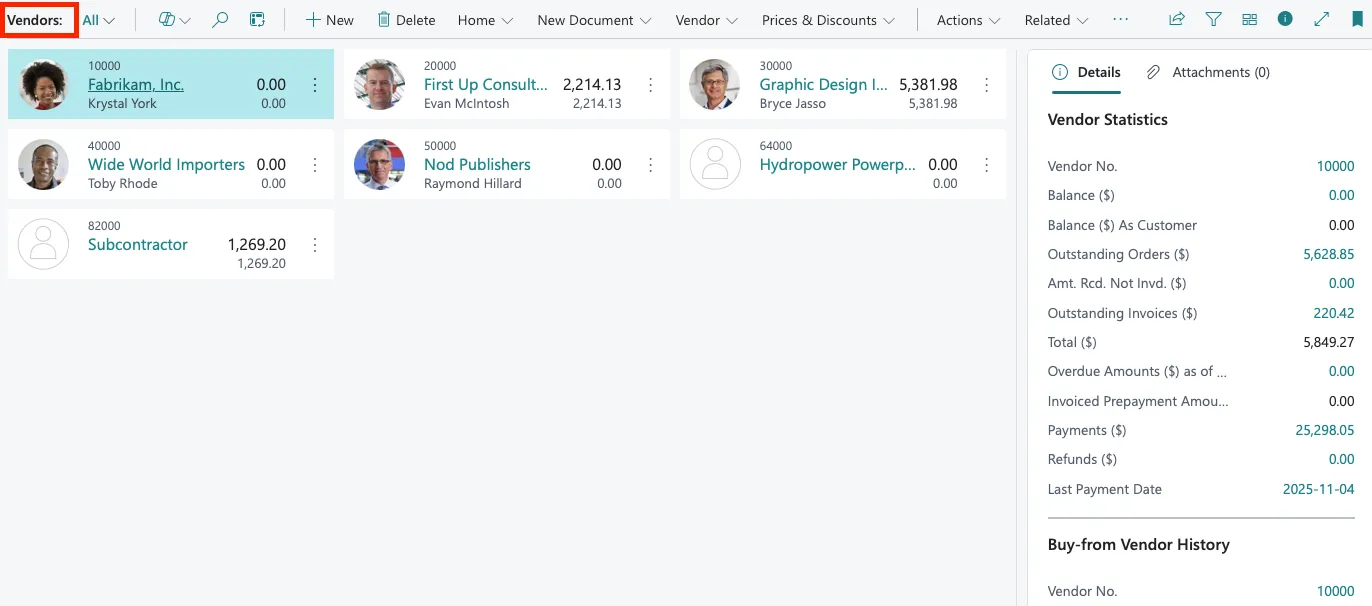
Navigate to Vendor
Navigate to the vendor you would like to apply the memo to.
Click Purchasing and then Vendors.

Next, click on the vendor you would like to create the memo for.
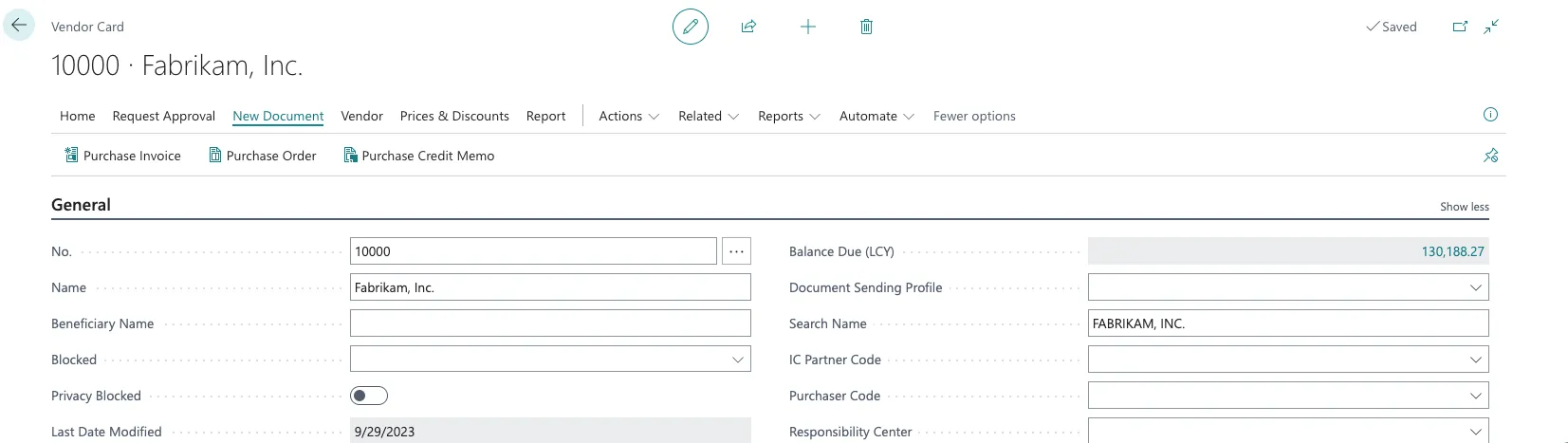
On the Vendor card, select New Document and then click on Purchase Credit Memo.
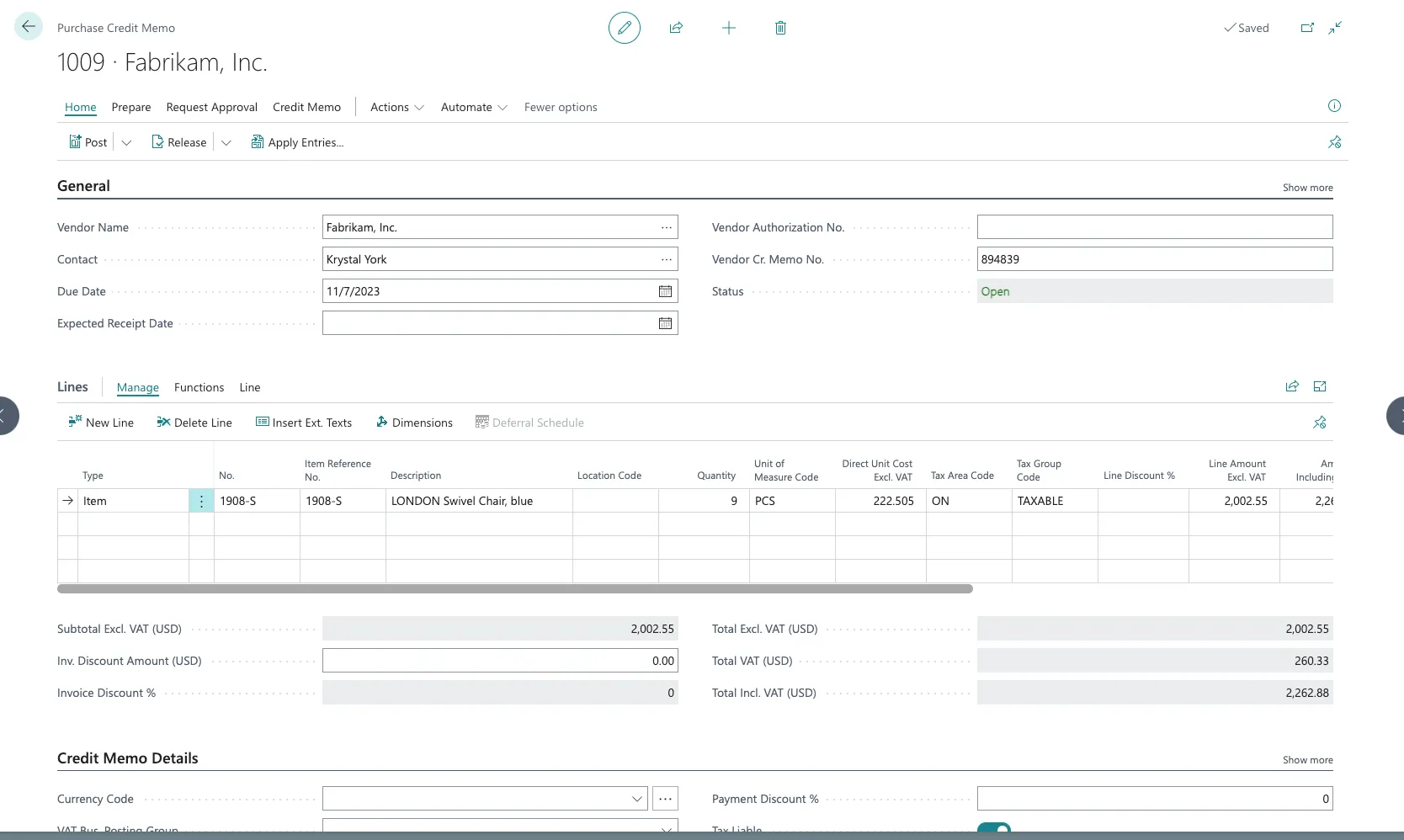
Create & Post the Credit Memo
Next, create the credit memo by entering the required values.
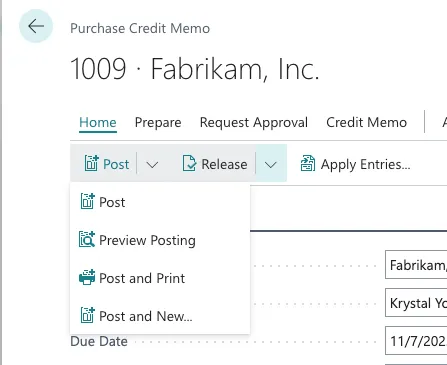
Once done, click Post.
Apply the Credit Memo
Navigate back to the Vendor card and select Vendor --> Vendor Ledger Entries.

Locate the credit memo and click on the three dots beside it. Select Apply Entries.
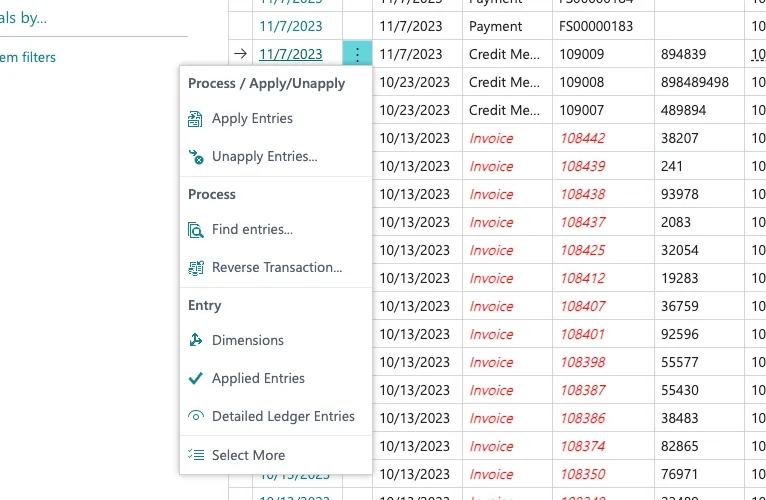
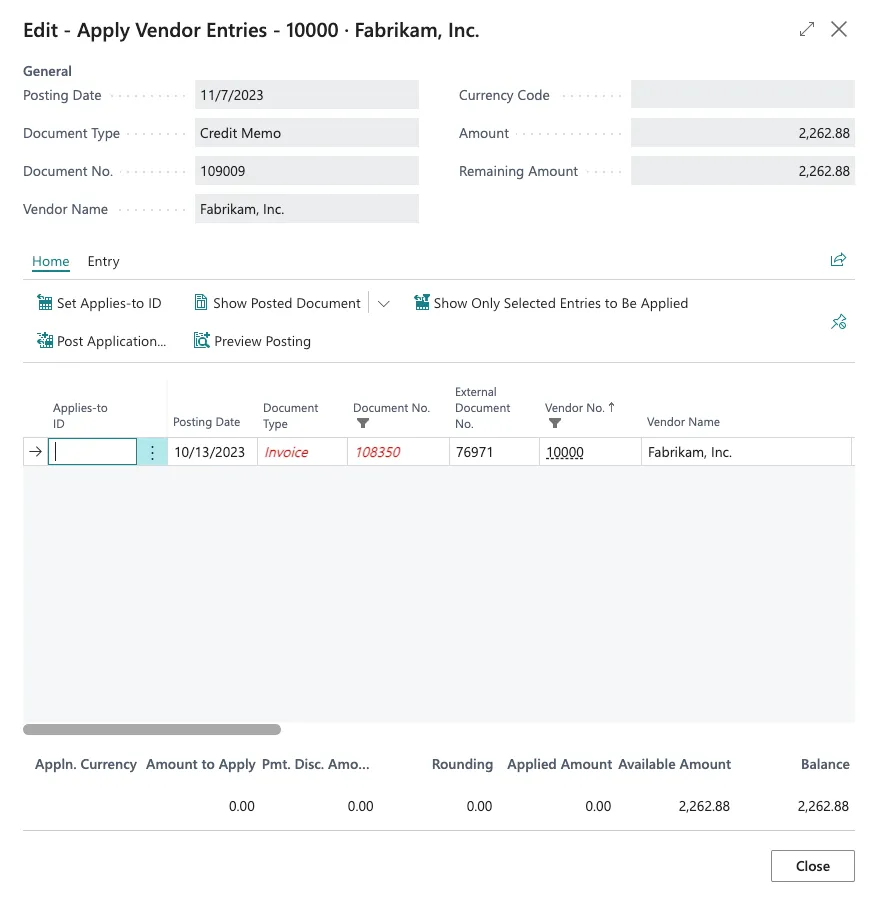
Find the invoice you would like to apply the credit to.
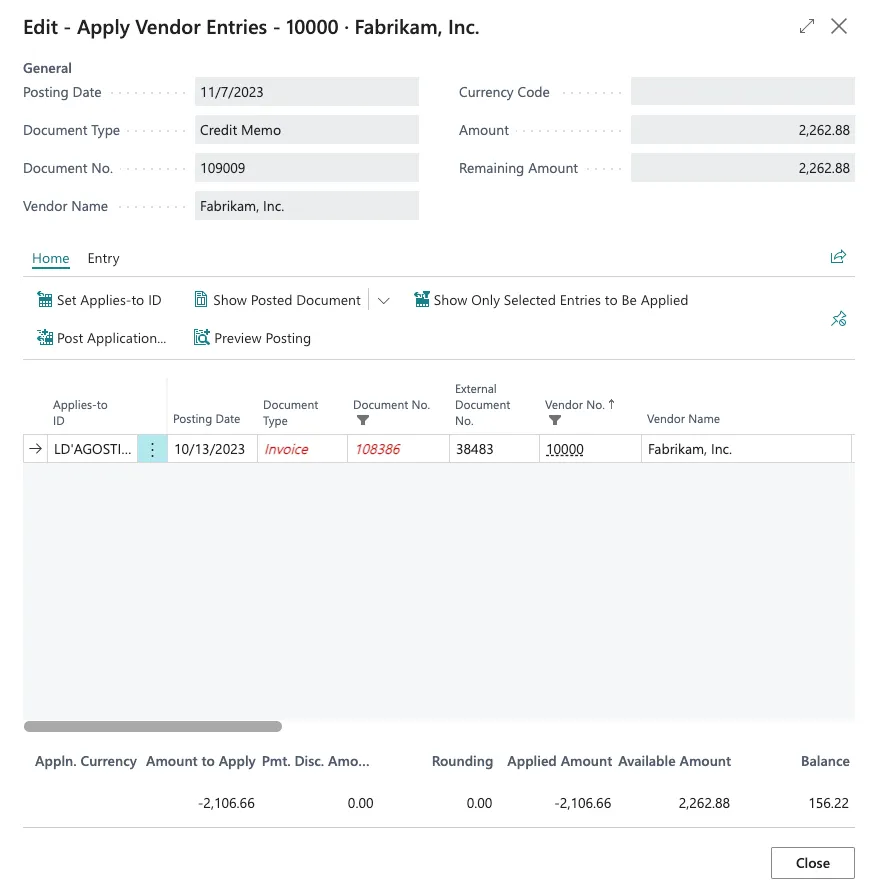
Set the ID by selecting the invoice and clicking Set Applies-to ID. When done, select Post Application.
Pay Reduced Invoice(s)
Pay the invoice(s) as you would normally.
Copying Document Lines
This method ensures the credit memo is applied directly to the invoice before the memo is posted by copying the original posted invoice's details.
Navigate to Purchase Credit Memos
Navigate to the Purchase Credit Memos page from the Purchasing module.
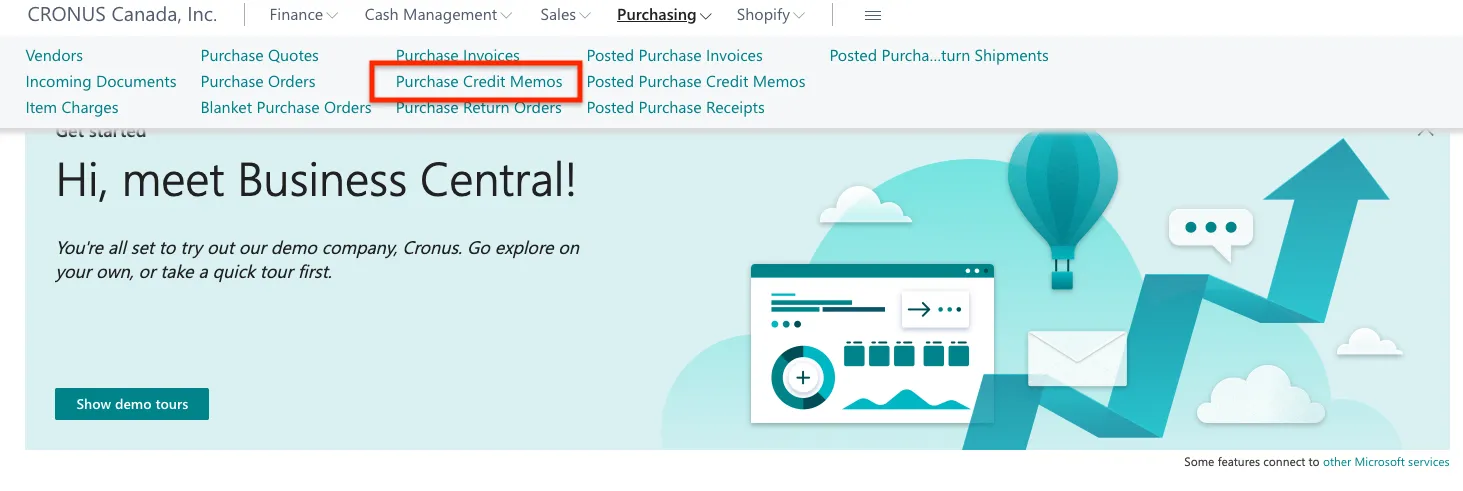
Select the + New button to create a new Purchase Credit Memo.
Copy Credit Memo Lines
To apply lines from an existing posted invoice, go to Prepare → Copy Document.

Select Posted Invoice for the Document Type and enter the Document No. to apply the credit memo.
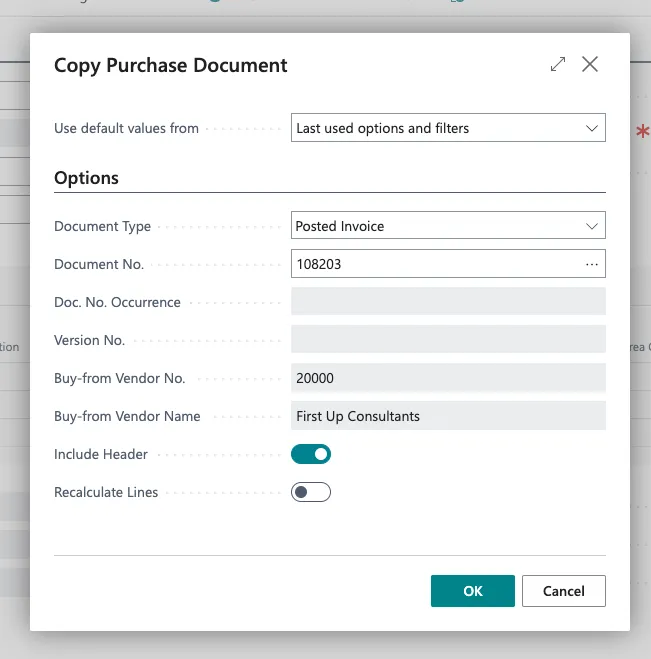
Once selected, select OK to copy the complete document.
The invoice details and line items will now copy into the Credit Memo page.
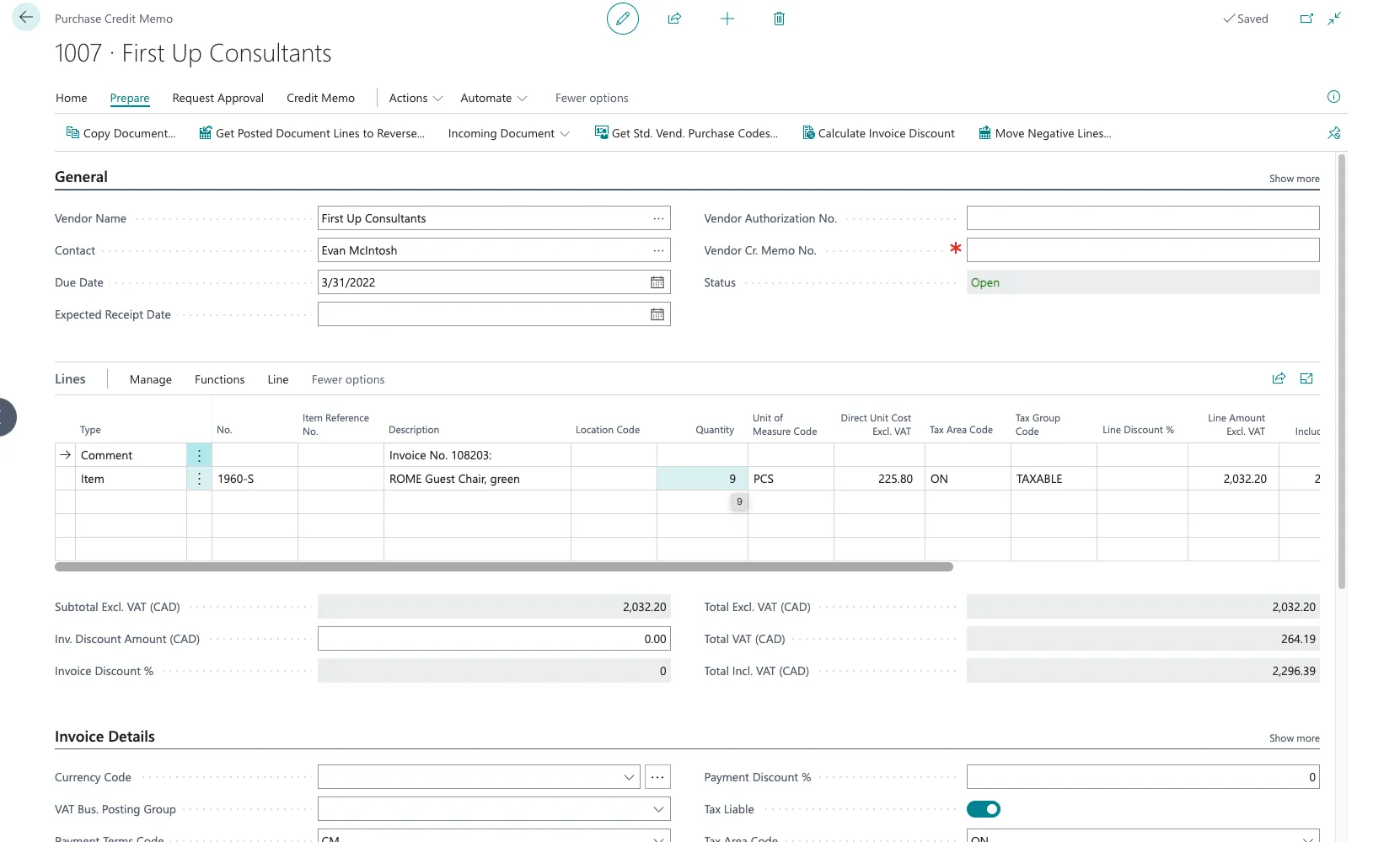
Modify the Credit Memo
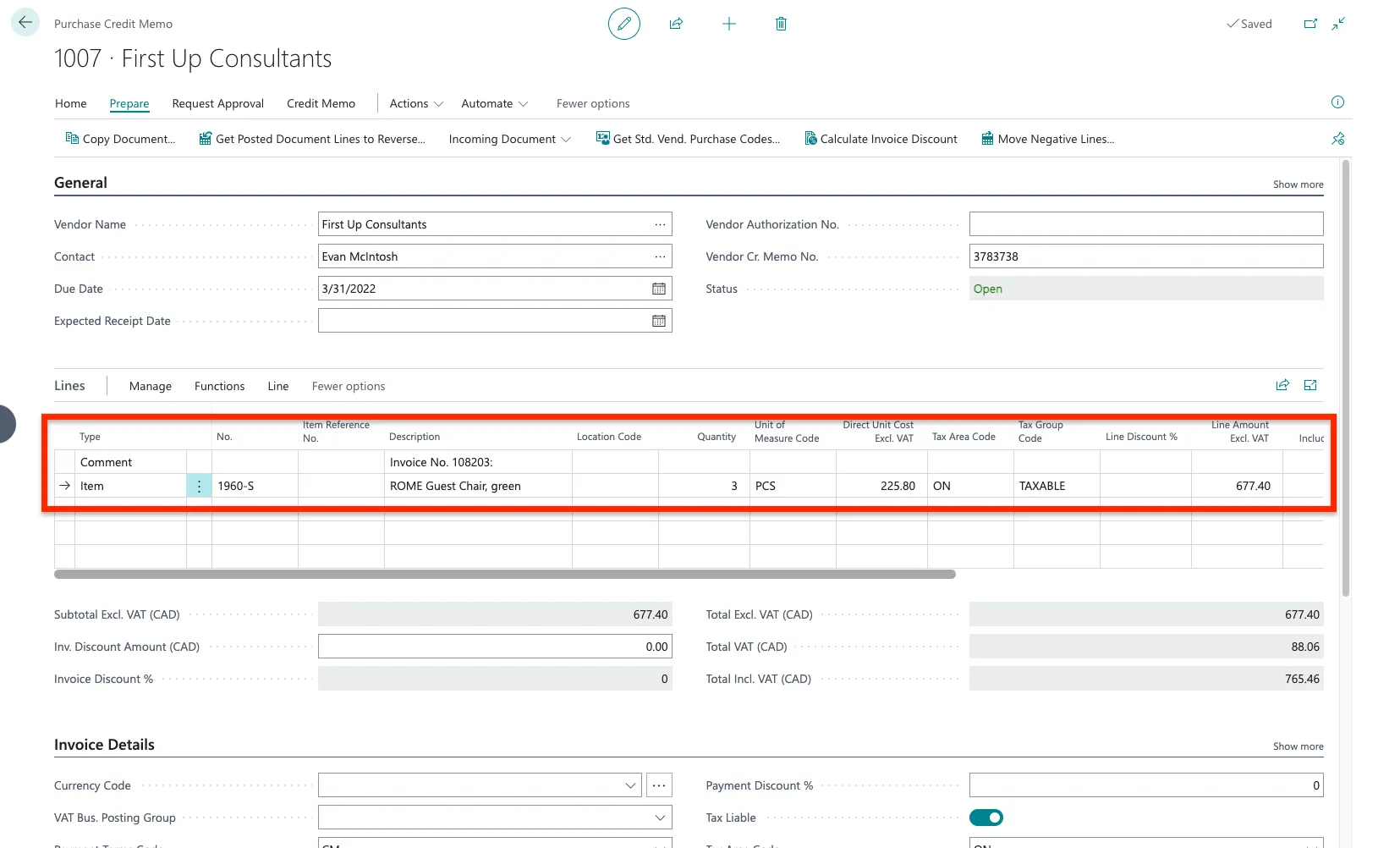
Modify the document lines as needed. Once the lines match the vendor's credit memo, enter the vendor's reference number in the Vendor Cr. Memo No. field.
Confirm Applies-to Doc. No.
Confirm the Applies-to Doc. No. is correct and the credit memo will be applied to the right invoice. The invoice must be marked as Open to apply the credit memo and pay the invoice with a reduced amount due.
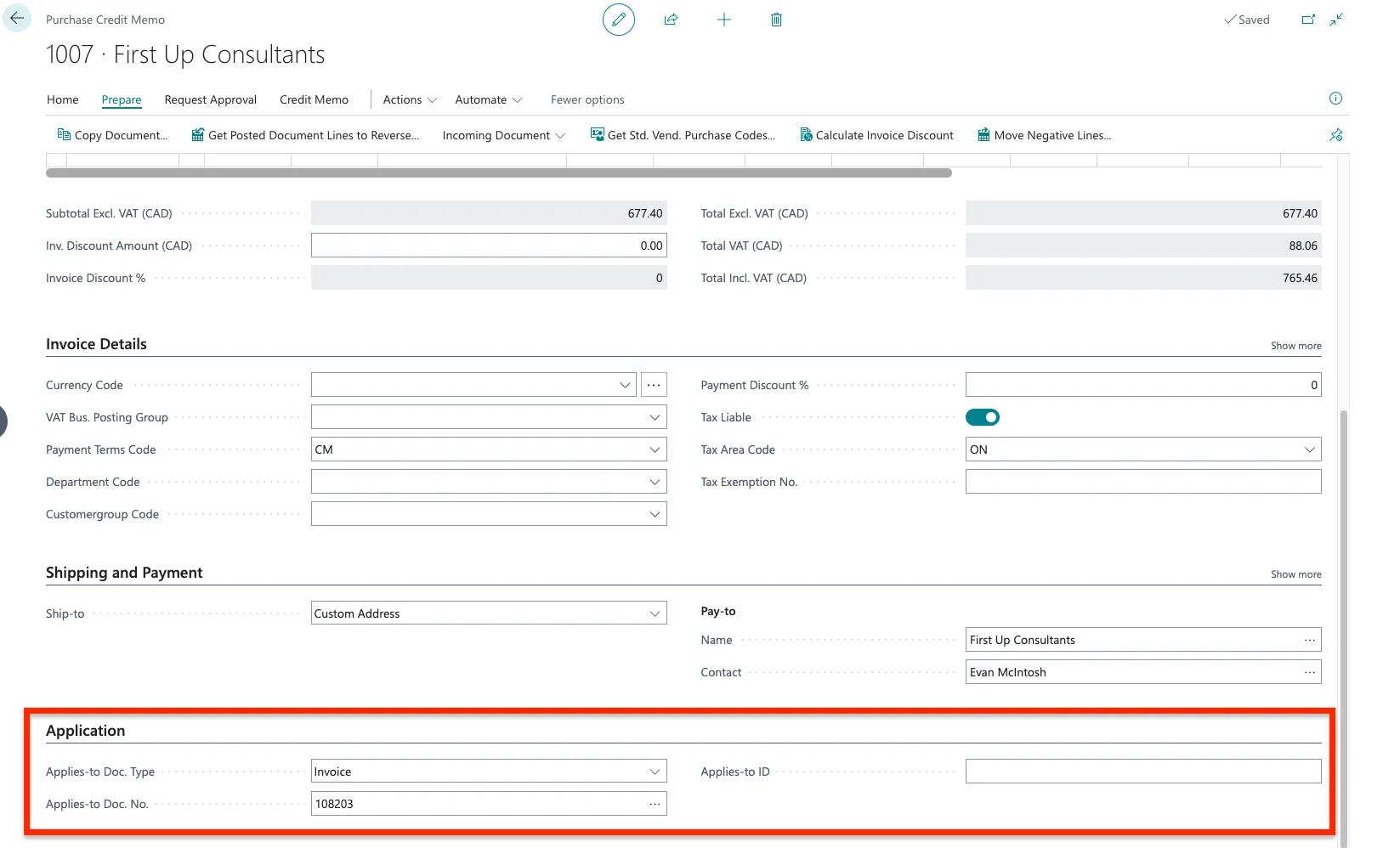
NOTE: This field is automatically populated with the Invoice Number of the source document. Before posting the credit memo, you must verify the number. If it is incorrect or points to a closed invoice, you are required to change this value to an Open invoice whose balance you intend to reduce.
Post the Credit Memo
After confirming all details, post the document by selecting Post.

Confirm the Reduced Amount
On the Posted Purchase Invoice page, locate the invoice on which you applied the credit memo. On this page, you can confirm that the amount has been successfully reduced before attempting to pay the invoice.

Pay Reduced Invoice(s)
Pay the invoice(s) as you would normally.
Manually Creating Document Lines
Use this method when the credit memo lines need to be entered from scratch without copying an existing invoice.
Navigate to Purchase Credit Memos
Navigate to the Purchase Credit Memos page from the Purchasing module.
Select the + New button to create a new purchase credit memo.
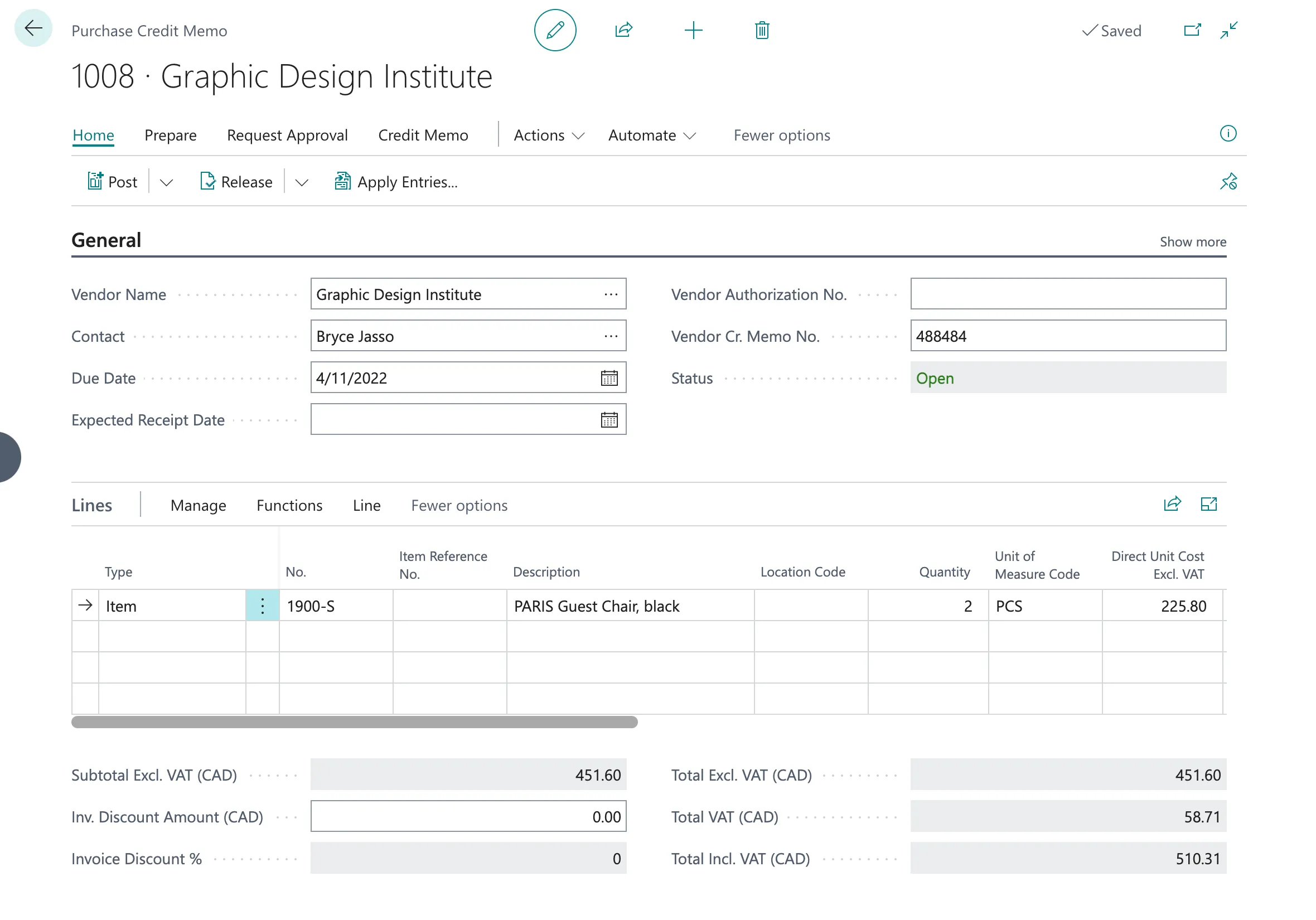
Manually Create the Document Lines
Next, manually enter the Vendor Name, line items, and Vendor Credit No. in the credit memo.
Add Applies-to Doc. No.
Add the Applies-to Do. No. to ensure the credit memo will be applied to the correct invoice. The invoice must be marked as Open to apply the credit memo and pay the invoice with a reduced amount due.
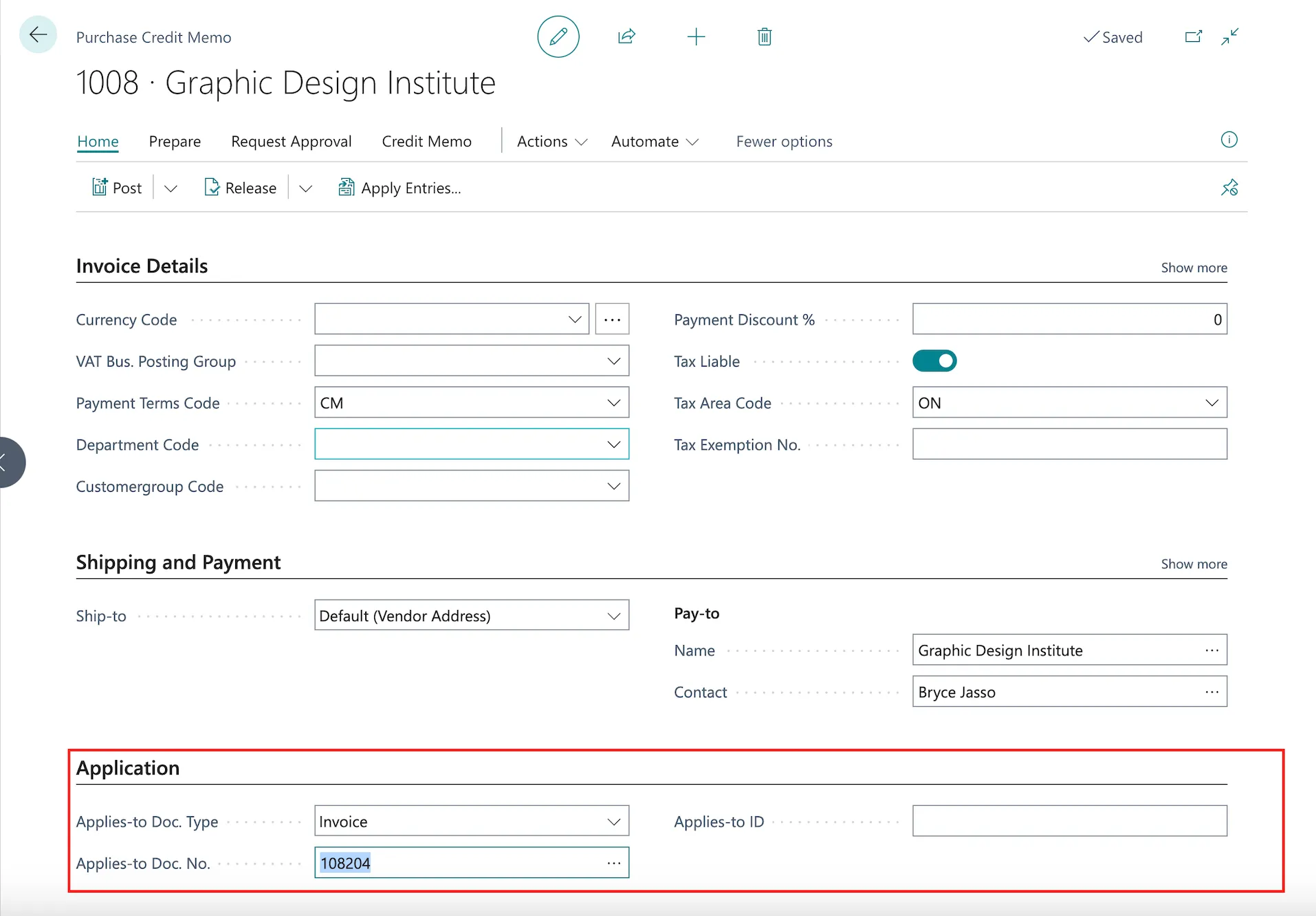
NOTE: If the Applies-to Do. No. is incorrect or the referenced invoice is already closed, you must change it to the Open invoice you intend to reduce before posting the Credit Memo.
Post the Credit Memo
After confirming all details, post the document by selecting Post.

Confirm the Reduced Amount
On the Posted Purchase Invoice page, locate the invoice on which you applied the credit memo. On this page, you can confirm that the amount has been successfully reduced before attempting to pay the invoice.

Pay Reduced Invoices(s)
Pay the invoice(s) as you would normally.

Limitations
Credit memos cannot be applied at the Payment Journal level. They must be applied to an existing document before attempting a payment through the plugin. Failure to apply the credit memo beforehand will cause the plugin to ignore the credit and remit the full invoice amount.
Credit memos must be less than or equal to the remaining amount due on the invoice to be successfully applied.