Reviewing and Approving Matches (NetSuite)
Follow this guide to review suggested matches, edit matched invoices, and view the per-deposit action log.
View Invoice Matches
When viewing the deposits, their suggested matches will be presented for review and approval, along with a confidence level for system-matched invoices. Use these steps to review the matched invoices for your deposits.
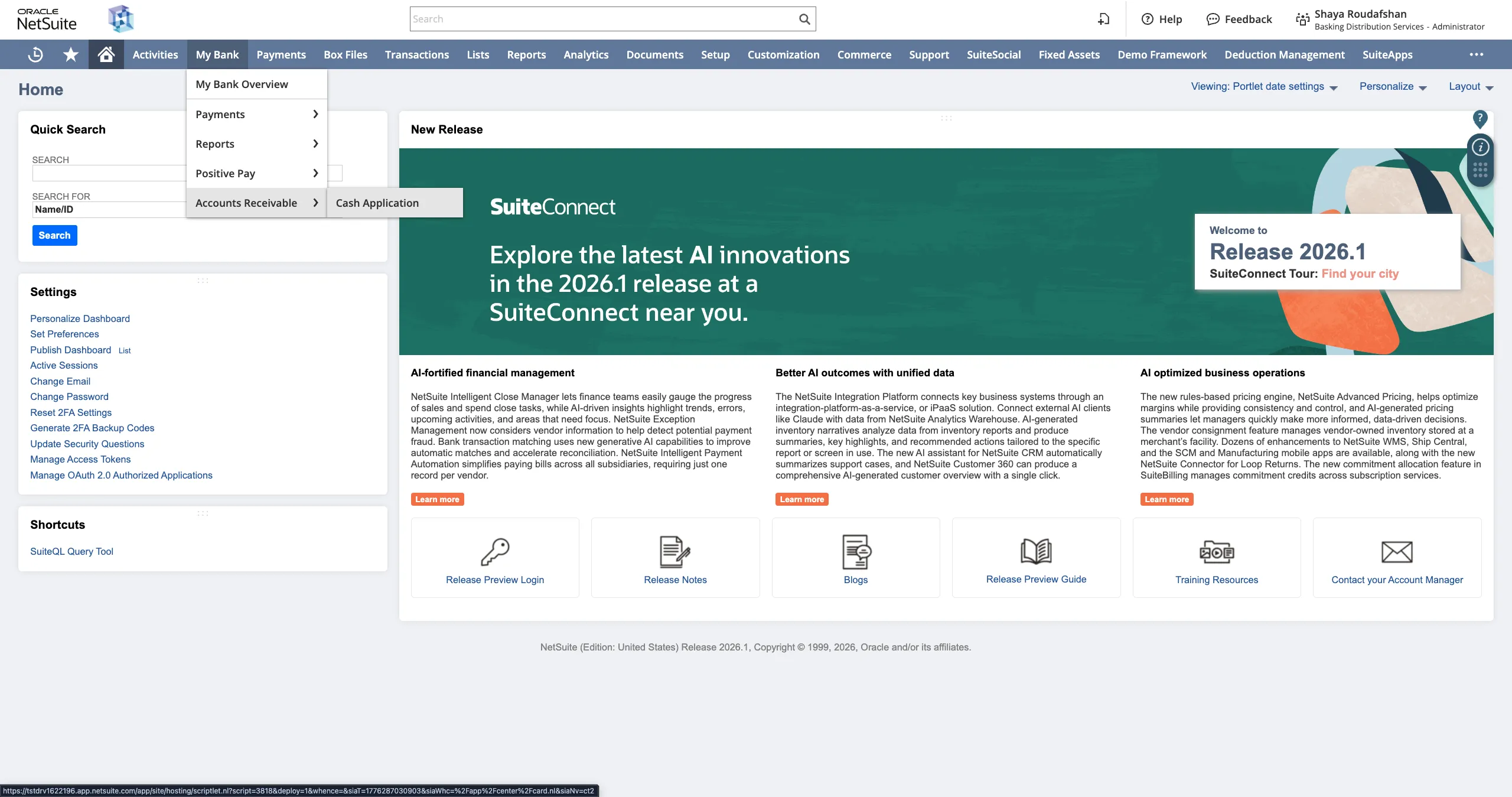
Go to Cash Application
Navigate to CNB Pay -> Accounts Receivable -> Cash Application
Open Deposit Details
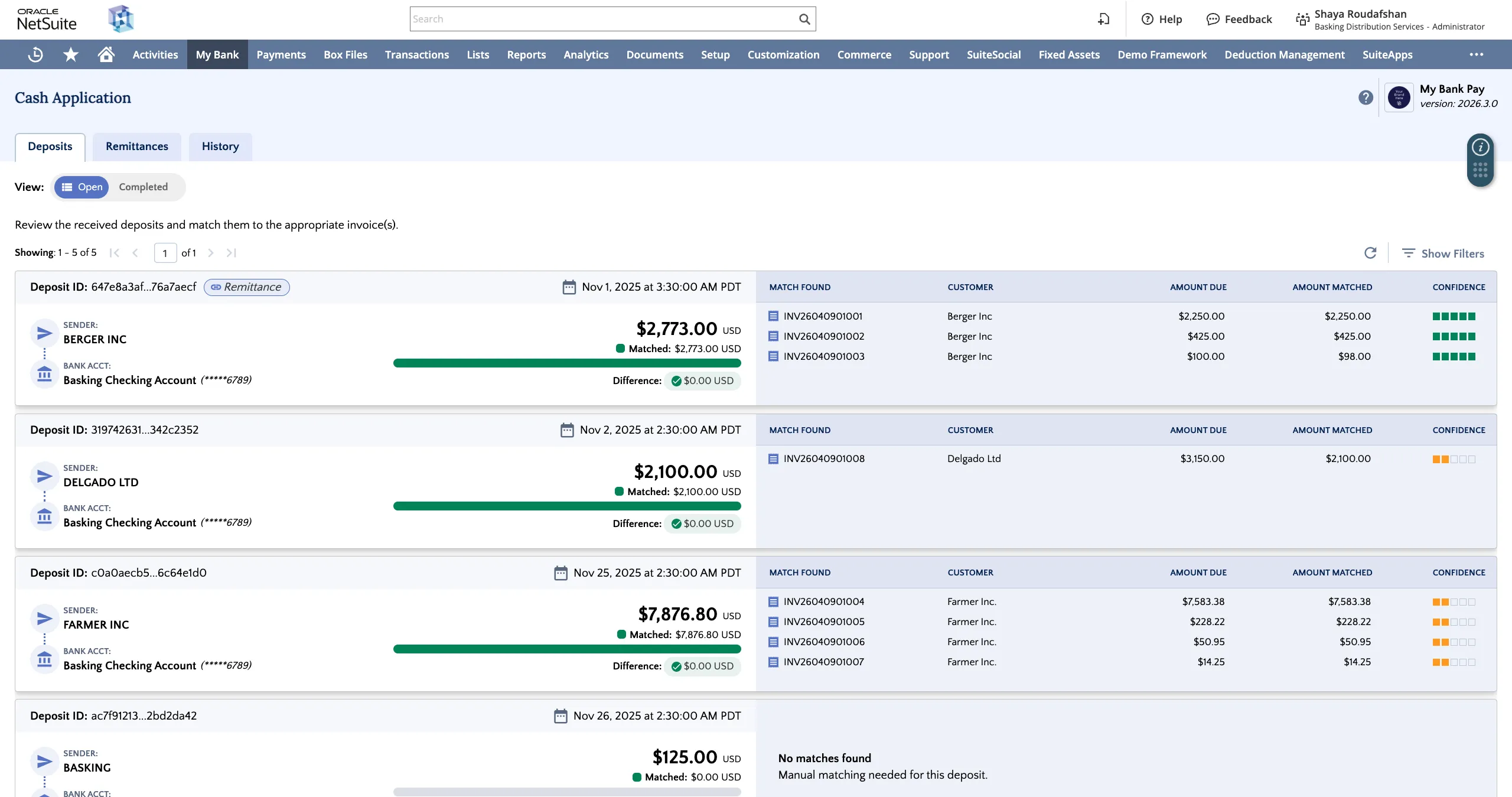
Click on a deposit card to display the Deposit Details and Invoices to Match.
The deposit's Amount, Settlement Date, Sender, Description/Memo, Bank Account, and Bank Reference are displayed on the left.
View Matched Invoices
The matched invoices are displayed on the right, along with the auto-match confidence level (very low to very high), Due Date, Invoice Amount, Amount Due, Discount Taken, and Amount Matched for each invoice.
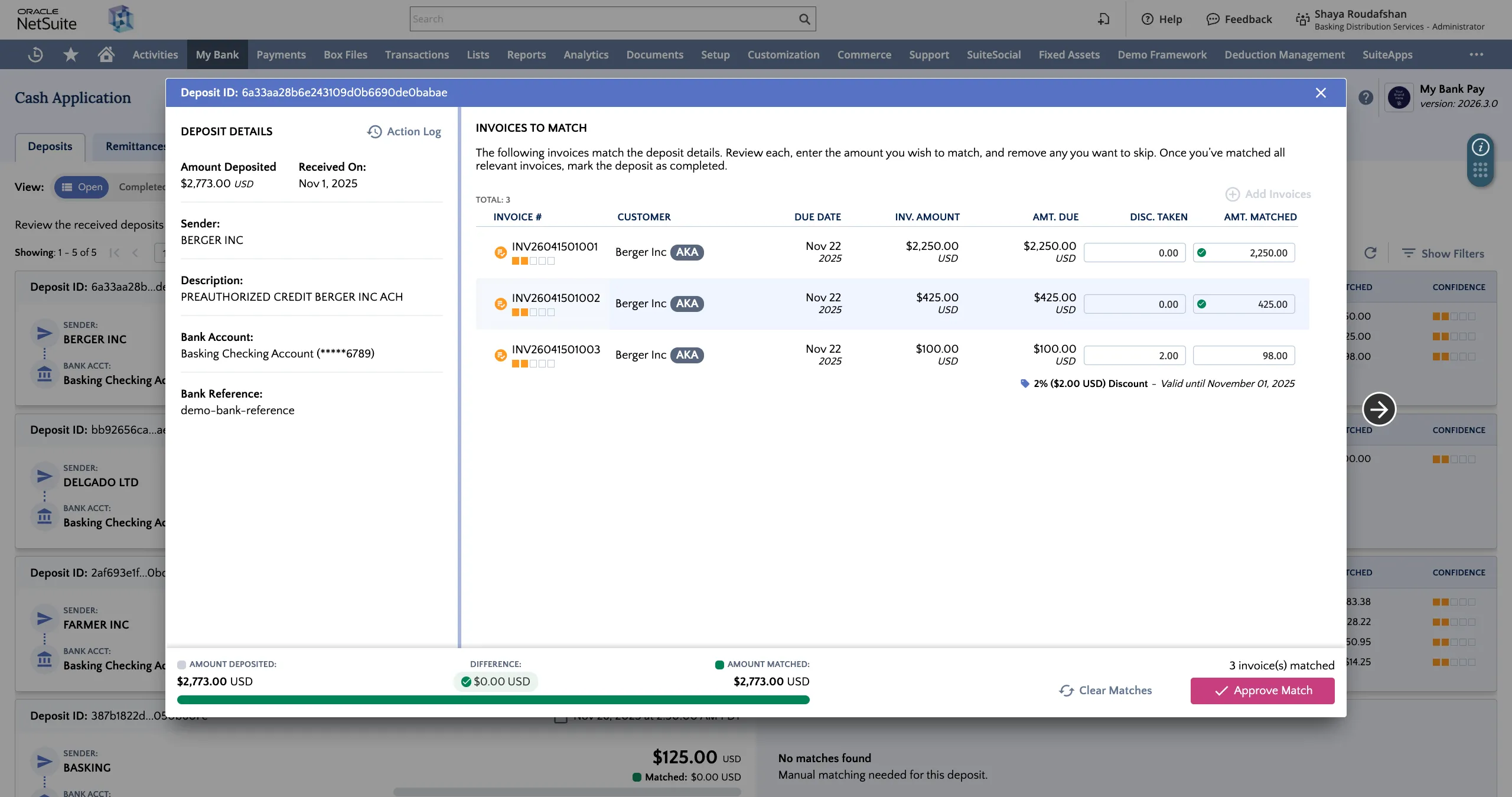
Any relevant discount terms set in the ERP are displayed for each matched invoice.
- Discount Taken: This field can be manually edited to any value between 0 and the amount due for the invoice.
- Amount Matched: This field can be manually edited to any value between 0 and the Amount Deposited for the invoice.
Open Deposit Action Log
The actions associated with each deposit are available by clicking on Action Log from the Deposit Details view.
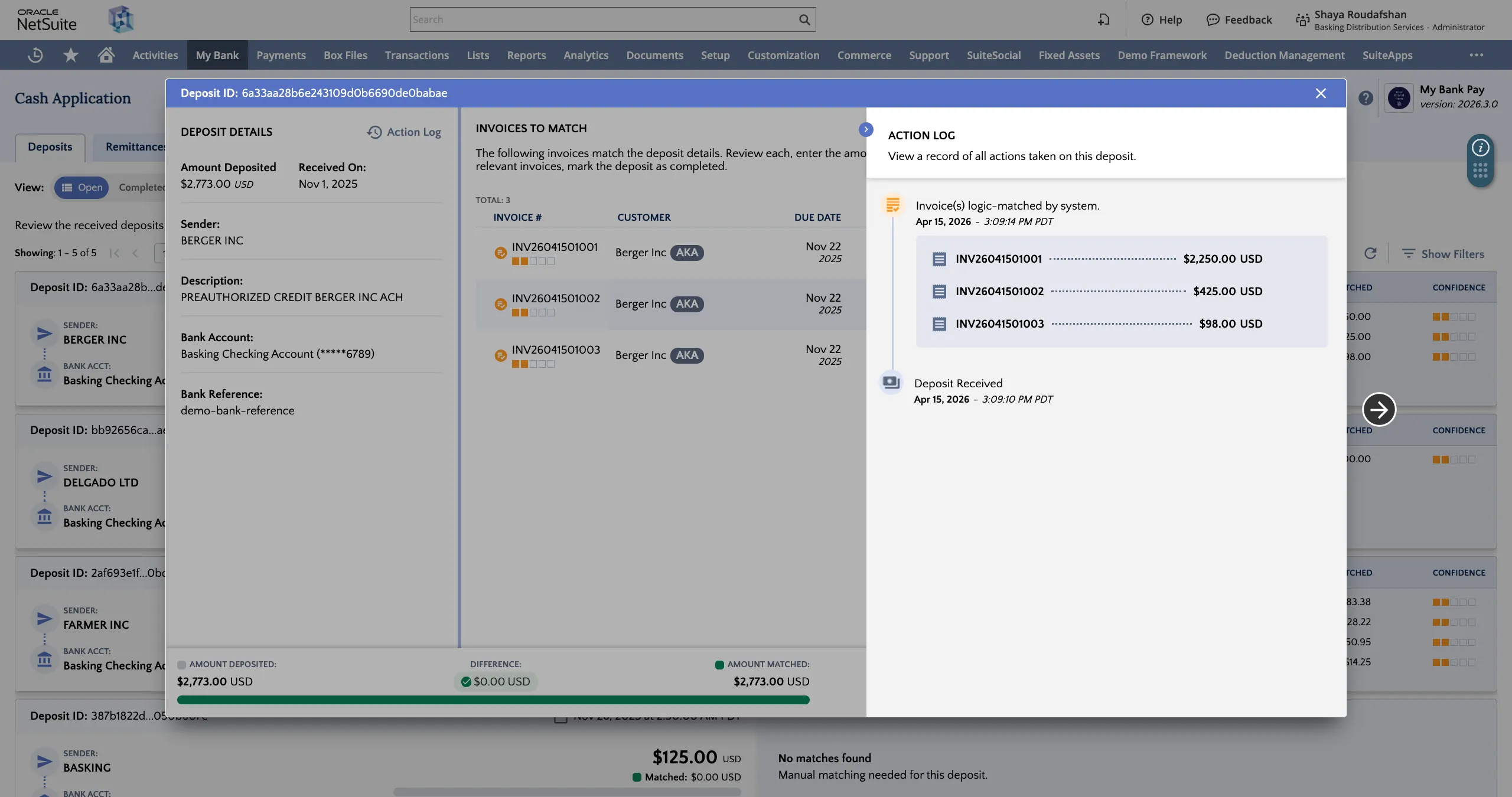
Events shown will include invoice auto-matches, approvals, exclusions, errors, re-matches, and posting of customer payment to the ERP. Information on who performed each action is also displayed (i.e., system or user's email address).
Remove Matched Invoices
Matched invoices can be removed by hovering over an invoice and clicking the minus sign "-" to the right of the invoice.
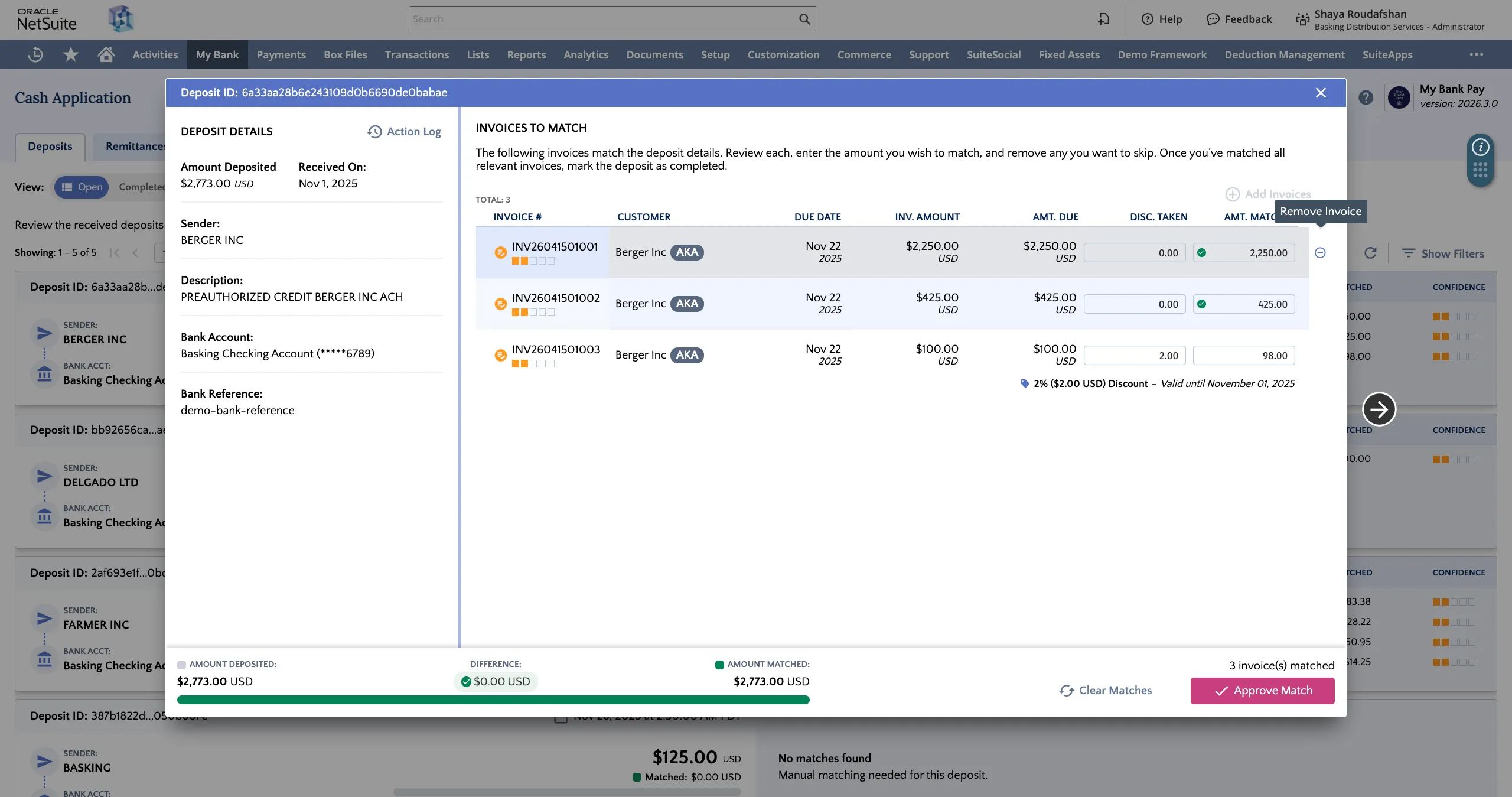
Clicking on Clear Matches will remove all matched invoices at once.
Manually Match Invoices
Invoices can be matched manually by clicking on Add Invoices.
While adding invoices, filters can be applied for Customer, Invoice #, Due Date, and Amount range.
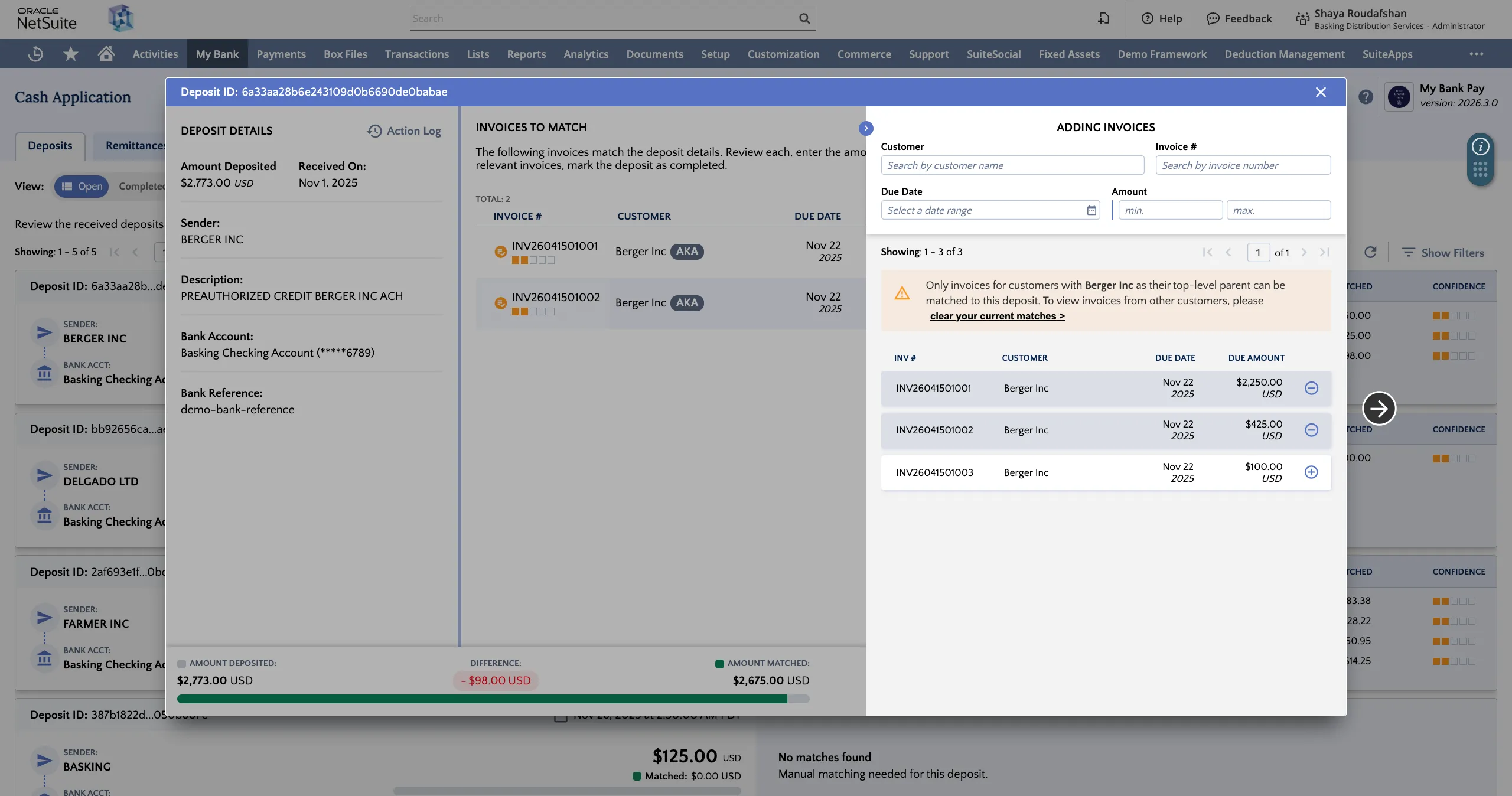
NOTE: Only invoices that have a parent/child relationship to one another (i.e. have the same top-level parent) are displayed. To view the full invoice list, click on Clear Matches to remove all existing matches and view the full list of open invoices.
Approve Match
If matched invoices are fully matched against the deposit amount, the deposit can be approved by clicking the Approve Match button.
The match request will then be submitted to NetSuite to post the customer payment and apply it to the matched invoices.
If an invoice is settled in full, its status will update to "Paid in Full" within NetSuite. After processing is complete, the deposit will automatically move to the Completed tab.
Exclude Deposit
If there are no invoices matched against the deposit or if all invoices have been manually removed, clicking Exclude Deposit will remove the deposit from the list and move it to the Completed tab.
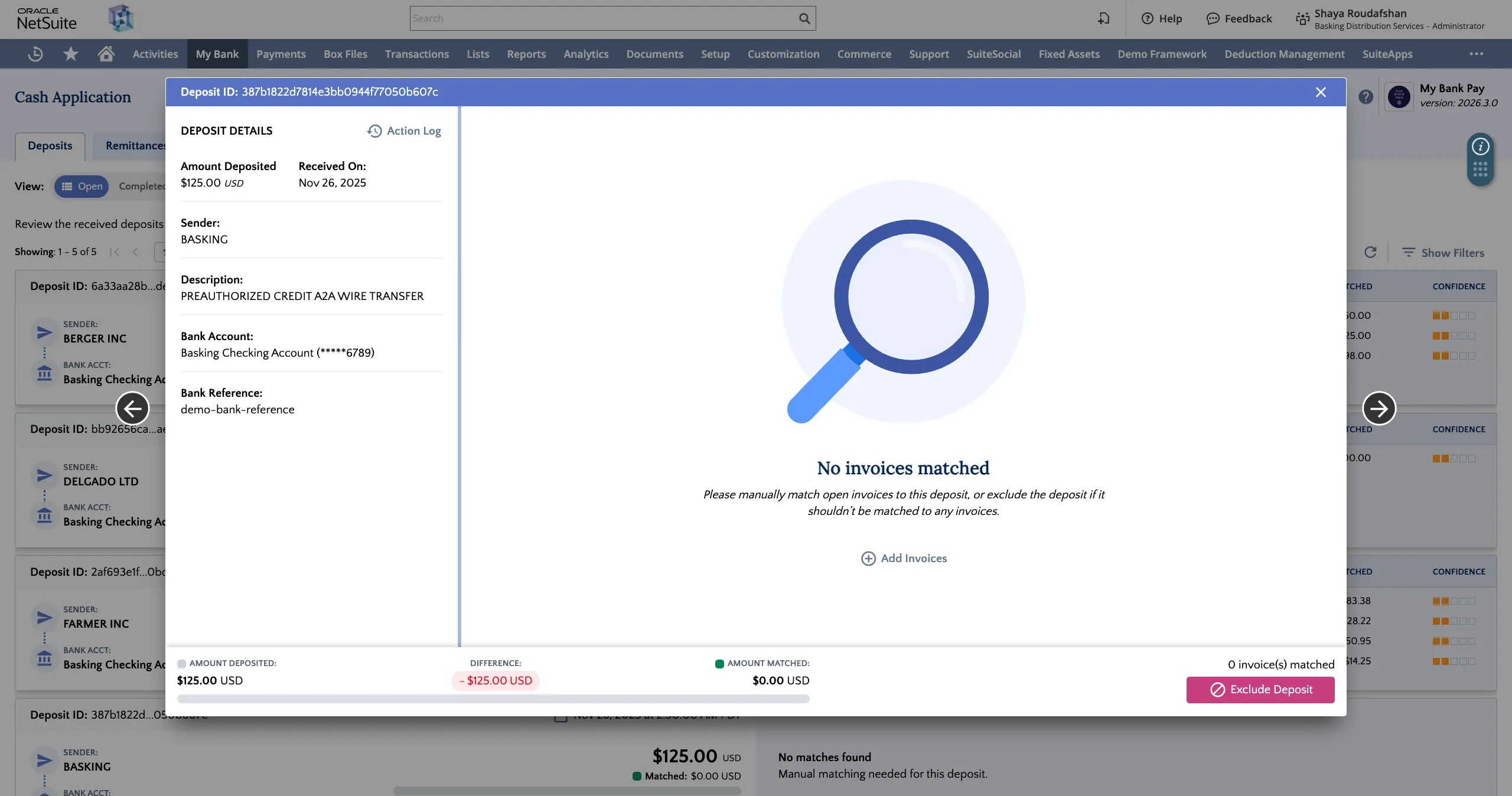
No actions will be taken in NetSuite.