Viewing Open Deposits (NetSuite)
Once you are onboarded to the Accounts Receivable solution, you can easily track open deposits and auto-matched invoices from your ERP. Follow these steps to access your open deposits.
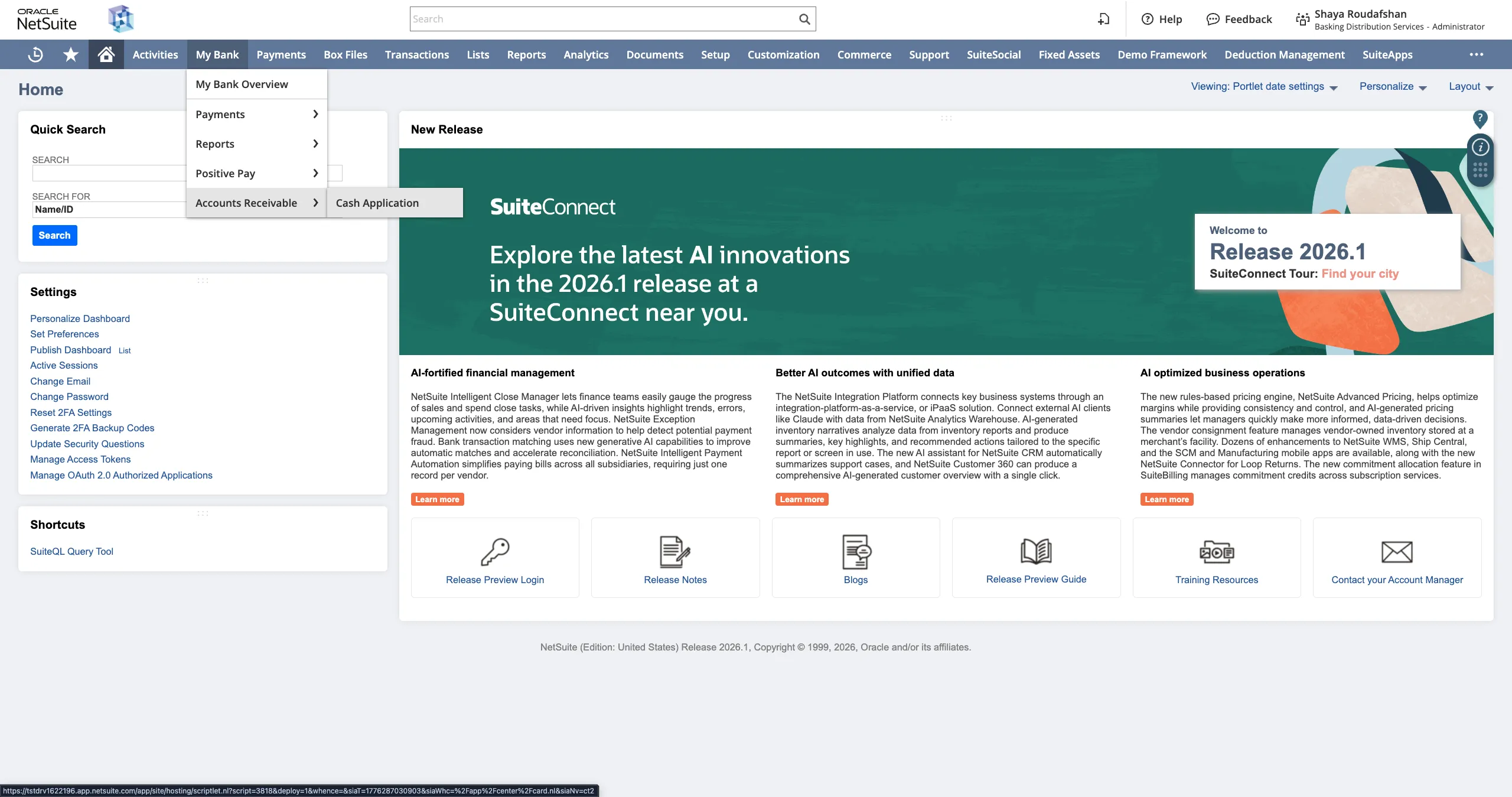
Go to Cash Application
Navigate to CNB Pay -> Accounts Receivable -> Cash Application
Open Deposits
The Deposits tab (Open view) displays all deposits that have been auto-matched against open invoices. These items are currently pending your review and approval.
Each entry is shown as a card: the left side displays the deposit details, while the right side displays the invoice matches.
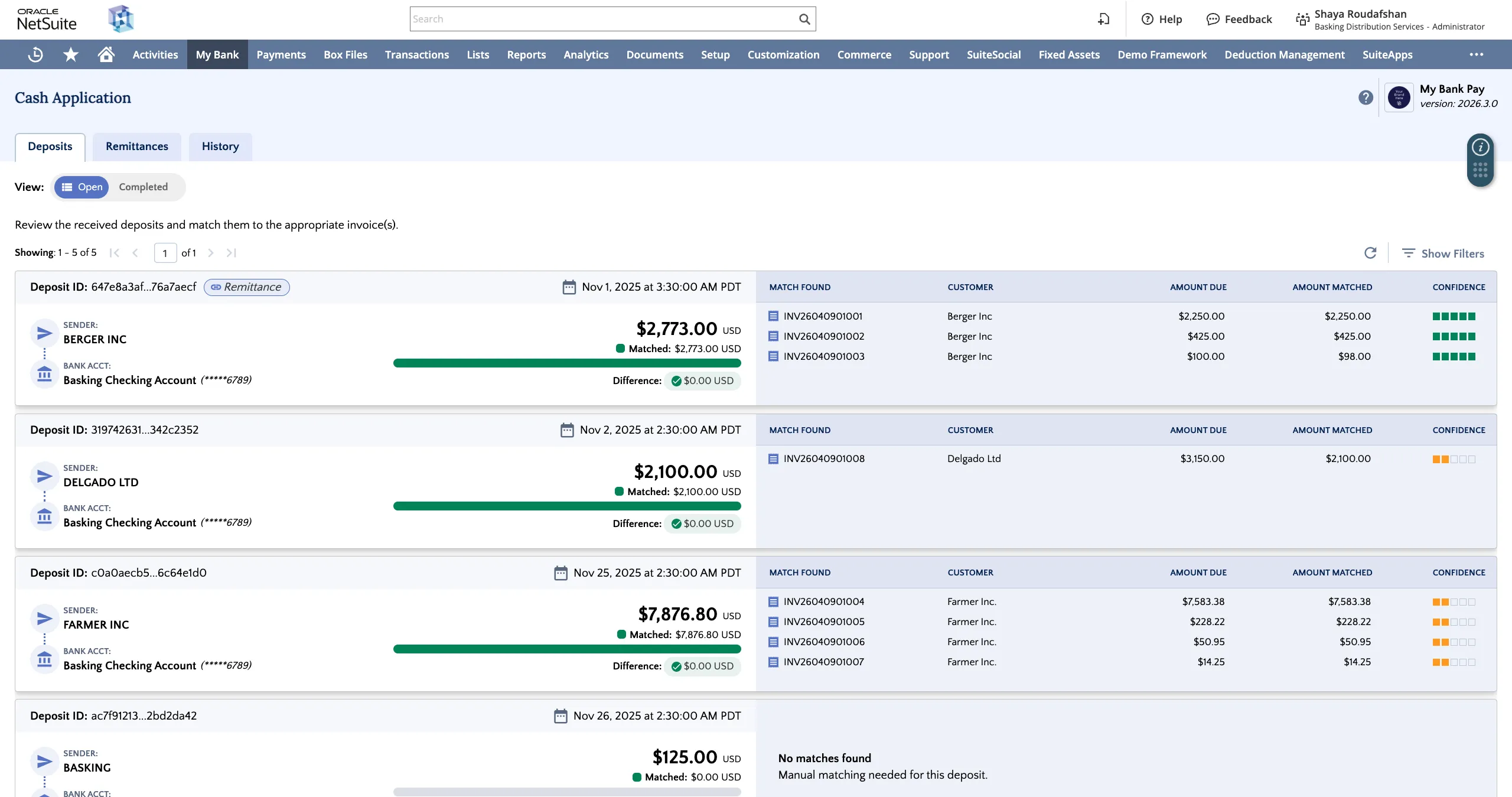
Within the deposit details, a green bar indicates the portion of the deposit auto-matched to open invoices. The Matched amount is displayed above the bar, while the Difference representing the remaining unmatched balance is shown below.
Navigate through your open deposits list using the pagination tools at the top or the scroll bar on the left.
Deposits List Filter
Click on Show Filters or Hide Filters to open your filters.
The deposits list can be filtered by Bank Account, Deposit Amount, Customer, and Deposit Date.
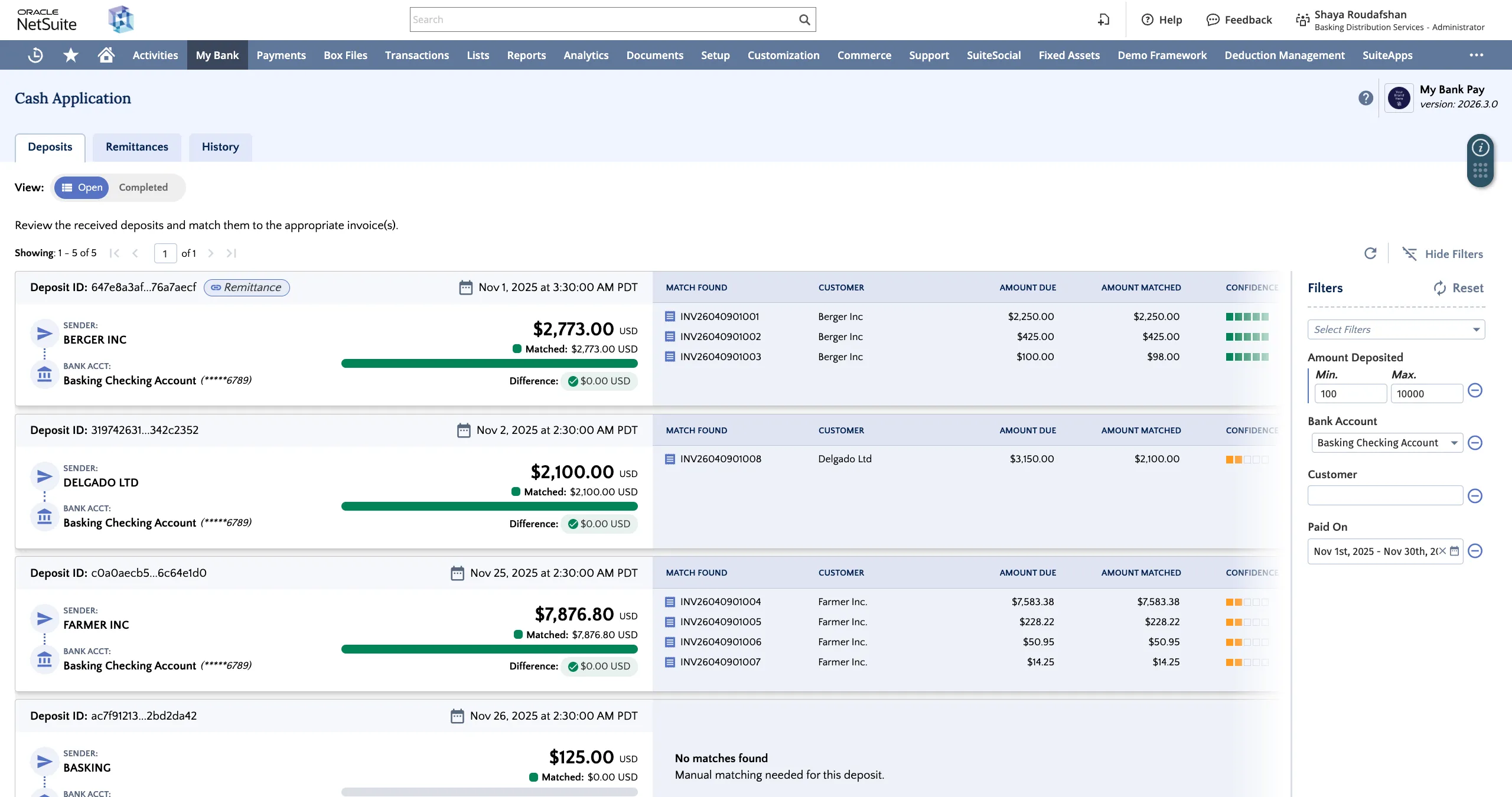
Individual filters can be removed by clicking on the minus sign "-" to the right of each filter.
Clicking on Reset will remove all active filters.