Failed Payment Notifications
Subscribe to email alerts for any payments sent through the plugin that fail by enabling Failed Payment Notifications, an optional feature of the Accounts Payable product. Use this guide to learn how the feature works and how to set it up.
Overview
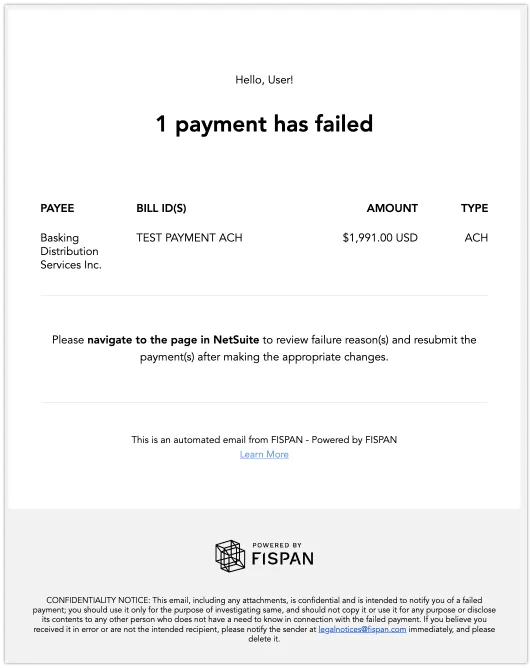
When a payment doesn't go through, the Failed Payment Notifications feature ensures you're immediately alerted. An email is sent to the individual who originally submitted the payment, listing the payment failure and all affected bills. If configured, a copy can also go to a shared team inbox.
To prevent a flood of messages, we send failure notification emails once every 10 minutes. All payment failures that occur within that 10-minute window are automatically grouped and sent in a single email. There is no maximum limit to the number of failures that can be included in one notification.
Failures can result from issues like incorrect details or problems with the payment network (payment network failures), depending on your specific setup. Detailed information about the failure reason and the current status of the payment can be found within the ERP's Payment History page.
Setup and Settings
Follow these to enable or disable Failed Payment Notifications.
Go to Failed Payment Notifications
Log in to the FISPAN Portal at https://sys.fispan.live/login.
From the Control Center dashboard, go to Failed Payment Notifications.
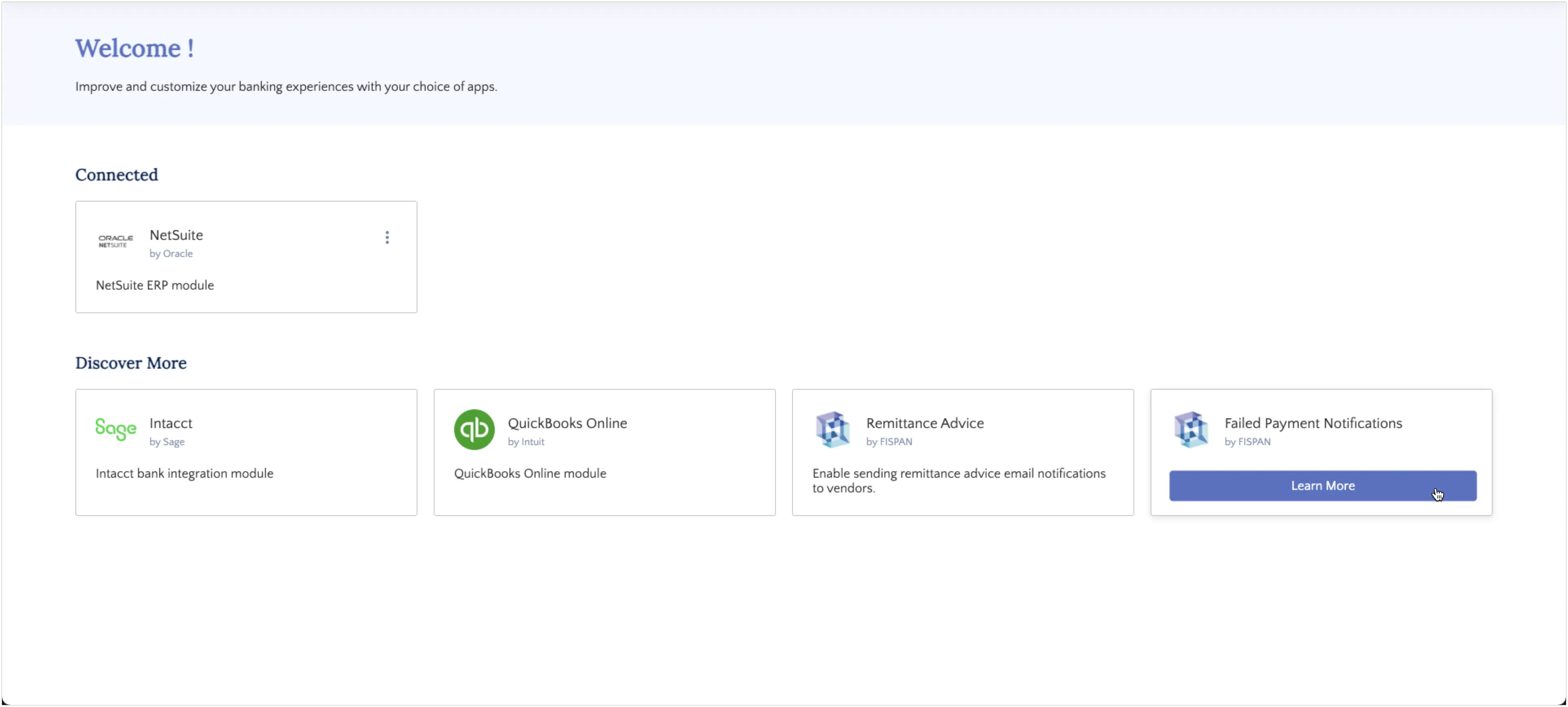
NOTE: Don't see the Failed Payment Notifications option? Please reach out to support and request that this feature be enabled for you.
Enable Failed Payment Notifications
To begin enabling the Failed Payment Notifications feature, click on the Learn More button. This will display some details about the Failed Payment Notifications feature.
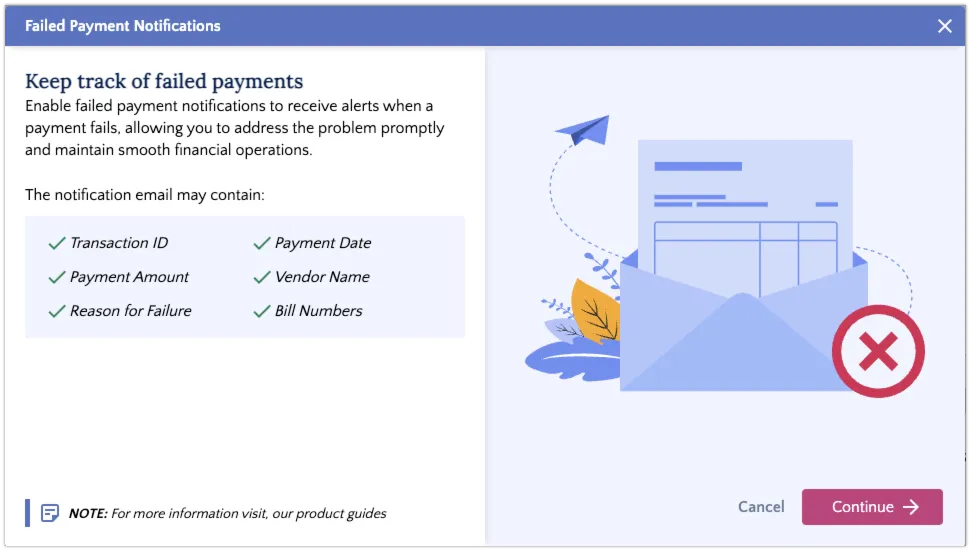
When you are ready to configure your settings for this feature, click Continue.
Configure Settings
To finish setting up your notifications, you can configure the two optional settings:
- Get Notified: This setting includes a list of email addresses that will receive all failure notifications. This would be useful for a large team that wants to leverage a shared inbox to centralize failure notifications.
- Do Not Disturb: This setting is an opt-out mechanism, such as if a specific user at the business does not want to receive payment failure notifications (but other users do).
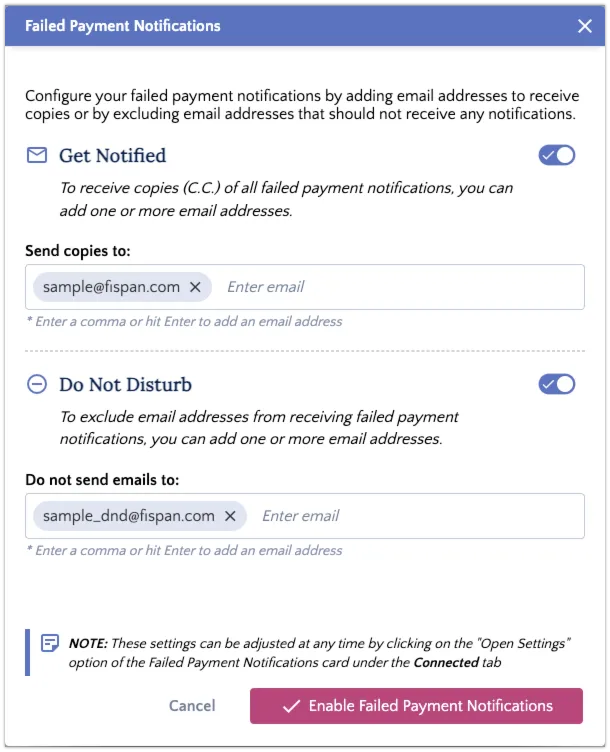
Once these settings are enabled, any future payment failures will be automatically grouped and sent out at the next 10-minute interval.
Modify Settings
You can modify the settings or deactivate the feature at any time.
To do this, hover over the Failed Payment Notification, click the three dots button, and select Open Settings or Deactivate to update the configuration.
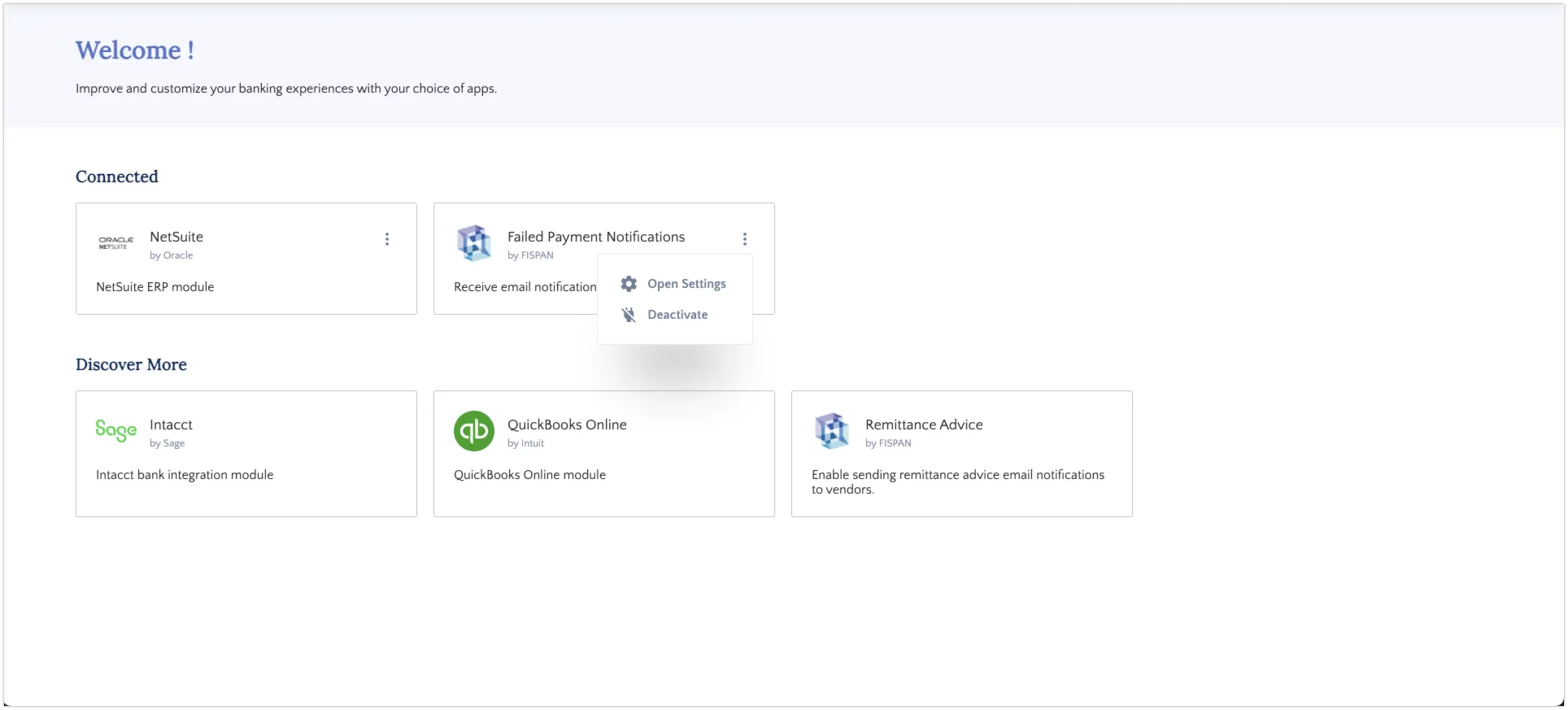
Please allow up to 15 minutes for changes to take effect.
Email Example
The email template below is an example of what the payer would receive shortly after the payment was marked as failed.
FAQs
Below is a list of common questions that may arise with the feature. For further assistance with Failed Payment Notifications, use the Contact Us page to connect with support.