Email Remittance Matching (NetSuite)
Forwarding Remittance
If you receive remittance advice from your customers by email, you can forward those emails to a dedicated intake address. The Cash Application will automatically match deposits to open invoices based on the remittance advice contained within the emails.
Forward Remittance Emails
From your email client, forward each remittance email received from your customers to your dedicated intake address: intake+******@fispan.com which is displayed under the Remittances tab of the Cash Application.
You may forward each email manually, forward multiple emails together as attachments, or set up auto-forwarding rules to automatically forward remittance emails received from customers.

View Processed Remittances
Processing the forwarded remittance emails typically takes one to two minutes. Once complete, remittances will appear under the Remittance tab.
Click on the Remittances tab to view pending and linked remittances.
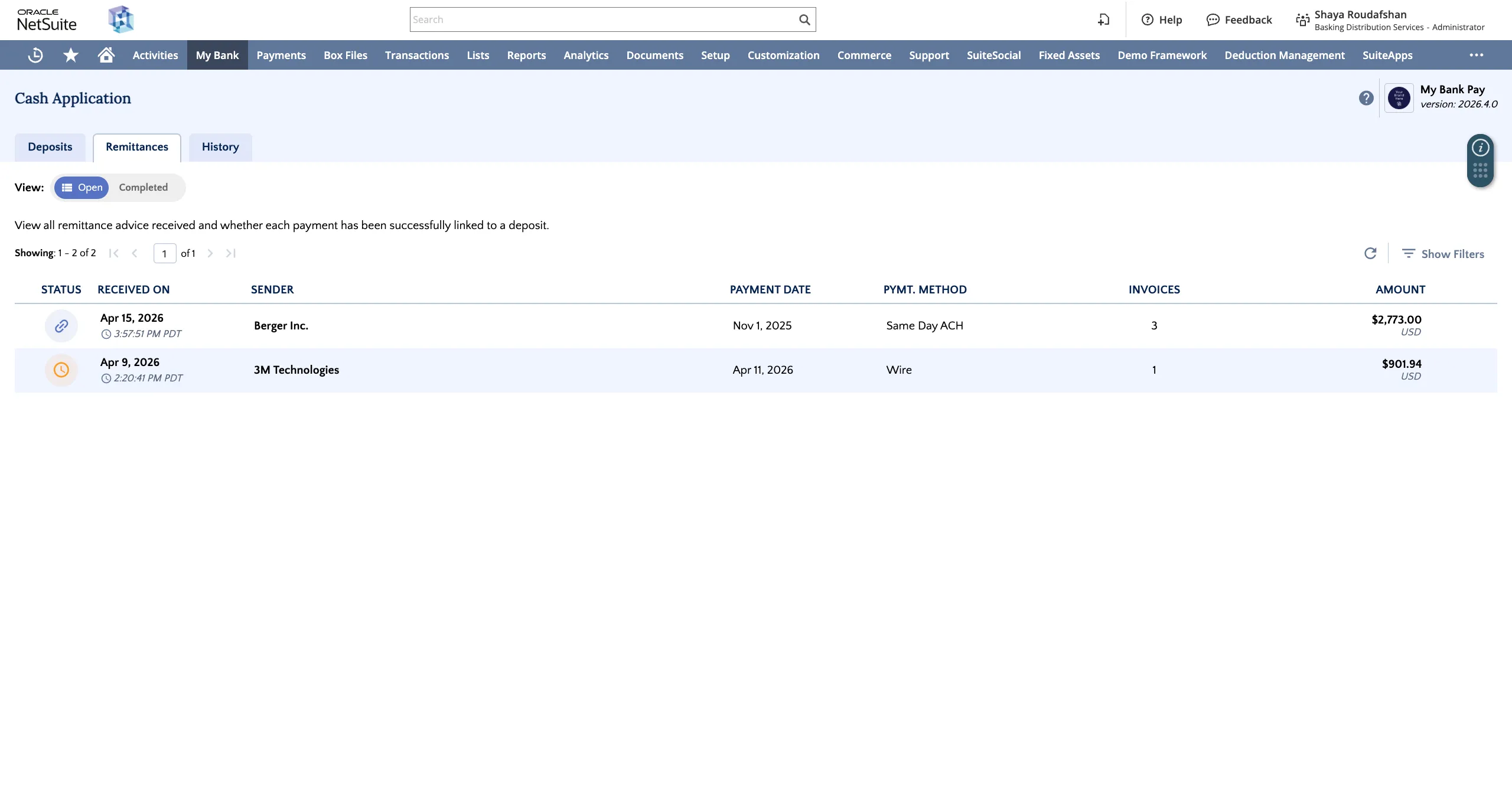
Pending remittances are those pending the arrival of a deposit before being automatically linked to it. Linked remittances have been associated with a deposit that has arrived in your bank account.
TIP: To view Closed or Ignored remittances, click Show Filters and adjust the Remittance Status settings.
Viewing Remittance Advice Details
Select a remittance from the list to view the data extracted from the associated email. This includes the sender and recipient names, payment amount, date, method, referenced invoices, and payment terms.
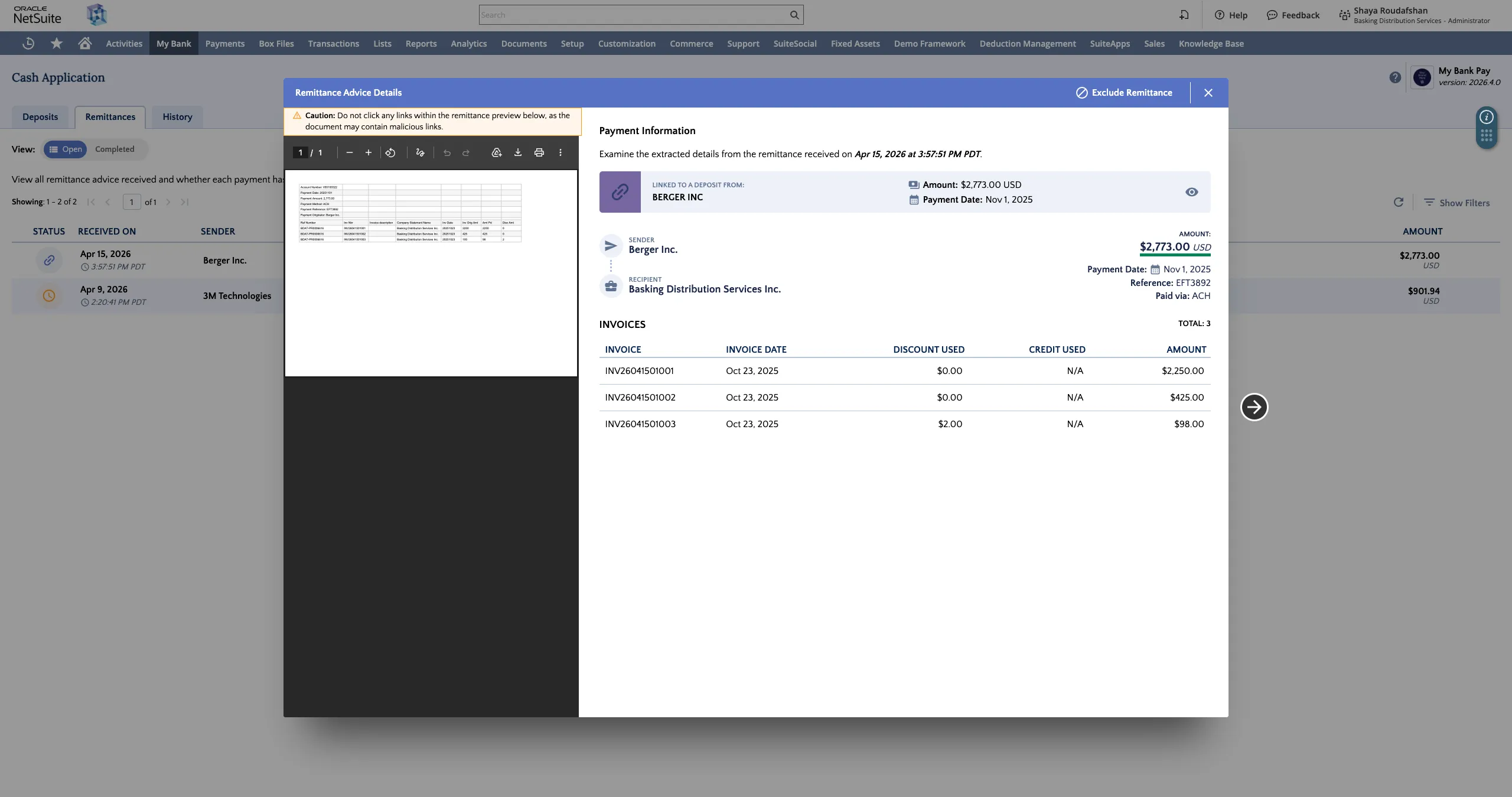
If a remittance is already linked, you will also see the deposit sender’s name, the total amount, and the posting date.
If you do not want a specific remittance advice to be used for invoice matching, click Exclude Remittance in the top-right of the details window
Viewing Linked Deposit Details
Click on the linked deposit to review deposit details and take action immediately. These matches are generated automatically based on the advice extracted from the forwarded remittance email.
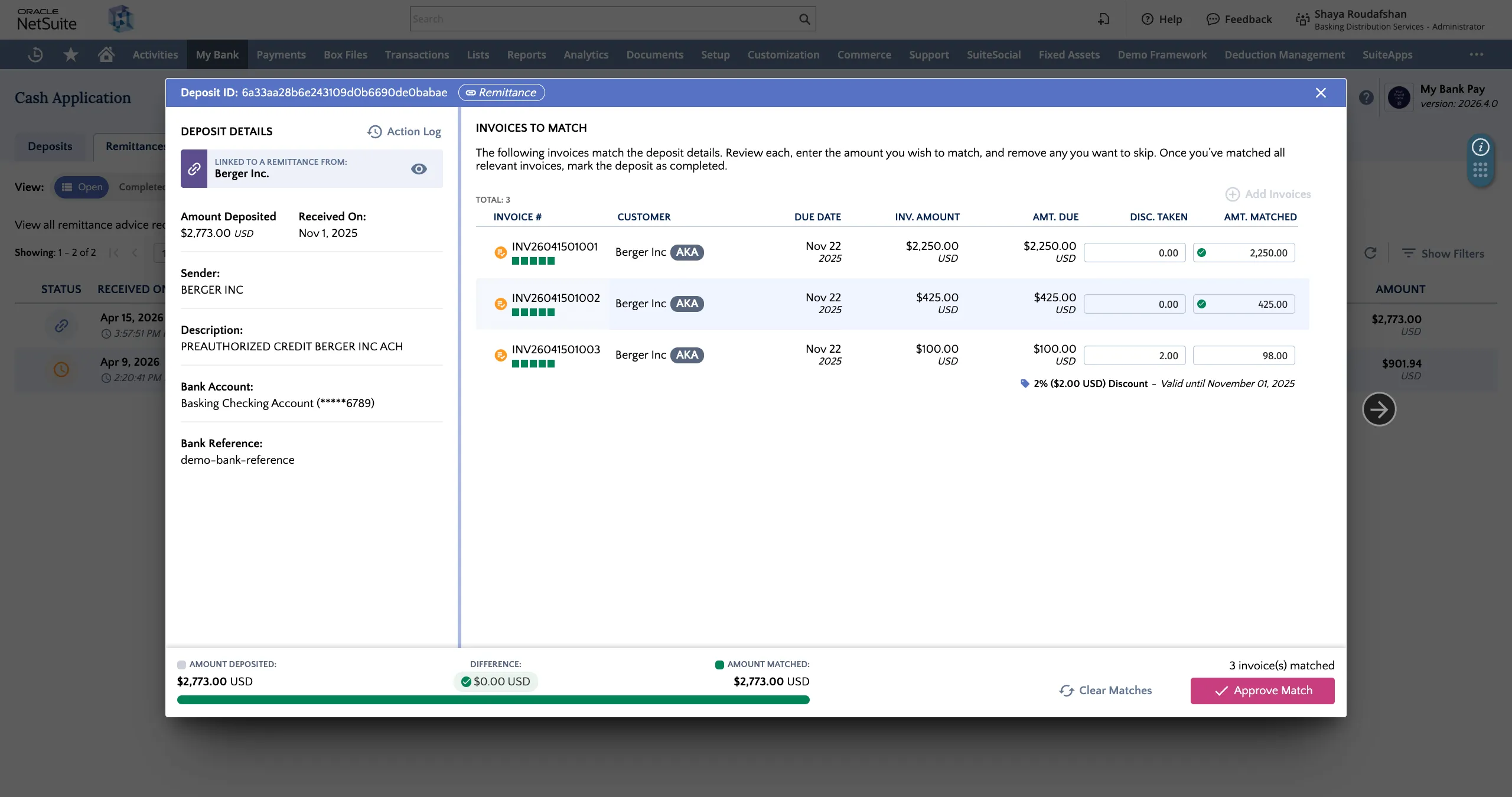
Remittance-Matched Deposits
It is also possible to view and action remittances from the Open tab.
Viewing Open Deposits
Deposits matched using email remittance advice will have maximum confidence associated with their linked invoices.
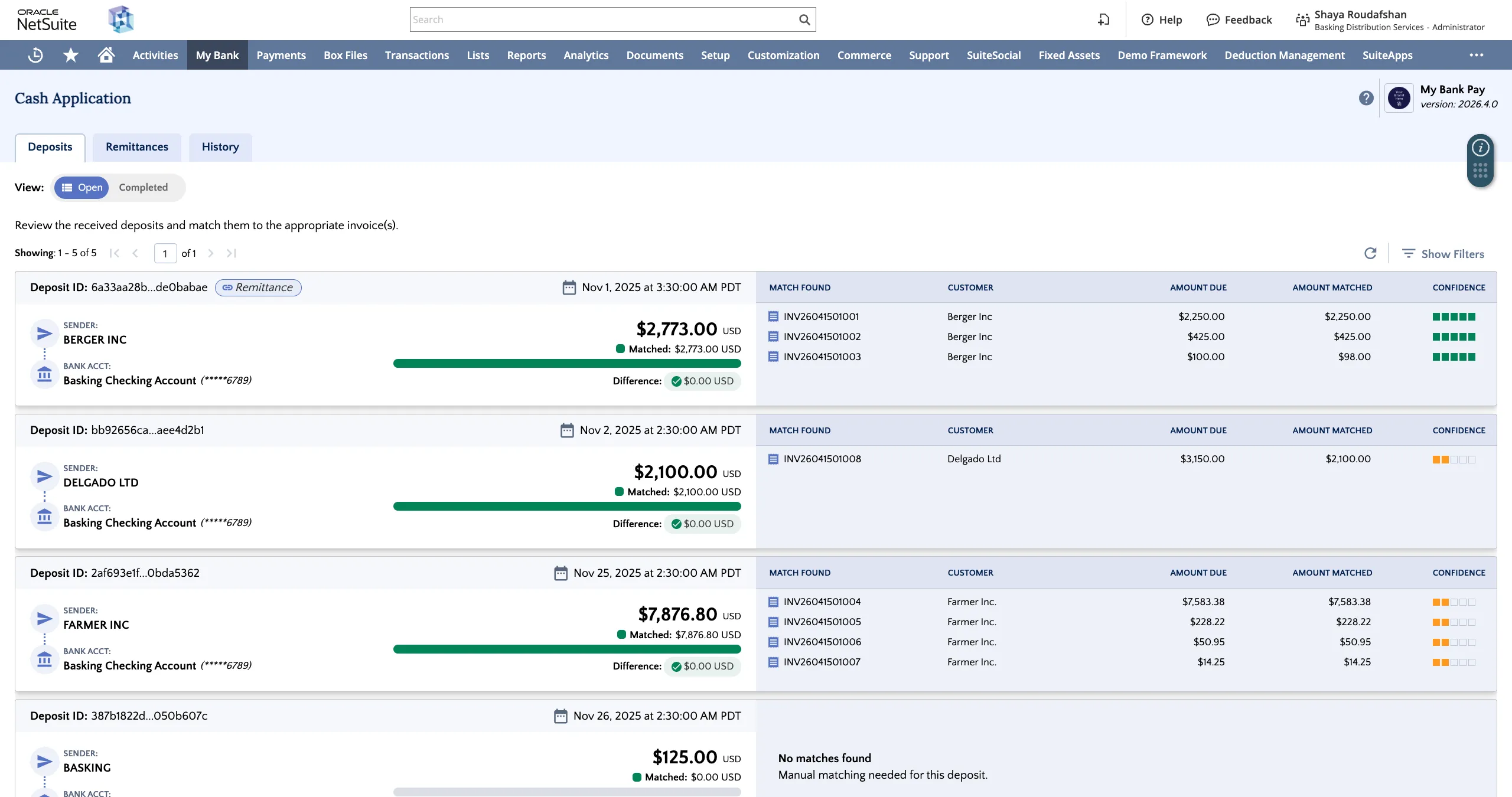
Viewing Deposit with Linked Remittance
A deposit linked to a remittance will have a segment on the left panel indicating that the deposit has been linked to a remittance.
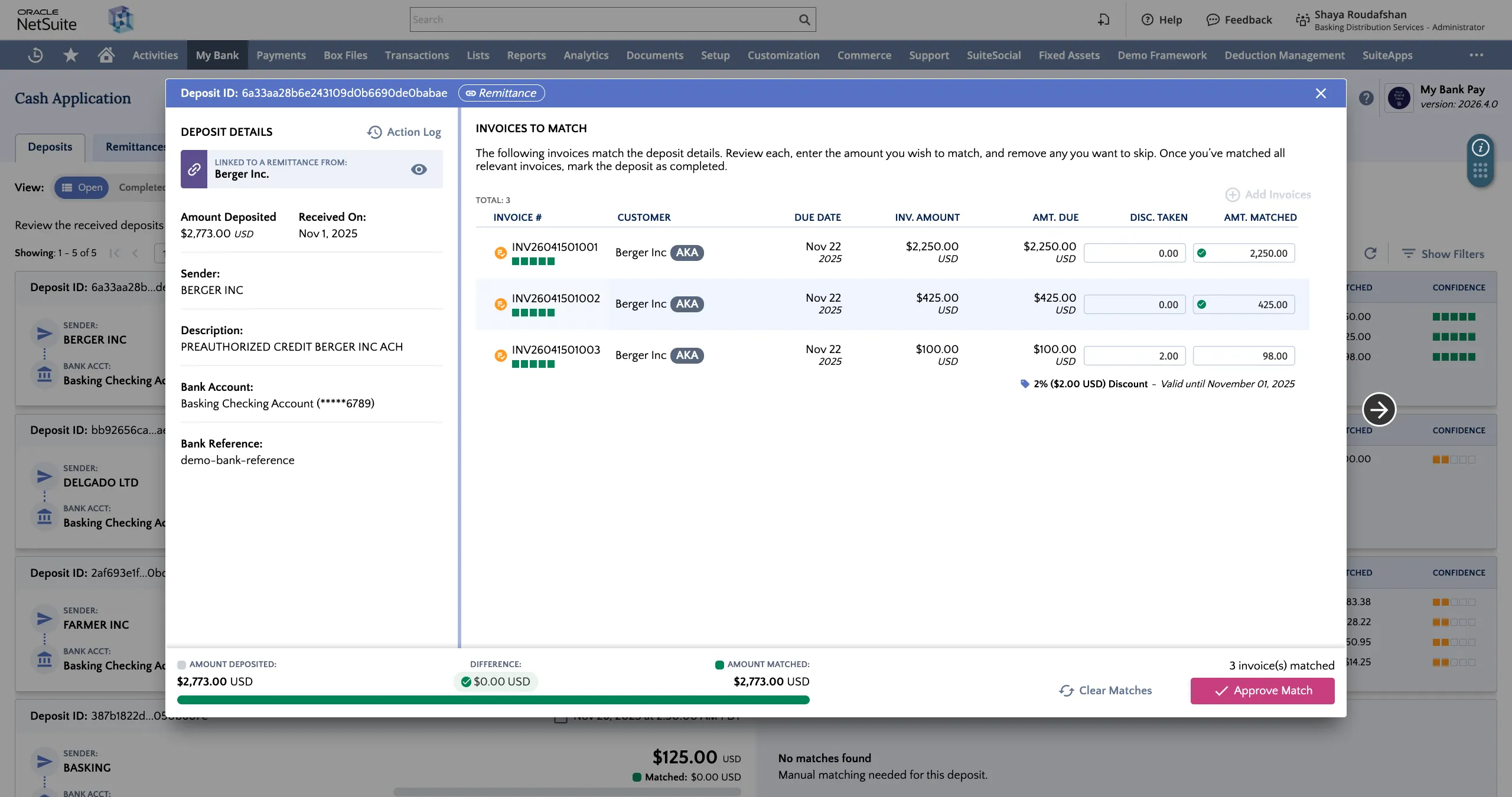
Viewing Linked Remittance Details
Clicking on the section on the left panel titled "Linked to a Remittance from" will display the linked remittance details.
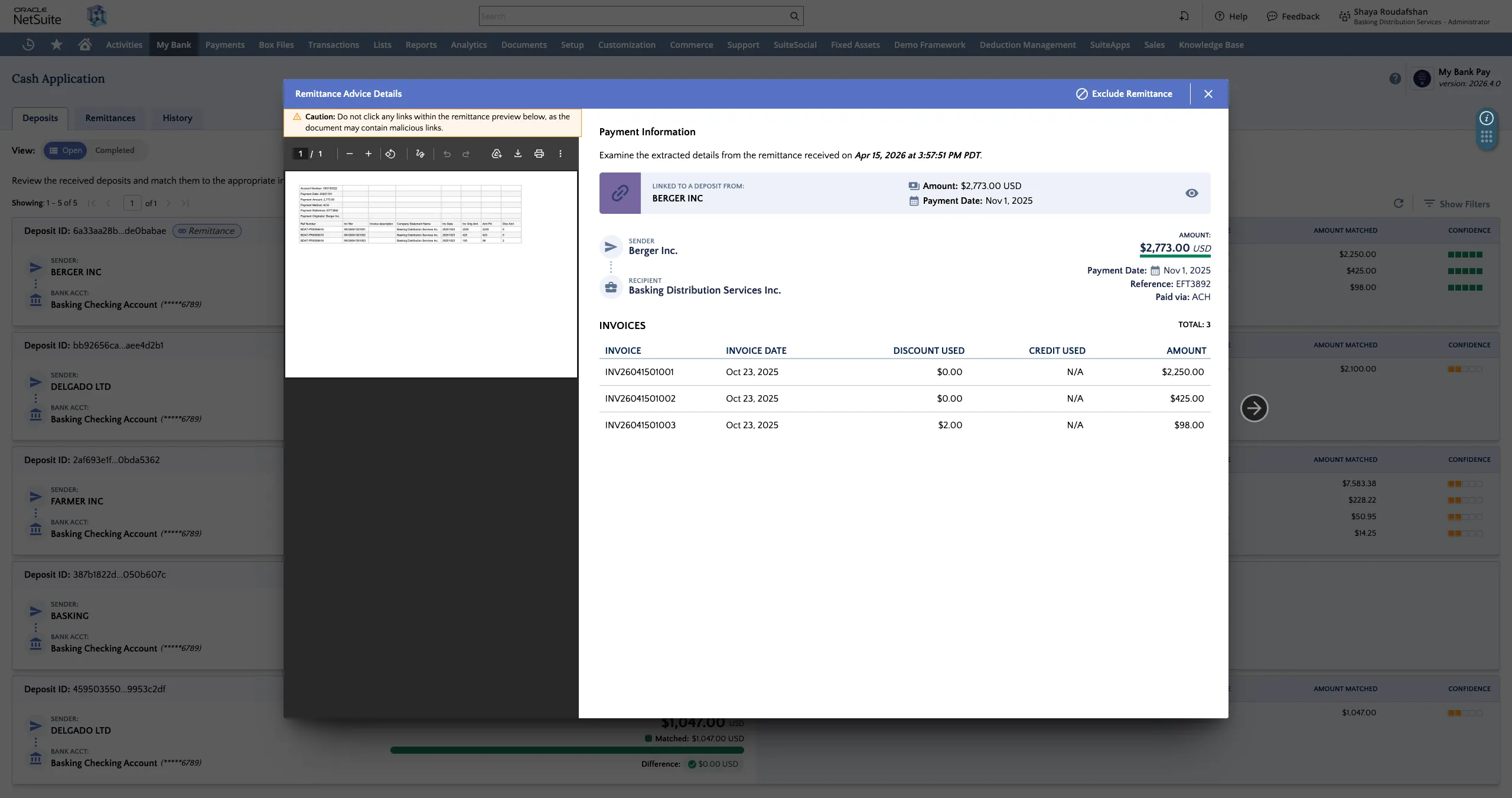
You may click on Exclude Remittance on the top-right of the window if you do not wish for the deposit to be matched based on this remittance advice. Doing so will immediately rematch the deposit using smart logic instead of the linked remittance advice.