Setting Up Multi-Entity Management (Business Central)
If you plan to use this plugin with Multi-Entity Management (MEM) by Binary Stream, please review the configuration requirements, user access, and limitations on this page.
NOTE: If Multi-Entity Management (MEM) is not installed in an instance, you will need to reach out to Binary Stream before installing the plugin. You can learn more by going to the Binary Stream MEM website page.
MEM Configuration
The plugin requires minimal MEM configuration. The following two criteria must be met for successful integration:
MEM is Enabled
In Global Search, look for the Multi-Entity Management Setup. On this page, make sure Disable Multi-Entity Management is disabled.
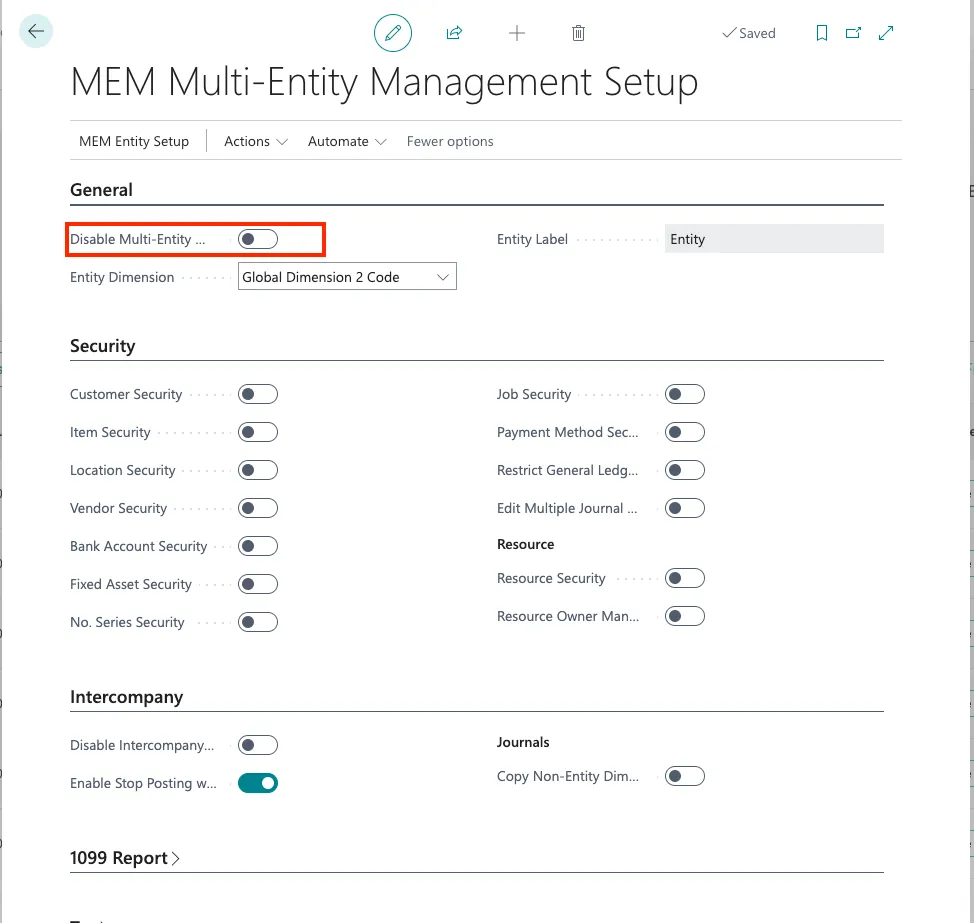
If this option is enabled, the plugin will not respect any subsidiaries when posting and paying bills. This could potentially lead to payment failure or inaccurate records being posted.
Global Dimension is Selected
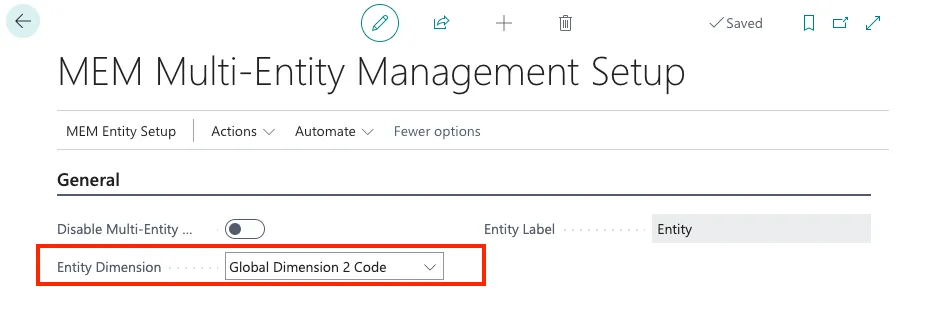
Either Global Dimension 1 or Global Dimension 2 Code must be selected in the Entity Dimension field. Both are supported via the plugin.
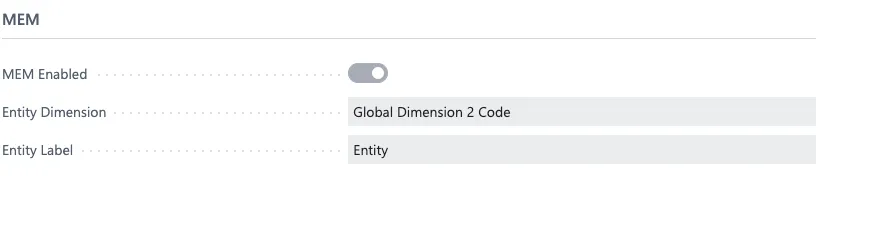
The selected Entity Dimension in the plugin's settings page will automatically sync. You cannot toggle the MEM Enabled status within the plugin; it is automatically toggled on as long as MEM is active in Business Central.
User Access
Multi-Entity Management (MEM) restricts a user's visibility and access to financial data within the system. Access is controlled by assigning users to specific entity codes, ensuring they can only interact with payments to these entities.
Invoices
Invoices must be assigned to an entity.
For a user, the Pay Invoices and Payment History pages are filtered to only display invoices assigned to entities that the user has access to. This access is granted by assigning the user access to specific entity codes.
To set this up, use the global search functionality and search for MEM User Security Setup. Here, users can be assigned access to specific entities.
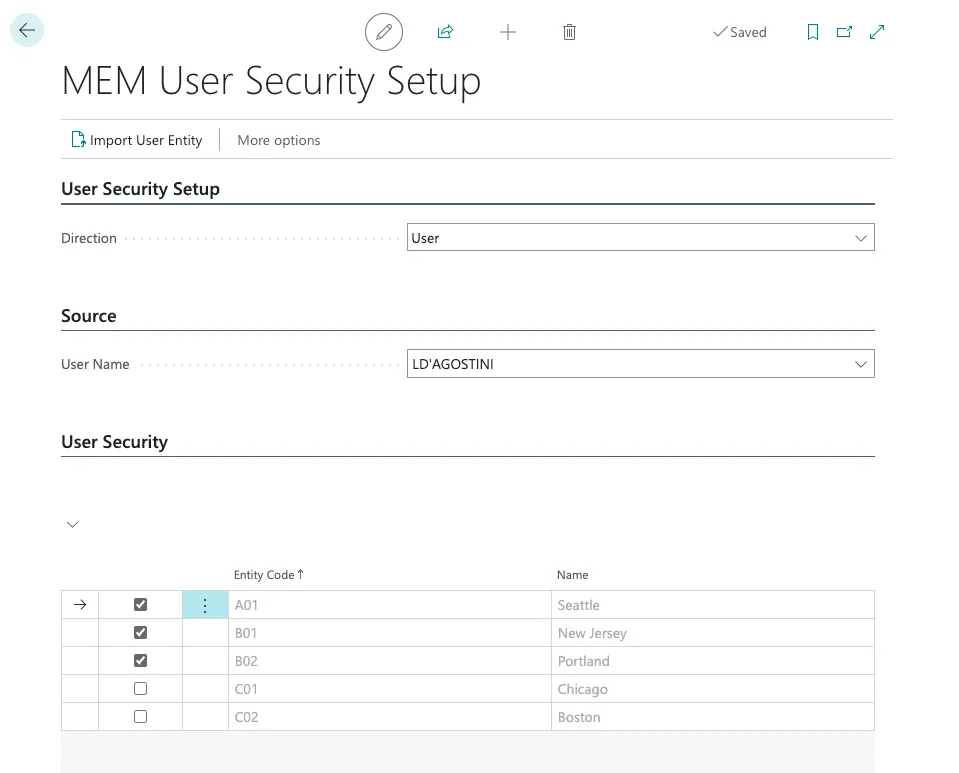
In the example above, this user is only assigned access to invoices with the entity codes A01, B01, or B02, and will only have visibility to those records. They will not be able to see invoices assigned to C01 or C02.
Bank Accounts
Bank accounts must also be assigned to an entity.
The same entity-based logic applied to invoices is utilized here. Bank accounts loaded on the Pay Invoices page and the Bank Statements page will only display those assigned to the entities the user has access to. This access is also granted by assigning the user access to specific entity codes in the MEM User Security Setup.
Following the same example, this user would only have access to bank accounts with the entity codes A01, B01, or B02. They will not be able to access any bank accounts assigned to C01 or C02.
Vendors
There is no current filtering on access for vendors via the plugin.
Disabling MEM
Please consult with your ERP Consultant and/or Binary Stream to remove MEM from your environment.
Once uninstalled, the plugin will not be able to read or modify records for companies specified under the Entity Dimensions.
Limitations
Since FISPAN and Multi-Entity Management by Binary Stream Software are two independent extensions, the following features will be disabled by FISPAN upon installation due to incompatibility with the MEM architecture.
Write Check Ledger Entries
The feature specifies whether check ledger entries should be made for any check payments through the plugin.
Overwrite Doc No. Check Payments
The feature specifies if the Document No. on the ledger entries should be overwritten on check payments.
NOTE: Although check numbers will not be overwritten or added to the check ledger entries, check numbers can still be accessed via the Payment History CSV Export for your records.
Batching Ledger Entries
This feature allows multiple invoices to be paid under one payment through the plugin. When enabled, it combines invoices into one entry in the bank account ledger entries, check ledger entries, and vendor ledger entries.