Managing Balances & Transactions (Xero)
FISPAN Sync connects your accounting system directly to your bank, providing a single view for cash management and the reporting of balances and transactions. Follow this guide to learn about the Cash Management product and how to use the Reporting features to import balances and transactions into Xero.
View Balances & Transactions
Follow these steps to view and export your bank account Balances and Transactions using FISPAN Sync.
Navigate to Balances and Txns.
From anywhere in FISPAN Sync, select Balances and Txns.

View Balances & Transactions
Go to the Balances page to see your balance information, where you can also filter it by Currency.

You can see previous day, intraday, and near real-time transaction information for your in-scope accounts, sourced directly from your bank.
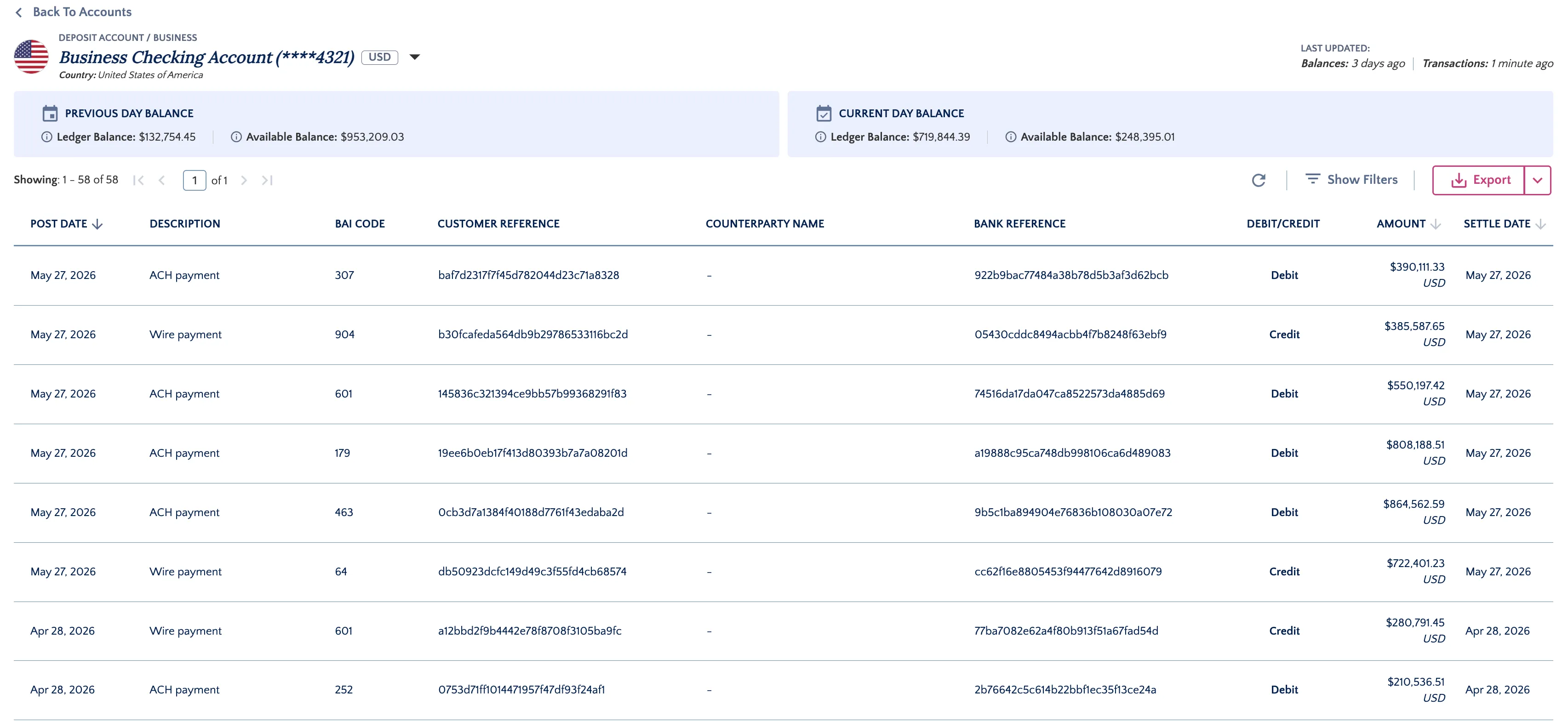
You can also select a transaction to view further details, such as the description.
Import the Transactions into Xero
Now that the transactions have been saved on your computer, you can upload them to your Xero.
To do so, start by logging into your Xero account.
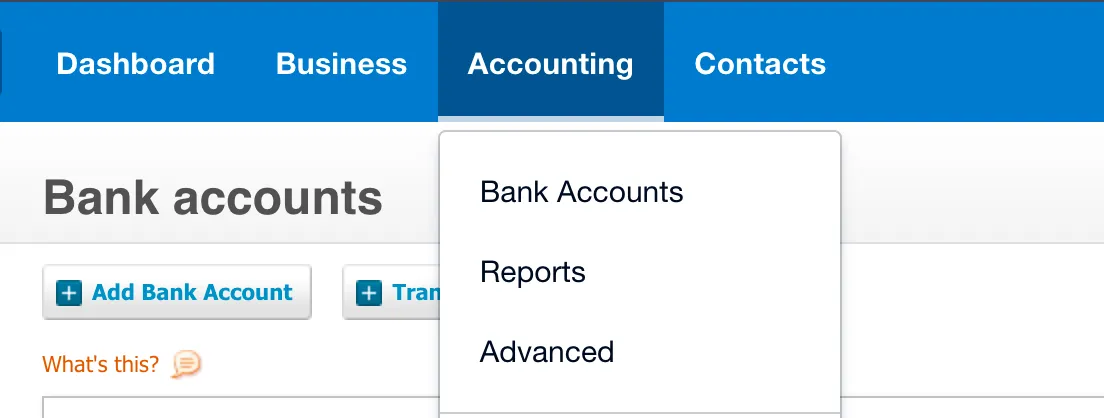
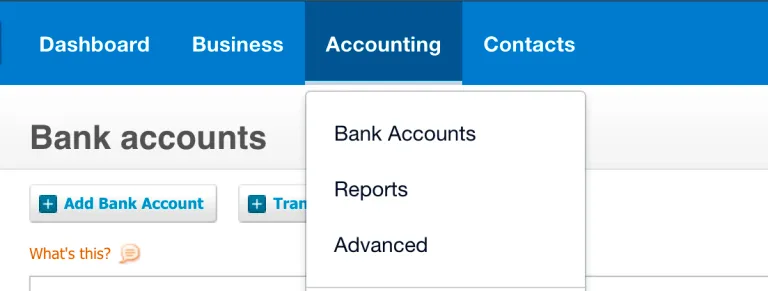
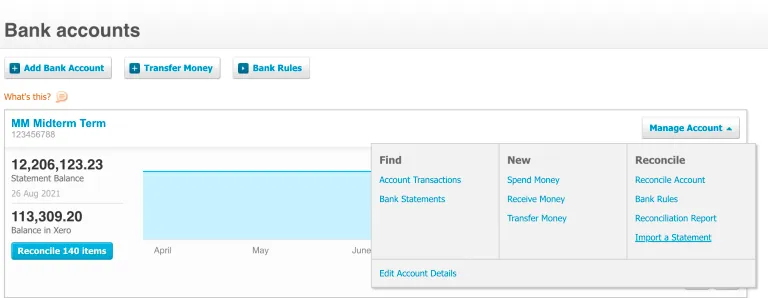
After logging into Xero, select Accounting → Bank Accounts
On the Bank Accounts page, locate the bank account which you would like to import transactions for.
On the top right corner, select Manage Accounts → Import a Statement
Select Browse and select the file you exported from FISPAN Sync.
After doing so, select Import.
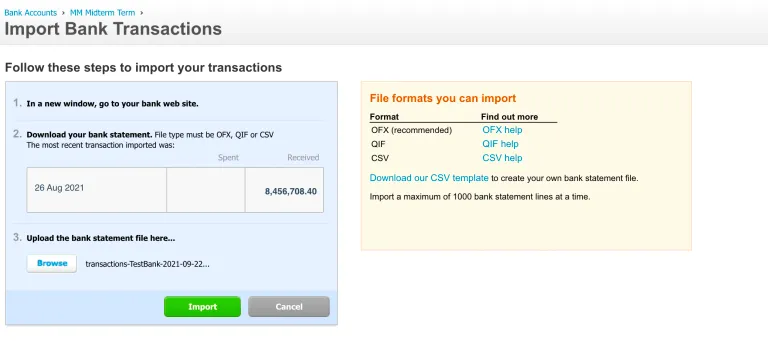
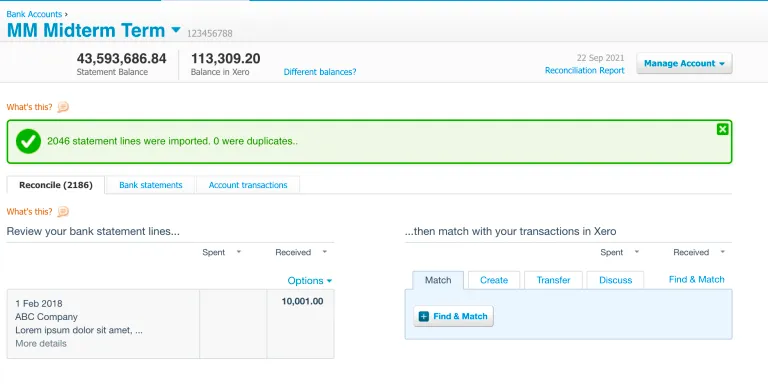
Your transactions have now been imported into Xero, and you can now reconcile your transactions.