Applying Discounts (Intacct)
The discount feature allows you to apply available discounts to payments processed through the MUFG Connect, and the payment request sent to the bank will automatically reflect the discount amount.
Applying Discounts
When paying a bill, you can apply the discount terms set in native Sage Intacct. Discount terms cannot be applied to bills that are only partially paid.
To successfully apply a discount, you must meet one of the following two conditions:
- You are paying the bill in full with a single payment (this payment can be part of a combined payment run).
- You are making the final payment on the bill. The discount can be applied only if this final payment clears the remaining amount due on the bill.
Please refer to the "i" icon in the Discounts and To Pay columns for explanations of the expected behavior.
Follow these steps to apply discounts to a payment.
Set Payment Terms
Start by creating the discount terms for the payment within native Sage Intacct.
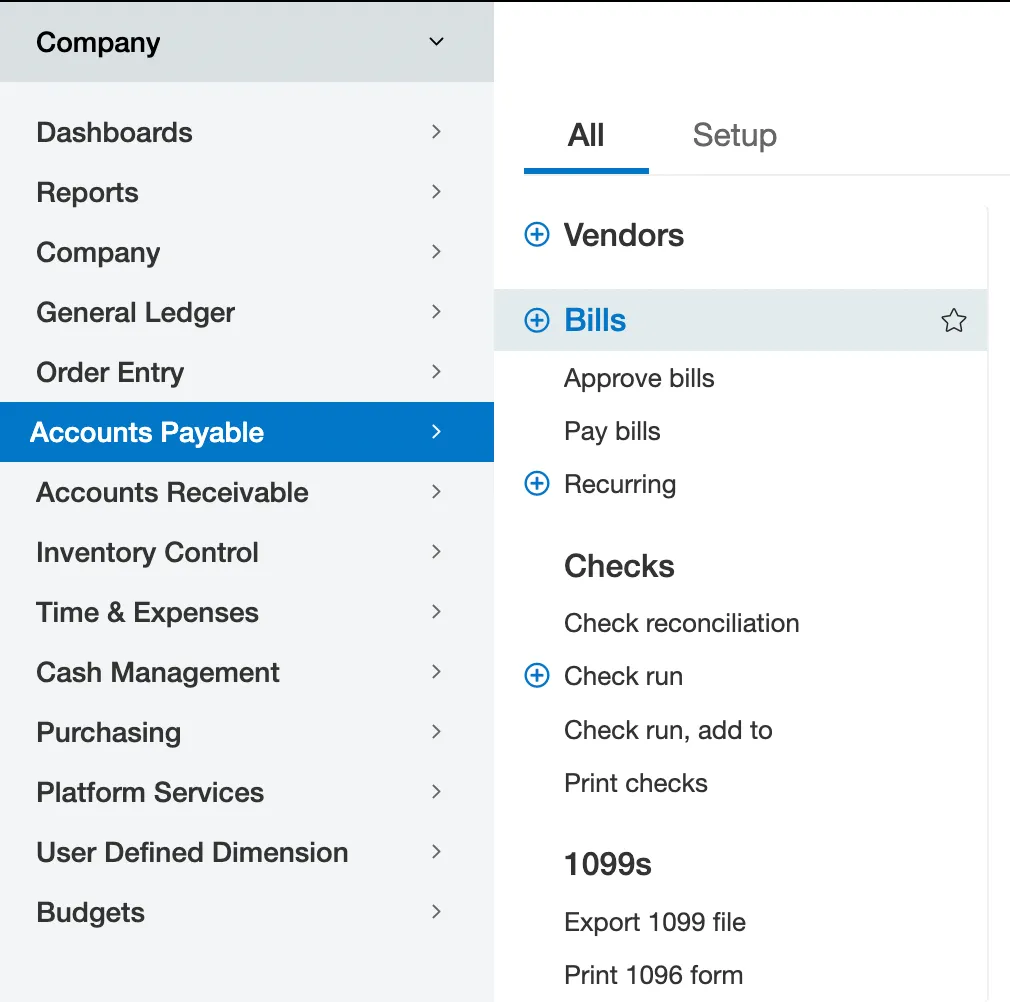
Go to Accounts Payable → Bills to create or edit a bill.
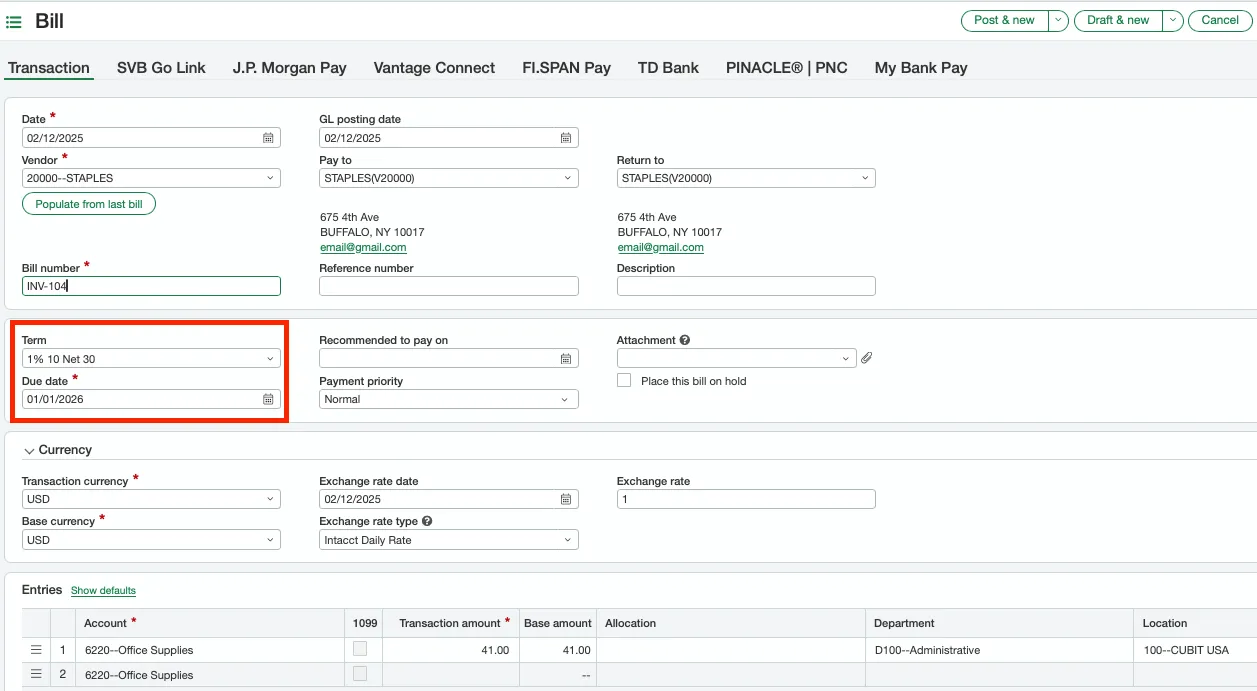
Open a bill and select Terms. Enter the discount term you would like to use from the dropdown menu.
Pay with Discounts
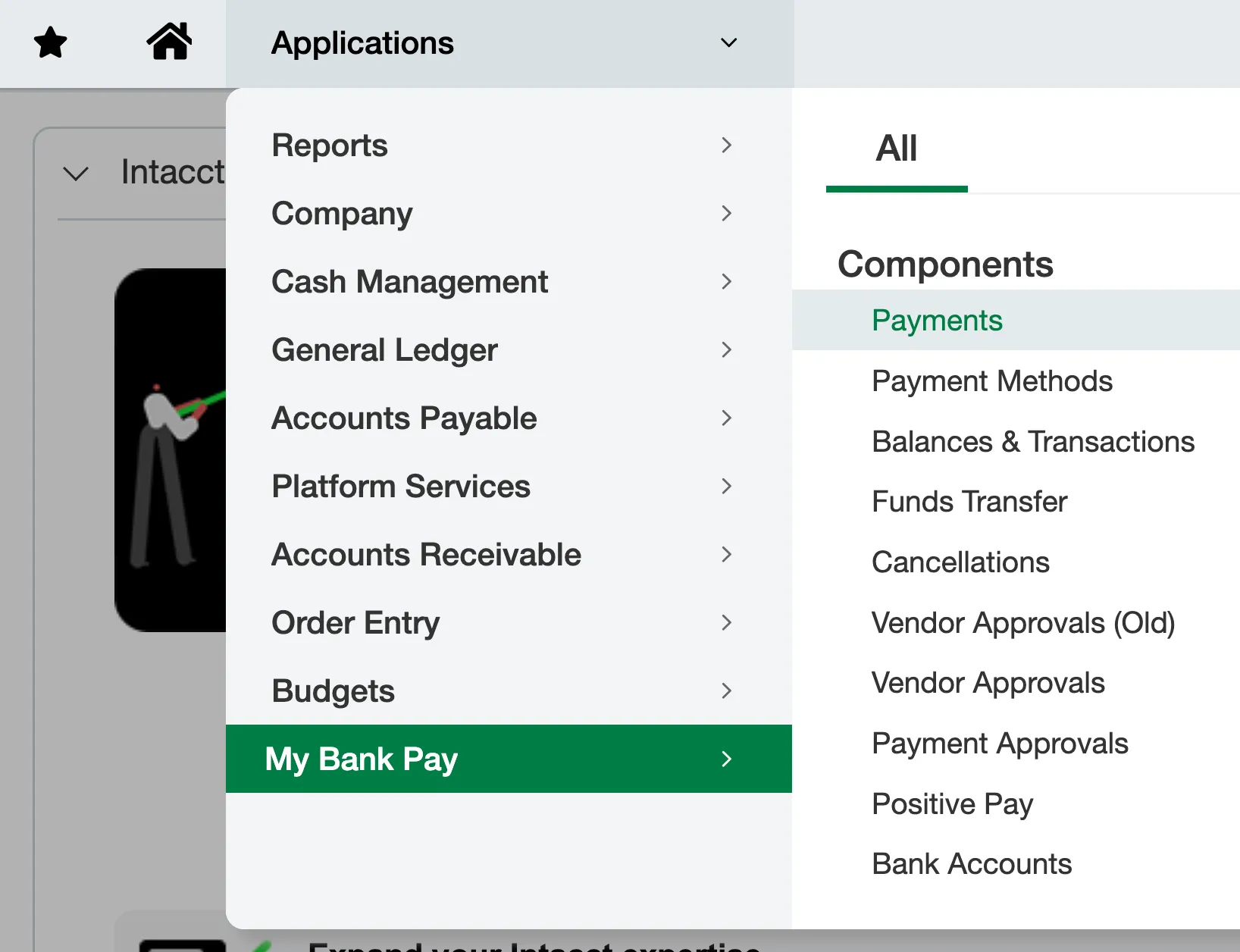
Go to Payments. Use the filters to find the bills you would like to pay.
The discount associated with that bill will auto-populate in the Discounts column and apply to the bill by default.
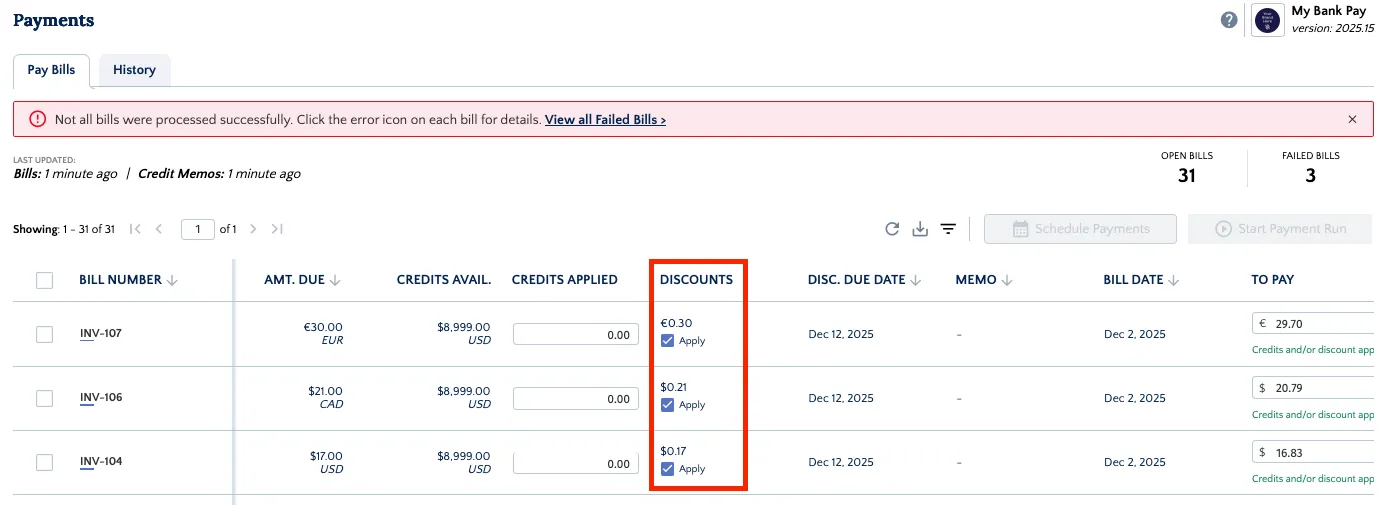
The To Pay column is the Amount Due minus the Discounts (calculated based on the terms and dates set on the bill) minus any additional credits applied.
Select the payment method and pay your bill as usual.
Removing a Discount
If you want to pay a bill that has an applied discount term but choose not to use the discount, you have two options:
Remove the Discount from Intacct
Navigate to Account Payables → Bills in native Intacct.
Select the bill you wish to modify.
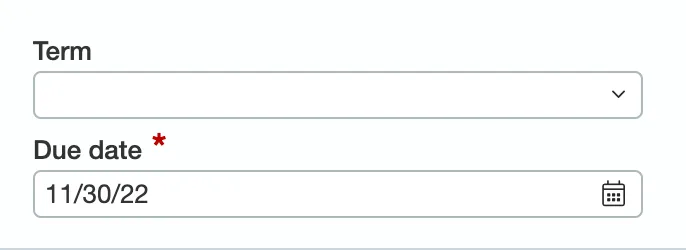
Ensure the term dropdown is left blank. This action effectively removes the discount term from the bill record.
Temporarily Ignore the Discount
In the plugin's Payments page, simply unselect the Apply button next to the bill.
An orange notification text will appear, explaining that the bill is eligible for a discount.
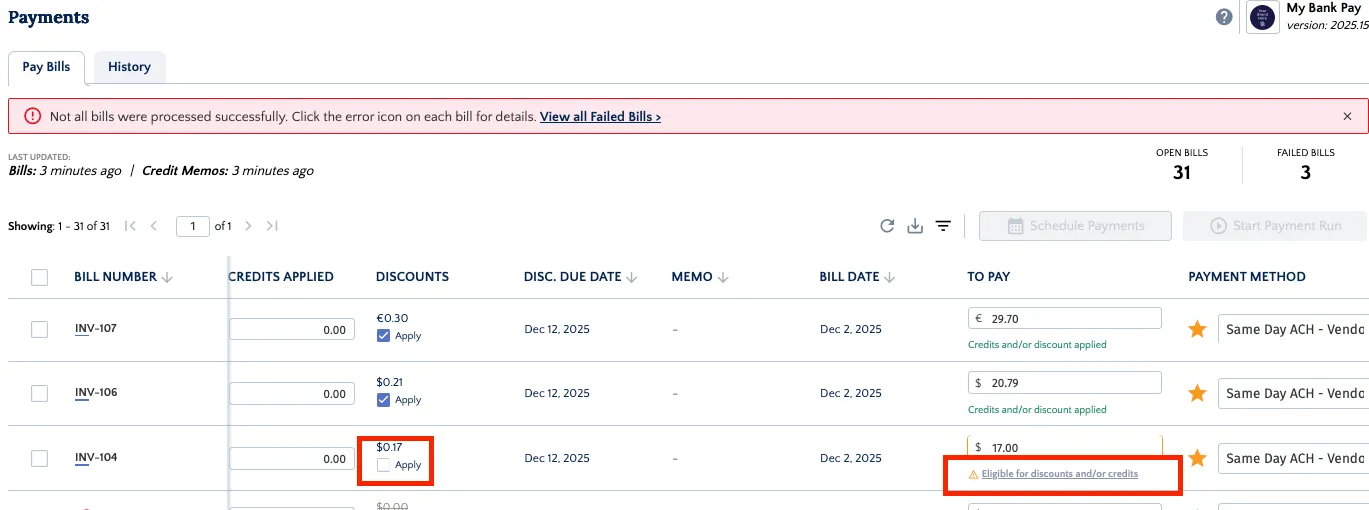
NOTE: If you navigate away from or refresh the Payments page, the Apply checkbox will be automatically rechecked.
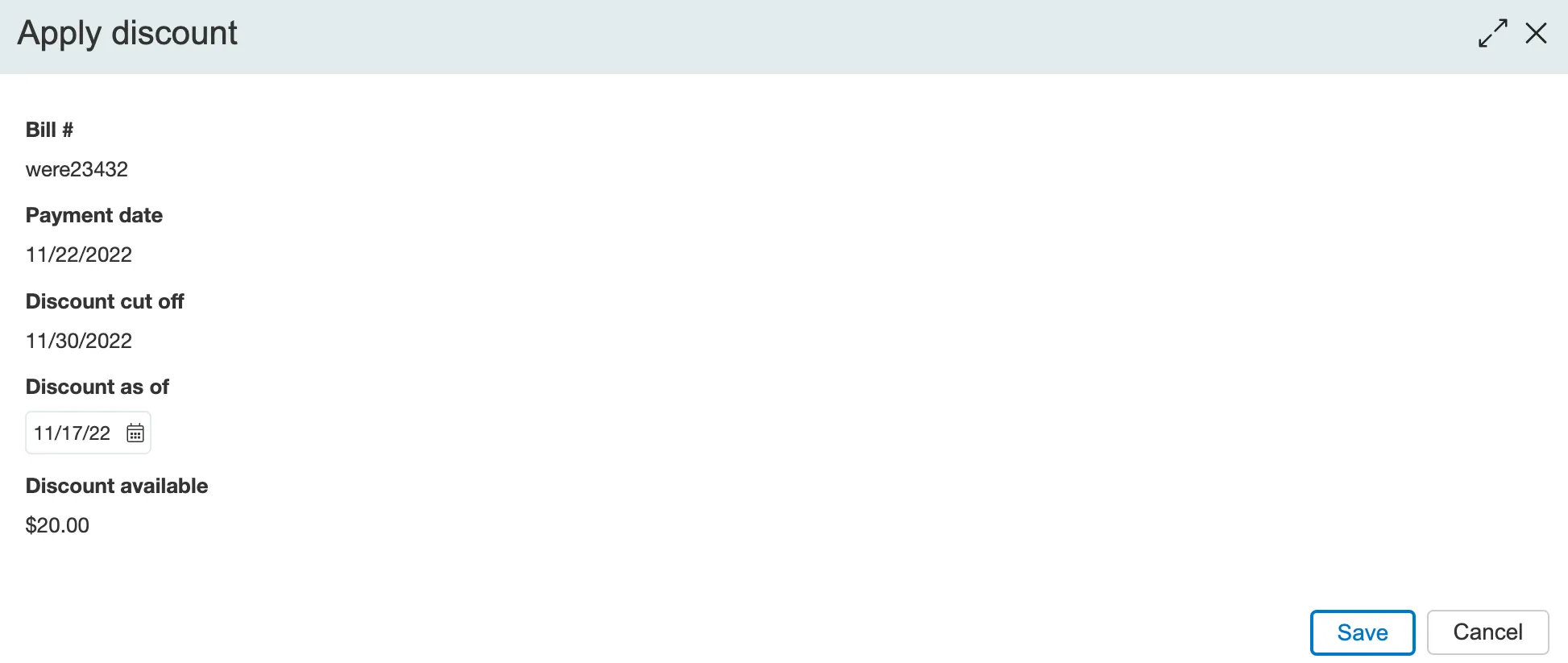
Update Discount as of Date
Modify the Discount as of date before making the payment, to ensure discounts are applied appropriately.
To update the Discount as of date, follow these steps.
Locate Discount as of Date
Click on the Discount amount (in blue). This will open a pop-up where the discount as of the date will be modifiable.
Edit Discount as of Date
Now, edit the Discount as of date and save.
Make sure the Apply checkbox is checked and pay your bill as usual.
Please note that if a date after the discount cut-off date is selected, the discount will be $0.