Step 10.4: Assign to Suppliers (Workday)
FISPAN Sync pays supplier invoices for suppliers whose default payment type is FISPAN Payments. In this step, you set FISPAN Payments as the default payment type for each supplier you want to pay through FISPAN Sync.
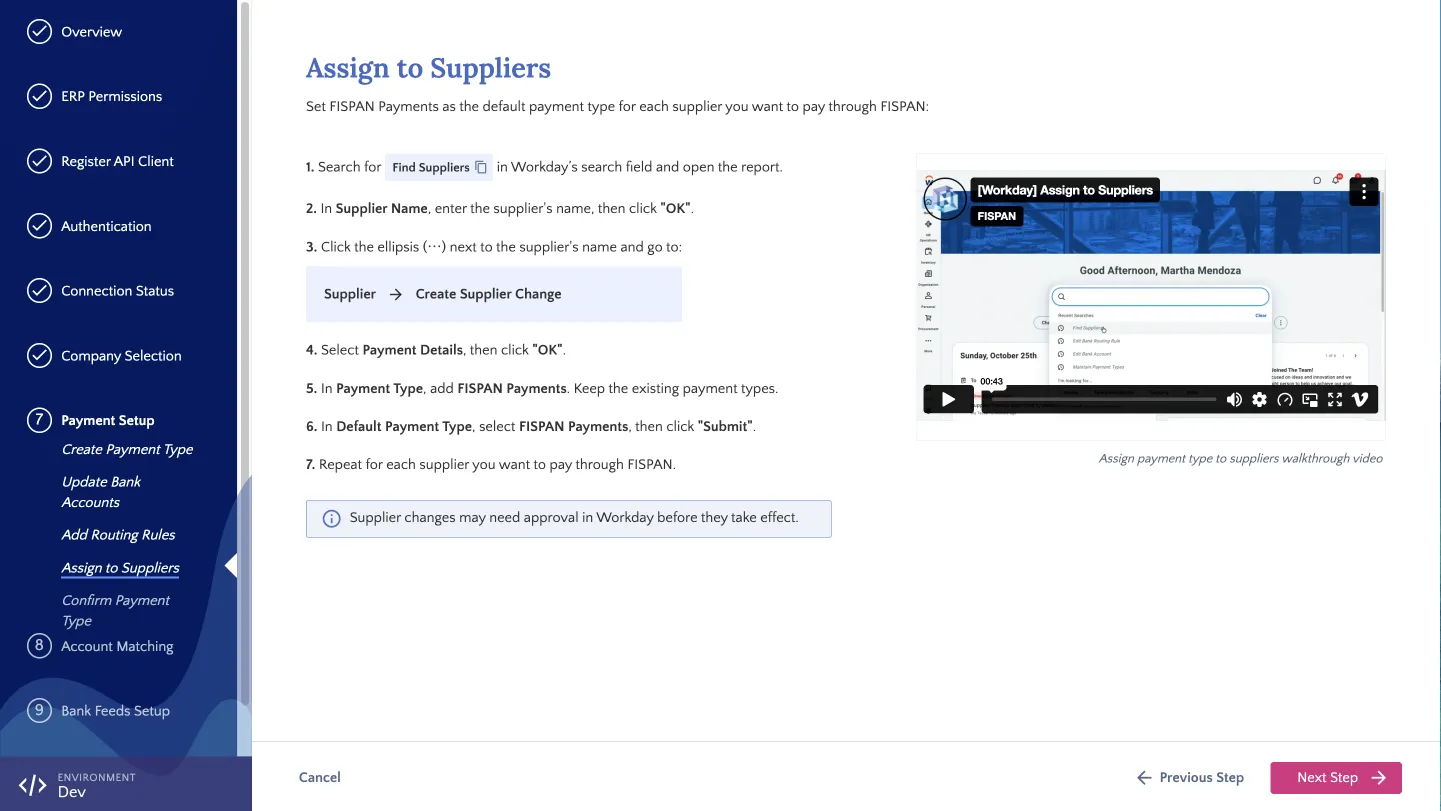
Assigning Suppliers
Follow these steps in Workday for each supplier you want to pay through FISPAN Sync.
Find Supplier
In Workday’s search field, type Find Suppliers and select the report from the results. In Supplier Name, enter the supplier’s name, then click OK.
Create Supplier Change
Click the Related Actions button (⋯) next to the supplier’s name, then select Supplier → Create Supplier Change. Select Payment Details, then click OK.
Set Default Payment Type
Enter the following, then click Submit:
- Payment Type: Add FISPAN Payments
- Default Payment Type: FISPAN Payments
NOTE: If you used a different name for the payment type in Create Payment Type, select that payment type instead of FISPAN Payments.
IMPORTANT: Create Supplier Change is a business process and may require approval in Workday. The supplier’s invoices can’t be paid through FISPAN Sync until the business process is complete.
Repeat for Each Supplier
Repeat steps 1 to 3 for each supplier you want to pay through FISPAN Sync. Once complete, return to the installation wizard and click Next Step.