Step 10.3: Add Routing Rules (Workday)
Each company in Workday has its own bank routing rule, which determines the bank account used for each payment type. In this step, you add a FISPAN Payments rule line to the routing rule of each company you selected.
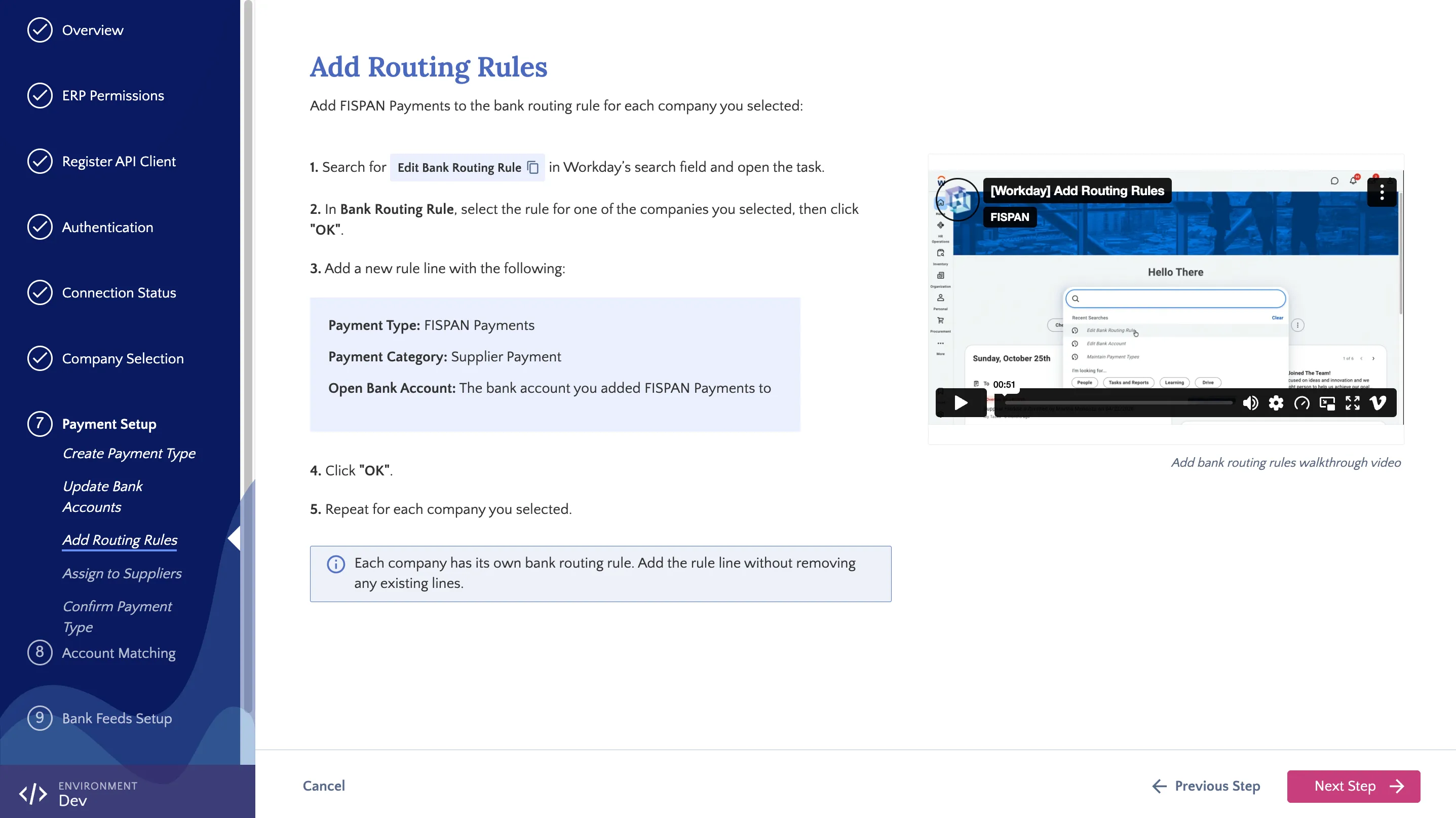
Adding Routing Rules
Follow these steps in Workday for each company you selected in Step 9: Company Selection.
Open Edit Bank Routing Rule
In Workday’s search field, type Edit Bank Routing Rule and select the task from the results.
Select Routing Rule
In Bank Routing Rule, select the rule for one of your selected companies, then click OK.
Add Rule Line
In Rule Lines, click the + icon to add a row, then enter the following:
- Payment Type: FISPAN Payments
- Payment Category: Supplier Payment
- Open Bank Account: The bank account you updated in Step 10.2: Update Bank Accounts Click OK to save the routing rule.
NOTE: If you used a different name for the payment type in Create Payment Type, select that payment type instead of FISPAN Payments.
Repeat for Each Company
Repeat steps 1 to 3 for each company you selected. Once complete, return to the installation wizard and click Next Step.