Step 10.5: Confirm Payment Type (Workday)
4 min
FISPAN Sync uses the payment type you created in Workday to identify which supplier invoices to pay. In this step, you select that payment type in the installation wizard and save it.
Confirming the Payment Type
Follow these steps in the FISPAN Onboarding Wizard to select and save your payment type.
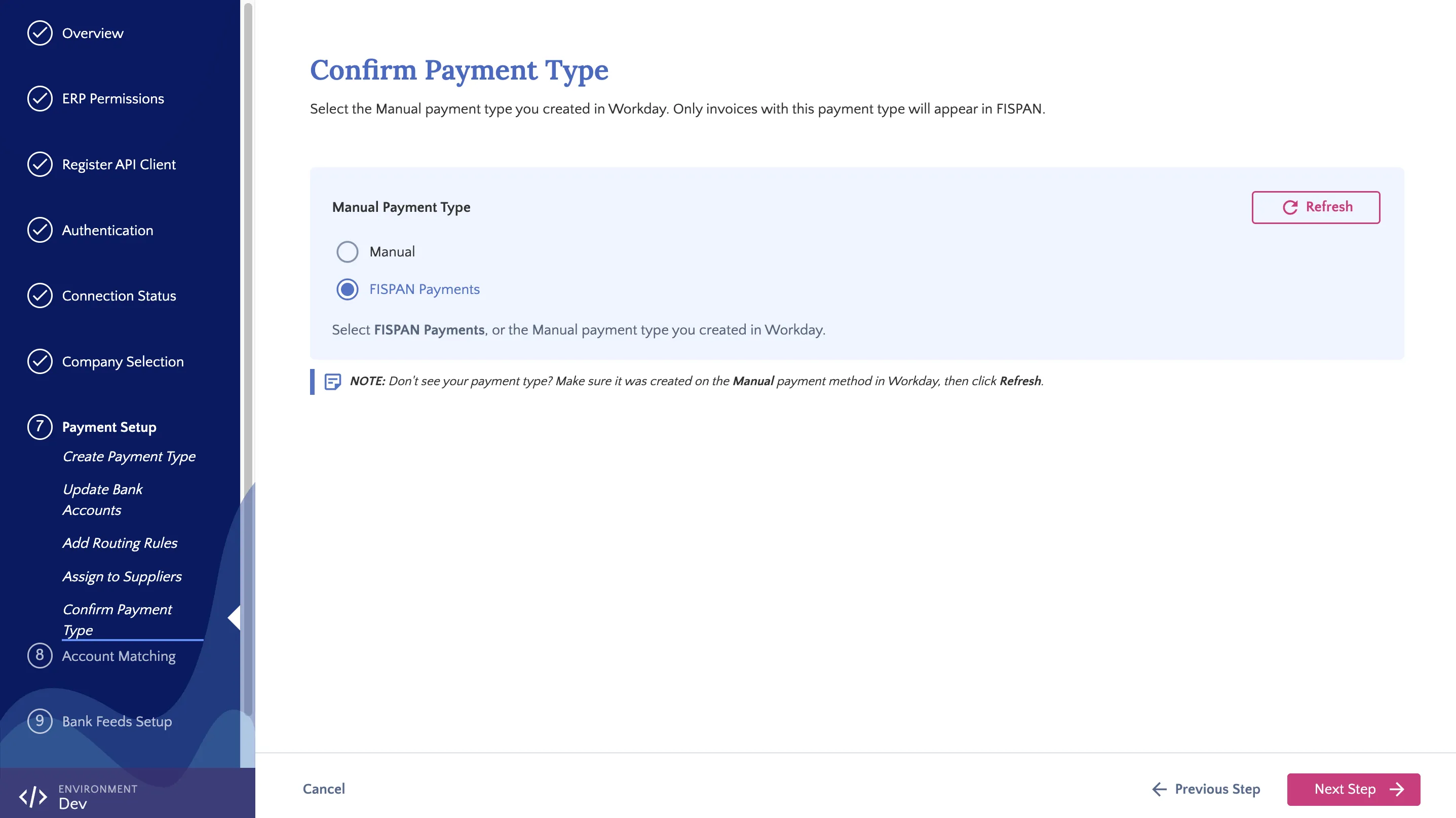
Confirm Payment Type Step
Select Payment Type
Under Manual Payment Type, select FISPAN Payments.
NOTE: If you used a different name for the payment type in Step 10.1: Create Payment Type, select that payment type instead of FISPAN Payments.
Save Payment Type
Click Next Step. FISPAN Sync checks the payment type in Workday, saves it, and moves you to Step 11: Account Matching.
Troubleshooting Payment Type Issues
Payment Type Not Listed
- In Workday, open Maintain Payment Types and confirm the payment type uses the Manual payment method.
- Confirm you created the payment type in the same Workday tenant you connected in the installation wizard. Sandbox and Production are set up separately.
- In the installation wizard, click Refresh to reload the list.
Error after clicking Next Step
The wizard stays on this step. In Workday, confirm the payment type still exists and uses the Manual payment method, then click Next Step again.