Storing Native Vendor Payment Information (NetSuite)
📋 Which section should I read? If you're using Accounts Payable (New) module: - Read the section below starting with "For Accounts Payable (New)" If you're using old Vendor Bills or Expense Reports pages: - Scroll down to the section "For Old Vendor Bills or Expense Reports Pages"
The plugin reads bank account information from the Electronic Bank Payments details module within your vendor and employee records and automatically syncs it to the Payment Methods page.
For Accounts Payable (New) Pages
How It Works
The plugin reads bank account information from your NetSuite vendor/employee records and automatically syncs it to the Payment Methods page.
The sync process:
- The plugin syncs bank account information from NetSuite's Bank Payment Details tab to the Payment Methods page
- You can view all synced payment information on the Payment Methods page
- You can also add additional payment methods directly on the Payment Methods page (these stay within the plugin)
Important: Any changes you make to bank account information in NetSuite will automatically sync to the Payment Methods page.
Adding Bank Accounts in NetSuite
The plugin syncs ACH and CPA bank account information from the Bank Payment Details tab on your vendor records.
Supported payment formats:
- ACH - CTX
- ACH - CCD/PPD
- CPA - 005
Storing ACH Payment Information
- Navigate to Lists → Relationships → Vendors
- Select View for the vendor you want to update
- Click the Bank Payment Details tab
- Select New Bank Details
- Enter the following:
- Payment File Format: Select either ACH - CTX or ACH - CCD/PPD
- Account Type: Primary or Secondary
- Bank Account Number: Enter the vendor's account number
- Bank Number (Routing Number): Enter the 9-digit routing number
- Click Save
The plugin will automatically sync this information to the Payment Methods page.
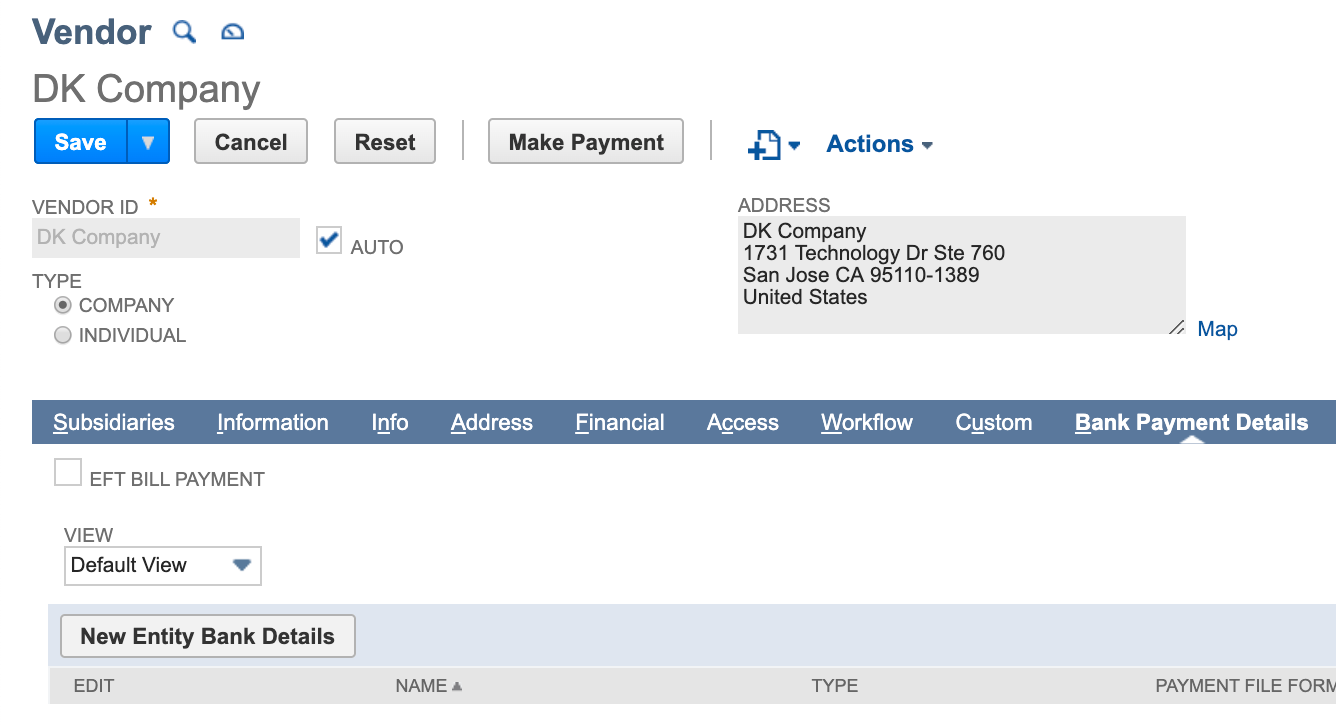
Storing CPA Payment Information
- Navigate to Lists → Relationships → Vendors
- Select View for the vendor you want to update
- Click the Bank Payment Details tab
- Select New Bank Details
- Enter the following:
- Payment File Format: Select CPA-005
- Account Type: Primary or Secondary
- Account Number: Enter the vendor's account number
- Financial Institution Number: Enter the 3-digit institution number
- Branch Transit Number: Enter the 5-digit transit number
- Click Save
The plugin will automatically sync this information to the Payment Methods page.
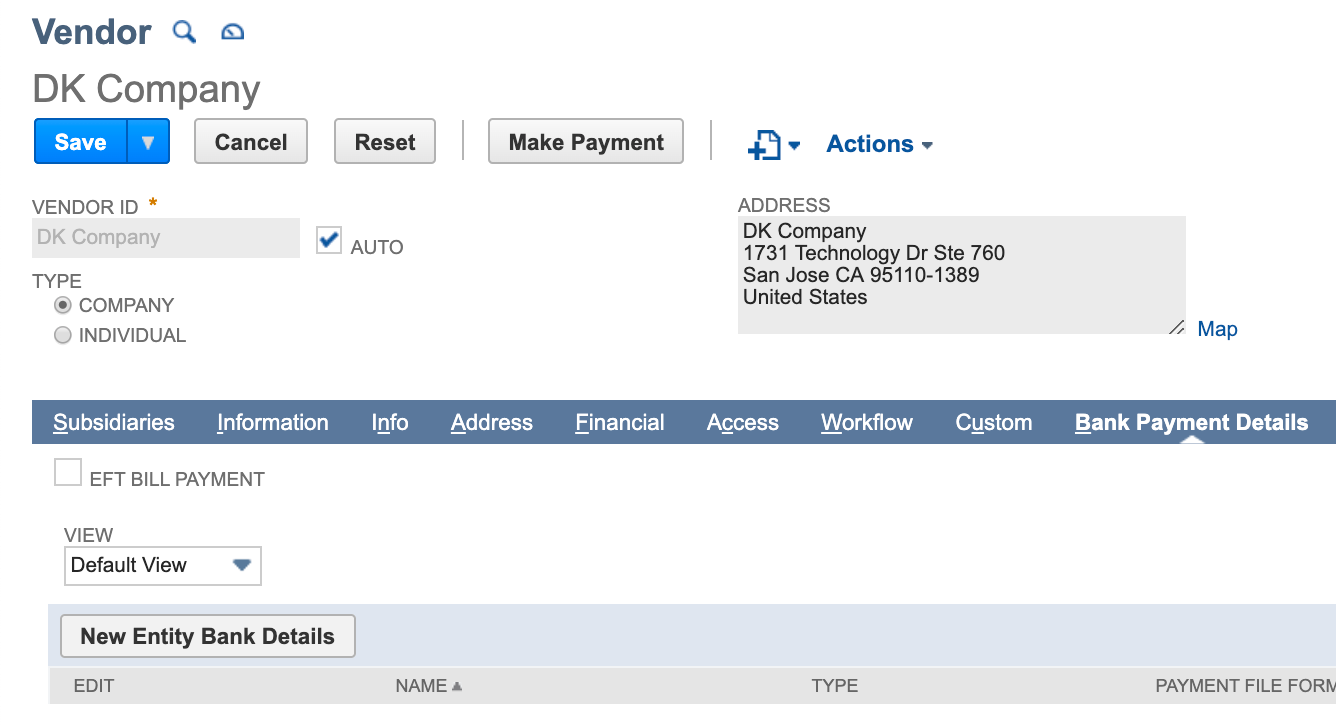
For Old Vendor Bills or Expense Reports Pages
NOTE: This section is for users of the old Vendor Bills or Expense Reports pages.
If you're using Accounts Payable (New) module, use the above instructions. This section does not apply to you.
If you are making payments using the old Vendor Bills or Expense Reports page, we recommend using the Entity Bank Details (EBD) bundle to store vendor payment information. This bundle supports all payment types.
Refer to the following pages for install, setup, and usage guides for the Entity Bank Details bundle: