Remittance Advice (Workday)
Remittance Advice Overview
FISPAN Remittance Advice service automatically sends an email to the supplier’s designated email address(es) for every submitted payment. This email will contain your company name and a detailed list of the paid bills, including the Reference/Invoice #, Invoice Date, and Amount.
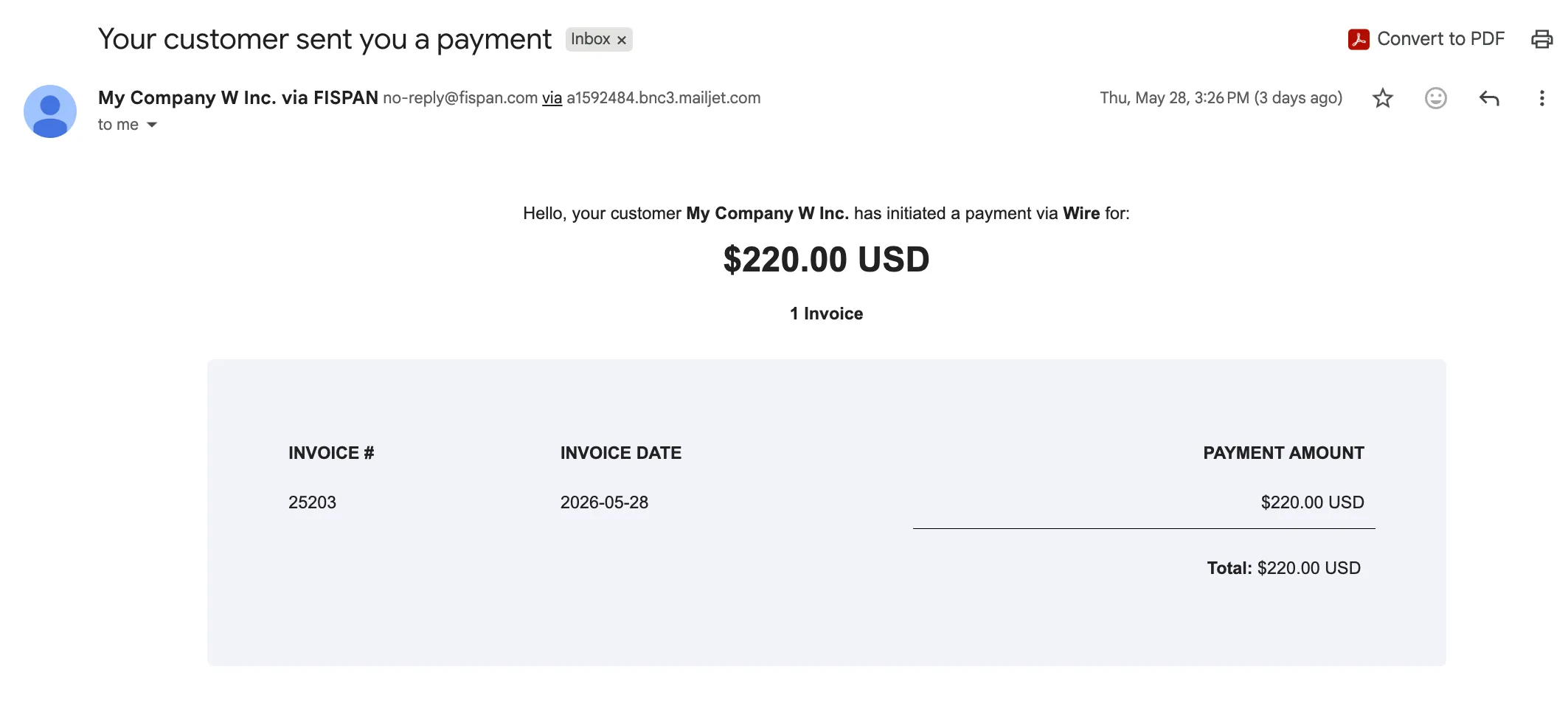
Each remittance email can be sent to up to 5 email addresses. By default, the system uses the supplier’s email address from Workday. To change it, add the preferred email directly to the supplier's record in Workday.
The email will be sent from FISPAN and feature your bank's branding. As a user, you can customize several settings:
- "Reply-To" Email Address: Configure an address that the recipient will see and use if they reply to the remittance advice.
- Receive Copies: Choose an email address to receive copies of all sent remittance advice.
- Alternative Company Name: You may request that we configure a different company name to appear in the email on a per-bank account basis.
IMPORTANT: Enabling the GROUP BILLS FOR PAYMENT function means that only one remittance email is sent for multiple bills grouped into a single payment for the same supplier.
If this feature is not enabled, each paid bill is treated as a unique payment with its own remittance email, which results in multiple payments and multiple emails.
The subject of the email sent via Remittance Advice looks like this: Your customer sent you a payment.
NOTE: Remittance emails are submitted shortly after the payment is successfully sent from FISPAN Sync.
Enable Remittance
Email remittance advice allows you to automatically send detailed payment notifications to your suppliers, improving communication and saving time.
Navigate to Suppliers
From anywhere in FISPAN Sync, you can navigate to the Suppliers page.
Click on Suppliers in the navigation bar.

Enable Remittance
Once the page loads, click on the gear icon placed next to the Remittance column.

You will now be prompted to select the option you prefer.
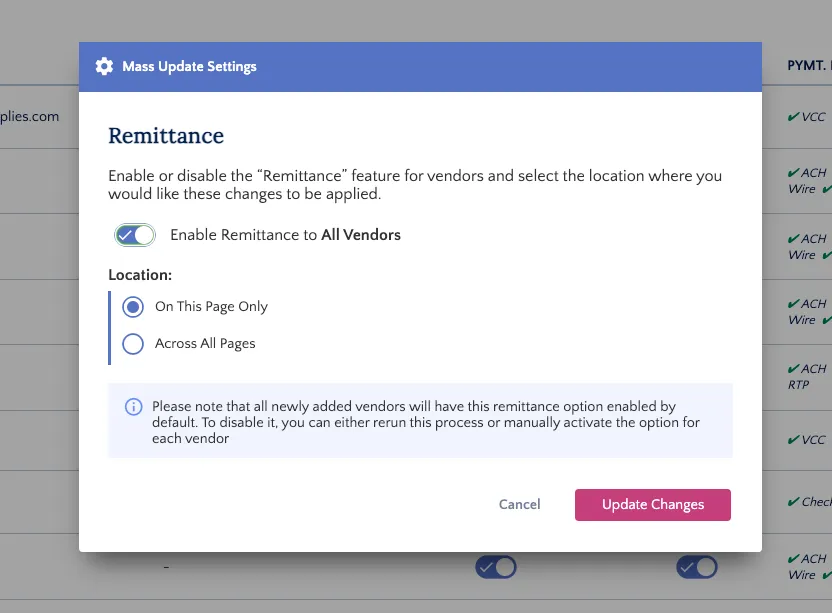
NOTE: If you choose to enable this for all suppliers, you will need to make updates for any new suppliers that are created in the future.
Once the option has been selected, click Update Changes.
Complete Setup
The screen will reload, confirming the Remittance toggle is now on and displaying the settings you selected.

If you need to, you can disable the feature for specific suppliers using the individual supplier toggles.
Disable Remittance
The page will refresh, and all the toggles will be updated to match the status you selected. From this page, you can disable remittance for specific supplier or do in bulk using the above step.
Overview
The FISPAN Remittance Advice feature automatically sends an email to the vendor’s designated email address(es) for every submitted payment. This email will contain your company name and a detailed list of the paid bills, including the Reference/Invoice #, Invoice Date, and Amount.
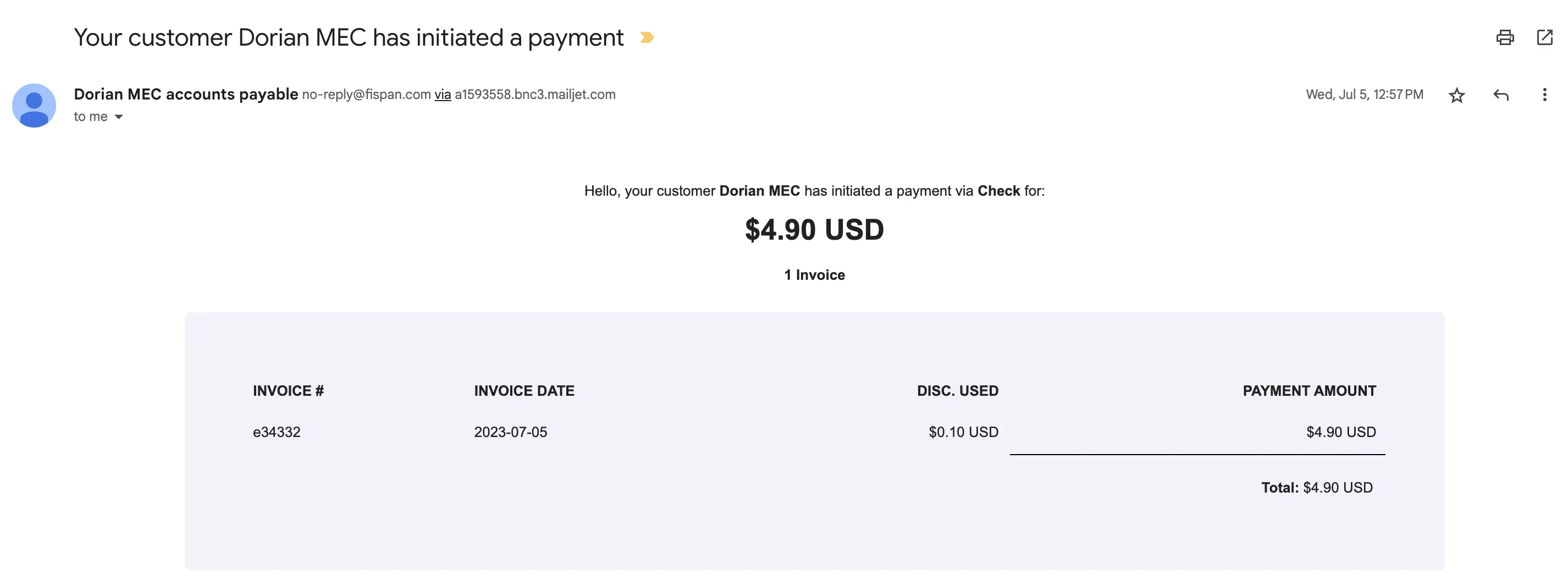
By default, the system uses the Vendor’s email address. You can add an email to the Vendor's record in Workday.
The email will be sent from FISPAN and feature your bank's branding. As a user, you can customize several settings:
- "Reply-To" Email Address: Configure an address that the recipient will see and use if they reply to the remittance advice.
- Receive Copies: Choose an email address to receive copies of all sent remittance advice.
- Alternative Company Name: You may request that we configure a different company name to appear in the email on a per-bank account basis.
The subject of the email sent via Remittance Advice looks like this: Your customer sent you a payment.
NOTE: Remittance emails are submitted shortly after the payment is successfully sent from FISPAN Sync.
Enable Remittance
Email remittance advice allows you to automatically send detailed payment notifications to your vendors, improving communication and saving time.
Navigate to Suppliers
From anywhere in FISPAN Sync, you can navigate to the Vendors page.
Click on Vendors in the navigation bar.
Enable Remittance
Once the page loads, click on the gear icon placed next to the Remittance column.
You will now be prompted to select the option you prefer.
NOTE: If you choose to enable this for all vendors, you will need to make updates for any new vendors that are created in the future.
Once the option has been selected, click Update Changes.
Complete Setup
The screen will reload, confirming the Remittance toggle is now on and displaying the settings you selected.
If you need to, you can disable the feature for specific vendors using the individual vendor toggles.
Disable Remittance
The page will refresh, and all the toggles will be updated to match the status you selected. From this page, you can disable remittance for specific vendor or do in bulk using the above step.
Use this guide to navigate the Remittance Advice feature and find answers to common questions.
FAQs