Payment Methods (Xero)
Get started managing your vendor payment information. This guide will walk you through accessing the Vendors page in FISPAN Sync, setting default payment methods, and leveraging existing data imported from Xero.
Navigate to the Vendors Page
From anywhere in FISPAN Sync, you can navigate to the Vendors page. Click on Vendors in the navigation bar.

The Vendors page enables you to manage payment information for each vendor. Click on the vendor you would like to manage by hovering over the vendor and selecting the Eye icon.
The Payment Method pop-up will appear which allows you to add and store three different types of data: Bank Accounts, Addresses and Email Groups.
Storing Vendor Information in Xero
If you have any bank account, addresses or emails stored in Xero, they will be imported automatically. They are not editable in FISPAN Sync. These accounts are indicated by the ERP icon next to the label.
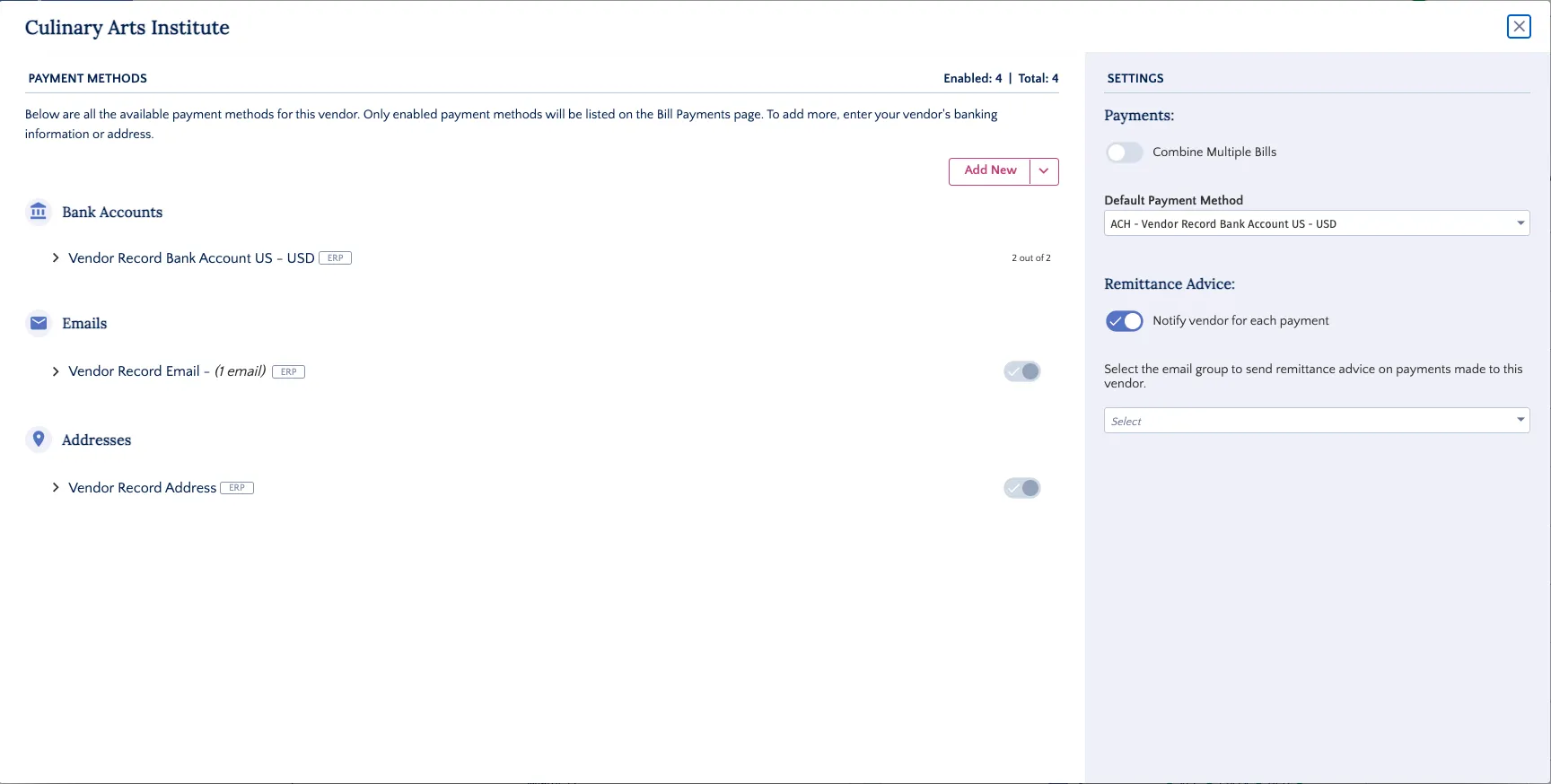
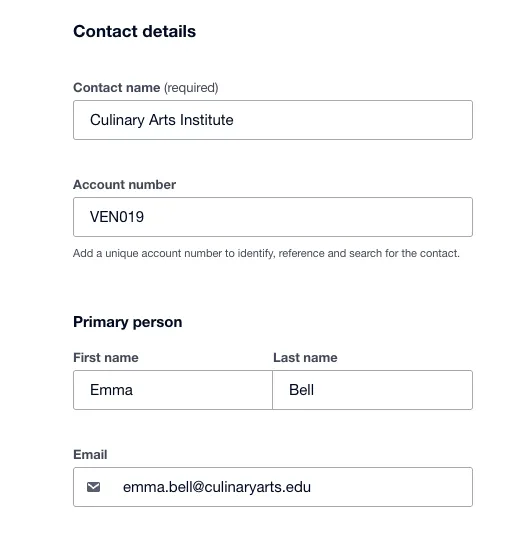
FISPAN Sync will only store the email entered in the following field within the Vendor account in Xero:
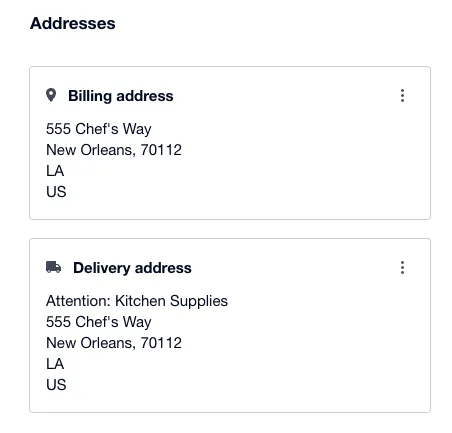
FISPAN Sync will only store the "Billing Address" entered in the following field within the Vendor account in Xero:
FISPAN Sync will only store the bank account entered in the following field within the Vendor account in Xero:
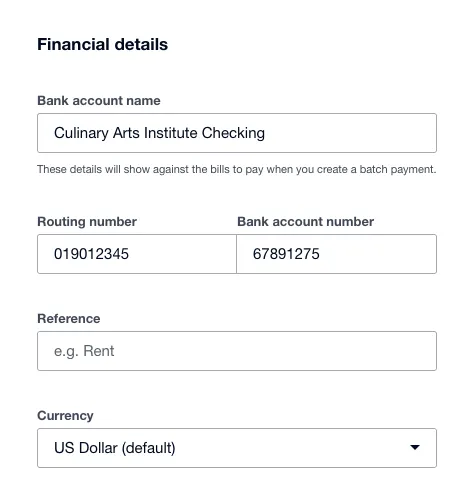
Note: FISPAN Sync will only import Vendor Bank Accounts from your US Xero organization. To ensure a smooth sync, please be sure to accurately input the Routing Number and Account Number for these vendors within your Xero environment.
Setting Default Payment Method
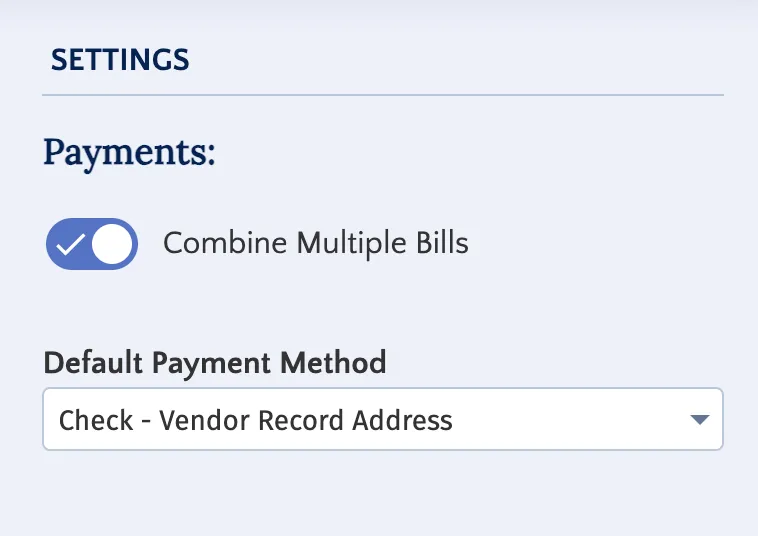
On the Payment Method pop-up you can toggle on Combine Multiple Bills. This allows you to send multiple bill for the same payment method as one payment. For example, if you were processing five bills, you would be processing one payment instead.
You can also select a Default Payment Method from this dropdown. This will populate every bill for this vendor in the Pay Bills page with this payment method. It can be updated and changed everytime. You can also change the payment method on the Pay Bills page for one-off payments, it will just not default in the future.
Adding Bank Accounts
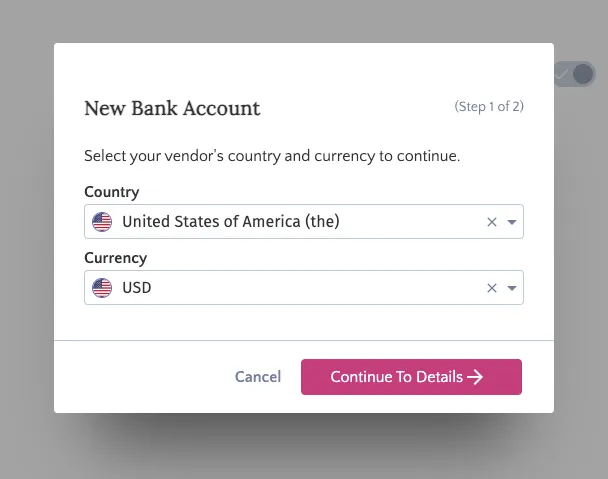
To add bank accounts, click on the Add Bank Account button. Select the Country and Currency of the bank account you would like to add next.
Next, fill in the banking information based on the data provided to you. Be sure to enter a unique label. Once you have done that, click Validate Account Info.
Note: All Bank Accounts will be saved as a Checking account unless otherwise indicated by changing the Type of Account field.
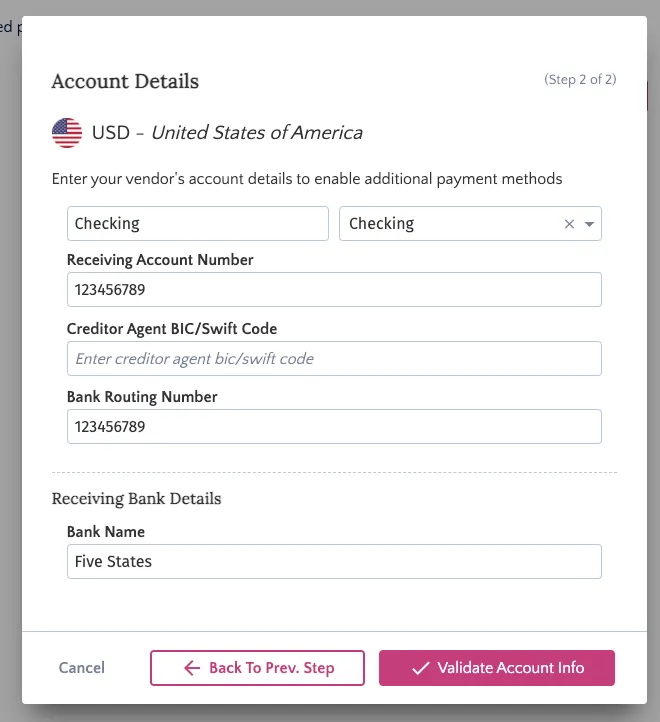
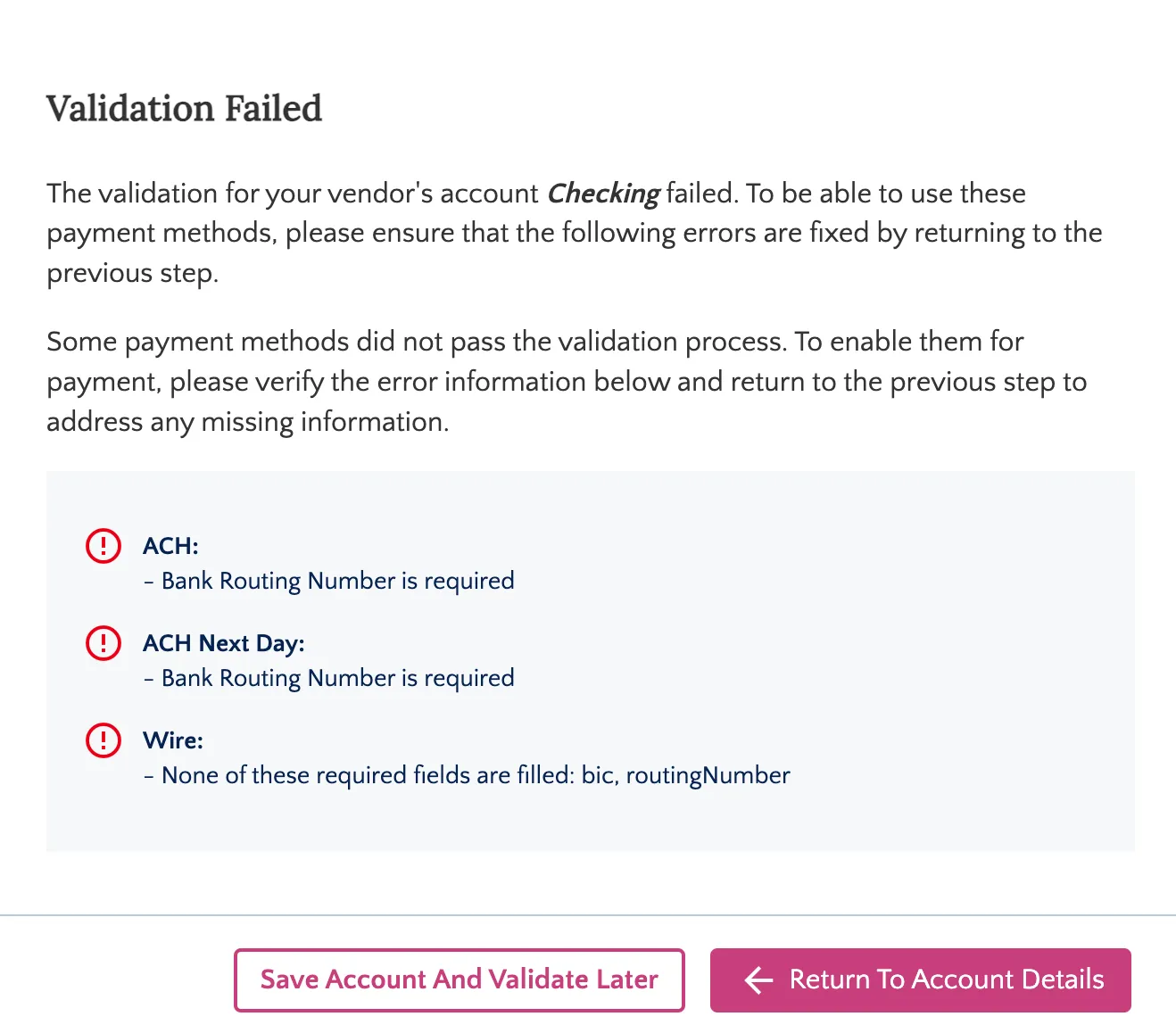
Next, the account information will be validated. This ensure that the values you have entered allow you to pay only payment methods that are available based on the information provided. For example, it will not let you make an ACH payment if no Routing Number is provided.
However, the screen does not validate the accuracy of the information provided.
If the validation fails, you can return to the account details and modify the information. The information will now be re-validated.
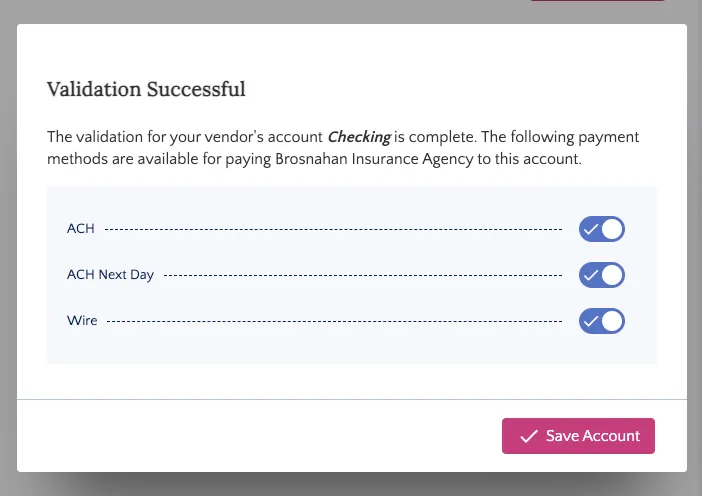
If the validation is successful, you will be able to toggle the payment method on and off and save it.
Adding Addresses
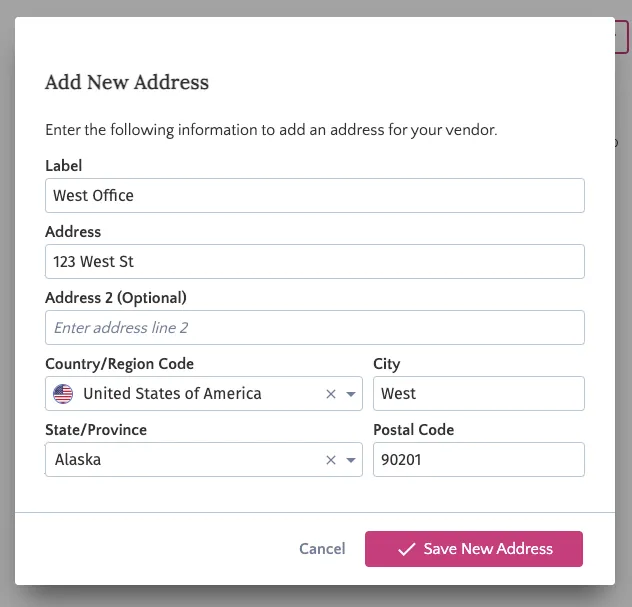
To add vendor mailing addresses, click on the Address option. Add your address details to the fields. After that, click Save Address.
Adding Email Addresses
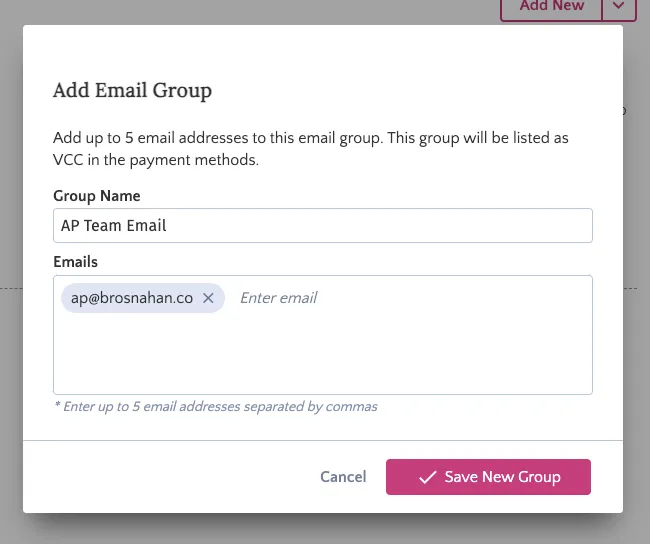
To add bank accounts, click on the Add Email Group button. Add your email address details to the fields. You can add up to 5 emails by clicking enter after each entry. After that, click Save New Email Group.
If the remittance product is enabled, you can use this email group also to send remittance emails.