Setting up Multi-Factor Authentication
Who Does This Affect?
New users will be required to set up multi-factor registration upon registration. Existing users will be prompted to set up upon their next login.
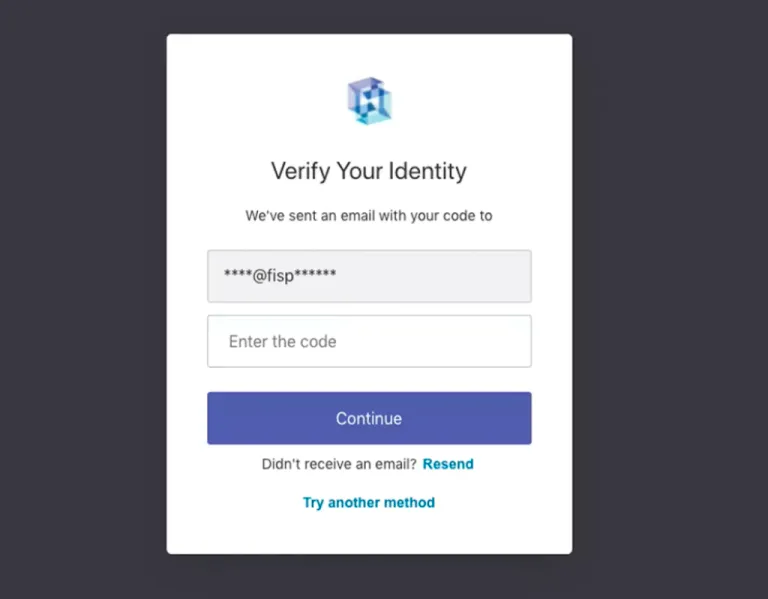
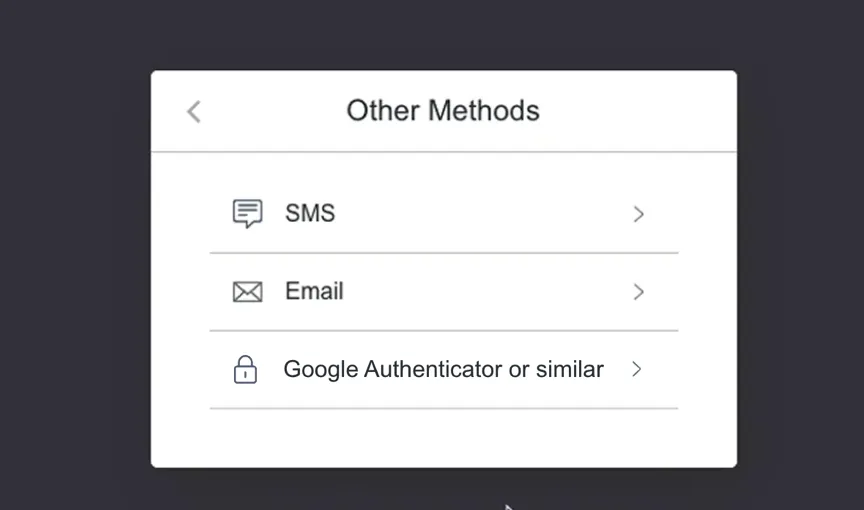
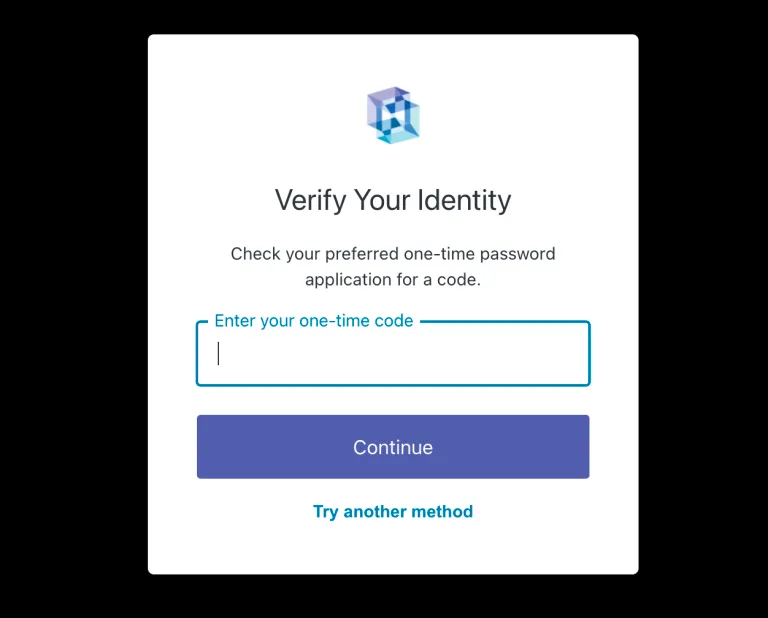
The default authentication will display first. If you would like to utilize another method, select "Try Another Method."
It will display these three methods for Multi-Factor Authentication [MFA] :
- SMS (preferred)
- Authenticator (or similar)
- Email
Setting-up SMS MFA
Multi-factor Authentication (MFA) is only required if you are a user in PRODUCTION. If you are a SANDBOX user, you may skip safely to the next step in the product guides.
The first time you log in to the Production environment, you will be prompted to establish your Multi-factor Authentication (MFA) setup. You have the option to select various methods of MFA.
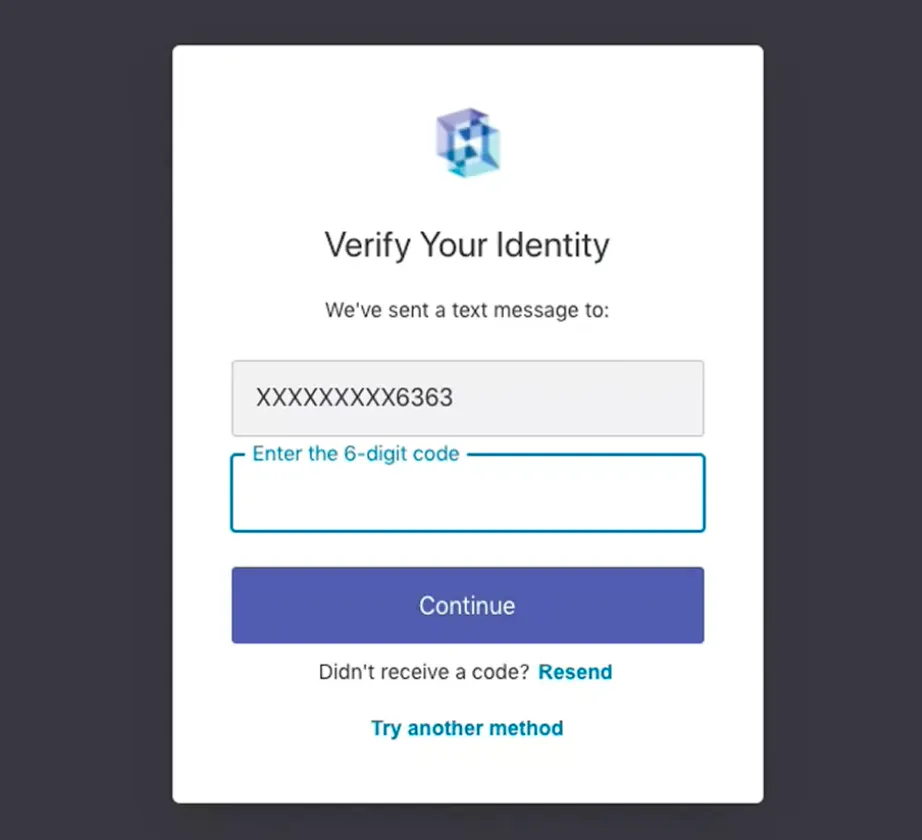
If you choose to use a phone number, you will receive a 6-digit-code to the phone number you provided for enrolment.
If you are unable to receive a text message to this number, or you prefer a different multi-factor authentication method, click Try Another Method.
Otherwise, enter the 6-digit code you received in the applicable field.
Select Continue.
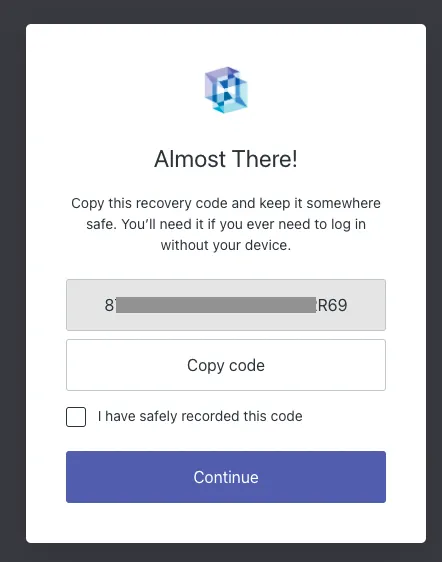
After setting up SMS and inputting the first one-time code, you will be presented with a Recovery code that should be stored in a safe location. This code is for resetting the MFA, to switch the MFA type (i.e. Authenticator), or to use a different phone number.
Setting-up Authenticator MFA
Use Guardian App Auth0 or Google Authenticator and connect to the production or sandbox environment.
Set up authentication apps: Guardian App or Google Authenticator.
Go into the Auth0 or Google Authenticator app and enter the corresponding code. Select Continue.
Setting-up Email MFA
Add the email where you would like to receive your authentication code.
Go to your email to receive the 6-digit code.
Enter the code and select Continue.