Voiding and Repaying Bills (NetSuite)
Bills that are voided in native NetSuite can be repaid through the bank plugin, allowing for multiple repayments if necessary.
Previously paid payments with a duplicate bill ID cannot be voided and repaid directly. Instead, you'll need to create a new copy of the bill and apply payment to the copy or submit a ticket to FISPAN Support for resolution.
How to Void Bills
Use this simple process to void a bill using the plugin.
Locate the Bill
Find a bill that has already been paid via the plugin on the History page by going to MUFG Connect → Payments → History.
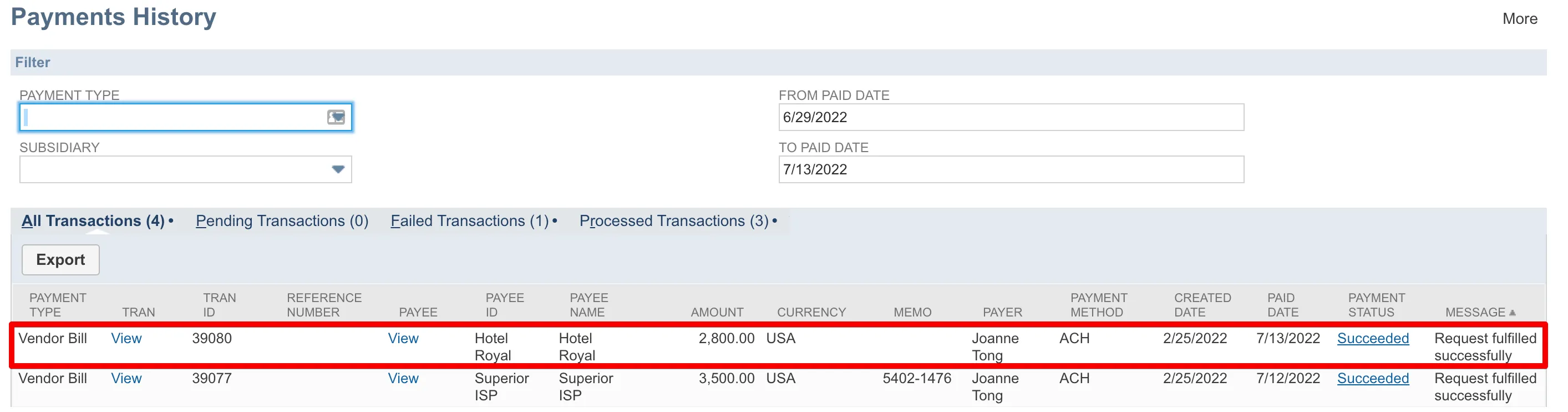
Check Bill Status
Open the Bill Record and confirm the bill has been PAID IN FULL. You can select Your Bank's tab in the submenu to confirm that the bill payment has hit the plugin.
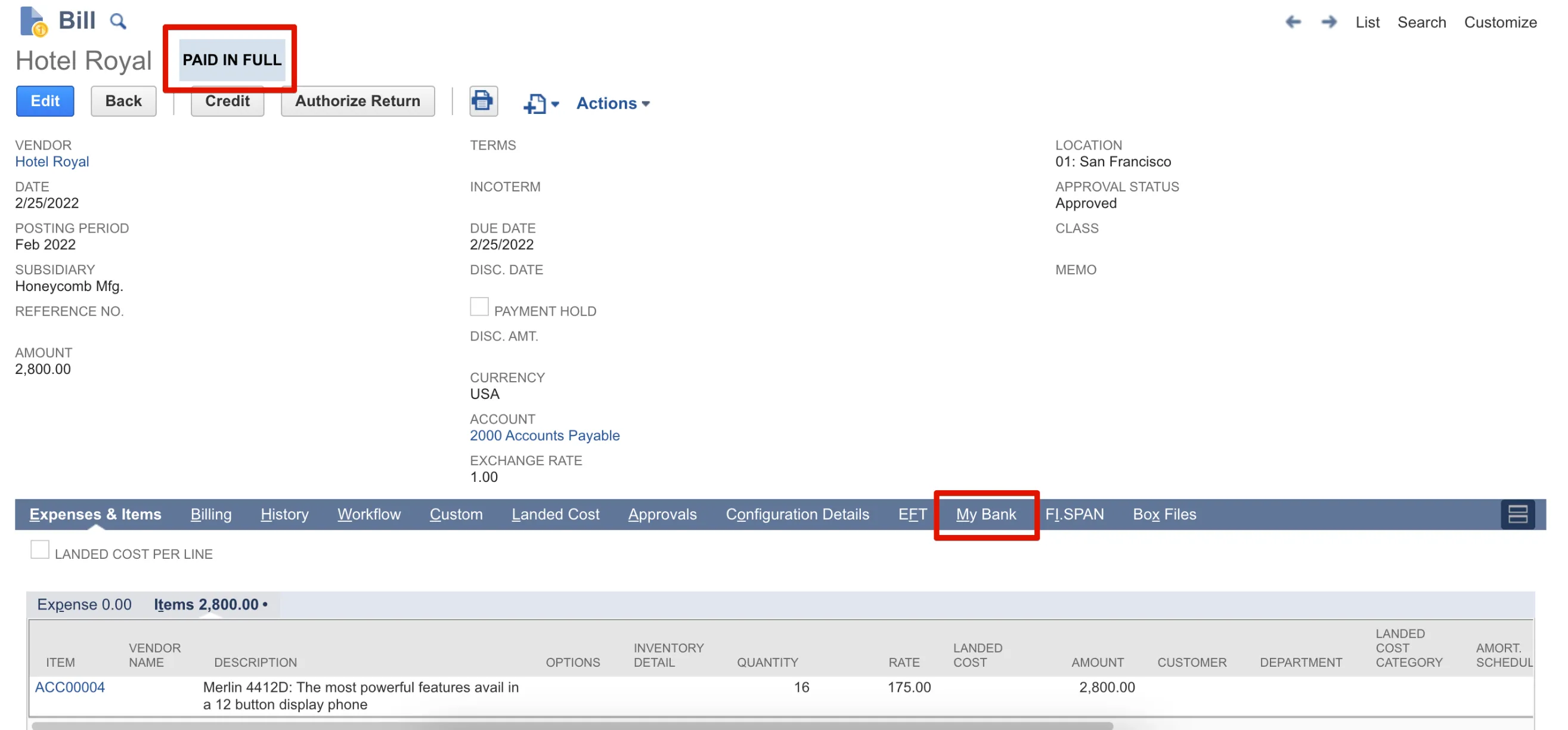

Go to Bill Payment Record
Go to Bill record → History (or Related Records) → Payments and find the Bill Payment record associated with this Bill.
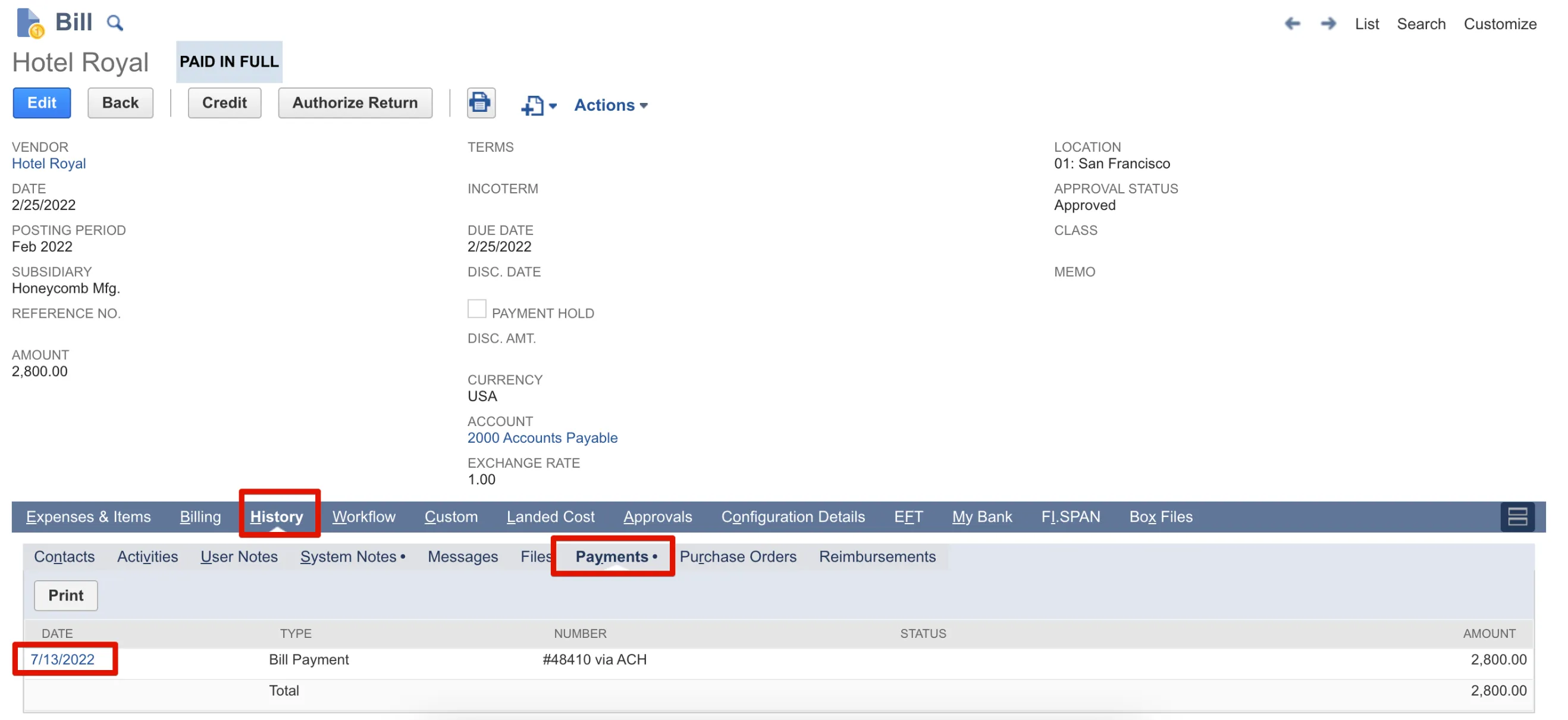
Void the Bill
Void the Bill Payment by selecting the Void button.
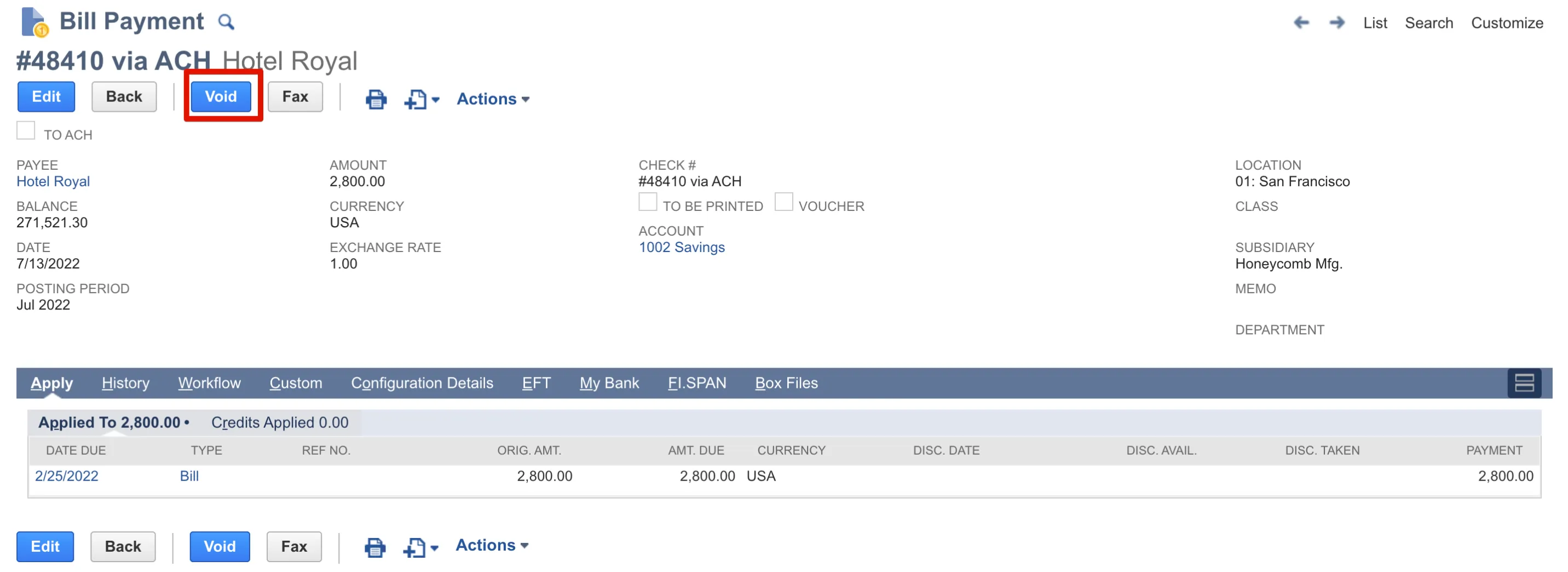
Save the Bill
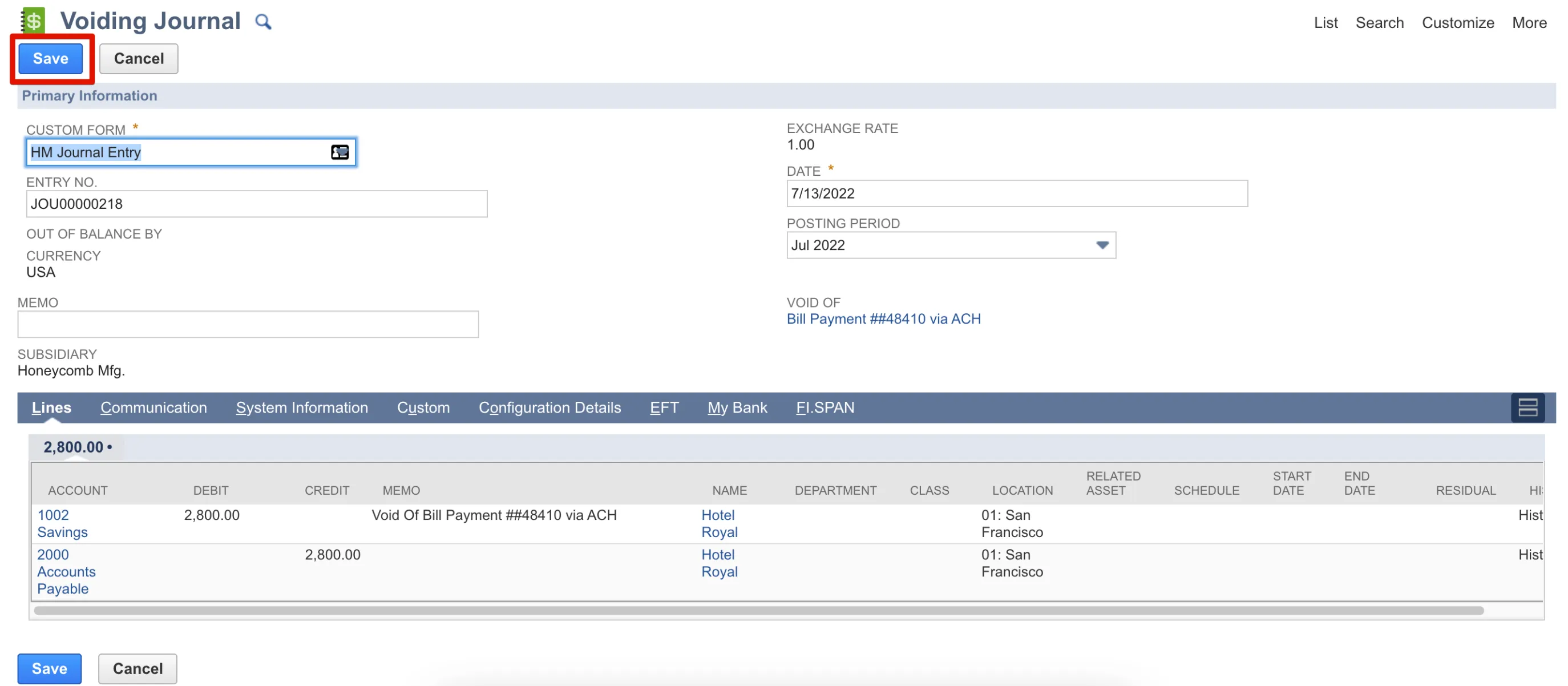
Select Save on the Voiding Journal Entry that NetSuite creates in response to the voiding of the Bill Payment.
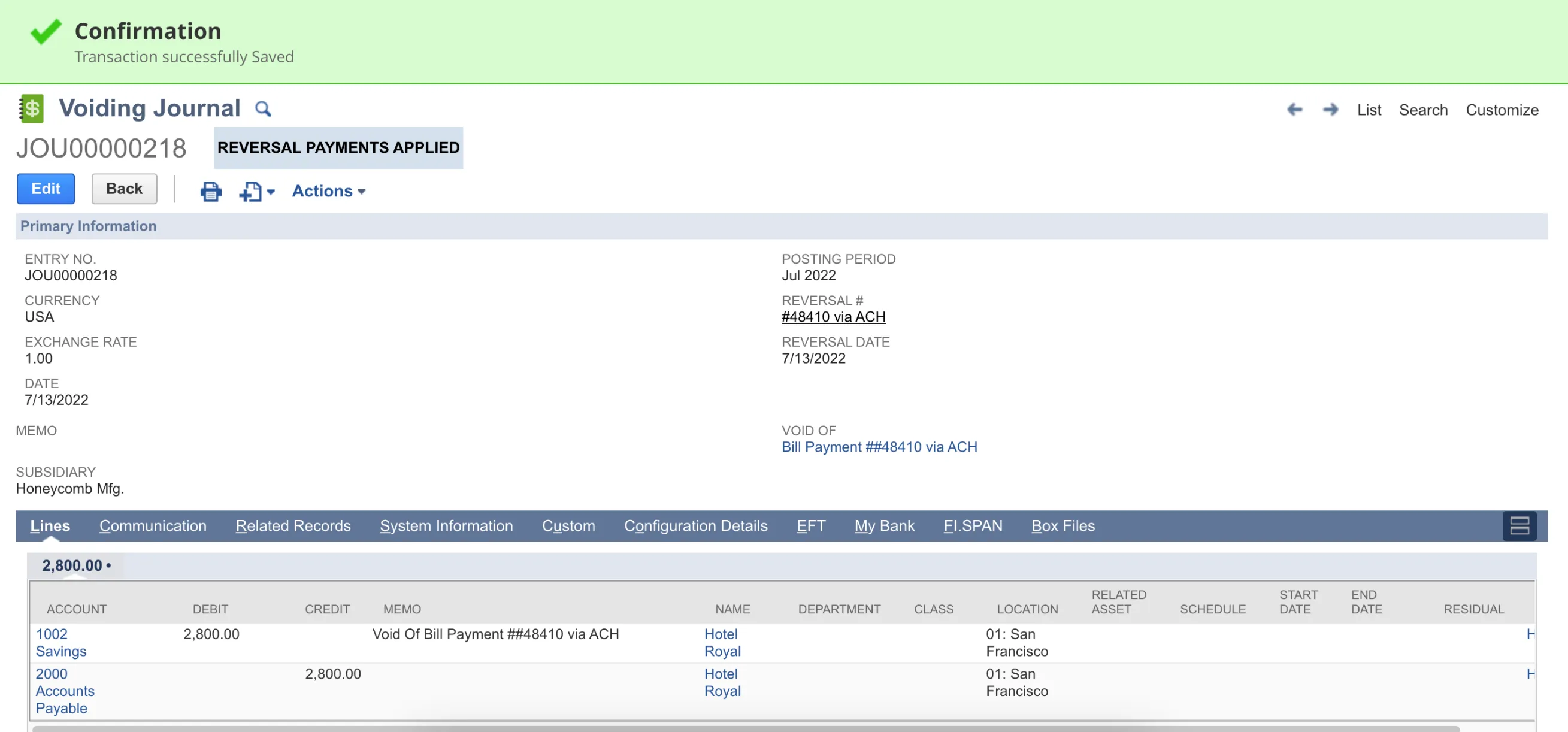
The next page will show a Confirmation banner, and the Voiding Journal Entry will be marked with REVERSAL PAYMENTS APPLIED.
Check the Bill
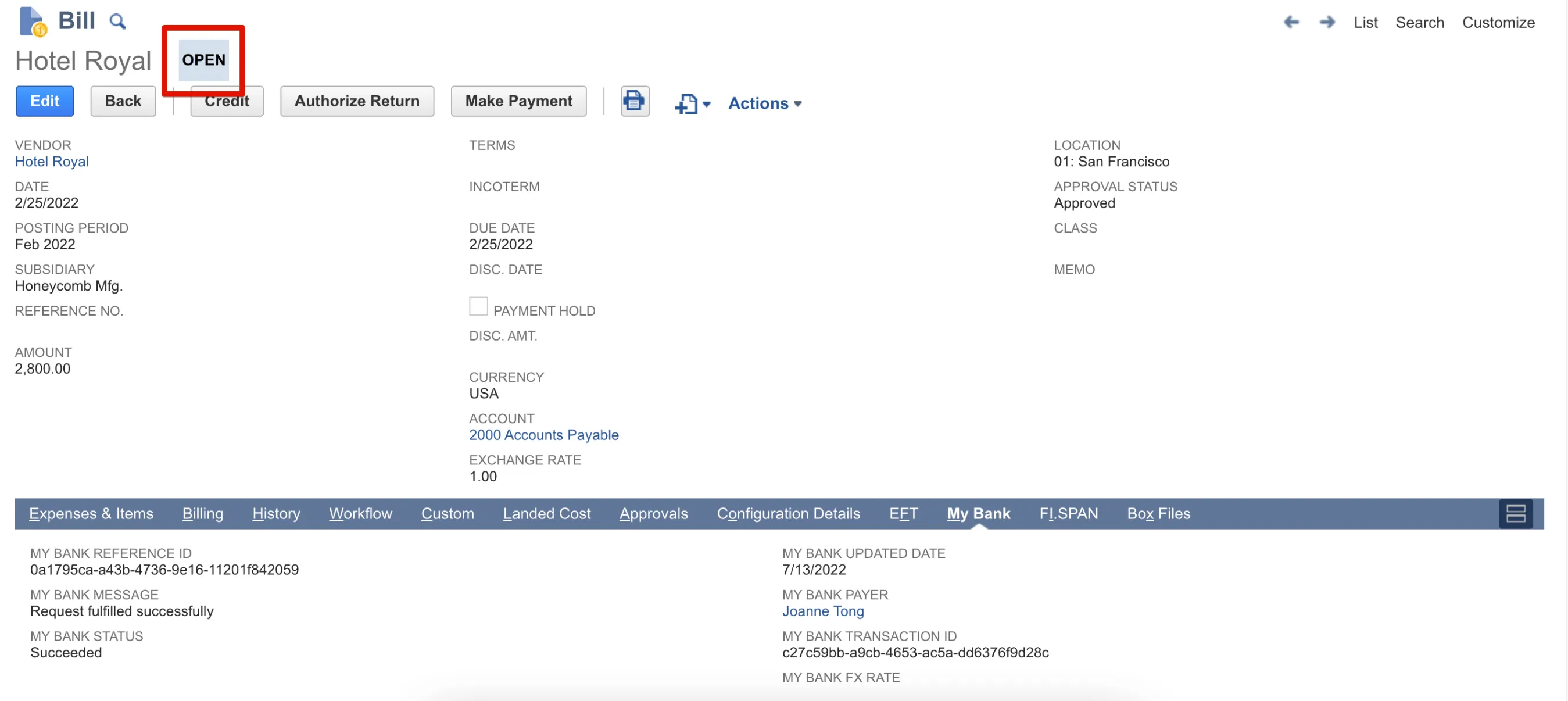
Confirm the Bill has been reopened. Fields under Your Bank's subtab are still populated with details from the first payment that was voided. The associated Bill Payment will also appear as Voided.

Repaying a Previously Voided Bill
Follow these steps to repay your voided bills.
Find the Voided Bill
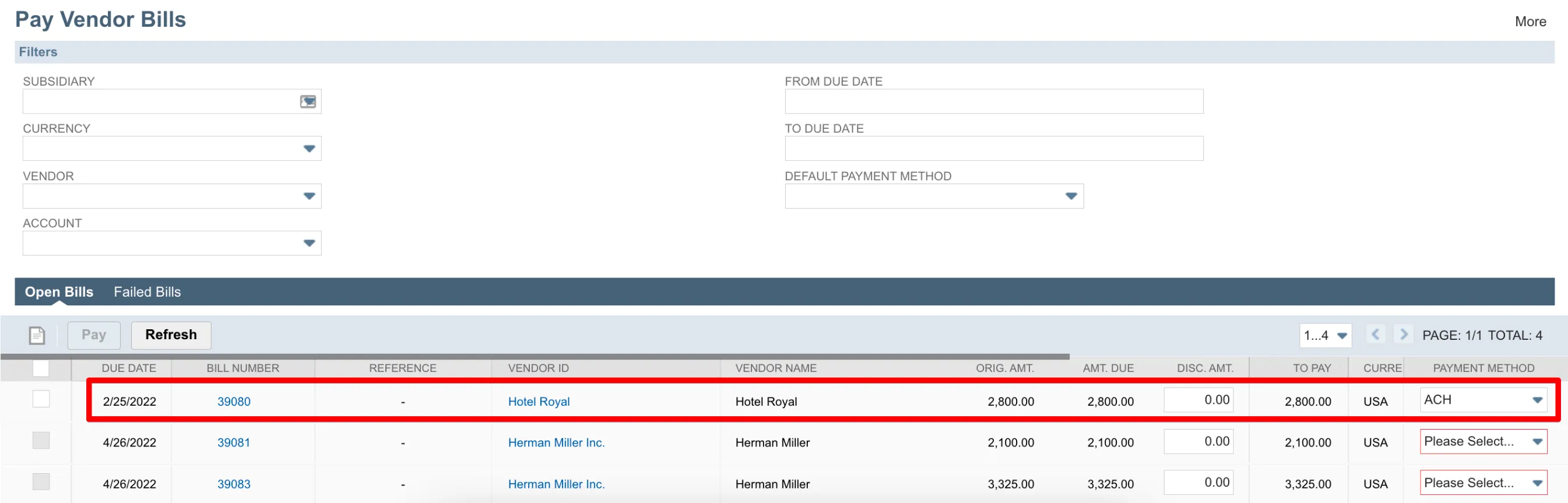
Find the previously voided bill on the Pay Vendor Bills page by going to MUFG Connect → Payments → Vendor Bills.
Pay the Bill
Pay the bill as normal.
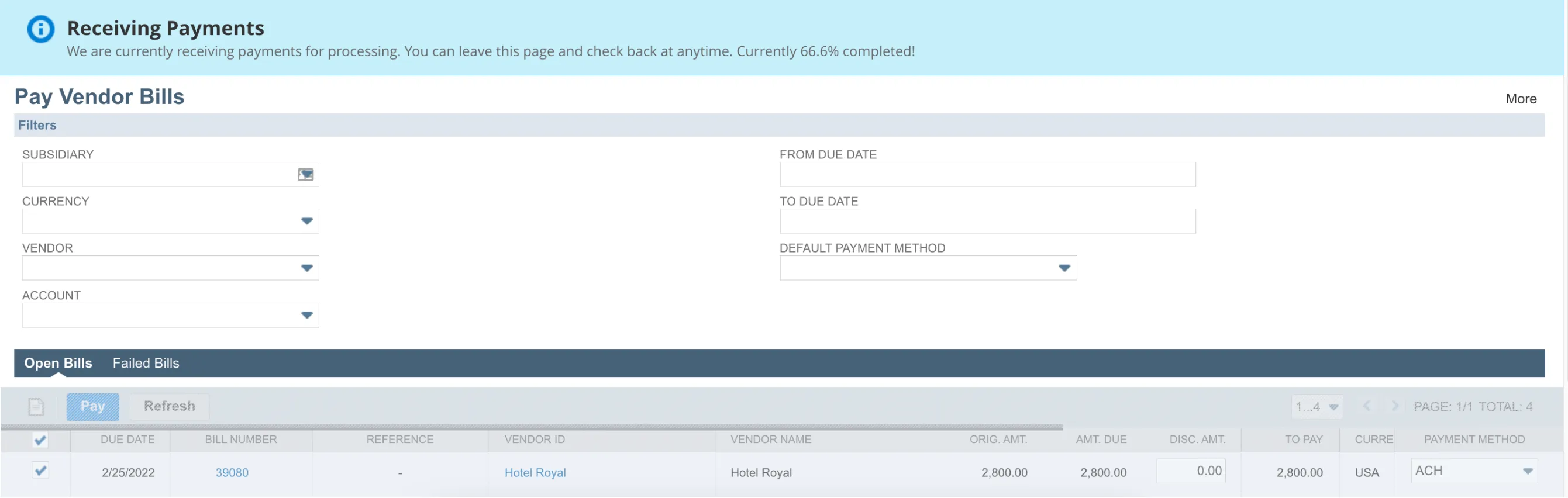
Check the Bill Status
Confirm the bill has been paid and appears in the History page. Go to MUFG Connect → Payments → History.
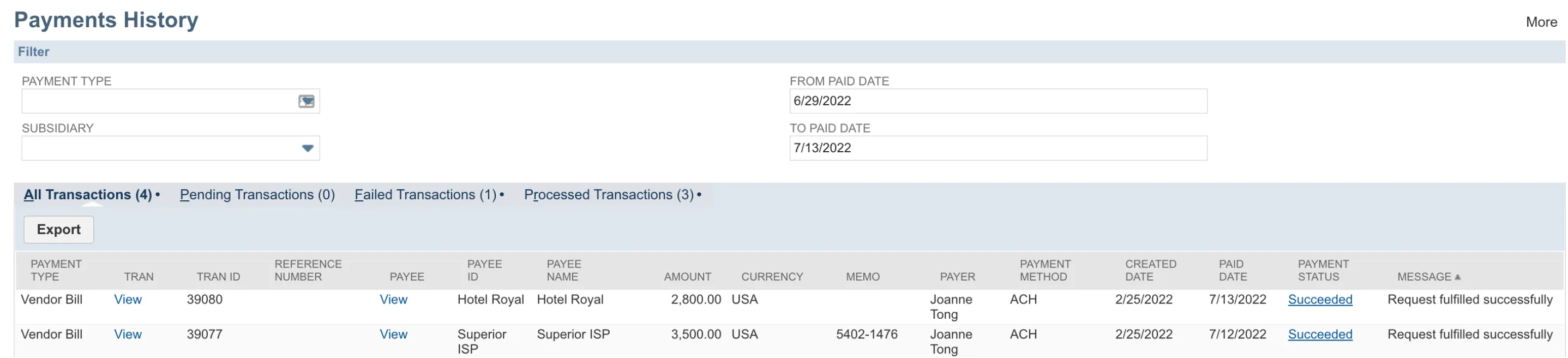
Open the Bill record and confirm the bill has been PAID IN FULL. You can select the tab for the MUFG Connect in the submenu to confirm that the bill payment has hit the plugin and that the reference IDs and transaction IDs are now different, as seen in Step 2 of How to Void a Bill.
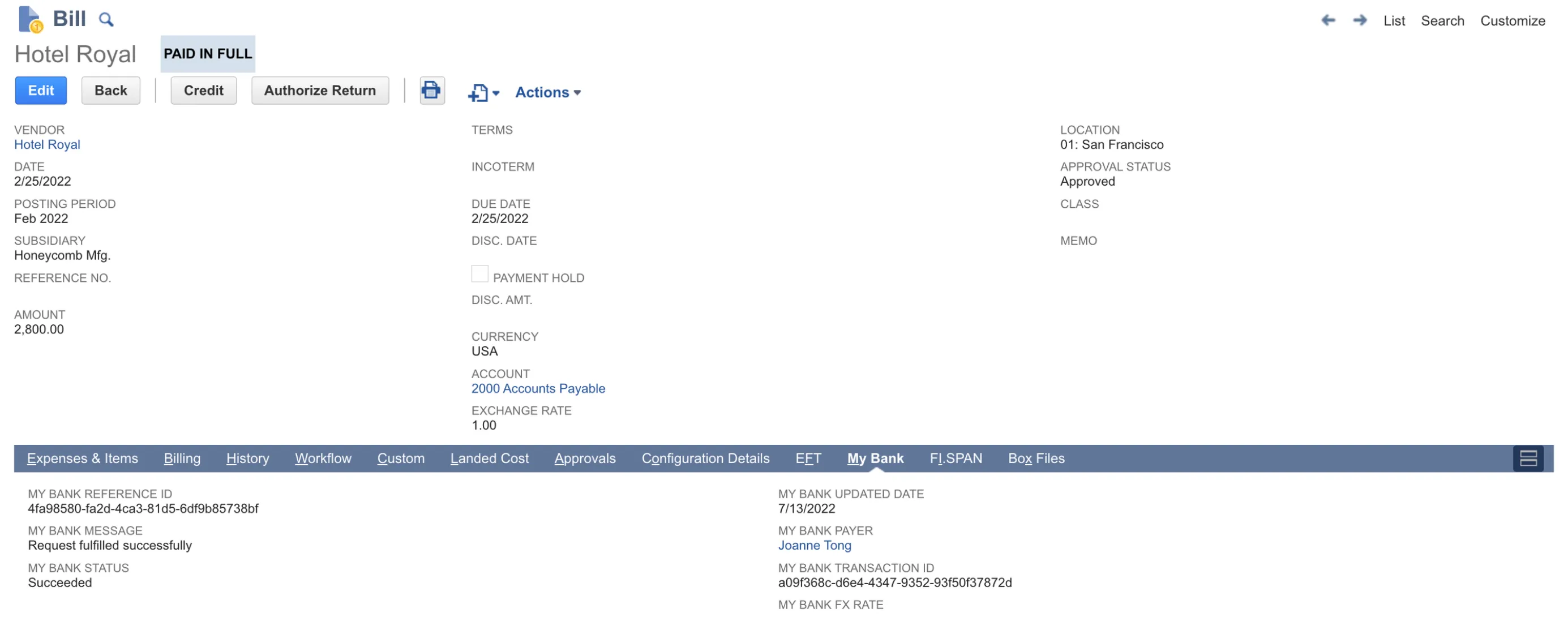
A new Bill Payment now appears as an associated record to this Bill, alongside the previously voided payment.
