Viewing Bank Accounts (Business Central)
The Cash Management Reporting features give you visibility into your previous and intraday bank balances and transactions directly from your connected bank accounts.
Using Bank Accounts, you can also easily export this data into a Business Central-friendly CSV file to simplify your account reconciliation process. Follow this guide to learn how to view your banking data in Business Central.
Viewing Bank Accounts
Follow these steps to access and view your banking data:
Go to Bank Accounts
From anywhere in Business Central, you can navigate to the Bank Accounts page.
Click on MUFG Connect and then select Bank Accounts to load the page.

View Account Summaries
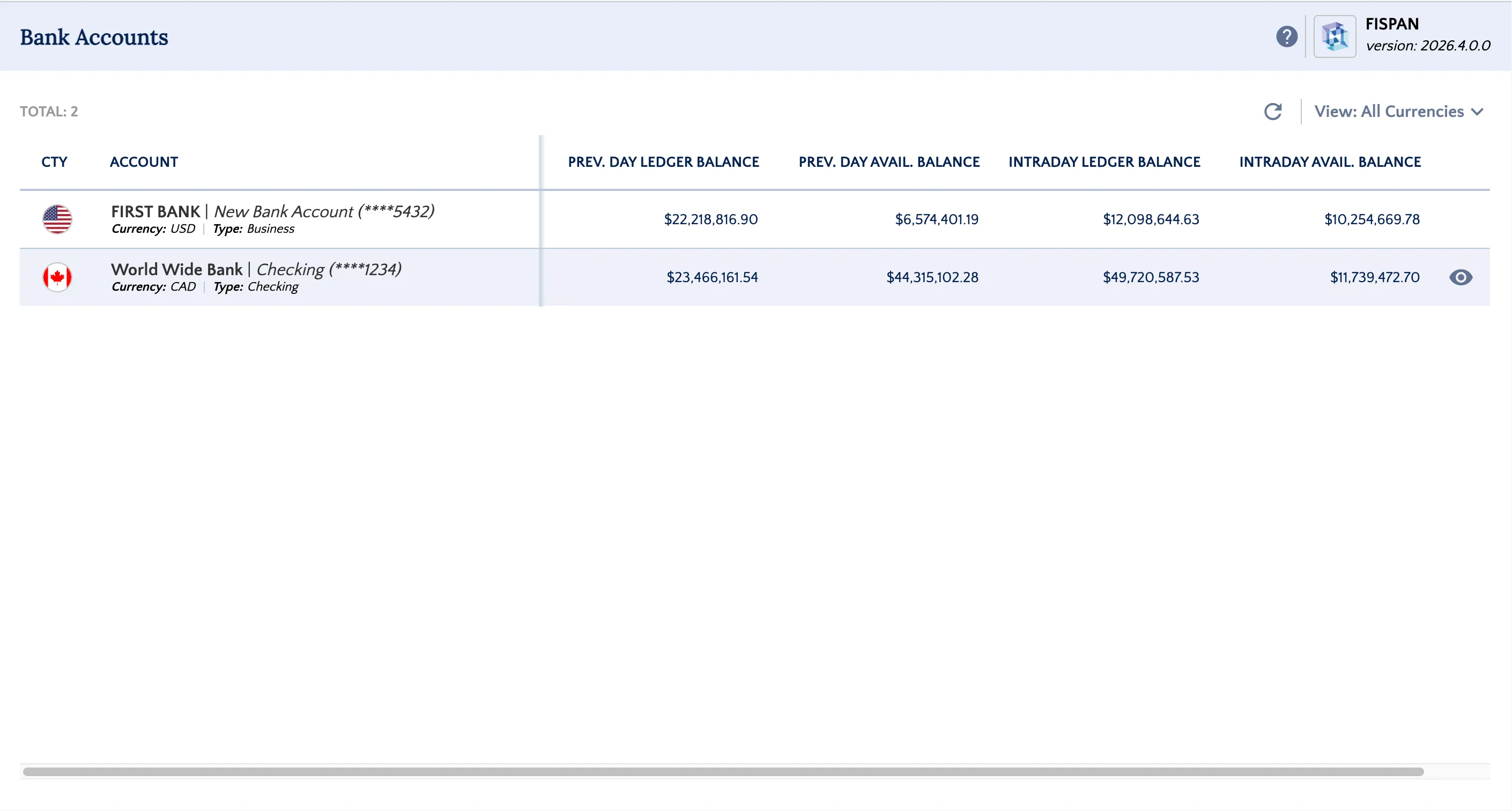
On the Bank Accounts page, you will see a summary of the current balances for all bank accounts connected to the plugin.
To view the transactions in detail, click on the Account Name.
The Deposit Account Transactions page loads, providing several key sections:
- Account Overview: This section lists the number of payments and the value of those payments processed by the plugin for the current and previous month.
- Balances: View current balances and switch between other connected bank accounts from this screen.
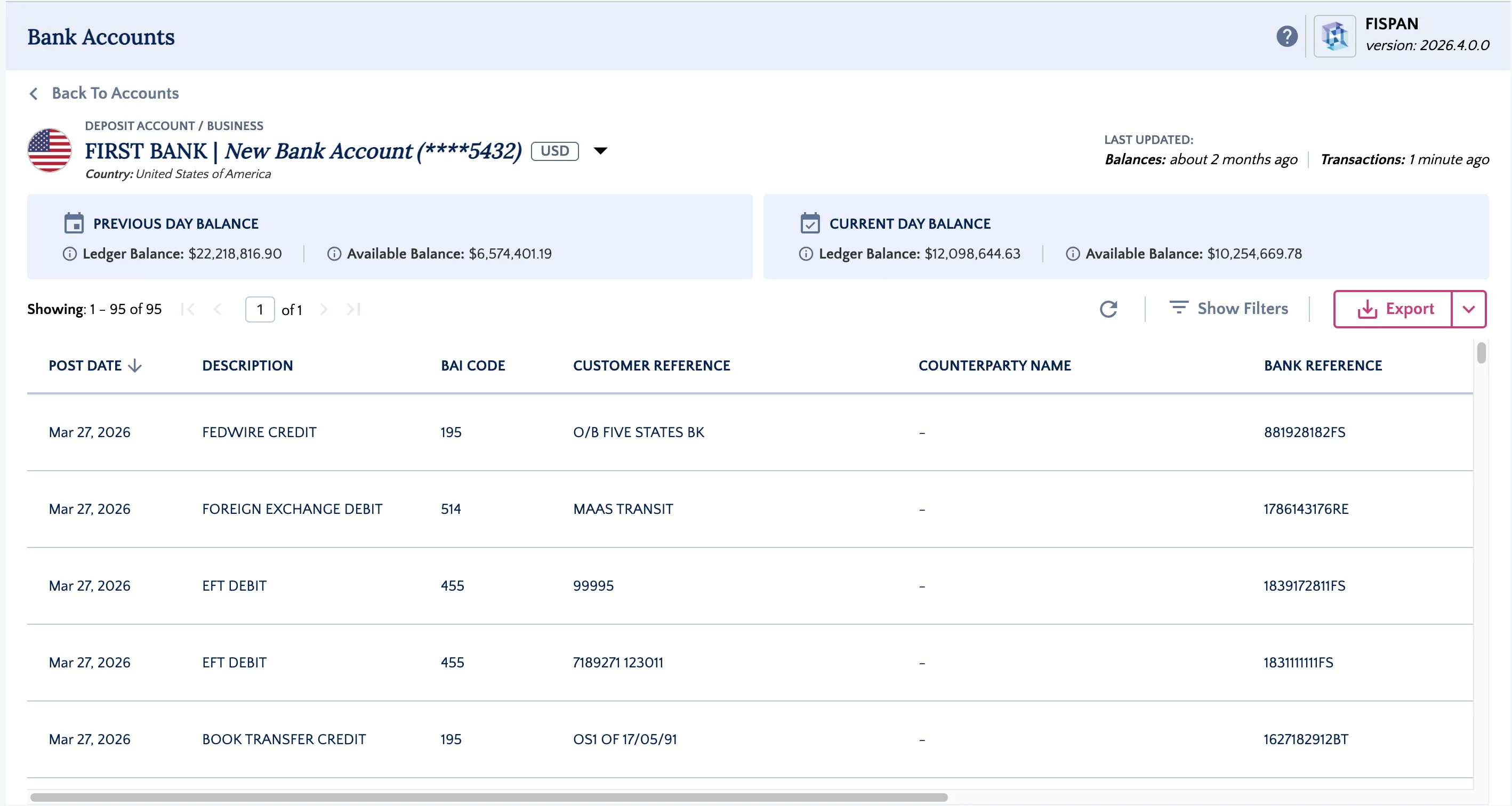
You can use the filters to adjust your date range to view transactions over specific timeframes, such as weekly, monthly, or a custom date range.
View Transaction Details
To view more details about a specific transaction on this page, select the Date.
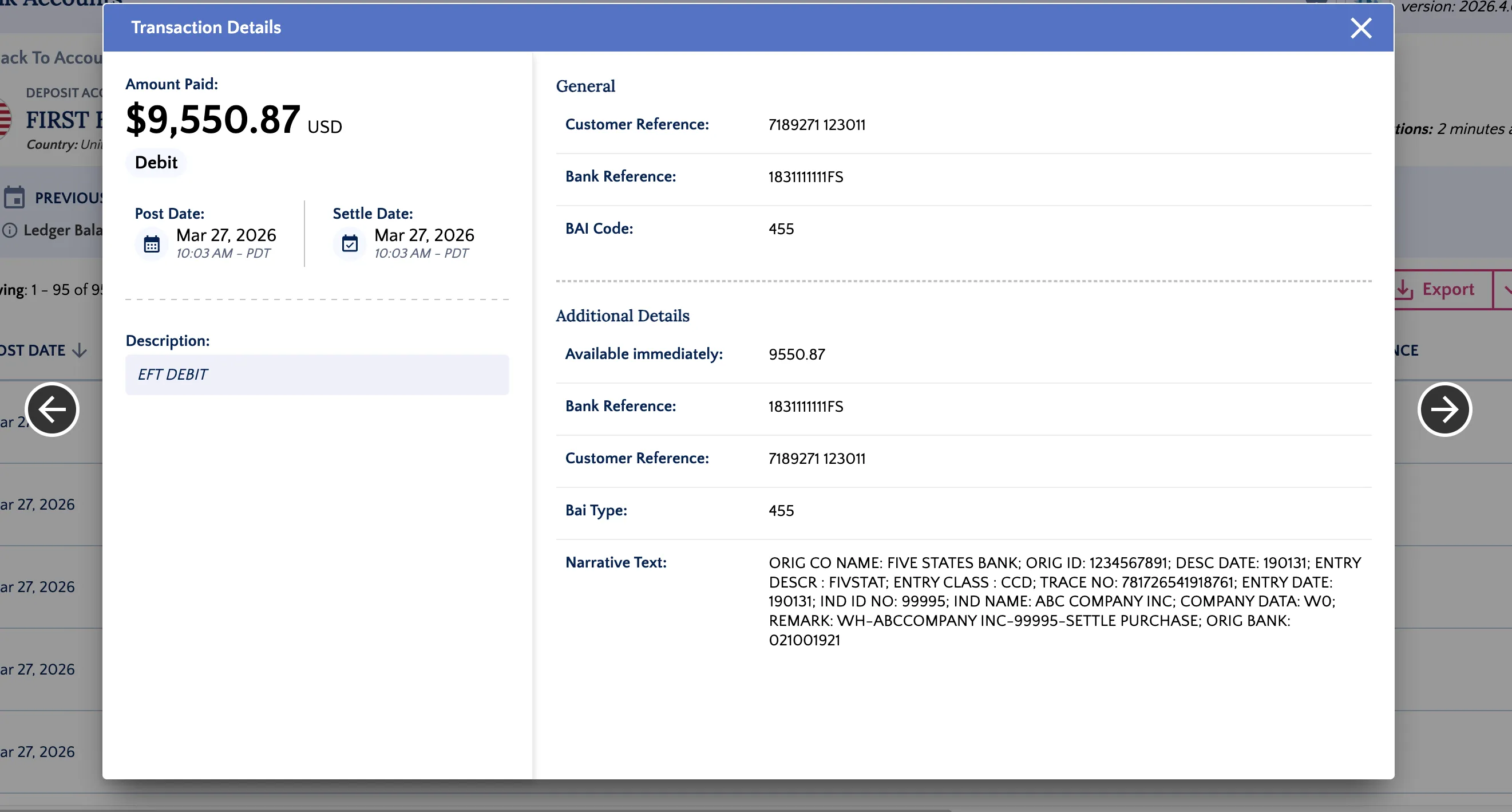
A pop-up will display the transaction details.
NOTE: The information available may vary depending on what your bank provides for each transaction.
Filter and Export Data
Select Show Filters to enter a specific search filter and narrow down the transactions displayed.
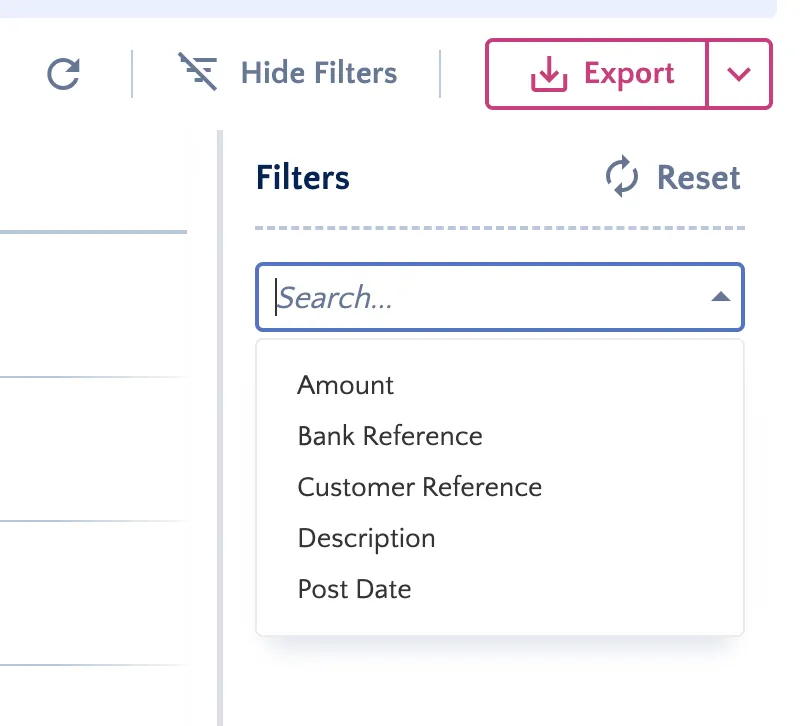
Click Export to generate a CSV file of the displayed transactions. This file can be used for account reconciliation or your own records.