Step 3: Registration & Login
Register & Login
Create an Account
In your invitation email, select the Get Started button. You will be brought to the FISPAN Portal. Create your login credentials and select Create Account.
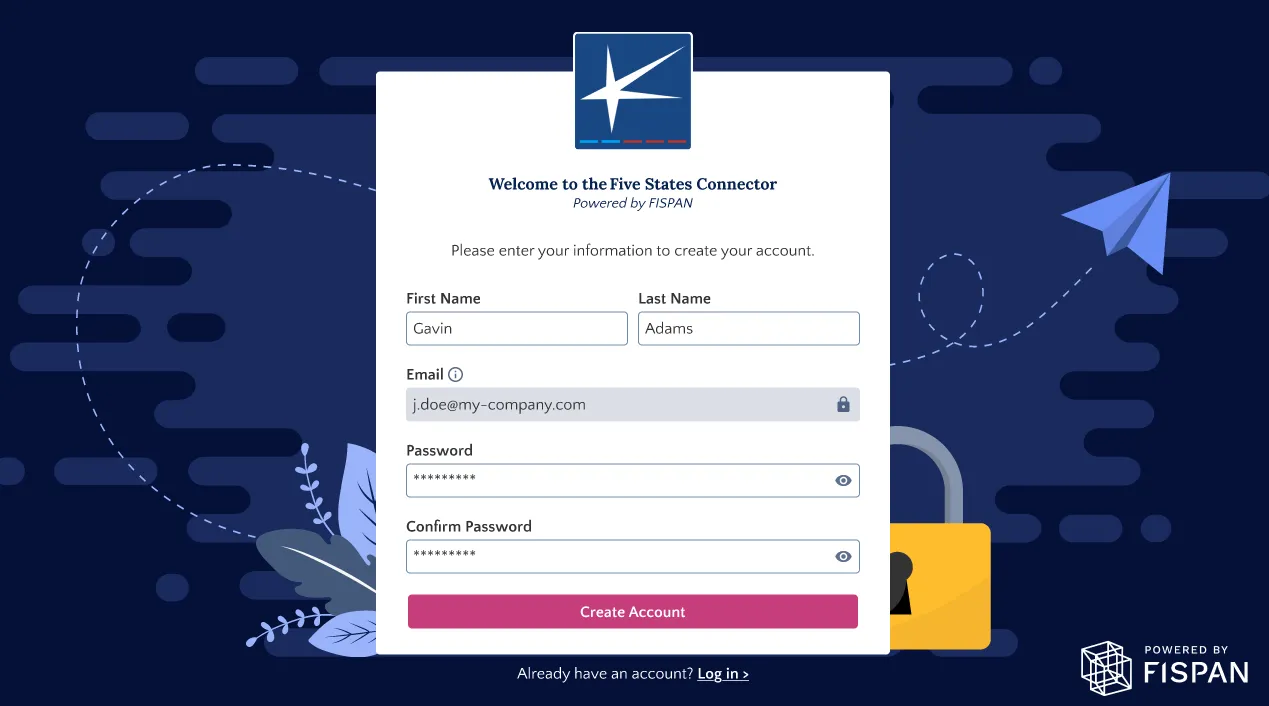
NOTE: The password you create here will be used every time you want to access the FISPAN Portal. If you need to update it later on, you have the option to use the Forgot Password option.
Login to Your Account
Once registered, you will be redirected to the login page. Your username and password are unique per environment, and you will have separate logins between Sandbox and Production.
NOTE: The Sandbox environment is used as a testing or UAT environment. For Sandbox users, please refer to the Sandbox Checklist for test scenarios.
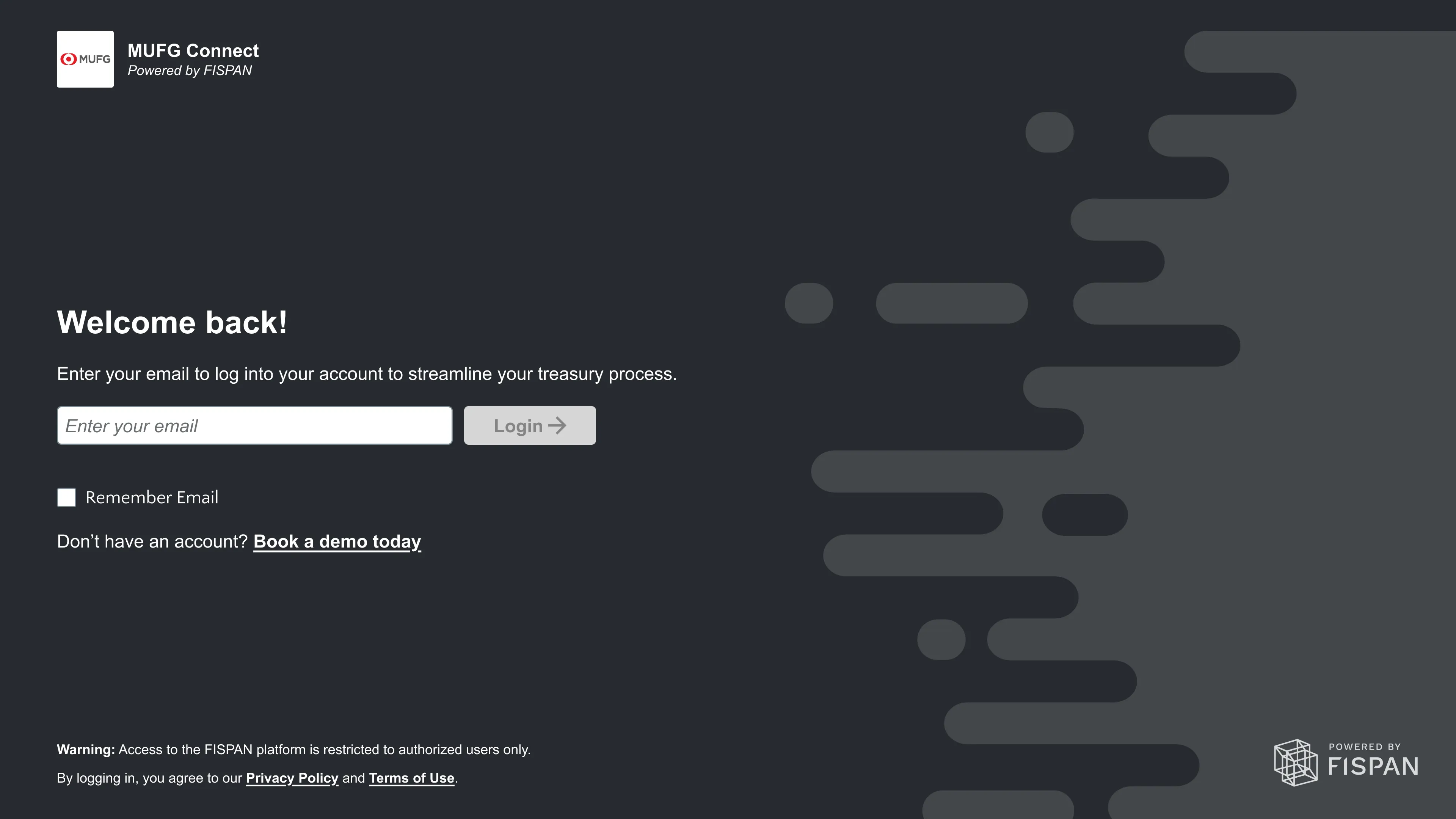
From the welcome page, you'll be taken to the login page. Enter your username and password to proceed.
Setting Up SMS MFA
NOTE: Multi-factor Authentication (MFA) is only required if you are a user in the Production environment. If accessing the Sandbox environment, you may skip this step.
The first time you log in to the Production environment, you will be prompted to establish your Multi-factor Authentication (MFA) setup. You have the option to select various methods of MFA.
Enroll Phone Number
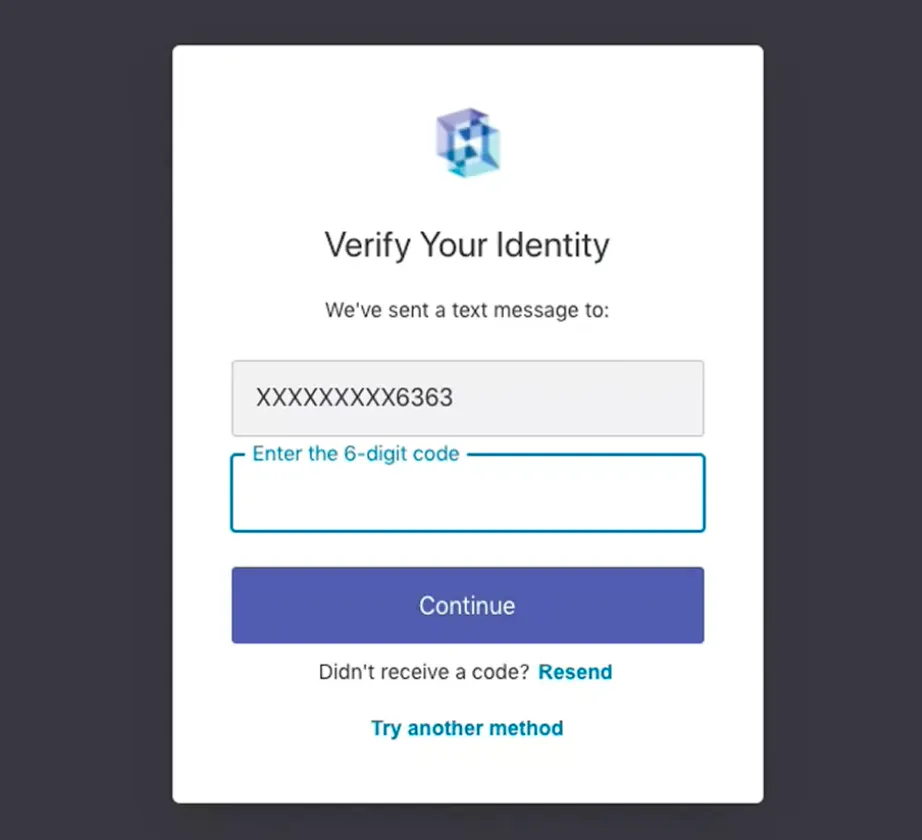
Select your country code then enter your phone number, you will receive a text message with a 6-digit code via SMS to the phone number you provided for enrollment.
If you are unable to receive a text message to this number, or you prefer a different multi-factor authentication method, click Try Another Method.
Enter Code
Enter the 6-digit code you received in the applicable field.
Select Continue.
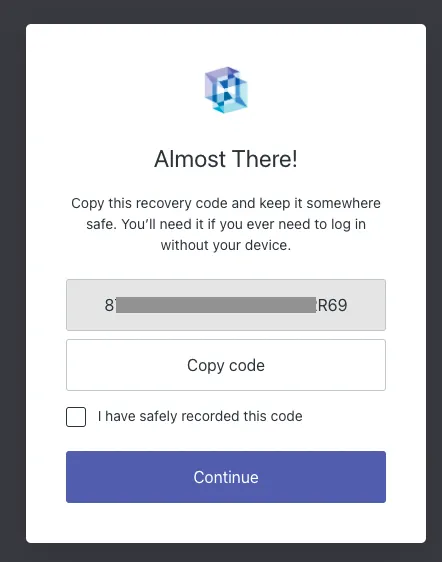
Save Recovery Code
After setting up SMS and inputting the first one-time code, you will be presented with a recovery code that should be stored in a safe location. This code is for resetting the MFA, to switch the MFA type (i.e., Authenticator), or to use a different phone number.
If you would like to utilize another method for MFA (SMS, Authenticator, or Email) instructions are available here: Setting up Multi-Factor Authentication (Intacct).