Step 15: Add User Permissions
To set permissions for user roles, follow these steps.
Select Users
In your Business Central account, search for and select Users.
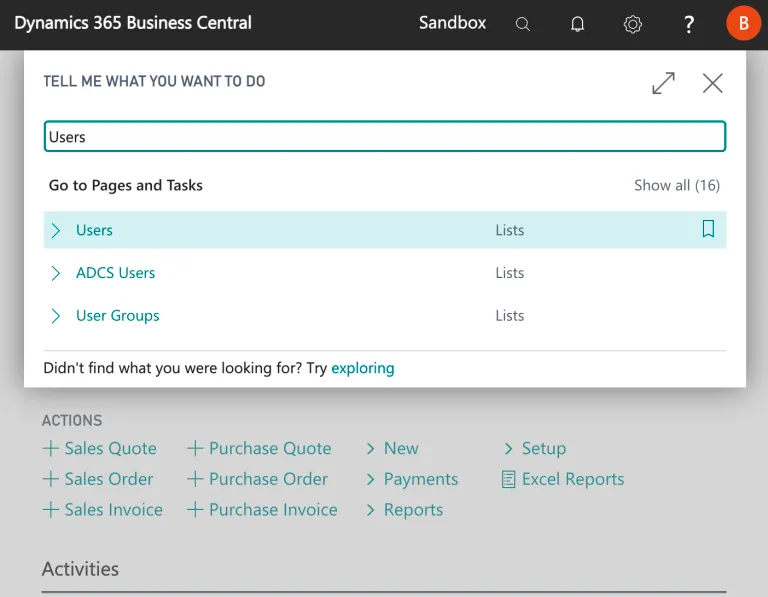
Select Users
Find the user you would like to grant access to the plugin and select Edit.
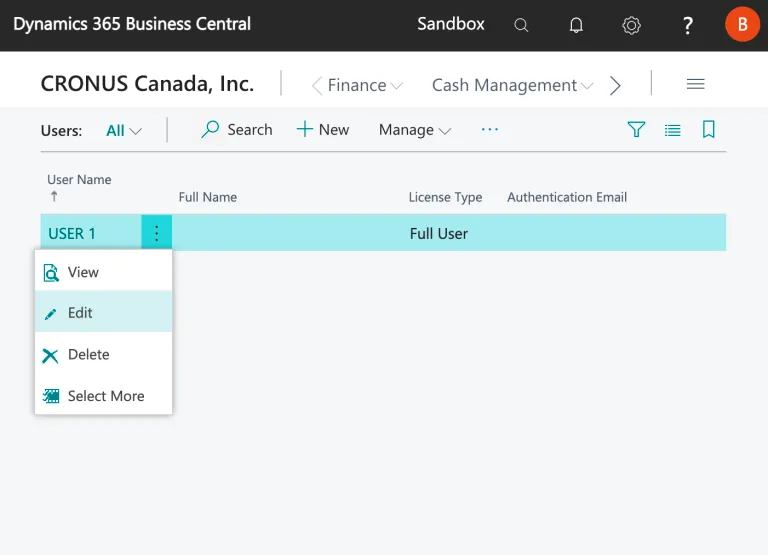
Select Edit
Add Permission Sets
Scroll down to User Permission Sets and select the three dots within the text box to open the Permission Set Lookup.
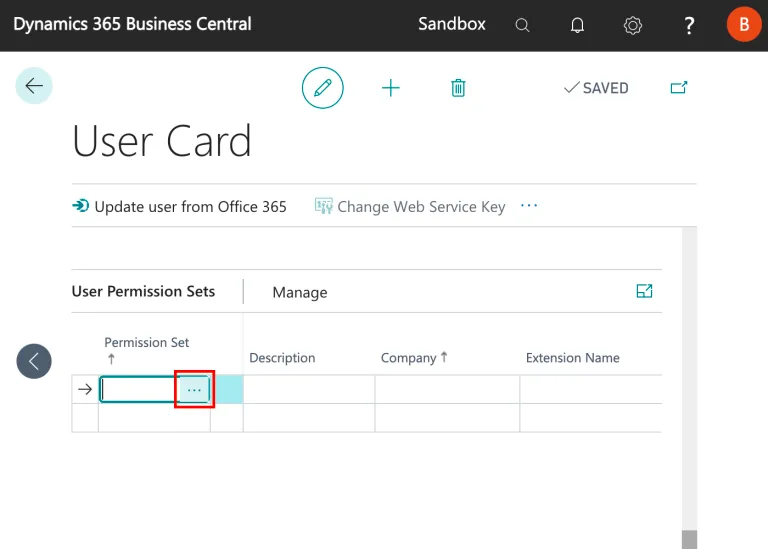
Open Permission Set Lookup
Identify and assign the following Permission Sets as required:
- MUFG V3BF: Allows users to utilize bank feeds
- MUFG V3CORE: Required for any user using the plugin
- MUFG V3FULL: Allows users full access to the plugin
- MUFG V3PB: Allows users to make payments through the Pay Bills page
- MUFG V3PM: Allows users to access the Payment Methods page
- MUFG V3PAYAPPR: Allows users to access the Payment Approvals page
- MUFG V3RR: Allows users to view balances and transactions on the Bank Statements page
Once all necessary Permission Sets have been added, confirm that the page has been saved.
IMPORTANT: Please ensure that MUFG V3CORE is granted to all plugin and non-plugin users who use records that the plugin interacts with bank accounts, vendors, etc.
This does not give non-plugin users access to the plugin pages.