Step 11: Set Permissions for a Role
Now that the plugin has been installed, you can start assigning permissions to your roles in Intacct by following these steps.
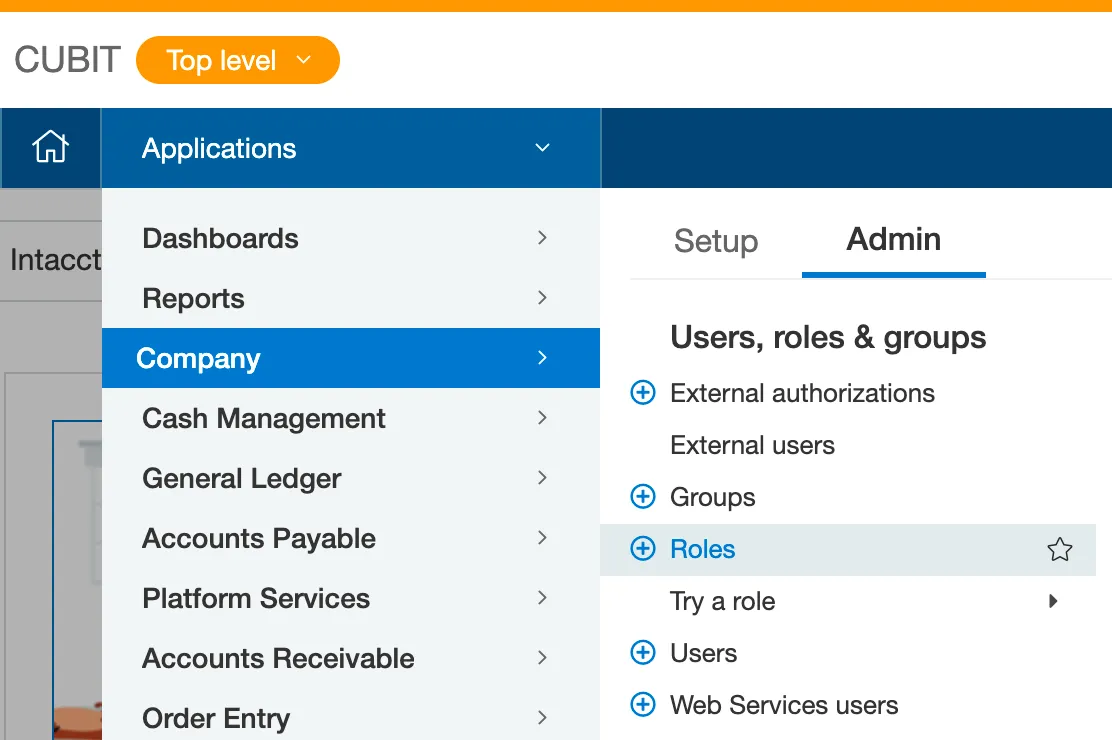
Go to Roles
In Intacct, go to Company → Admin tab → Roles.
Assign Permissions
On the MUFG role, select Subscriptions
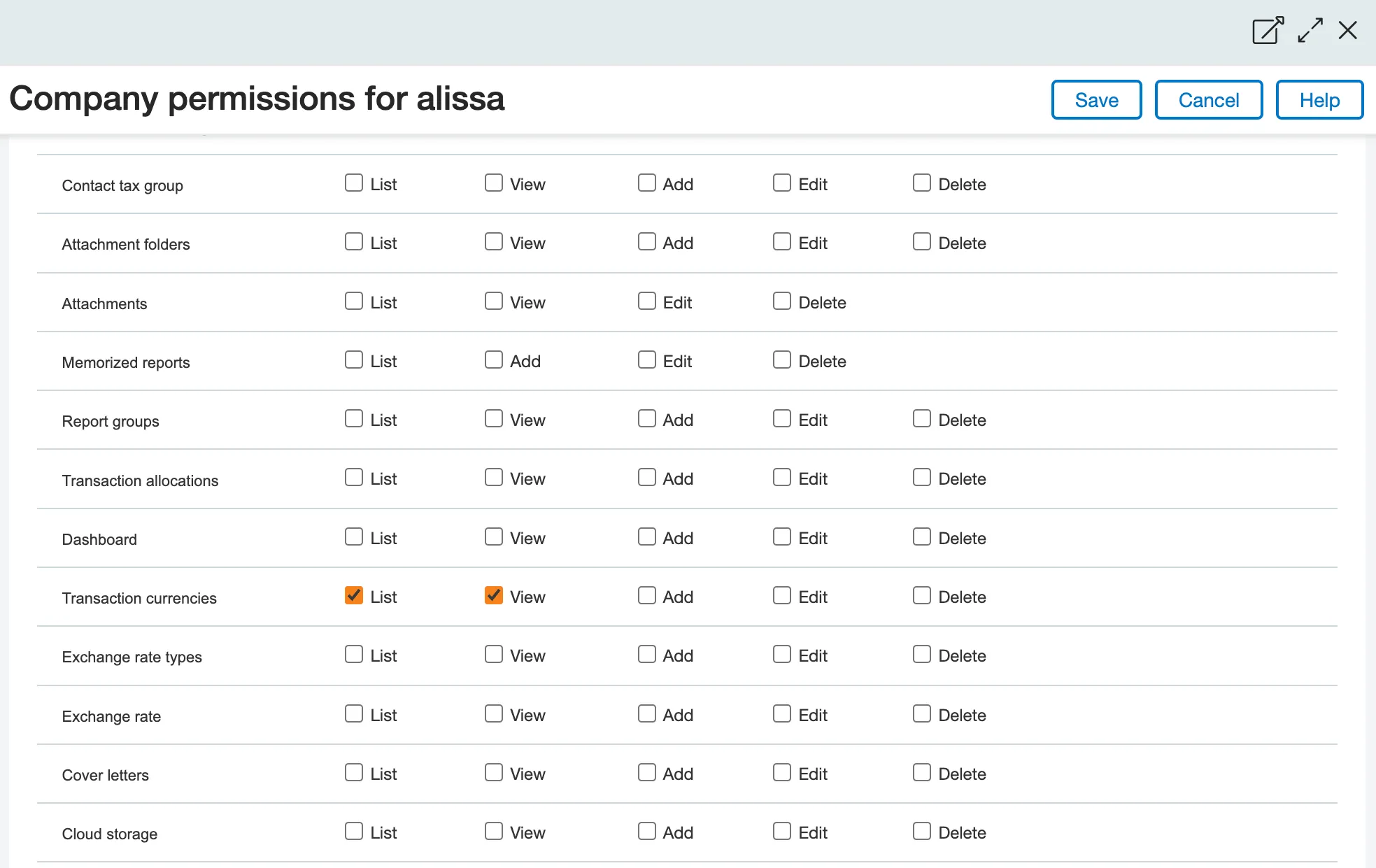
Select Permissions to enable each of the following permissions:
- Cash Management: Checking Accounts (List, View), Savings Accounts (List, View), Credit Card Accounts (List, View)
- Accounts Payable: All Permissions
- Company: Transaction Currencies (List, View), Entities (View), Funds/Locations (View)
- General Ledger: All Permissions
- MUFG: All Permissions
If you do not use roles inside Intacct, simply head over to the users and web service user, click Subscriptions, and grant them the following permissions:
- Cash Management: Checking Accounts (List, View), Savings Accounts (List, View), Credit Card Accounts (List, View)
- Accounts Payable: All Permissions
- Company: Transaction Currencies (List, View), Entities (View), Funds/Locations (View)
- General Ledger: All Permissions
- MUFG: All Permissions
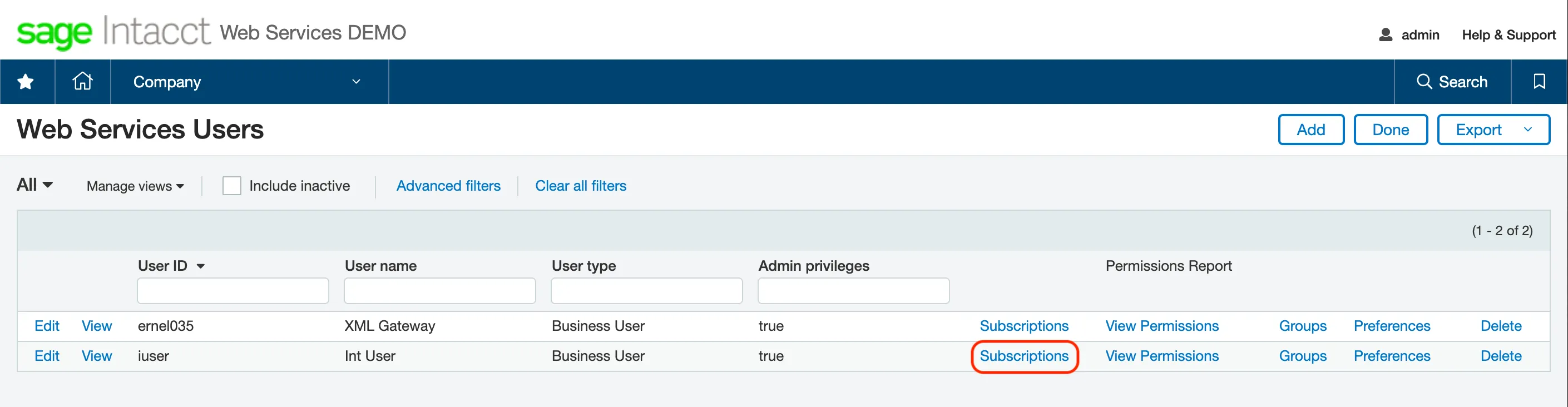
Then, select Save.
Common Errors
If you receive an error message, please confirm that you have granted the appropriate Cash Management permissions to the Web Service User’s role subscription.
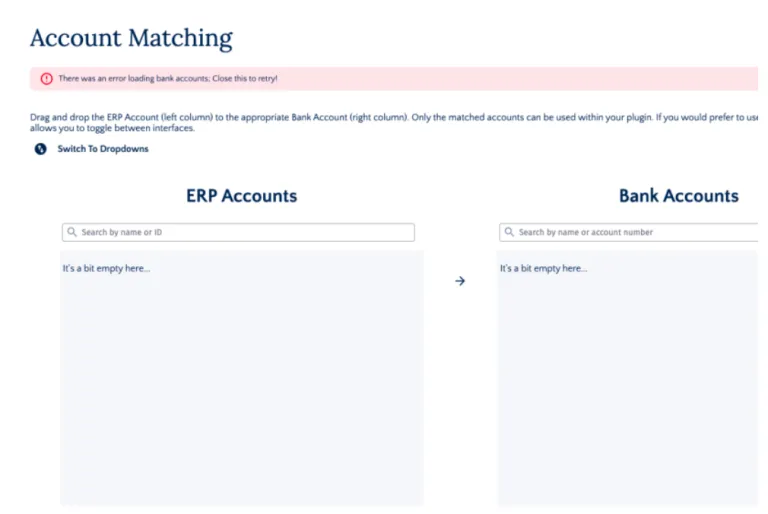
You may receive an error like the following: "You do not have permission for the API operation READ_BY_QUERY on objects of type trxcurrencies."
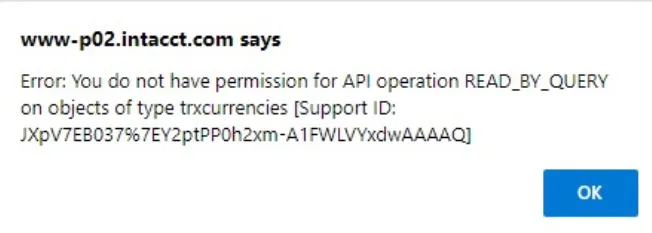
This error means you need to adjust the role permissions for the user who encountered the issue. This affects the user role/permissions and NOT the Web Service User.
For the affected user, please navigate to their role permissions and add the following: Company → Transaction Currencies (List, View).