Step 10: Account Matching
Each ERP account should have a matching bank account. Only the matched accounts will be used in your plugin.
Follow these steps to learn how to match your ERP accounts with the corresponding bank accounts.
IMPORTANT: The Use Account Numbers preference must be enabled in NetSuite to match your bank accounts.
To do this:
- In NetSuite, go to Setup -> Accounting -> Accounting Preferences.
- On the General Ledger tab, check the box next to Use Account Numbers.
- After enabling this, click the X in the error banner on this page to reload your accounts.
If you receive an error during account matching after the feature is enabled, please contact FISPAN Support for further assistance.
NOTE: When installing the plugin in Sandbox, bank accounts are for testing only. They are not connected to your live bank accounts. When installing in Production, the listed bank accounts reflect your actual accounts.
Account Matching Setup
Match your ERP Accounts with the corresponding Bank Accounts by dragging an ERP Account from the left and dropping it onto the desired Bank Account.
Once you've successfully matched your accounts, click Next Step.
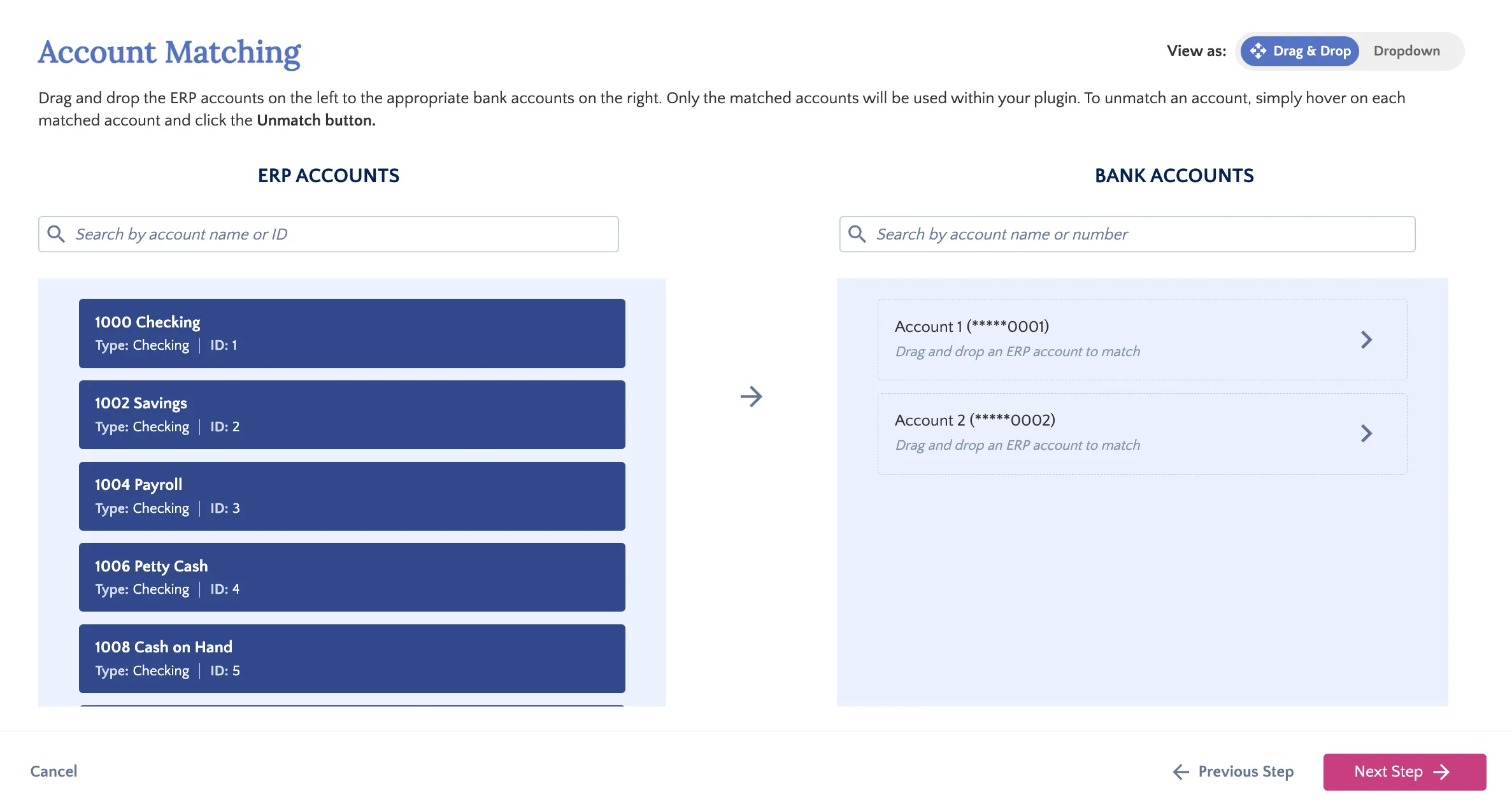
For virtual card payments (if applicable), you will need to map the bank account to a Credit Card type NetSuite account, not a NetSuite bank account.
IMPORTANT: It might take a few moments for your accounts to appear, depending on the number of accounts you have and how quickly NetSuite is processing them.
Please do not refresh or leave the page until everything has loaded.
NOTE: If you would like to add new accounts or functionalities after your initial installation and set-up, please submit a request to your Sales Officer.
TIP: Would you like to set a default account for Account Payables? Let us know which account you'd like by contacting FISPAN Support. Please specify the last 4 digits of the bank account number in your request. Each company can have only one default source account across all subsidiaries.
Account Matching Error Troubleshooting
NetSuite will load your ERP accounts from the Chart of Accounts. Depending on the number of accounts you have or your device's security settings, you might see the following error:
"There was an error loading the bank accounts: Close this to retry!"
If this error appears, click the X to retry loading the accounts.
If you see the error again, click Next Step and finish the rest of the installation wizard.
If you are still unable to load the accounts, our support team can manually map them for you. To do this, please provide us with the Internal ID from NetSuite.
Provide NetSuite Internal ID
Search Accounts
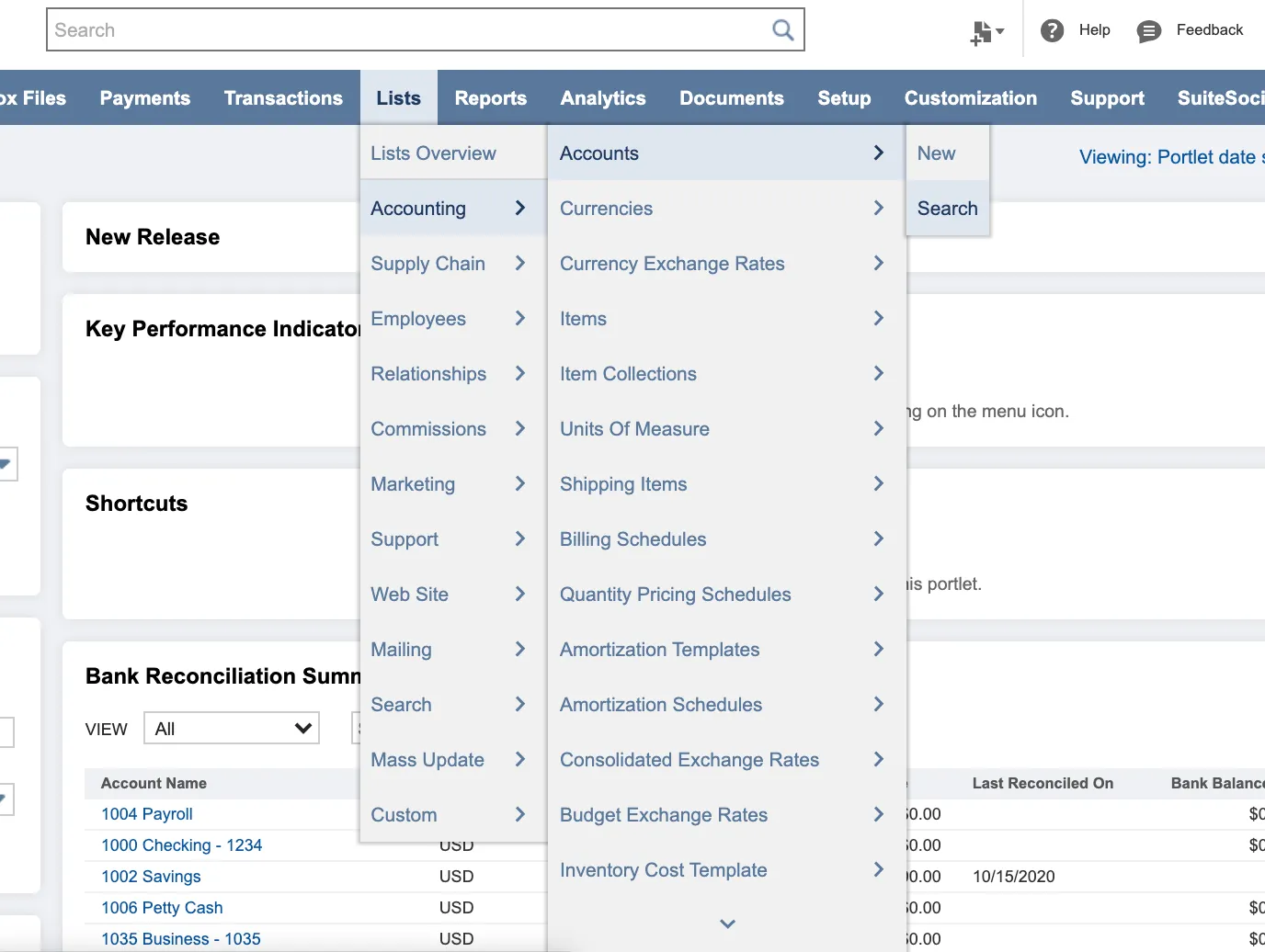
In NetSuite, go to Lists → Accounting → Accounts → Search
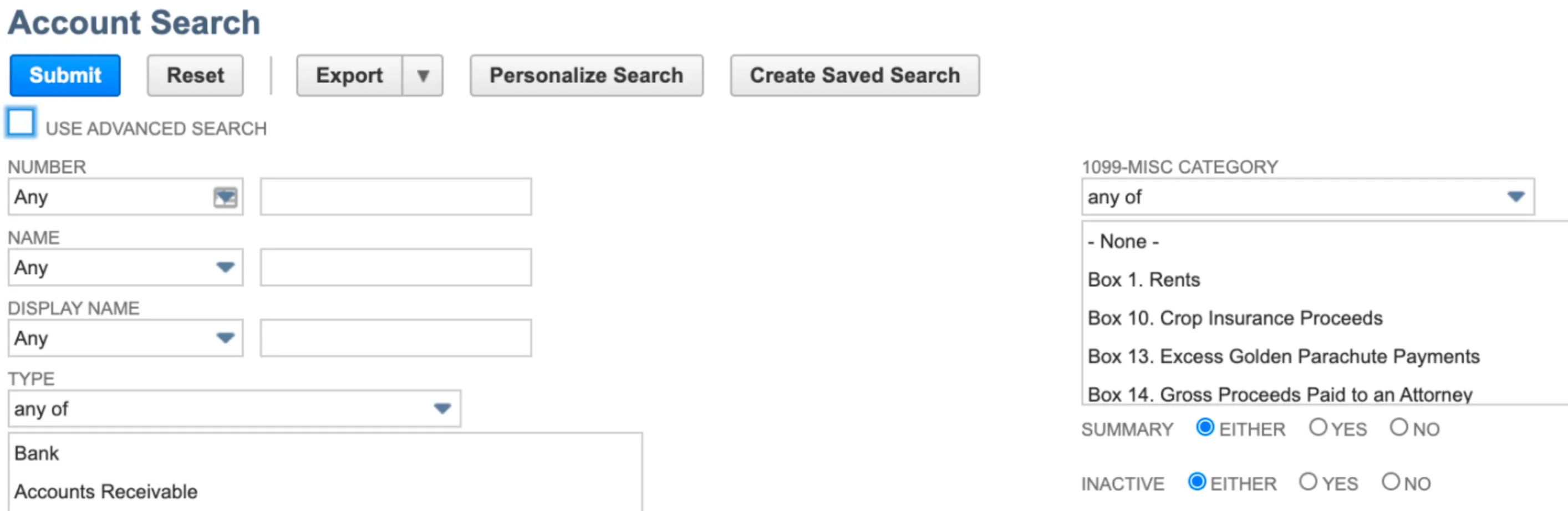
Select Use Advanced Search.
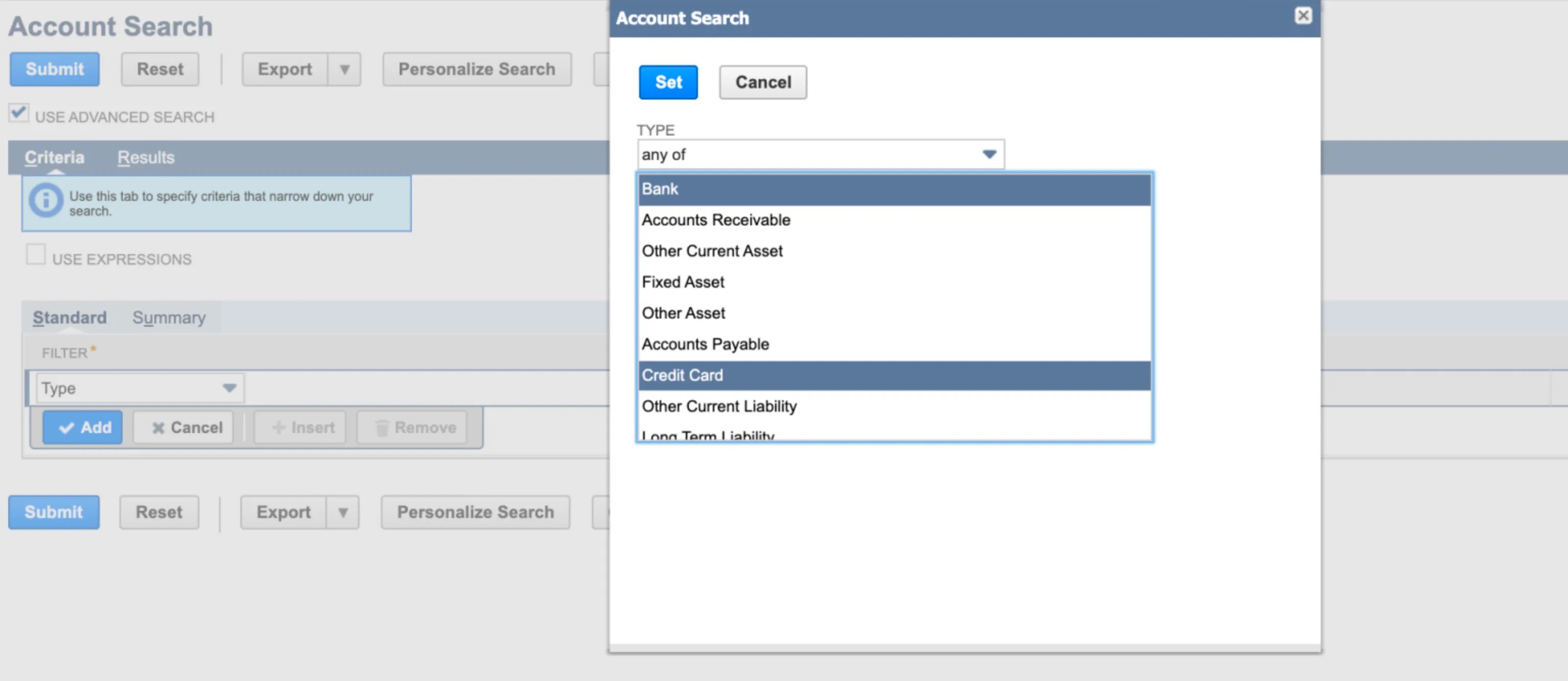
Under the Criteria tab, in the filter box, select Type and choose Bank (and/or Credit Card if matching for SUA payments). Then select Set.
Filter Results with Internal ID
Under the Results tab, remove all but the Name, Account Type, and Description fields, then add the field Internal ID.
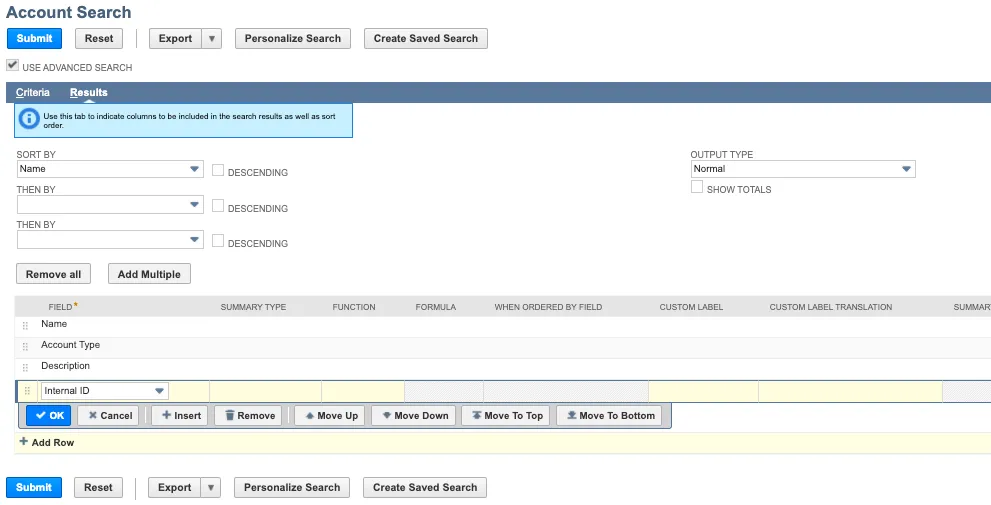
Once complete, select Submit.
Download XLS Format
On the Account Search: Results page, please select the Microsoft Excel icon to download this list in an XLS format.
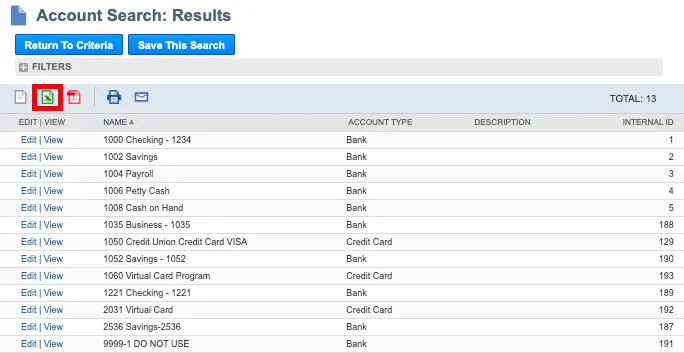
Once the download is complete, please open the XLS file and add a column with the last 4 digits of the Account the Internal ID should be mapped to.
Save this XLS file, and you can contact FISPAN Support to help you troubleshoot.
{{sup}}