Pre-Onboarding Checklist (Intacct)
Prior to joining an onboarding call, please follow the steps below to ensure that the installation process runs smoothly. Any missed steps may result in the onboarding call being cancelled and rescheduled to a later time.
Bring a Sage Intacct Administrator
Our onboarding calls require a Sage Intacct Administrator to be present, as they will need to enable a number of settings, create a web service user, install the plugin, and assign various permissions.
Enable Platform Services
Ensure that the Platform Services module has been enabled on your Sage Intacct environment. This module allows third-party applications, such as the MUFG Connect to be installed in your Sage Intacct environment.
The administrator of the ERP should see Platform Services on the menu bar.
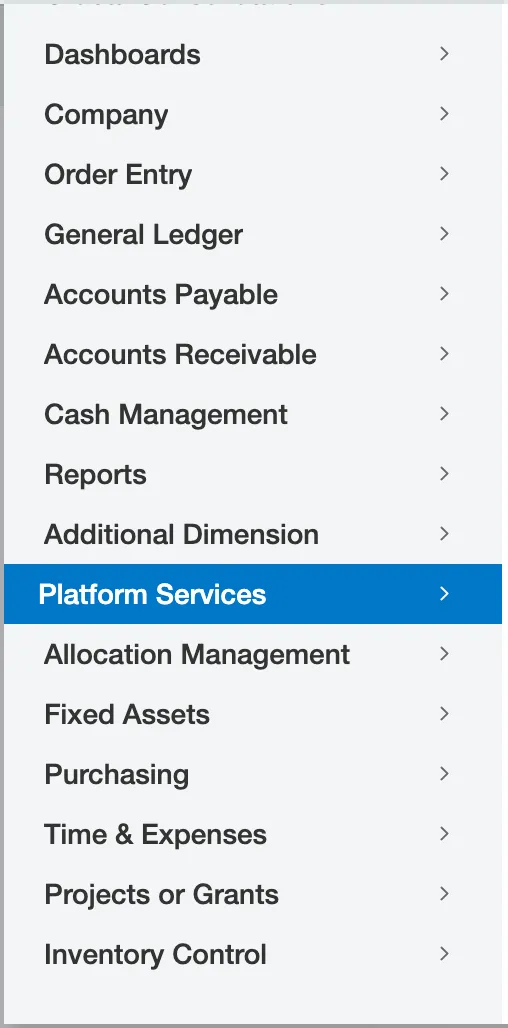
If an administrator is not able to see Platform Services, please contact your Sage Intacct Account Manager to enable Platform Services on your account. You will not be able to onboard on the plugin without the Platform Services module.
Enable Web Services Users
Enabling the Web Services feature on your Sage Intacct account is required to allow the plugin to communicate with your Sage Intacct environment.
Go to Company → Admin tab → Subscriptions.
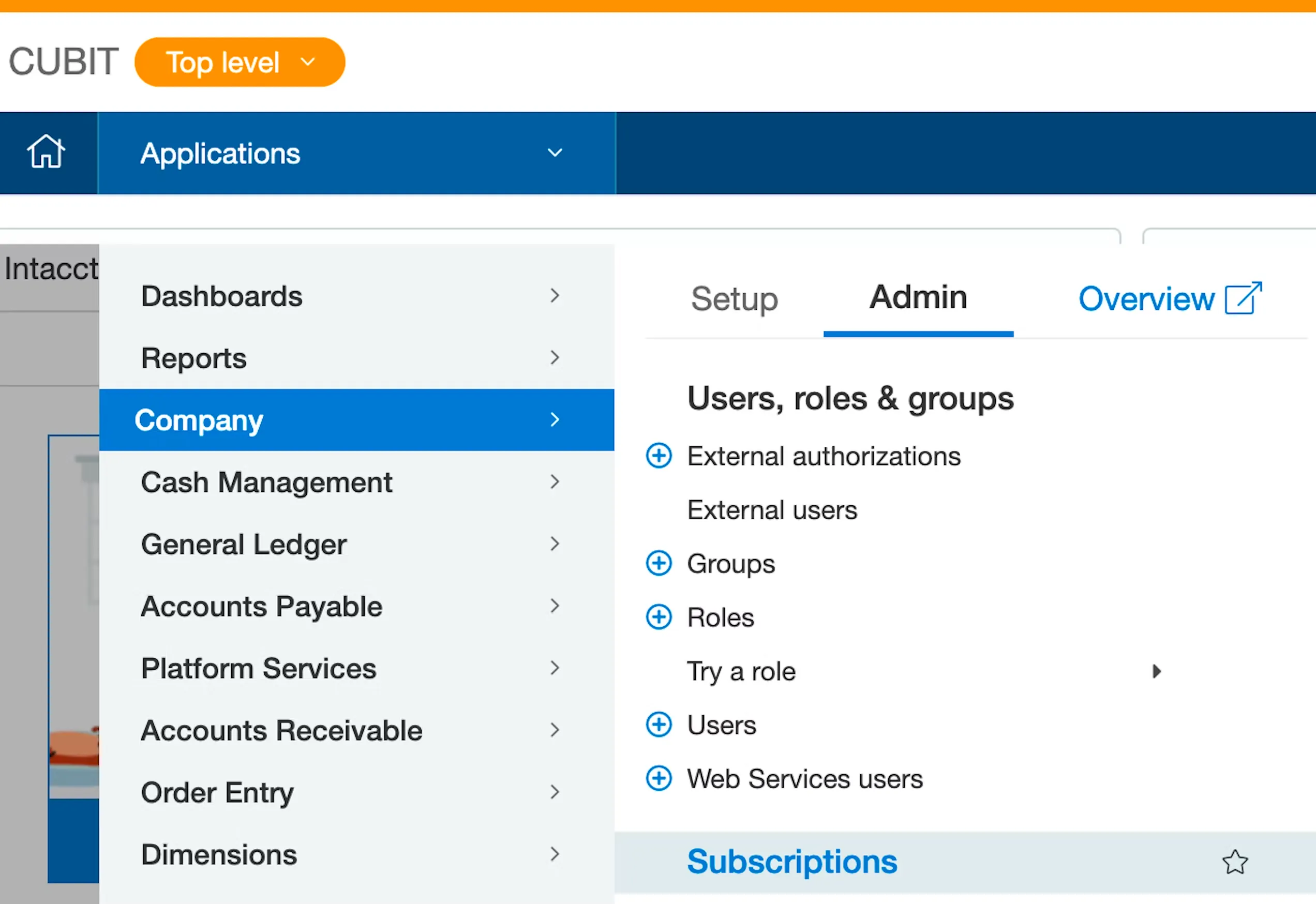
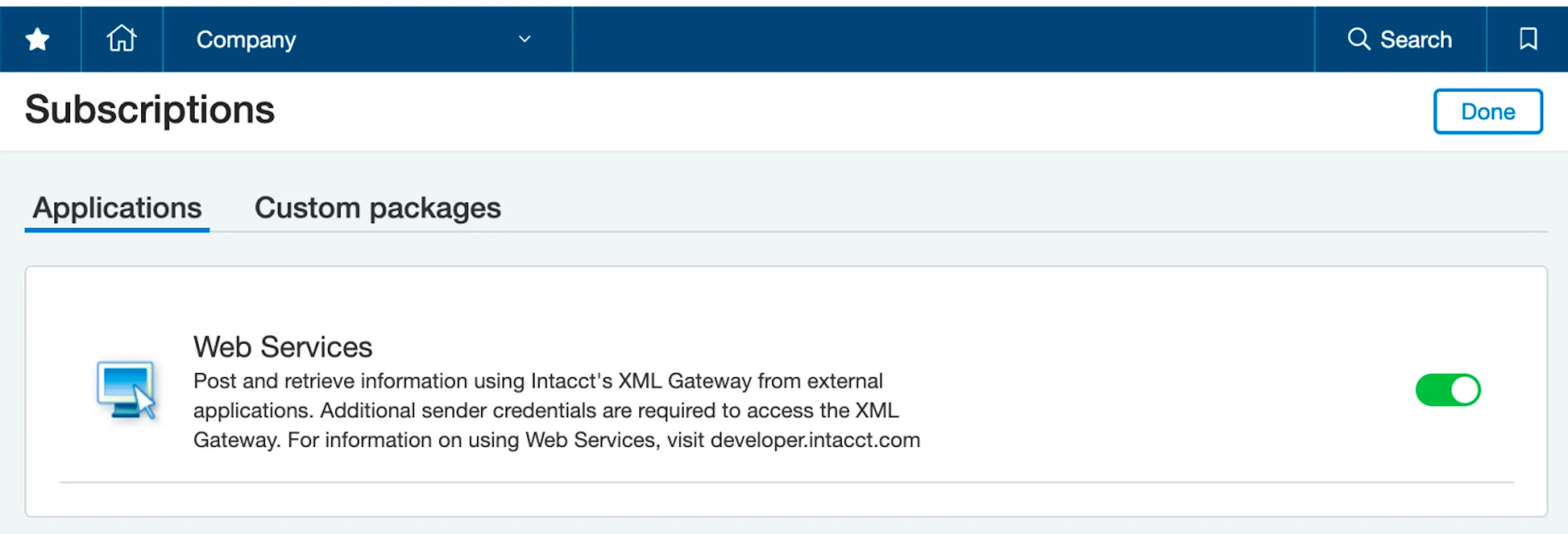
Confirm that Web Services is enabled, then select Done.
If they are not, select the toggle to enable Web Services.
Enable Banking Cloud
To utilize the Bank Feeds product, the Banking Cloud will also need to be enabled.
Go to Company → Admin → Subscriptions.
Confirm that Sage Cloud Services are enabled. If they are not, select the toggle to enable Sage Cloud Services.
After enabling Sage Cloud Services, hit Configure, and confirm that the Enable Bank Feeds functionality is checked.
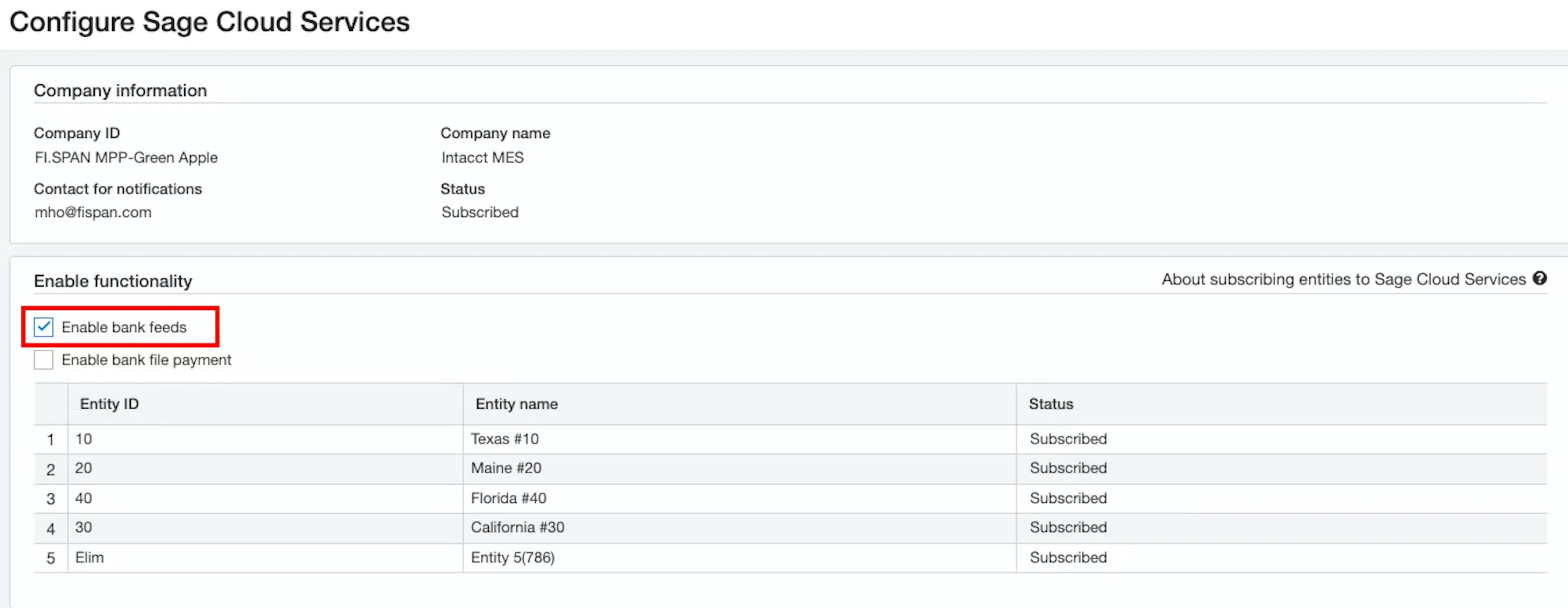
Then select Save.
Enable ISO Country Codes
Go to Company.
Under the General Information section, confirm that ISO Country Codes is checked.
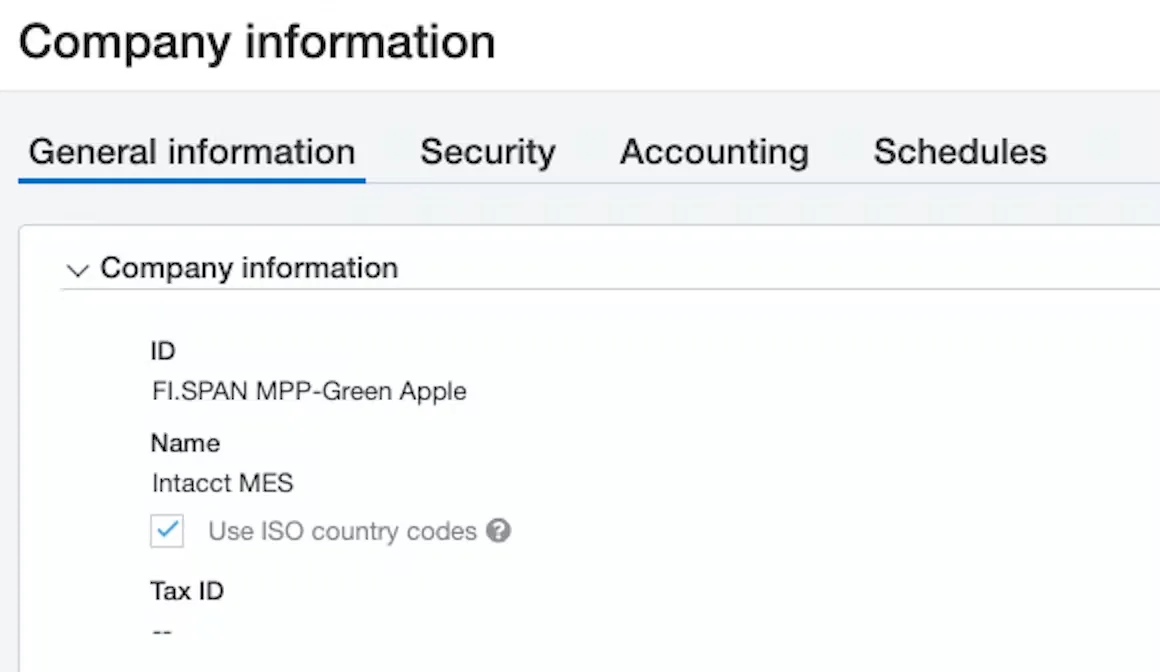
Select Save.
Disable Payment Approvals Inside Intacct
The plugin does not support Payment Approvals inside Intacct. If you leverage Intacct's payment approval currently, we strongly recommend moving that process inside the bank approval portal.
Continuing to use that process increases the chances that a bill stays open inside Intacct even though it has been paid already. Navigate to the Intacct Approval Process (Informational) section of the product guides for more information.
Confirm Sandbox Testing
TIP: Speak with a FISPAN representative if you do not wish to enable a Sage Intacct Sandbox environment.
All users moving into Production can test the bank plugin in a Sage Intacct Sandbox environment alongside any customizations or third-party plugins, or applications. This will ensure a smoother transition onto the bank plugin and help avoid any future disruption to service.
Please refer to the Sandbox Checklist (Intacct) page for a number of suggested scenarios to test.
NOTE: After completing the prerequisites, proceed to Step 1 in the installation guide to begin installing the plugin.
Review Custom Fields
The plugin requires at least 14 custom fields to be available to install within Intacct. Please ensure you have at least 14 available custom fields to successfully install the plugin.
This requirement is due to Intacct's limit of 100 custom fields. If further support is needed in identifying which custom fields can be removed, clients should reach out directly to their Sage Consultant. Their consultant can provide guidance on the purpose of each field and whether it can be deleted. To review your current custom fields:
Navigate to Platform Services -> Custom Fields
Check the existing fields under Object: AP Bill.
Identify any unused or redundant fields that can be deleted.
Support for Console Environments
The plugin's full functionality is not currently guaranteed for clients operating within a Multi-Entity Distributed Console or any form of console environment.
Confirm Hardware & Software Requirements
Browser support (minimum versions):
- Chrome: 65
- Firefox: 66
- Safari: 12
- Edge: 79
Operating systems (minimum versions):
- Windows 7
- macOS - El Capitan
Minimum screen resolution:
- 1200x800px