Pre-Onboarding Checklist (Business Central)
Use this checklist to get ready for your onboarding call. Having everything on hand will also help you if you decide to start the installation on your own.
If you're moving your plugin to a live environment, make sure you've already completed the Sandbox Checklist (Business Central)sandbox in a sandbox environment. Testing in a sandbox with all of your custom workflows, scripts, and third-party apps is the best way to ensure everything works smoothly before going live.
Confirm Administrator Access
The same permissions are required for both the initial installation and every future re-authentication. If your connection ever needs to be re-established, whoever performs it must meet all of the requirements below.
Application | Minimum required permission | Where it lives |
|---|---|---|
Microsoft Entra ID (formerly Azure Active Directory) | Cloud Application Administrator directory role | Microsoft Entra admin center |
Business Central license | Premium or Essentials | Microsoft 365 admin center |
Business Central permissions | SUPER permission set, plus access to every company you intend to connect | Business Central, Users page |
NOTE: Cloud Application Administrator is a directory role, not a security group. Copying another user's security groups will not grant it. The role has to be assigned directly, or through an eligible role assignment in Privileged Identity Management (PIM).
How to confirm you have the Entra role
- Sign in to the Microsoft Entra admin center
- Go to Identity > Users > All users and select the user who will install or re-authenticate
- Select Assigned roles
- Confirm Cloud Application Administrator appears in the list
NOTE: If it does not appear, ask your Microsoft administrator to assign it. A Global Administrator can also perform the installation, but Cloud Application Administrator is the least-privilege role that works and is what we recommend.
How to confirm your Business Central access
- In Business Central, search for and open the Users page
- Find your user record and check the License Type column reads Premium or Essentials
- Confirm the SUPER permission set is assigned
- If your organization has multiple companies, confirm your user has access to each company you plan to connect
Additional Consent Requirements
Some companies require admin approval or additional consent approvals when authenticating to Business Central. Please confirm that if this is something required for your company, there is a user eligible to approve available at the time of installation.
Compatible Business Central Version
Please verify that you are on the Cloud (Dynamics.com) version of Business Central and that you are running Version 24 or later.
The Business Central version can be found by selecting the (?) icon in the top right when logged in. Select Help & Support found under the Other Resources section.
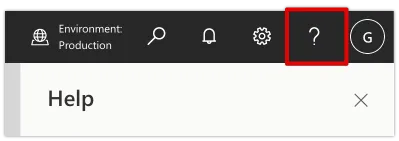
Scroll to find the Troubleshooting section and observe the Platform Version. For example, 21.0.53597.54893 describes a system on Major Version 21.
For more information, visit the Microsoft Documentation on Version Numbers.
Support Multiple Companies
If the organization has multiple companies, you should be utilizing Multi-Entity Management (MEM) by Binary Stream. If your organization has multiple companies and is not using MEM, we can only support onboarding one company at a time.
If using MEM, please note that users will not be able to:
- Write into the check ledger entries.
- Batch payments.
- Overwrite the "Doc No." for check payments.
Compatible Third-Party Solutions
Is your organization using any third-party integrations or extensions?
Extensions that impact core Cash Management pages or Vendor objects will likely cause conflicts.
There are known compatible solutions that include MEM by Binary Stream and Lanham (EDI, E-Ship, E-Receive).
Note Your Approval Processes
If you have an invoice/payment approval process in Business Central, it may interfere with the plugin's expected behavior.
Please identify this early so we can determine the correct testing scenarios to ensure the plugin works alongside their specific approval workflow.
Using Business Central's Remit Feature
Using Business Central's Remit-To Code on a bill does not impact the success of the payment. However, the plugin does not pick up the specific Remit Address, nor does it update the Vendor Card. The payment will still be issued to the address on the Vendor Card, rather than the address added to the bill.
Configure Payment Journals
Does every company within the Production environment have a payment journal configured?
If any company lacks a configured payment journal, the plugin installation will fail—even if you only intend to use bank feeds. Please confirm this for each company before installation.
Review Known Limitations
Please review the following limitations to ensure they align with your business needs.
Multiple Extensions or Scheduled Jobs
Microsoft limits the number of API calls a single user can make within a specific time range. If the client has multiple extensions or scheduled jobs making a high volume of API calls, they may conflict with the plugin.
We highly recommend testing in a sandbox with all extensions and scheduled jobs running to ensure full compatibility.
Credit Memos
Credit memos cannot be applied at the time of payment via the plugin. To have credits appear at the time of payment, please apply the Credit Memo to the Posted Purchase Invoice before making the payment. This can be done through the Vendor Ledger entries or by using the Applies to Doc No. method.
Azure Government Cloud
The plugin is not hosted on Azure and currently does not meet Azure Government Cloud requirements.
Support for Non-AP Payments
The plugin currently only supports payments to Posted Purchase Invoices. Other payment types (e.g., Customer Refunds, Employee Expenses) are not supported.
Confirm Hardware & Software Requirements
Browser support (minimum versions):
- Chrome: 65
- Firefox: 66
- Safari: 12
- Edge: 79
Operating systems (minimum versions):
- Windows 7
- macOS - El Capitan
Minimum screen resolution:
- 1200x800px
Microsoft Azure AD Entitlements
Pre-Onboarding Requirement
Before the FISPAN plugin can be installed and authenticated in Microsoft Dynamics 365 Business Central, a critical Microsoft Azure Active Directory (Azure AD) consent step must be completed. This step requires a user with Global Administrator privileges in the client's Microsoft 365 / Azure AD tenant and cannot be delegated to a standard BC user or a FISPAN implementation resource.
IMPORTANT: Failure to complete this step prior to the onboarding session will block the OAuth authentication flow entirely and prevent plugin setup from proceeding.
- Hard Prerequisite: Azure AD Global Administrator Consent.
- Who is required: A Global Administrator of the client's Microsoft 365 / Azure AD tenant.
- What they must do: Grant admin consent to the FISPAN enterprise application within Azure AD.
- When it must be done: Prior to the scheduled onboarding session, this cannot be completed during the session.
- Who typically performs this: The client's internal IT administrator or their Microsoft consultant.
IMPORTANT: This is a hard prerequisite. The onboarding session should not be scheduled until the client has confirmed that a Global Azure Administrator is identified and available to complete this step.
Why This Step is Required
FISPAN authenticates with Business Central using OAuth 2.0 via Microsoft's identity platform. As part of this flow, Microsoft requires that an Azure AD Global Administrator explicitly grants consent for the FISPAN enterprise application to access the tenant's resources.
This is a Microsoft-enforced security requirement and is not configurable by FISPAN or the bank. Without this consent, the OAuth token exchange cannot be completed, and the plugin will be unable to authenticate, regardless of whether all other BC-level configurations are in place.
Pre-Onboarding Confirmation Checklist
Before scheduling the onboarding session, confirm the following :
- A Global Azure Administrator has been identified by name and is available for the onboarding session.
- The administrator understands they will need to approve the FISPAN enterprise application in Azure AD
- If you use a third-party Microsoft consultant, that consultant has been notified and is available.
- Your IT team is aware this is a Microsoft-layer requirement, not a FISPAN or bank configuration step