Step 15: Configure Dashboard
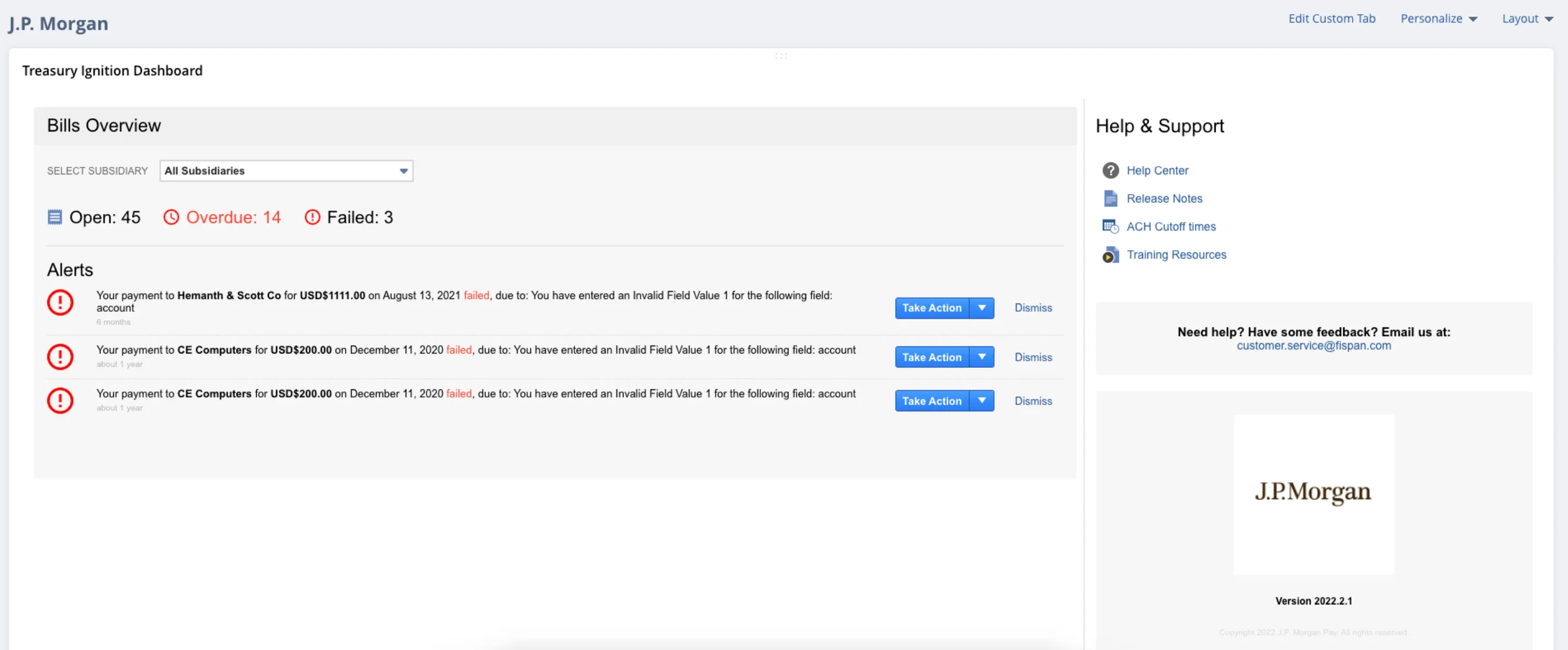
The Treasury Ignition Dashboard displays information about your open and overdue bills, along with helpful links for support and plugin information.
NOTE: The Treasury Ignition Dashboard must be configured on a per-user basis.
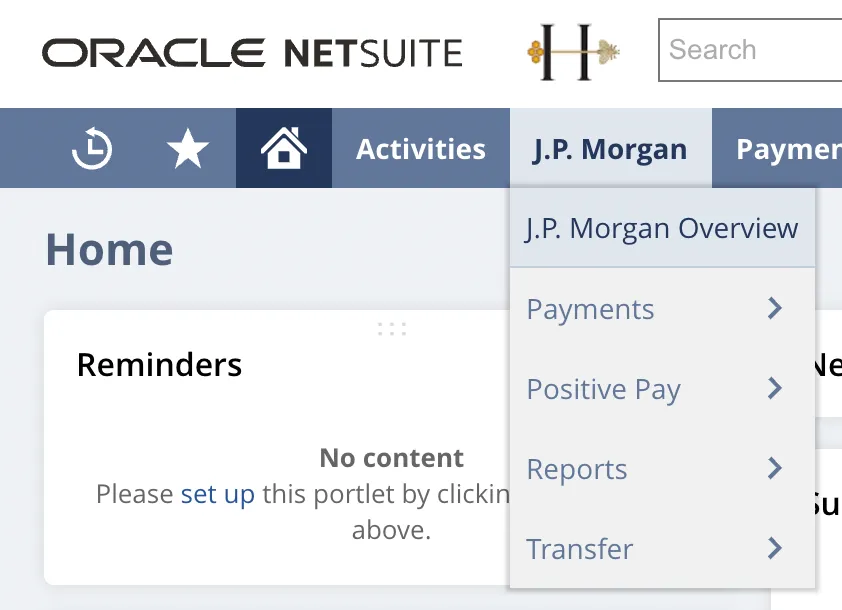
Navigate to J.P. Morgan Overview
Gi to J.P. Morgan → J.P. Morgan Overview
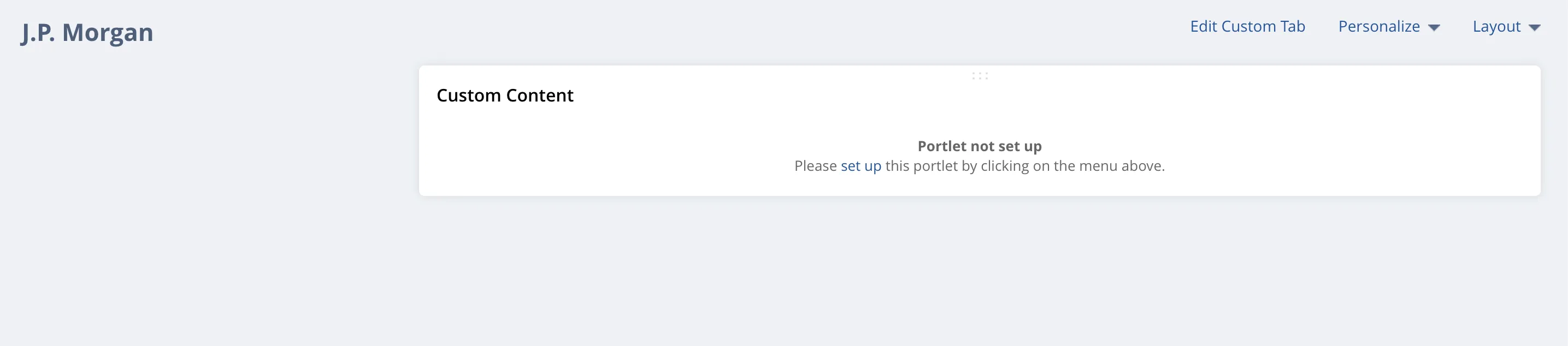
Set Up Custom Content
In the Custom Content box, select Set Up.
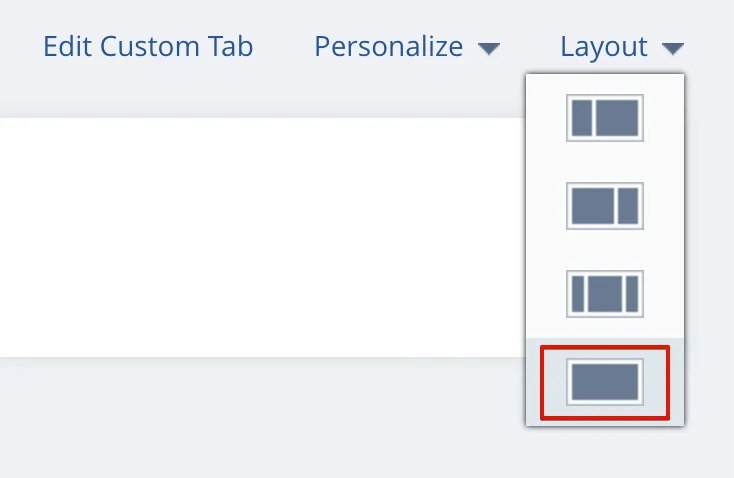
NOTE: If the Custom Content box does not appear in full-width, select Layout on the top right. In the dropdown that appears, select the last option.
Confirm Dashboard
Select Dashboard from the Source dropdown. Then, select Save.
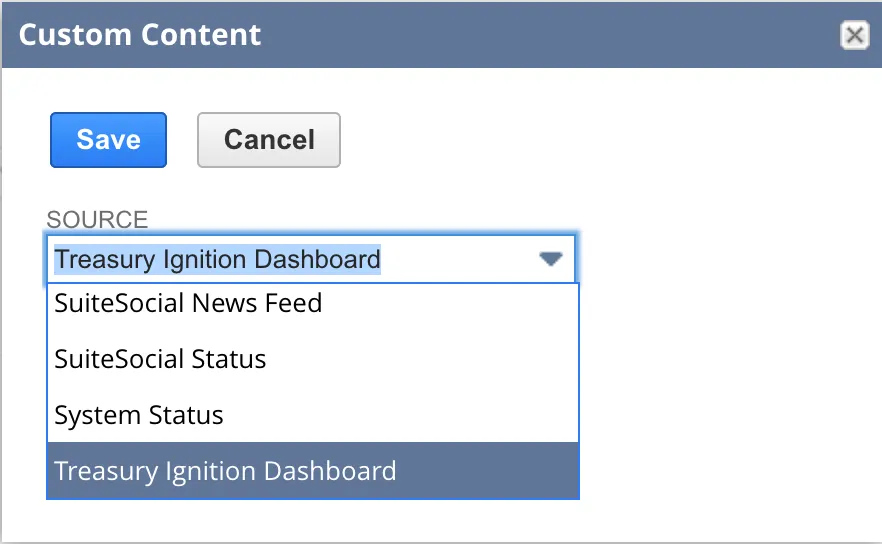
The page will refresh, and the dashboard will load in.
Using the Dashboard Page
Open/Overdue/Failed Bills
Bills are marked as open, overdue, or failed based on the following criteria:
- Open: dueDate is in 30+ days
- Overdue: dueDate is within 30 days from the current date
- Failed: bills will also show up on the Failed Bills tab of the Pay Bills page in MyBank
Alerts
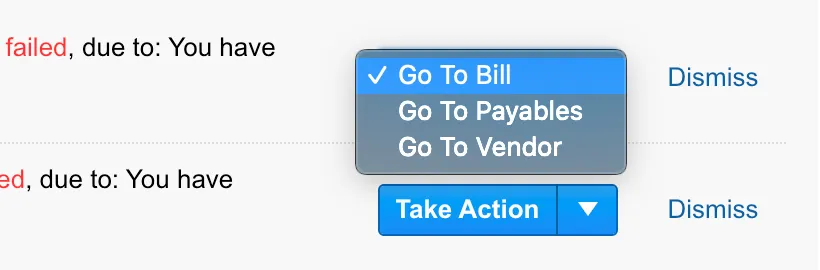
Failed bills will show up as “Alerts” and will allow users the ability to “Take Action” by selecting one of the following options:
- Go to Bill (opens the bill item in a new tab)
- Go to Payables (opens the Pay Bills page in a new tab)
- Go to Vendor (opens the vendor record in a new tab)
You can also choose to “Dismiss” a particular alert. Once an alert is dismissed, it will not show up again when using the same browser and machine.