Step 9: Create a New Security Token
IMPORTANT: The access token created during this step is tied to the NetSuite Administrator who generated it. If this user's Administrator credentials are ever revoked (i.e. either by losing administrator access or leaving the company), the token will become VOID, and the plugin will stop working.
To avoid any service disruption, you must create a new token:
- Log in to https://sys.fispan.live/
- Deactivate the existing NetSuite connection.
- Reactivate the connection and go through the installation wizard again.
This will generate a new access token that will replace the voided Token ID and Token Secret.
If you encounter any issues with this process or if you do not have a login for the link provided above, please reach out to HSBC Support for assistance.
IMPORTANT: To ensure your bank plugin is set up correctly and functions as expected, you must understand the minimum permissions and user roles required. Following the recommended approach for managing access tokens is critical to avoid potential service disruptions.
Please refer to Minimum Permissions (NetSuite) for a complete overview of the required permissions for each role and step-by-step configuration guidance.
Create a New Security Token
Navigate to Manage Access Tokens
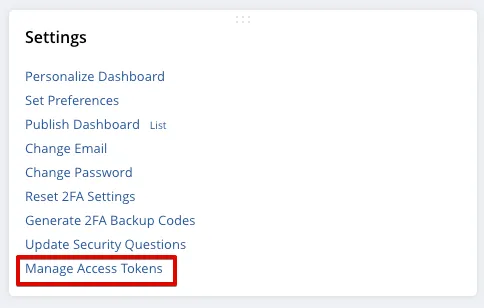
In NetSuite, navigate to the homepage. Find Settings and select Manage Access Tokens.
Where the Settings are located differs depending on how you have arranged content on your homepage. By default, it is found on the bottom left of the page.
Add New My Access Token
On the My Access Tokens page, select the New My Access Token button.

On the Access Tokens page, the application must be defined using the Application Name dropdown. The application for your bank plugin was created automatically when the plugin was installed.
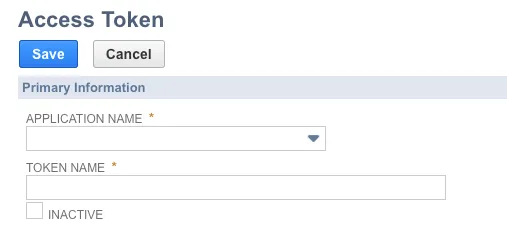
Select New My Access Token, then select HSBC Integrator in the Application Name box, a Token Name will automatically populate then click Save.
Once you click Save, the loaded page will show a Token Key and a Token Secret. Copy and paste the Token ID and Token Secret to the appropriate box in the installation wizard.
Once complete, select Next Step in the installation wizard.