Step 9: Select Companies (Workday)
In Workday, each Company is a separate legal entity with its own bank accounts, suppliers, and supplier invoices. In this step, you choose which companies to bring into FISPAN Sync. Only supplier invoices, bank accounts, and suppliers for the companies you select are synced.
Selecting Companies
Follow these steps in the FISPAN Onboarding Wizard to choose the companies that will use FISPAN Sync.
Find Companies
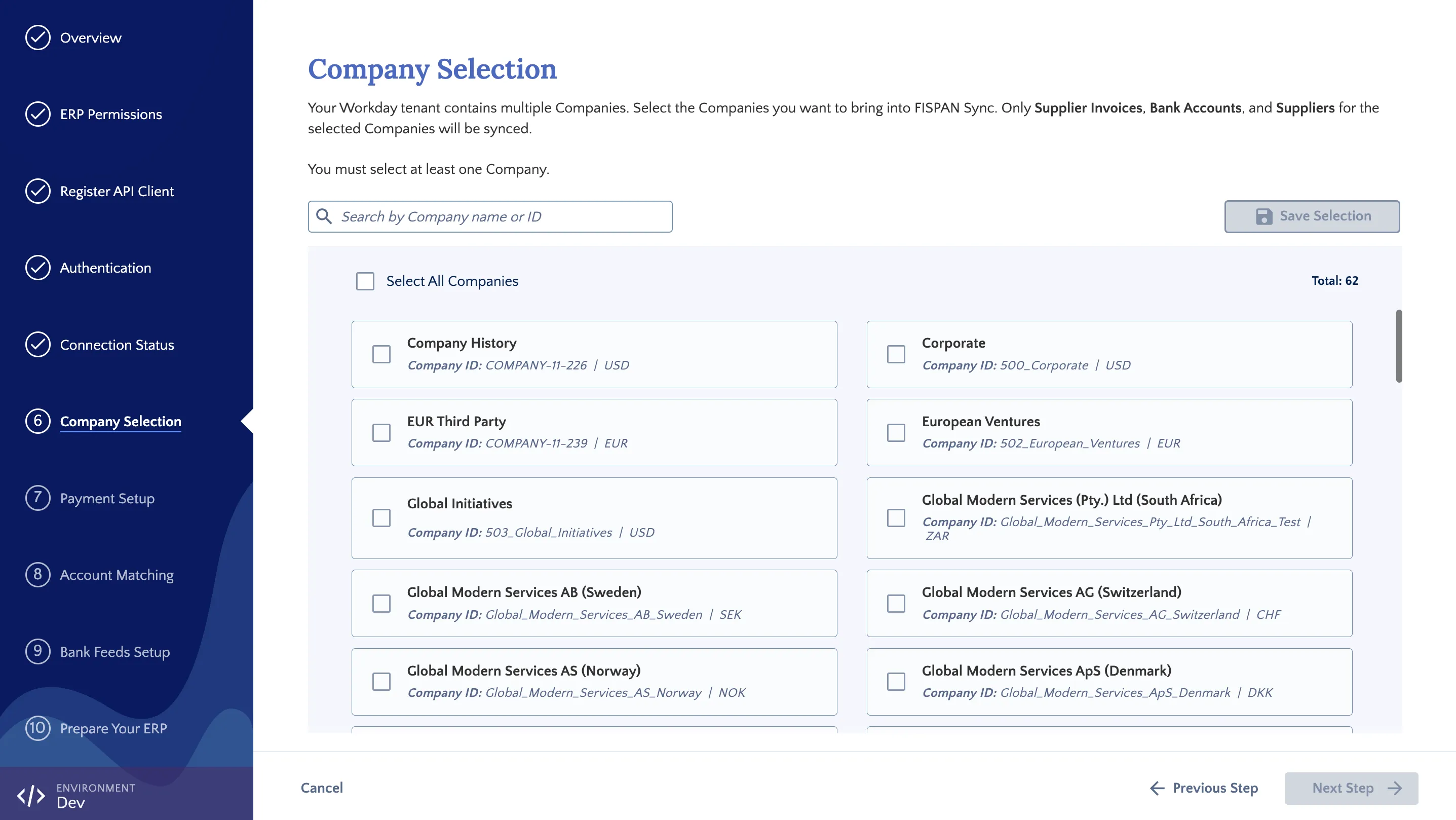
The wizard lists every company in your Workday tenant, with its name, company ID, and currency. Total shows how many companies are in your tenant. To find a company, type its name or Company ID in the search field.
Select Companies
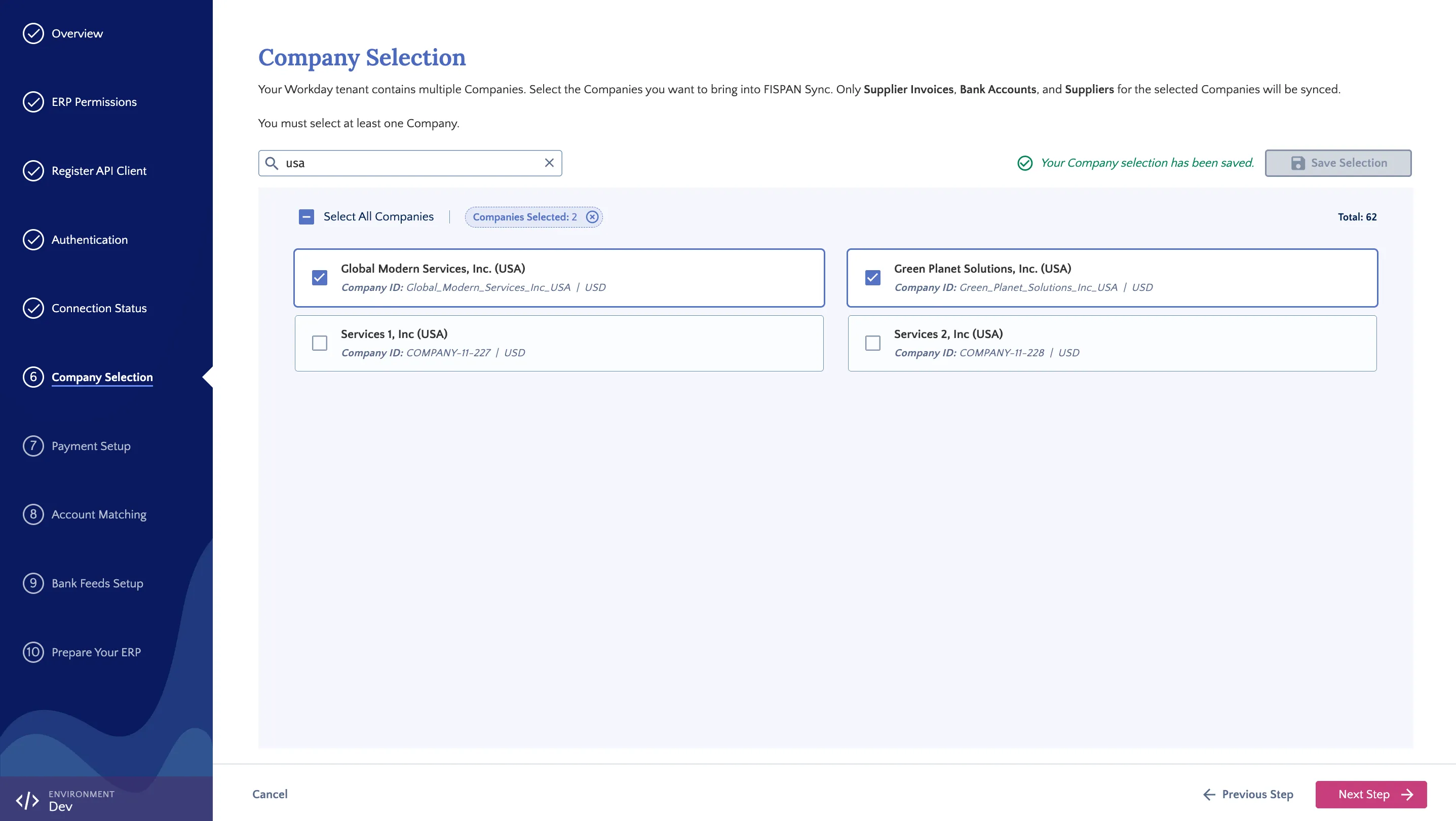
Select the checkbox next to each company you want to use with FISPAN Sync. To include every company, select Select All Companies. Companies Selected shows how many companies you’ve chosen. To clear your selection, select the x next to it.
TIP: Select only the companies that pay suppliers from bank accounts at your bank. You can leave out companies that you don’t manage.
Save Selection
Select Save Selection. When the message Your Company selection has been saved appears, select Next Step.
How Your Selection Is Used
The companies you select decide which data FISPAN Sync works with, both during setup and afterwards.
- During Setup: Step 10: Payment Setup, Step 11: Account Matching, and Step 12: Enable Bank Feeds only include bank accounts from the companies you selected.
- After Setup: FISPAN Sync shows supplier invoices and suppliers from the selected companies only.
Updating Your Selection
Your selection is saved. If you go back to this step with Previous Step, your companies are still selected. If you remove a company and select Save Selection again, its bank accounts will no longer appear in Account Matching.