Paying Bills (Workday)
Navigate to Bill Payments
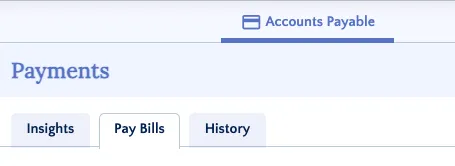
From FISPAN Sync's navigation bar, select Accounts Payable → Pay Bills.
Select Bills to Pay
Use the filters to find the bills you would like to pay.
TIP: You can select the Star Icon beside the Payment Methods dropdown to set that method as your default.
Then, select the payments using the boxes on the left and select Add to Payment Run.
Confirm Payment(s)
Select the account from the dropdown and confirm that the number of bills, payments, and amounts are correct.
Then, select Confirm Payments.
After, FISPAN Sync will confirm that the payment has been submitted. Select OK.
Paying vendor bills in Workday FISPAN Sync allows you to remain connected to your accounting system without needing to access your Bank Account separately. Follow these steps to learn how.
Navigate to Bill Payments
From FISPAN Sync's navigation bar, select Accounts Payable → Pay Bills.
Select Bills to Pay
Use the filters to find the bills you would like to pay.
TIP: You can select the Star Icon beside the Payment Methods dropdown to set that method as your default.
Then, select the payments using the boxes on the left and select Add to Payment Run.
Confirm Payment(s)
Select the account from the dropdown and confirm that the number of bills, payments, and amounts are correct.
Then, select Confirm Payments.
After, FISPAN Sync will confirm that the payment has been submitted. Select OK.