Applying Bill Credits During Payment - New (NetSuite)
You can apply vendor credits directly in the bills table to reduce payment amounts. Simply enter the amount you want to use - the plugin automatically selects the oldest credits first and updates your payment amount immediately.
How it works:
- The plugin displays available credits for each bill in the Credits Available column
- You enter the credit amount to use in the Credits Applied field
- The plugin automatically picks the oldest credit first (by issue date)
- The To Pay amount updates immediately to show the reduced payment
Important: Credits must match the bill's currency, subsidiary, and AP account. If you have credits for the same vendor but in a different currency, subsidiary, or AP account, they won't appear for that bill.
NOTE: In the New Payments Experience, the Commerce Connections plugin automatically selects which credits to apply based on the oldest issue date. If you need to apply a specific credit to a specific bill, you can apply credits directly in NetSuite and then pay the remaining amount through the Commerce Connections plugin.
Applying Bill Credits
1. Navigate to the Payments Page
To apply bill credits, navigate to your plugin and click Accounts Payables (New) → Payments.
2. View Available Credits
Look at the Credits Available column to see which vendors have credits you can use.
The amount shown is the total credits available for that vendor matching the bill's currency, subsidiary, and AP account.
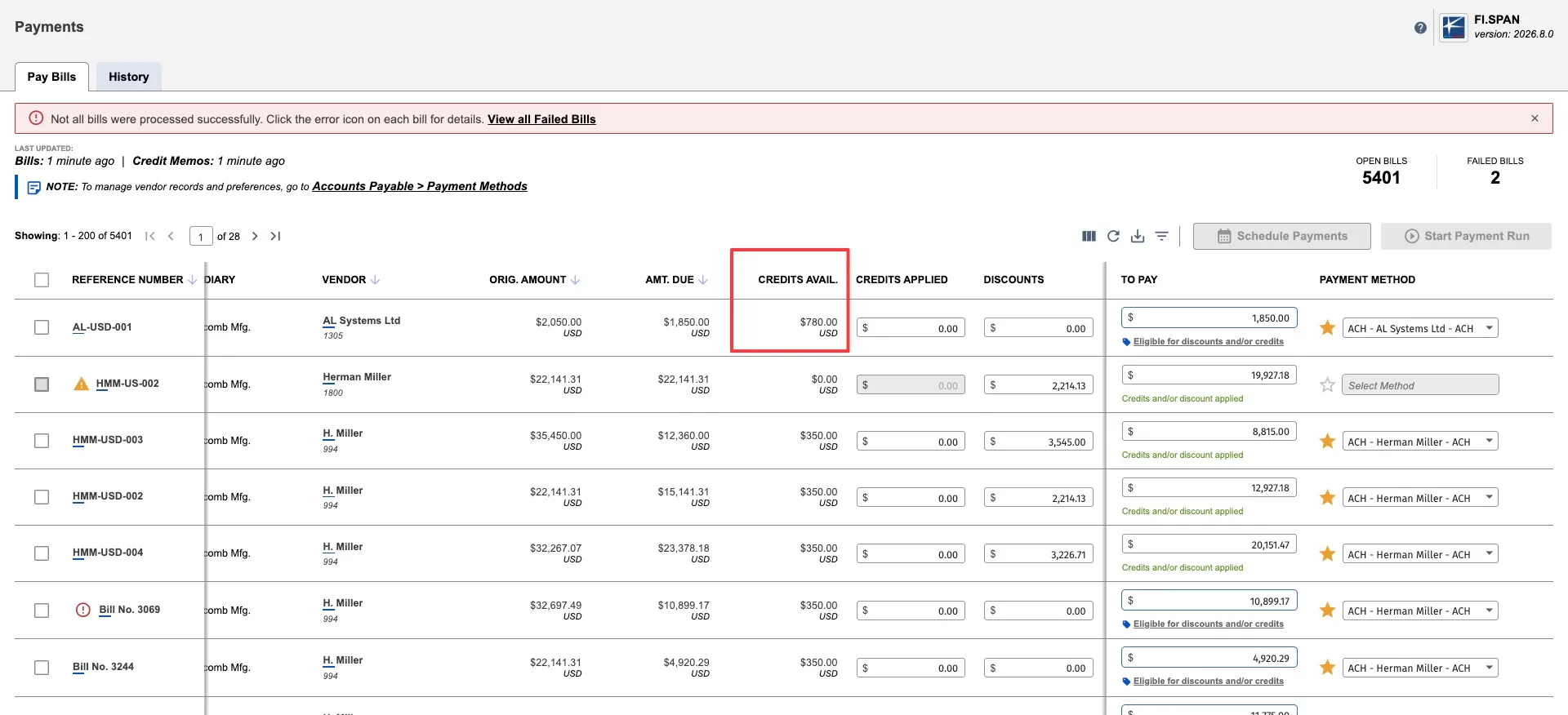
NOTE: If you don't see any credits for a vendor, verify that unapplied credits exist in NetSuite with matching currency, subsidiary, and AP account.
3. Enter Credit Amount to Apply
Click in the Credits Applied field for the bill where you want to use credits.
Type the amount of credit you want to apply (for example, 180.00).
The Credits Available column will automatically decrease by the amount you entered, showing how much credit remains for other bills from this vendor.
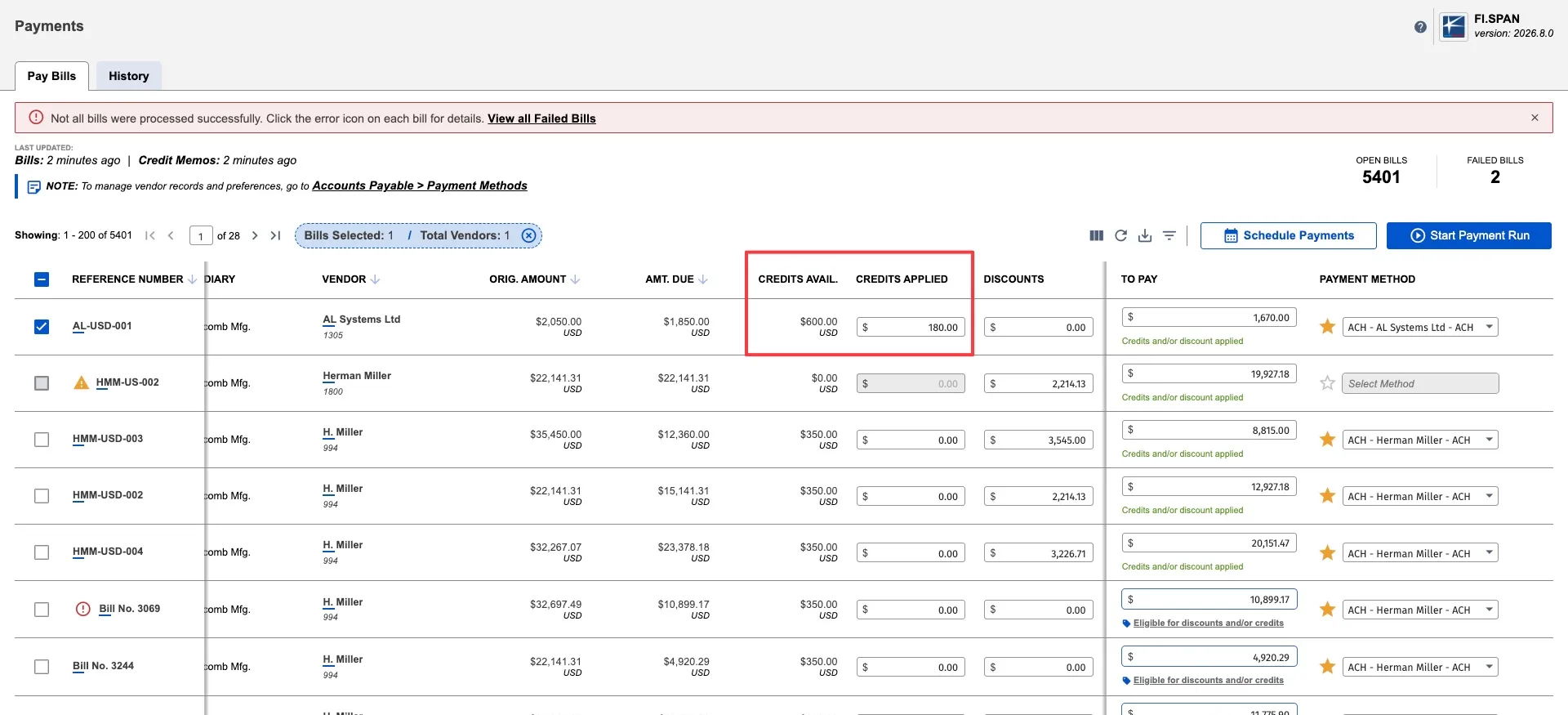
TIP: The plugin automatically applies the oldest credits first (by issue date). You don't need to select which specific credit to use.
4. Review Payment Amount
After entering a credit amount, the To Pay column automatically updates to show the reduced payment amount.
Example:
- Amount Due: $1,870.00
- Credits applied: $180.00
- New amount to pay: $1,670.00
The plugin calculates the net amount you'll pay after applying credits.
5. Submit Payment with Credits
Select the bills you want to pay using the checkboxes. Click Start Payment Run.
Select the source account and review the payment summary to confirm. Click Send Payments to submit the payment.
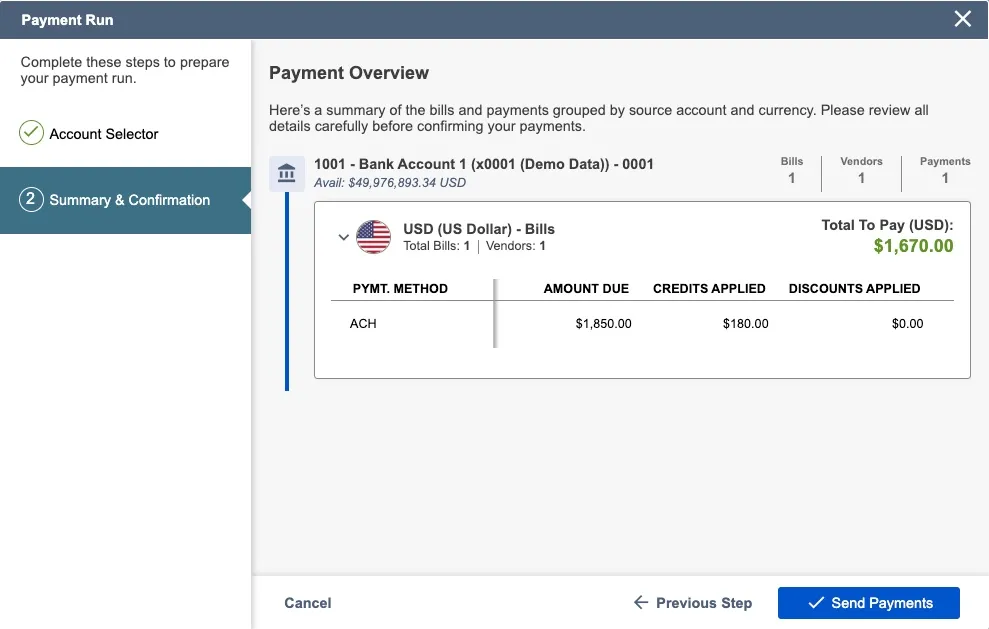
The plugin processes the payment and applies the credits to your bills in NetSuite automatically.
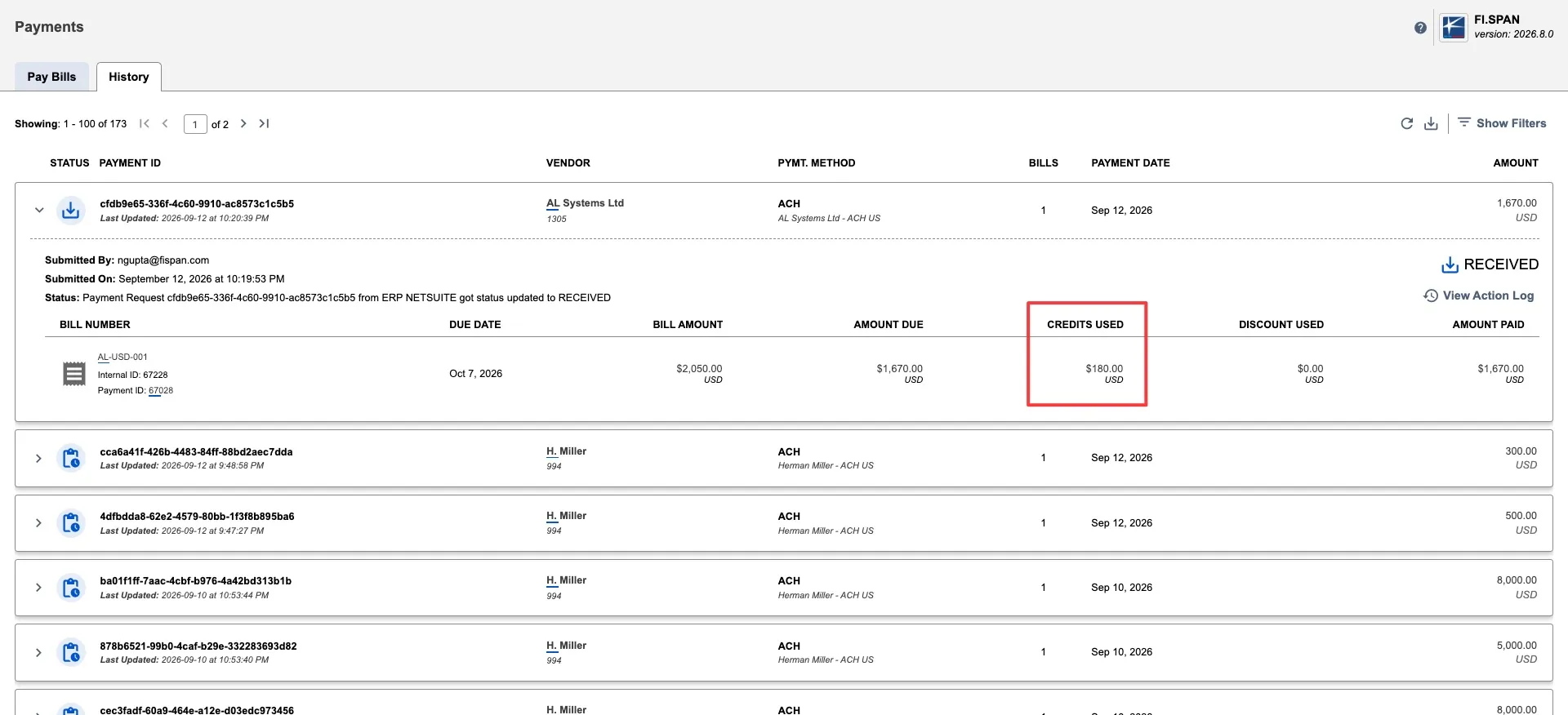
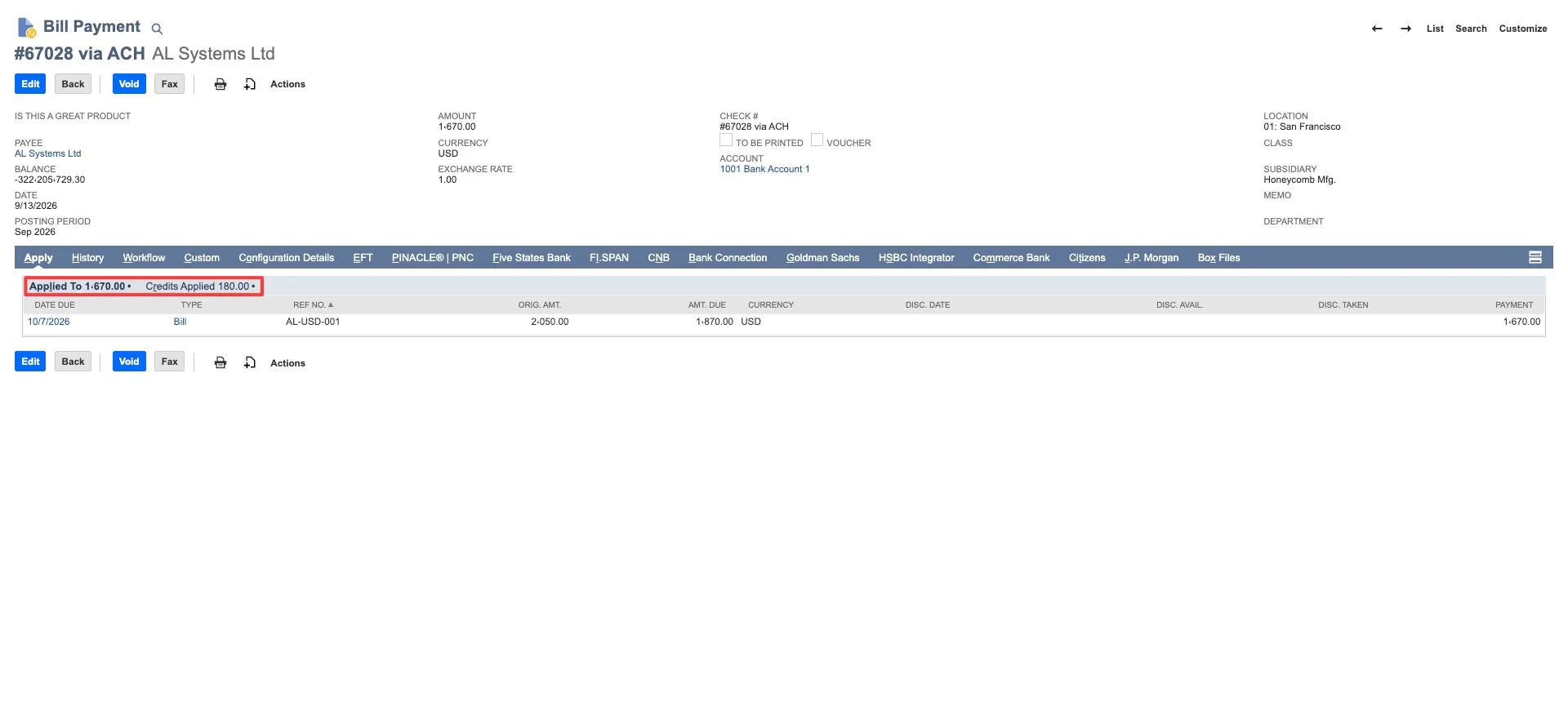
Applying Credits to Multiple Bills
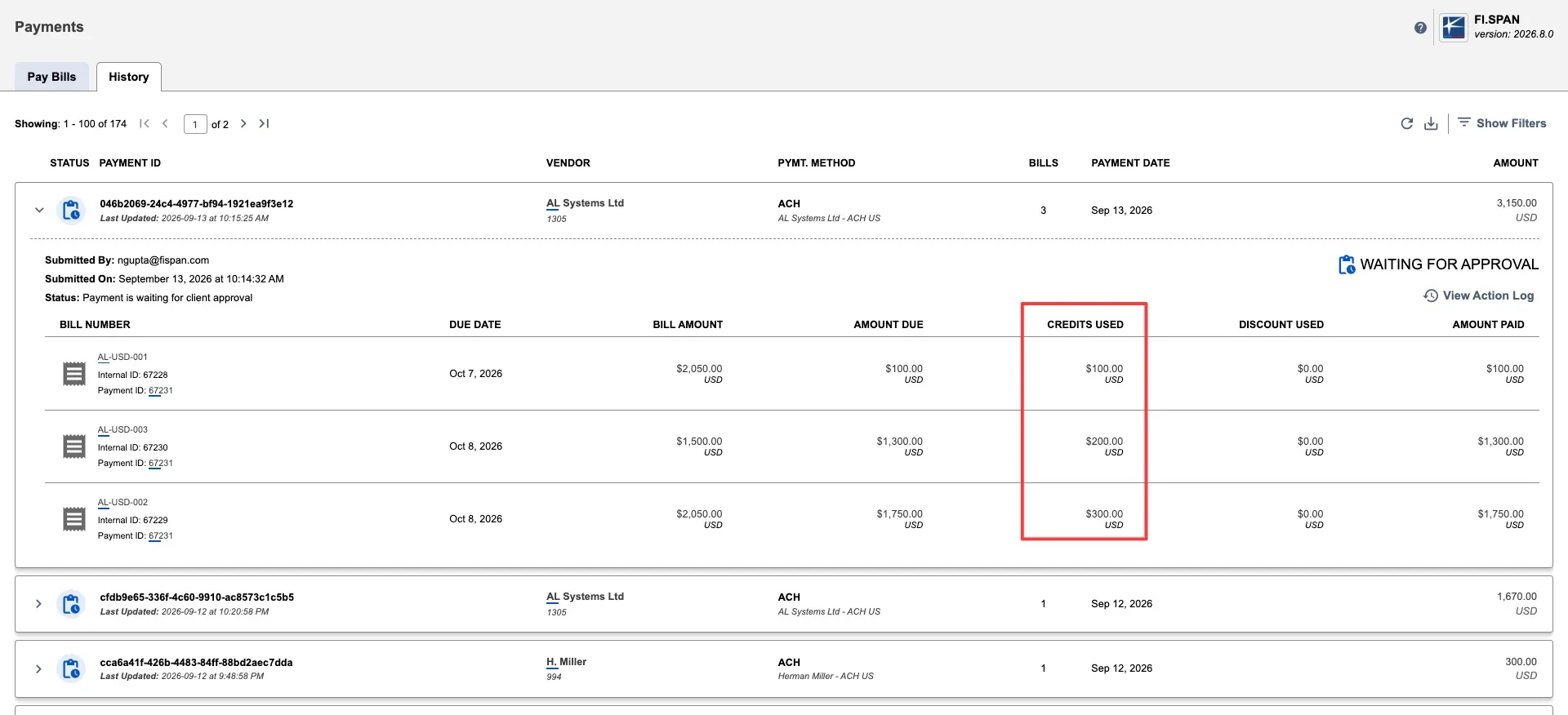
You can split credits from the same vendor across multiple bills:
- First bill: Enter credit amount
- Second bill: Enter another amount
- Credits Available column: Shows remaining credits after both applications
Example:
- Vendor has $800.00 in credits
- Bill 1: Apply $300.00 → Credits Available shows $500.00
- Bill 2: Apply $200.00 → Credits Available shows $300.00
- Bill 3: Apply $100.00 → Credits Available shows $200.00
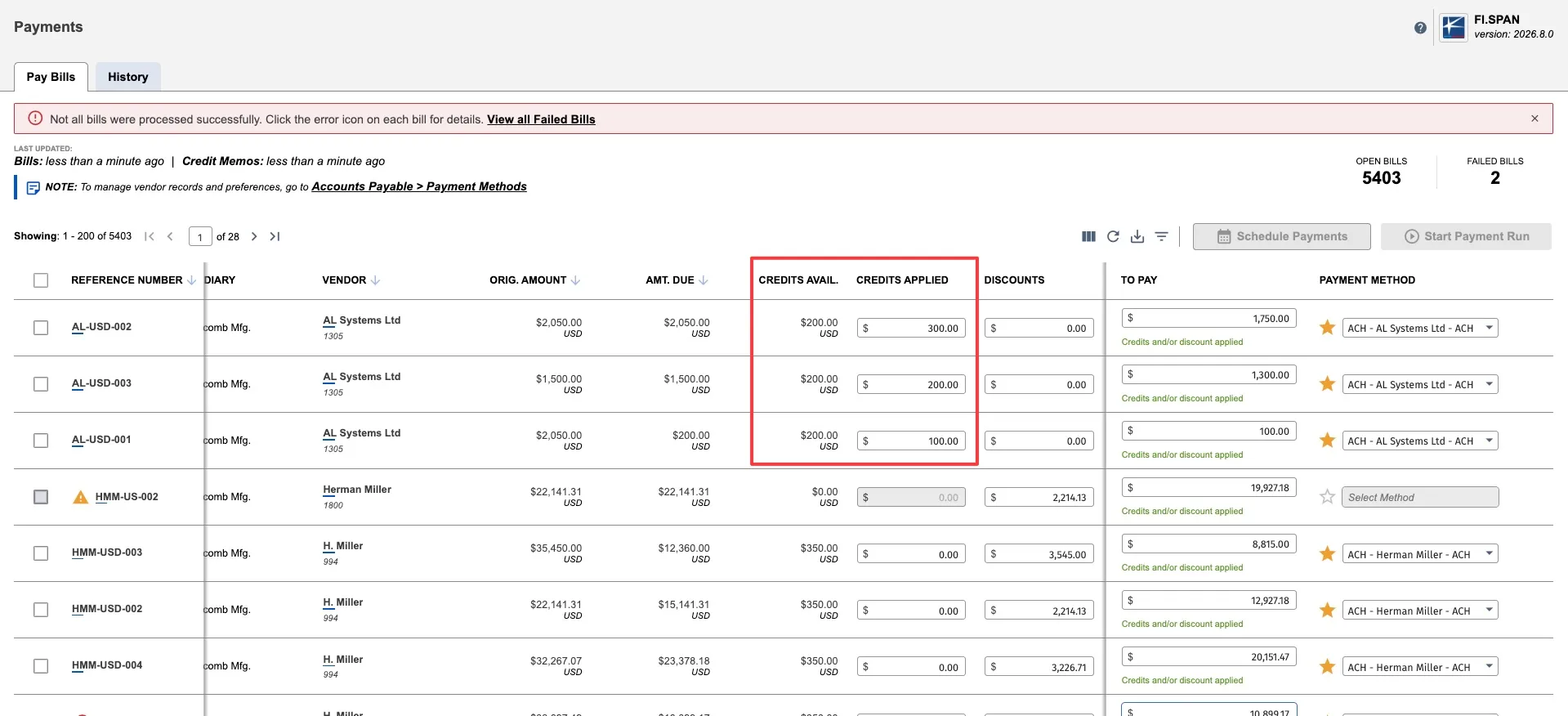
TIP: If you're working across multiple pages of bills, the Credits Available column always shows the total remaining balance after ALL credit applications, not just the current page.
Removing or Changing Applied Credits
To remove applied credits before payment:
- Click in the Credits Applied field
- Delete the value (backspace or select all and delete)
- Type 0.00
- Press Tab or click outside the field
The credits return to the available pool immediately.
To change the amount:
- Click in the Credits Applied field
- Type the new amount
- Press Tab or click outside the field
The Credits Available balance adjusts automatically.
NOTE: After payment is submitted, you cannot edit credit applications.
Combining Credits with Discounts
You can apply both credits and early payment discounts to the same bill:
- Enter the credit amount in the Credits Applied field
- Ensure the discount amount
- The To Pay column shows the final amount after both credits and discounts
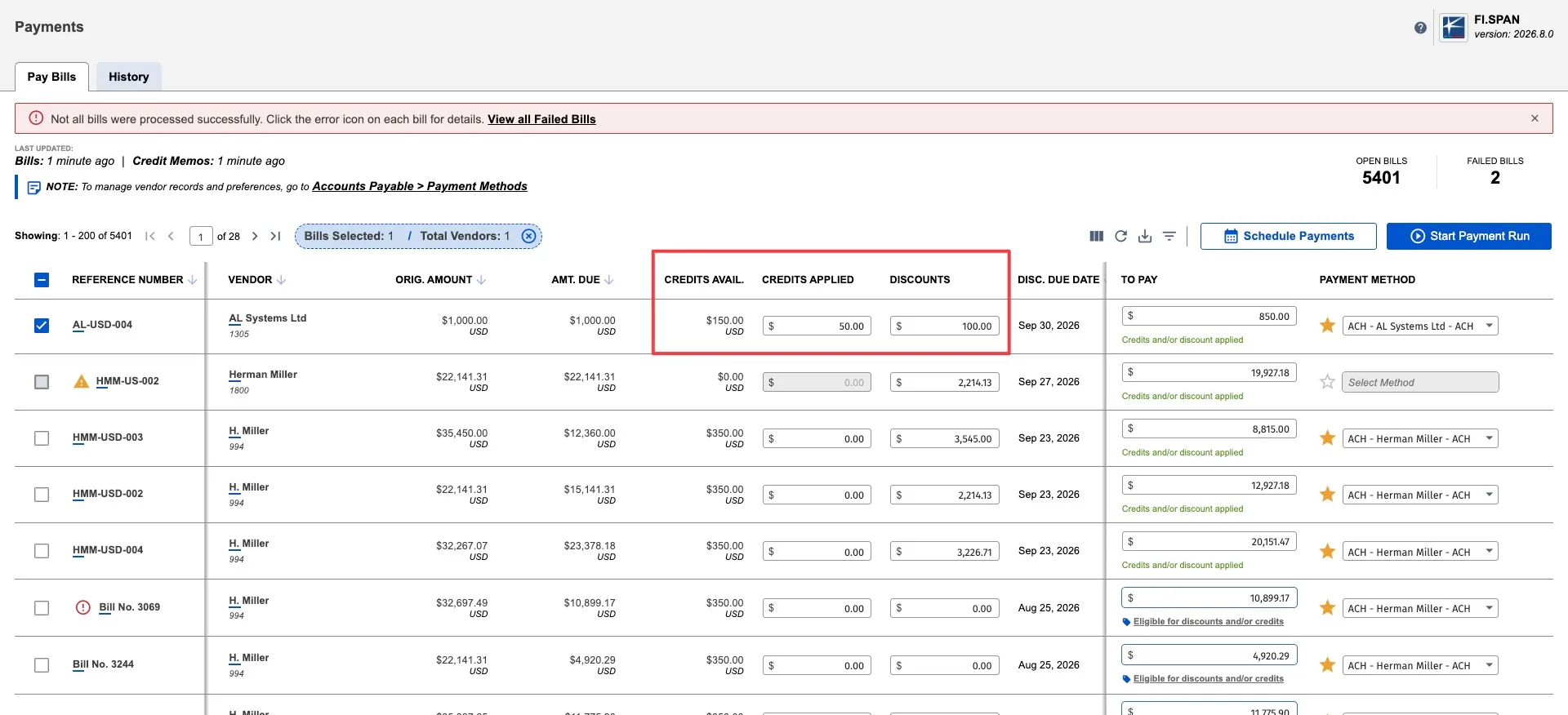
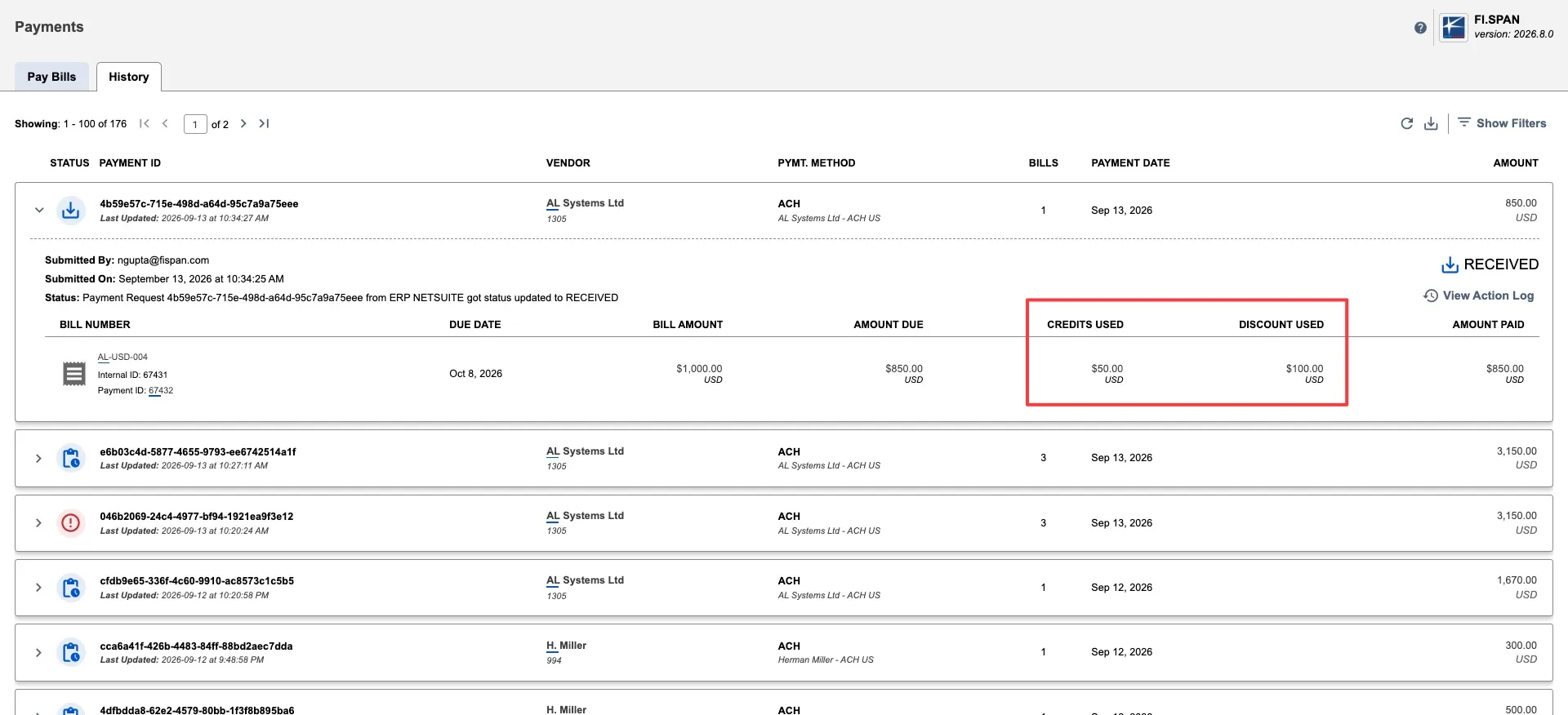
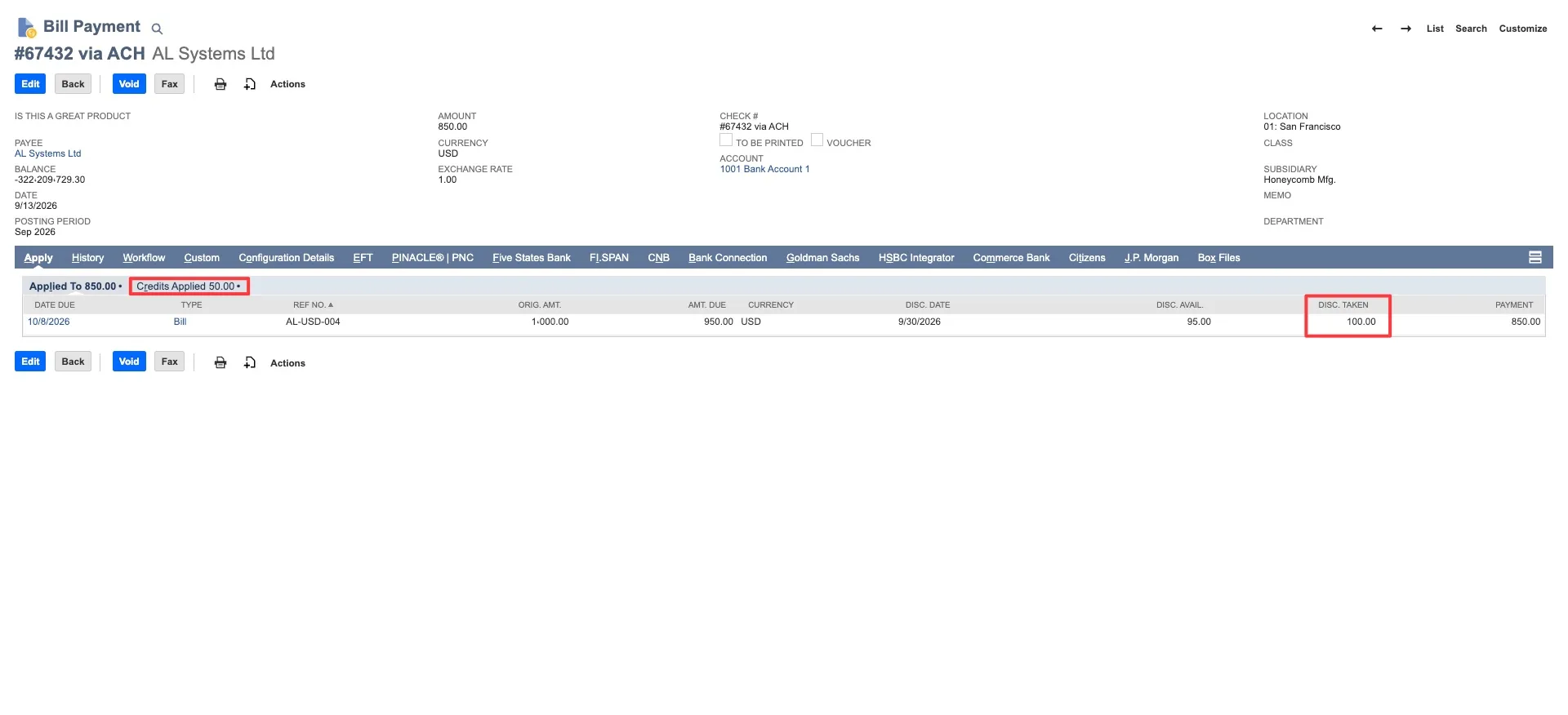
Example:
- Original bill: $1,000.00
- Early payment discount: $100.00
- Credits applied: $50.00
- Final amount to pay: $850.00