Switching from CSV to BAI2 Bank Feeds (NetSuite)
IMPORTANT: Last Updated - February 13, 2023
There have been some reports from users of CSV-formatted Bank Feeds receiving the following error on the Banking Import History page:
"The file could not be parsed or imported, because of the following error:
Invalid footer lines configuration. Verify that the value in the Footer Lines field matches the number of footer rows in the CSV file."
If you are one of these users experiencing this on one or more bank accounts, please follow the instructions below to switch your Bank Feeds format from CSV to BAI2 for affected accounts to avoid any potential disruption to your month-end close.
Step 1: Update the Connectivity Method and Transaction Parser
Navigate to Setup → Accounting → Financial Institution → List.
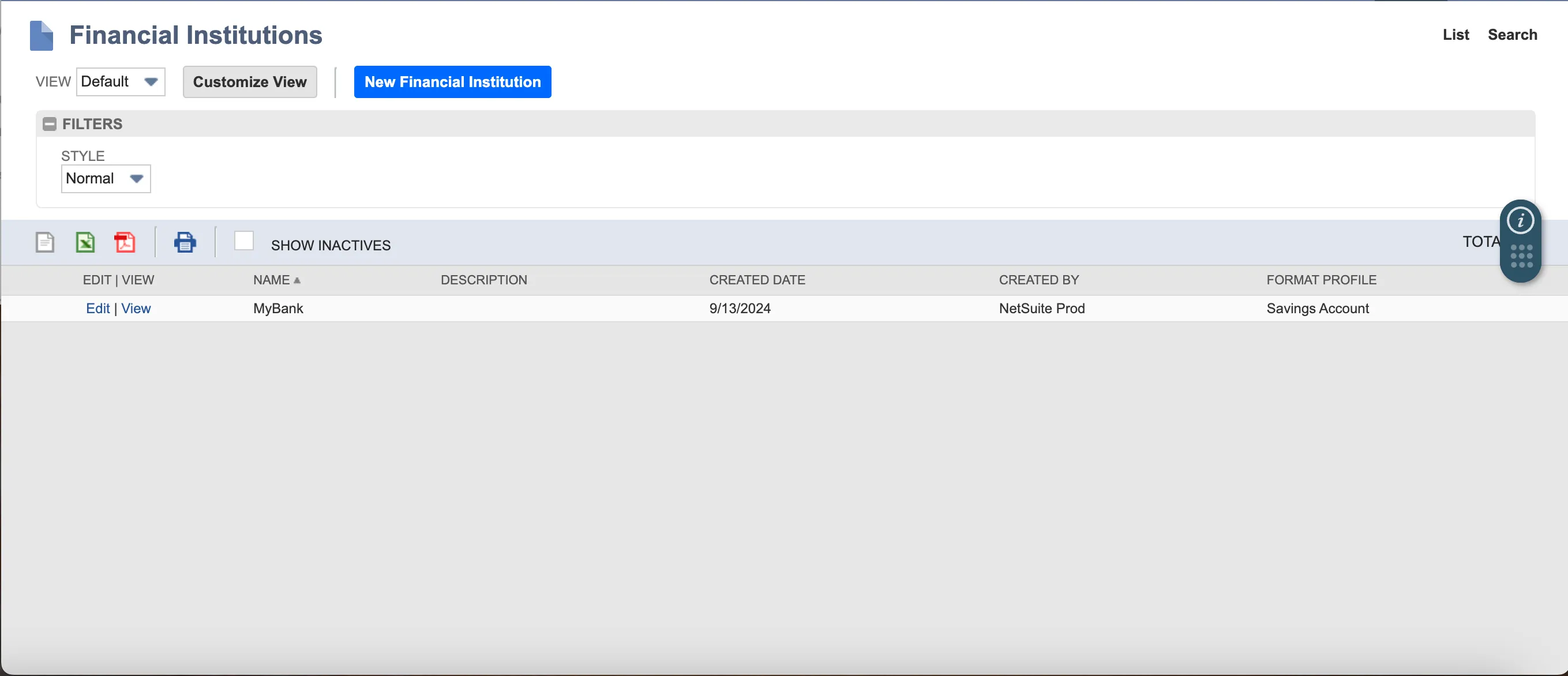
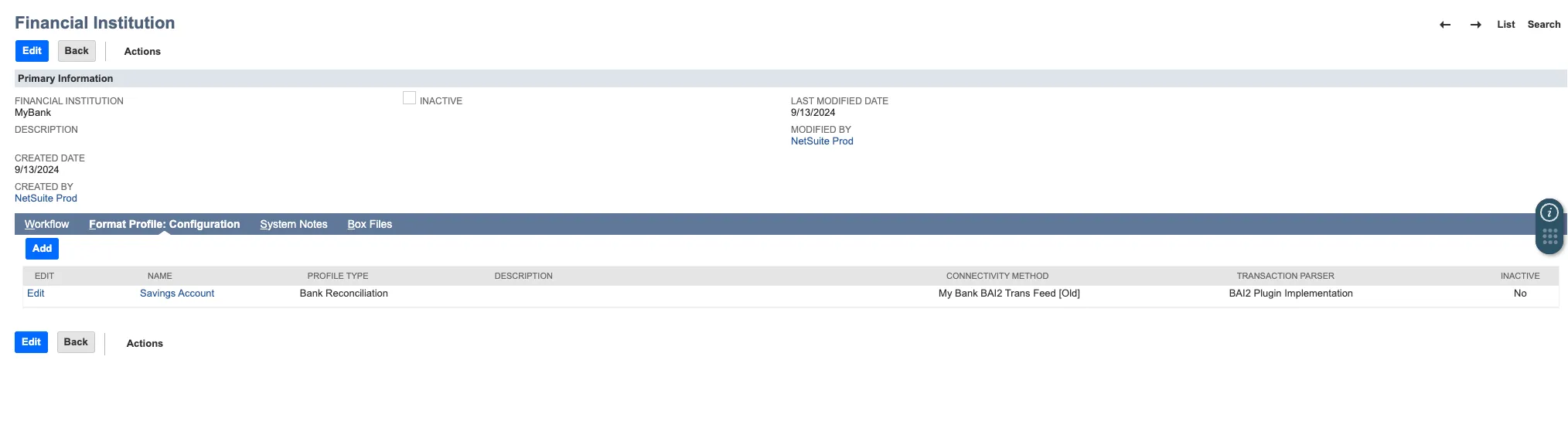
Click Edit on the Financial Institution that you have created previously when enabling bank feeds.
Select the Format Profile: Configuration tab and select Edit on the Format Profile you have created previously for the affected account.
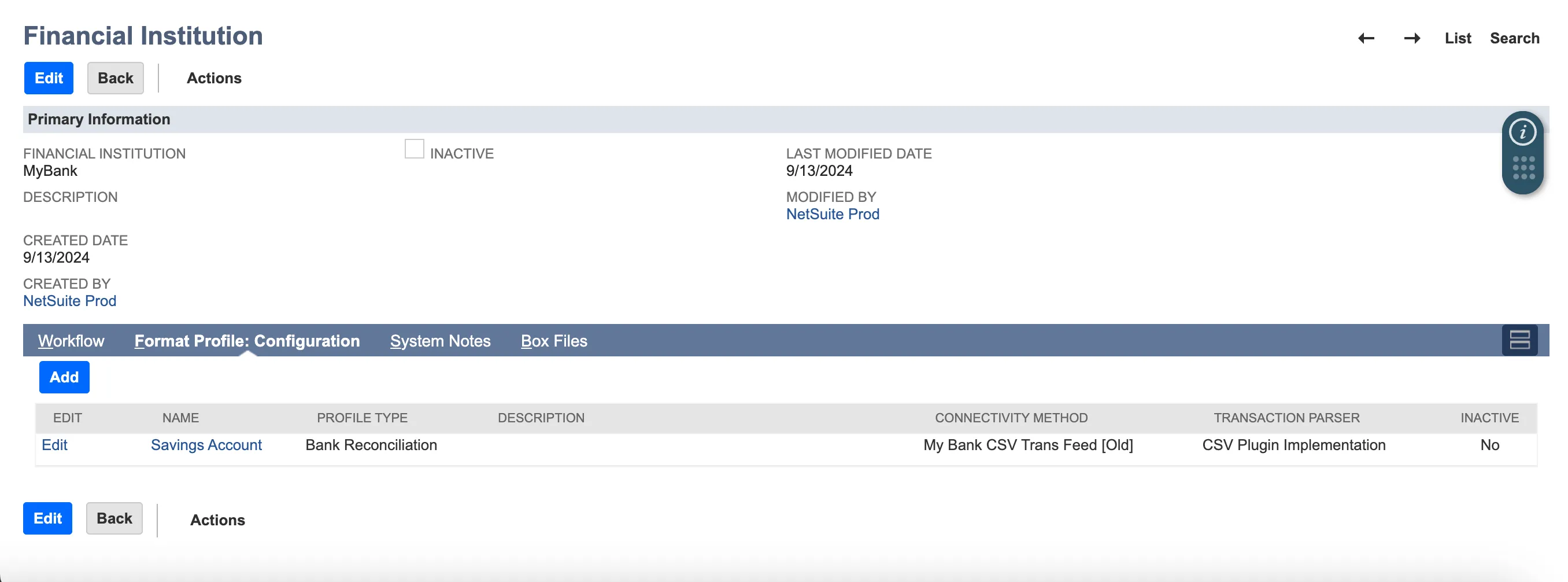
On the Format Profile page, update the following fields:
- Connectivity Method: [My Bank] BAI2 Transaction Feed
- Transaction Parser: BAI2 Plugin Implementation
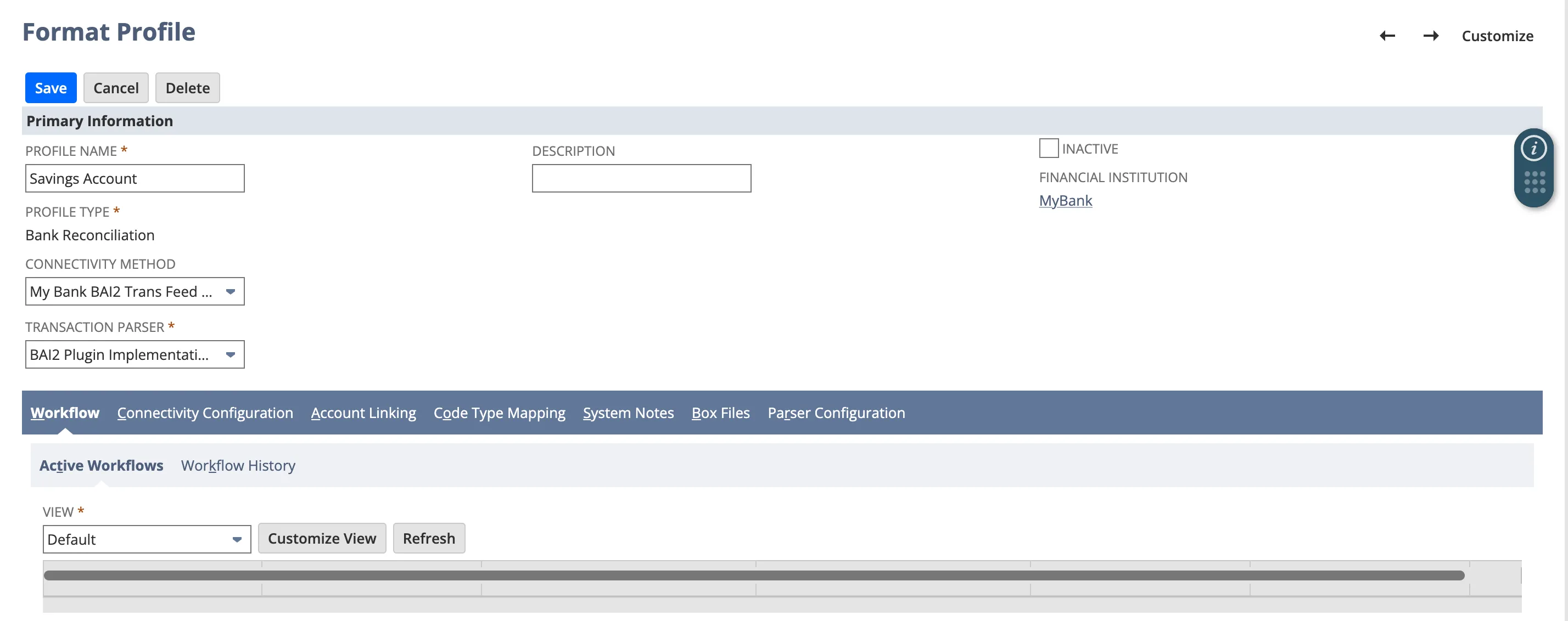
Depending on whether your bank has additional bank transaction codes, we may revisit the Code Type Mapping tab later. You may safely skip any changes to this tab for now, and the Parser Configuration tab, which is only used for CSV-formatted Bank Feeds.
Click Save.
Step 2: Monitor the Process
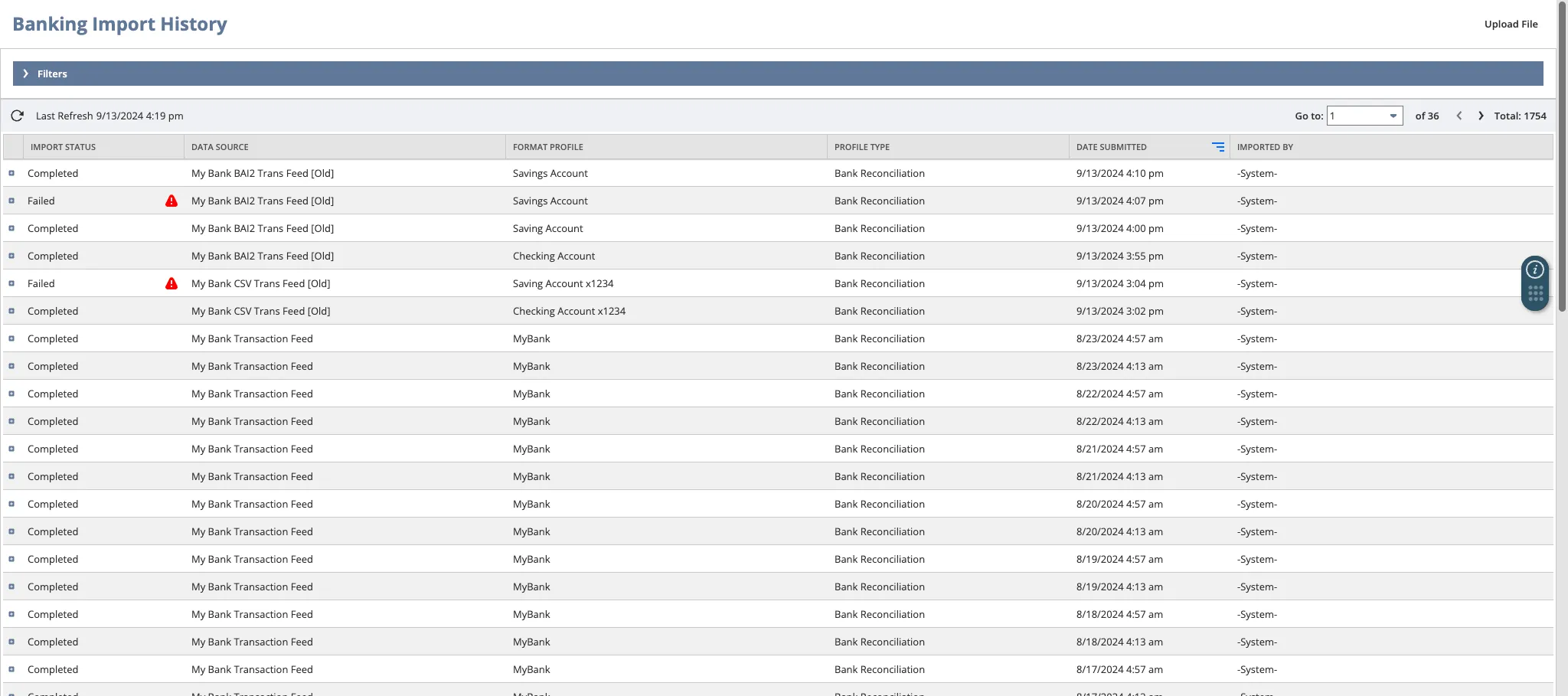
Select Track your status in the blue banner that appears, or go to Transactions → Bank → Banking Import History.
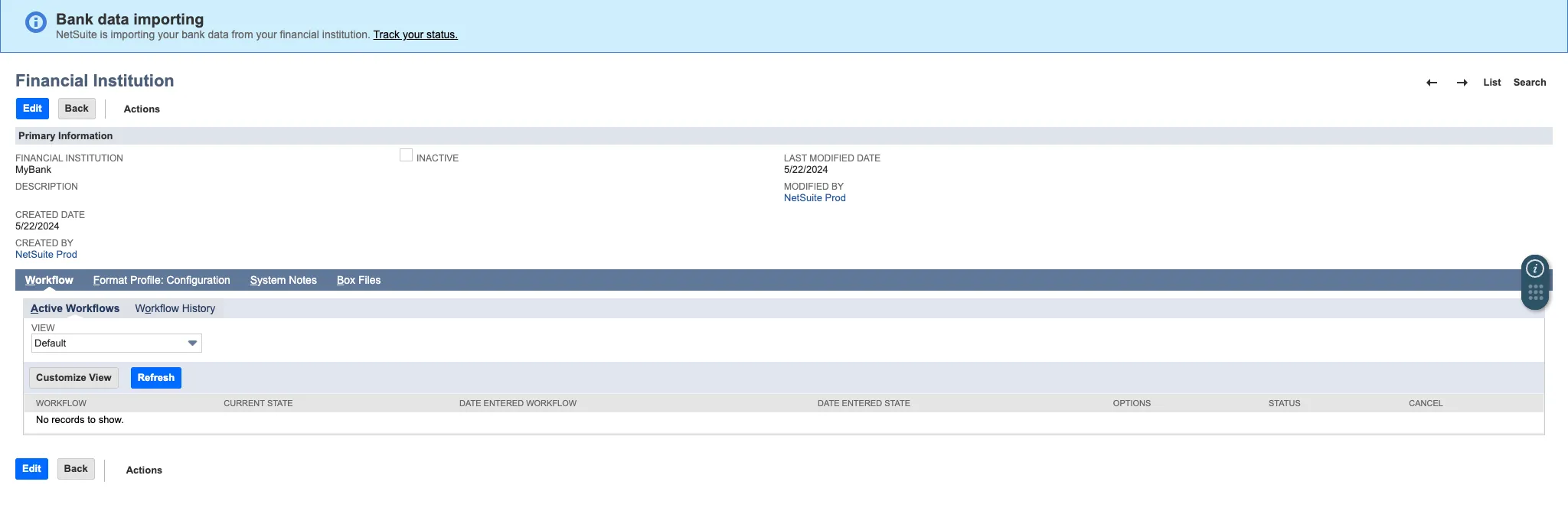
If the import was successful, you will see Completed under the Import Status column.
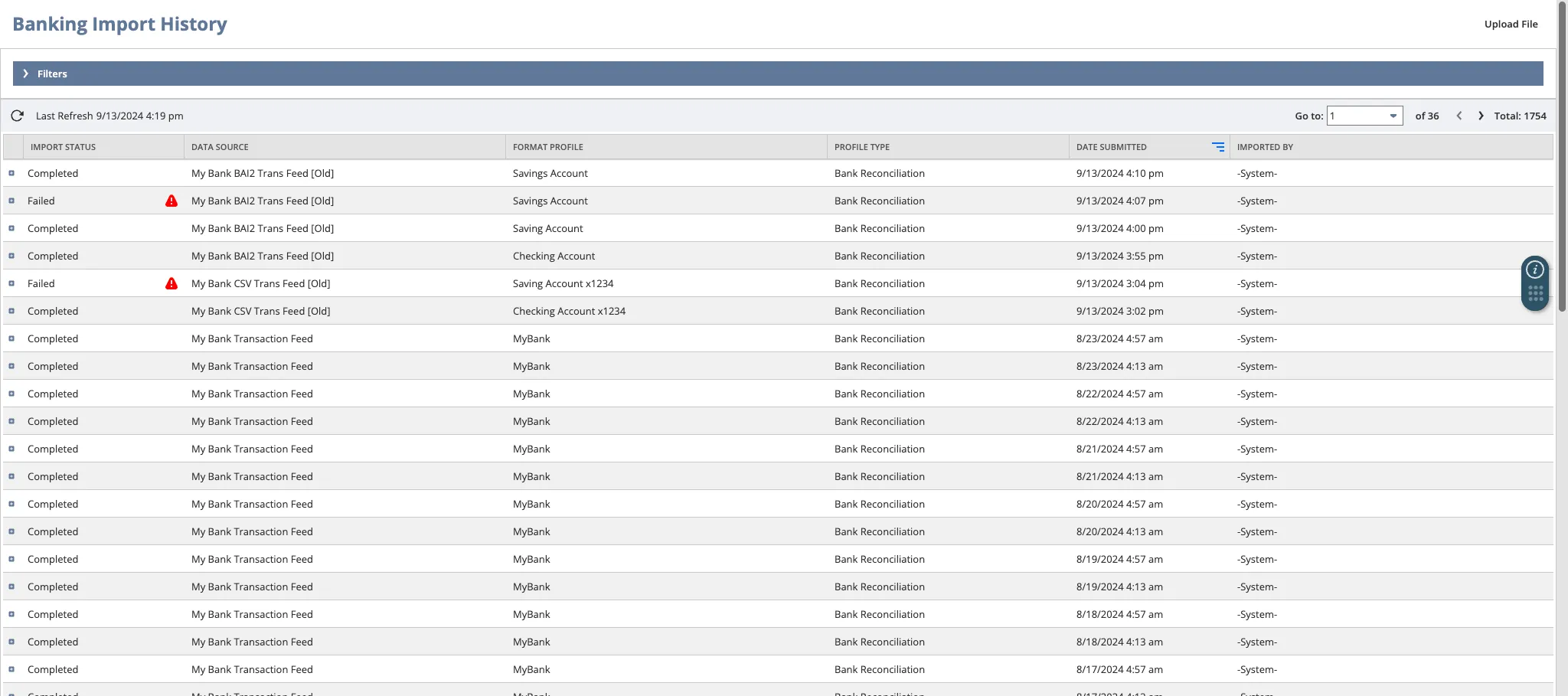
If the import fails, you will see Failed in the Import Status column. Select the plus (+) sign to expand the failure reason details.
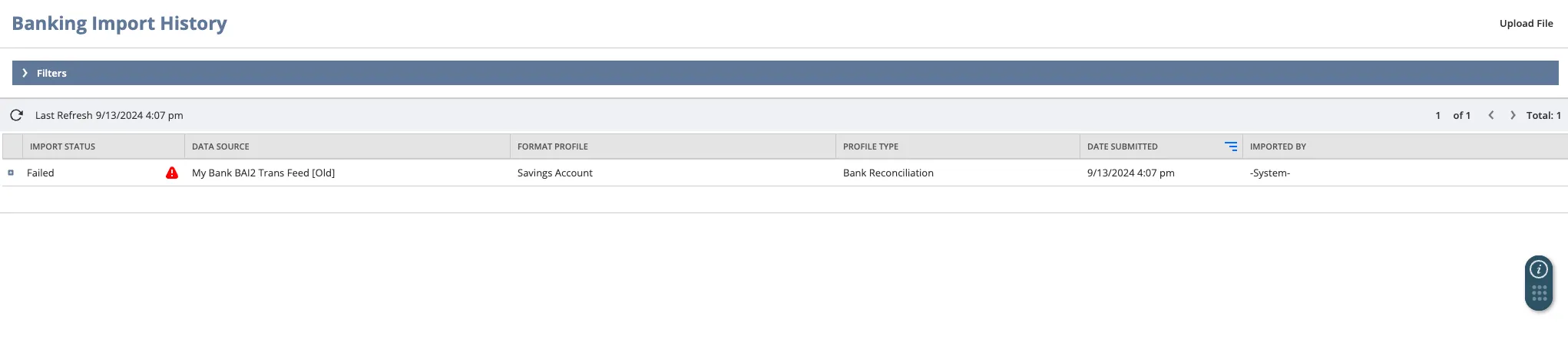
If your Failure Reason states “is not one of your recognized bank transaction codes”, please proceed to the Code Type Mapping step.
If your Failure Reason is anything other than an unrecognized bank transaction code, please take a screenshot of the error message and email it to the Support team.
Step 3: Code Type Mapping
Return to Setup → Accounting → Financial Institution.
Click Edit on the Financial Institution that you have created previously.
Select the Format Profile: Configuration tab and select Edit on the Format Profile that had a failed import.
Click on the Code Type Mapping tab.
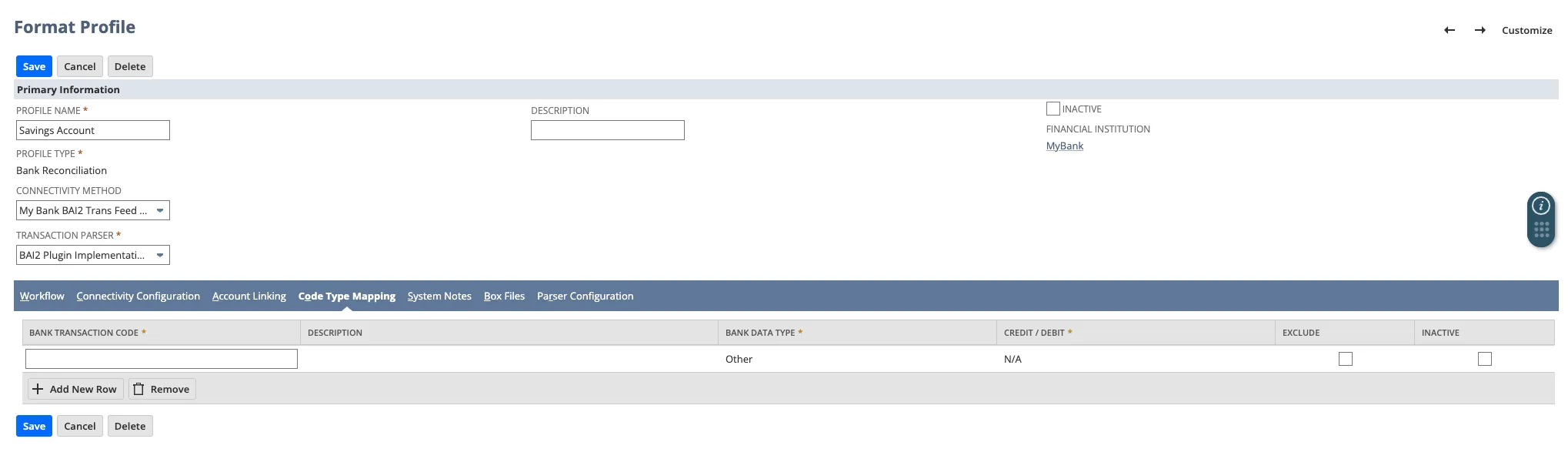
Why Code Type Mapping could not be completed during initial set-up of this Format Profile is because the system has not read any bank transactions yet, and therefore does not know if there are additional codes that require mapping.
Fill in the following fields for the bank transaction code that was unrecognized:
- Bank Transaction Code
- Description
- Bank Data Type
- Credit / Debit
The Bank Transaction Code will be the three-digit code from the error message seen on the Banking Import History page.
Fill in Description with something that will help you identify the bank transaction code.
Bank Data Type and Credit / Debit values will be the same. They both must be either Credit, Debit, or N/A.
How to determine whether your Bank Transaction Code is a Credit or Debit, please refer to the below table:
Type Codes | Description |
|---|---|
001-099 | Account status type codes |
100 | Total Credits summary type codes |
101-399 | Credit summary and detail type codes |
400 | Total Debits summary type codes |
401-699 | Debits summary and detail type codes |
700-799 | Loan Summary and detail type codes |
900-999 | Customized Type Codes |
City National Bank has BAI2 custom code types that fall within the below ranges:
Type Codes | Description |
|---|---|
801, 900-919 | Account Status Codes |
920-959 | Credit Summary and Detail |
960-999 | Debit Summary and Detail |
Source: EASI Link® Service Appendix D - BAI2 File Specifications Version 12.4.0
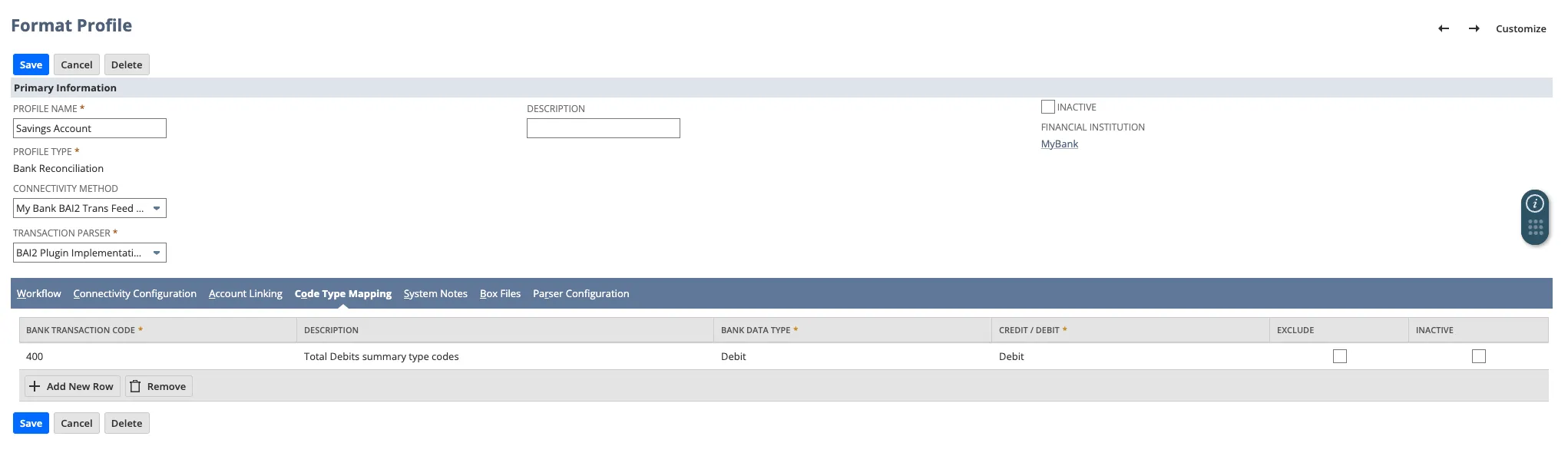
After filling in the above fields, click Save. This will trigger another import.
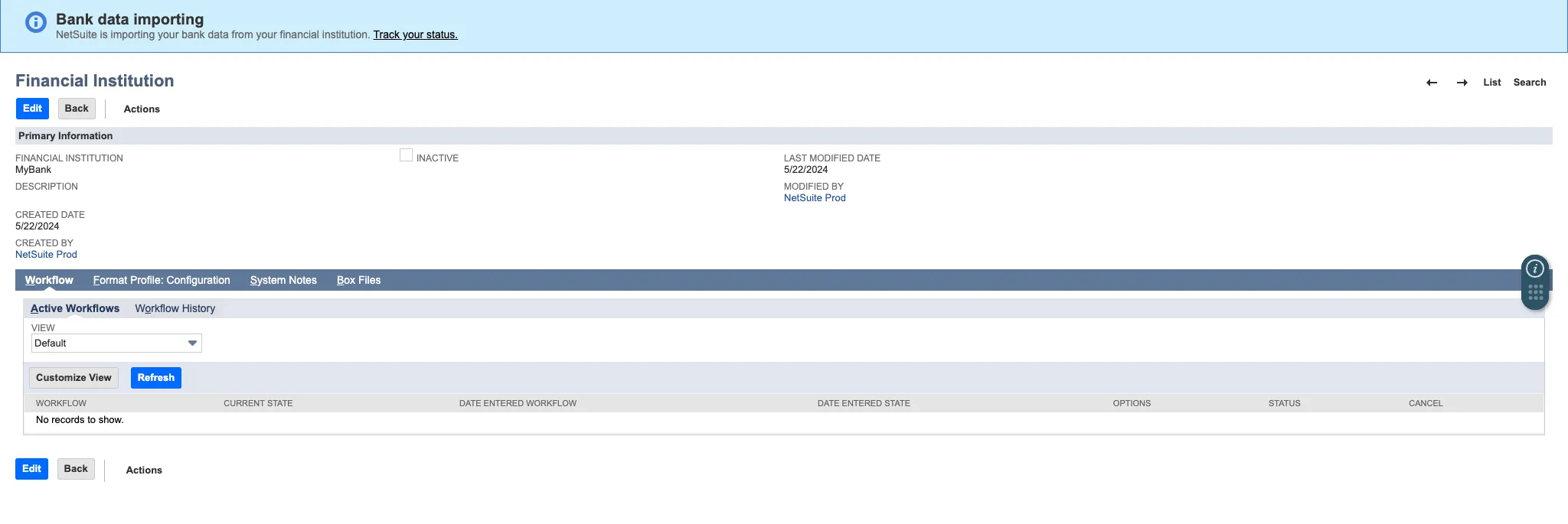
Return to the Banking Import History page by either clicking Track your status in the blue banner that appears, or by navigating to Transactions → Bank → Banking Import History.
If you receive a Failure Reason once more for an unrecognized bank transaction code, please repeat the above steps until the Banking Import status returns as Completed.
For any issues with enabling bank feeds or code type mapping, please reach out to FISPAN support at the below email address: