Payments History - New (NetSuite)
All bill payment history is readily available in the plugin and can be accessed via the History tab. Use this page to track payment status, review past payments, and access detailed payment information.
All bill payment history is readily available in the plugin and can be accessed via the History tab. Use this page to track payment status, review past payments, and access detailed payment information.
Navigate to History
Navigate to Accounts Payable (New) → Payments → History
View Bill History
Bill Payments that are processed through the CNB Pay plugin will appear on the History tab.
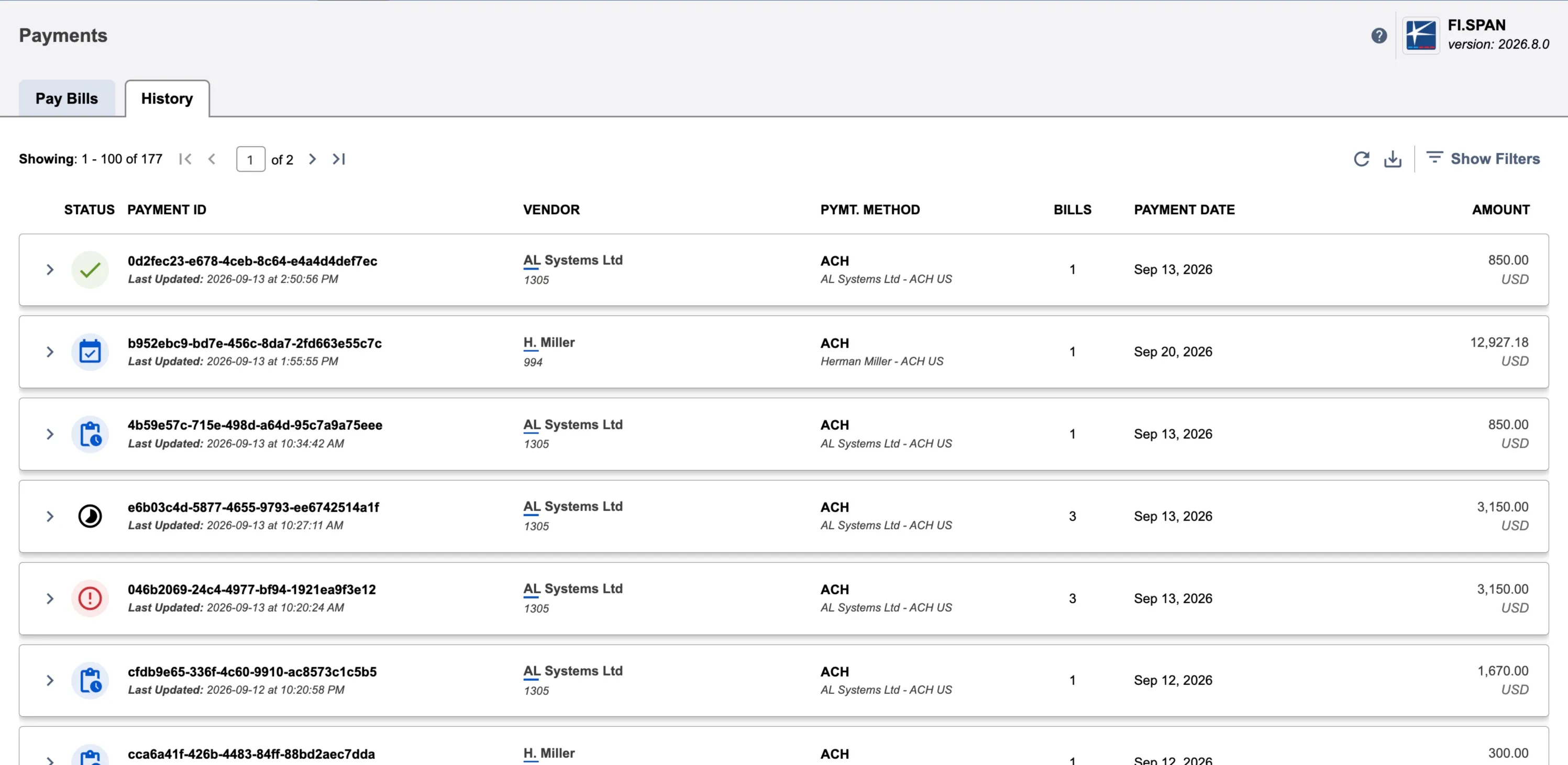
NOTE: As soon as a payment is initiated in the CNB Pay plugin, the associated bills are automatically marked as PAID in NetSuite, and a Bill Payment record is created against the Vendor Bill.
- If the payment is successful, the bill status is finalized as PAID.
- If the payment fails at any stage, the CNB Pay plugin automatically voids the Bill Payment, reopens the bills in NetSuite, and displays the error message on the Payment History page.
View Action Log
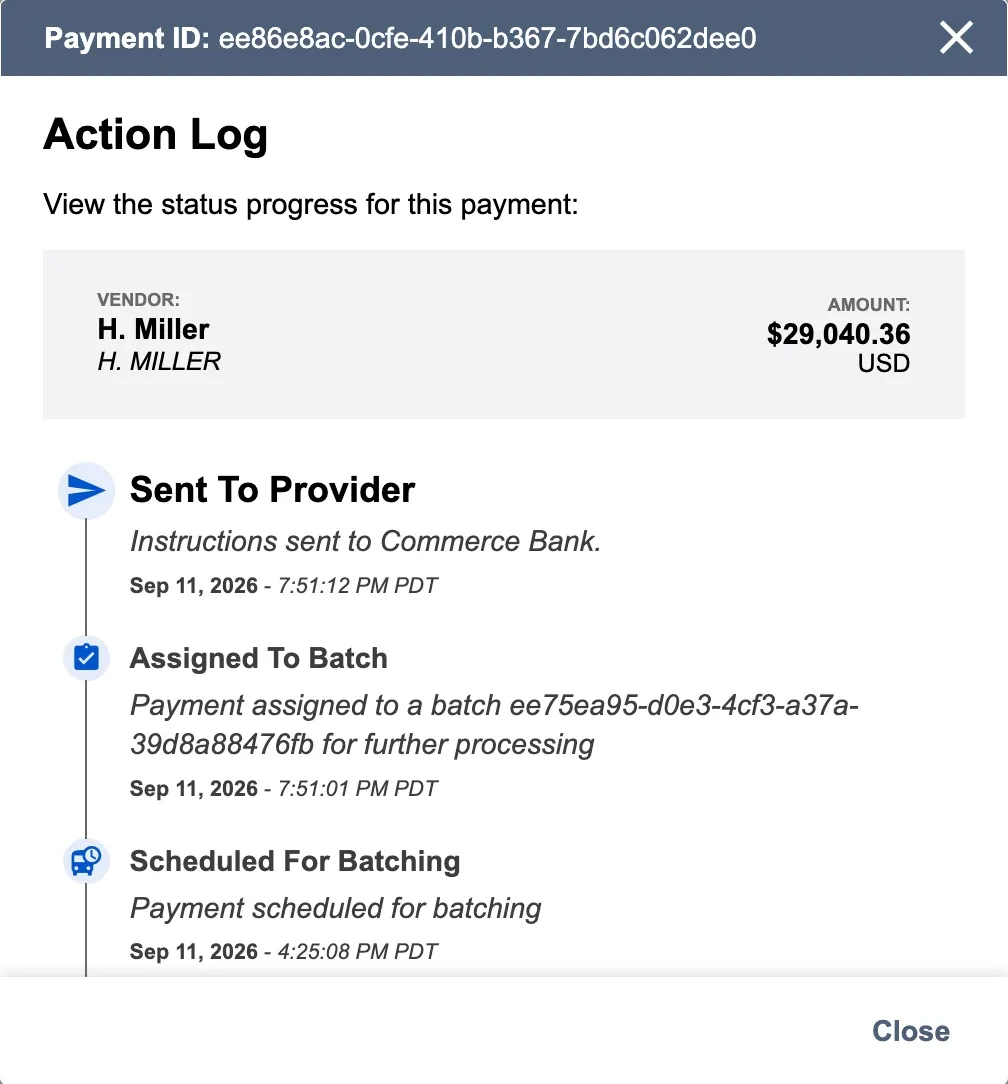
Click the Action Log on any record within the History tab to view a comprehensive audit trail for that specific payment.
Filter by Status
Use the filters on the Payment History page to quickly locate relevant payments.
Payment Statuses
The status will appear as Received until the payment has been Sent for Processing. Once the payment is complete, the status will display as Completed.
If any payment fails during the run, a banner on the Payments page will alert you immediately.

Processing Payment Statuses
A processing status indicates that a payment has been submitted for approval and is awaiting release.
- RECEIVED: The payment has been successfully received by the CNB Pay plugin but has not yet been sent to the bank for processing.
- SENT FOR PROCESSING: Payments enter this state immediately after they have been sent to the bank for proccessing.
- PROCESSING: Payments will enter this state once the bank has started processing it.
Terminal Payment Statuses
A terminal status indicates a final state. In most cases, payments will not automatically change from these states unless intervention is applied by the support team.
- COMPLETED: This is a final status. Some payments are marked as autocomplete based on the payment network's handling. This status should not change.
- FAILED: Payments that fail to be processed enter this status. Failure can occur due to various reasons, such as initial validation issues (missing or inappropriate information) or failure within the payment network (e.g., the destination bank account is closed).
- CANCELLED: This status indicates that the payment was rejected in the bank approval portal or cancelled directly within the platform.
Handling Failed Payments
A failed bill remains open on the Payments page and can be resubmitted for payment.
If a bill payment has a Failed status, you must verify the reason for the failure and correct the related information before submitting a new payment. Submitting a new payment without correcting the error will create an additional, unnecessary bill payment record in both the CNB Pay plugin and your NetSuite environment.
View Payment Details
By default, the History page shows payment-level information first.
Each row contains one payment request with the following information:
- Status - Current payment status (icon + label)
- Vendor Name - Name of the vendor being paid
- Payment Method - Payment method used (ACH, Check, Wire, etc.)
- # of Bills - Number of bills included in this payment
- Payment Date - Date payment was submitted or scheduled
- Amount - Total payment amount and currency
Expand to View Bill Details
A payment request can contain multiple bills. To see bill-level information, click the arrow icon on the left side of the payment row.
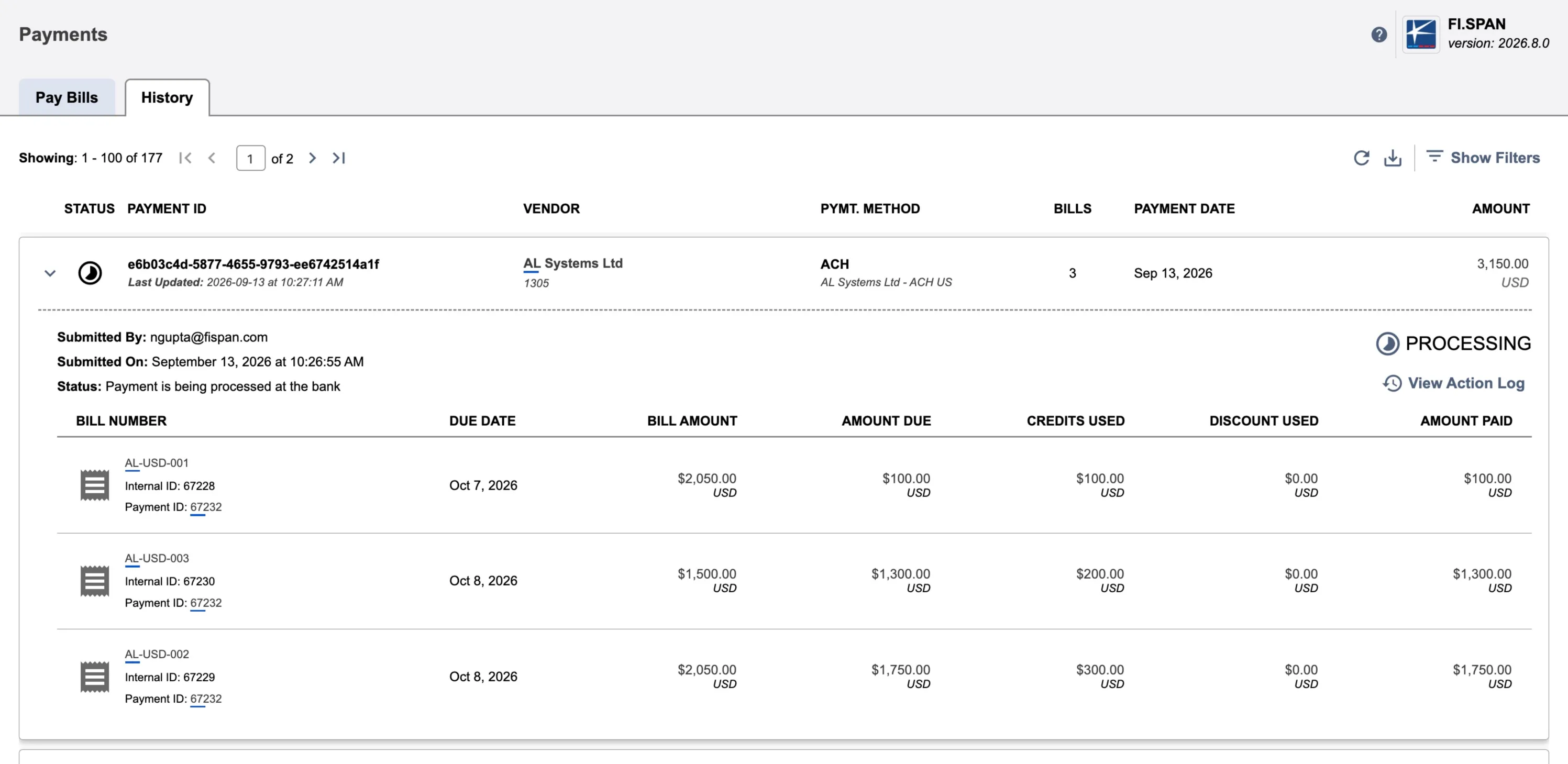
This expands the bill details table, which includes:
- Bill Number - Bill reference number (links to NetSuite bill record)
- Internal ID - NetSuite internal bill ID
- Payment ID - Links to NetSuite payment record
- Due Date - Bill due date
- Bill Amount - Original bill amount
- Amount Due - Outstanding amount before this payment
- Credits Used - Bill credits applied to this payment
- Discount Used - Discounts applied to this payment
- Amount Paid - Actual amount paid for this bill
View Additional Payment Information
Each expanded payment section includes a header with additional details:
- Transaction ID - External transaction ID (if available)
- Submitted By - Email of user who submitted the payment
- Submitted On - Date and time payment was submitted
- Status - Current payment status with icon
Click View Action Log to see the full payment processing history, including all status changes and system actions.
Tracking Specific Bills
Find All Payments for a Bill
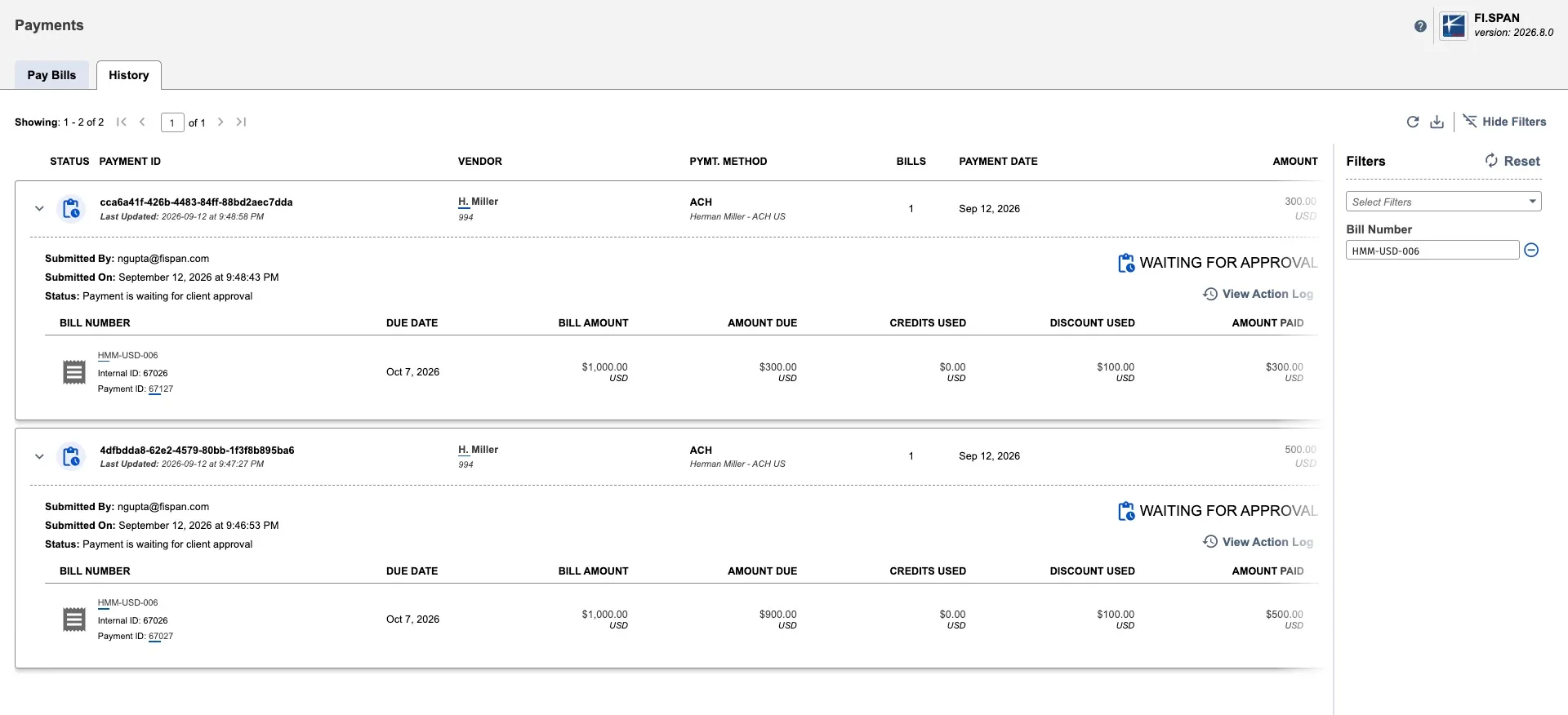
To see all previous payments made for a specific bill (including multiple partial payments):
- Go to Accounts Payable (New) → Payments → History
- Use the Bill Number filter to search for the specific bill
- All payments applied to that bill will appear in the results
This is useful when you've made multiple partial payments and want to see the full payment history for one bill.
Multiple Instances of the Same Bill
If you pay a bill with partial payments, the same bill will appear multiple times on the History page (once per payment). Similarly, if a bill failed and was repaid, it will appear in multiple payment rows.