Payables 2.0 - Payment Optimization (Business Central)
Payment Optimization is designed to reduce manual work when building Payment Runs. Instead of selecting Bills one by one, you can describe the Payment Run you want, and the optimization engine translates your request into the appropriate Payment Filters. Using Smart Routing and existing Plugin Logic, your request is translated into the right filters and generates a recommended Payment Run for you to review and edit before processing. Under the hood, the smart routing uses a large language model (LLM) to interpret your intent, with no side effects or data training.
Using Payment Optimization
Open the Payments page
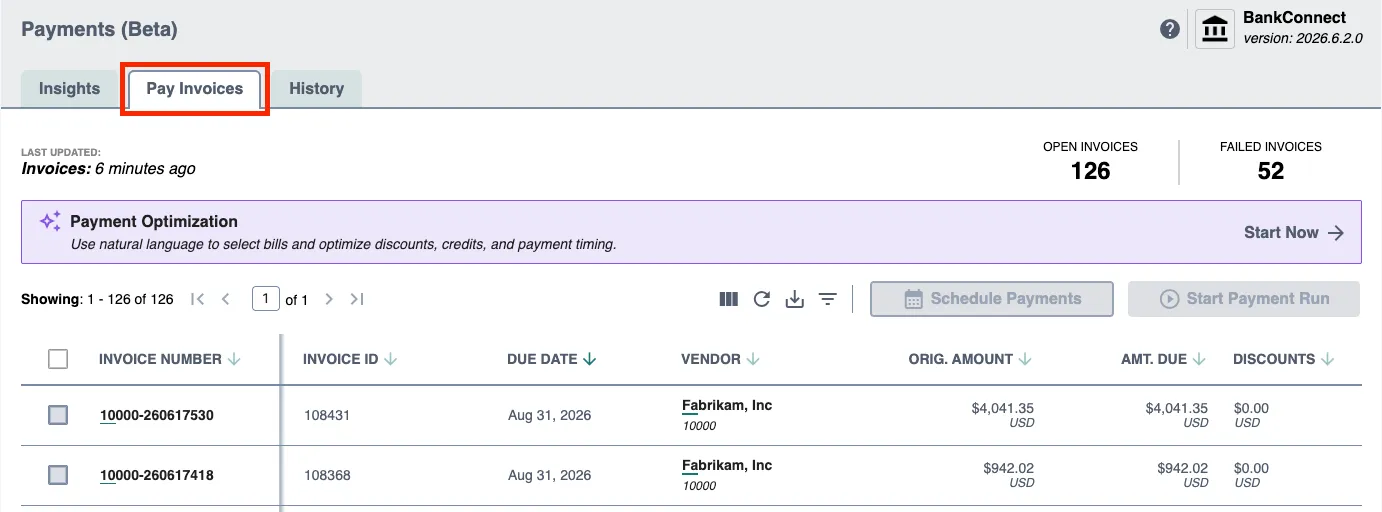
Navigate to the existing Payment-Run experience in the ERP Plugin. Click on the Payments Page and the Pay Invoices tab.
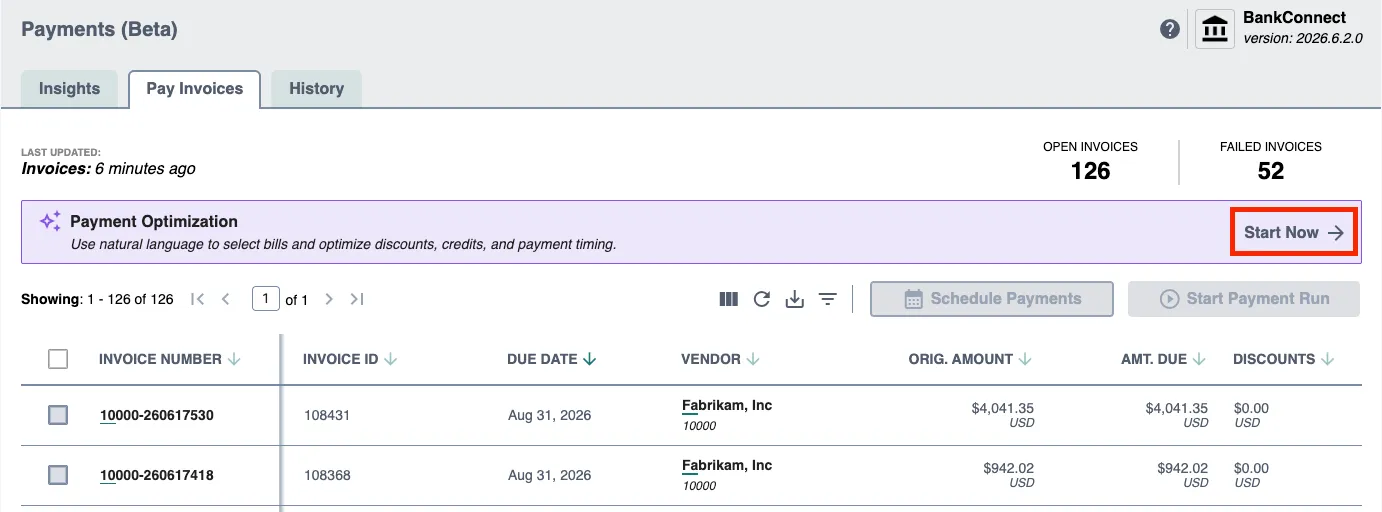
Build a proposed Run
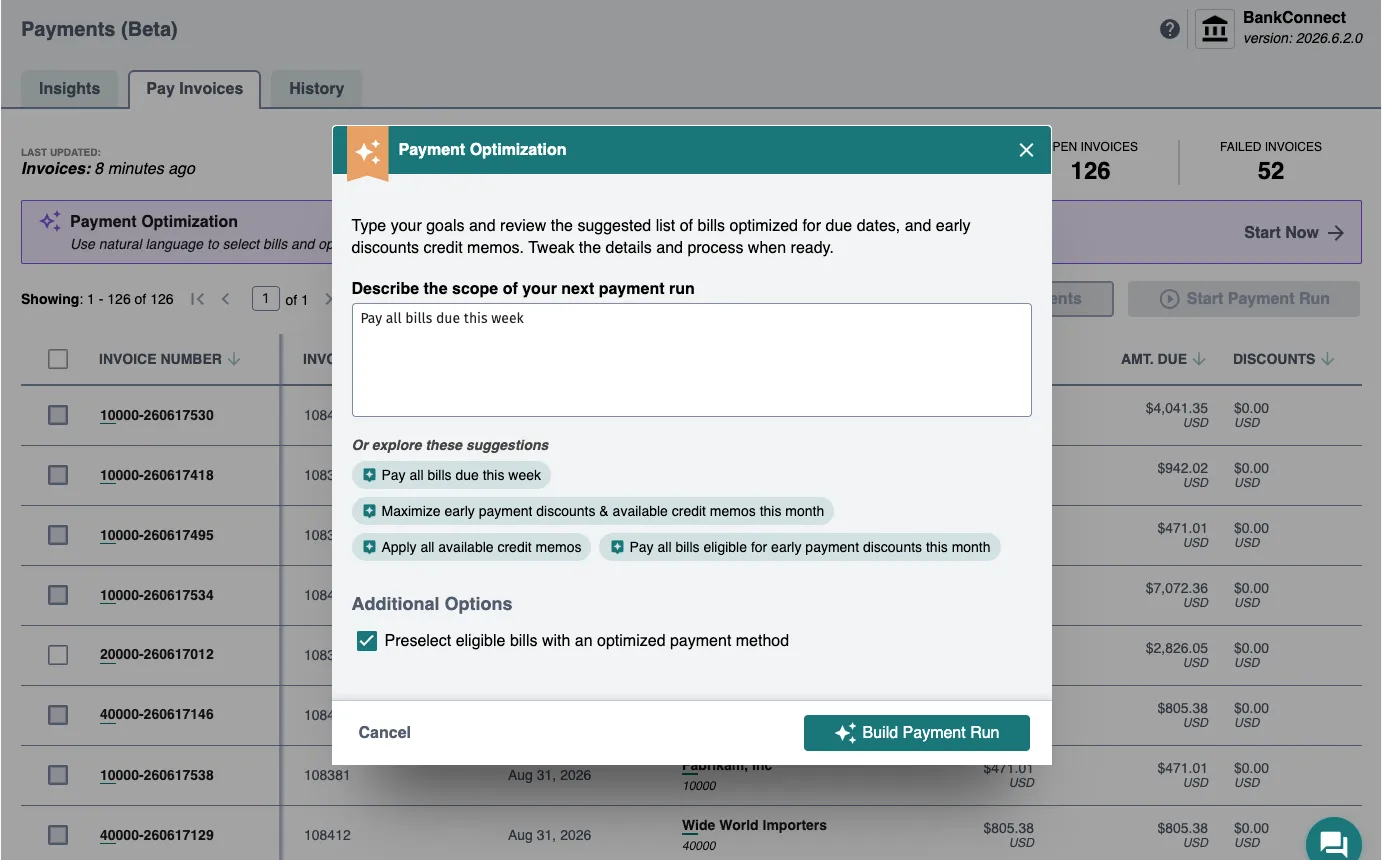
Use the natural-language assisted experience to describe the Run you want to build. The system interprets the request and maps it to existing plugin filters.
Examples of requests the product is designed to support include:
- Pay Bills due this week
- Optimize Discounts and Credits
- Optimize Credits first
- Build a run for Bills due this week
NOTE: The system makes assumptions when interpreting user input. For example, a name may be treated as a Vendor Name, a number sequence may be treated as a Bill ID or Bill Number, and a date-related request may be interpreted using Bill due dates.
Review the proposed run
Once the proposal is generated, review the suggested Run carefully. Users should expect to see an editable Payment Run with selected Bills, any Credits applied, suggested Payment Methods, and Summary Information about the Run.
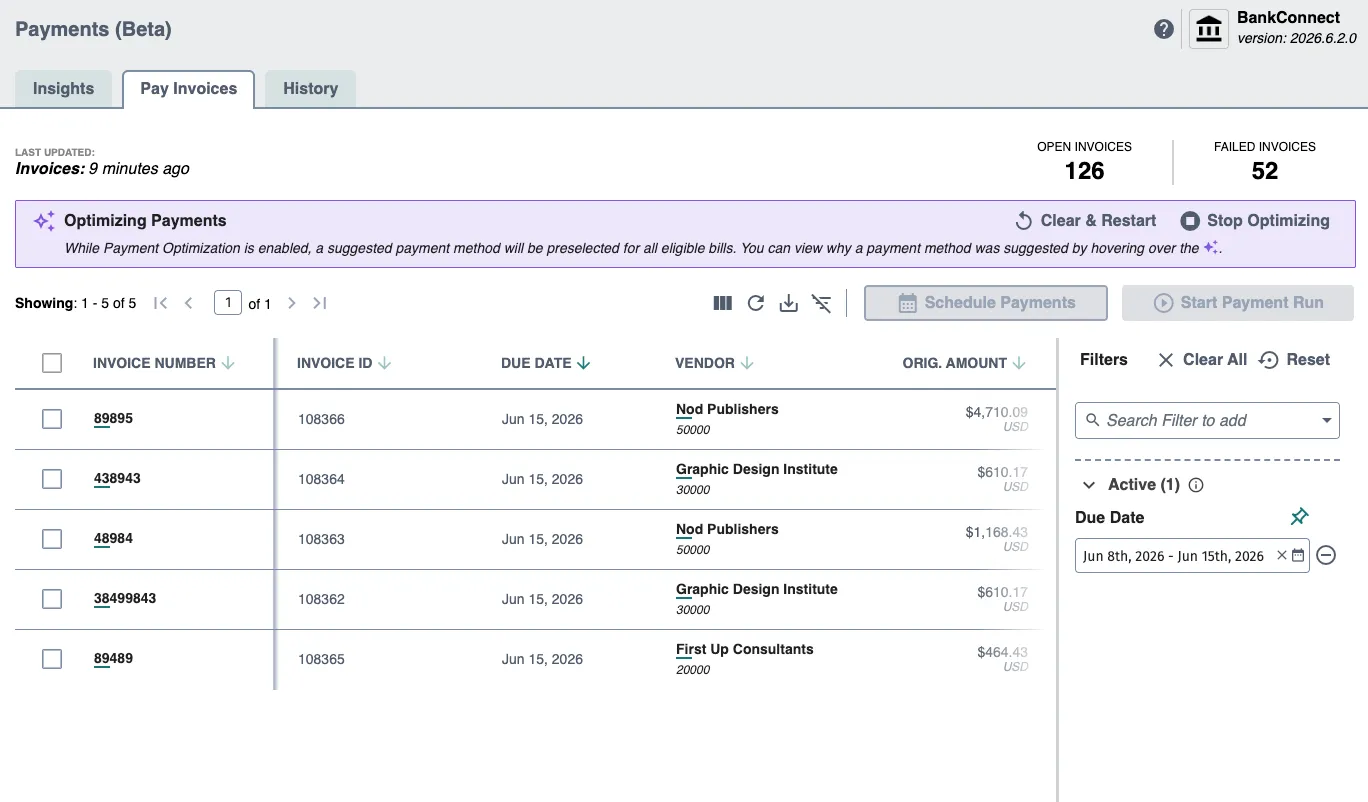
Common elements to review:
- Selected Bills and whether they match the intended scope
- Applied Credits or adjustments
- Suggested Payment Methods for each item where applicable
NOTE: The system suggests Payment Methods based on factors such as if there is only one eligible Payment Rail or if there has been a previously successful Payment for this Vendor with a specific Payment Rail.
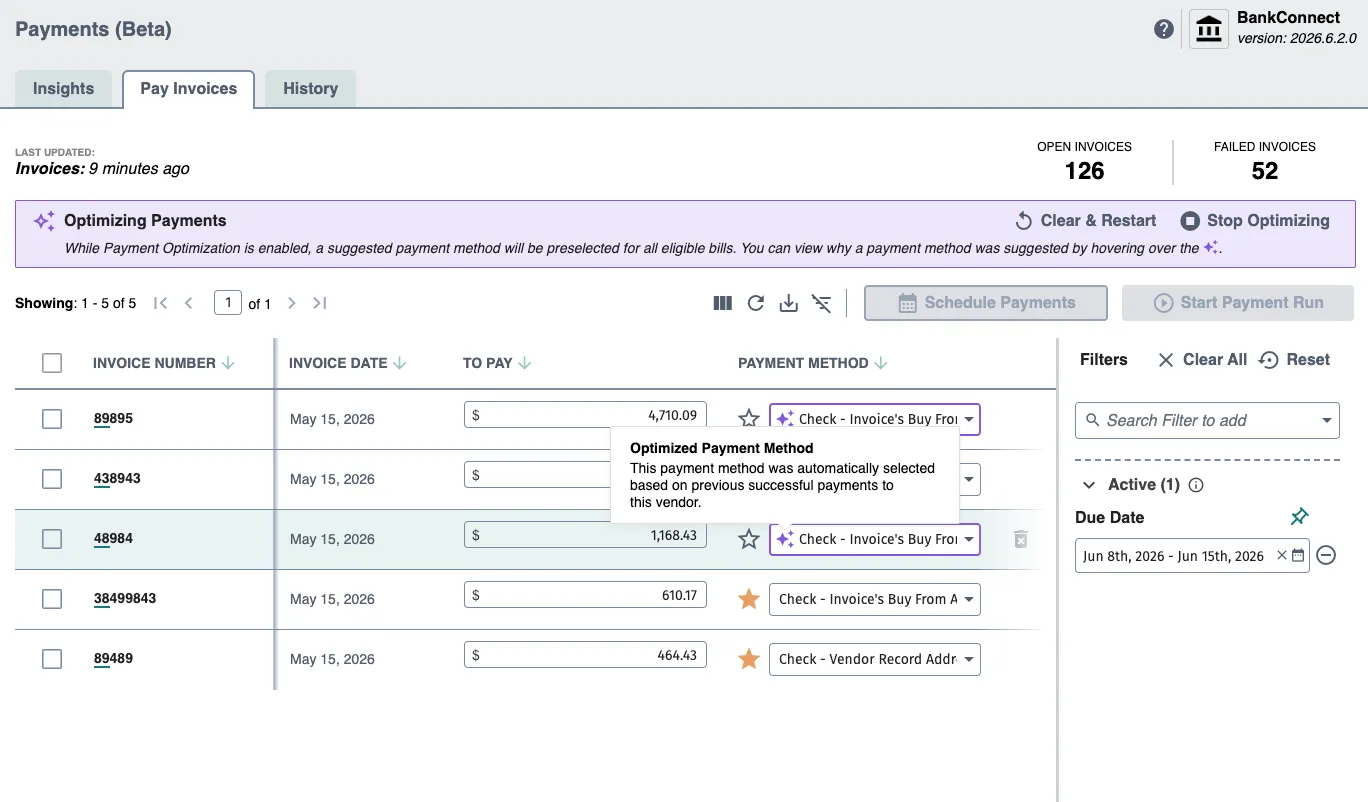
Adjust the proposal if needed
The proposed Run is not final. You can manually change it before submission. When the Run has been successfully reviewed and edited, you can then navigate across pages and select Bills. The plugin supports Payments of up to 5,000 Bills at a time.
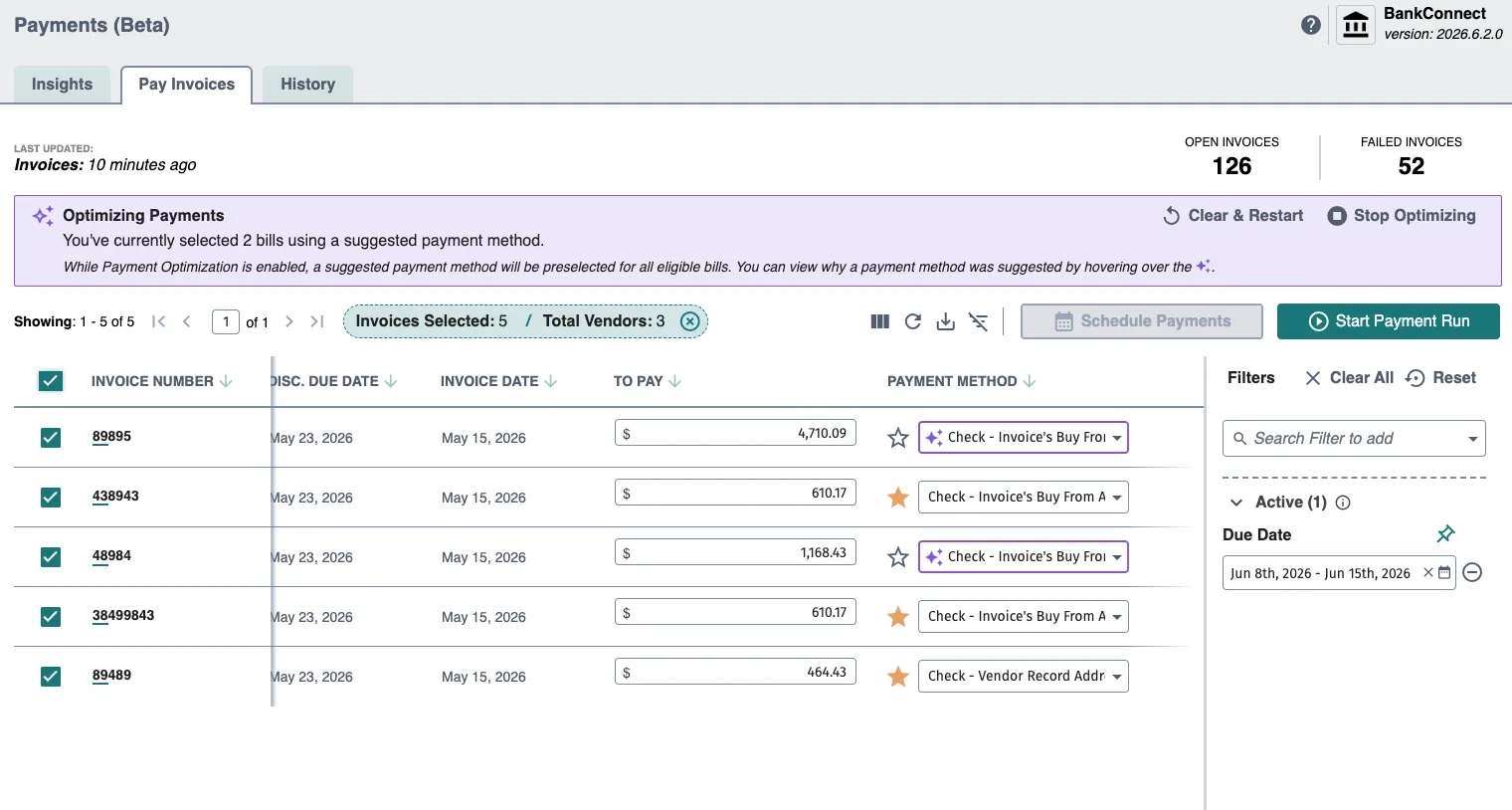
Submit through the normal payment flow
After review and any necessary adjustments, submit the Payment Run using the standard workflow.