Configuring Grouped Payments & Enabling Remittance (Business Central)
Combined Invoices allow you to group multiple invoices for the same vendor into a single payment, resulting in one remittance email instead of many. Follow this guide to learn how to enable the Combined Invoices and Remittance features.
Enable Combined Invoices
Follow these steps to configure Combined Invoices in Business Central.
Go to Payment Methods
From anywhere in Business Central, you can navigate to the Payment Methods page to configure this setting.
Click CNB Pay and then Payment Methods to navigate to the page.

Access Mass Update
Once the page loads, click on the gear icon beside Combined Invoices.
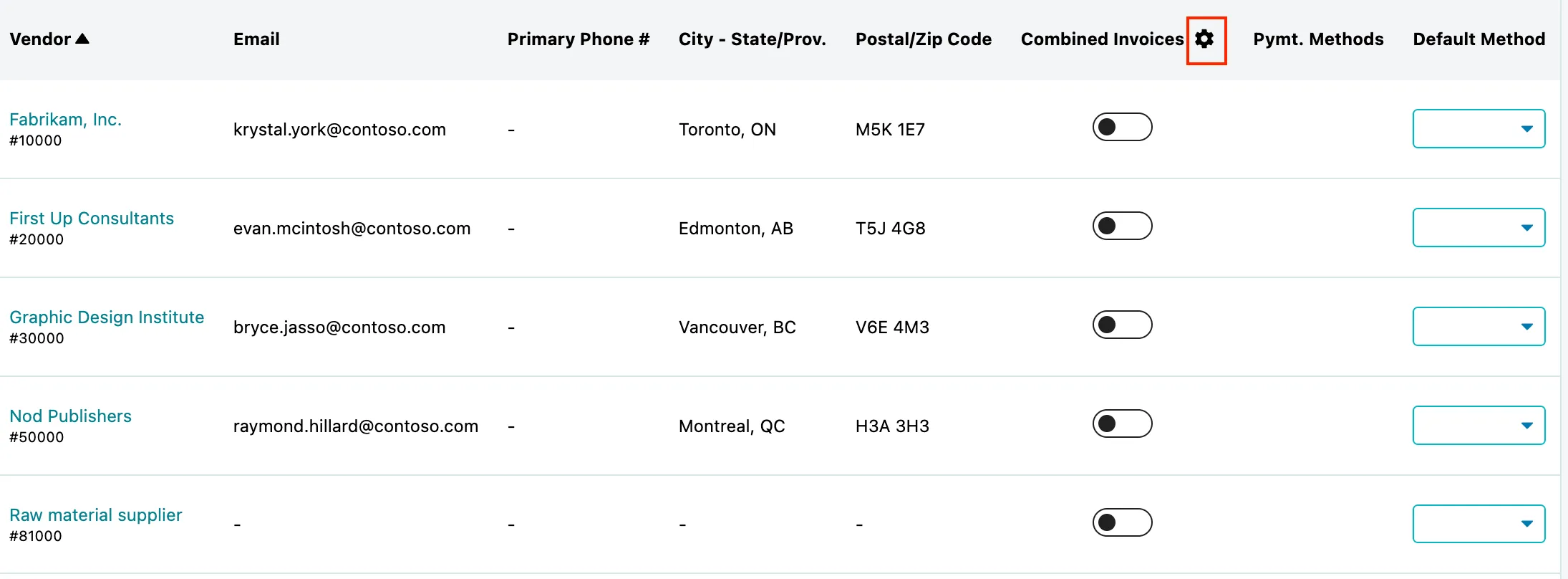
You will now be prompted to select which option you would like.
A prompt will appear, asking you to select which option you would like to set. You can choose to enable or disable it for your vendors.
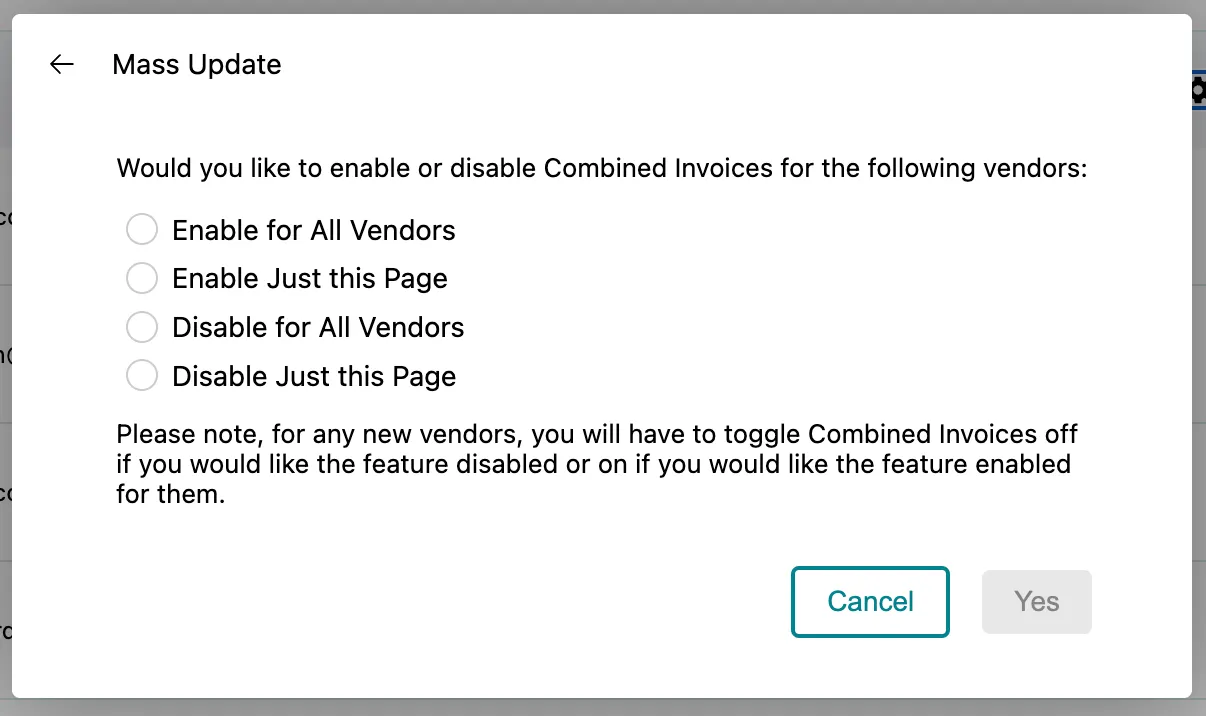
If you choose to enable this for all existing vendors, remember that you will need to manually update any new vendors created in the future.
Once the option has been selected, click Yes.
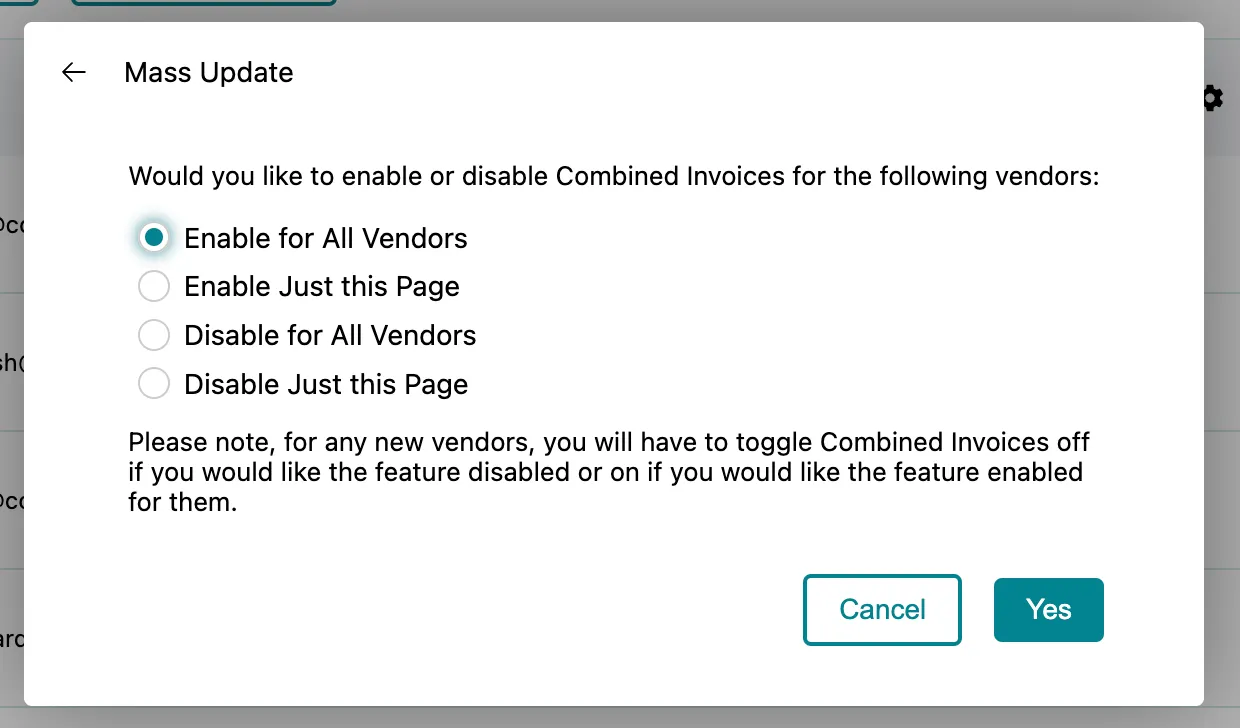
Confirm Update
The screen will reload, and the toggles in the Combined Invoices column will update to reflect your selection.
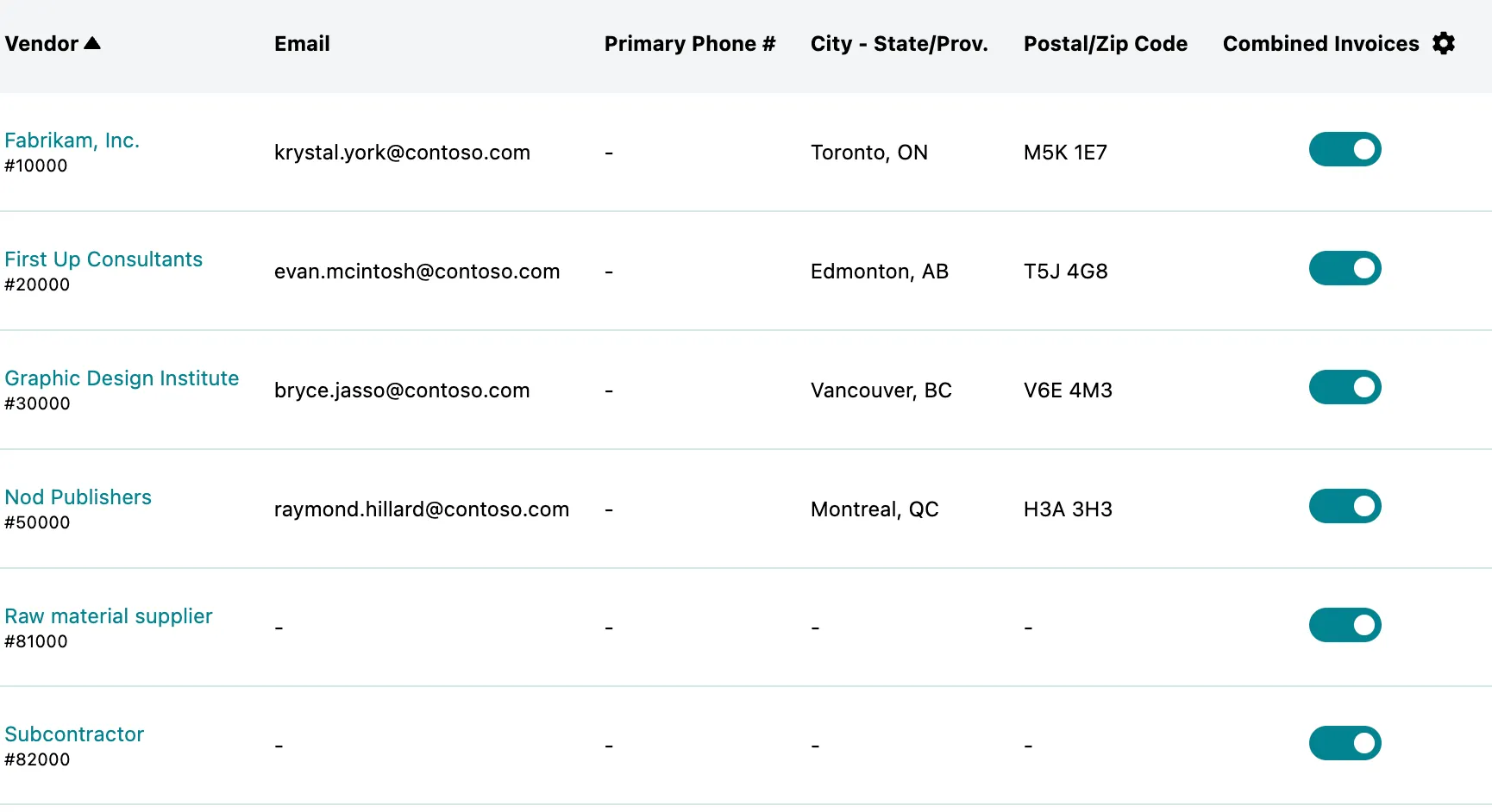
From here, you can manually turn off or turn on the setting for specific vendors as needed.
NOTE: If the remittance advice product is activated, enabling Combined Invoices groups multiple bills into one payment, meaning the vendor receives just one remittance email.
If disabled, every paid bill generates its own separate payment and remittance email.
Enable Remittance
You can quickly enable or disable remittance emails for all vendors at once from the Payment Methods page.
Go to Payment Methods
On the Payment Methods page, find the Remittance column.
Click the gear icon in the column header to open the pop-up window.
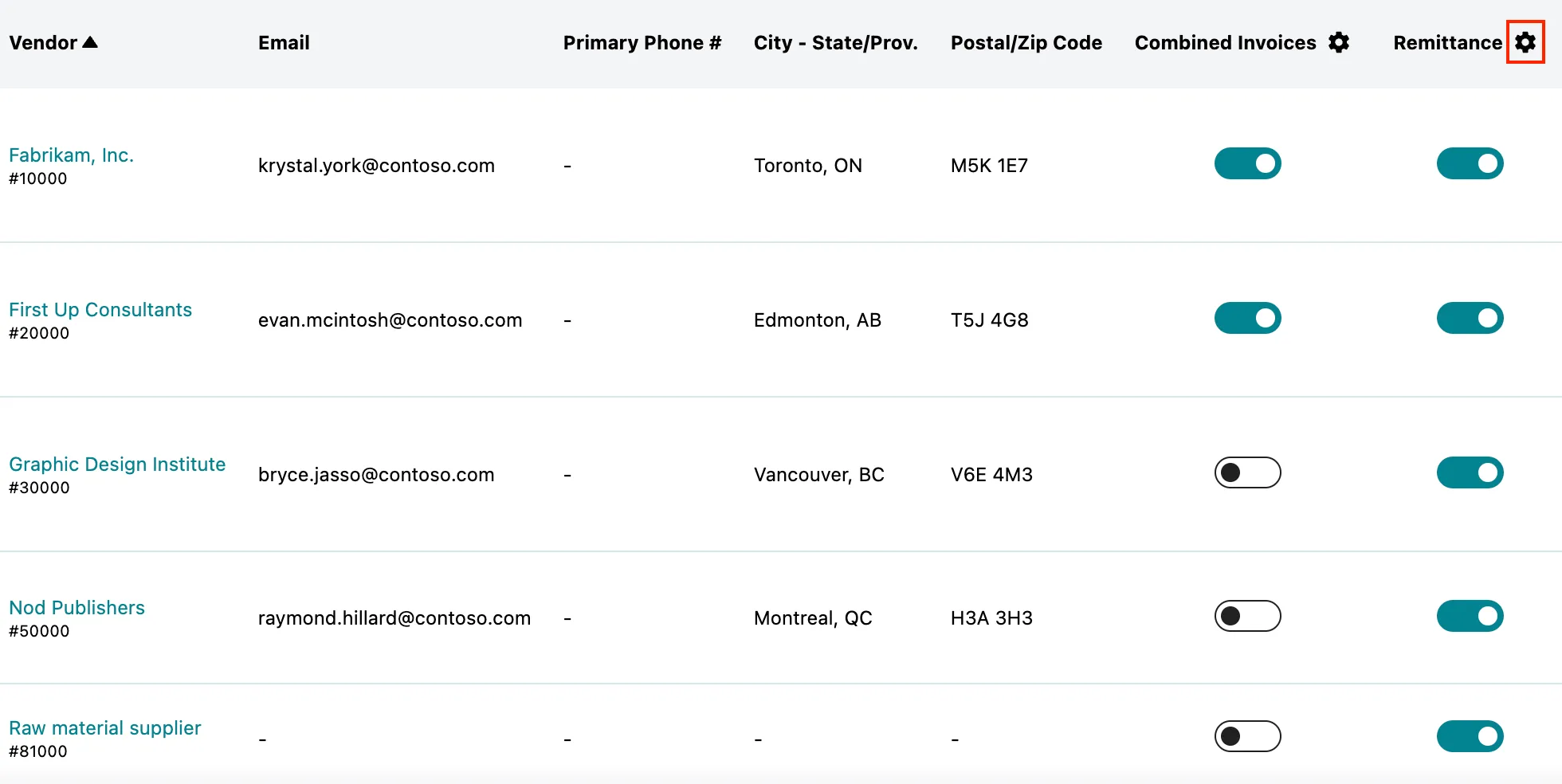
Access Mass Update
You will be asked to select which option you want to apply.
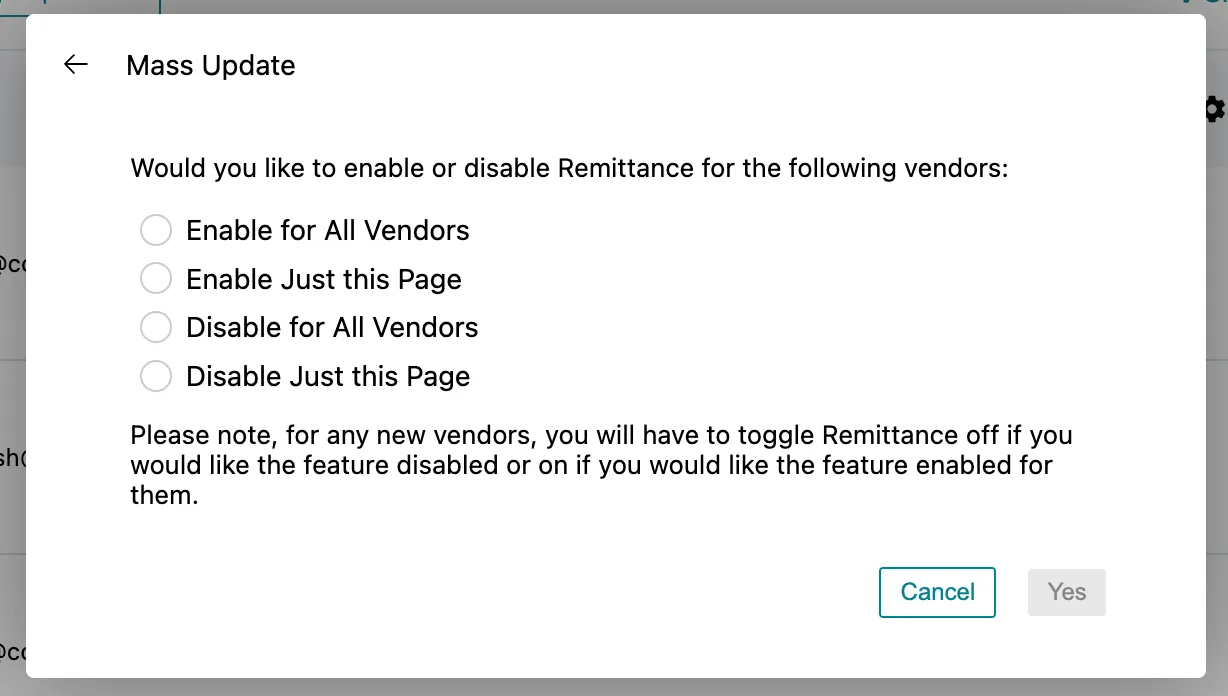
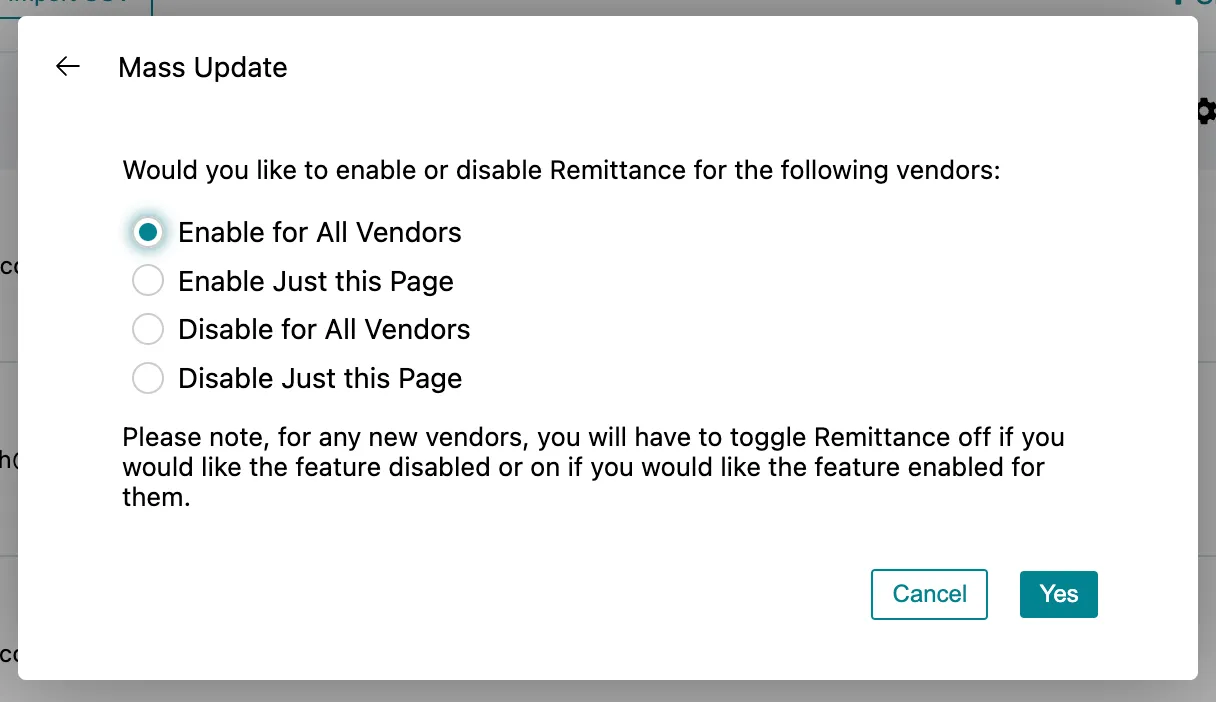
If you choose to disable Remittance for all existing vendors, you must manually update the setting for any new vendors created later.
Once the option has been selected, click Yes.
Review and Modify Vendors
The screen will reload, and all Remittance toggles will update to match your selection.
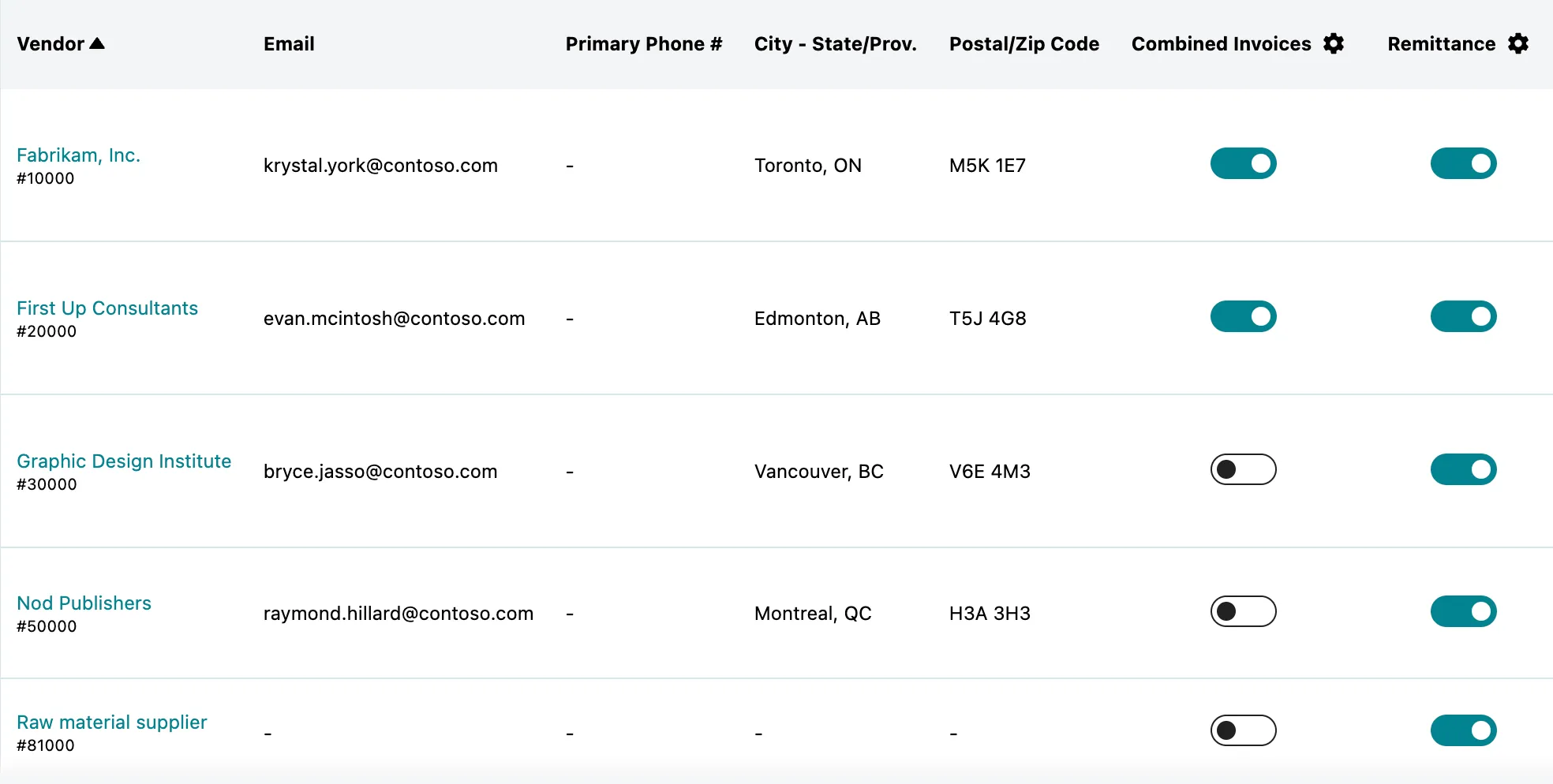
From here, you can manually turn off or turn on the setting for individual vendors as needed.