Batching Ledger Entries (Business Central)
In version 2024.2.0.0+ of the plugin, batching ledger entries is available. This feature will, unfortunately, not work for users with MEM installed.
Follow this guide to start processing payments with the batching feature.
IMPORTANT: When you enable batching, we will no longer write the Vendor Invoice No. into the Payment Reference column in the Vendor Ledger Entries. This is necessary due to character limits in Business Central fields.
Enabling Batching
To start using batching, enable the feature by following these steps.
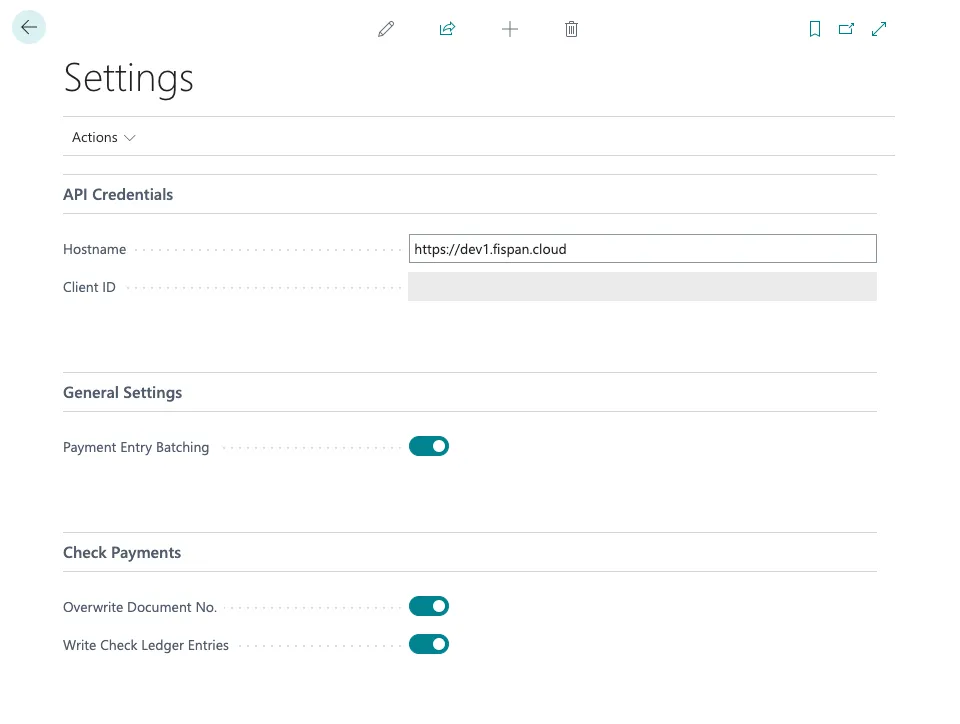
Go to the Settings page of the plugin and enable the Payment Entry Batching feature.
Ensure that vendors have Combined Invoices enabled on their Payment Methods page.
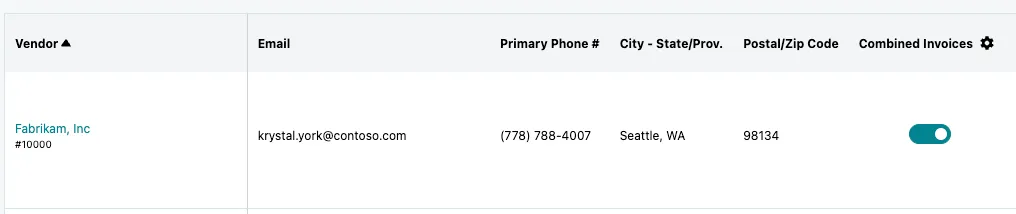
Note: You can enable this for all vendors by following this guide: Configuring Grouped Payments & Enabling Remittance (QBO)
Processing Payments
Start processing payments by following these simple steps.
Select Invoices
Navigate to the Pay Invoices page and select the invoices you would like to pay.
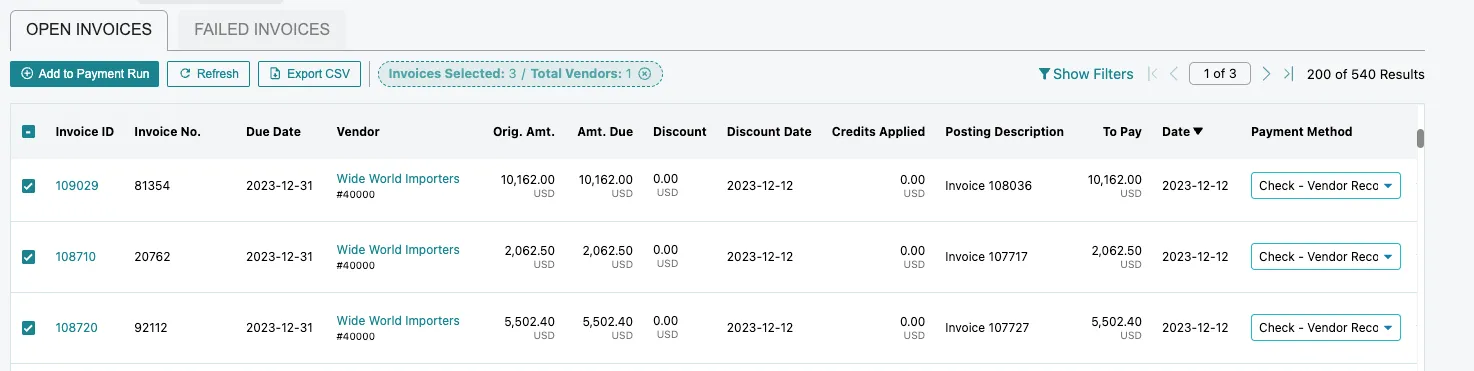
NOTE: Payment batching is not supported when using the Pay-to, Buy-from, or Ship-to address for check payments.
Confirm Payment
Submit your payment by selecting Confirm Payment.
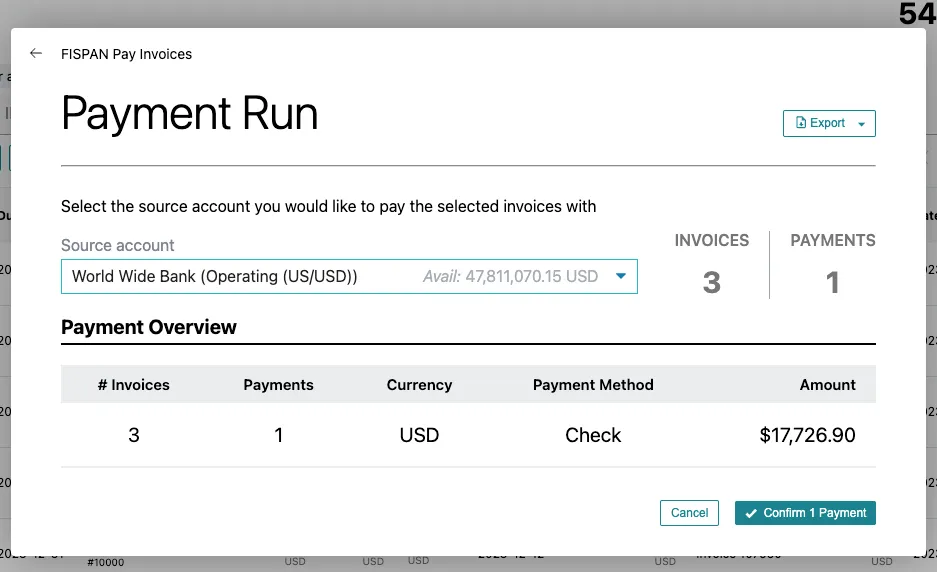
Now the payment will begin processing.
View Batched Ledger Entries
Below are some examples of how these batched entries will appear on the various ledgers available in Business Central.
Vendor Ledger Entries:

Bank Account Ledger Entries:

Check Ledger Entries:
