Step 7: Authenticate with Workday
The Authentication step in the installation wizard continues our effort in connecting to your Workday environment. Select "Connect To Workday" to proceed.
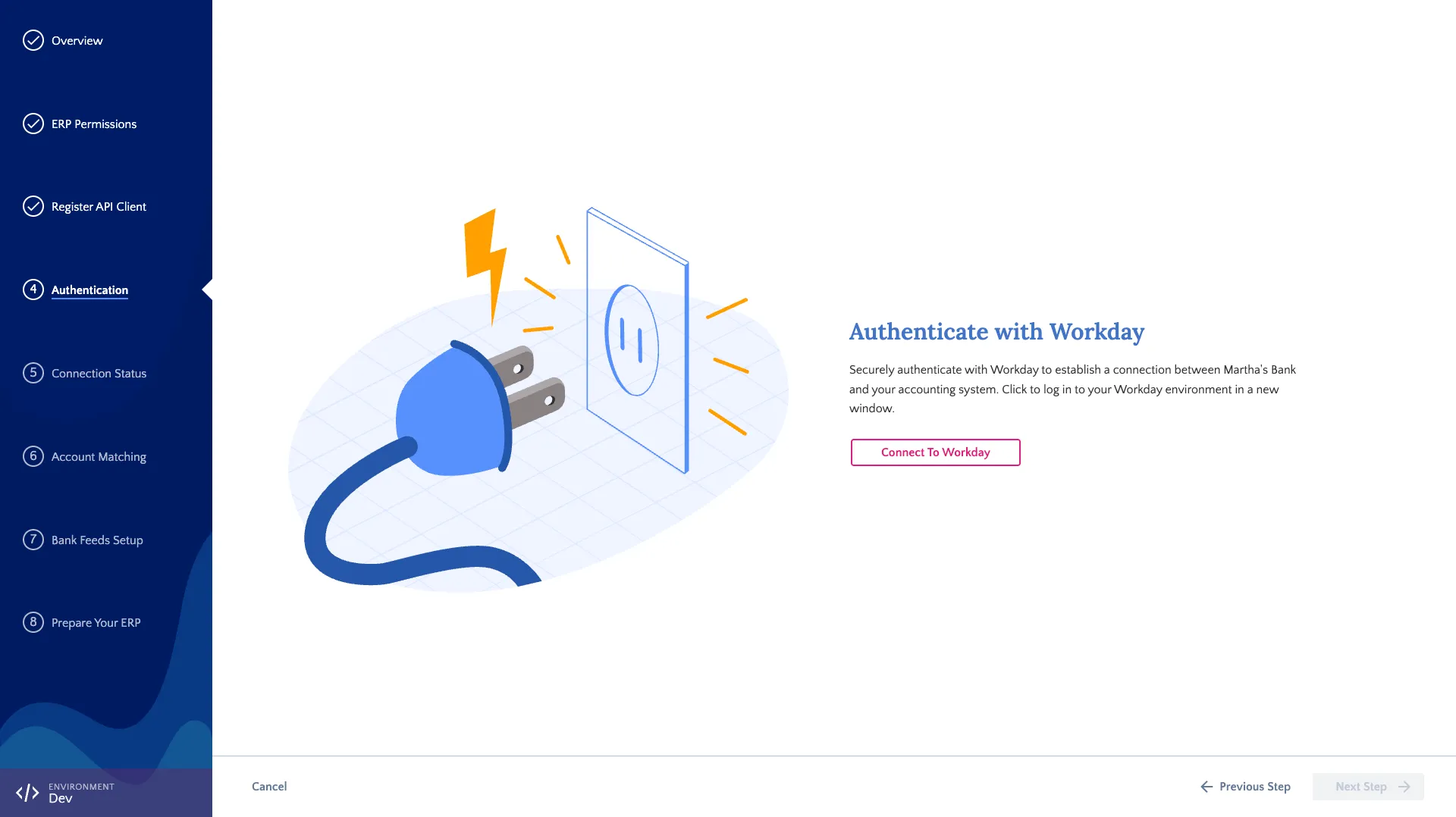
This should open a new tab and take you to your Workday environment.
Your next steps may vary depending on your current login status, single-sign on setup, and user configuration.
On the following page, select "Allow" on the "Authorize Workday" step.
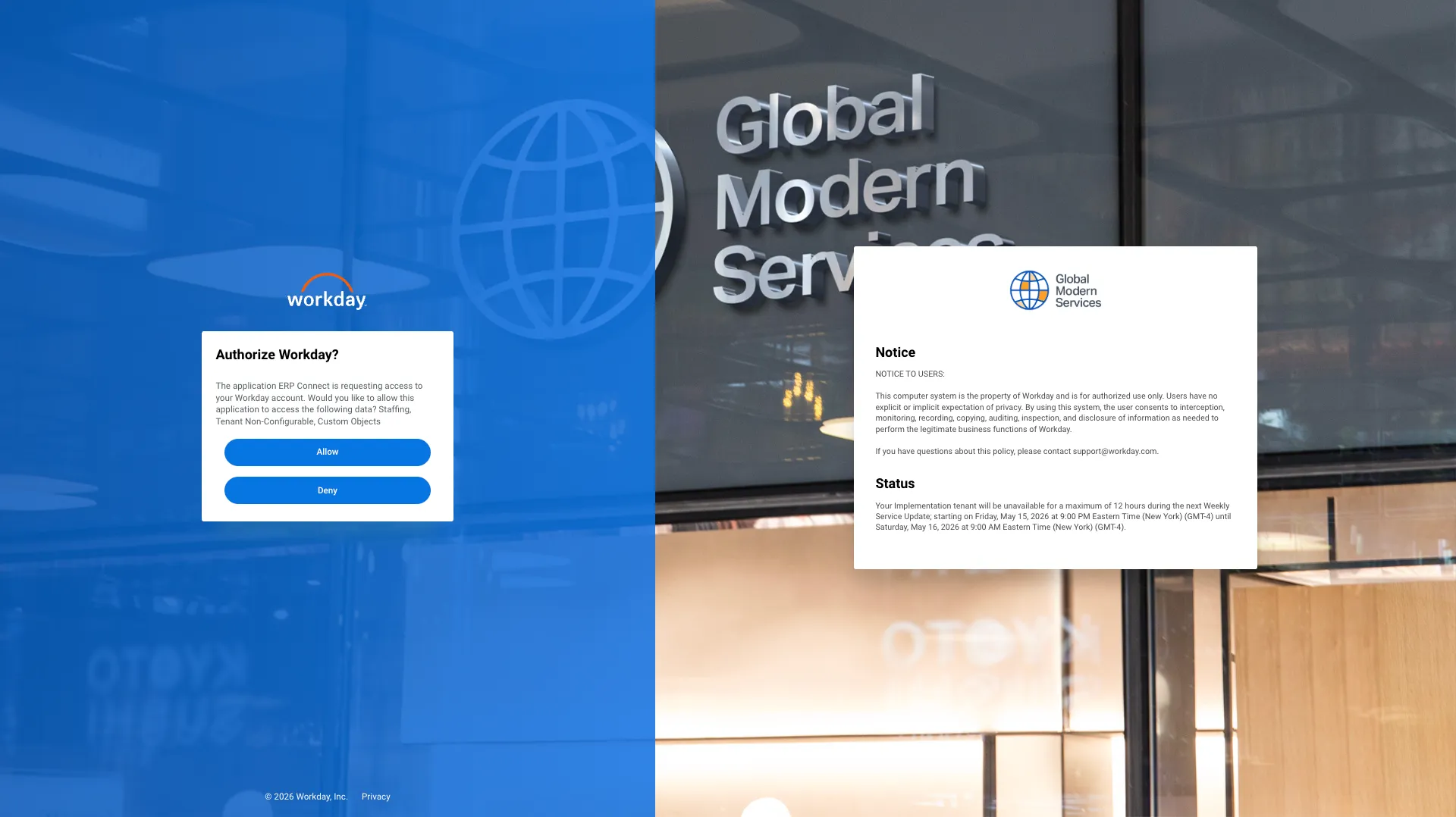
Once you click Allow, that tab will be redirected to FISPAN and will likely close quickly. The original tab, the FISPAN Onboarding Wizard, should show the connection as complete.
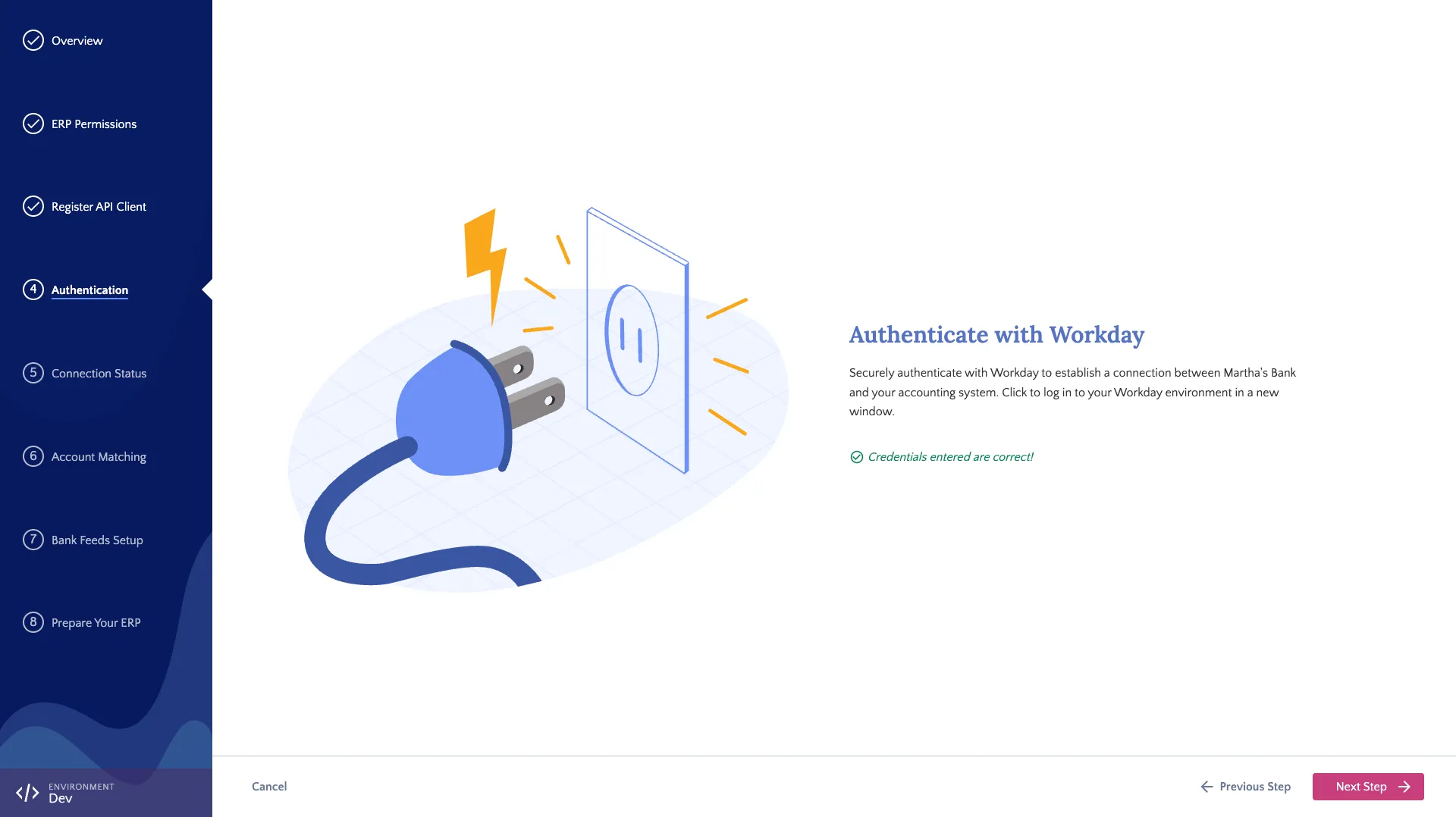
Once successful, we can proceed to the next step.
Troubleshooting Connection Issues
If the connection is unsuccessful, verify that your Client ID, Client Secret, and Endpoints match your Workday configuration exactly. Common issues include extra spaces, hidden characters, or line breaks introduced during copy-pasting. Additionally, ensure the API Client has been granted all required Scopes (Functional Areas): Banking and Settlement, Staffing, Supplier Accounts, Suppliers, System, and Tenant Non-Configurable.