Remittance Advice (Intacct)
Remittance Advice emails will change how you talk to vendors and make paying bills easier. Payment details are automatically sent to your vendors right after a bill is paid, giving them what they need to quickly check their records.
NOTE: If you are interested in enabling this feature, contact your Sales Officer.
Remittance Advice Overview
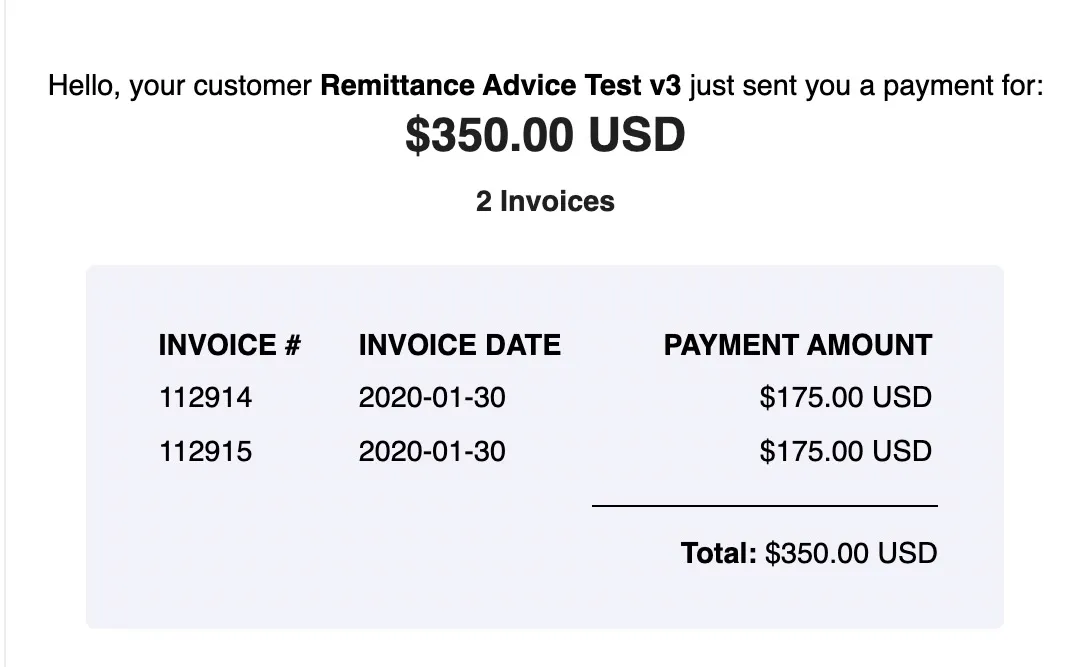
FISPAN's Remittance Advice service automatically sends an email to the vendor’s designated email address(es) for every submitted payment. This email will contain your company name and a detailed list of the paid bills, including the Reference/Invoice #, Invoice Date, Amount, and Discount Used. If any credits were applied, the credit's reference number and amount will also be displayed.
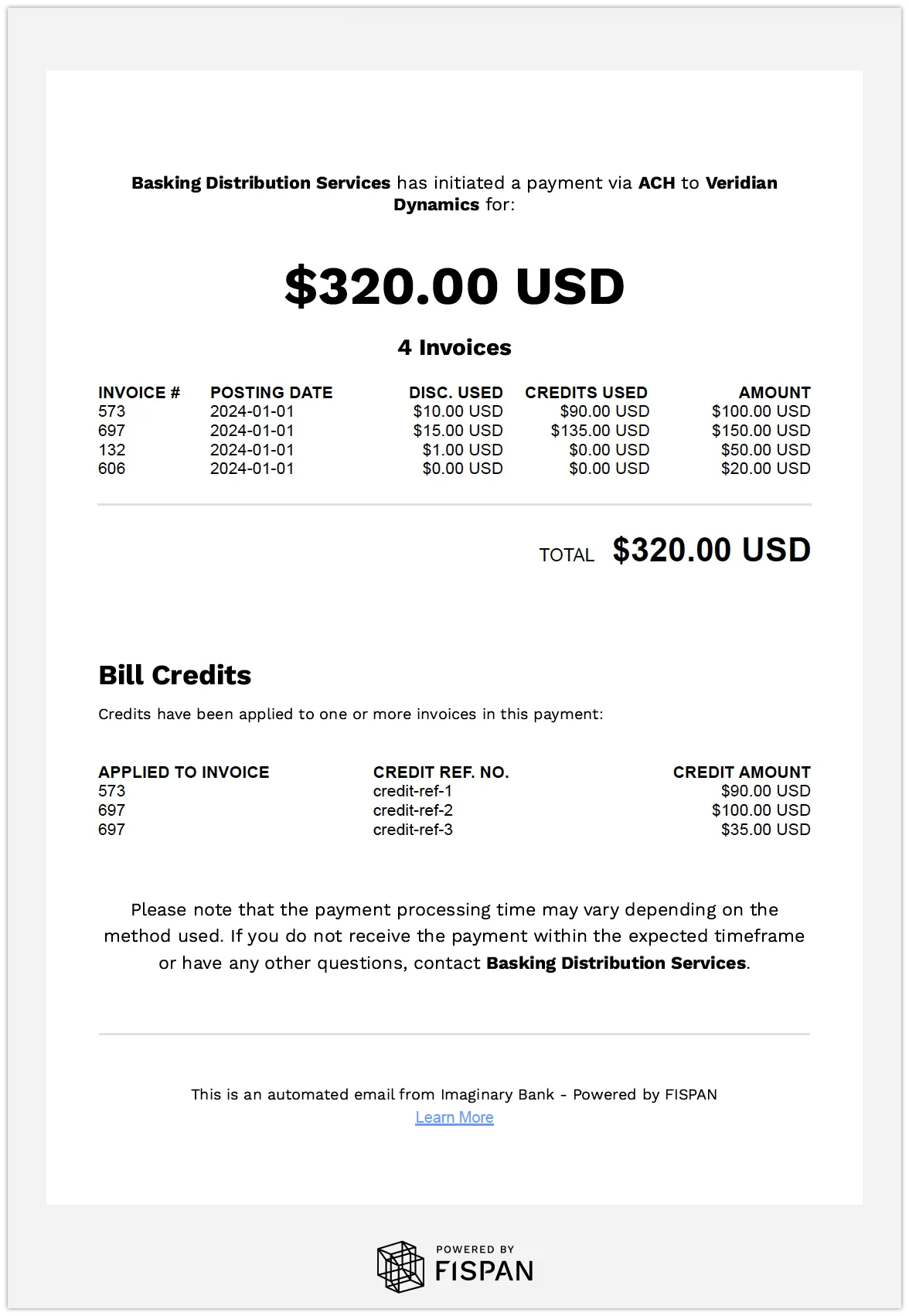
Each remittance email can be sent to up to 5 email addresses. By default, the system uses the Vendor’s email address. If you prefer to use a custom list, you can set Payables Email Addresses on the custom tab of the Vendor's profile in NetSuite (or the Payment Methods page in Sage Intacct and Business Central).
The email will be sent from FISPAN and feature your bank's branding. As a user, you can customize several settings:
- "Reply-To" Email Address: Configure an address that the recipient will see and use if they reply to the remittance advice.
- Receive Copies: Choose an email address to receive copies of all sent remittance advice.
- Alternative Company Name: You may request that we configure a different company name to appear in the email on a per-bank account basis.
Remittance emails are submitted shortly after the payment is successfully sent from your ERP. The subject line of the email will appear as: "Your customer {CUSTOMER_NAME} has initiated a payment."
IMPORTANT: Enabling the GROUP BILLS FOR PAYMENT function means that only one remittance email is sent for multiple bills grouped into a single payment for the same vendor.
If this feature is not enabled, each paid bill is treated as a unique payment with its own remittance email, which results in multiple payments and multiple emails.
Configuring Remittance Advice
Follow these steps in the FISPAN Portal to enable and manage your Remittance Advice settings.
Navigate to the App Center
Log in to https://sys.fispan.live/ (or Sandbox: https://sandbox.fispan.cloud/) using your FISPAN Portal credentials.
If not already there, navigate to the App Center.
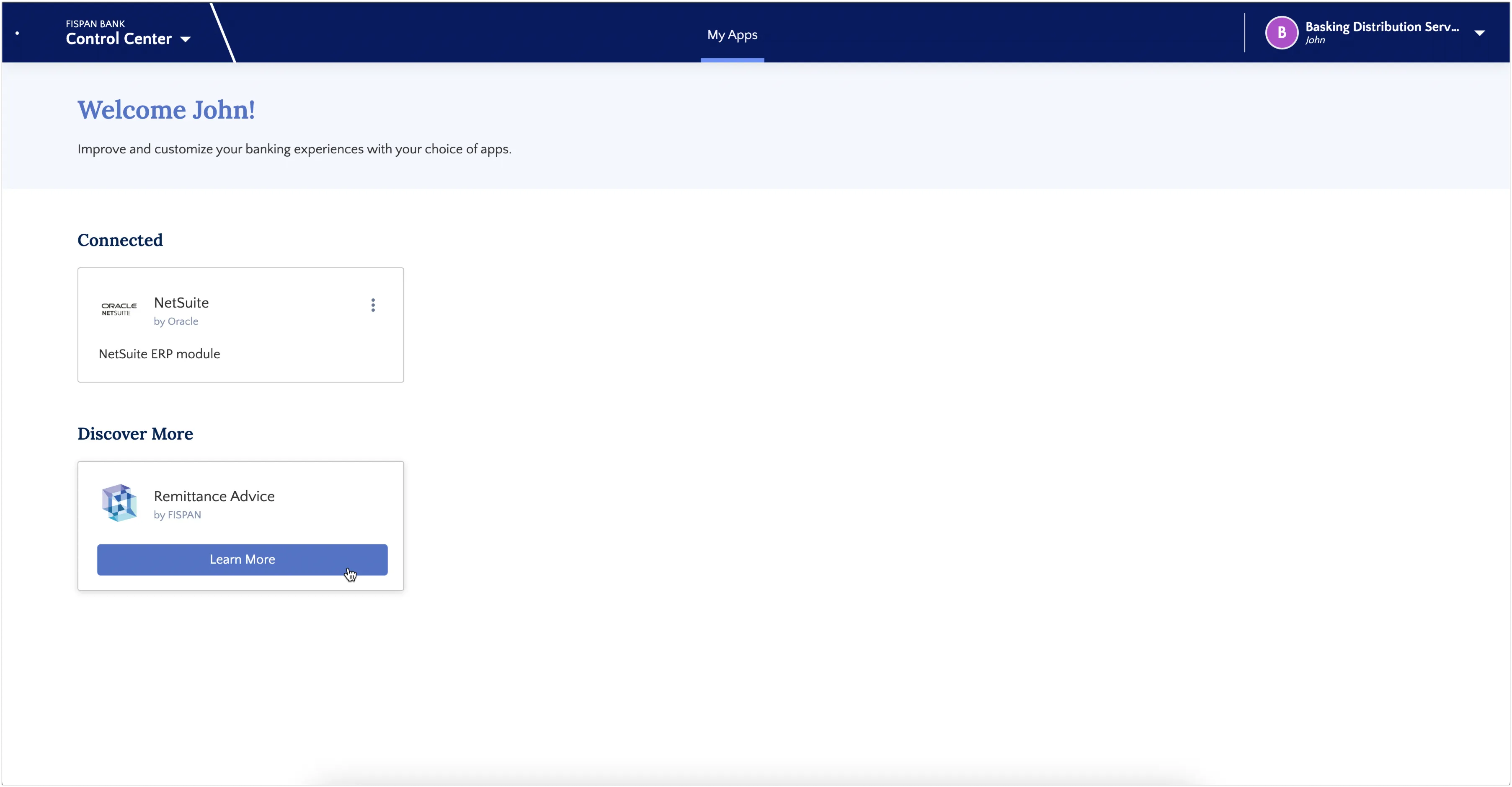
Remittance Advice, as well as any other available extra features, will be displayed in the lower Discover More section.
Enable Remittance Advice
To begin enabling Remittance Advice, hover over the card and select Learn More.
The Learn More button will begin the short setup process.
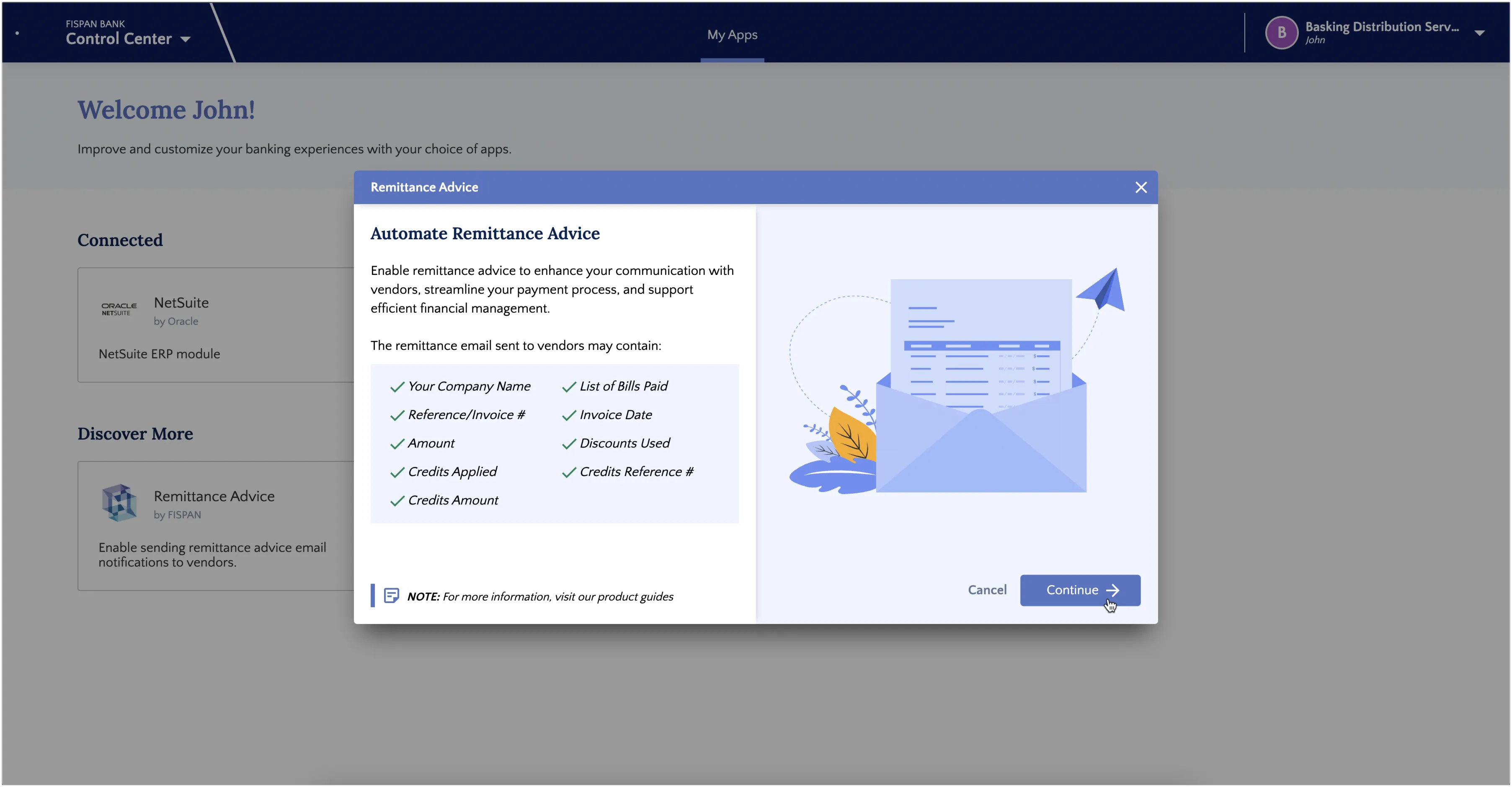
NOTE: Don't see Remittance Advice in the Connected or Discover More sections? Please reach out to FISPAN Support to have this product made available to you.
Configure Remittance Advice
In order to complete the setup, we require a few details from you.
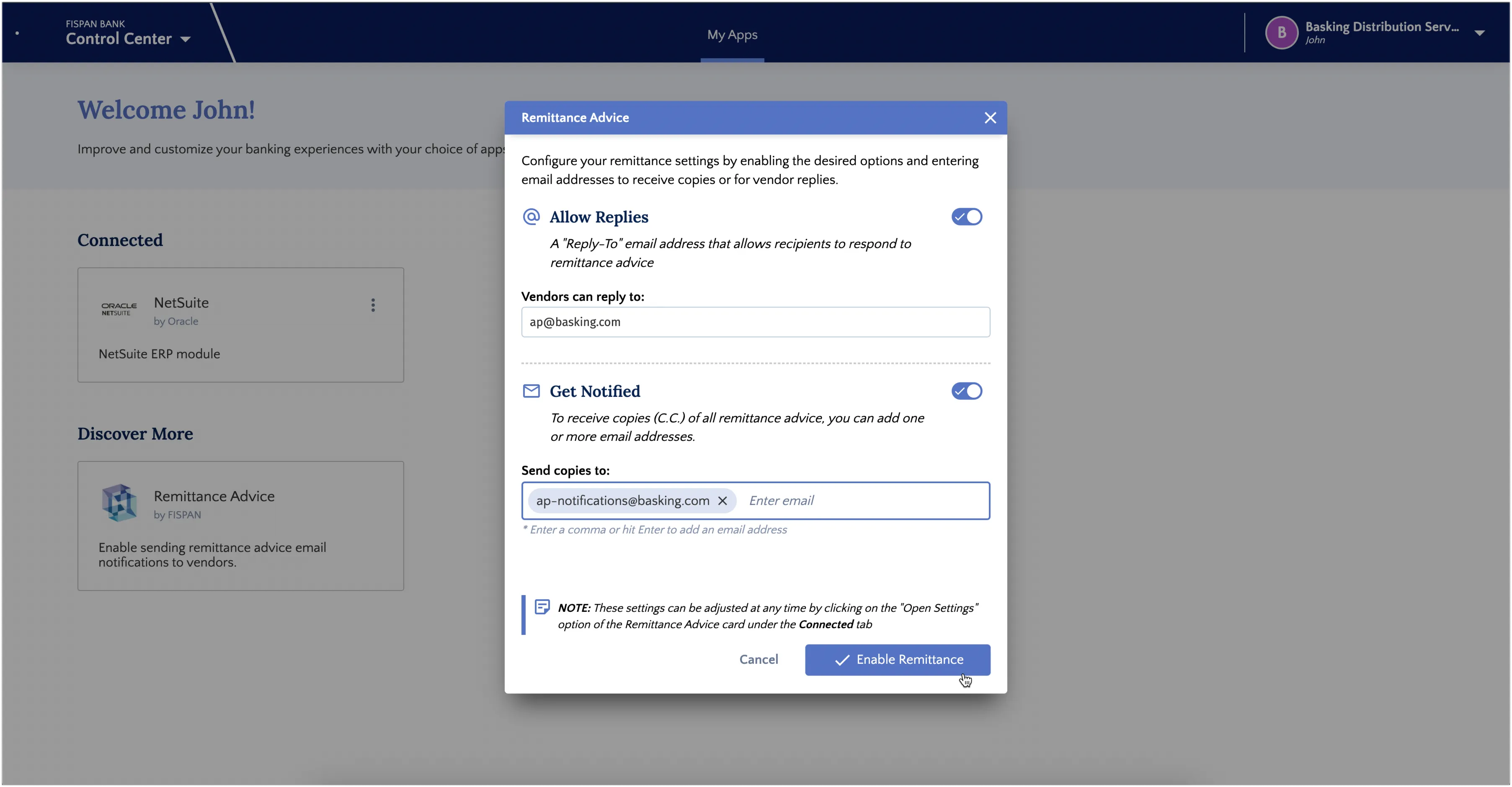
All emails come from the unmonitored inbox [email protected]. If a vendor replies to a remittance email, their response will be redirected to the address you specified in the Vendors can reply to field.
Internal copies of all remittance advices will be sent to the emails noted for copies.
Once Enable Remittance is selected, it can take up to 15 minutes for the changes to come into effect.
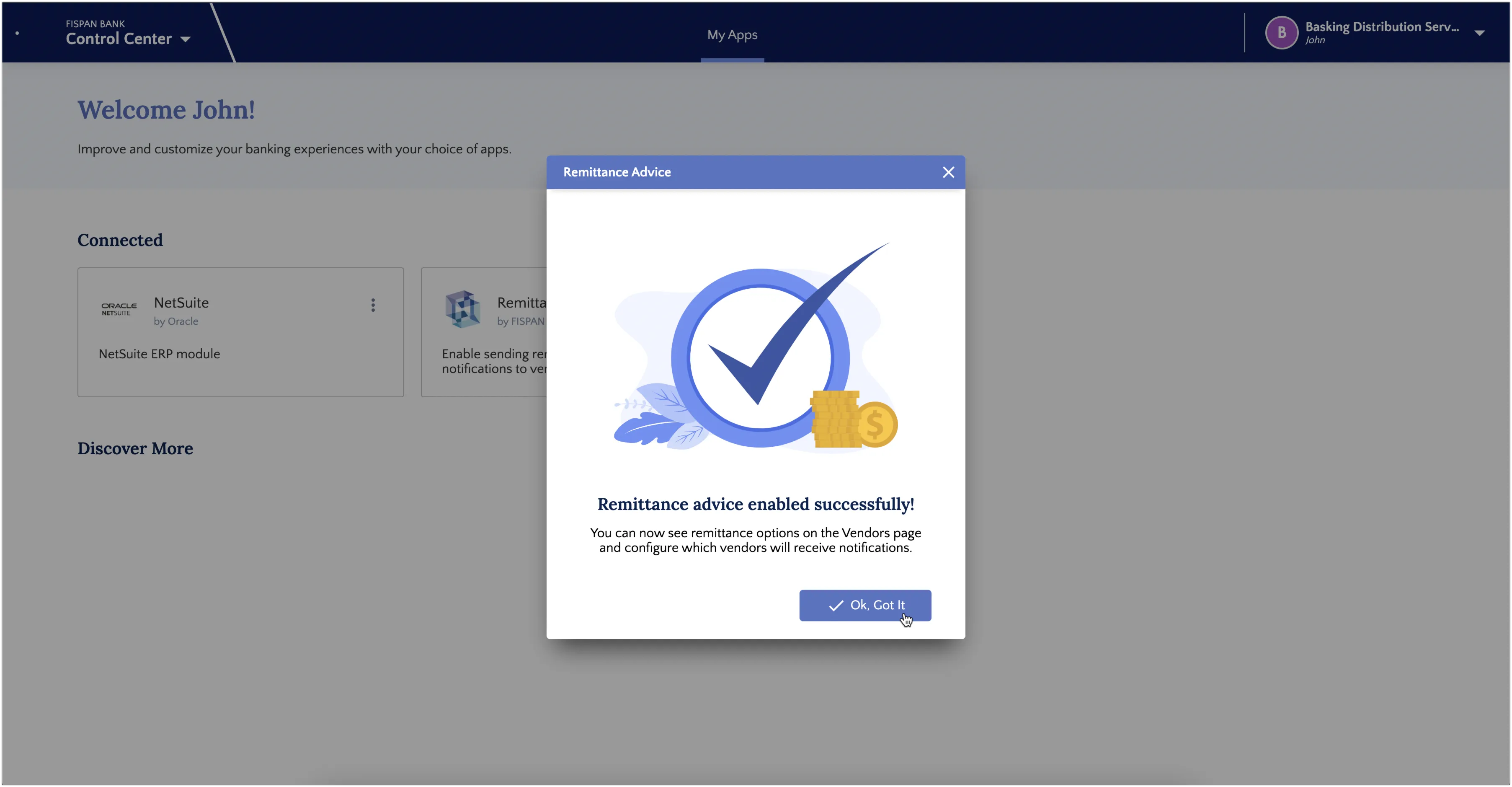
Modify Remittance Advice Settings
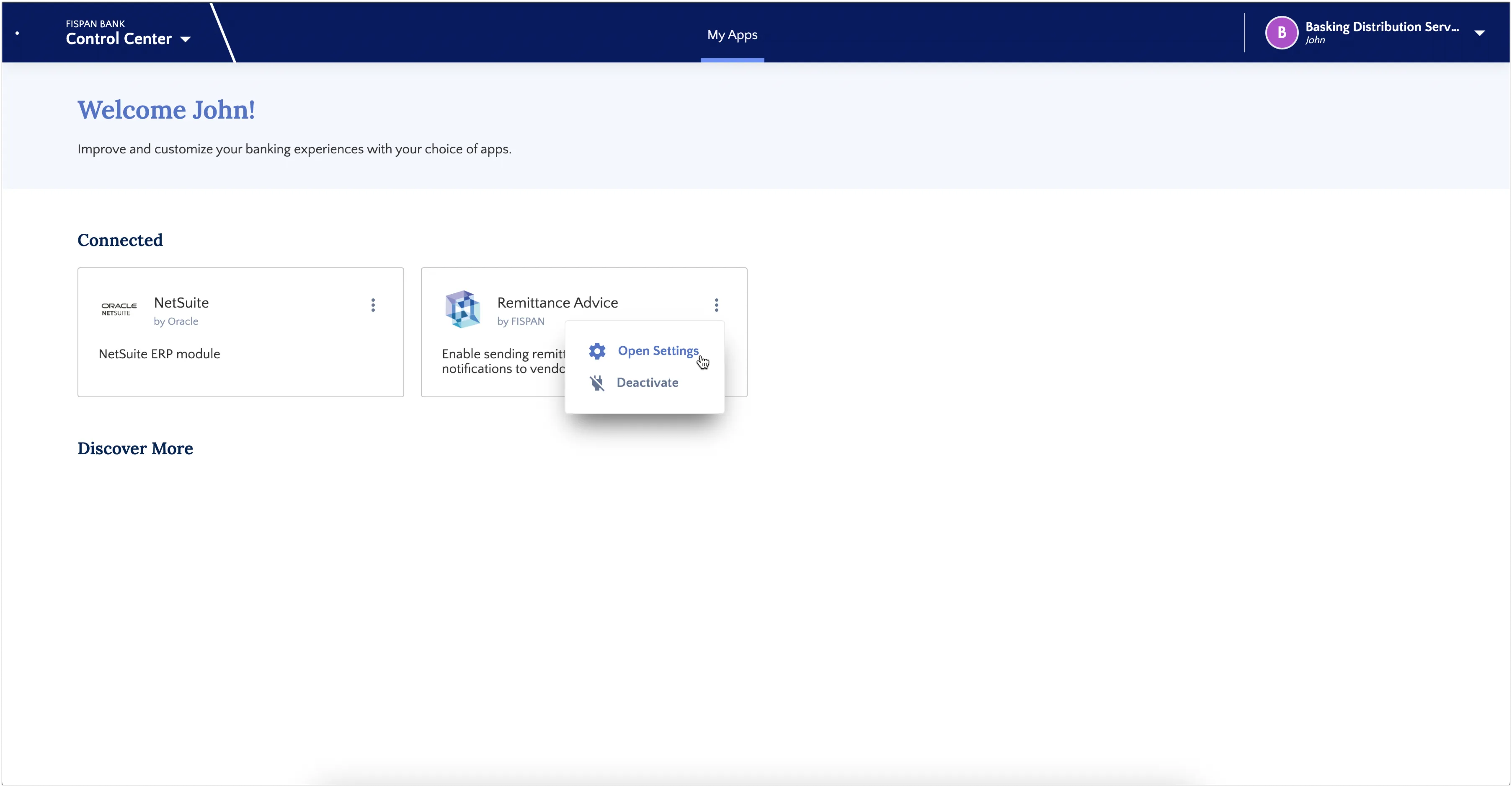
You can view or change your current settings through the App Center. Find the Remittance Advice card, select its drawer, and choose Open Settings. If you need to disable the integration entirely, select Disable. The change may take up to 15 minutes to come into effect.
Update Intacct Settings
This section applies only if you've opted into Remittance Advice. To enable this feature or get more information, please contact our support team.
Update the Vendor's email address and details to start using the Remittance Advice feature.
Go to Payment Methods
Go to the Payment Methods tab.
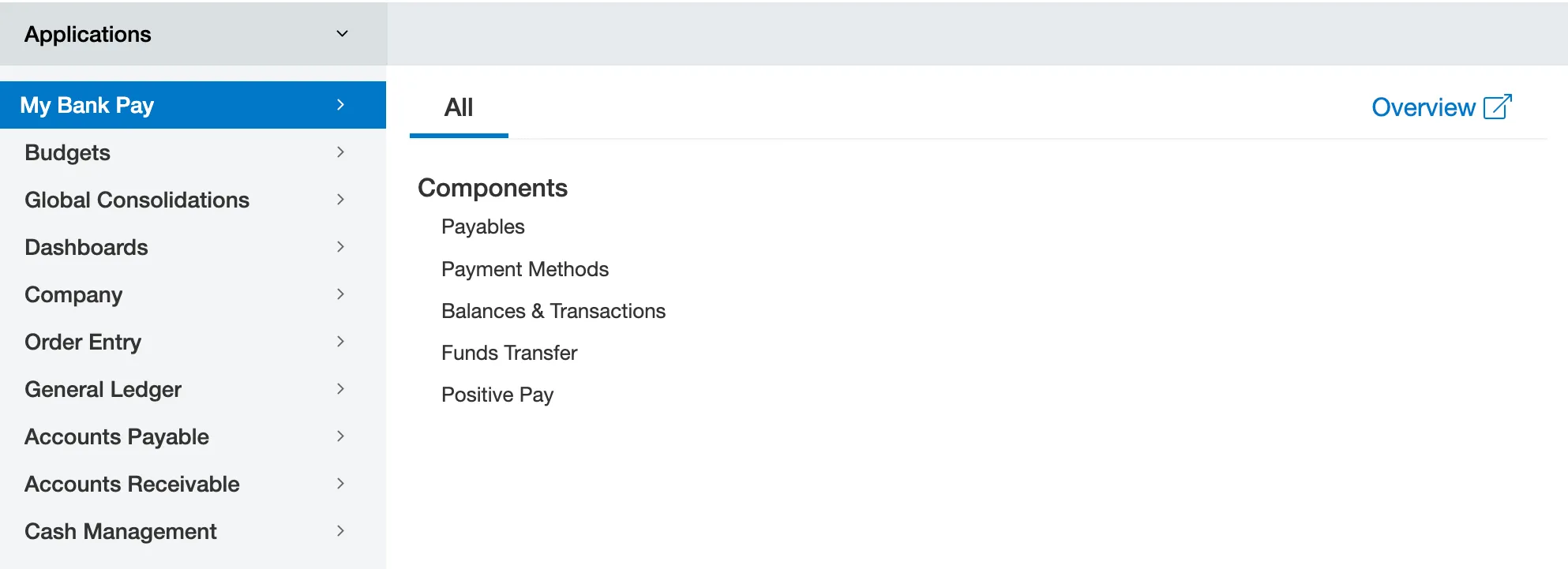
Locate the vendor you would like to edit and select Edit.

Edit Email Address(es)
On the vendor record, under the Email tab, locate the Email address field.
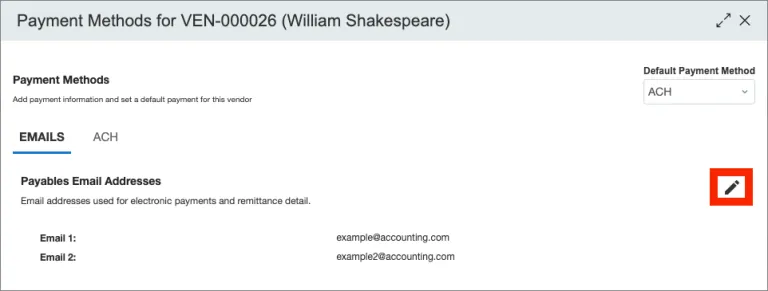
Enter the vendor's email address(es) (up to 5), and select Save.
Confirm Success
If the emails are set up correctly, the Vendor's row on the main page should show Yes under the Email Overridden column.

Next time you make a payment, the remittance email will go out to the email addresses specified.
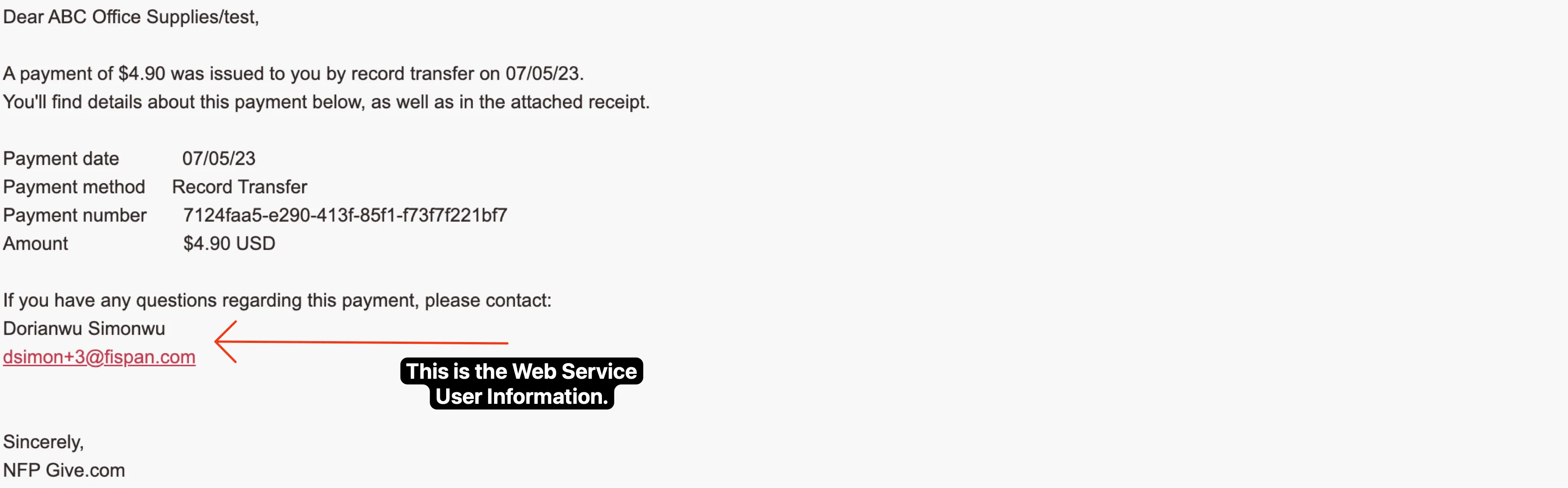
IMPORTANT: If you are currently using Intacct's native Send Automatic Payment notification option alongside the plugin's Remittance Advice feature, your vendors may be receiving duplicate remittance emails.
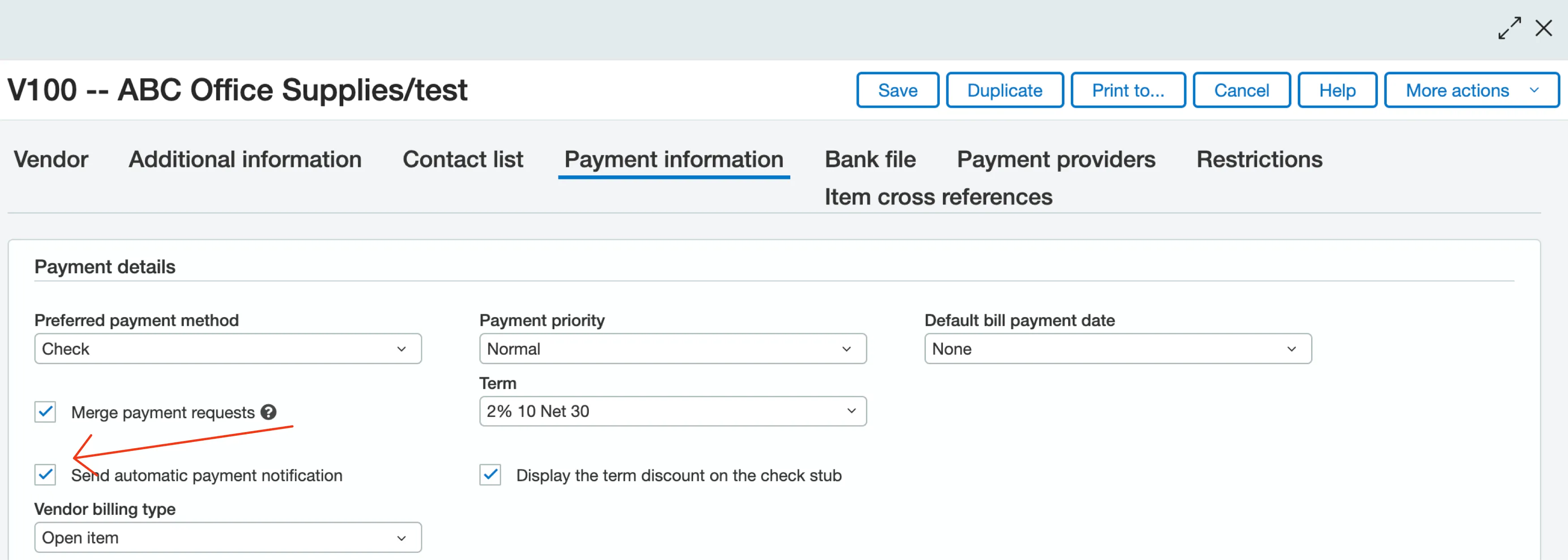
It is recommended to deactivate the native Send Automatic Payment notification option for any vendor leveraging our plugin's Remittance Advice. This ensures vendors receive a single, consistent notification.
If you choose to keep the native Intacct Send Automatic Payment notification active, the remittance email will be sent from the Web Service User (WSU) created when the plugin was installed. To change this sender:
- Create a new WSU and name it appropriately.
- Ensure the new WSU has all the necessary permissions.
- Update the new WSU within the Installation Wizard settings.