Positive Pay 2.0 (Intacct)
The Positive Pay feature enables the secure transmission of payment details for in-house checks to your bank. It automatically extracts data from checks printed within Intacct, allowing you to submit a Positive Pay file for your entire check run in just a few steps. Follow this guide to get started.
Prerequisites
To use this feature, the Positive Pay feature must be enabled for your account. Please speak with your sales officer to add this feature.
Also, ensure your plugin is up to date. Confirm that user roles have been updated. Users should have all necessary permissions granted before accessing the Positive Pay module.
Required Permissions
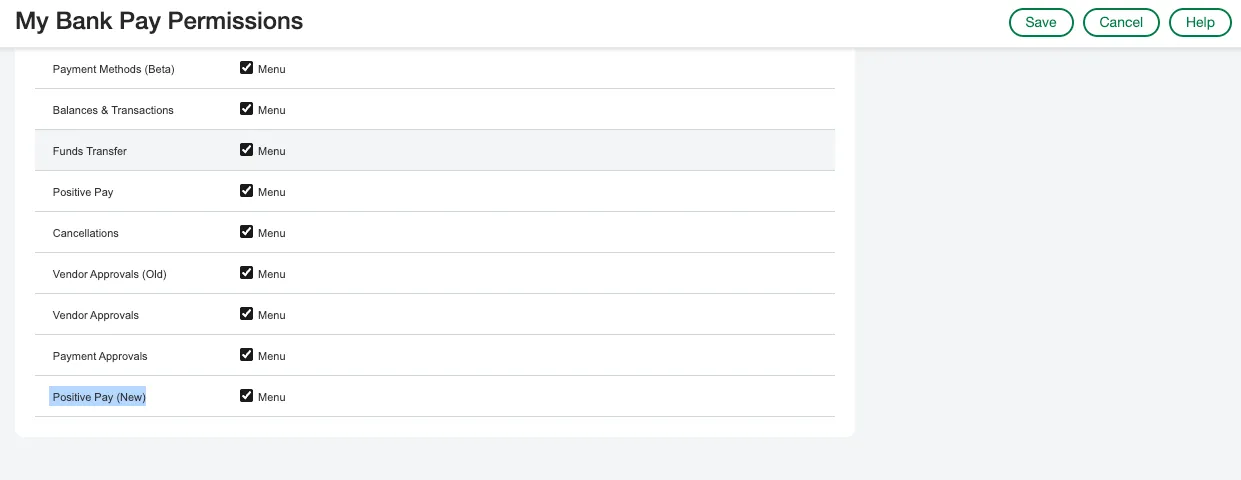
To get access to the Positive Pay page, please have your ERP Administrator navigate to the role for your bank's plugin and add permission for Positive Pay.
Print and Confirm a Check
The plugin only transmits checks that have been both printed and confirmed inside Sage Intacct. To complete this essential native Intacct process, follow the steps below.
Pay a Check
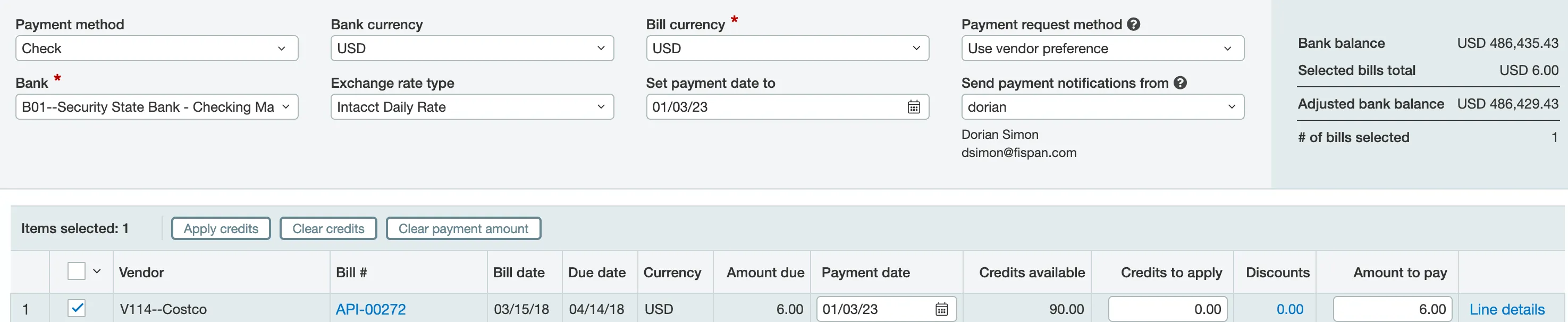
Pay a bill with Check as the selected payment method.
Run a Check Run
Depending on how your Intacct environment is configured, you may need to initiate a check run.
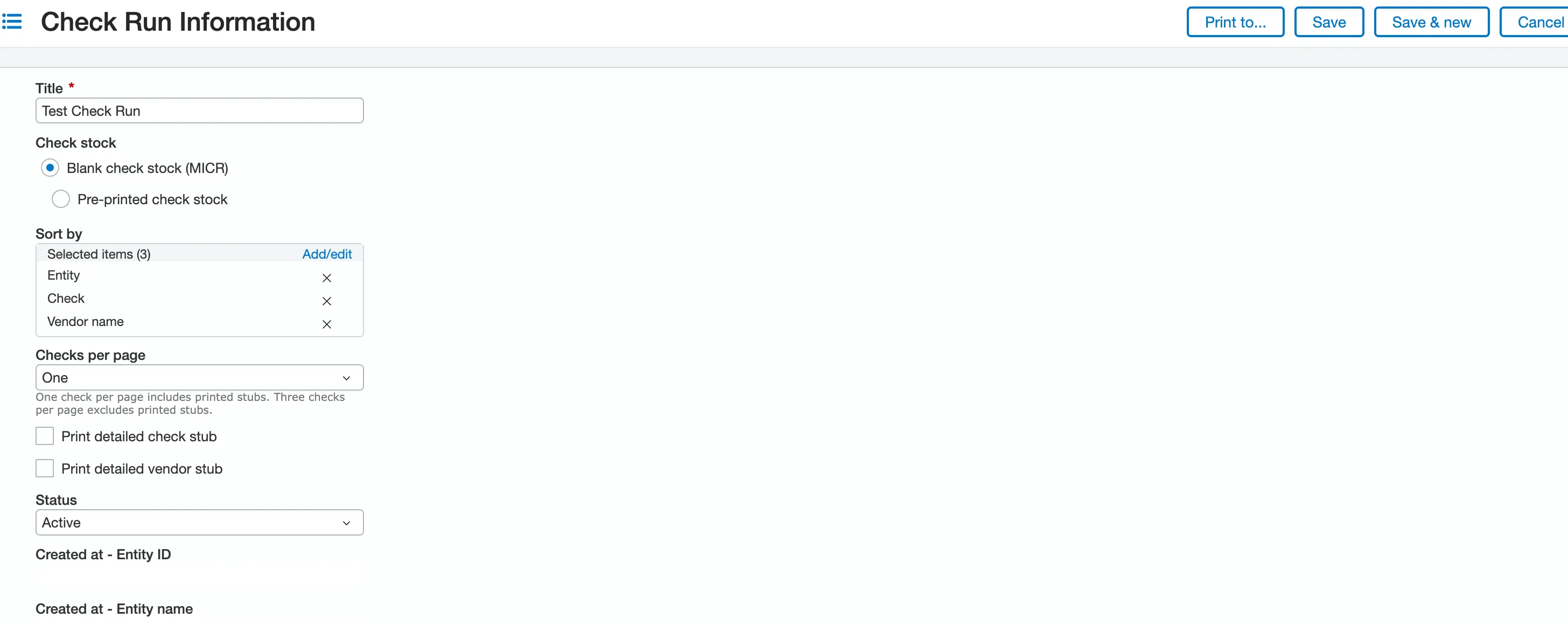
To do so, navigate to Accounts Payable -> Checks -> Check Runs. Create a new check run and click Save.
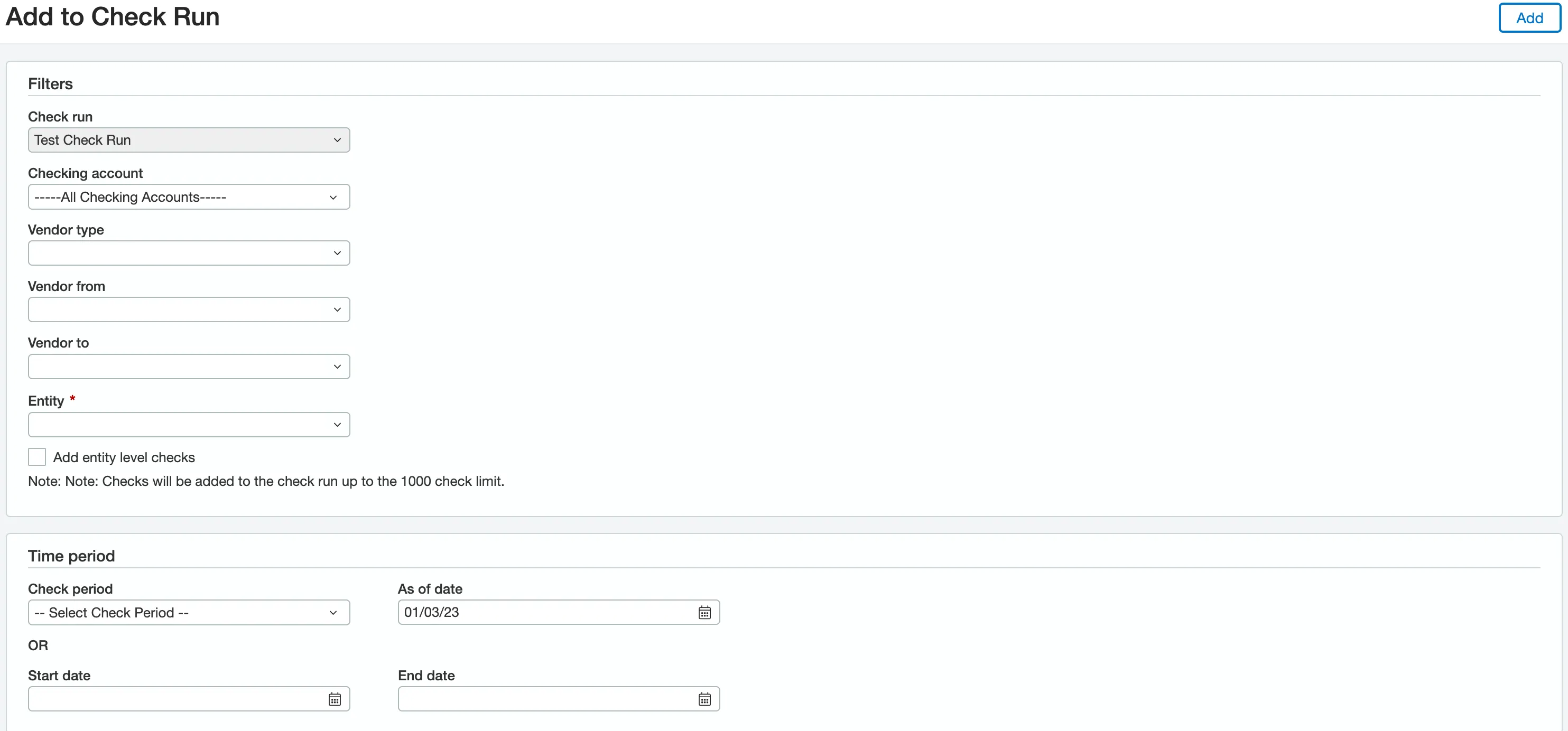
Once you have completed that, you need to add the checks you wish to include in the check run. To do so, use the available filters to specify the check(s) you want to add, and select Add.
Complete the process by clicking the Run button.

Print and Confirm Checks
To print and confirm the check(s), navigate to Accounts Payable -> Checks -> Print Checks.
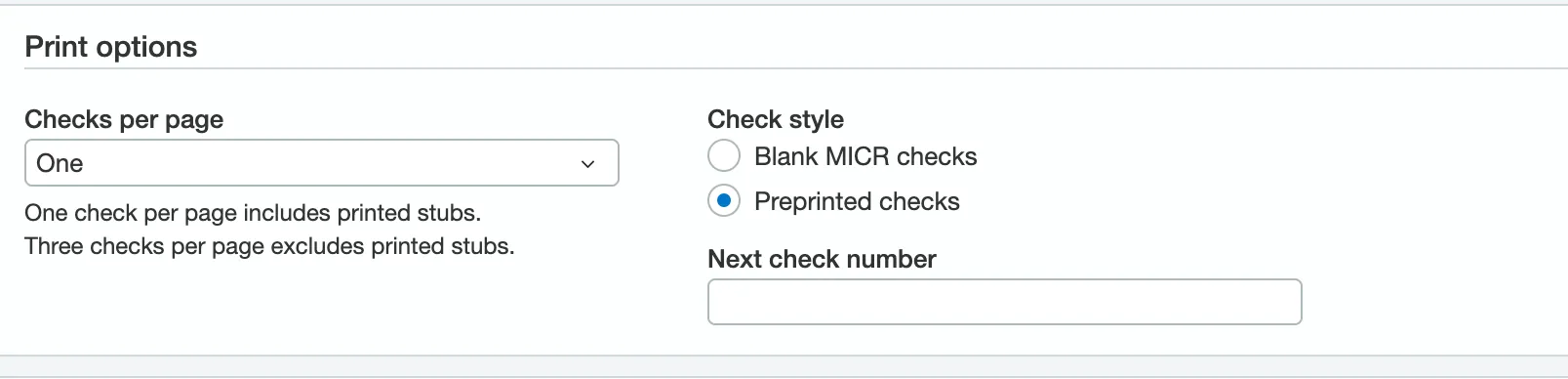
Ensure that the check(s) you would like to print also have the Confirm checkbox checked.

NOTE: You may need to use the filters to view the checks you used above. Additionally, you might need to select Preprinted Checks.
Transmit Positive Pay
Once the check(s) have been printed and posted, they will be available for positive pay transmission.
Reviewing the Checks Dashboard
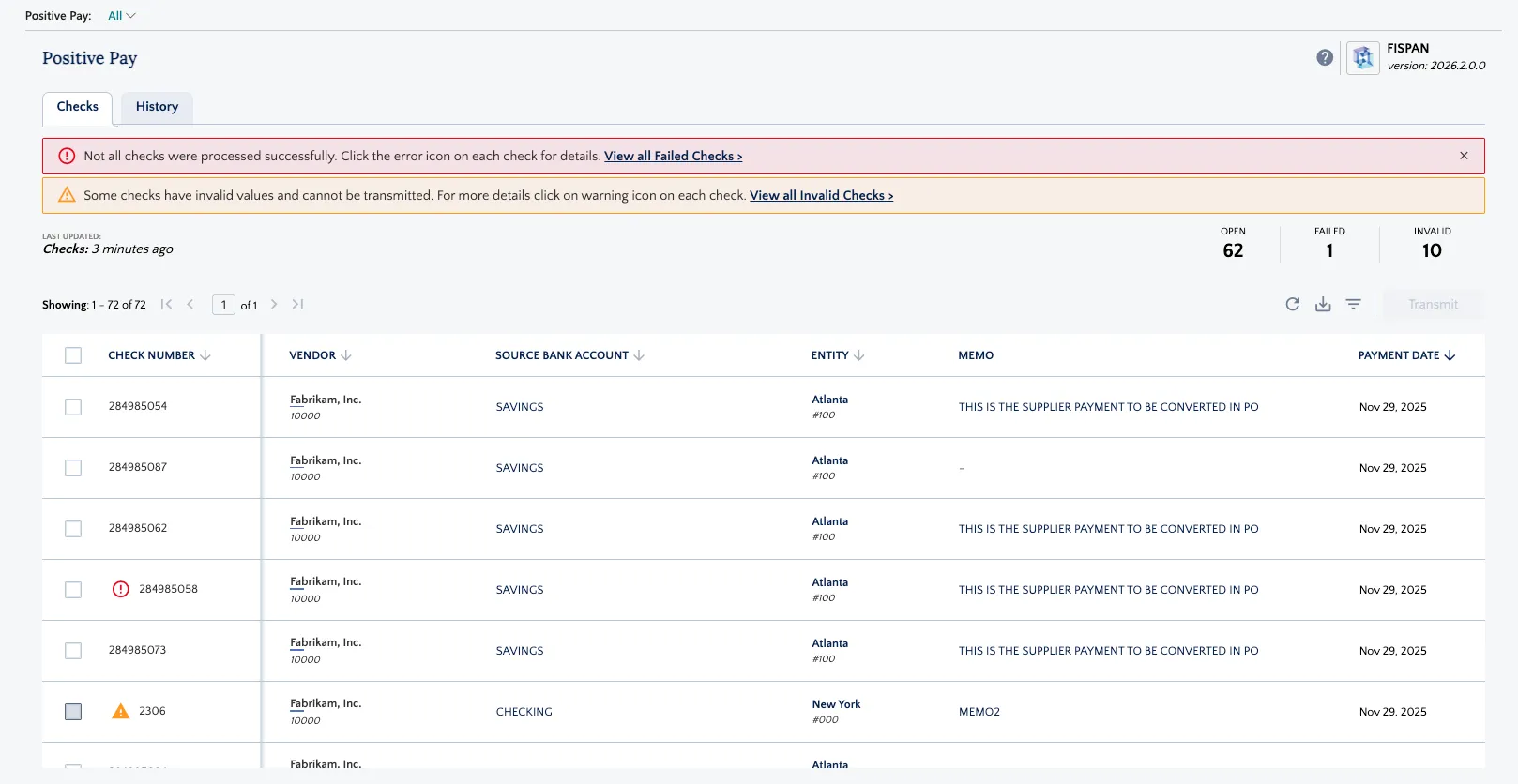
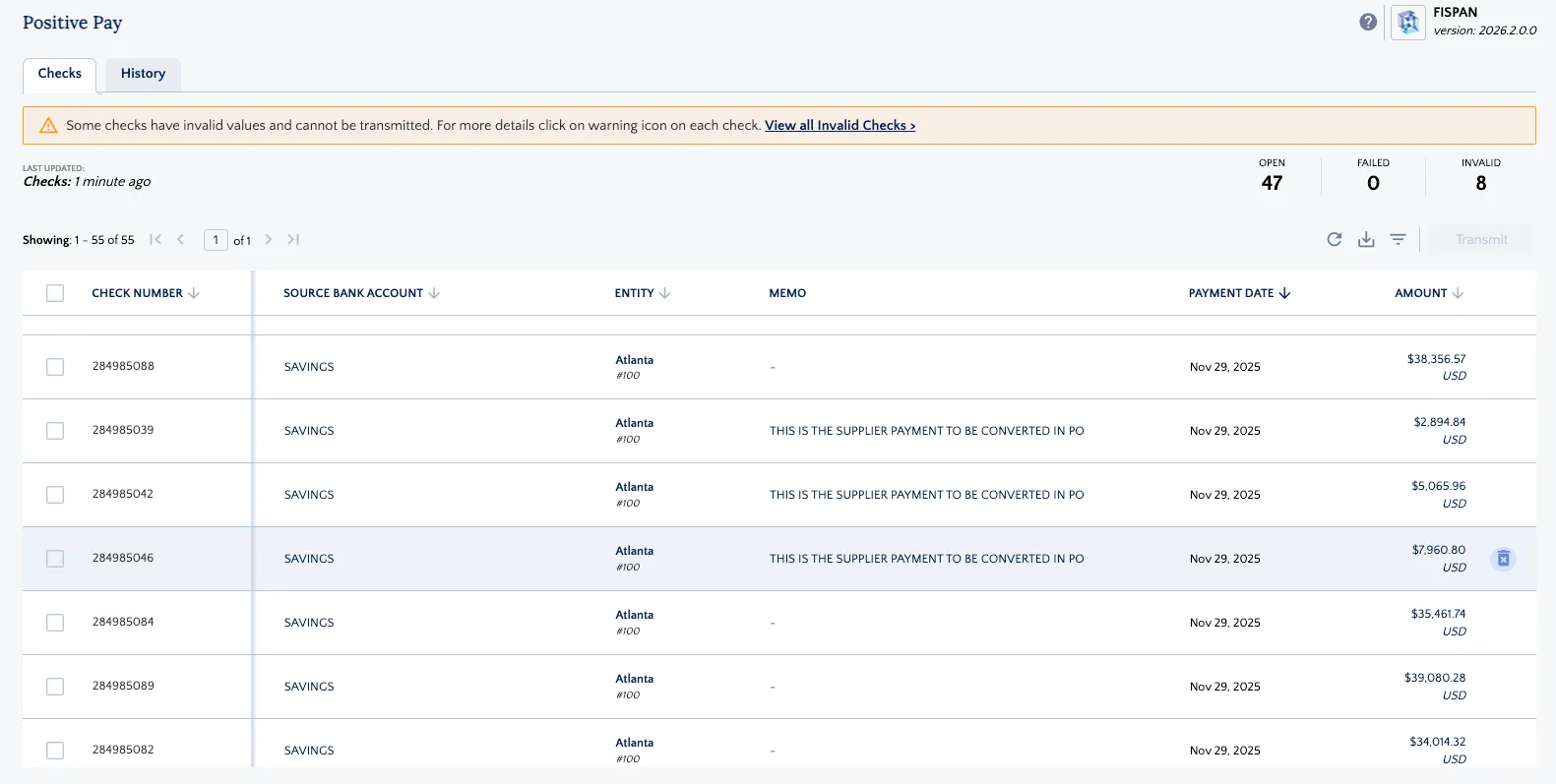
The Checks tab provides a real-time summary of your transmissible data:
- Dashboard Summary: View the total count of Open, Failed, and Invalid checks at a glance.
- Alert Banners: High-priority notifications will appear if checks fail to process or contain invalid checks. Click View all Failed Checks or View Invalid Checks to filter the list immediately.
- Action Icons: Use the Refresh icon to update the list, the Download icon to export a CSV, or the Filter icon to narrow your view.
Follow these steps to transmit Positive Pay in the plugin.
Go to the Positive Pay Page
From the Citizens plugin, go to Positive Pay page.
Select Checks
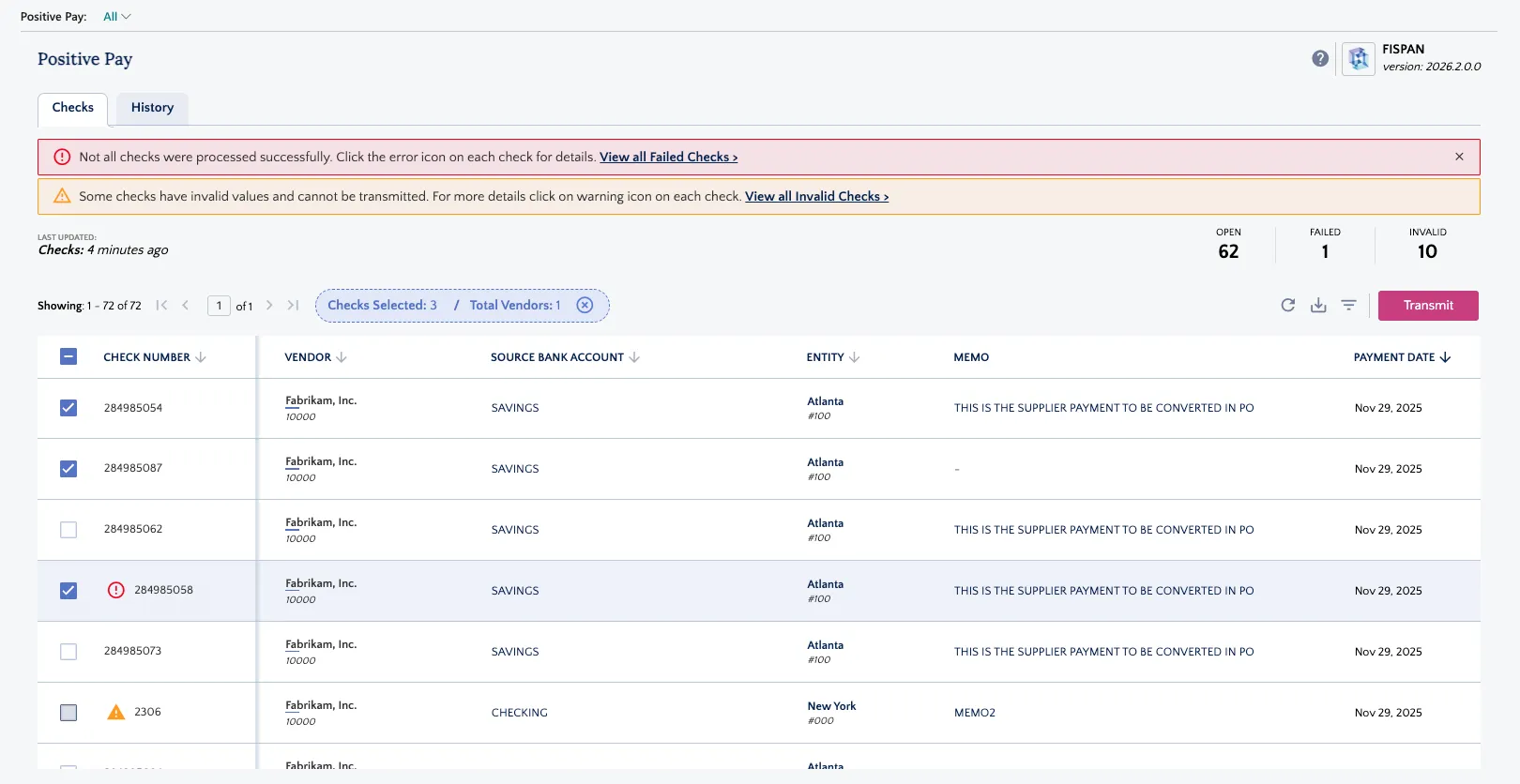
In the Checks tab, use the individual checkboxes to select specific payments, or use the header checkbox to select all available Open and Failed checks.
As you select items, a blue status bar will appear showing the total number of Checks Selected and the Total Vendors involved.
Initiate Transmission
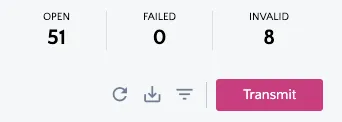
Click the Transmit button in the top right corner of the dashboard.
Review Transmission Overview
A summary window will appear, automatically grouping your checks by currency.
Review the Total Amount, Check Count, and Vendor Count for each currency group.
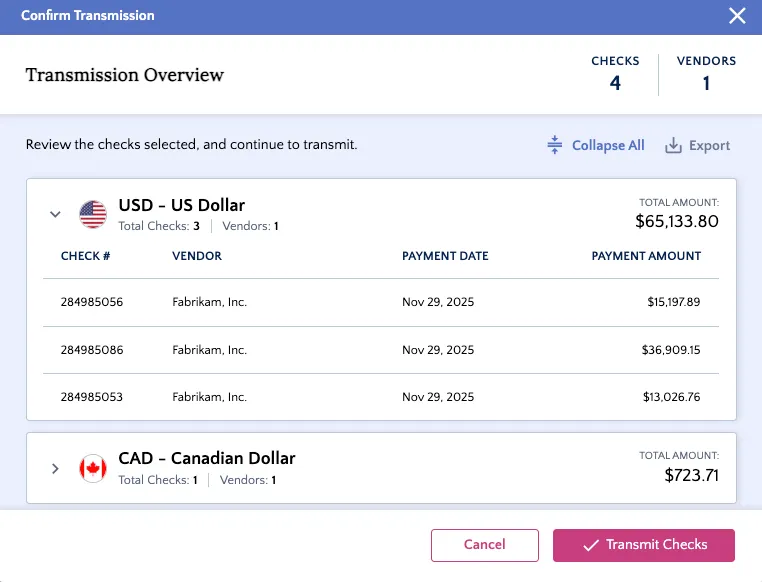
You can click on the Export button on the top-right of the dialog to export this view of the transmission.
Finalize and Confirm Transmit
Click Transmit Checks to securely transmit the positive pay to the bank.
A "Checks Successfully Transmitted!" window will appear, confirming the final counts. You can click the Positive Pay History link in this window to track the real-time status of your request.
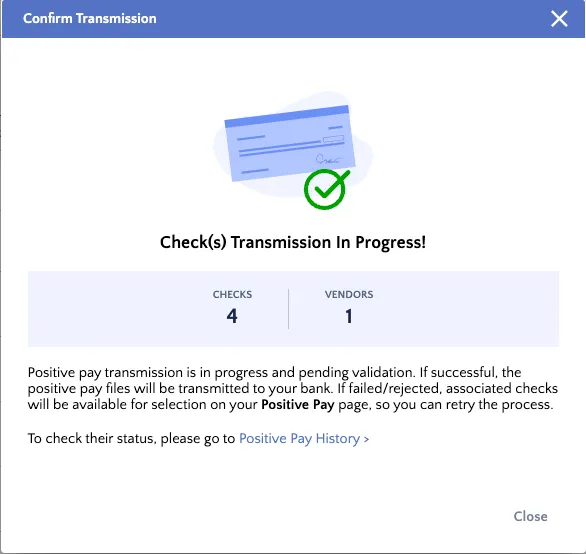
NOTE: If your organization has Payment Approvals enabled and a rule is configured for Positive Pay, the transaction will move to the Approvals module. It must be approved there before being sent to the bank. If rejected, the checks return to the Positive Pay page for re-transmission.
Review History
To audit past activity or check the status of a current transmission, navigate to the History tab within the Positive Pay page.
View the real-time status of each transmission: Completed, Failed, or In Progress.
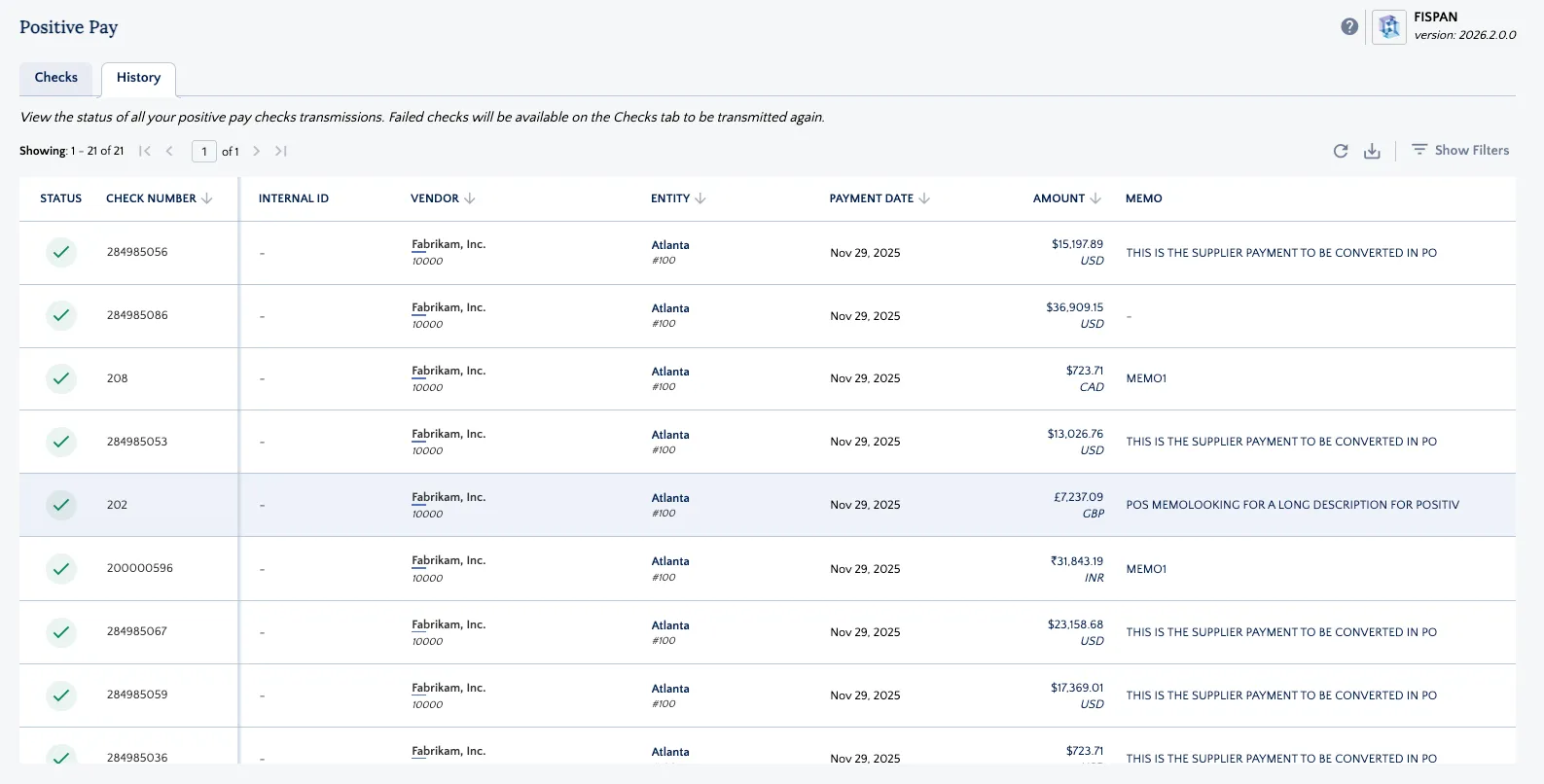
Each entry provides a Status Message with specific feedback from the bank (e.g., "Completed", "Processing", "Waiting for Approval").
Track who initiated the transmission (Transmitted By) and the exact date and time it was processed. Search & Filter: Use the Show Filters icon to locate specific check numbers or vendors within your history.
Managing Exceptions
Invalid Checks
A check is flagged as Invalid (orange warning icon) if the respective bank account of the payment is not mapped within the Portal. These are payments associated with a bank account that has not yet been matched within the bank plugin in the Portal.
You must log in to the Portal and follow the Account Mapping steps to ensure the specific bank account used in Intacct is correctly matched to the corresponding account in the plugin.
Deleting Checks from the Checks Page
If a check appears that should not be transmitted, you can remove it from the plugin view.
Locate Check
Find the check in the table and click the Garbage icon on the right.
Confirm Deletion
Select Yes, Delete in the pop-up.
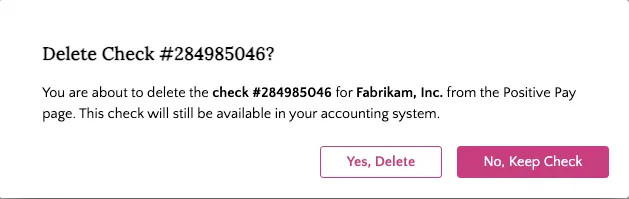
NOTE: This only removes the check from the Positive Pay page in the plugin; the record remains active in your ERP.