Payables 2.0 - Voiding & Repaying Bills (Intacct)
Voiding bills that were previously paid via the plugin is supported directly within the plugin. Voiding changes the status of the bill from paid to open but does not send a request to the bank systems to cancel a payment that is processing.
Voided bills can later be repaid by following the steps in this guide.
How to Void Bills
Find the Bill
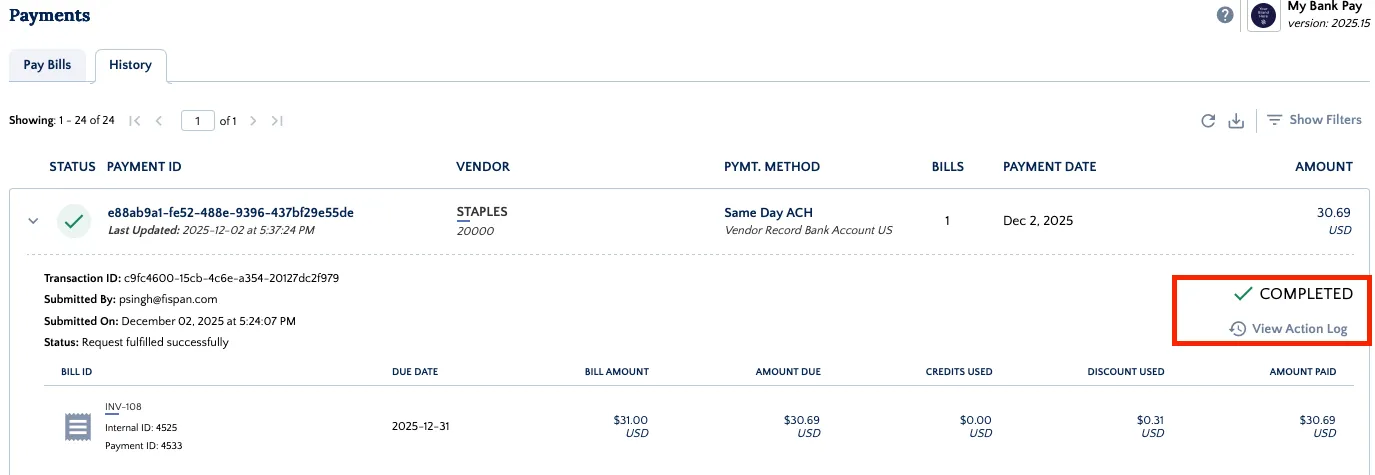
Find a bill that has already been paid via the plugin on the History page, Payments → History.
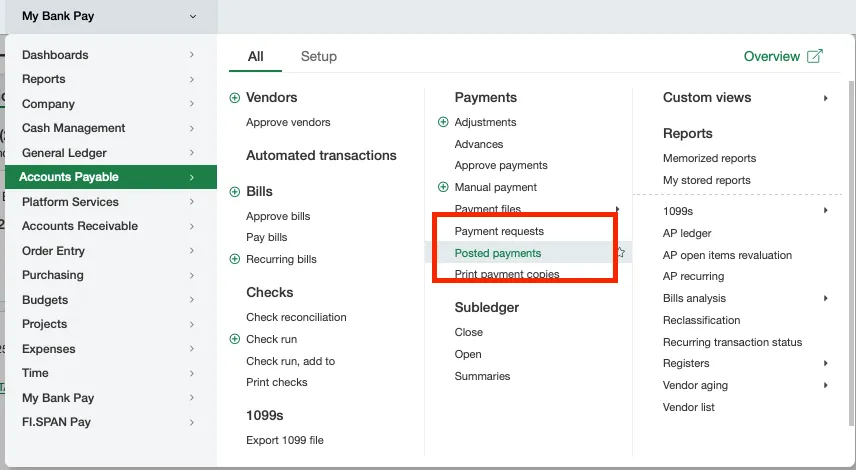
Or by navigating to Accounts Payable → Posted Payments
Check Bill Status
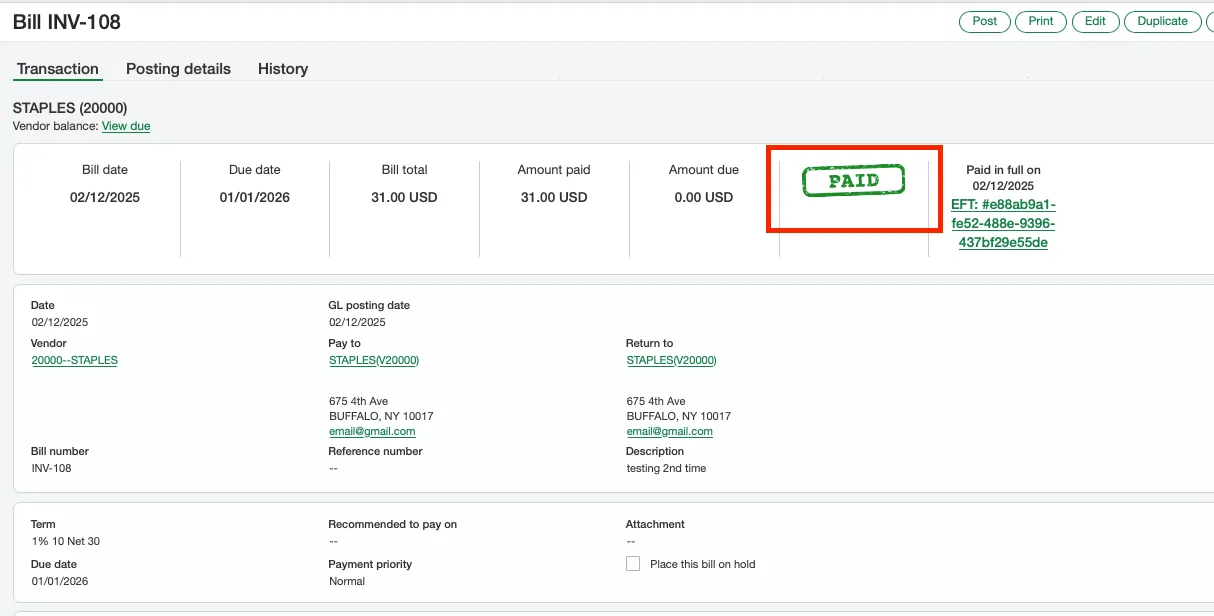
Open the bill record (internalID) and confirm the bill has been PAID.
You can select the tab in the submenu to confirm that the bill payment has reached the plugin.
Select the Paid to see the corresponding journal entries.
Void the Payment
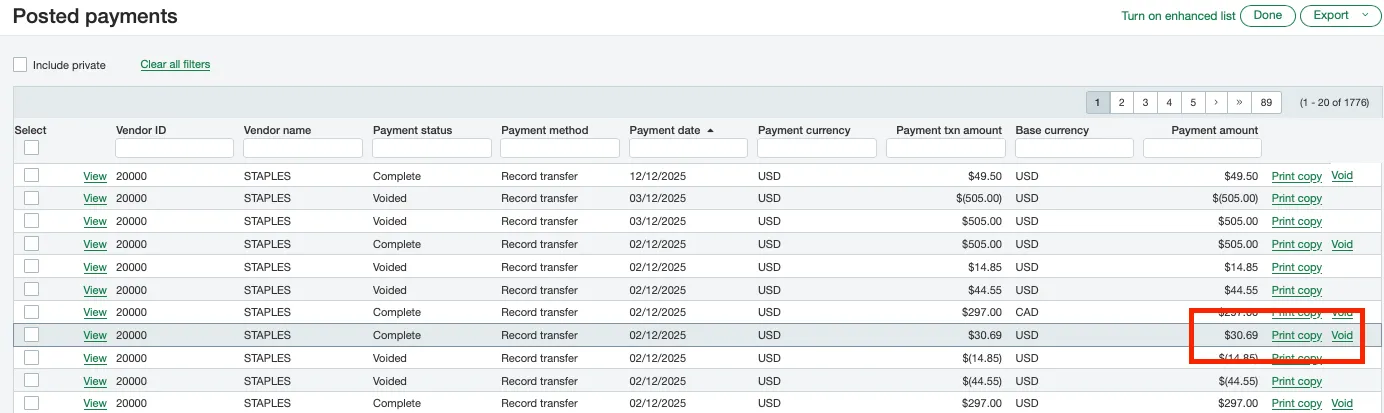
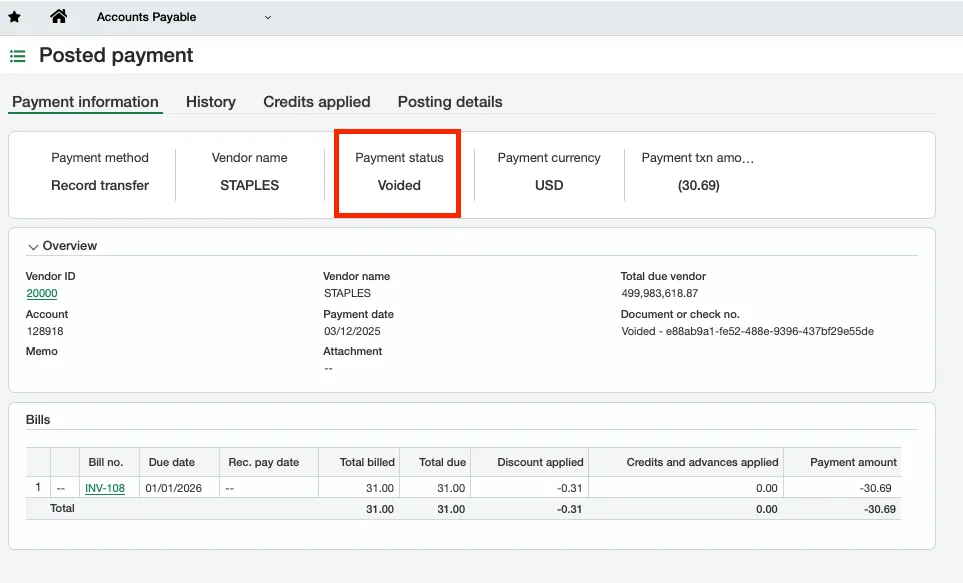
To void a bill in Sage Intacct after it has been paid, go to Accounts Payable --> Posted payments.
Void the Bill
Void the bill by clicking the Void button on any line item.
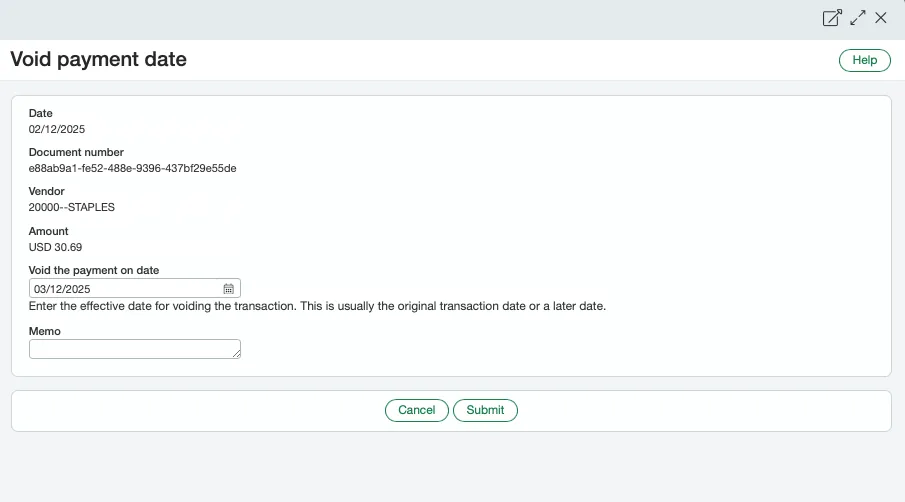
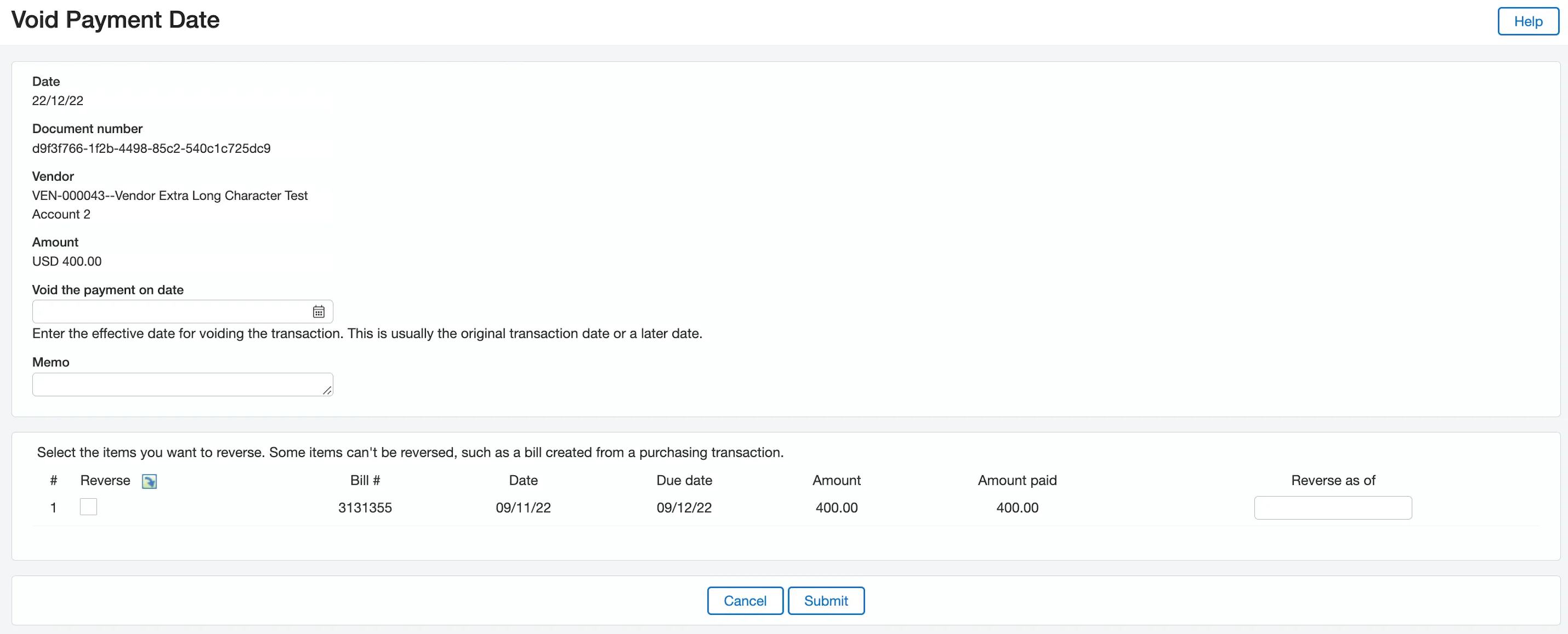
WARNING: When confirming the payment, do not reverse the bill. DO NOT check the Reverse checkbox. Instead, simply add a payment date and an optional memo.
If you choose to reverse the bill, it will enter a Reversed state that the plugin cannot read or process.
Check the Reopened Bill
Confirm the bill has been reopened. Fields under the subtab are still populated with details from the first payment that was voided.
Repaying a Previously Voided Bill
Find & Pay Bill
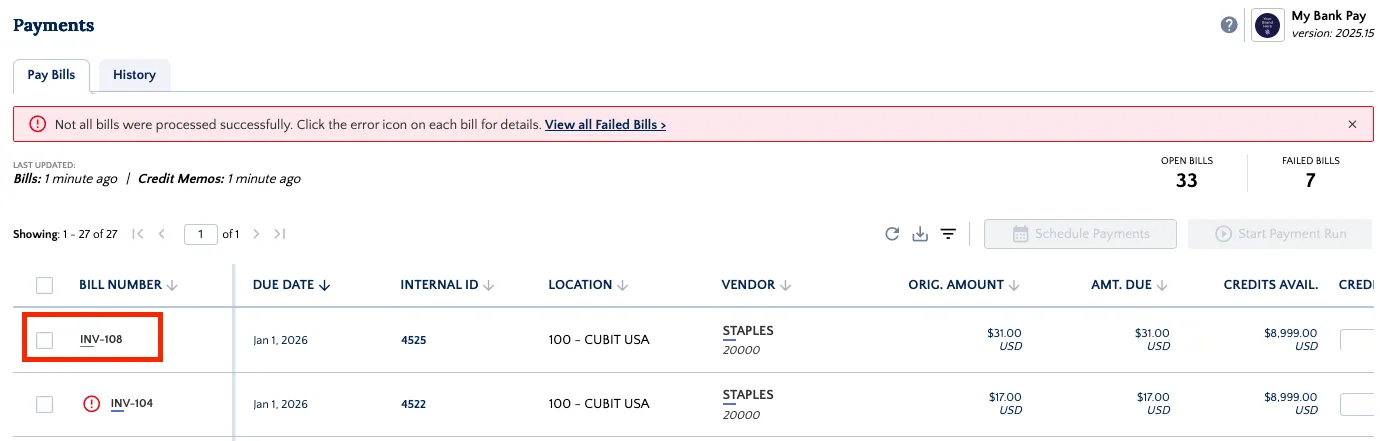
Find the previously voided bill on the Pay Vendor Bills page in Payments → Pay.
Pay the bill as normal.
Confirm the bill has been paid and appears on the History page. Go to Payments → History.
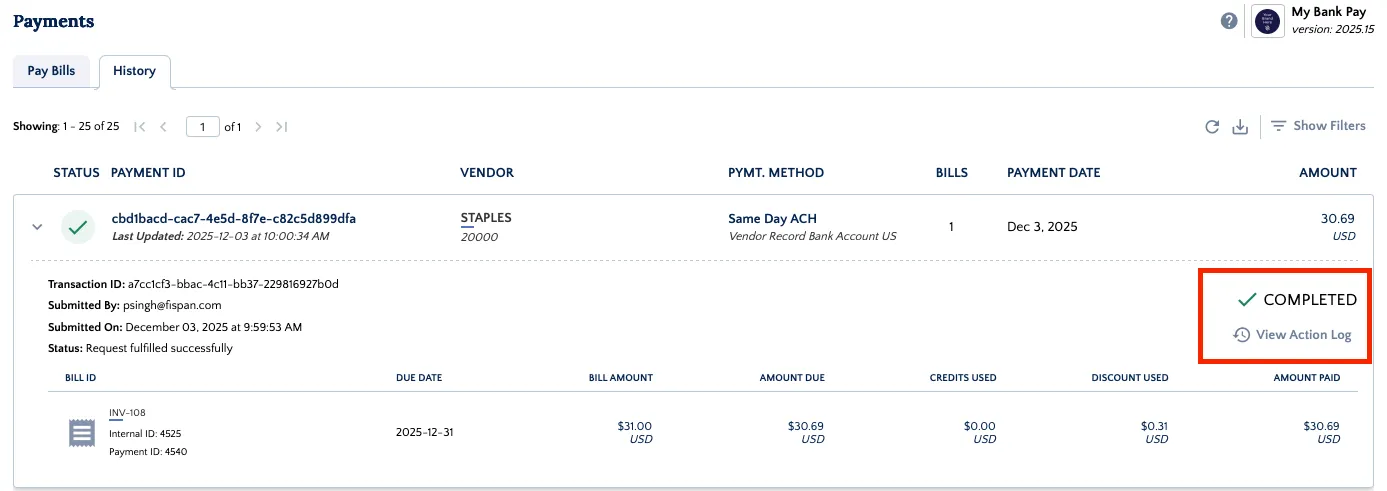
Check the Bill Status
Click on the Bill ID to open the bill record and confirm the bill has been PAID. You can select the submenu to confirm that the bill payment has hit the plugin and that the reference IDs and transaction IDs are now different.