Step 8: Grant and Activate Permissions (Workday)
Once the group is created, you must grant it the specific permissions required for the integration to function. Follow this guide to assign permissions to your security group and activate your changes.
Grant Permissions to Security Group
To grant permissions for a security group, follow these steps.
Open the Task
Search for Maintain Permissions for Security Group in Workday’s search bar and select the corresponding task.
Select Source Security Group
Once the task opens, enter the following details:
- Operation: Select Maintain.
- Source Security Group: Choose the security group you created for this integration.
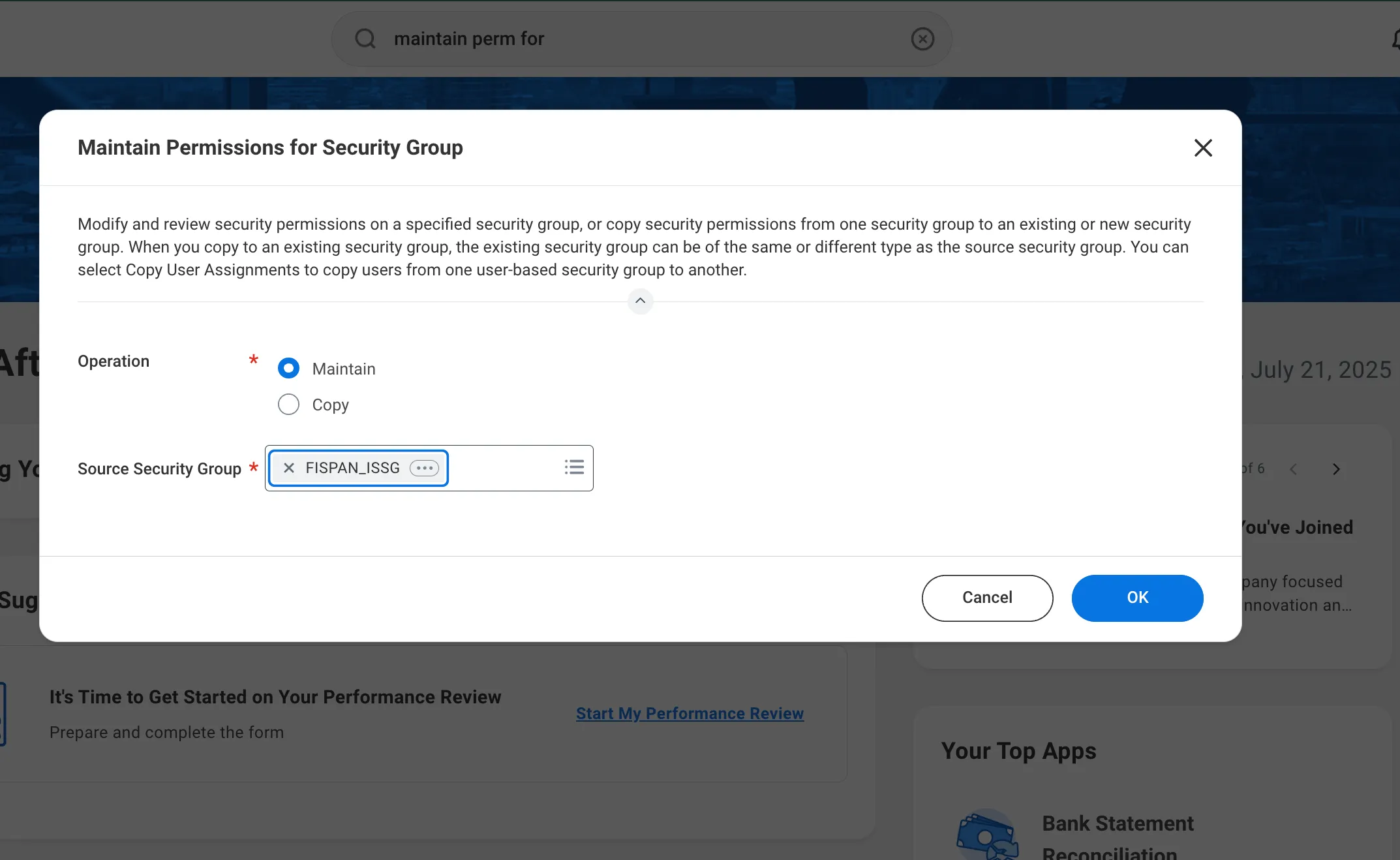
Click OK to proceed to the next page.
Grant Permissions to Security Group
In the Domain Security Policy Permissions tab, add the following permissions and their designated access types:
View/Modify Access | Domain Security Policy |
|---|---|
Get and Put | Process: Bank Reconciliation |
Get and Put | Process: Matching Rule Set |
Get Only | Set Up: Bank Entity |
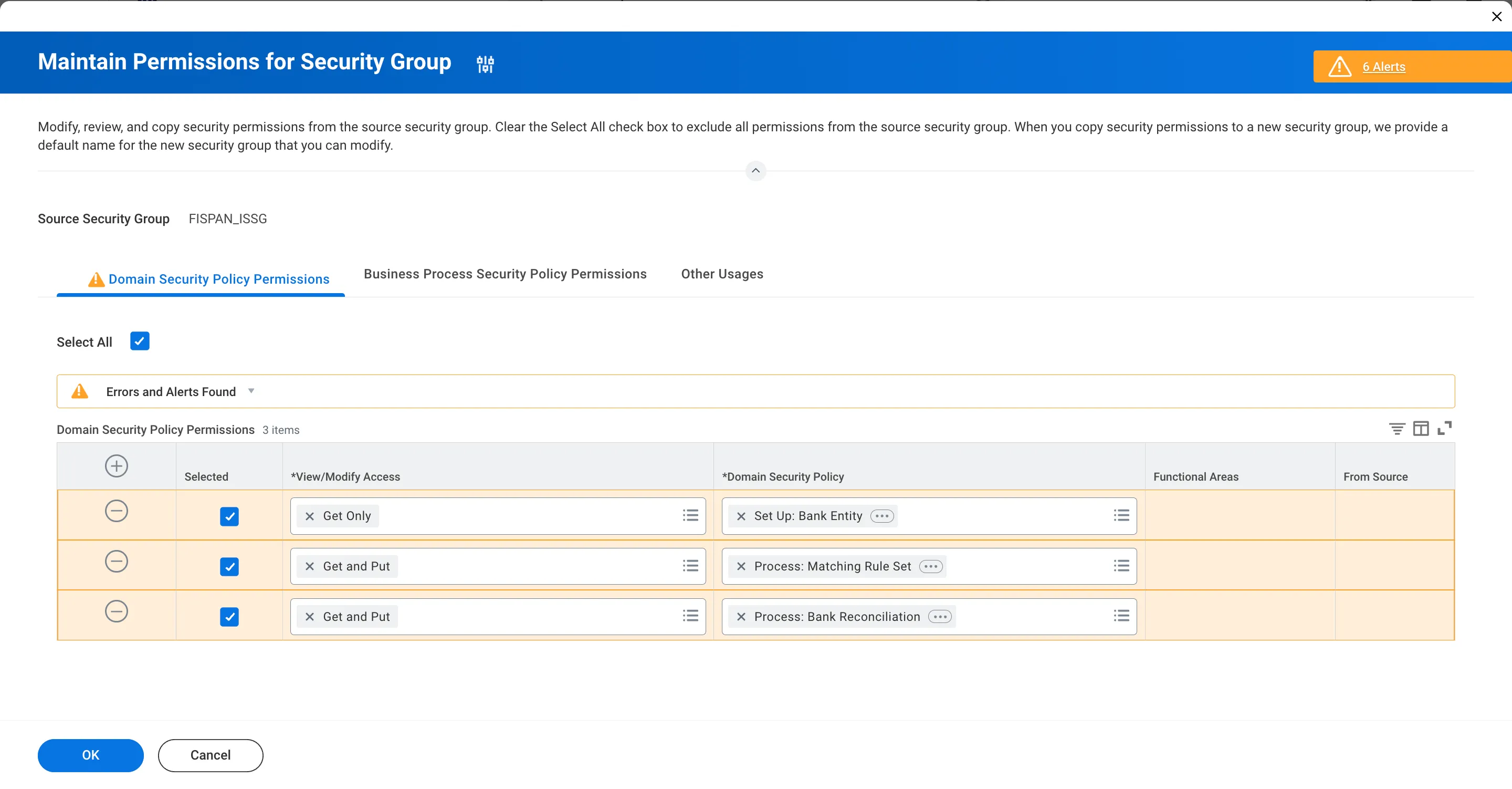
NOTE: You may see alerts from Workday stating that these changes are not yet active. This is expected behavior; we will activate them in the next section of this guide.
Click OK to apply the permissions, then click Done to save.
Activate Permissions for Security Group
The permissions have now been assigned to the security group, but they are not yet active. To activate these permissions, follow these steps.
Go to Pending Security Policy Changes
Search for Activate Pending Security Policy Changes in Workday's search bar and select the corresponding task.
Activate Security Policy Changes
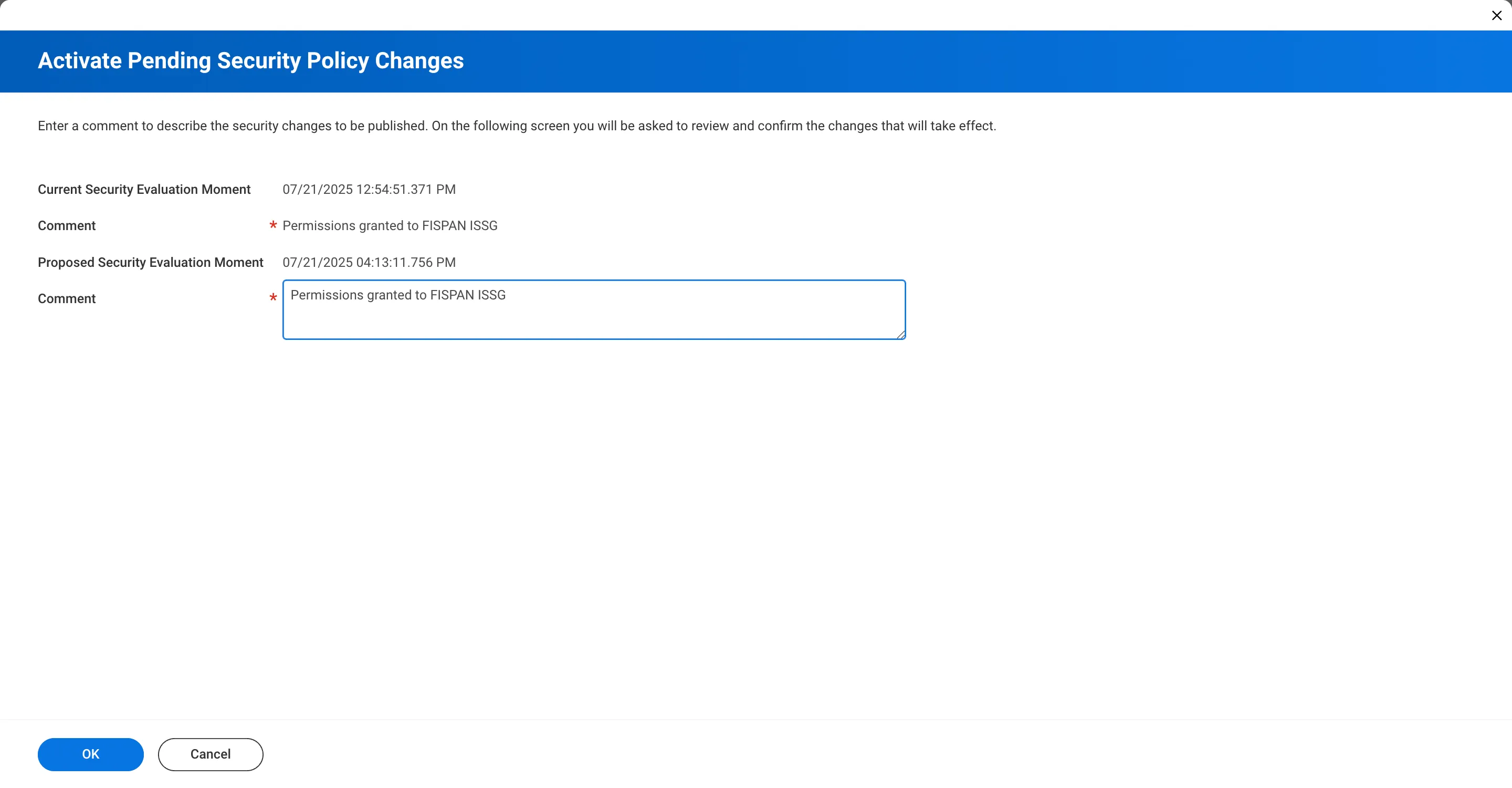
Enter a brief reason for the audit and click OK.
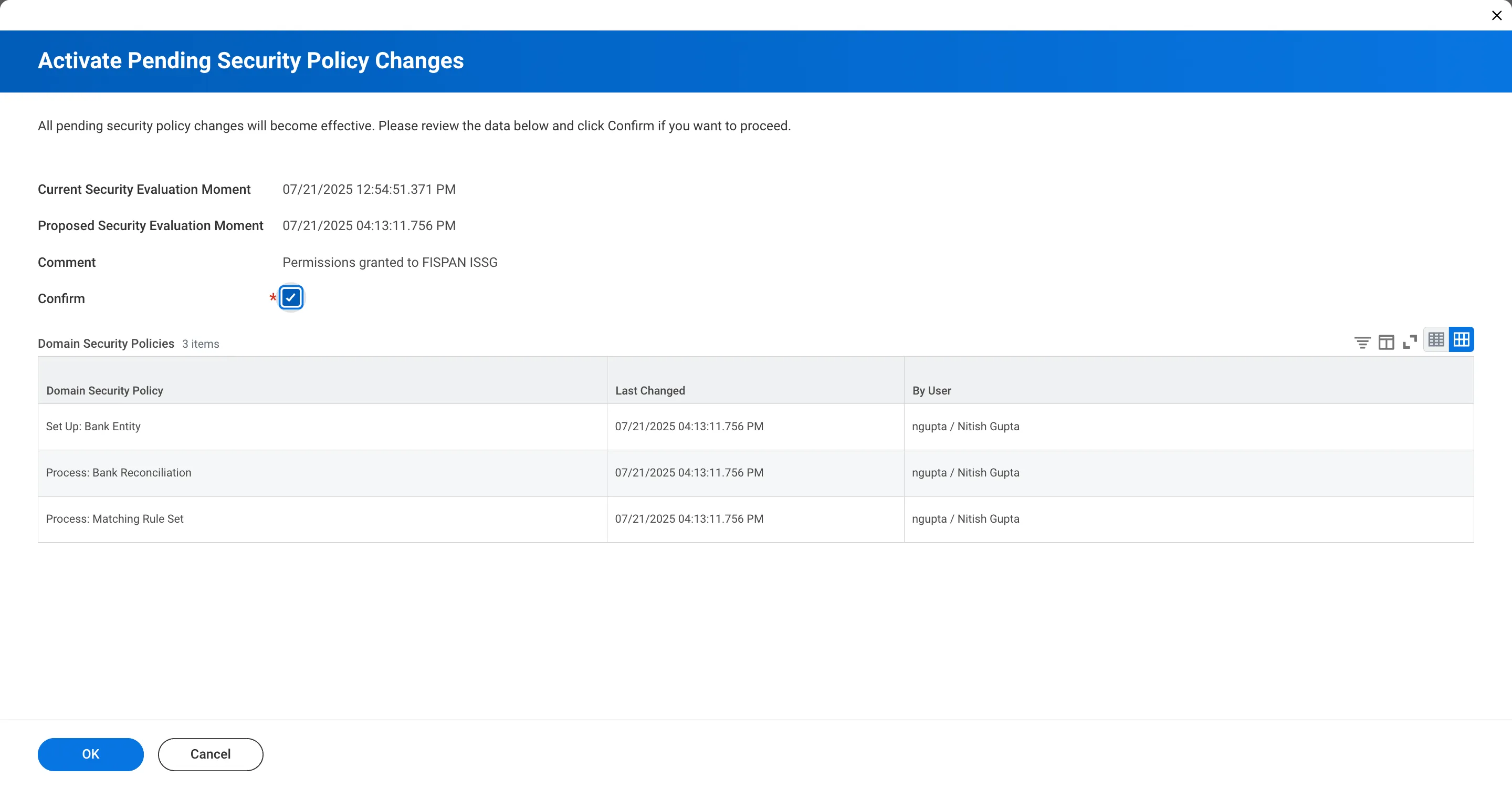
On the summary page, review the changes, select the Confirm checkbox, and click OK.