Payment Approvals (Workday)
The Payment Approvals feature implements a multi-tiered approval workflow for payments made in the plugin, integrating the approval step directly into FISPAN Sync. This guide will walk you through setting up your approval workflows, ensuring that your payments are secure and properly authorized.
Enable Payment Approvals
Once updated, follow these steps to access the Payment Approvals feature.
Log in to the FISPAN Portal
An ERP administrator or ERP consultant must first access the FISPAN Portal by logging in at sys.fispan.live.
Select Workflow
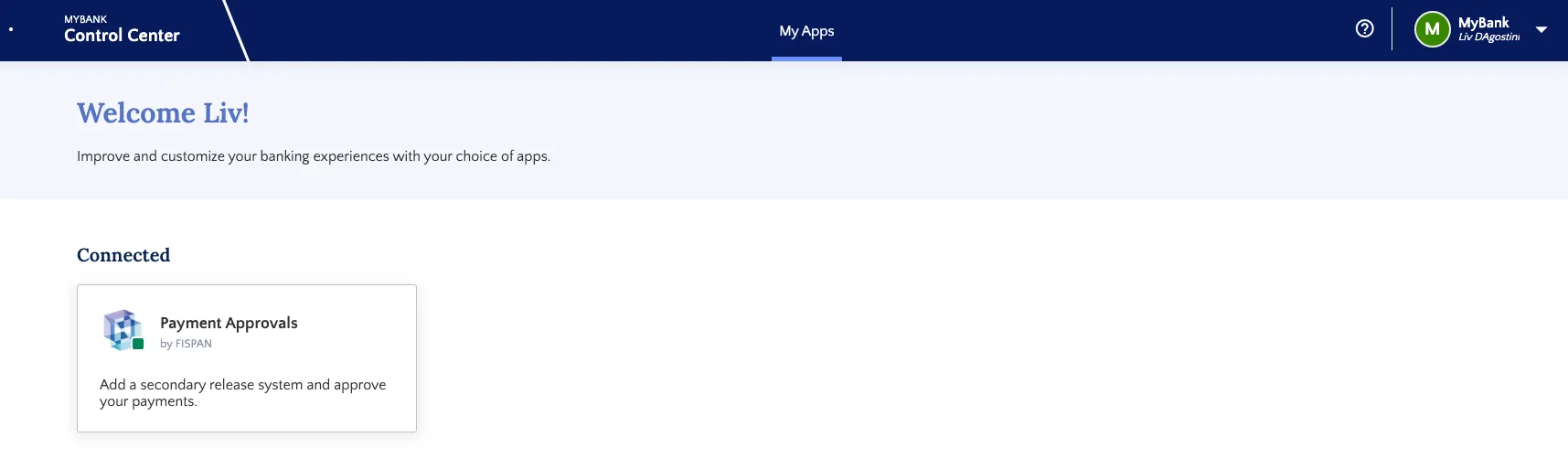
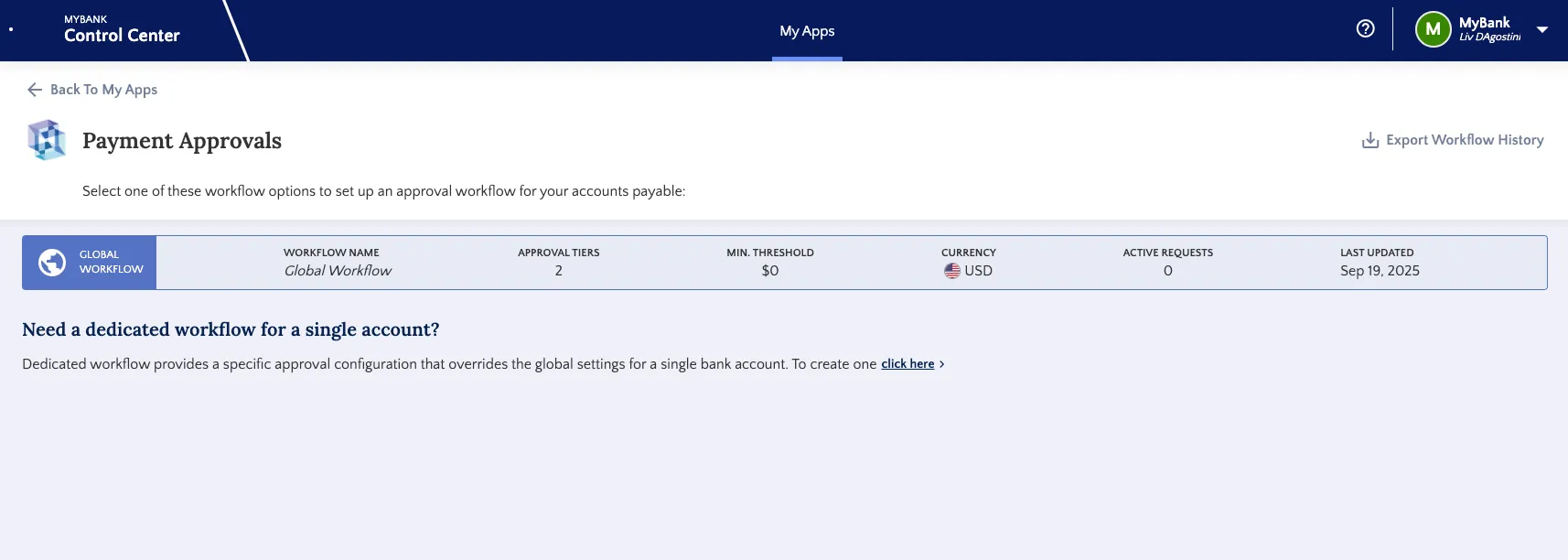
Once logged in, select the Payment Approvals tile. You'll be prompted to begin creating your workflows.
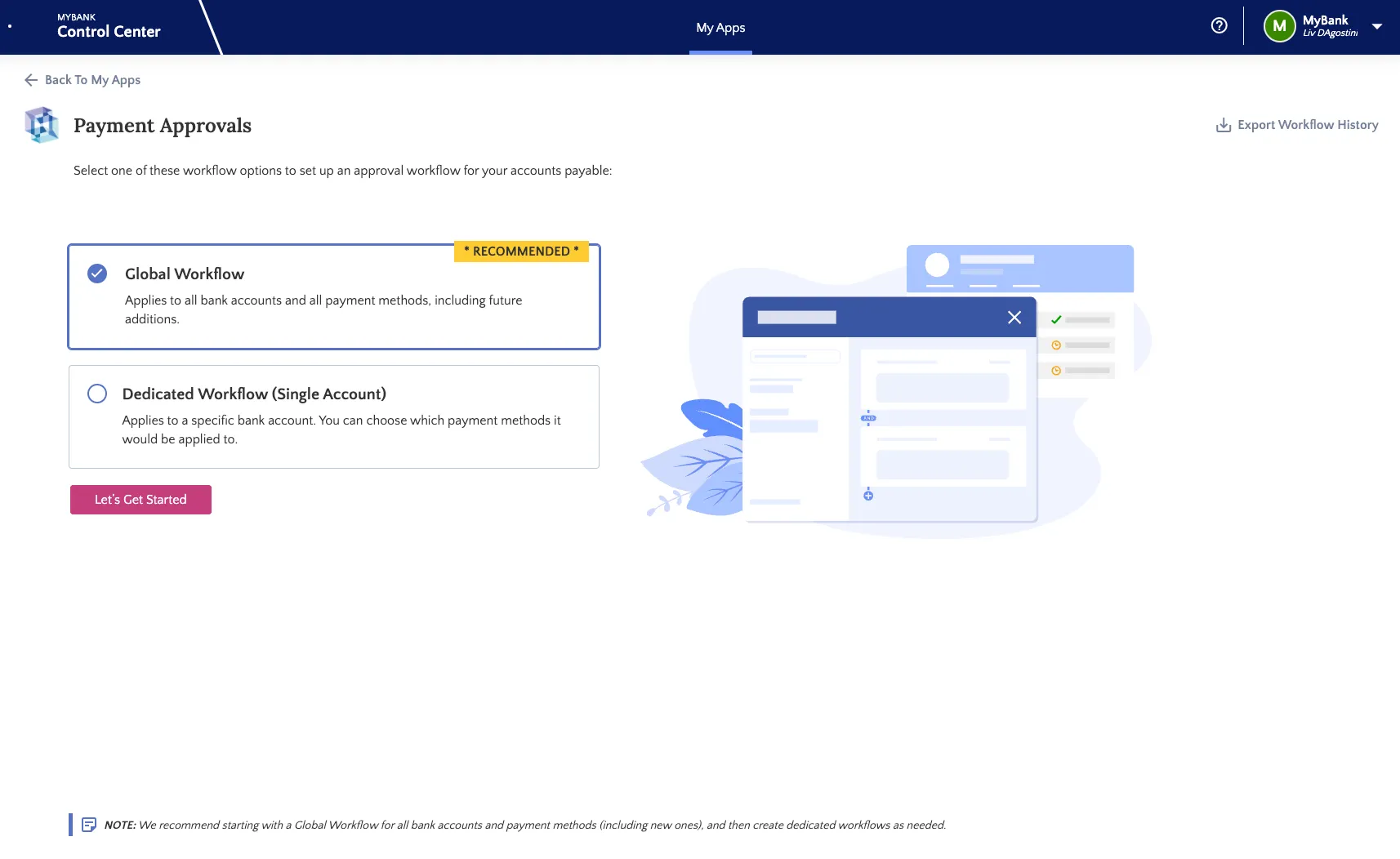
There are two main types of approval workflows you can set up:
- Global Workflow: This is your default workflow. It applies to all payment types and bank accounts.
- Dedicated Workflow: This workflow is more specific. It applies to a particular bank account and selected payment types. Dedicated workflows always take priority over Global Workflows.
Setting Up Your Global Workflow
To set up a global workflow, please follow these steps.
Create Global Workflow
First, give your workflow a descriptive name. This will help you easily identify it later.
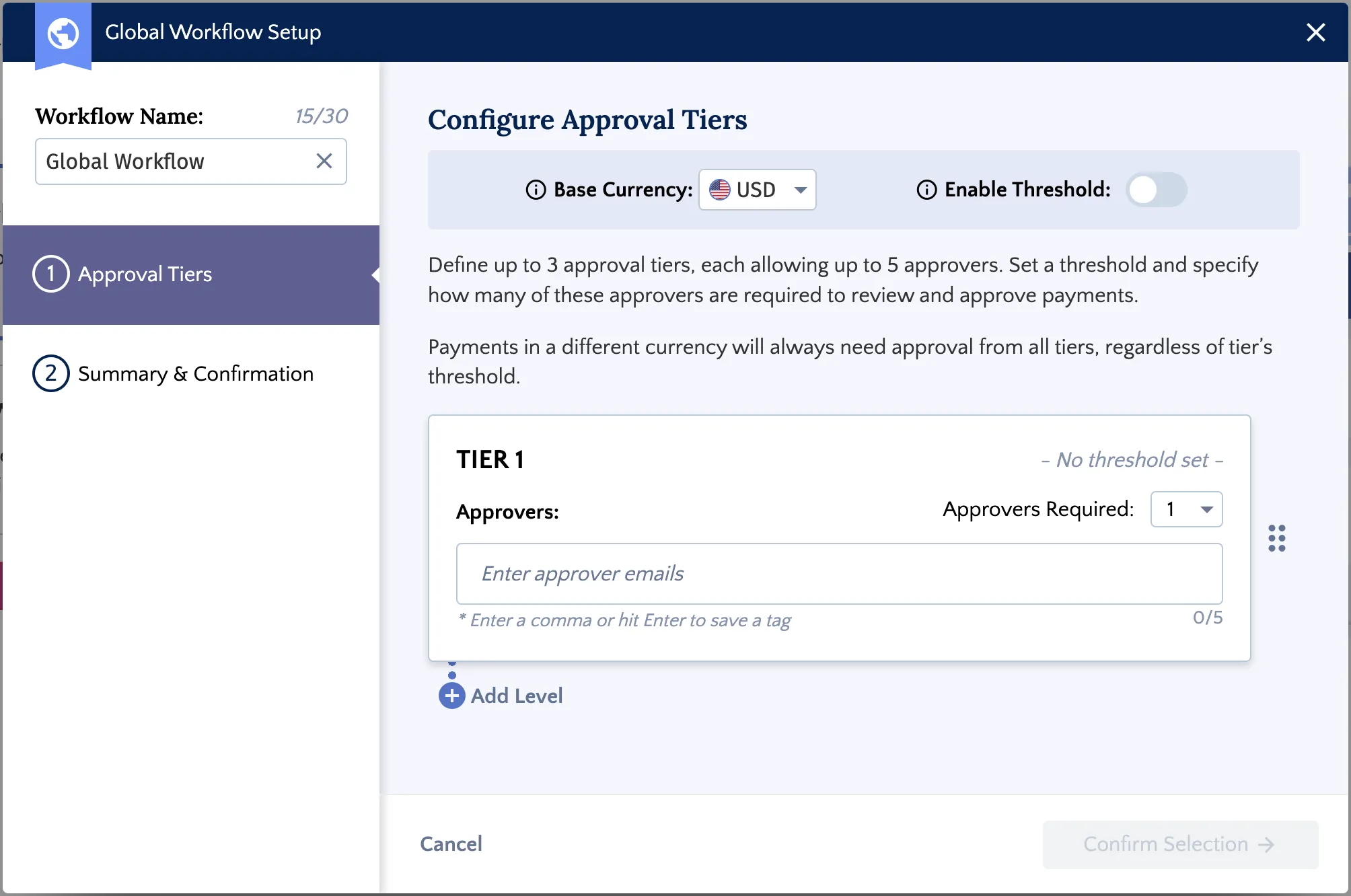
Here, you have the option to set thresholds. A threshold is the minimum payment amount required to trigger a specific approval tier. If a payment is less than the threshold amount, that approval tier will be skipped.
IMPORTANT: Each threshold amount must be equal to or greater than the previous tier's threshold.
NOTE: If your system supports multiple currencies for payments, you must first define a base currency for your workflow.
Thresholds are only applied to payments in this base currency. Any payment submitted in a different currency will bypass the thresholds and automatically require approval from all tiers, as the system does not currently perform automatic currency conversion for this process.
TIP: Best Practice for Multiple Currencies
If you make payments from bank accounts with different base currencies, we highly recommend creating dedicated workflows for those accounts. This ensures that your thresholds are properly applied to payments in those specific currencies.
Add Approvers to Workflow
You'll need to add approvers for your workflow. Enter the user's ERP email address exactly as it appears in their ERP user record. Approvers will receive an email notification when a payment meets the required threshold.
The approver email must exactly match the email in the user’s ERP record.
Do not use an alternate or alias emails. Any mismatch may delay approvals and payment processing.
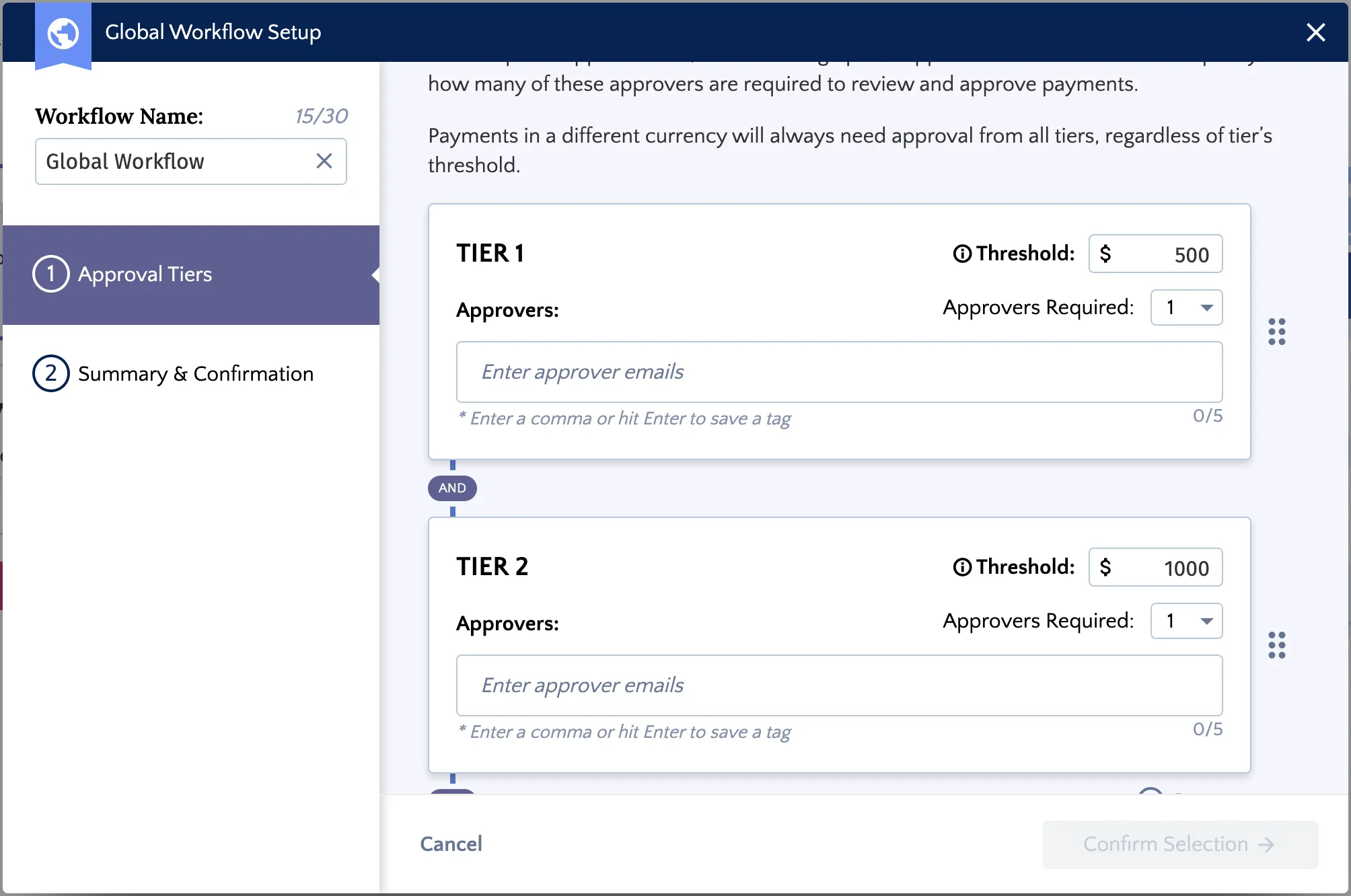
IMPORTANT: To approve payments, users in an approval workflow need the necessary plugin permissions.
Add Multiple Tiers
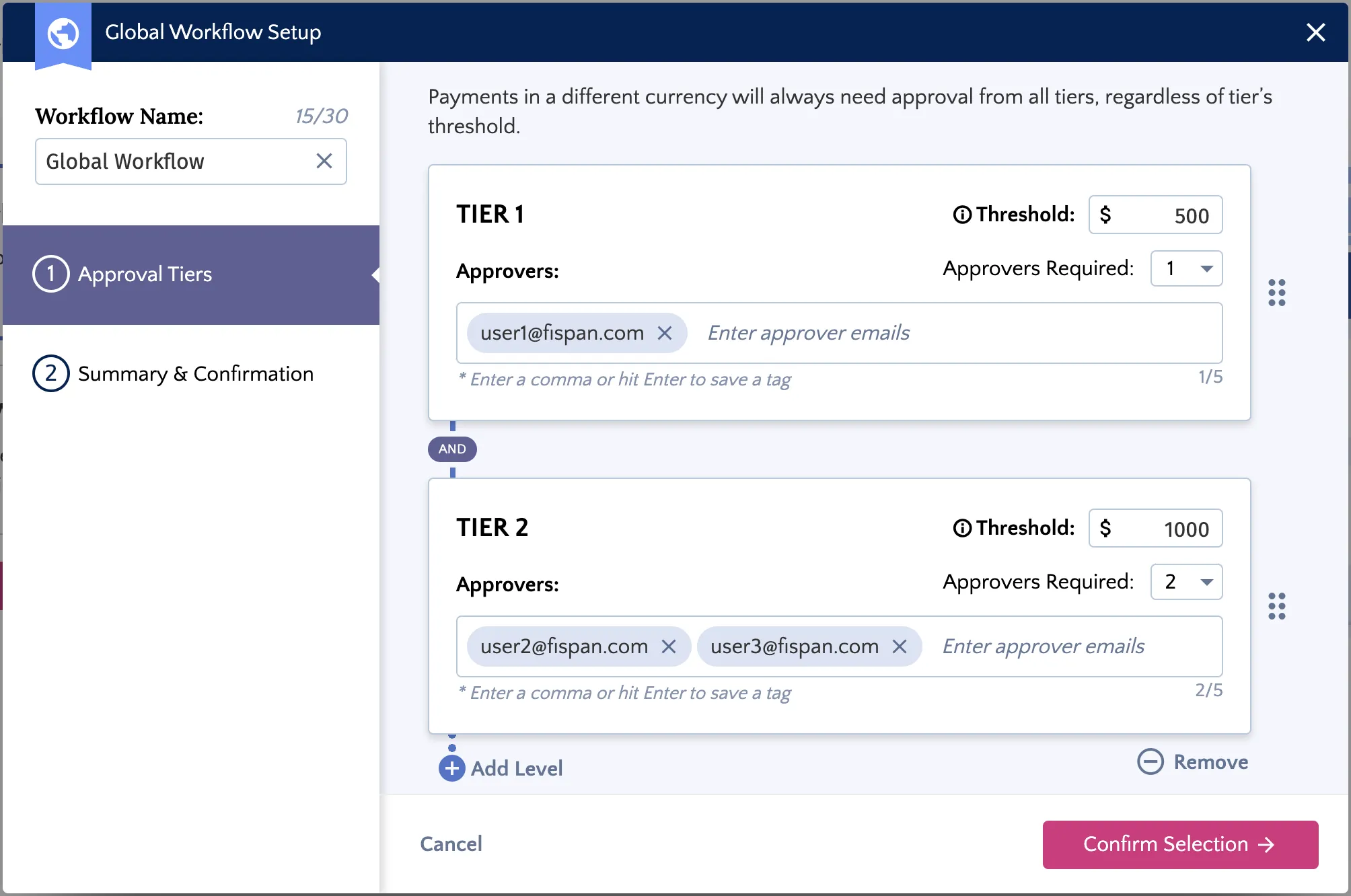
Add another Tier for approval and additional approvers, if needed. You can set up to three levels of approval.
At each level, you can add up to five potential approvers. You can also decide how many individual approvals are required per tier. eg. Tier 1 requires 2 approvals, Tier 2 requires 3 approvals, Tier 3 requires 1 approval.
NOTE: Important Considerations
- No Self-Approval. You cannot approve your own payments. Keep this in mind if a single user frequently acts as both the payment creator and an approver.
- Best Practice for Approvers. To avoid delays, we suggest:
- Avoid having a single approver in a tier.
- Adding more approvers than the required approvals (e.g., include 4 approvers in a tier that requires 2 approvals). This ensures the process can continue even if someone is unavailable.
Complete Workflow
Once you're satisfied with your settings, click Confirm Selection.
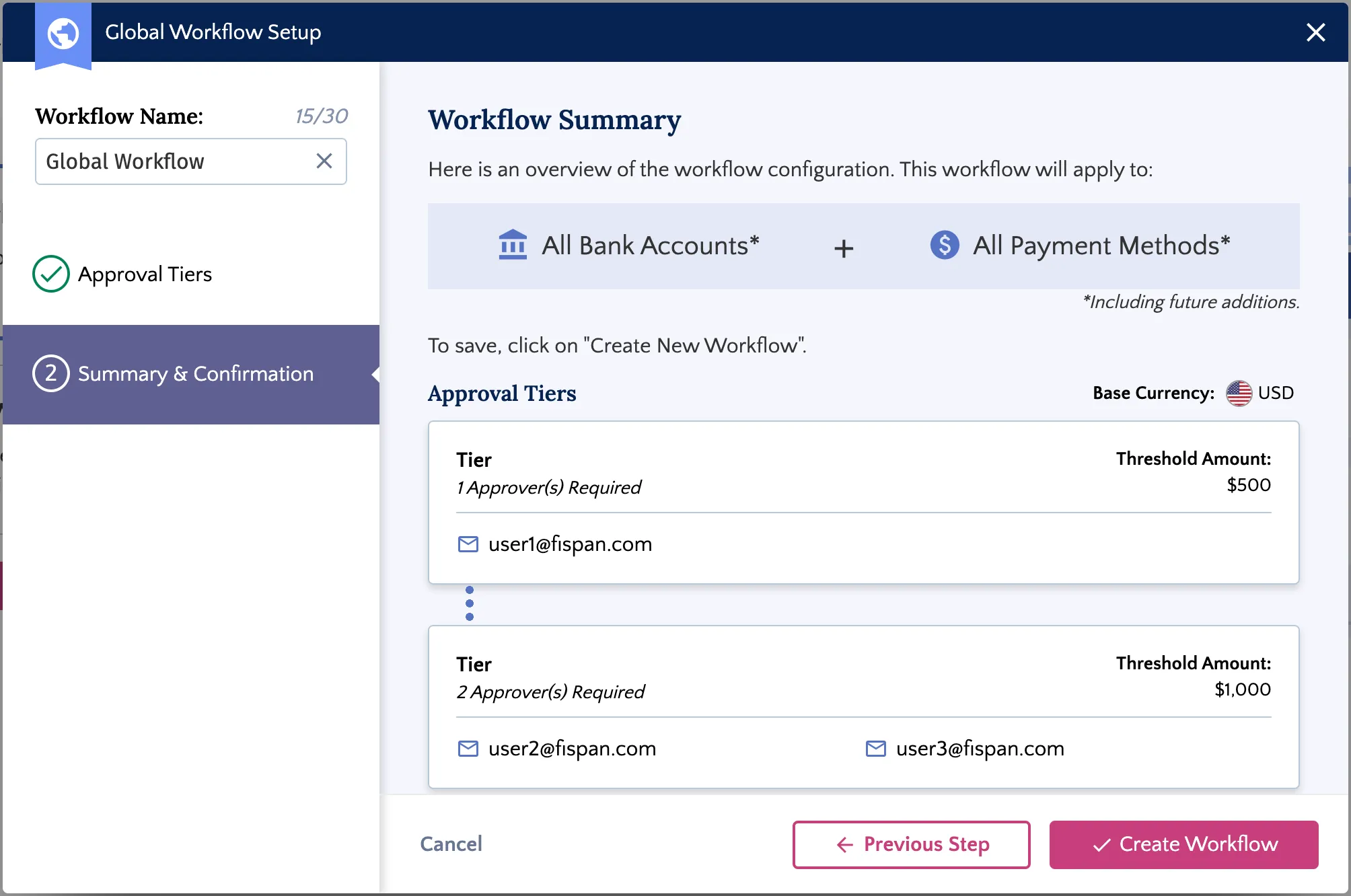
You can now review your workflow. Click Create Workflow to confirm creation.
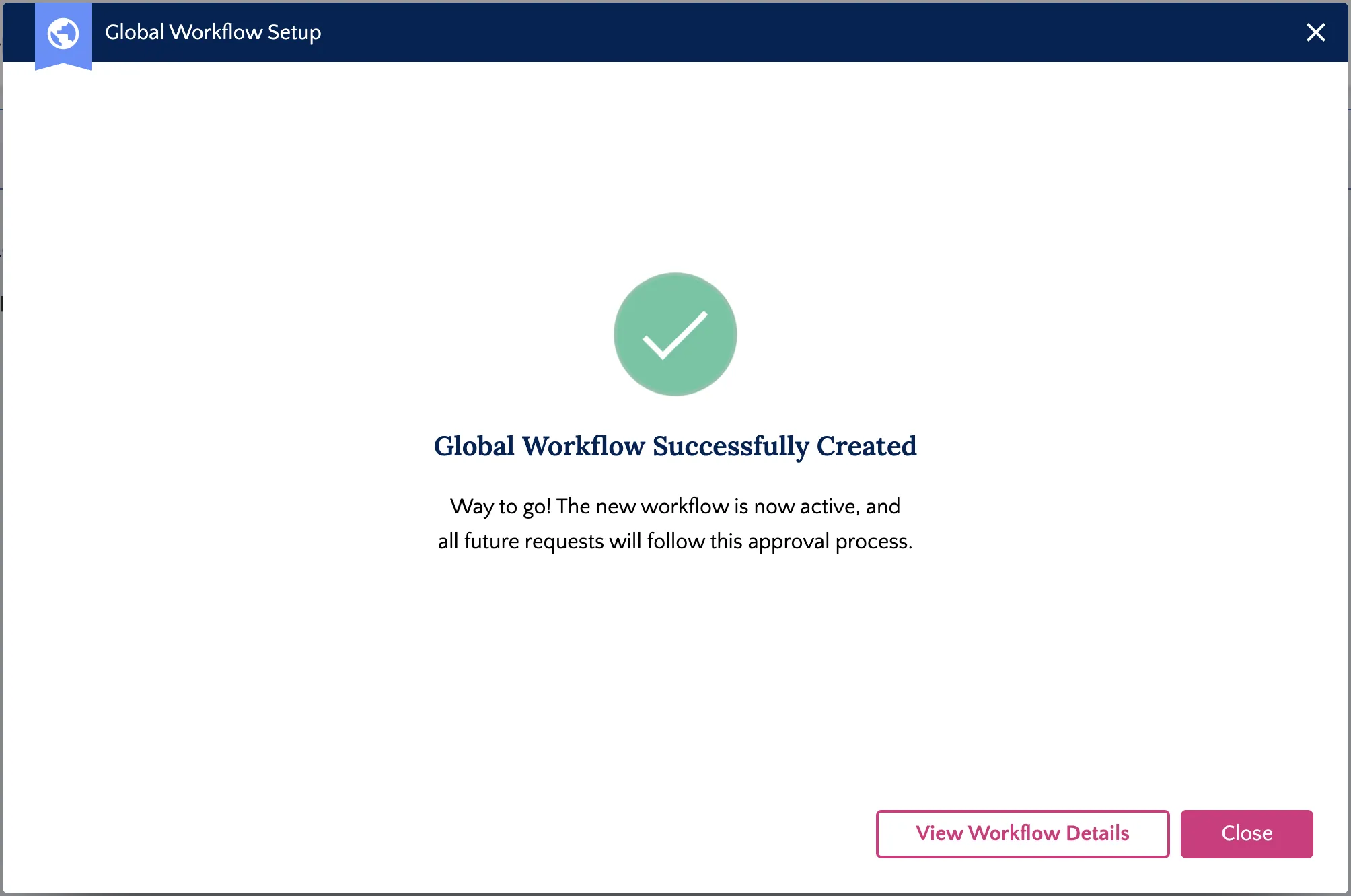
Your Global Workflow is now active! All payments made through the plugin will now follow this approval process.
Creating a Dedicated Workflow
If you have specific bank accounts that need different approval workflows, you can create a Dedicated Workflow.
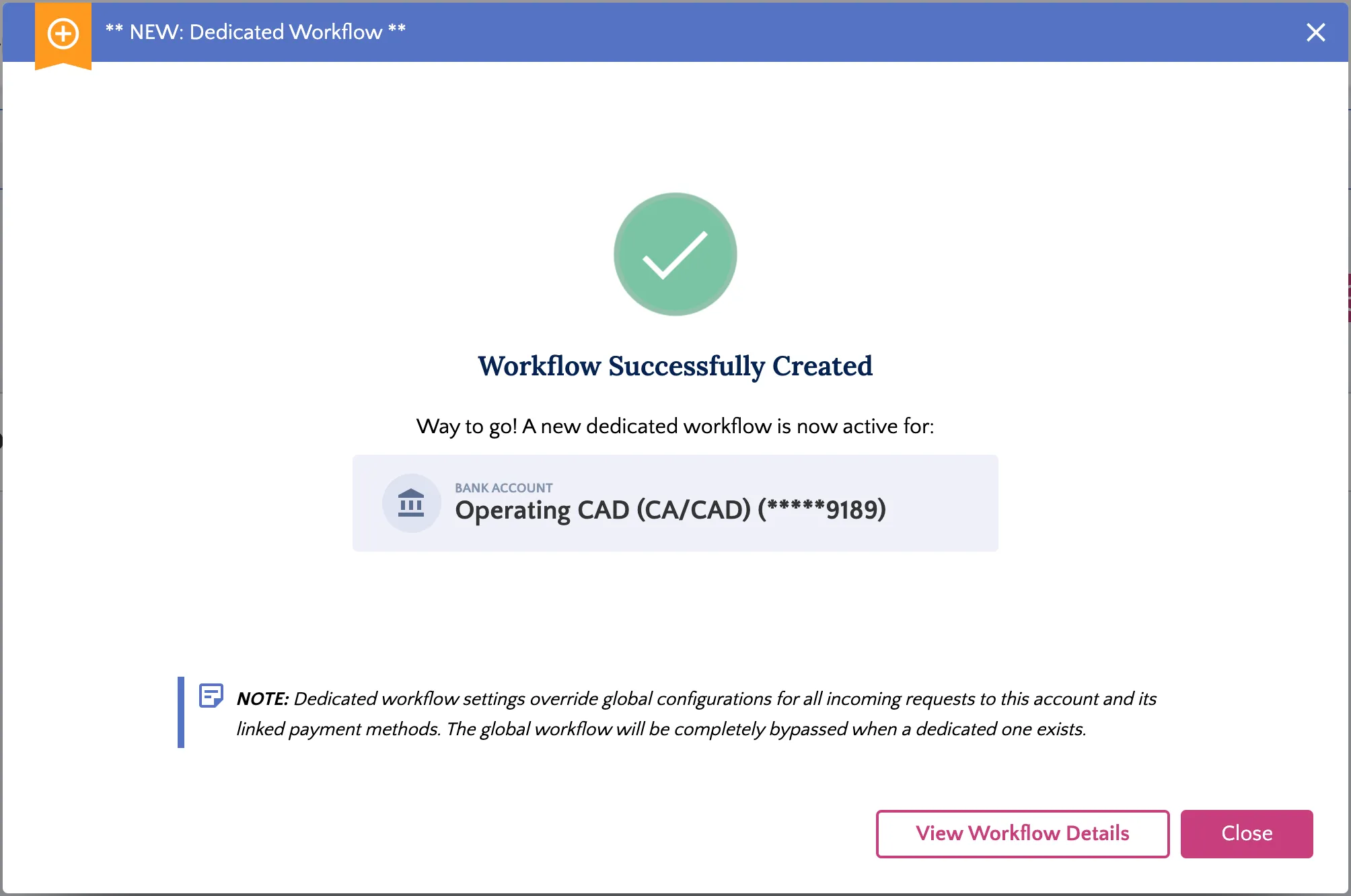
IMPORTANT: Setting up a dedicated workflow means it will take precedence over the global workflow for this specific bank account and the chosen payment rail(s), affecting all future payments.
Create Dedicated Workflow
From the Payment Approvals page, select click here to create a dedicated workflow.
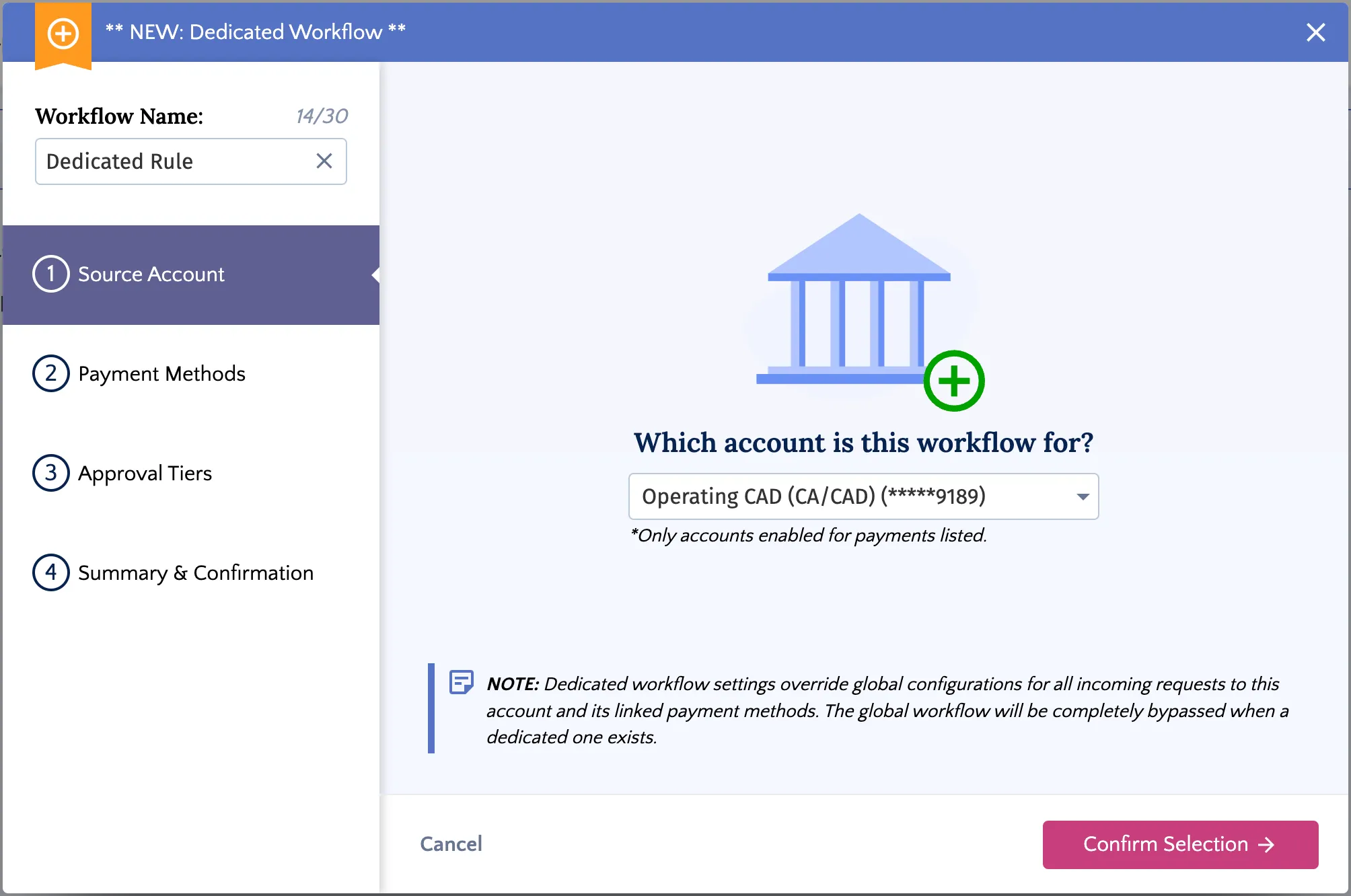
First, enter a descriptive name for the workflow.
Add Source Account
You'll then choose the bank account for which these approval workflows will apply. Click Confirm Selection.
Add Payment Methods
Next, select the payment rail(s) that will be part of this workflow. Payments not selected here will still be routed through your Global Workflow.
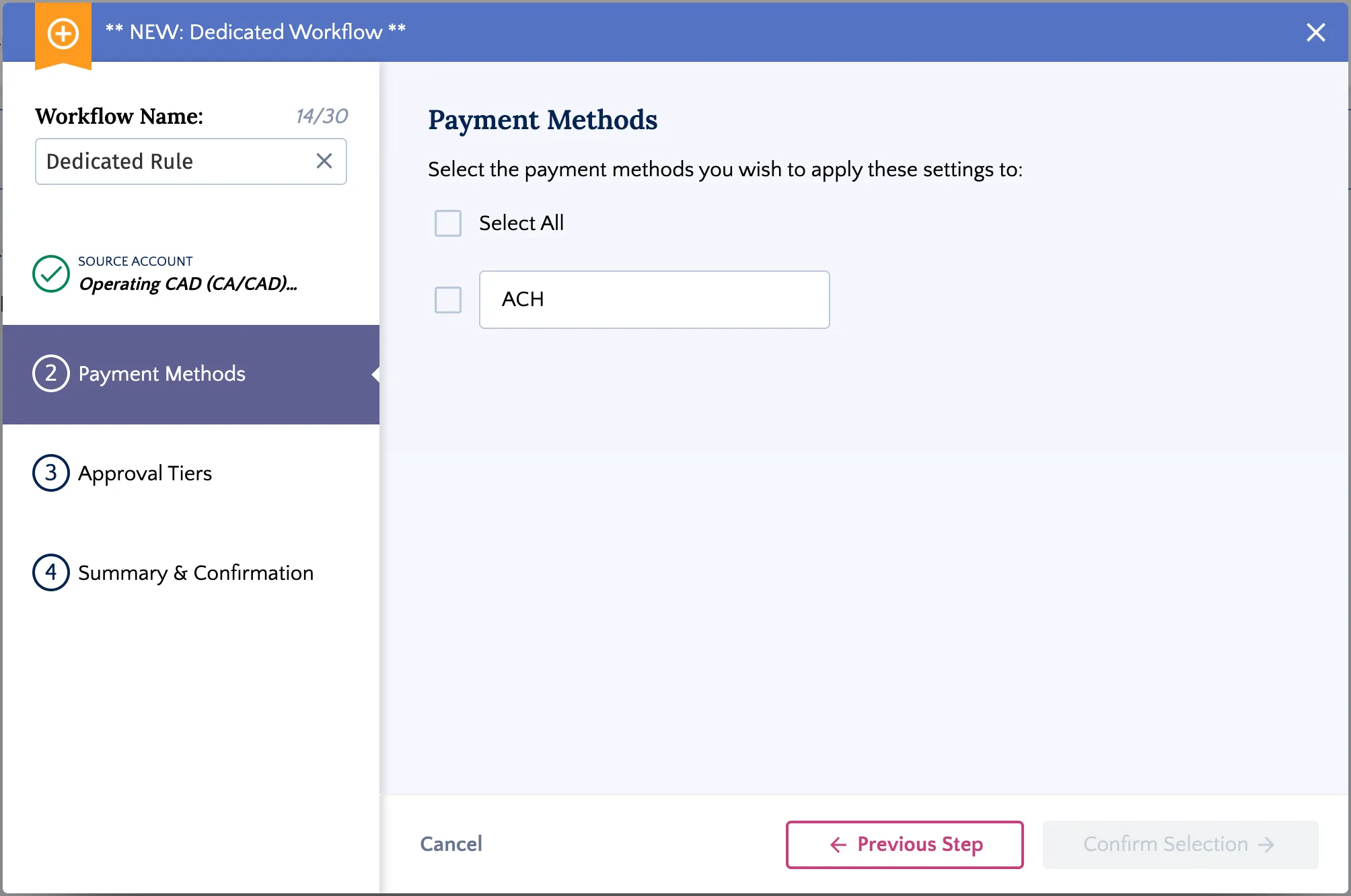
NOTE: This list displays all payment methods enabled for your entire account, not specific to individual bank accounts.
Add Approvers and Tiers
You can then set up the approval tiers, including thresholds, approvers, and the number of approvals required, just like with a Global Workflow.
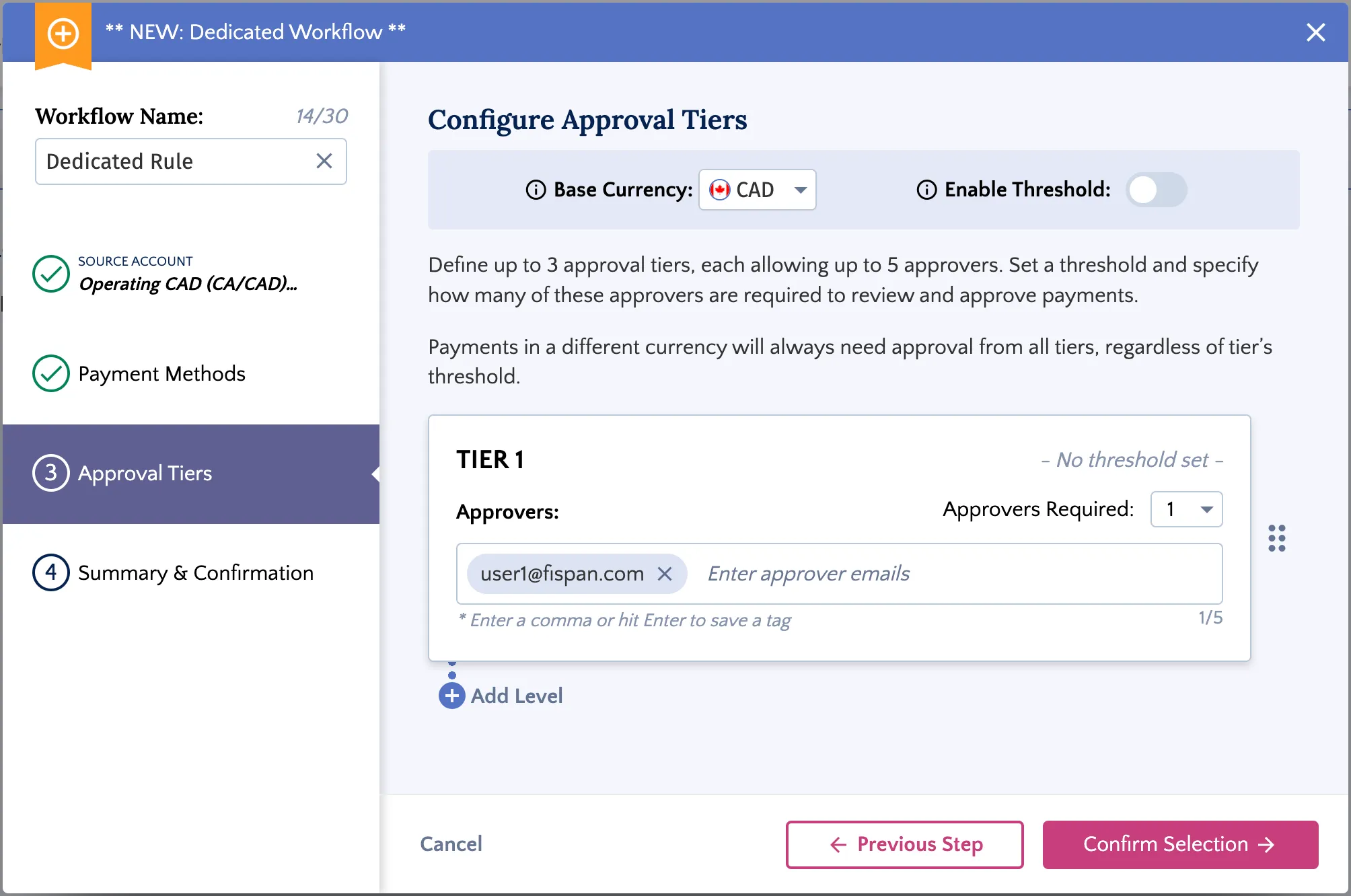
When you're finished, click Confirm Selection.
Complete Workflow
Next, you will see an overview of your workflow. To enable the workflow, click Create Workflow.
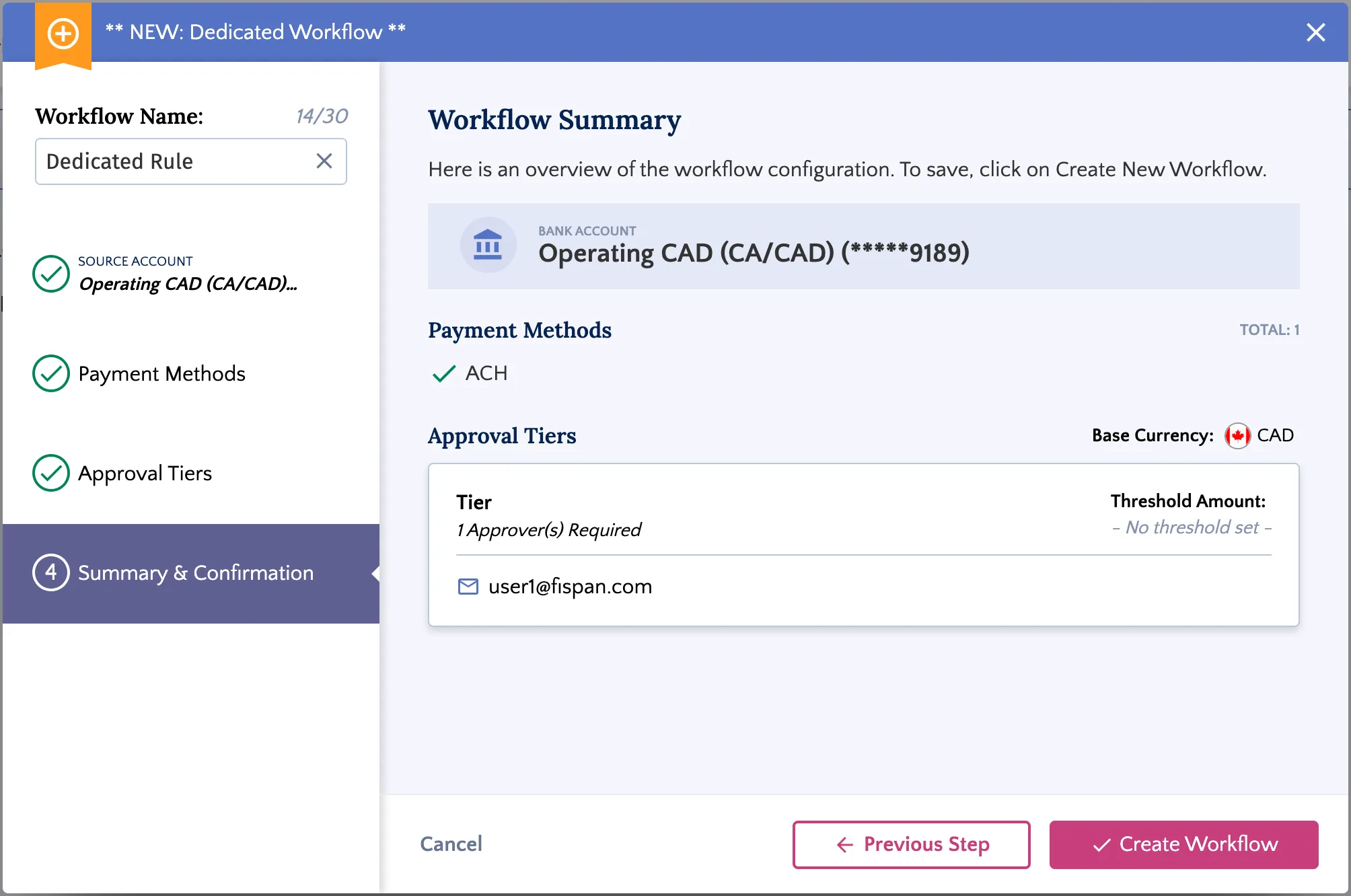
Your Dedicated Workflow is now active! Payments made with the selected combination of payment rails and bank accounts will now be routed through this workflow going forward.
Editing or Deleting Workflows
You can edit or delete a workflow, but only if there are no pending approvals for that workflow. This prevents any confusion or errors with payments currently going through the approval process. In the event you need to edit a workflow with associated open payments, process or cancel any outstanding payments associated with the workflow.
Editing a Workflow
Select a Workflow to Edit
Click on the workflow you want to edit in the table.
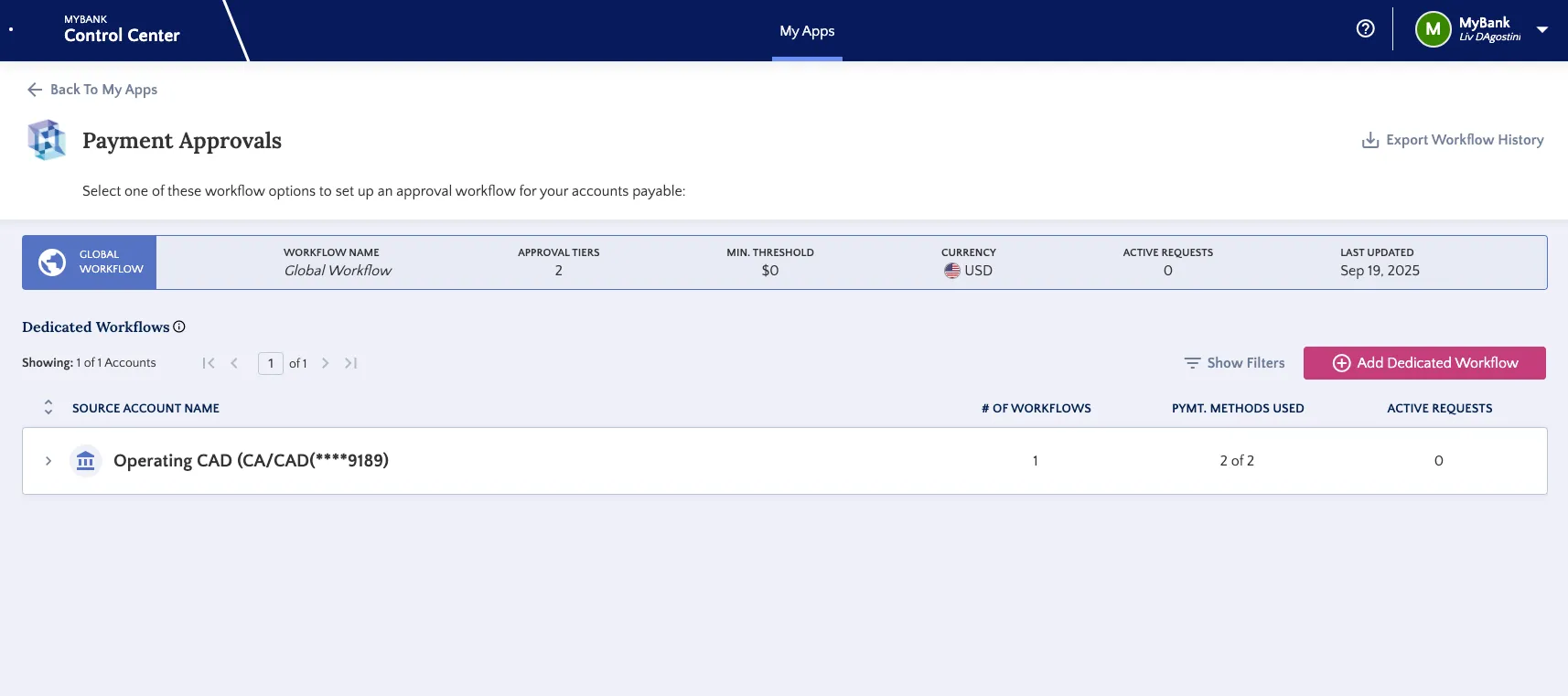
An overview of the workflow will appear. Next, click Edit Workflow.
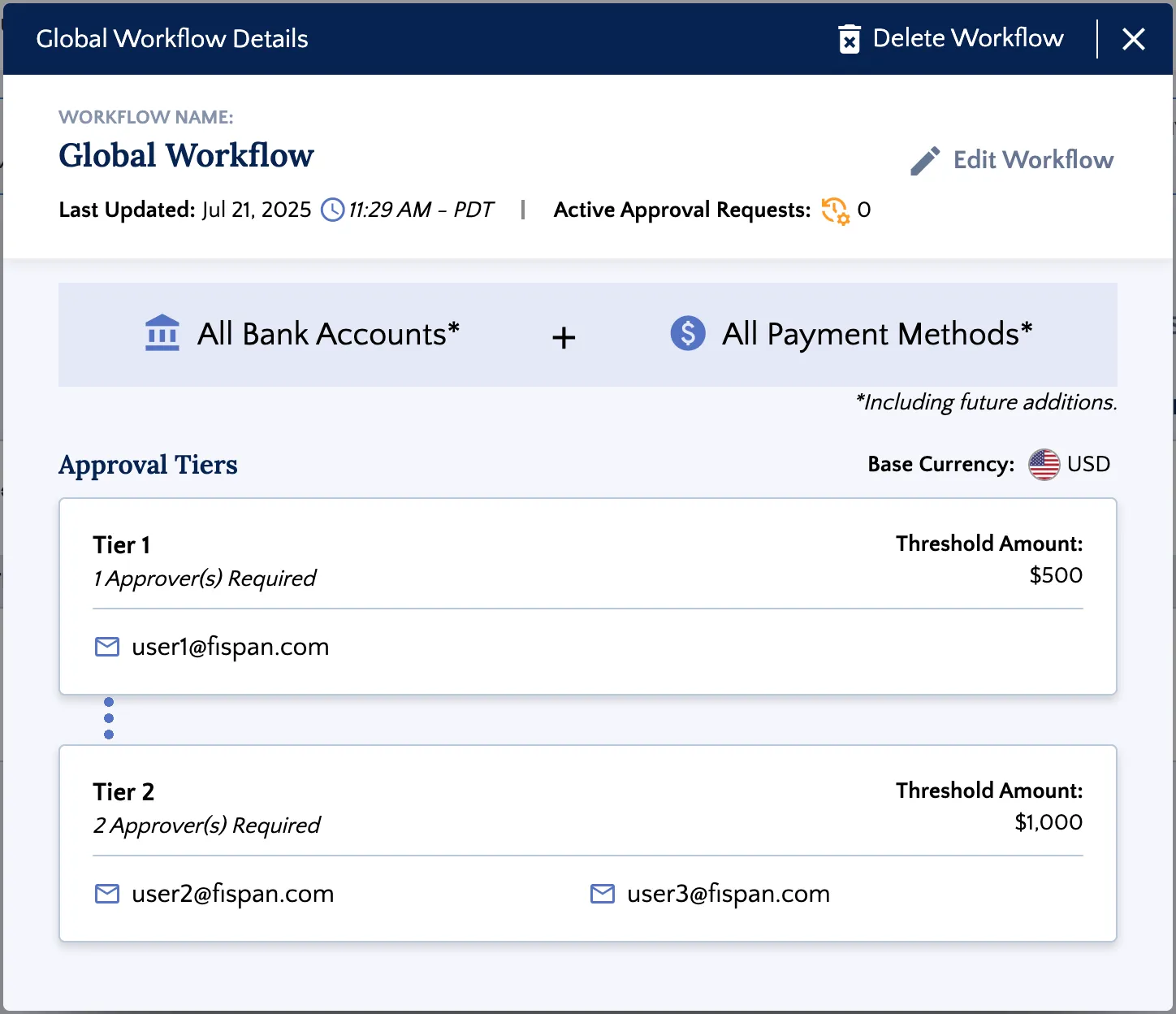
Edit Workflow
Make your desired changes to the workflow.
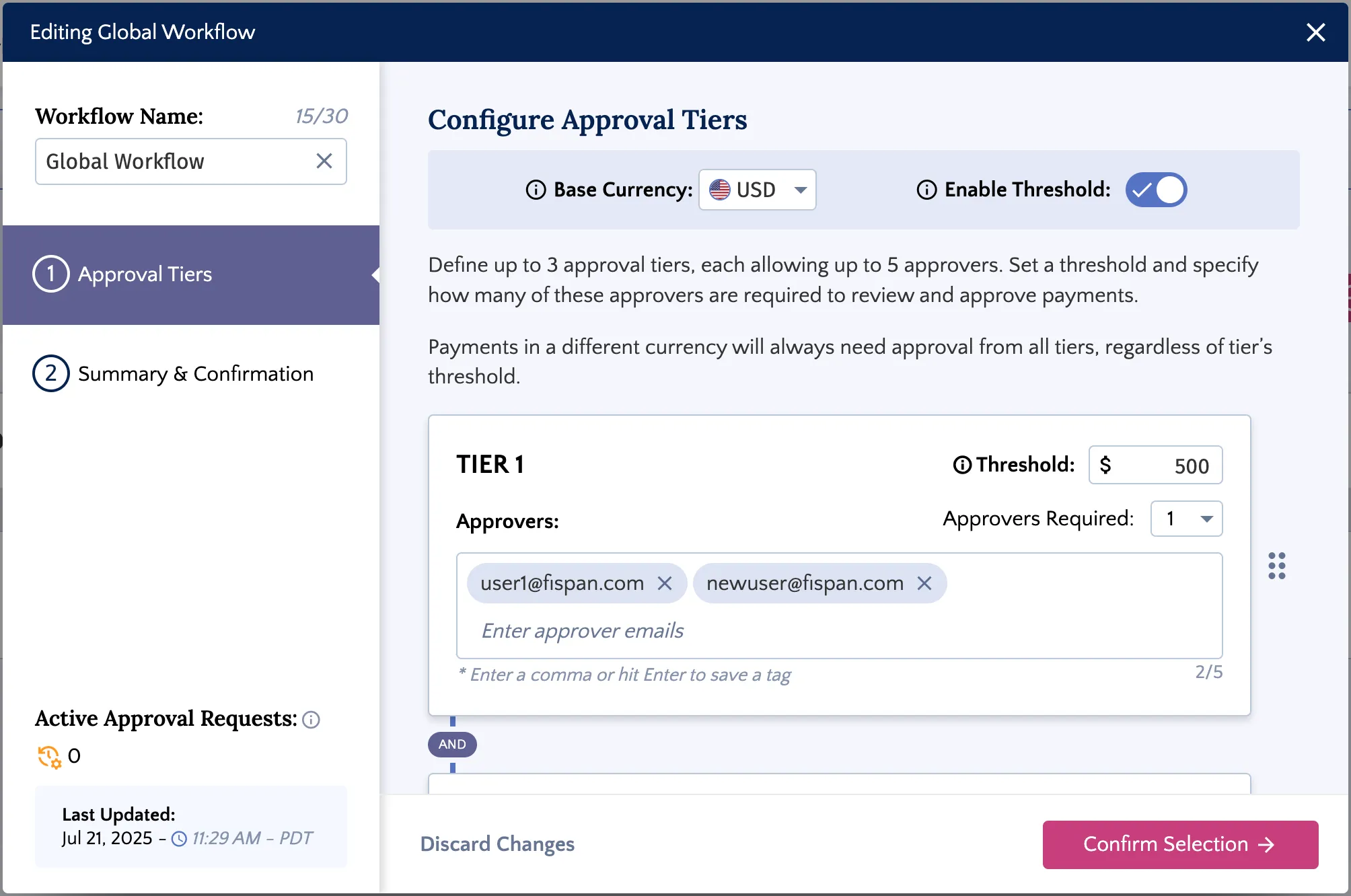
Verify your changes and then click Save.
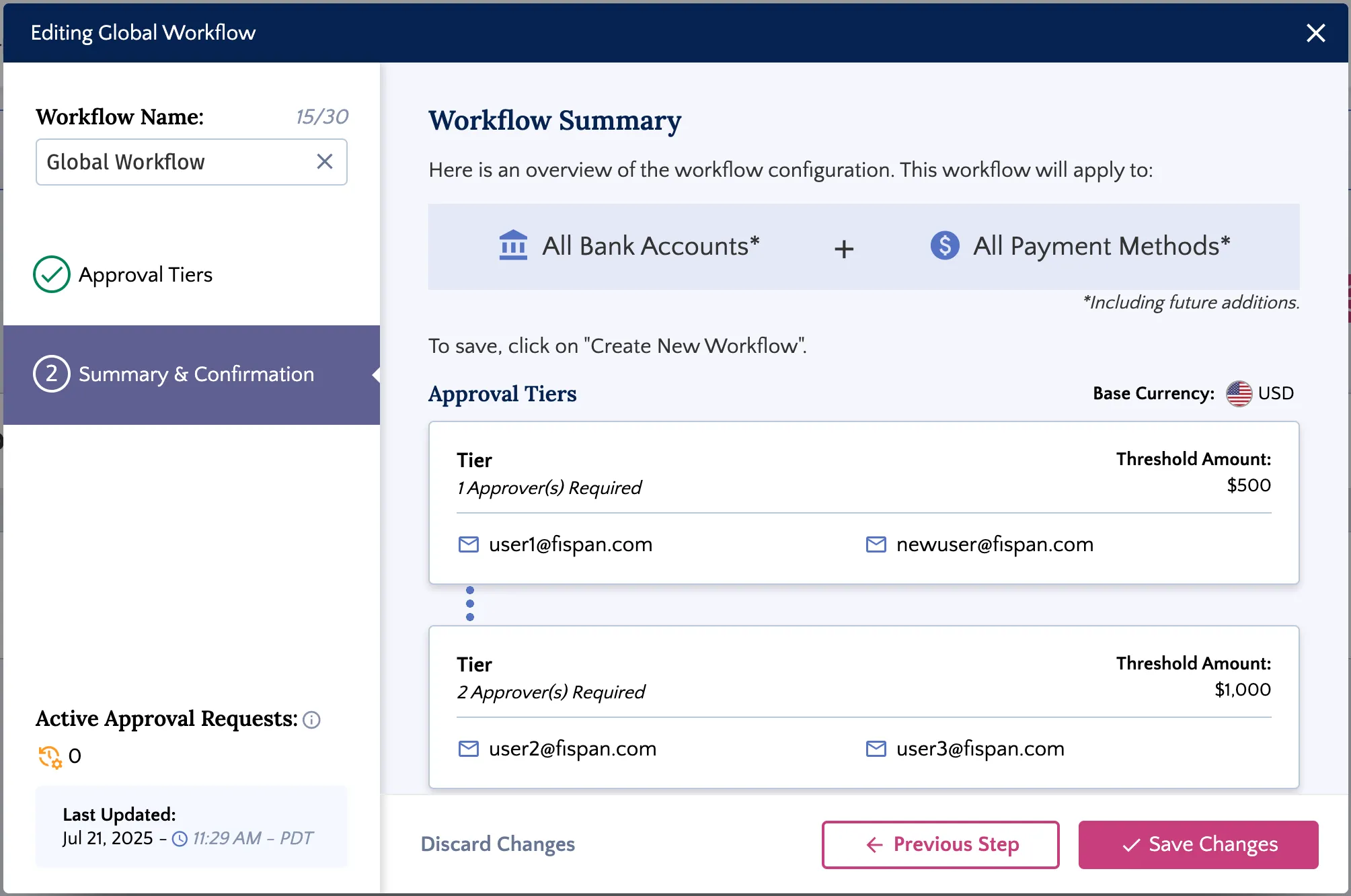
Confirm Changes
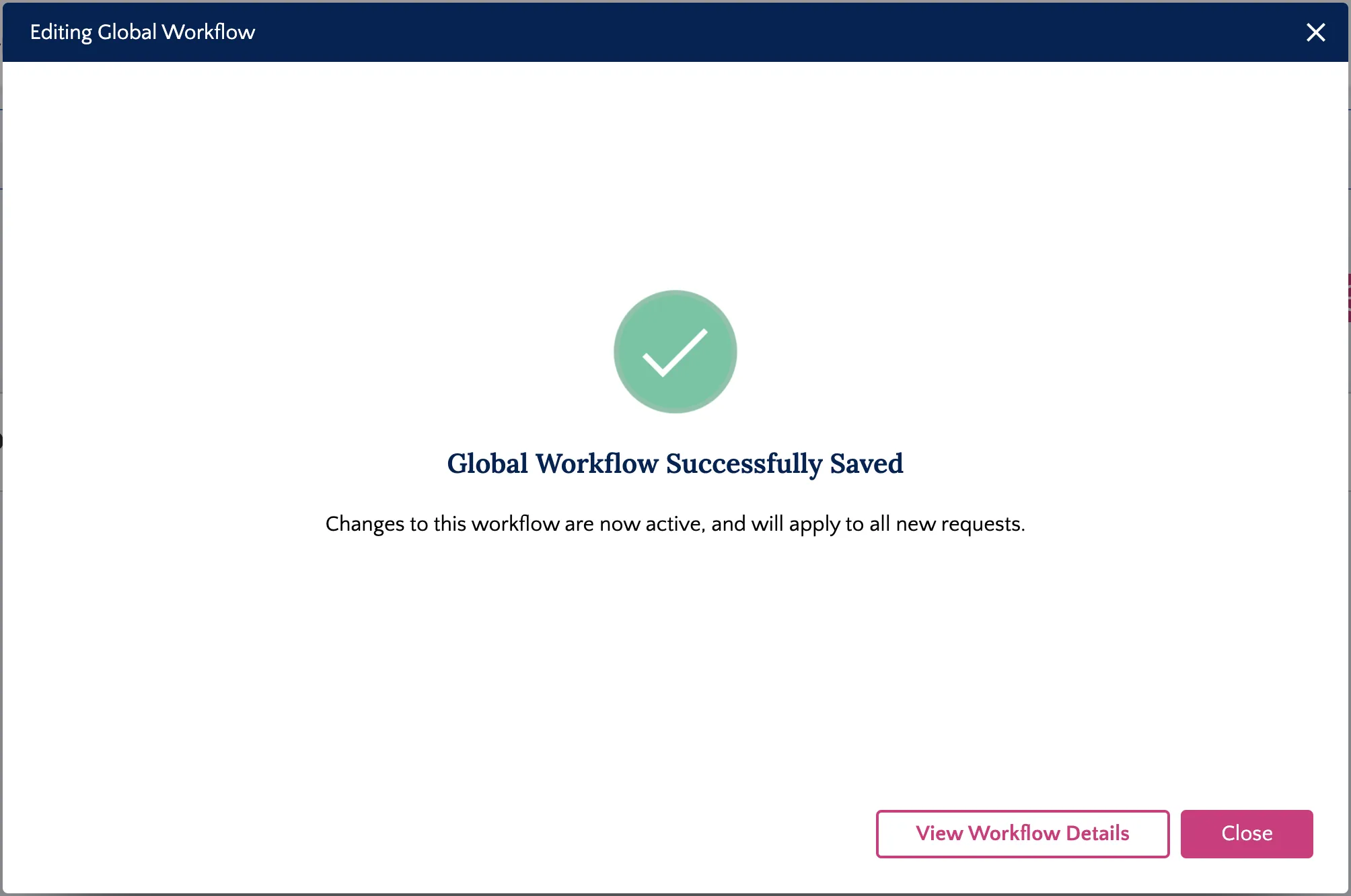
You will then see a confirmation of the changes. The updated workflow will now apply to all new payments.
Deleting a Workflow
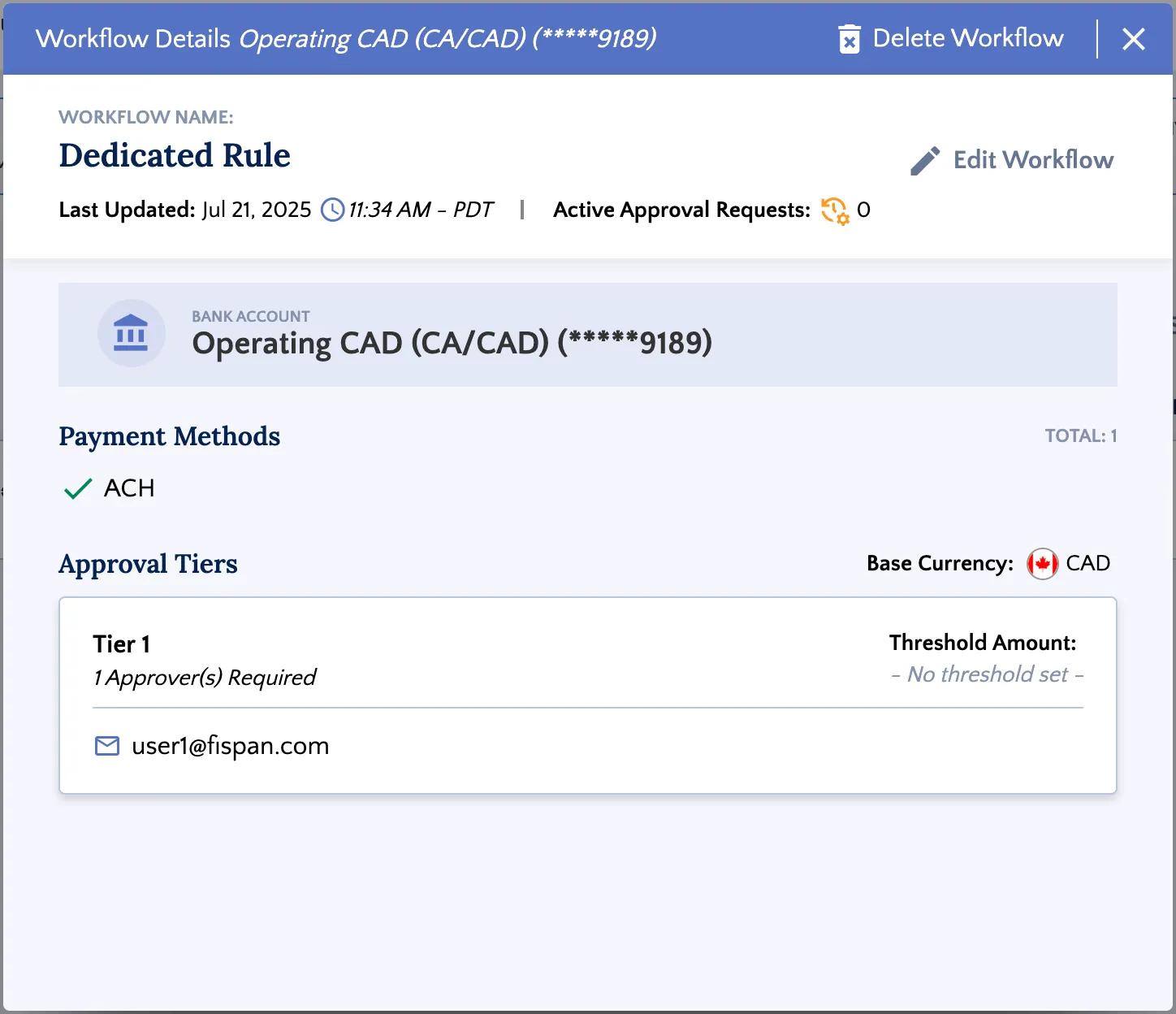
Select a Workflow to Delete
Click on the workflow you want to delete.
Click Delete Workflow.
Confirm Deletion
Next, confirm you would like to proceed with the deletion.
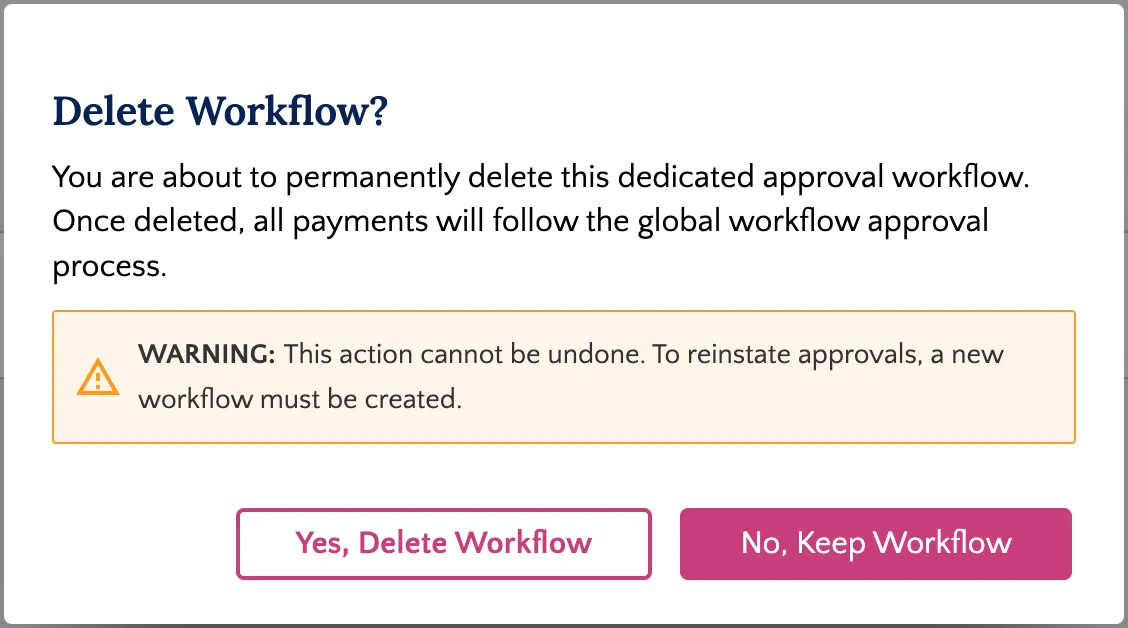
Payments will no longer use this Workflow. If you still have a Global Workflow active, these payments will now be routed through your Global Workflow instead.
You will then see a confirmation that the workflow was successfully deleted.