Remittance Advice (Business Central)
Remittance Advice emails will change how you talk to vendors and make paying bills easier. Payment details are automatically sent to your vendors right after a bill is paid, giving them what they need to quickly check their records.
NOTE: If you are interested in enabling this feature, contact your Santander Treasury Service Sales Officer.
Remittance Advice Overview
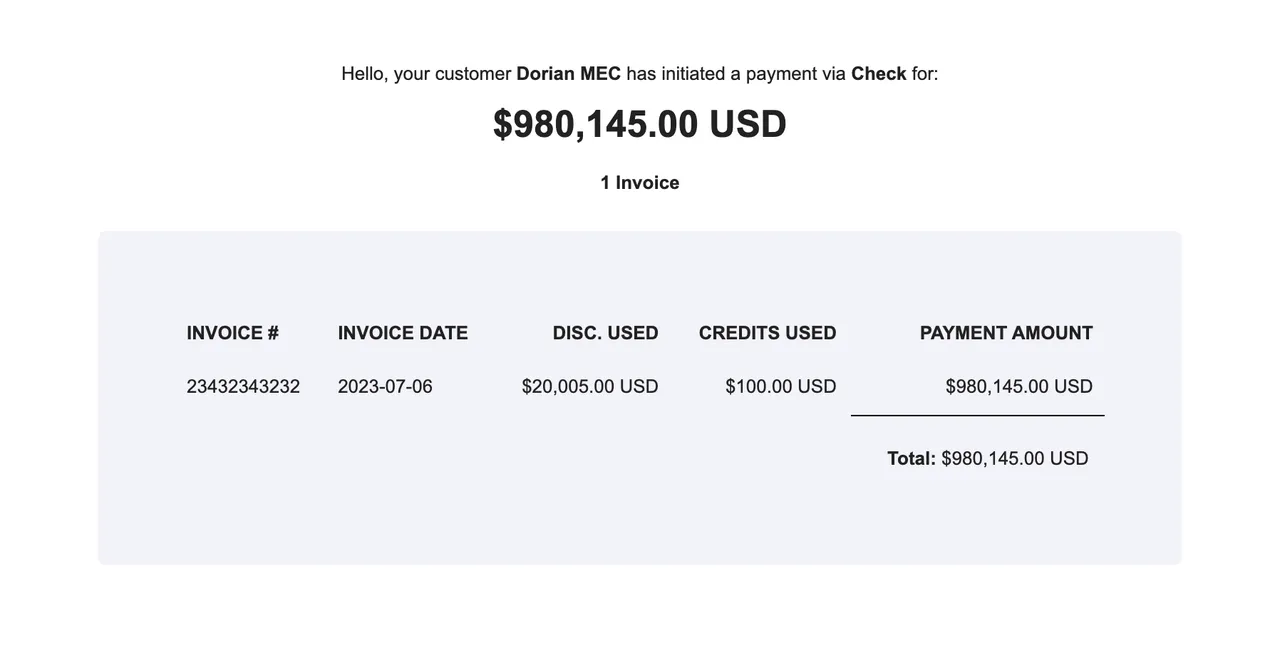
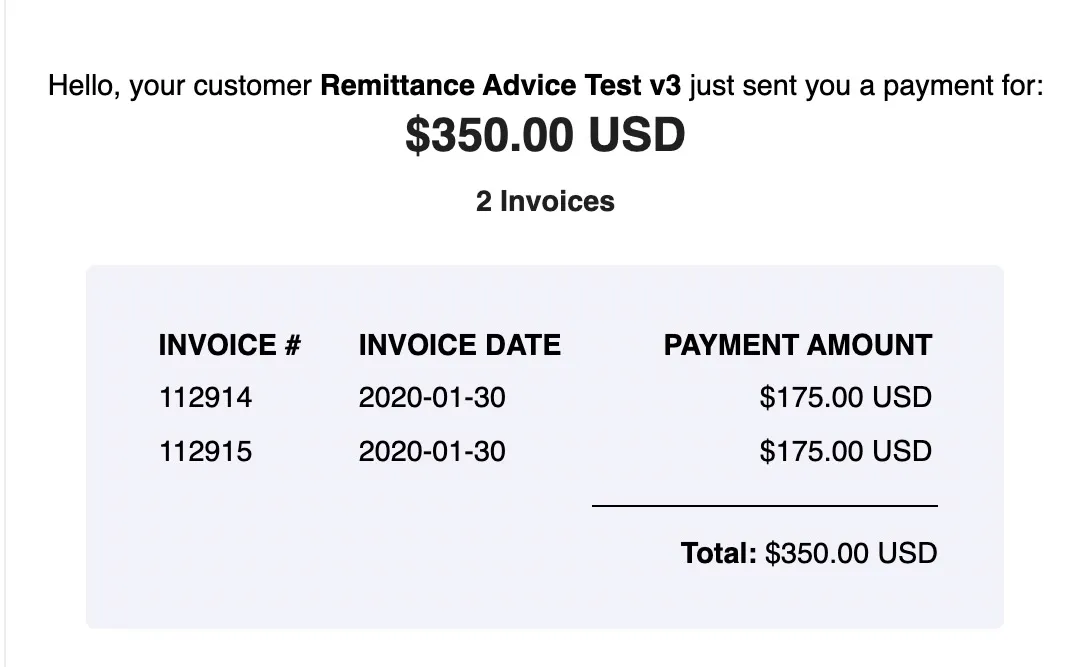
FISPAN's Remittance Advice service automatically sends an email to the vendor’s designated email address(es) for every submitted payment. This email will contain your company name and a detailed list of the paid bills, including the Reference/Invoice #, Invoice Date, Amount, and Discount Used. If any credits were applied, the credit's reference number and amount will also be displayed.
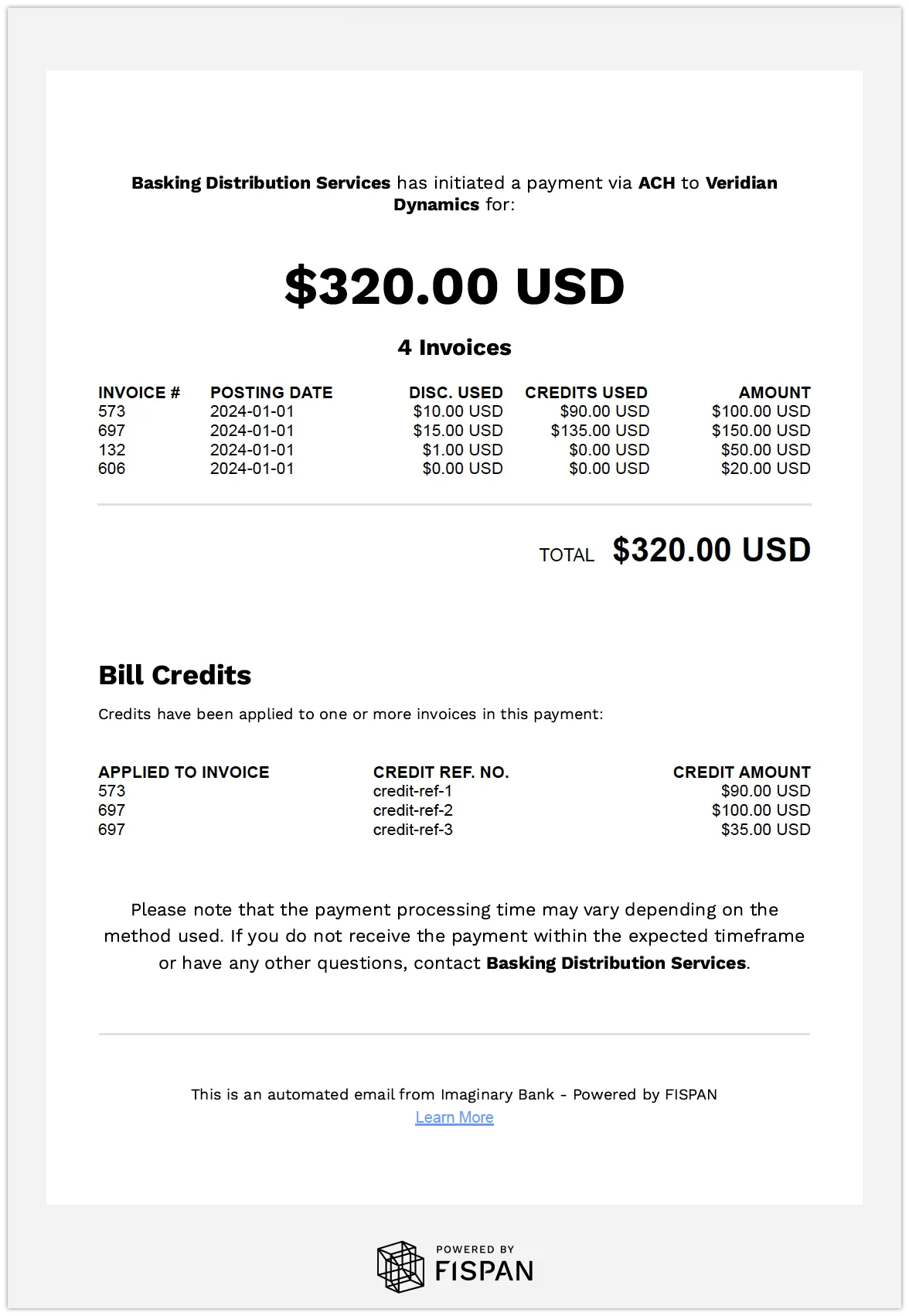
Each remittance email can be sent to up to 5 email addresses. By default, the system uses the Vendor’s email address. If you prefer to use a custom list, you can set Payables Email Addresses on the custom tab of the Vendor's profile in NetSuite (or the Payment Methods page in Sage Intacct and Business Central).
The email will be sent from FISPAN and feature your bank's branding. As a user, you can customize several settings:
- "Reply-To" Email Address: Configure an address that the recipient will see and use if they reply to the remittance advice.
- Receive Copies: Choose an email address to receive copies of all sent remittance advice.
- Alternative Company Name: You may request that we configure a different company name to appear in the email on a per-bank account basis.
Remittance emails are submitted shortly after the payment is successfully sent from your ERP. The subject line of the email will appear as: "Your customer {CUSTOMER_NAME} has initiated a payment."
IMPORTANT: Enabling the GROUP BILLS FOR PAYMENT function means that only one remittance email is sent for multiple bills grouped into a single payment for the same vendor.
If this feature is not enabled, each paid bill is treated as a unique payment with its own remittance email, which results in multiple payments and multiple emails.
Configuring Remittance Advice
Follow these steps in the FISPAN Portal to manage your Remittance Advice settings.
Navigate to the App Center
Log in to https://sys.fispan.live/ (or Sandbox: https://sandbox.fispan.cloud/) using your FISPAN Portal credentials.
Configure Remittance Advice
Find the Remittance Advice card, click the three-dot action button, and choose Open Settings.
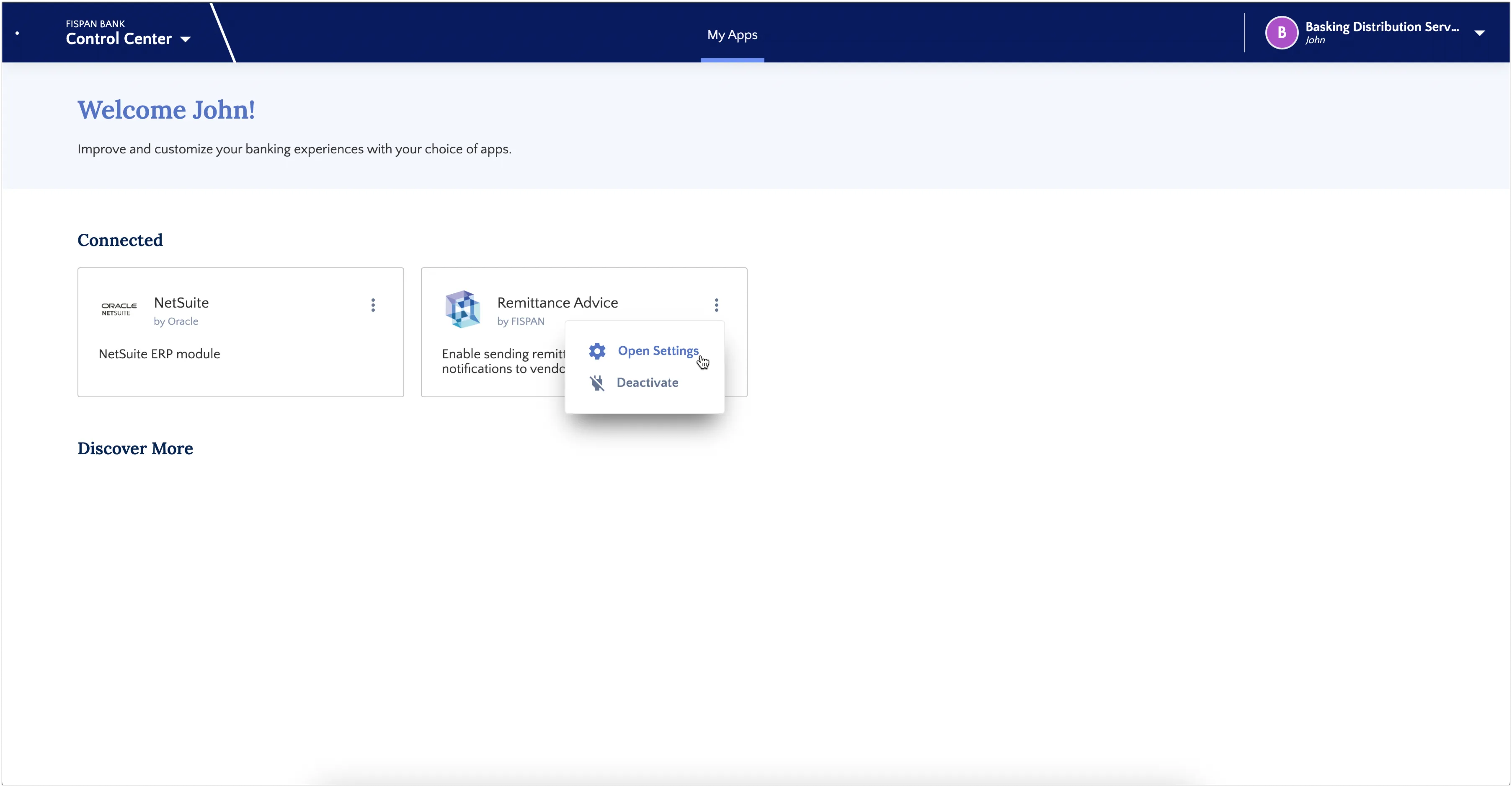
NOTE: If you need to disable the integration entirely, select Disable. Changes may take up to 15 minutes to come into effect.
Allow Replies
All remittance advice emails are sent from [email protected], which is an unmonitored inbox.
To allow vendors to respond, switch the Allow Replies toggle on. When enabled, any reply to a remittance email will be redirected to the address specified in the Vendors can reply to field.
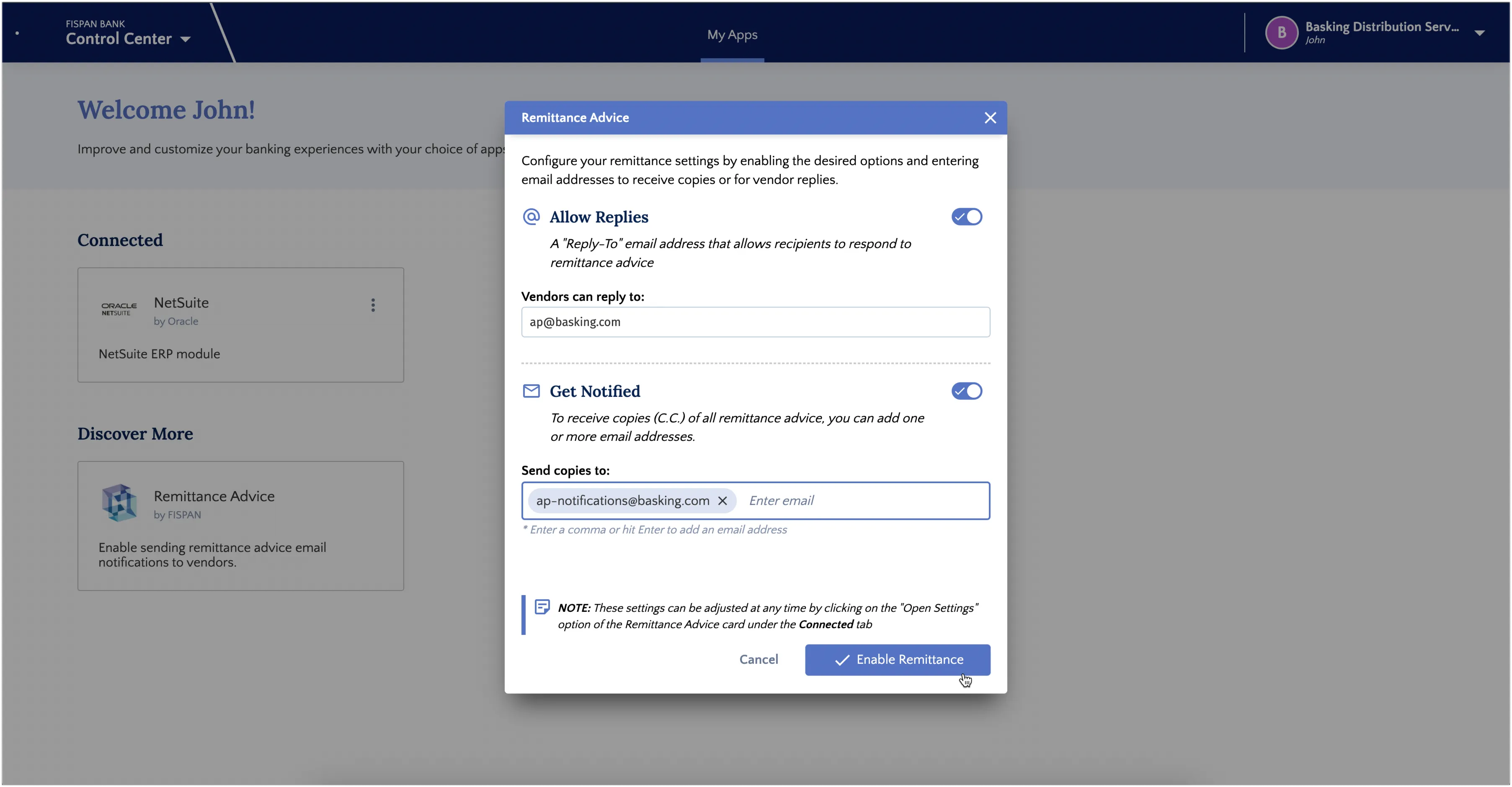
Get Notified
Toggle on the Get Notified option to automatically receive internal copies of all remittance advice emails. These copies will be sent to the email addresses specified in the Send copies to field.
Update Business Central Settings
To use the remittance advice product for Business Central, follow these steps to update your vendor settings.
Go to Payment Methods
Navigate to the Payment Methods page.

Select a Vendor
The Payment Methods page will now load. On this page, hover over a vendor and select the eye icon to open the pop-up.
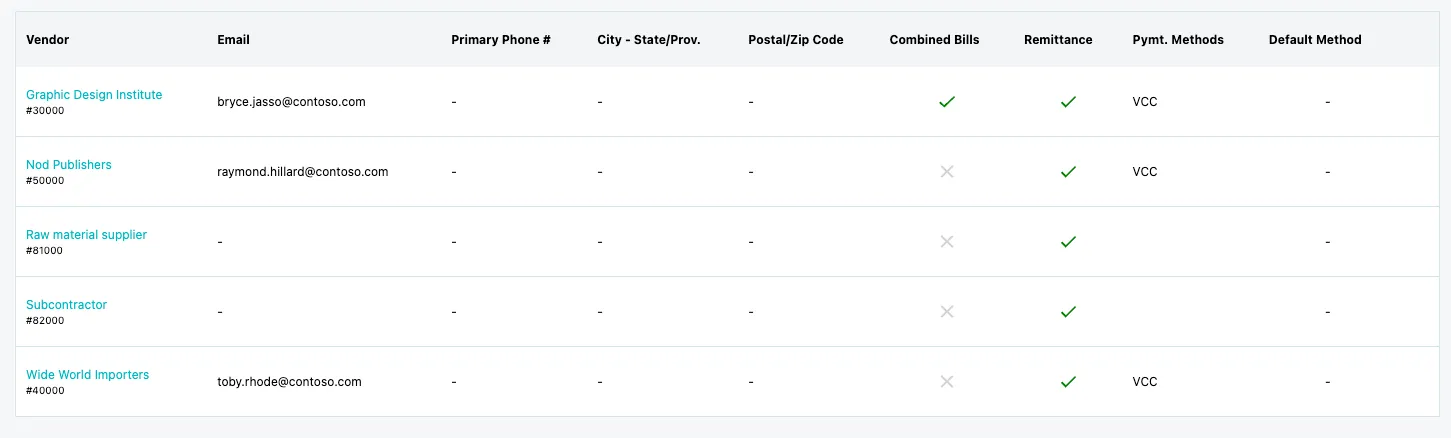
Enable Remittance Advice for Vendor
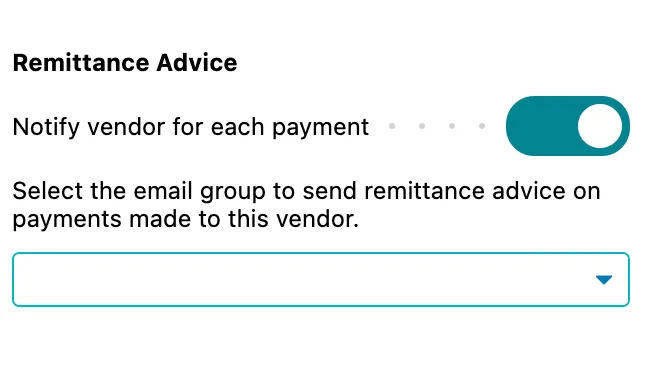
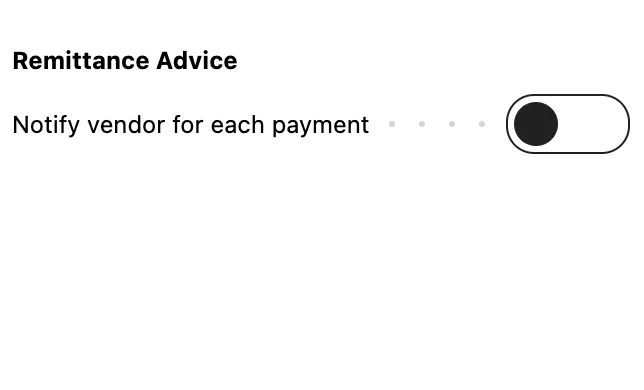
If you had an email stored on the vendor record, the remittance advice will default to that address. On this page, you can toggle off remittance advice for vendors.
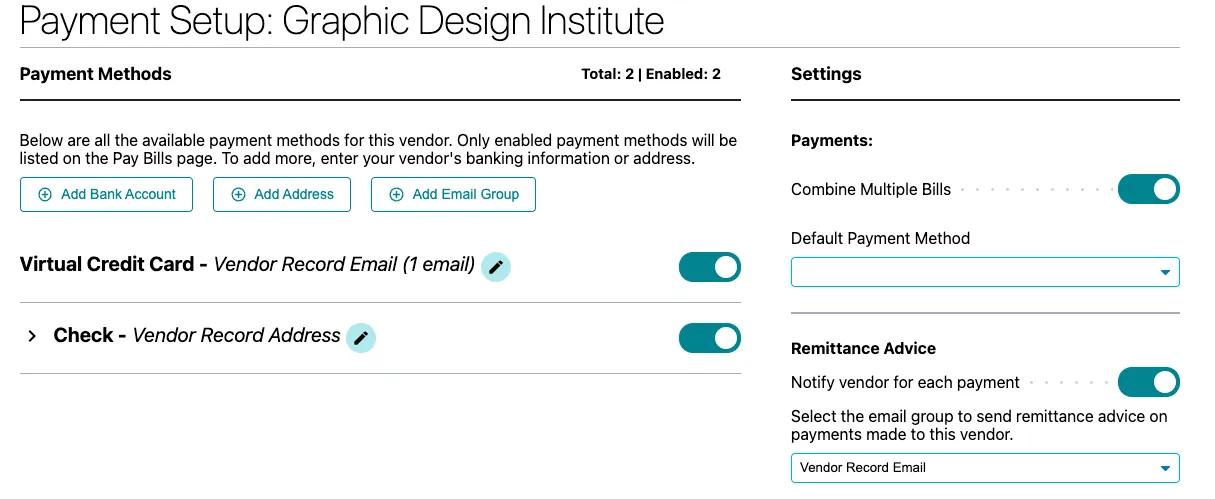
Add Email Group
You can also add more emails by selecting Add Email Group.
You can add up to five emails per group and add a group name.
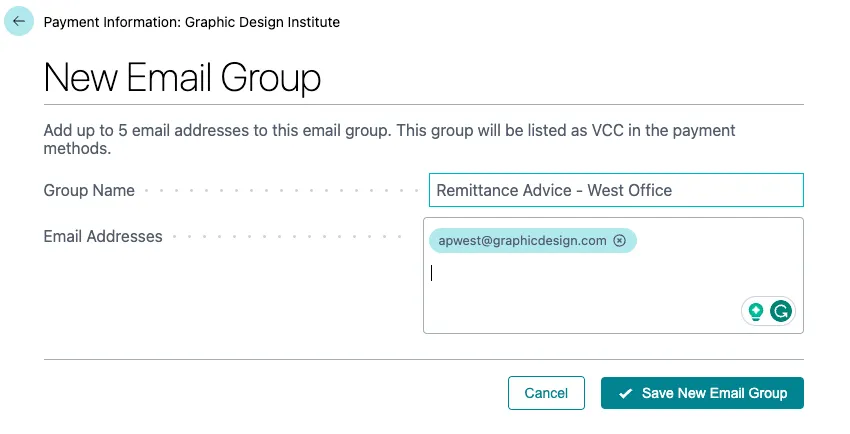
You can then change the default payment method to this new group.
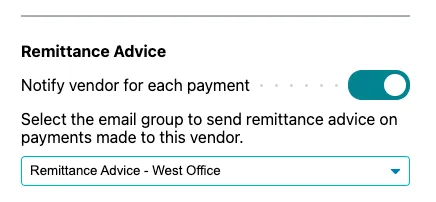
When you make a payment now, this vendor will receive a remittance advice email. If you would like to turn off Remittance for a vendor or not send remittance to a vendor, you can leave this field empty or toggle it off.
TIP: The subject of the email sent via Remittance Advice looks like: "Your customer {CUSTOMER_NAME} has initiated a payment."
TIP: The FISPAN Remittance Advice product supports discounts and credits! If the bill paid includes a discount or a credit, it will be included in the remittance email.