Mapping Bank Accounts (Workday)
Once the Santander Fusion installation and setup are completed, you are still able to map any new bank accounts that are added to the plugin. If you’re setting up the plugin for the first time, you will have completed this during the Account Matching installation step.
Mapping Accounts
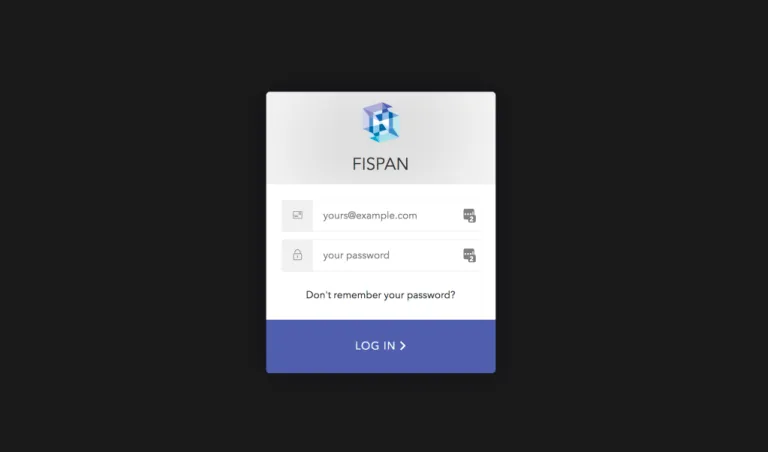
Log in to FISPAN Portal
Head to the Production Portal or the Sandbox Portal you used to register for an account with FISPAN when you installed the plugin.
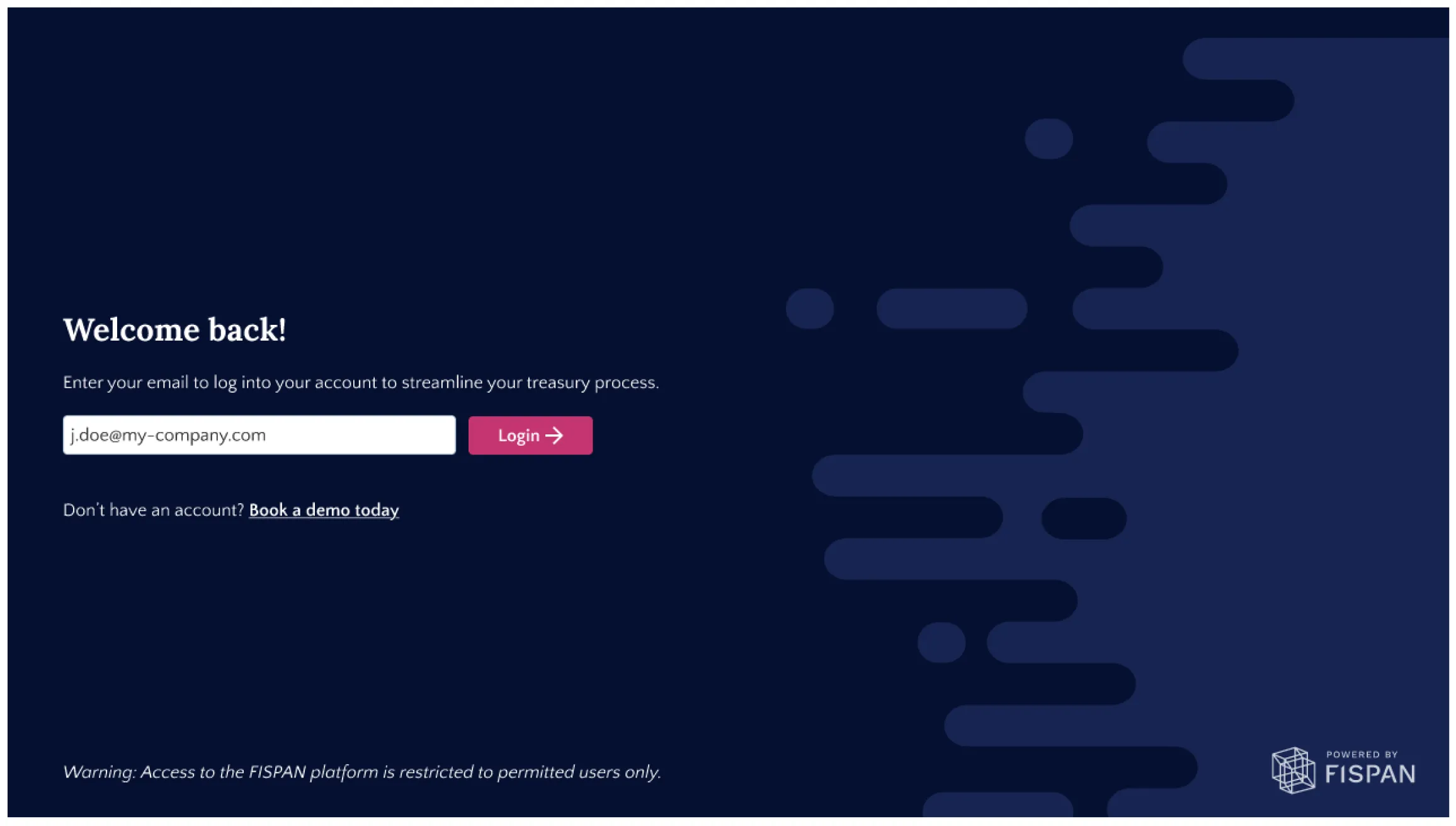
Log in to the portal with the email and password you used to register.
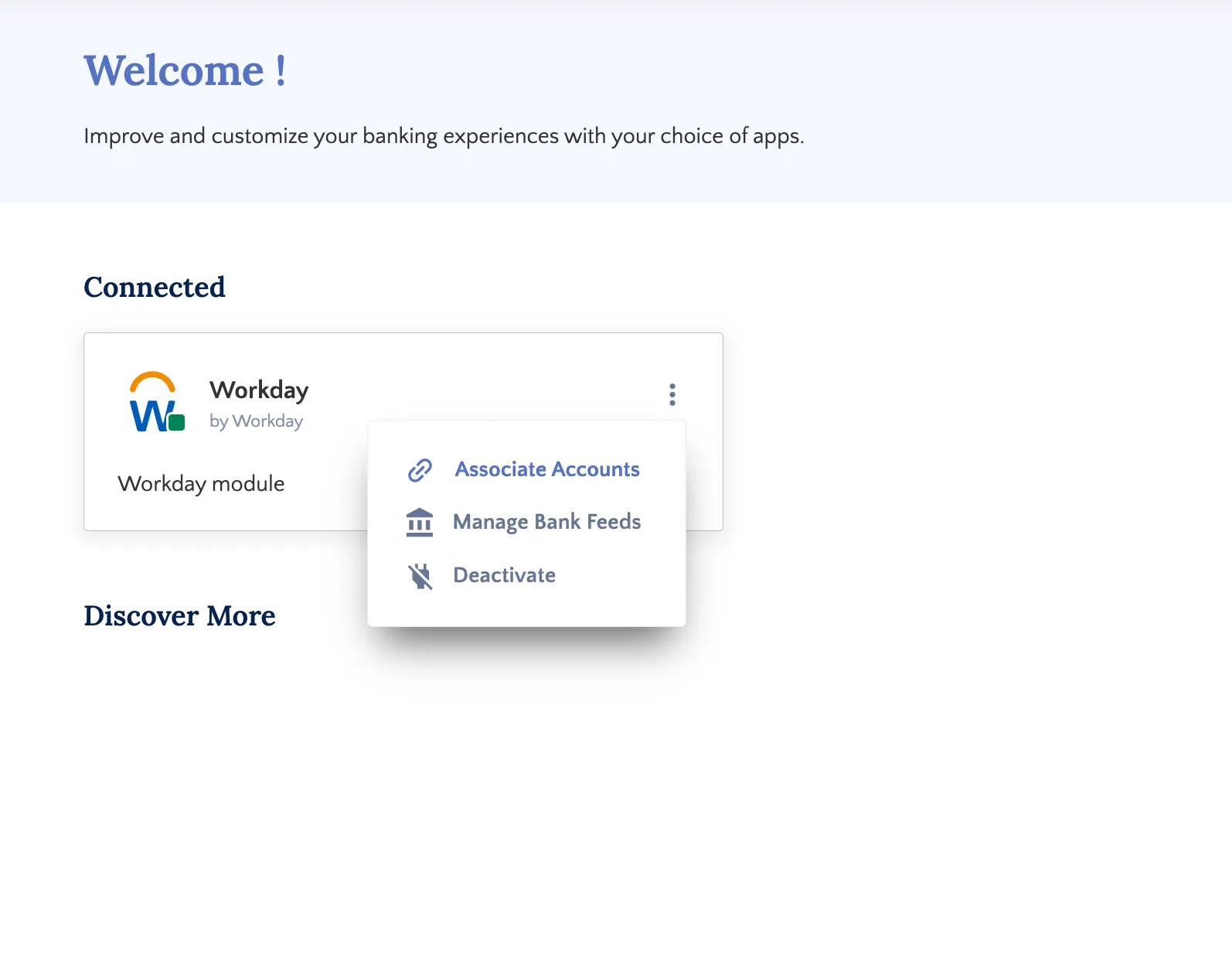
Go to Accounts
Select the “…” that appears in the top right corner of your ERP module and select Associate Accounts.
Match Accounts
Drag an ERP Account from the left column and drop it onto the desired Bank Account.
Continue until all accounts are matched.
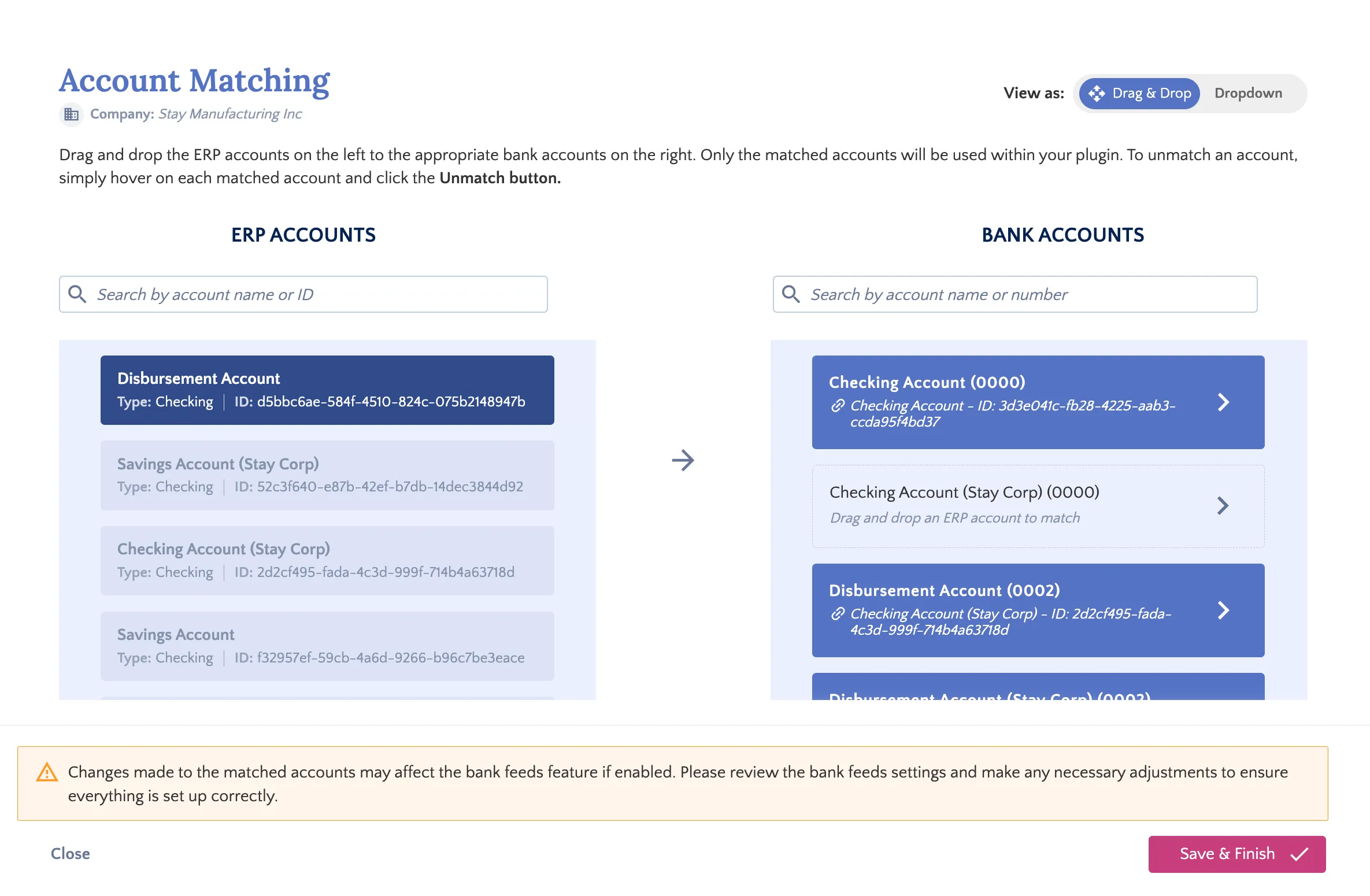
Once you've successfully matched your accounts, click Next Step.
IMPORTANT: Updating mappings for accounts currently connected to Bank Feeds may disrupt your existing connections.
After completing the account mapping, you must update your feeds. Please review the Managing Outdated Accounts section within the Disconnect Bank Feeds page for instructions.