Enable Bank Feeds (Workday)
Once you’ve completed the plugin installation and setup, you may want to enable/disable bank feeds connection for bank accounts.
Head to the FISPAN Portal you used to register for an account with FISPAN when you installed the plugin.
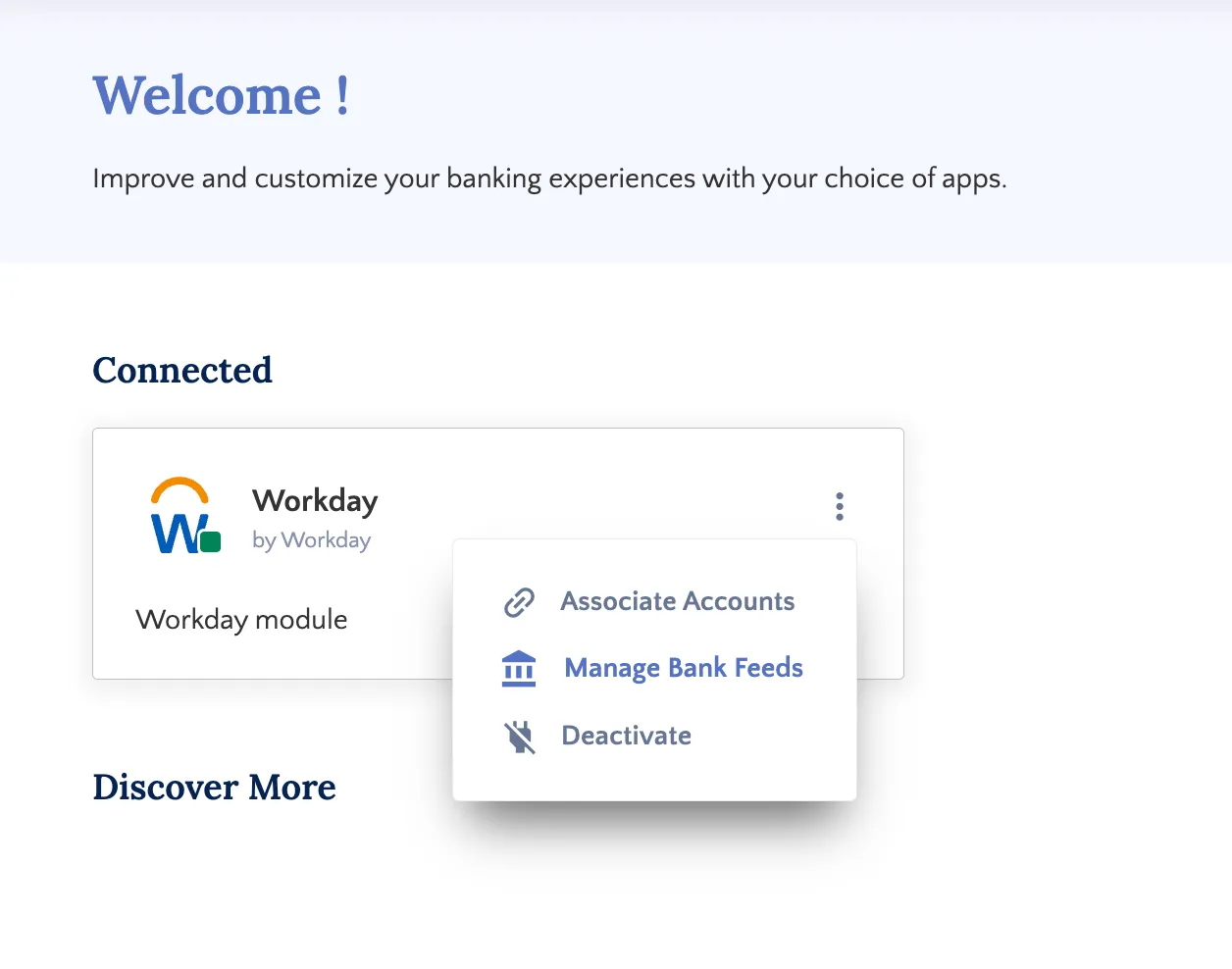
Login into the Portal and once logged in, Select the “⋮” that appears on the top right corner of Workday module and select Manage Bank Feeds.
Bank Feeds allow for your settled bank transactions to automatically flow into Workday's Bank Reconciliation module for reconciliation, removing the need to export and import bank statements manually.
Enabling Bank Feeds
Follow these steps in the FISPAN Portal to enable Bank Feeds for Workday.
Select Accounts
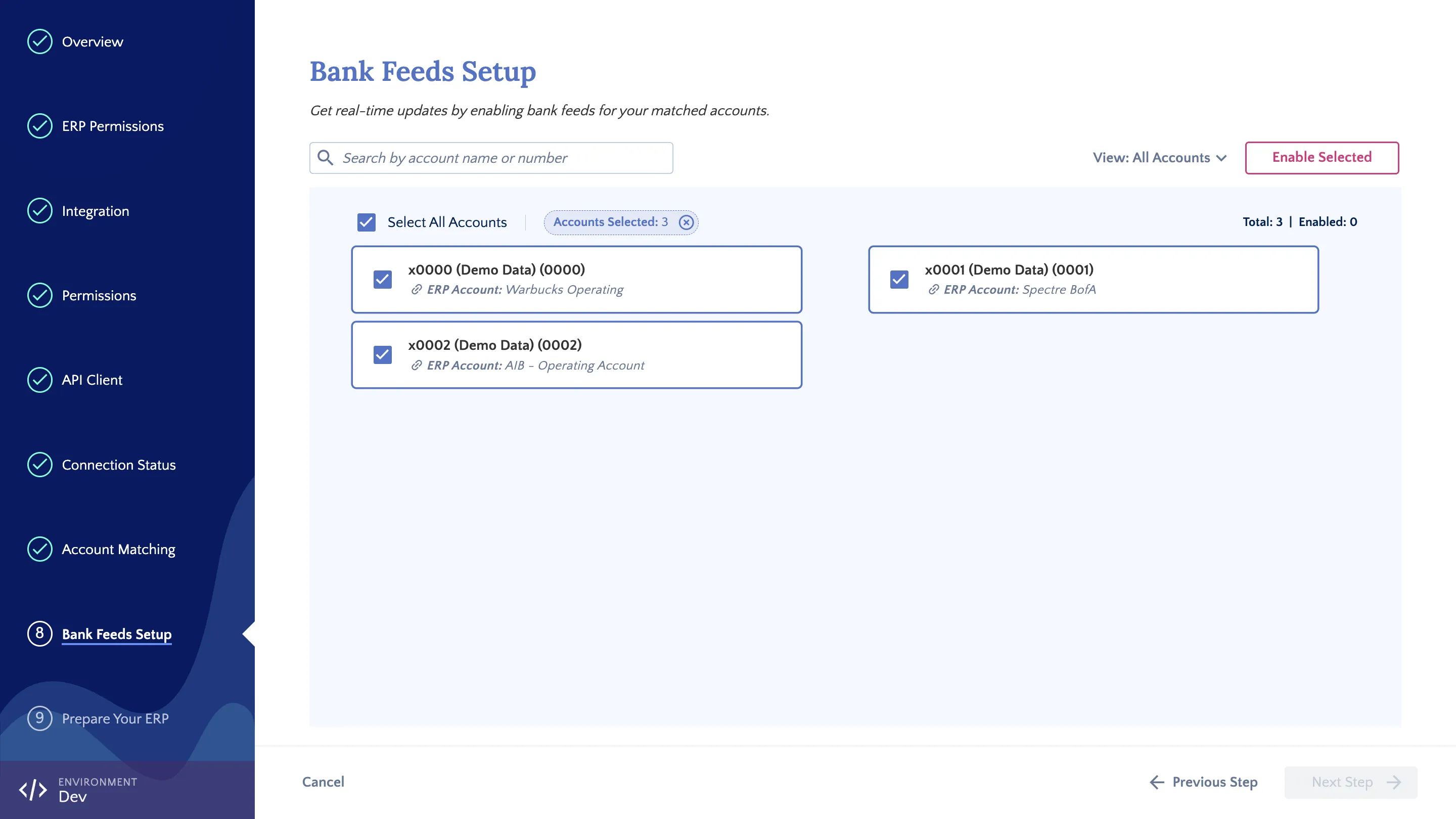
On the Bank Feeds Setup page, you will see a list of all your mapped accounts (including accounts already enabled). Select the specific accounts you wish to connect and click Enable Selected.
NOTE: Only bank accounts mapped during the Account Matching step will appear on the Bank Feeds Setup page to be selected.
Add Sync Date
A pop-up will display your chosen accounts. Here, you can specify the Start Sync From date from which transactions should flow into Workday. If no date is selected, all available historical transaction data will be pushed from the bank.
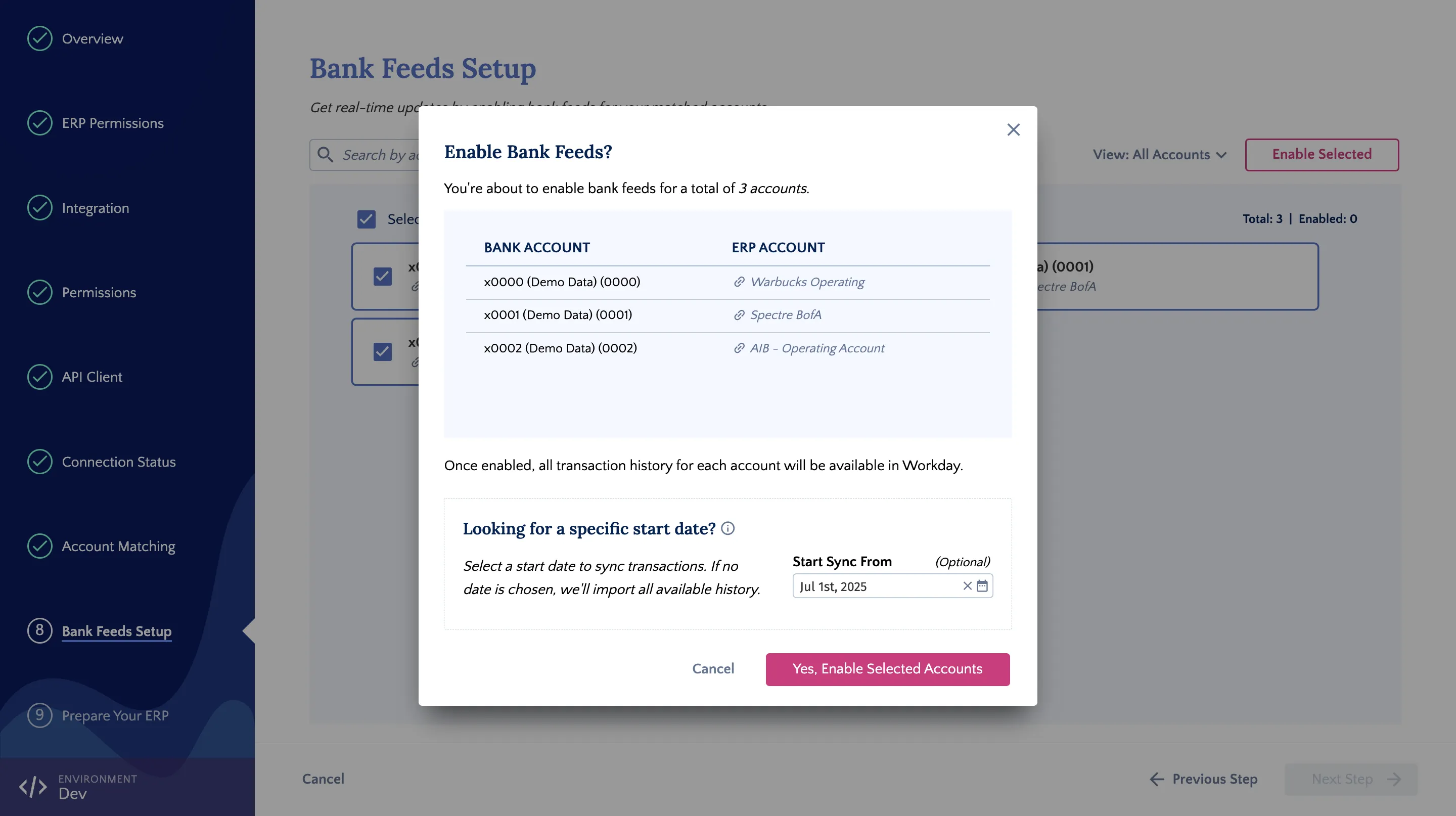
NOTE: Transaction availability depends on your bank and may not cover the full period from your selected sync date.
Click Yes, Enable Selected Accounts to continue.
Confirm Accounts Enabled
Once successfully enabled, a confirmation pop-up will appear, and the Bank Feeds Setup page will update to show the connected status of these accounts.
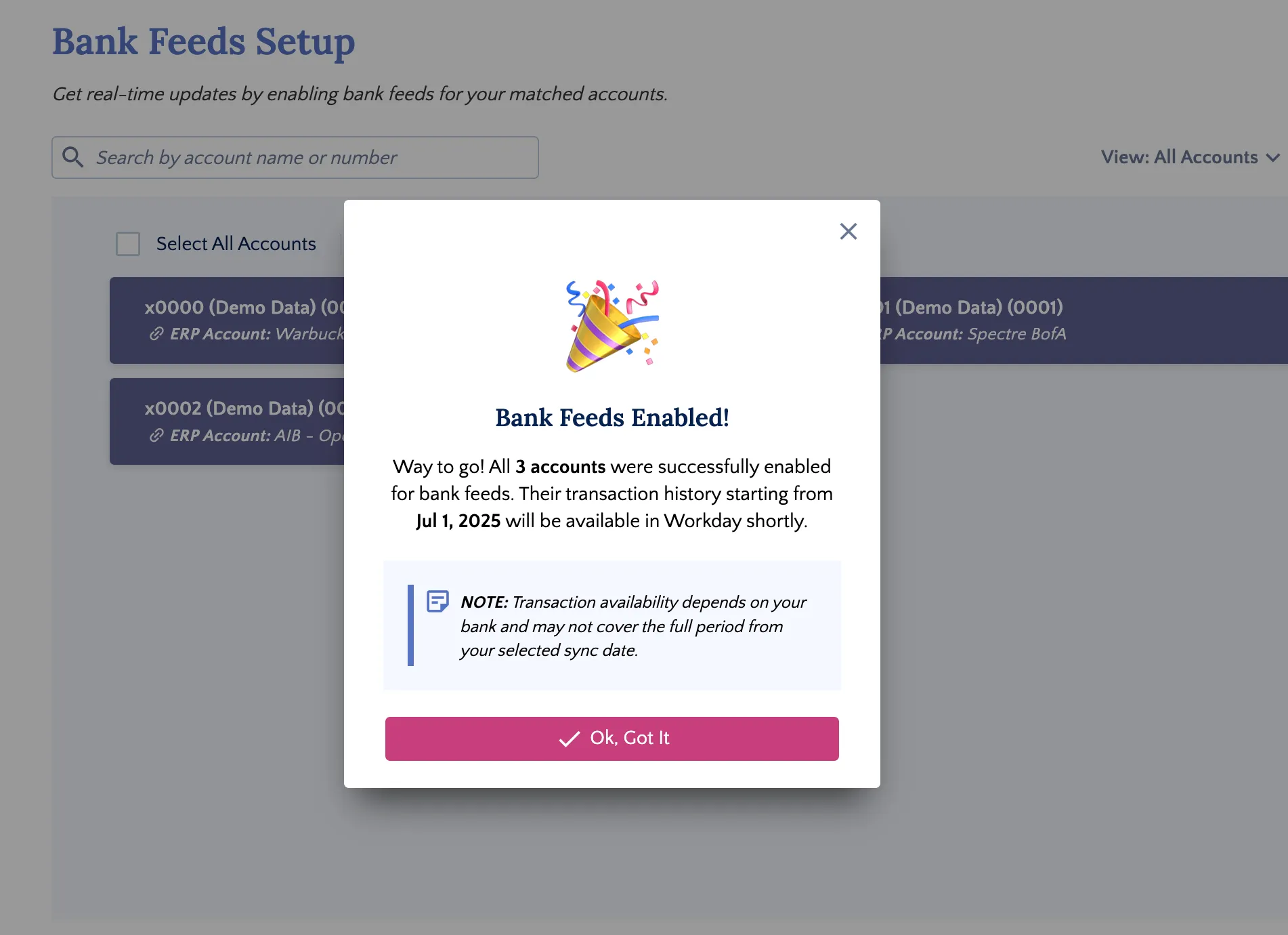
Then click Next Step to continue.
If any accounts fail to connect, a pop-up will list the failed accounts along with their specific error messages. Please contact FISPAN Support and provide these error messages for troubleshooting.
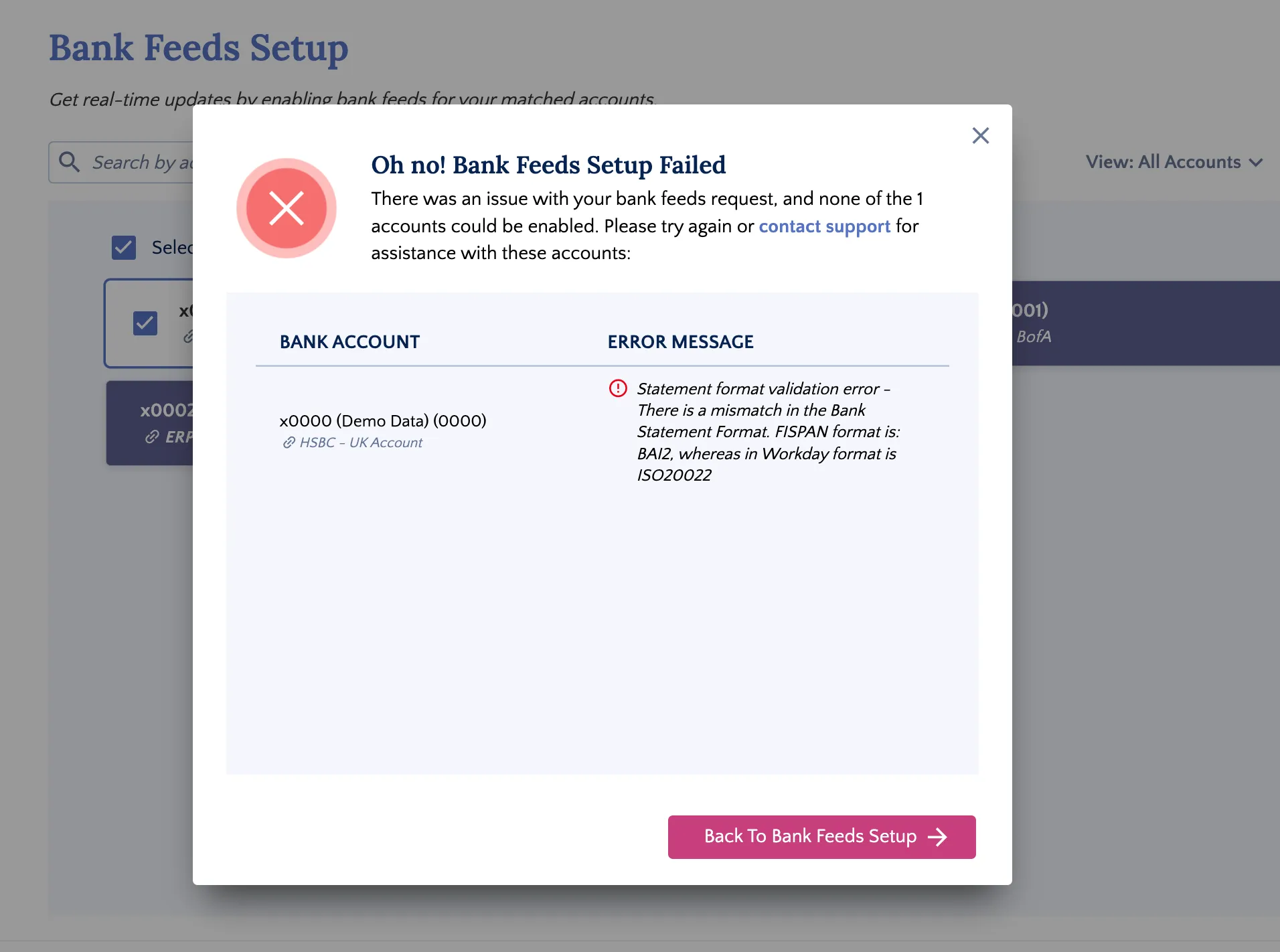
Any accounts that did not encounter an error will continue to process successfully.
Once you have finished enabling your accounts, click Next Step to follow the post-onboarding checklist, or click Close to exit the setup wizard.
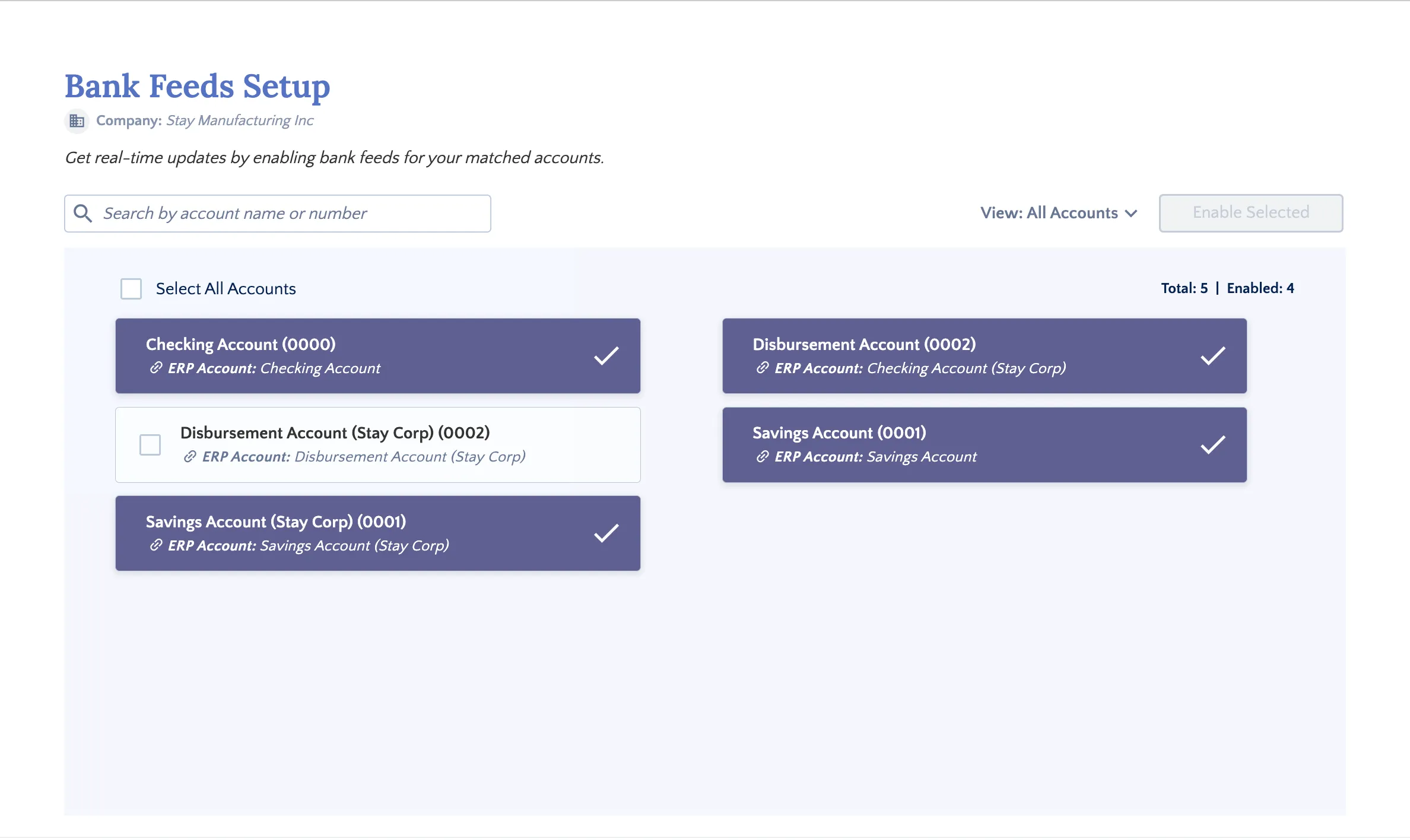
You will start seeing transactions in your Bank Reconciliation Module shortly.