Step 9: Create Web Service User
To ensure that the plugin is able to communicate with Sage Intacct, a Web Service User needs to be created.
In Intacct: Go to Company → Admin tab → Web Service Users.
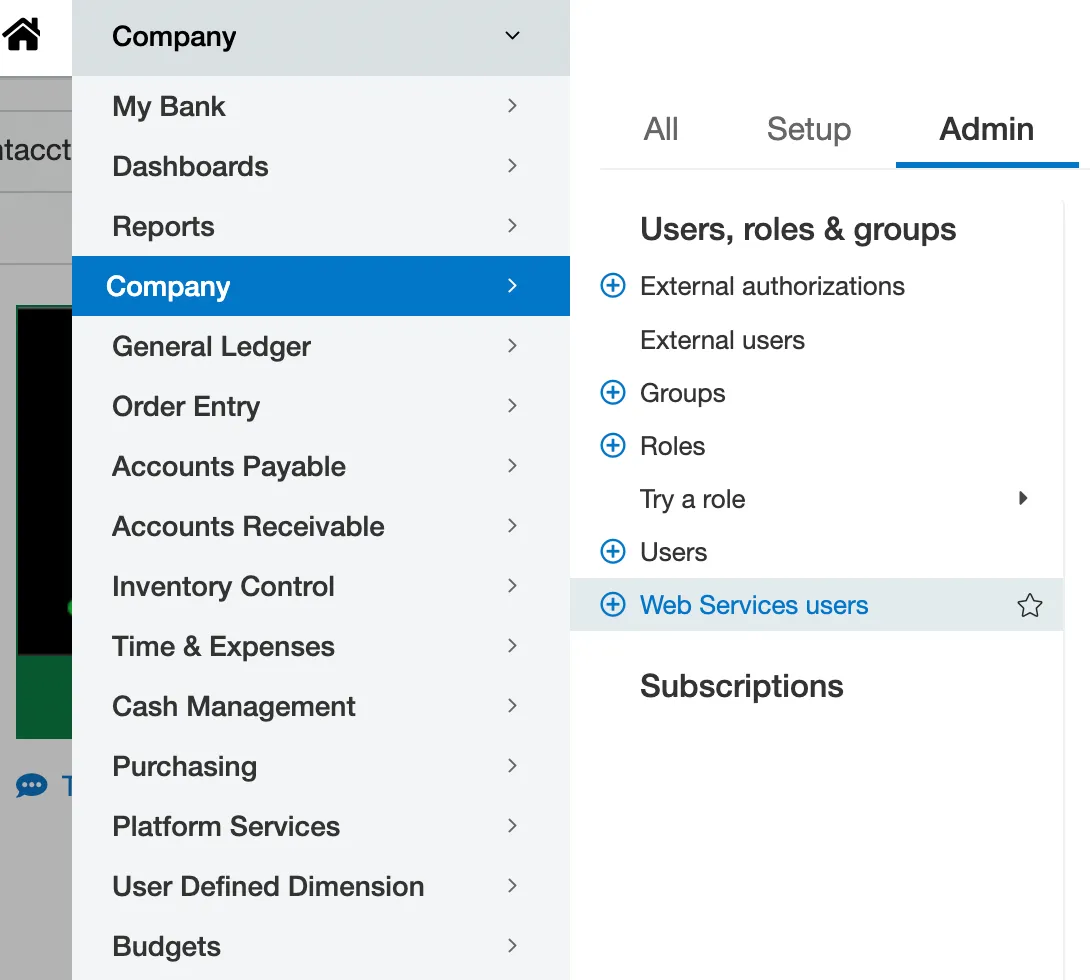
An alert with 'By creating this user, additional charges may be incurred. Do you want to continue?' will pop up. At this time, Sage Intacct has confirmed that there are no additional costs associated with adding a Web Service user. As this may change, FISPAN recommends double-checking with your Sage Intacct representative.
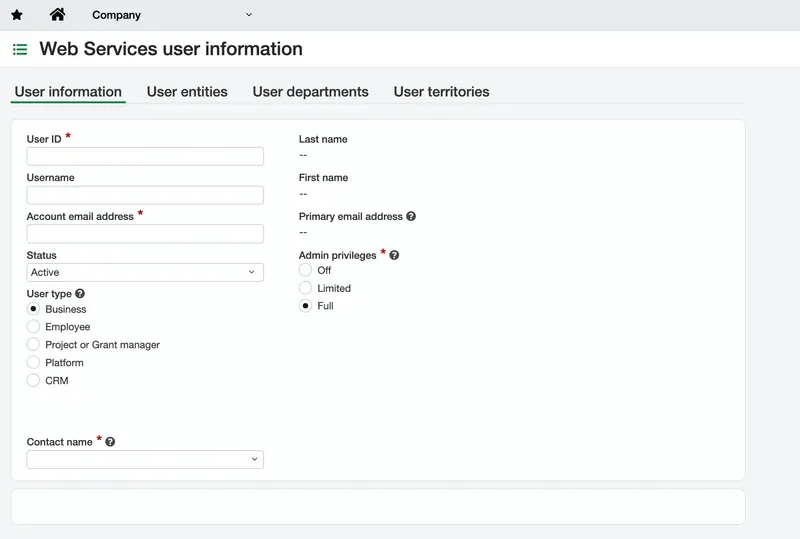
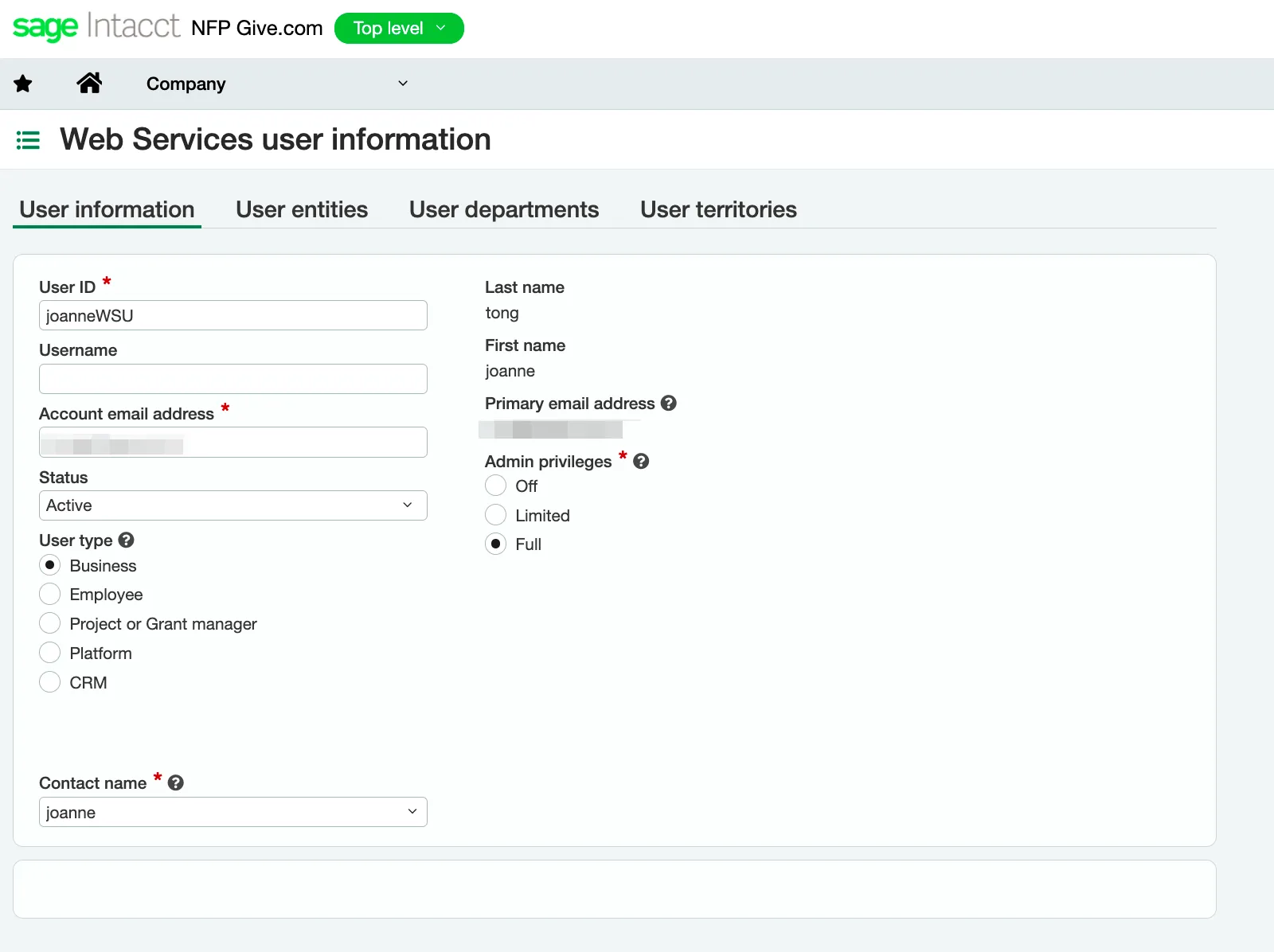
Select Add to create a new Web Service User, then fill in the required fields:
- User ID (can be whatever you want)
- User type: Business
- Admin Privileges: Full
- Contact Name (associate this Web Services User with a Contact)
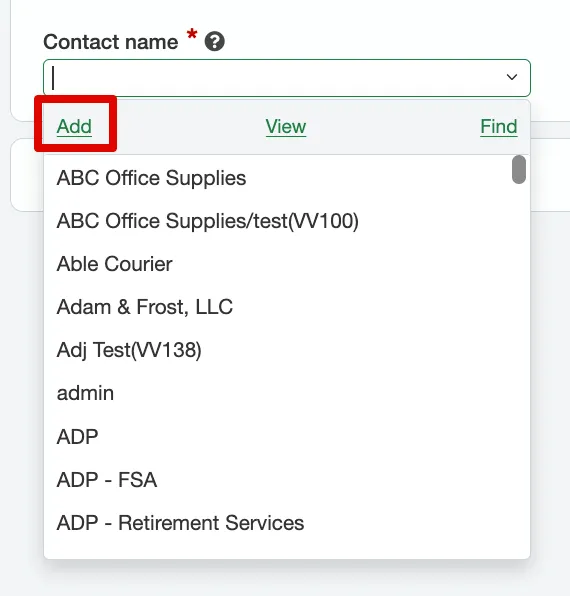
Please note that the Contact selected within the Contact Name field must have a First and Last Name. If you do not already have a Contact to choose from, you may create one by clicking on the drop-down, then Add.
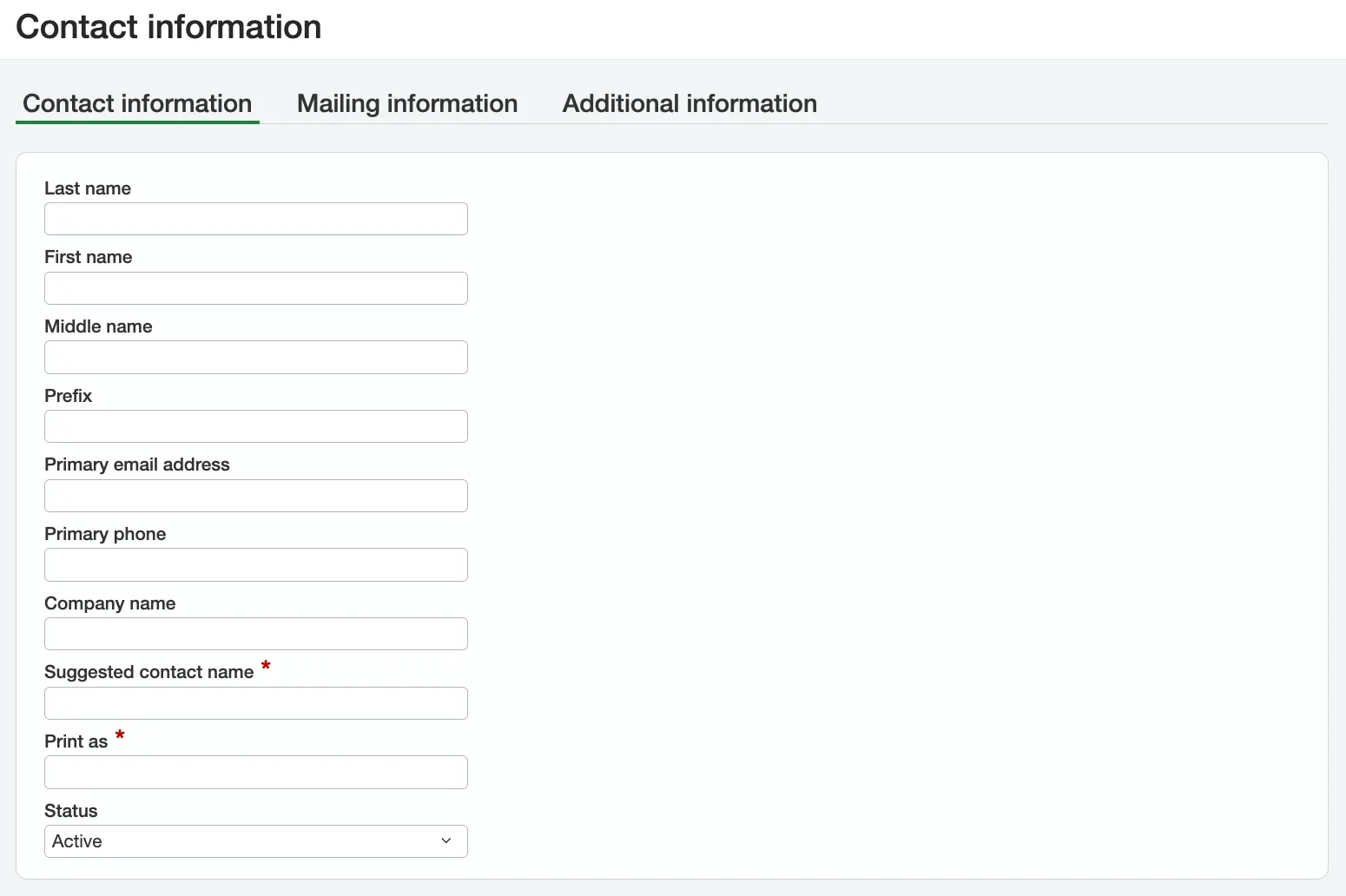
After clicking Add fill in the following fields on the Contact Information tab of the Contact Information window:
- Last name
- First name
- Primary email address
- Suggested contact name
- Print as
Then, click Save.
Back on the Web Services User page, once a Contact has been selected, whether after creation of a new Contact or selecting a pre-existing Contact, the following fields will be auto-populated:
- Last Name
- First Name
- Email Address
Then, select Save.
You will receive an email from Sage Intacct with the credentials. We recommend saving this Web Service User credentials as they are required in the FISPAN wizard.