Step 7: Install Bank Bundle
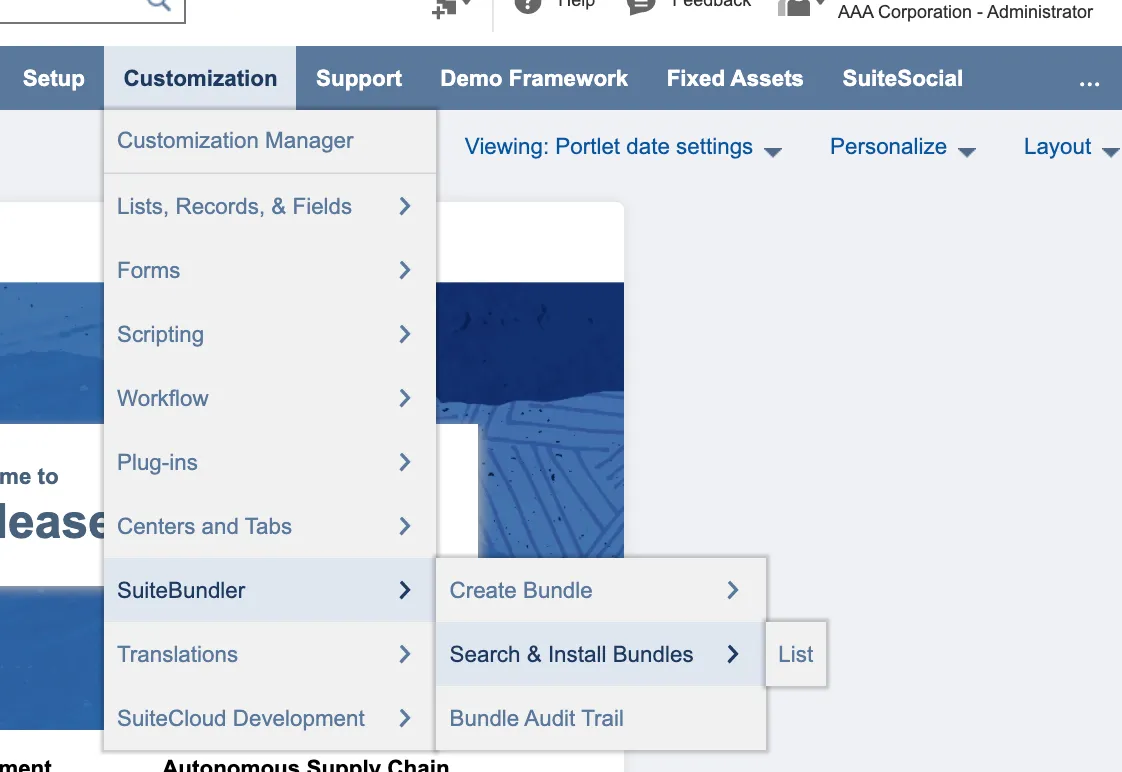
In NetSuite: Go to Customization → SuiteBundler → Search & Install Bundles
NOTE: If the Install button is not visible for the bundle, you may not have been granted access to the bundle. If this is the case, please contact Support.
Search for the Bundle
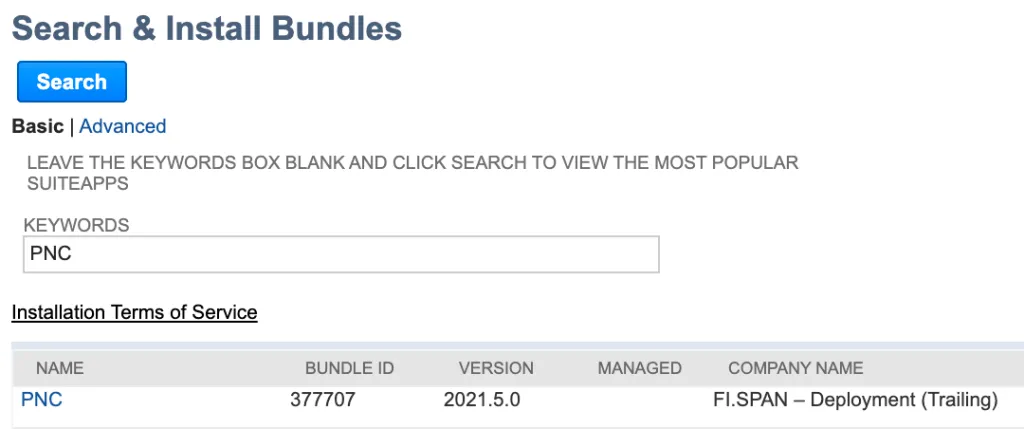
To search for the bundle, type “PNC” in the Keywords box and select Search. Ensure the bundle ID is 377707 before selecting.
pop-up
Select Install to review the bundle, then select Install again to confirm.
Select Ok when the pop up box appears and wait for the bundle to install (this may take a few moments). Once the bundle has installed, the PNC tab will appear on your NetSuite menu.
Then, head back to the wizard and select Next Step.
NOTE: If you will be using Accounts Payable, you will also need to install and configure the Entity Bank Details bundle ID 323878. Refer to this link to install the bundle: Step 1: Install Entity Bank Details Bundle
Or you can wait to install and configure the Entity Bank Details bundle later, as described in: Step 15: Install Entity Bank Details Bundle