Mapping Bank Accounts (Intacct)
Once the PINACLE® | PNC installation and setup are completed, you are still able to map any new bank accounts that are added to the plugin.
Navigate to Accounts
Log in to FISPAN Portal
Head to the Production Portal or the Sandbox Portal you used to register for an account with FISPAN when you installed the plugin.

Log in to the portal with the email and password you used to register.
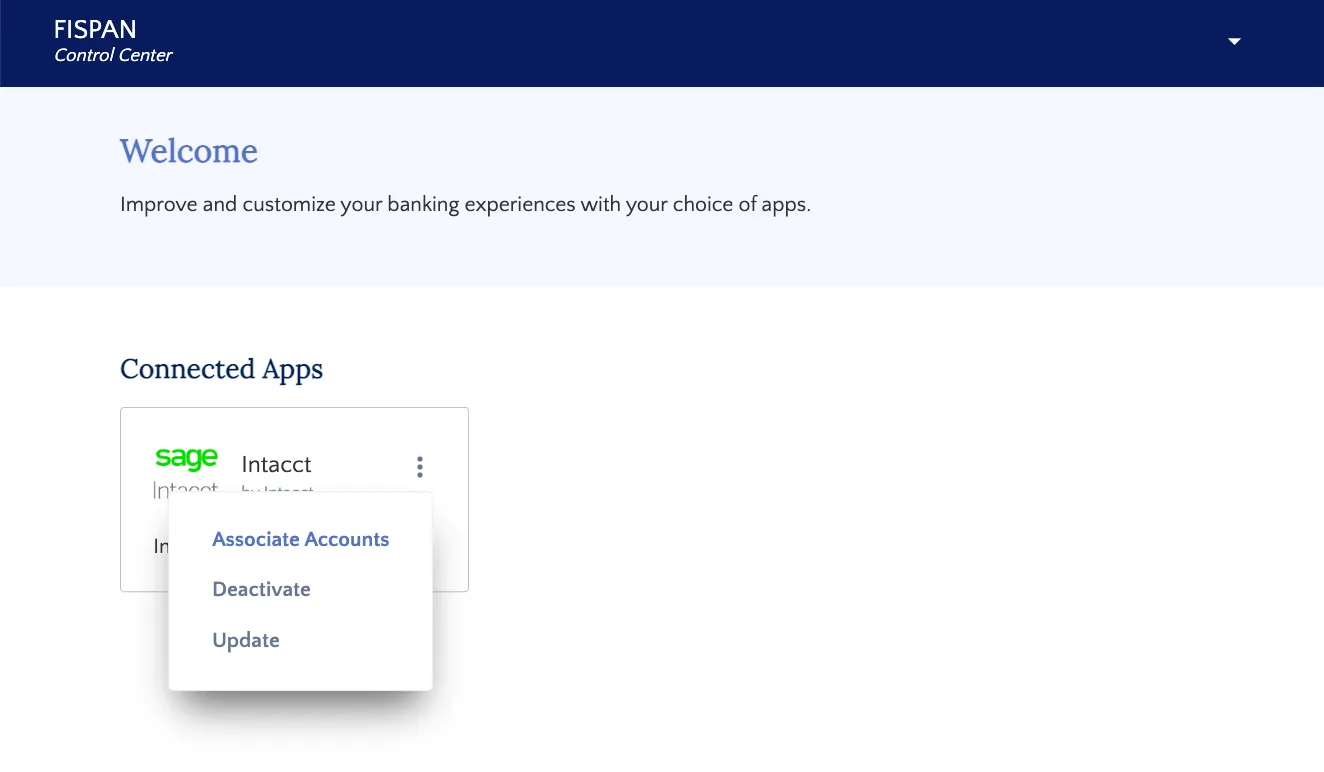
Go to Accounts
Select Associate Accounts and map the accounts you would like to map.
For Credit Card VCC/SUA (if applicable), you will need to map the Bank Account to a Bank (Checking/Savings) type Intacct account.
Create a General Ledger Account
Balance Sheet, Non-Closing Cash Account (e.g., "PNC Credit Card VCC - Cash").
Create a Bank Account in Cash Management
Navigate to Cash Management → Accounts → Checking/Savings → Add.
Set the type to Checking or Savings and link it to the General Ledger account above.
Map in FISPAN
In the Intacct connection Mapping/Payables Settings, map the new Bank Account to the VCC/SUA Funding Account, then Resync.
IMPORTANT: It might take a few moments for your accounts to appear, depending on the number of accounts you have and how quickly Intacct is processing them.
Please do not refresh or leave the page until everything has loaded.
NOTE: If you would like to add new accounts or functionalities after your initial installation and set-up, please submit a request to your PNC TMCC.
TIP: Would you like to set a default account for Account Payables? Let us know which account you'd like by contacting PNC Support. Please specify the last 4 digits of the bank account number in your request. Each company can have only one default source account across all subsidiaries.
Matching Accounts
The next step in the installation wizard is to match your ERP Accounts to the corresponding Bank Accounts.
Match Accounts
Drag an ERP Account from the left column and drop it onto the desired Bank Account.
Continue until all accounts are matched.
Select Default Account
To select your preferred default account, hover over the desired source account and click the star icon. This sets the default selection in the source account dropdown (you can change it anytime in the Account Matching screen here).
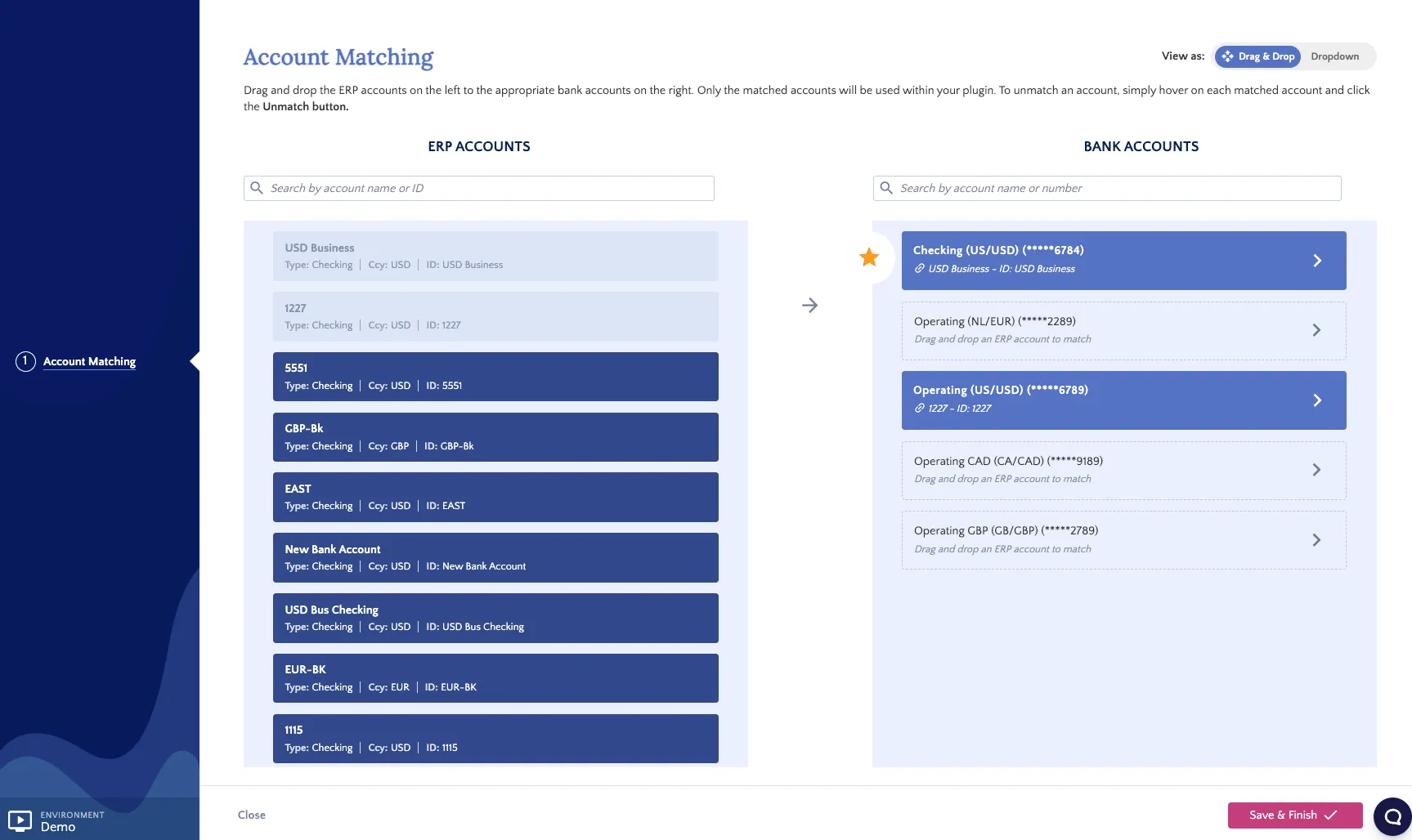
Once you've successfully matched your accounts, click Next Step.
NOTE: When installing the plugin in Sandbox, the Bank Account ending in 1133 is used for testing purposes ONLY. This account is not linked to any of your live accounts with your bank.
When installing in Production, the Bank Accounts listed will reflect your accounts set up for use with the plugin.
Map Additional Accounts or Change Existing Mapping
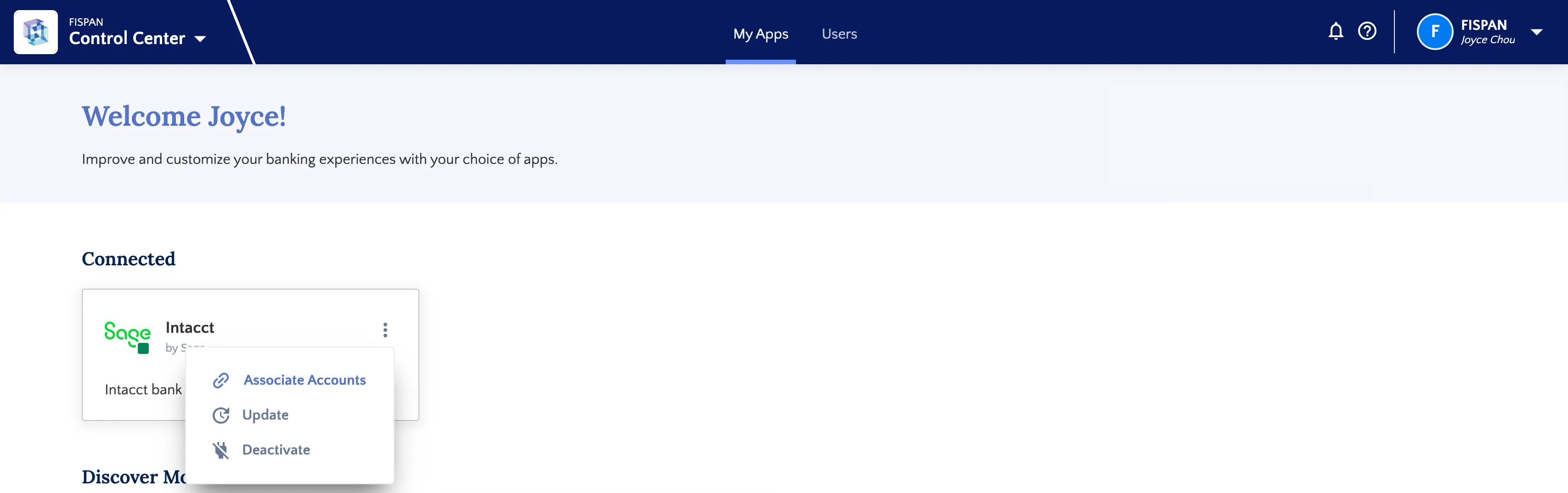
To map any additional accounts or alter an existing mapping, you would need to go to sys.fispan.live and log in.
Once logged in, you can click on the three dots on the top right of the Sage Intacct® tile and click on Associate Accounts. This will open the Account Matching screen, where you can map any additional accounts or alter the existing mapping.