Bank Feeds Mapping Enhancements - Coming Soon (Intacct)
FISPAN has been working with Sage to improve bank feeds by changing their API Infrastructure. These changes from Sage enable data enrichment mapped into the ERP, providing more detail and accuracy for bank feed reconciliation.
Summary of Key Improvements
Our team, in consultation with Sage experts, has revised our data mapping logic to take full advantage of the new capabilities. While many smaller improvements are being made, the most impactful changes that clients will notice are:
More Accurate Transaction Matching:
- Check Number: We are implementing more robust logic to identify and map the correct check transactions. Our system will now prioritize the Transaction ID, followed by the check number, and then the customer reference to ensure the most accurate data is used.
- Note: While check number is a key identifier, the check number is not always displayed in the native Intacct module making it unreliable for matching. This is why the Transaction ID takes precedence over the check number and should be used for matching purposes. The check number will still be visible in the Description column.
- Payee Information: We will now more reliably capture payee/counterparty information.
Improved Data Integrity
- We are implementing stricter data cleaning and formatting rules. For example, check numbers will be standardized to a maximum of 12 characters to ensure compatibility with Sage Intacct. This focus on data hygiene prevents errors and improves the success of automatic matching rules.
Important Considerations
- Native Platform Limitations: While these enhancements represent a major step forward, we are still bound by certain native limitations within the Sage Intacct platform that we cannot control. We have optimized our service to the fullest extent possible within these constraints.
NOTE: The reconciliation rules may be impacted and will need to be updated to reflect these improvements.
Update (or Create) Reconciliation Rules and Rule Sets
Confirm Permissions
Ensure you have the necessary permissions. Typically, an administrator role will have these, but you can confirm by navigating to Company -> Admin -> Roles or Users.
Select the relevant role or user and go to Permissions.
Under Cash Management, confirm you have List, View, Add, Edit, and Delete permissions for:
- Bank Transactions
- Bank Transaction Rules
- Bank Transaction Rule Sets
Save any changes.
Create or Edit a Reconciliation Rule
Navigate to Cash Management -> Setup -> Reconciliation Rules -> Rules.
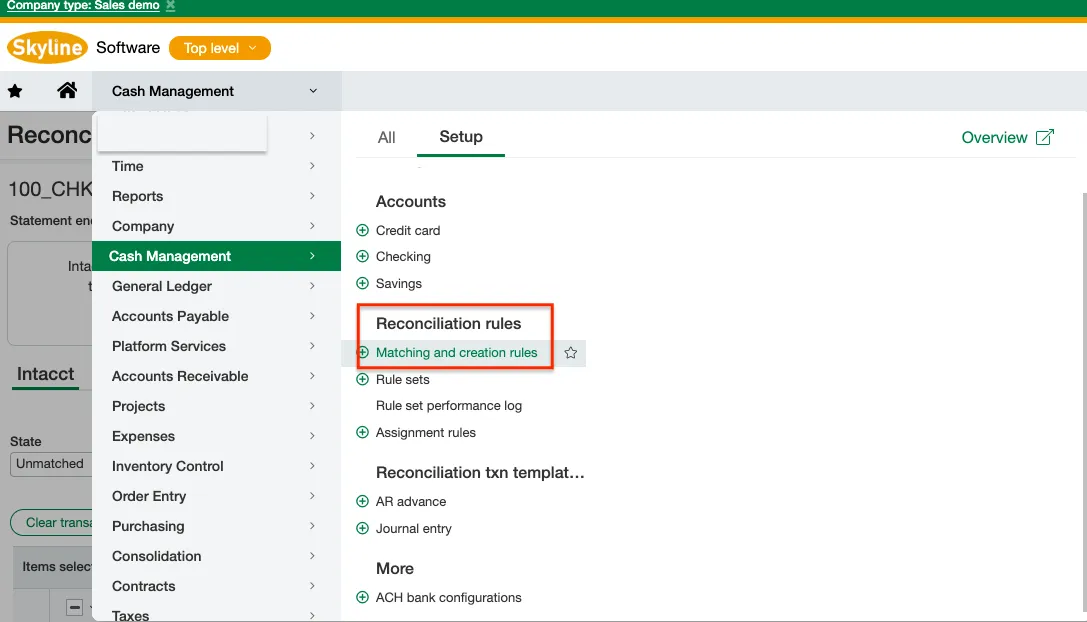
To create a new rule: Click the + Add button.
To edit an existing rule: Click Edit next to the rule you want to modify.
Populate the Rule Details:
- Type: Choose Match rule (to match bank transactions to existing Intacct transactions) or Create rule (to automatically create new Intacct transactions, like for bank fees or interest).
- ID and Name: Enter a unique ID and a descriptive name for the rule.
- Filter Transactions by: This is crucial for defining when the rule should apply. You'll specify:
- Data source: (e.g., Bank Transaction)
- Field: (e.g., Description, Amount, Posting Date, Document Number)
- Operator: (e.g., equals, contains, begins with, greater than)
- Value: The specific text or value to filter by.
TIP: For matching rules, Amount is typically a required field. You might also add filters for Document Number or Description to make the matching more precise.
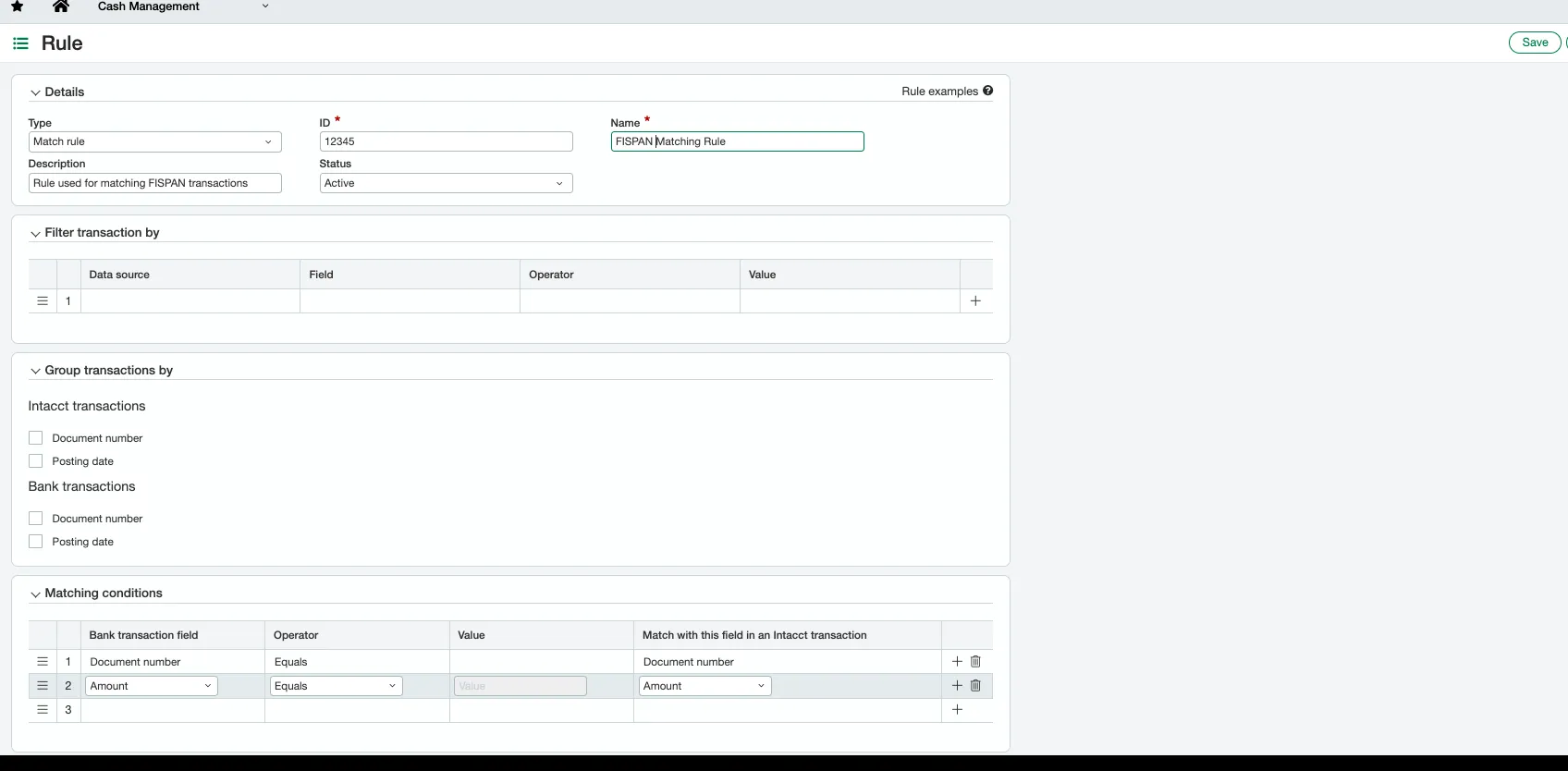
Click Save.
NOTE: You cannot delete rules, but you can set them to Inactive if you no longer want them to be used. It is important to ensure that the rule set is applied as you can only have one active rule set.
Apply a Rule Set to an Account
- Option 1: From the Account Page
- Navigate to Cash Management > Setup > Accounts (or select Bank Accounts / Credit Card Accounts).
- Find the relevant account and select Edit.
- Go to the Details tab.
- Under the Accounting Information section, locate the Applied rule set dropdown.
- Select your desired Rule Set and click Save.
- Option 2: From the Rule Set Page
- Navigate to Cash Management > Setup > Reconciliation rules > Rule sets.
- Select Edit next to the Rule Set you want to assign.
- Go to the Accounts tab and click Select accounts.
- Check the boxes for the bank or credit card accounts you want to associate with this rule set.
- Click Add and close, then select Save.