Bank Account Re-Authentication (Business Central)
Once you’ve completed the plugin installation and setup, you may need to re-authentication your Bank Accounts to ensure your Balances & Transactions and Bank Feeds remain updated. If you’re setting up the plugin for the first time, you will have already completed this.
Log In to Portal
Head to the FISPAN Portal you used to register for an account with FISPAN when you installed the plugin.
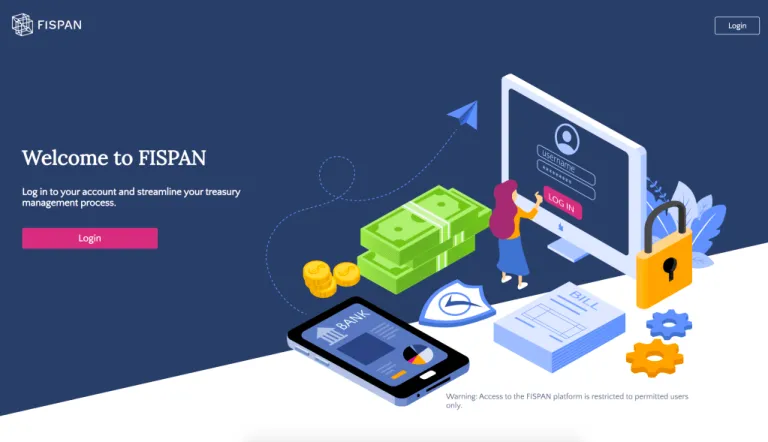
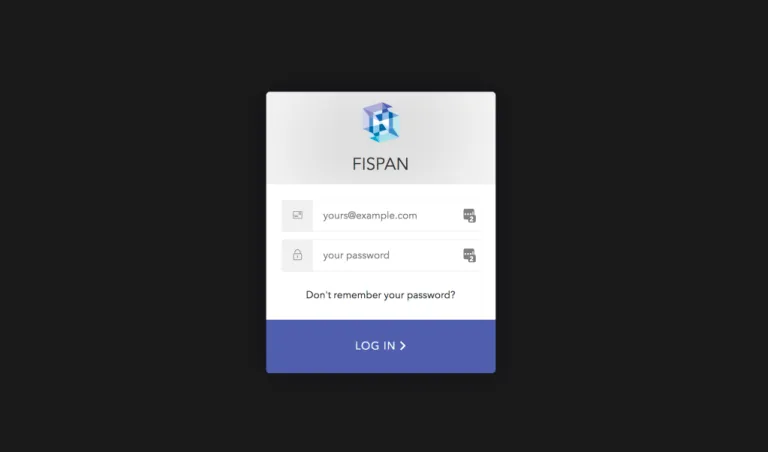
Log in to the portal with the email and password you used to register.
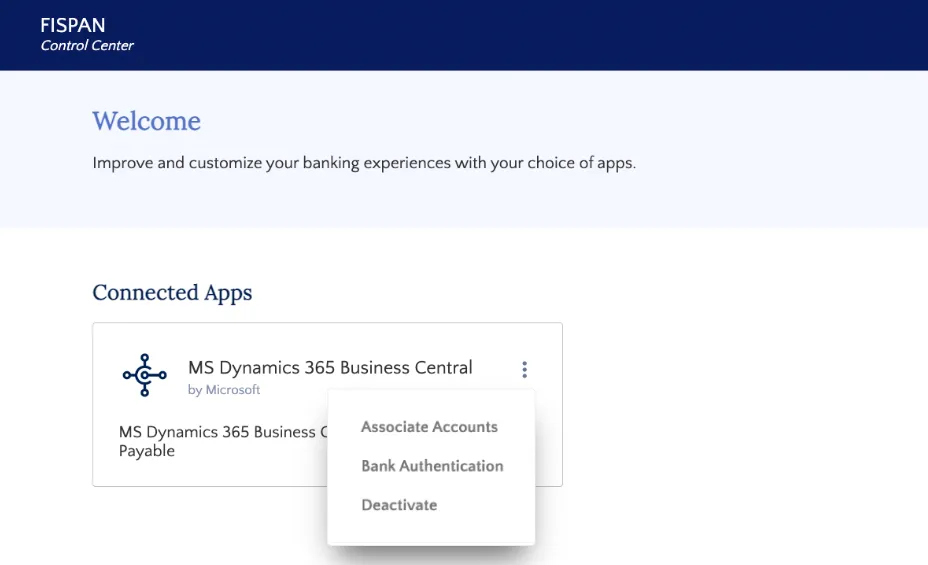
Go to Authentication
Select Bank Authentication.
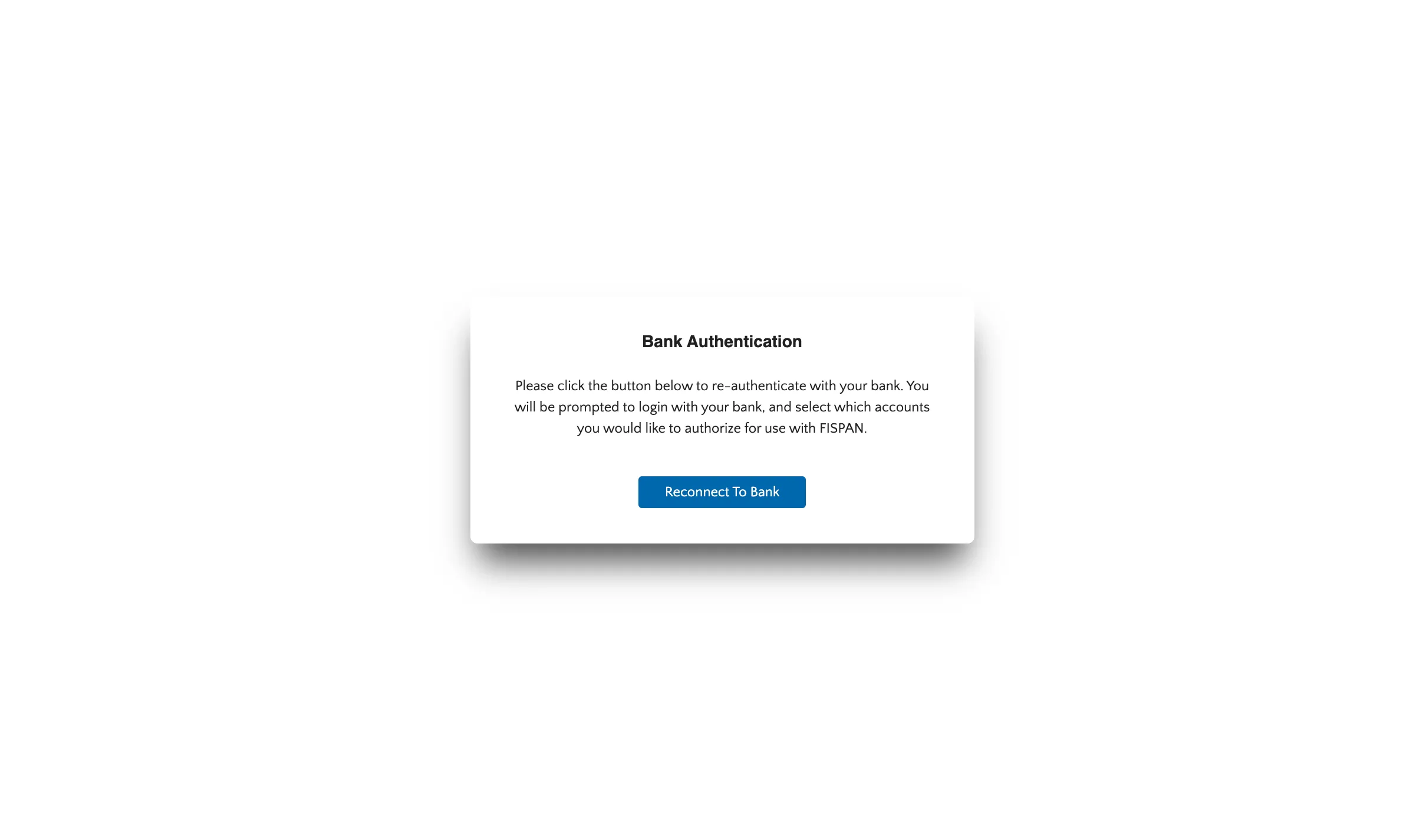
Initiate Reconnection
You will next be brought to a new page. Click on Reconnect to Bank, it will open a new window for you to log into PNC.
Authenticate Accounts
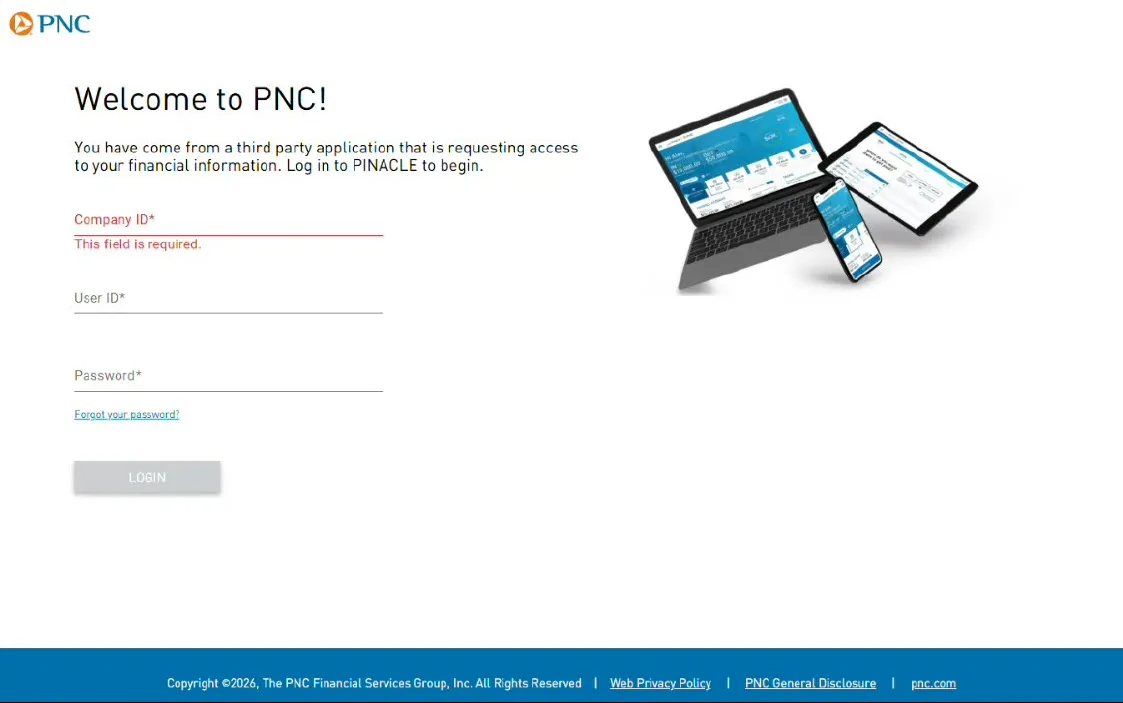
Log into the PNC Portal with the credentials supplied by PNC.
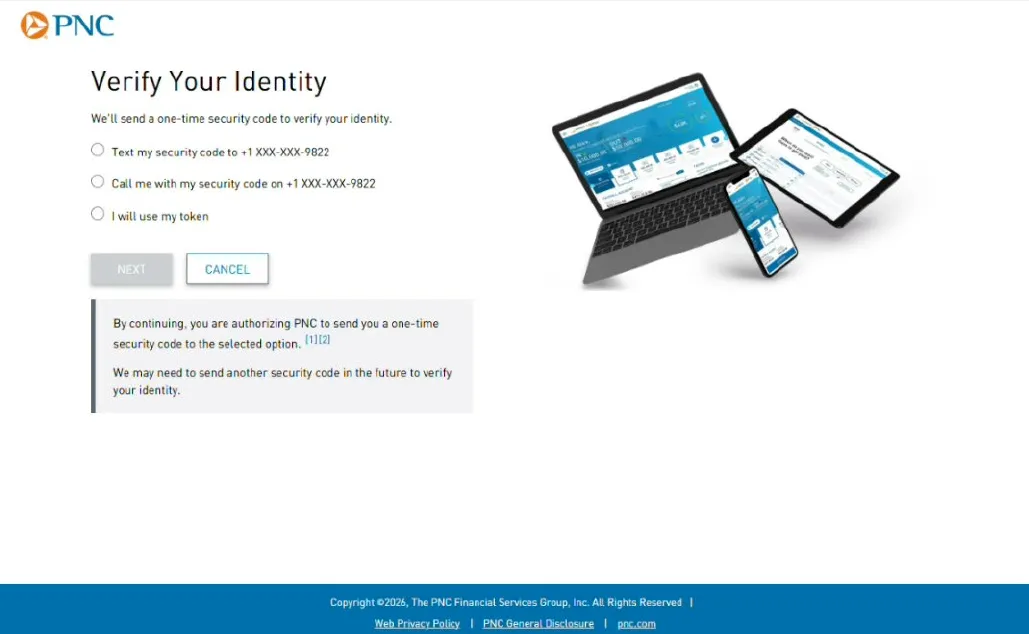
Once logged in, you must verify your identity. This can be done through any of three different methods:
- Text
- Phone call
- Token
Select a method, and then click Next.
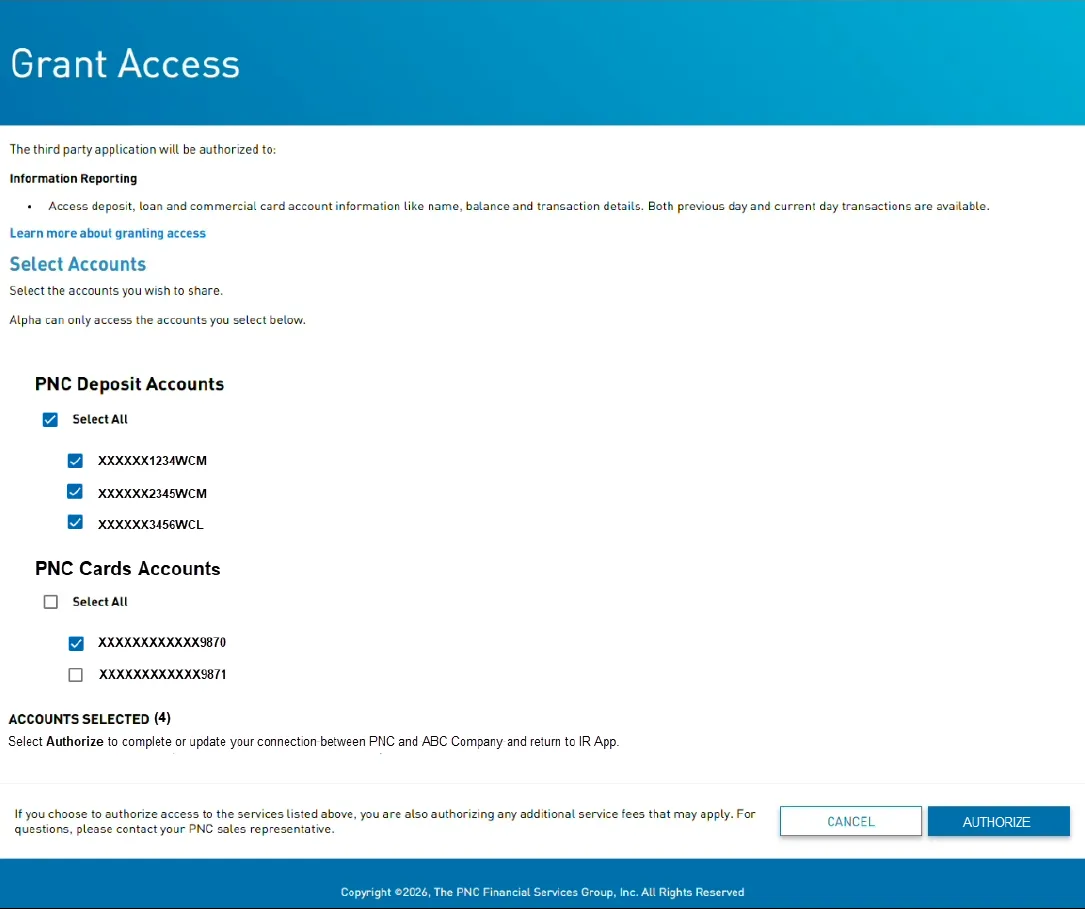
Once you are authenticated, a list of PNC accounts will appear. Check the box(es) next to the account numbers that were included on your enrollment form. You can also click the Select All checkbox to select all accounts available. Then click Authorize.
Success! The window will close automatically after a few moments, and your bank account will be successfully re-authenticated.