Step 5: Let NetSuite Talk to Your Bank
About NetSuite Account ID
Your NetSuite Account ID is required to connect KeyBank to your NetSuite environment.
If you have already shared your NetSuite Account ID with your bank representative during the onboarding setup, you will see this field pre-populated in the installation wizard.
Register Your Account ID
If the Account ID is pre-populated:
Review the pre-filled Account ID to ensure it matches your NetSuite environment.
If correct, continue to Next Step.
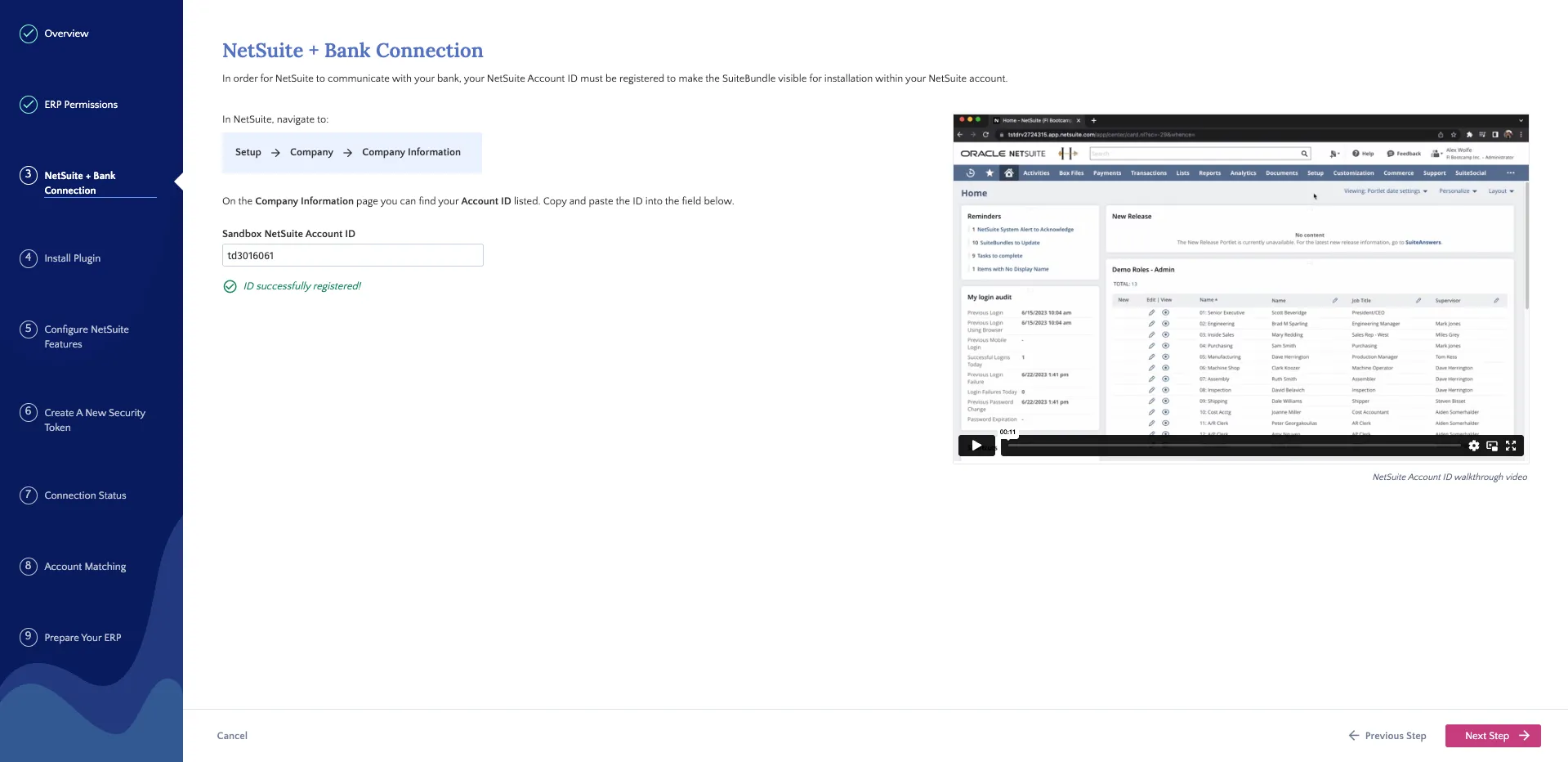
If incorrect, update the Account ID field with the correct value, then click Register System.
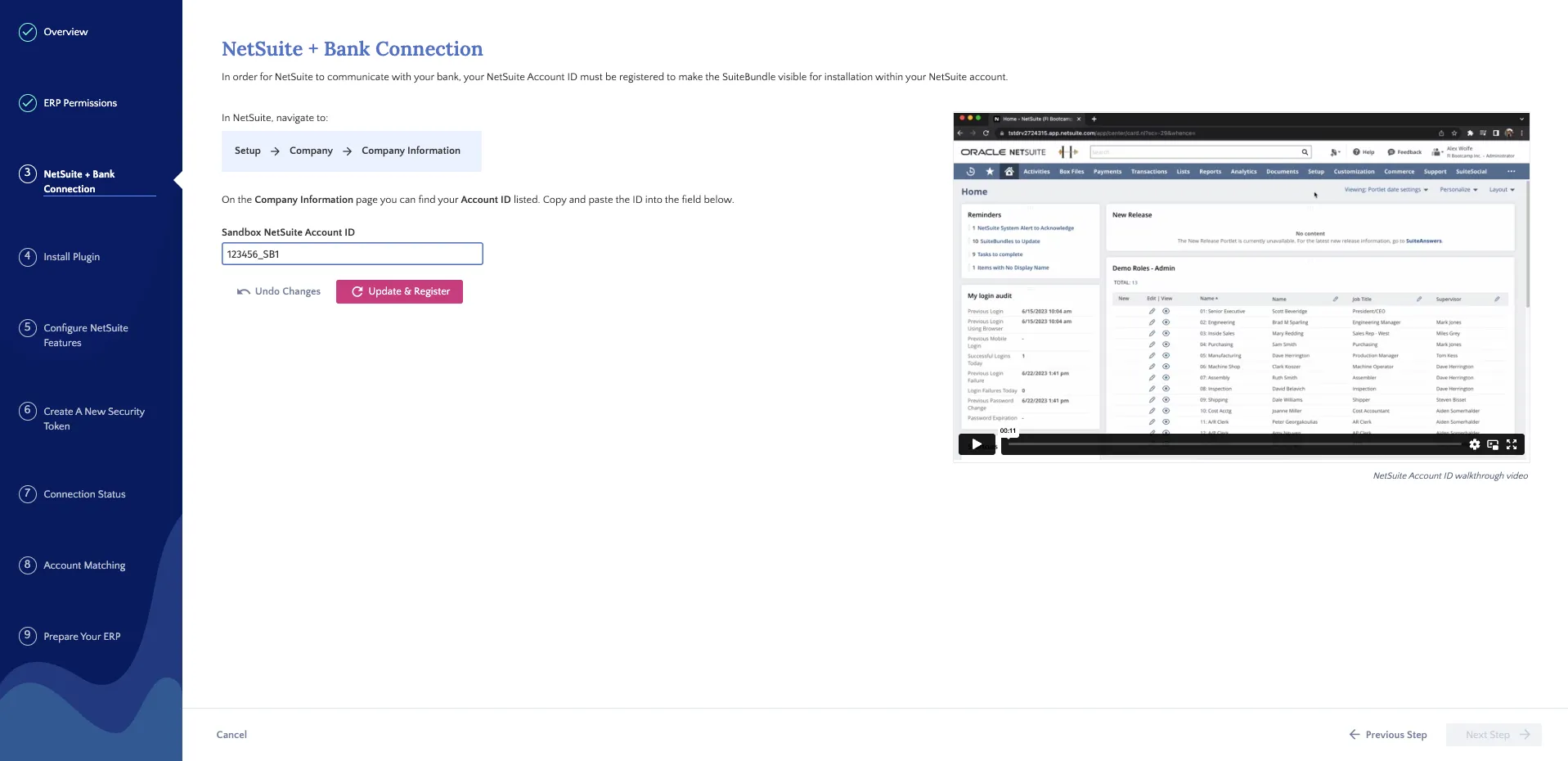
If the Account ID field is empty:
Locate your Account ID in NetSuite (see instructions below).
Enter the Account ID in the field.
Click Register System.
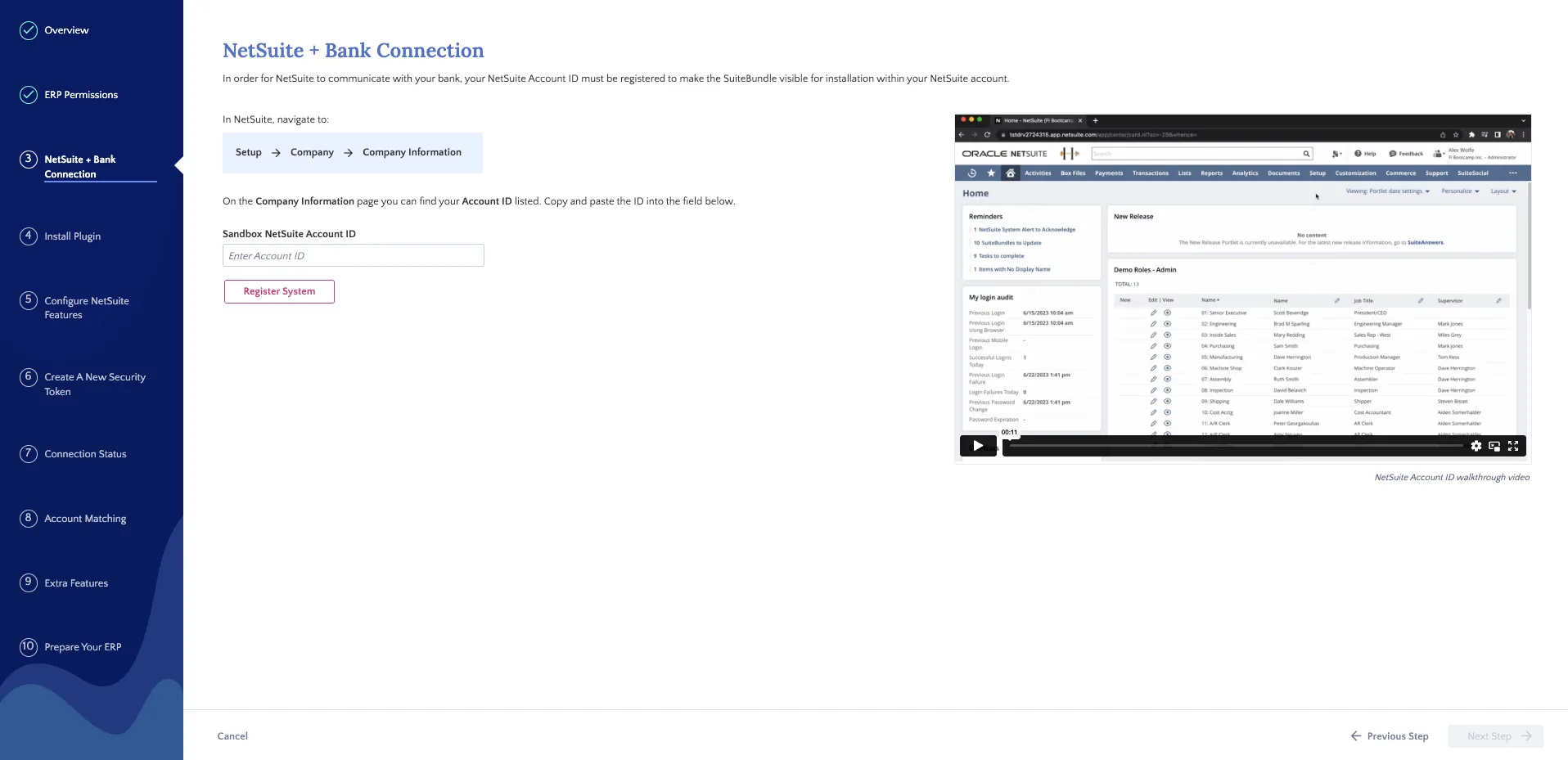
Locate Your Account ID in NetSuite
In NetSuite, navigate to Setup → Company → Company Information.
Locate your Account ID within the Company Information page.
Copy the Account ID.
IMPORTANT: NetSuite Account IDs on Sandbox environments will end with _SB#(e.g., _SB1, _SB2). If you are a Production user, please ensure you are copying the Account ID from your Production environment, not a Sandbox environment.
Troubleshooting Registration Issues
If registration fails:
Verify that you have entered the Account ID correctly.
Ensure there are no extra spaces or characters.
Confirm you are using the Account ID from the correct environment (Production vs. Sandbox).
Click Retry.
If the issue persists after verifying the Account ID, please contact Support for further assistance.